Product reveal
Bottle hero shot
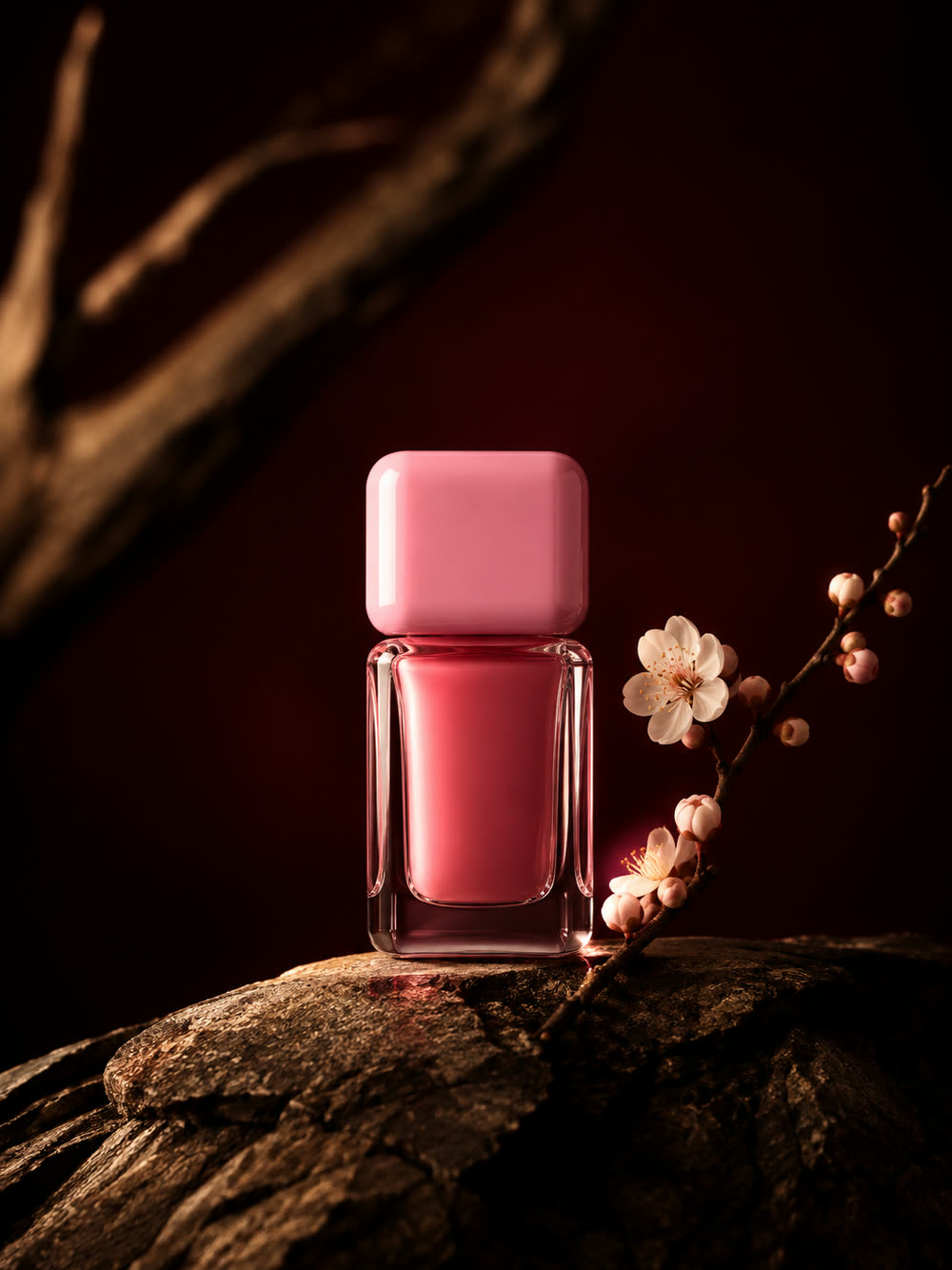
A single rose-toned bottle on dark stone. The camera slowly pushes toward the bottle as soft side light moves across the glass. Keep the composition simple and finish with the bottle centered.
Turn a product photo or scene description into a short video. Choose your Veo 3.1 model and review the credit estimate before generating.
Keep the same brief while you explore Lite, Fast, or Quality. Check the settings and credit estimate for each selection.
Estimates below use the same duration and resolution. Sign in to see server estimates; review the final estimate in the generator before submitting.
Prompt ideas
Start with one subject and one camera move. Load a prompt below, adjust it to your product, then choose your Veo settings.
Product reveal
A single rose-toned bottle on dark stone. The camera slowly pushes toward the bottle as soft side light moves across the glass. Keep the composition simple and finish with the bottle centered.
Fashion detail
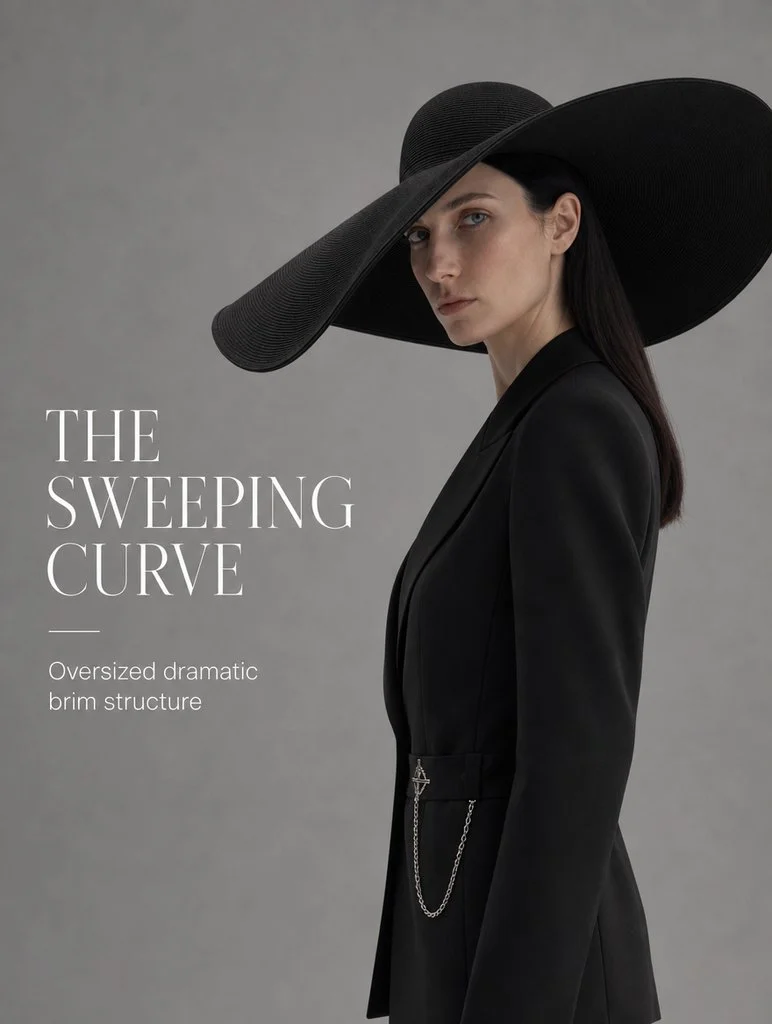
A fashion portrait of a woman in a wide-brim black hat against a soft gray background. Add a small head turn and a slow camera drift. Soft studio light reveals the texture of the hat.
Social clip
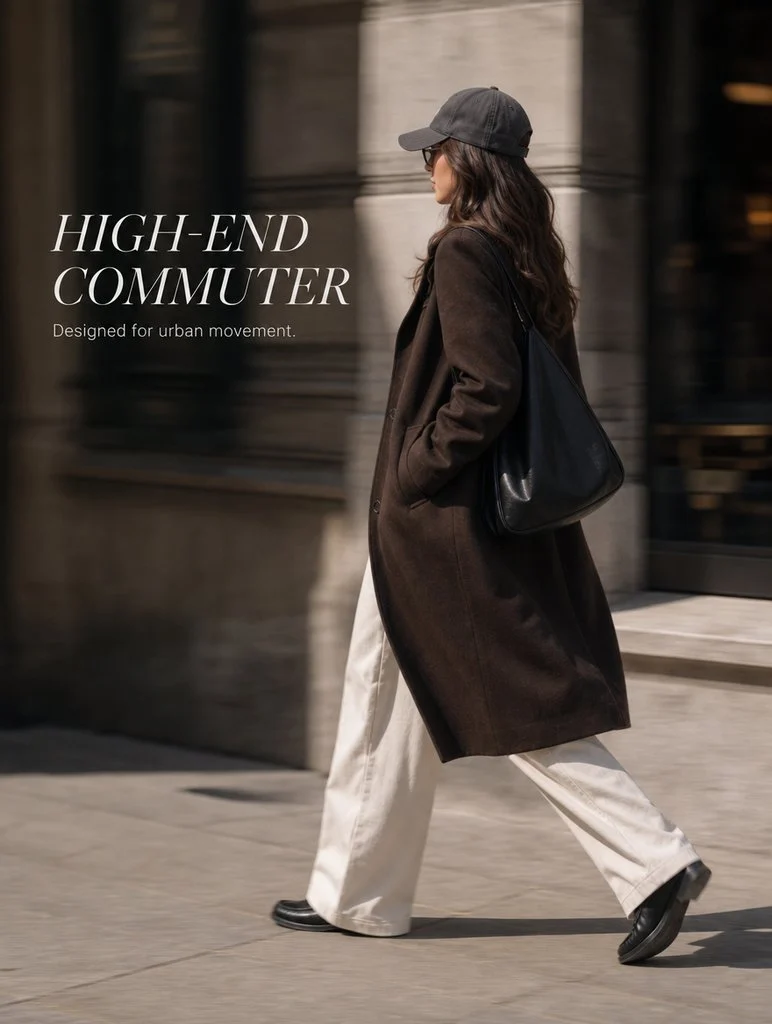
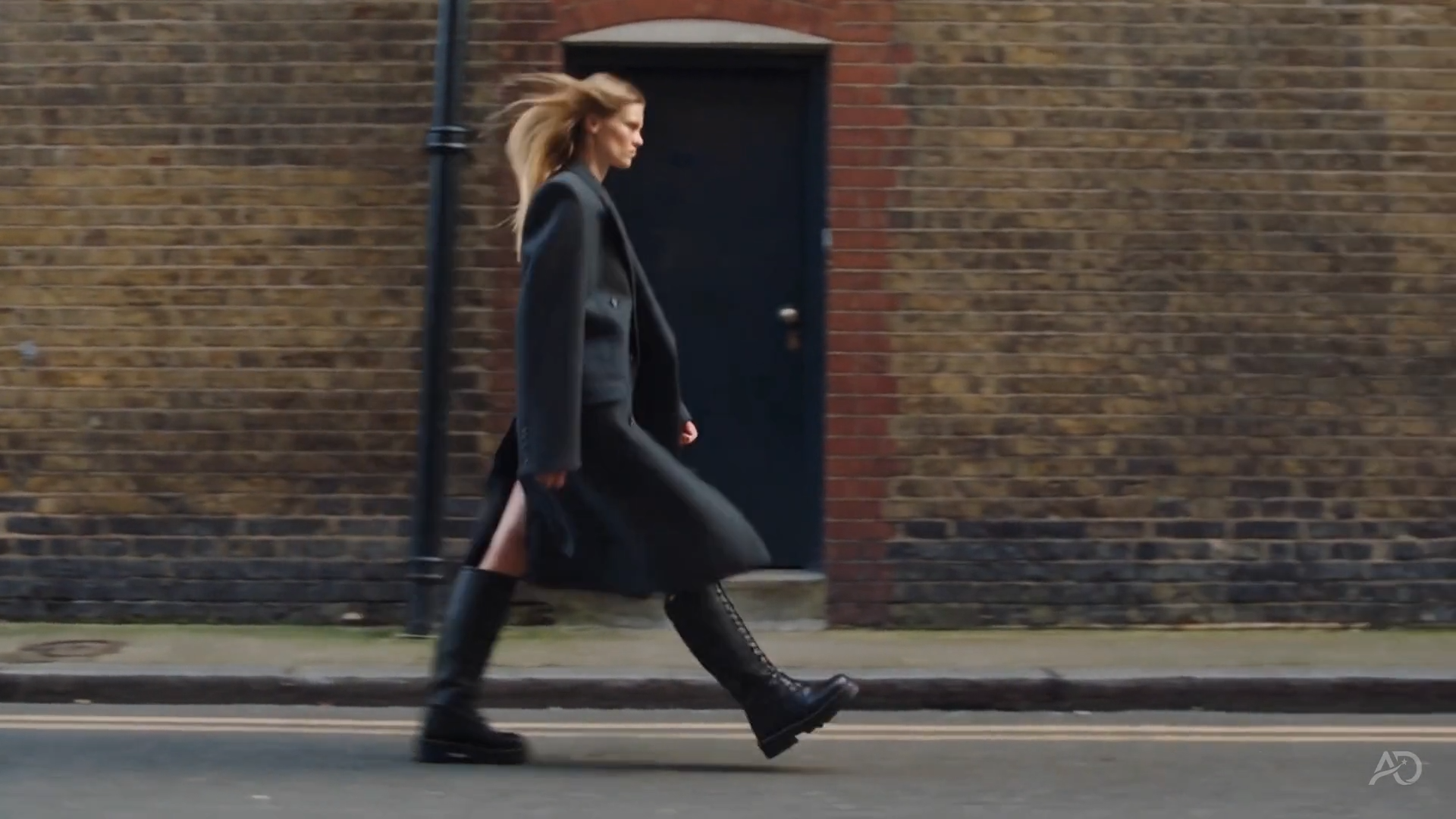
A person in a tailored dark coat walks past a textured brick wall. The camera tracks alongside at walking pace. Use natural daylight and keep the background steady.

Product detail
A hot sauce bottle stands in crushed ice. Begin on the cold glass surface, then gently pull back to reveal the whole bottle. Add subtle condensation and crisp studio lighting.
A clearer brief, a more deliberate first take
Frame the scene, guide the motion, and review the cost. Each decision has a place in this Veo workspace.
01 / FRAME YOUR SUBJECT
Add an image you have permission to use. Tell Veo what should move and which details deserve attention. Review the result for product accuracy.
02 / DIRECT THE MOVEMENT
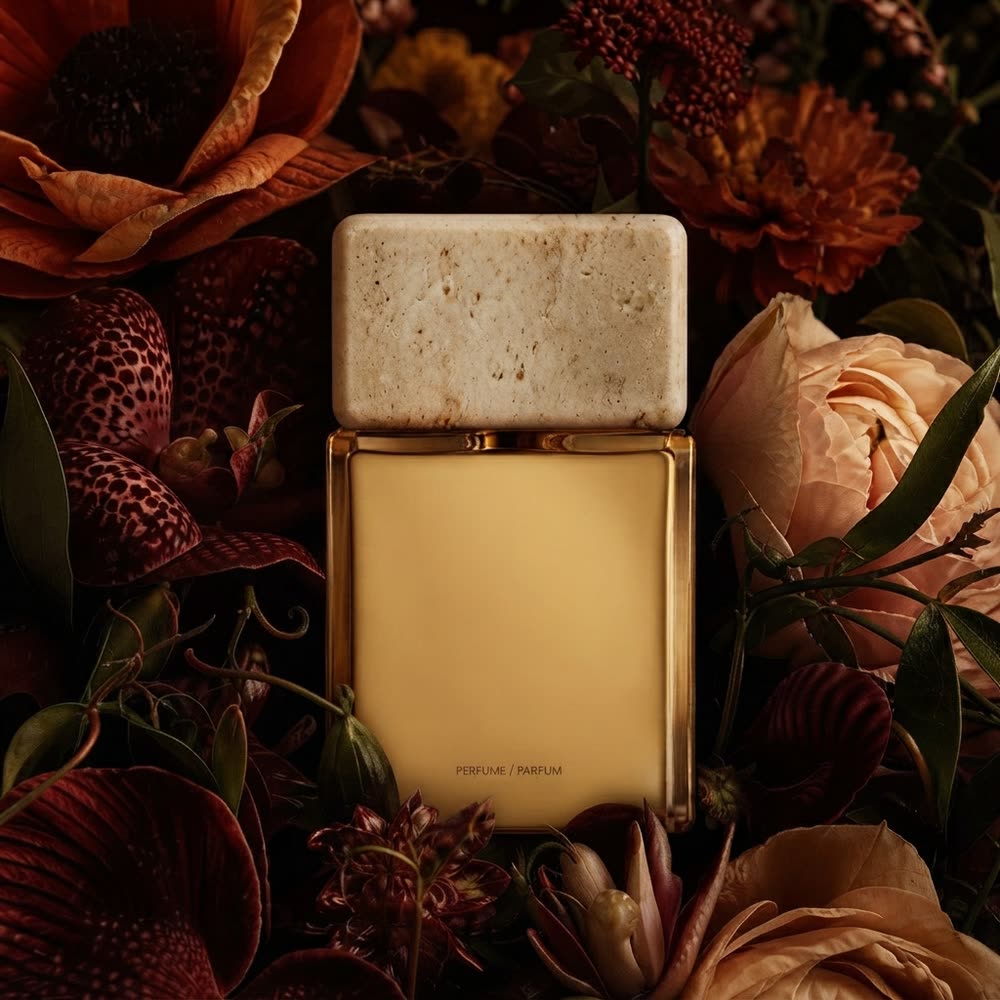
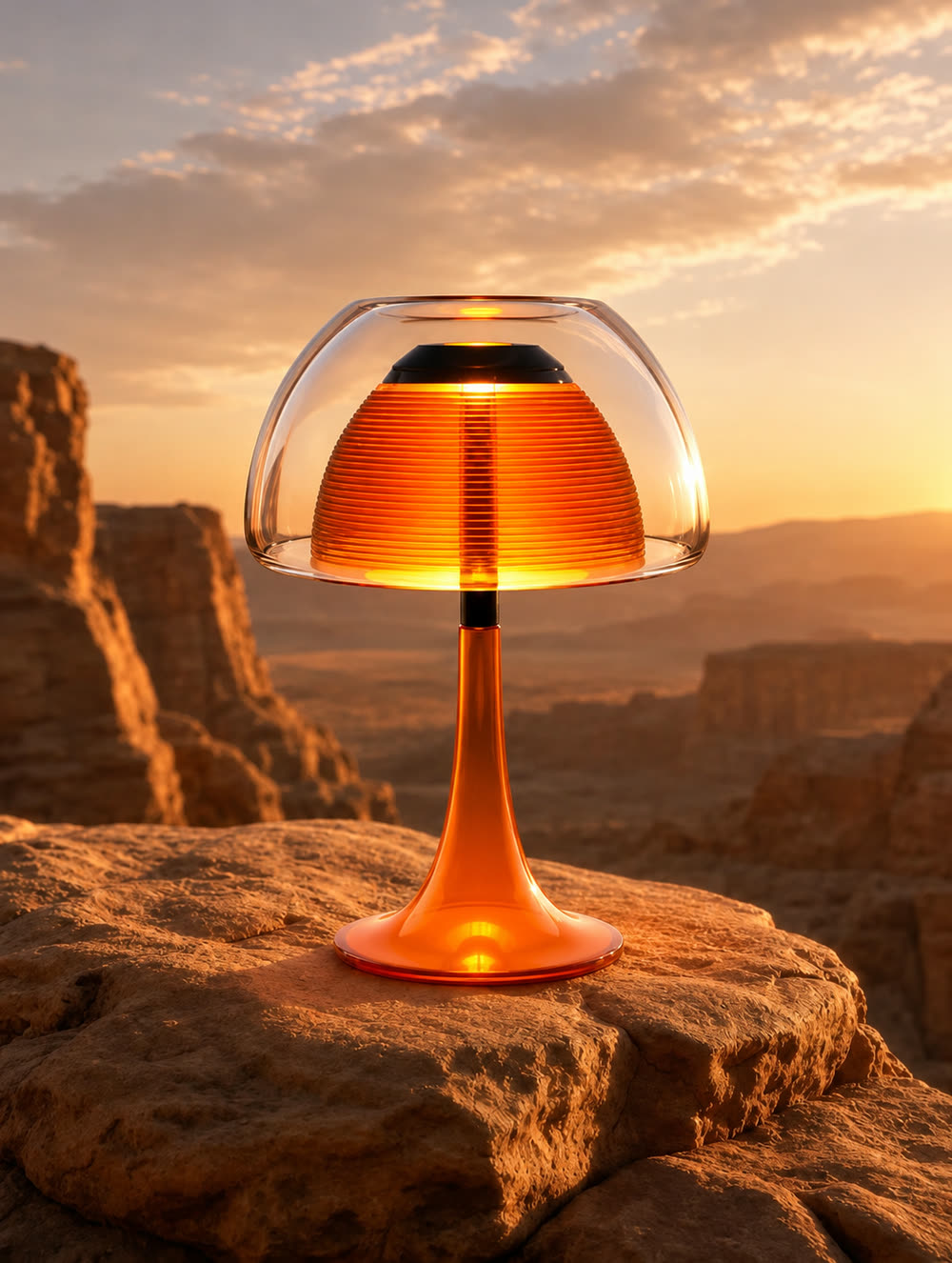
A slow push toward a bottle. A gentle orbit around a lamp. Put the subject, camera movement, and lighting in your prompt so you can refine one decision at a time.
03 / REVIEW YOUR CHOICES
Select Veo 3.1 Lite, Fast, or Quality and review the settings it supports. Check the estimated credits for that combination before submitting.
04 / REVIEW YOUR TAKE
Follow the task on the Create page, preview the completed clip, and download it. Return to Assets to find your generated media for the next step.
From reference to result
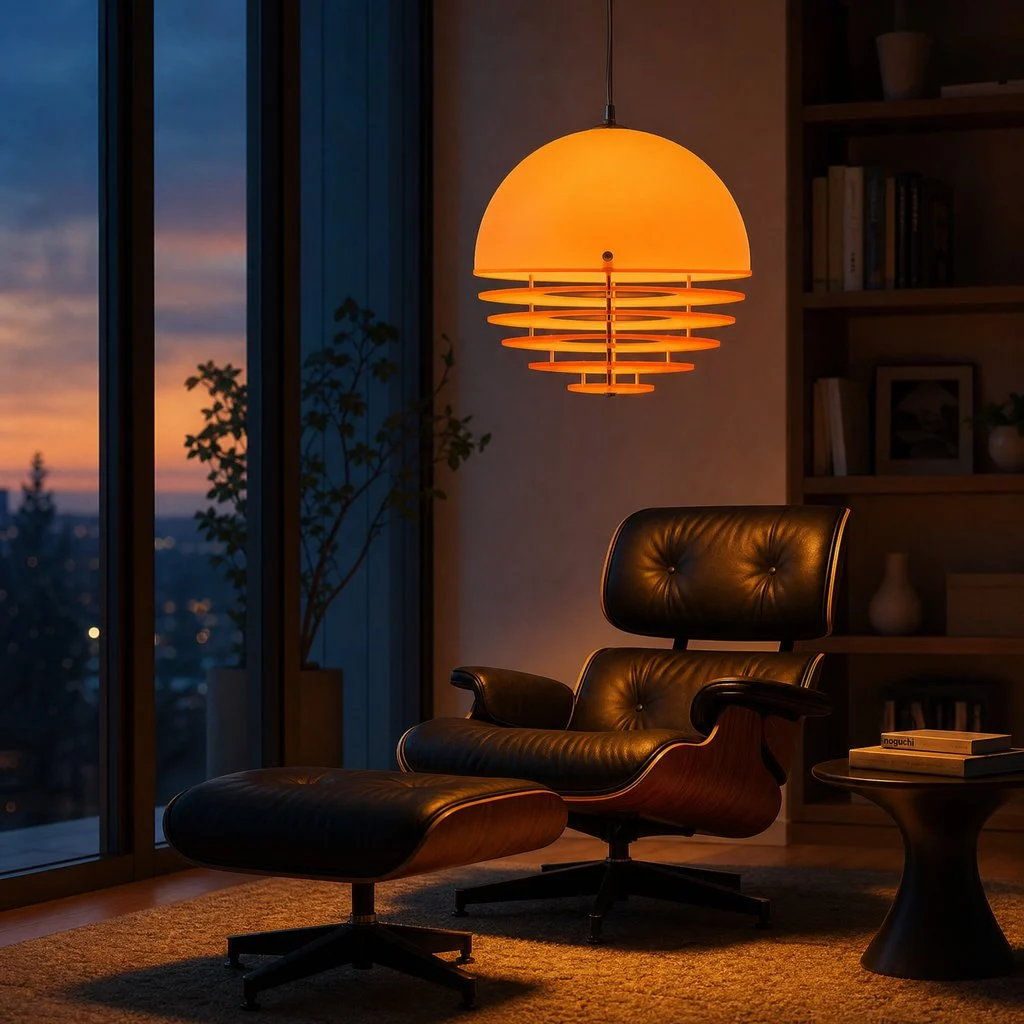
A specific brief is easier to refine. Pick a subject, describe its motion, and use the settings shown for your chosen model.
 Flow AI Video
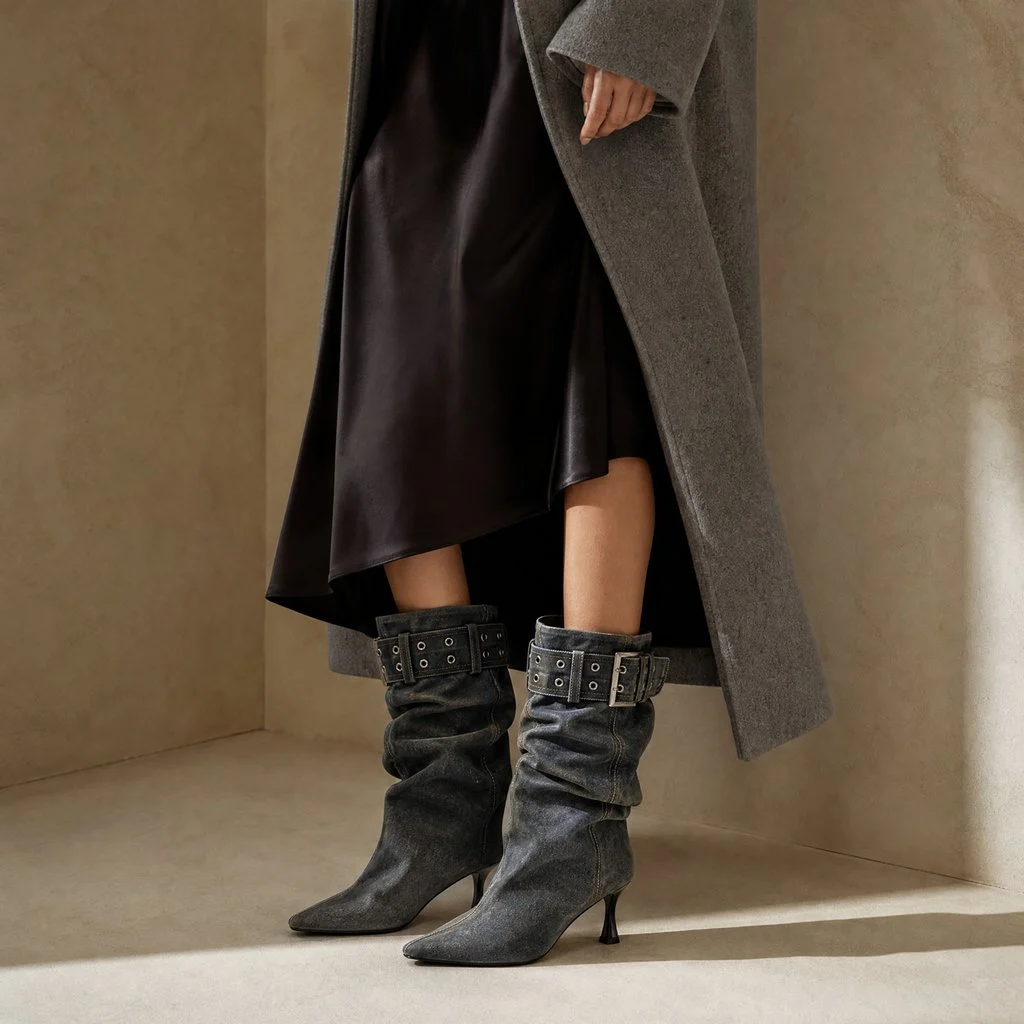
Write the subject, action, camera move, and lighting. Add your own Start image if you want a visual reference.
Choose Lite, Fast, or Quality, then select from the format, duration, and resolution options shown.
Sign in with Google. Check the estimated credits beside the generate button, then submit when the brief is ready.
Follow progress on the Create page. Check the completed clip and download it; your generated media remains accessible in Assets.
One clip, one creative goal
A product reveal, a social post, or a motion concept: give each generation a specific job.
Product sellers
Start with a product photo and ask for a controlled camera move. Review shape, label, and packaging before using the clip in a listing or campaign.
Camera and motion inspiration
These reference clips illustrate camera and scene ideas. They are inspiration, not verified Veo outputs or a promise of your result.
 Flow AI Video
Example 1 / 3
A wide landscape at dawn. Ask for a slow forward move, a distant focal point, and mist drifting across the foreground.
Need a hand?
Know what you are choosing, what it costs, and where your result will appear.
Contact supportLite, Fast, and Quality are available in the model selector. Begin with your intended format and credit budget, then review the estimate for each variant. Results and generation times can vary.
Yes. Add your photo as a Start image and describe the motion you want. Start and End image slots are available in the composer. References guide generation; inspect product details and lettering in the finished video.
Sign in with Google to submit a generation. The Create page shows task progress and the completed video. Your generated images and videos are also available in your own Assets library.
After signing in, select a model, duration, and resolution to see the estimated credits beside the generate button. You can review available plans and credit packs on the pricing page.
This is an independent workspace offering access to supported Google Veo models. It is not affiliated with or endorsed by Google.
Start with the image you already have
Add your reference image, describe one deliberate camera move, and check the estimate. Your first Veo brief is ready to take shape.
