


Flow AI plansSave up to 50% with yearly plansView pricing
Gemini Omni video generator

Gemini Omni Video Generator on Flow AI Video

Use the Gemini Omni Video Generator to create a scene from text or an image reference. Choose Fast or Video, review supported settings, and check credits before generating.

Optional
⇄
Optional
80 credits
Tip: press Ctrl/⌘ + Enter to generateSign in to generate. Check the Gemini Omni credit estimate beside the button before you submit.

Prompt to motion

Plan your shot with the Gemini Omni Video Generator

Keep the brief, model, output settings, and estimated cost together while you prepare a video.

01 / WRITE THE SHOT

Give the model a scene it can stage.

Name the subject, what changes on screen, and where the camera should move. A single visible action gives you a clear first take to review.

  • Subject and action in plain language
  • Camera direction and lighting
  • Optional image reference
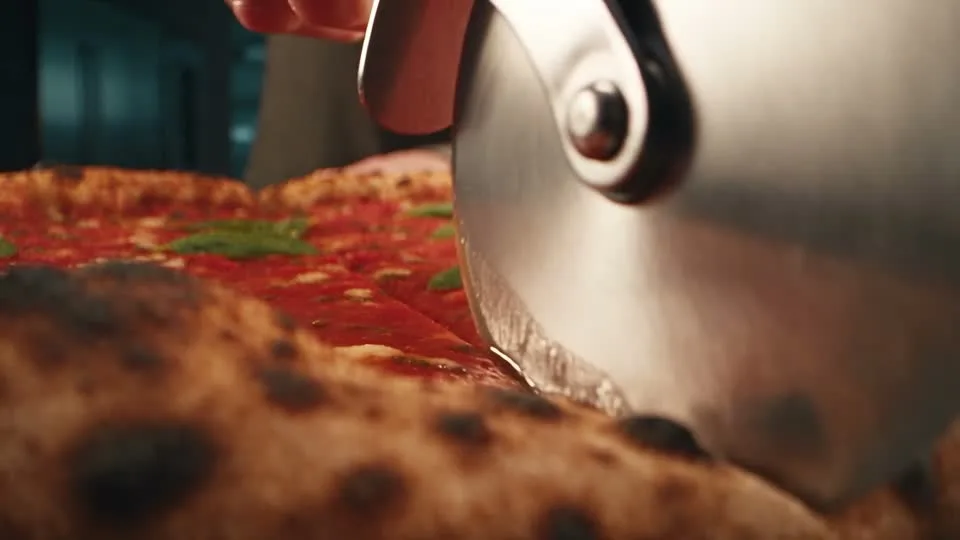
Creative scene from a project video
01 / WRITE THE SHOTFlow AI Video
02 / PICK THE MODEL

Compare Fast and Video for this brief.

Choose the Gemini Omni variant that fits your workflow. Review the settings and estimated credits shown for that model before submitting.

  • Gemini Omni Fast and Gemini Omni Video
  • Model-supported output settings
  • Credit estimate beside Generate
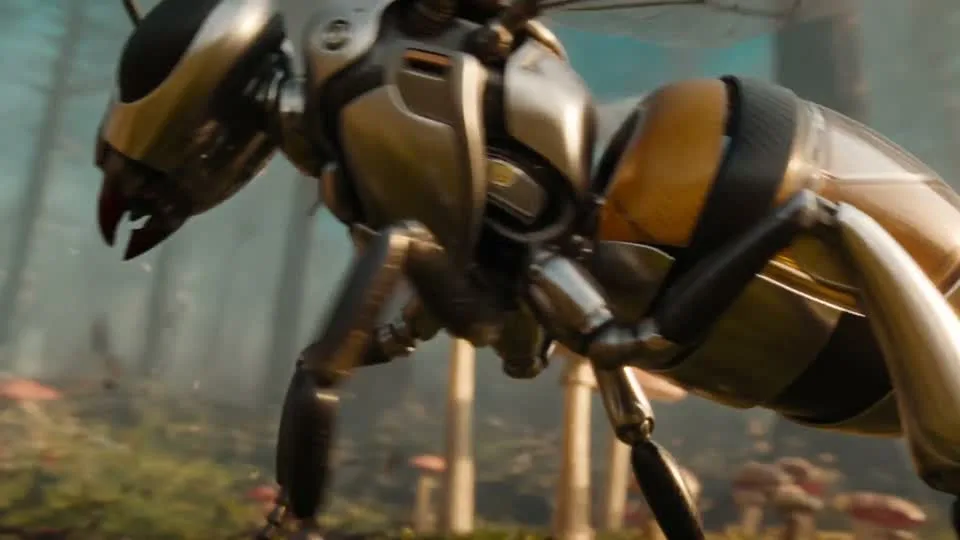
Creative scene from a project video
02 / PICK THE MODELFlow AI Video

03 / REFINE THE DIRECTION

Change one creative choice at a time.

Adjust the movement, pacing, or atmosphere after you review the clip. Keeping the rest of the brief steady makes each new take easier to compare.

  • Reloadable prompt starters
  • Prompt and reference carried into Create
  • A clear next edit
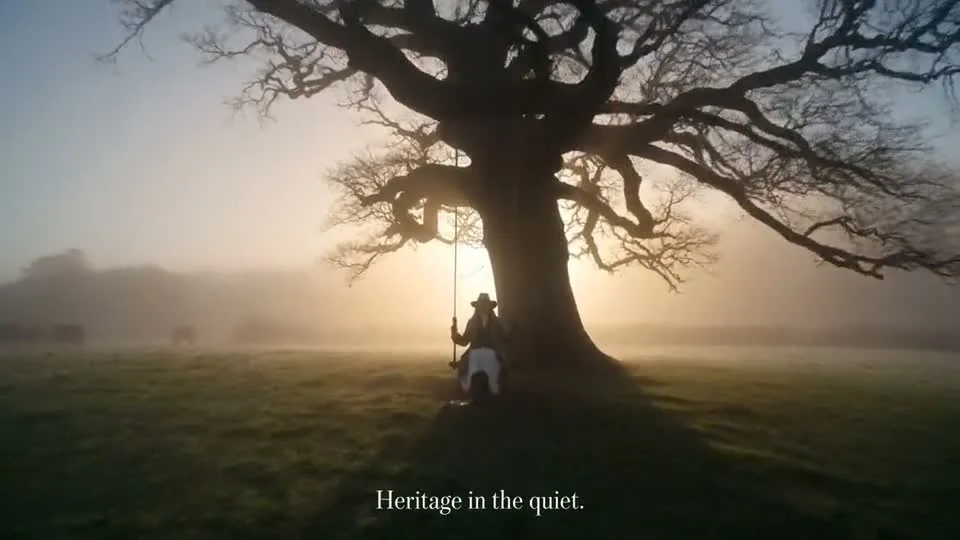
Creative scene from a project video
03 / REFINE THE DIRECTIONFlow AI Video

04 / REVIEW THE RESULT

Find the finished video in your workspace.

Follow task progress on the Create page, preview the completed result, and return to Assets when you need the video again.

  • Generation progress
  • Preview and download
  • Your generated videos in Assets
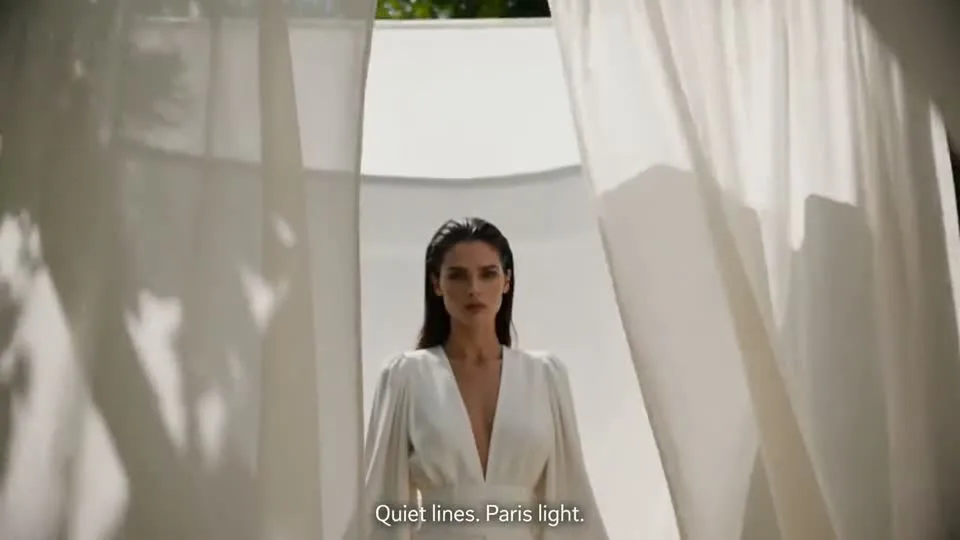
Creative scene from a project video
04 / REVIEW THE RESULTFlow AI Video

From brief to video

From a short brief to a reviewable video

A focused prompt makes it easier to judge the first result and decide what to change next.

Creative scene from a project video
Flow AI Video
1

Step 1: Describe the scene

Write the subject, action, camera move, and visual mood.

2

Step 2: Add a reference if useful

Upload an image to guide the look, then confirm it appears in the composer.

3

Step 3: Choose a Gemini Omni model

Select Fast or Video and review the settings and estimated credits.

4

Step 4: Generate and review

Submit the brief, follow progress in Create, and find the result in Assets.

Video drafts for real workflows

For teams that need a video draft

Use Gemini Omni to explore campaign scenes, social clips, and visual concepts from a prompt or image.

Campaign teams

Turn a brief into a visual draft.

Explore a product moment or campaign scene before you refine the final direction.

  • Start from one campaign message
  • Show a single product action
  • Review the clip before sharing
Creative visual from the project image library

Scene references

Explore motion directions for your next clip

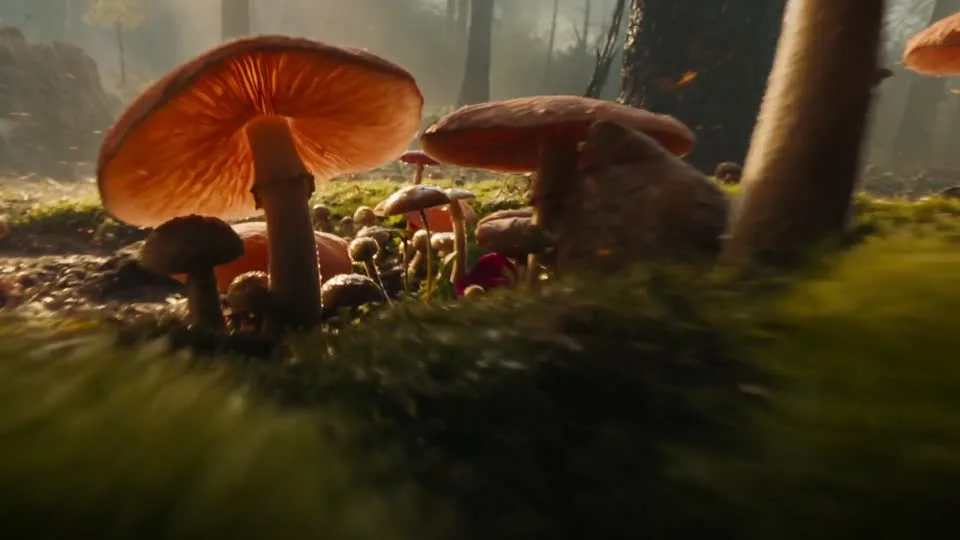
Use these visual references to plan a scene. They are examples, not verified Gemini Omni outputs.

Creative scene from a project video
Flow AI Video

Example 1 / 3

Show the product before the detail.

Open on the full object, move closer to one feature, and finish on a steady frame.

Need a hand?

Gemini Omni video generator questions

Model availability, references, credits, and where to find generated videos.

Contact support
What is Gemini Omni Fast?+

Gemini Omni Fast is one of the available video model options in this workspace. Availability and settings are shown in the model selector.

Can I start with an image?+

Yes. Add an image reference in the composer and describe the motion or scene you want to explore.

How do credits work?+

Sign in and select a model to see the estimated credit cost beside the generate button. Confirm the estimate before submitting.

Where does my video appear?+

The Create page shows generation progress and completed results. Generated media is also listed in Assets.

Is this an official Google product page?+

No. Flow AI Video is an independent workspace and is not affiliated with or endorsed by Google.

Your next scene starts here

Put your next video brief into motion

Write the scene, choose a Gemini Omni model, and check the estimate before submitting.

See plans
Skincare product visual from the Flow AI Video asset libraryFashion campaign visual from the Flow AI Video asset library