



01
Give the scene one clear action
Write the action as a short sequence: a subject turns, a camera moves closer, or light crosses a surface. Choose a Seedance duration that gives that action room to unfold.
01Flow AI Video
Use the Seedance Video Generator to turn a scene prompt or image reference into a clip. Choose Seedance 2 or 2.5, describe the movement, and check the supported settings and credit estimate.
A clearer brief, a more deliberate first take
Build a short scene with Seedance 2 & 2.5. Describe one clear action and a camera move, then review the model settings and credit estimate before generating.
01
Write the action as a short sequence: a subject turns, a camera moves closer, or light crosses a surface. Choose a Seedance duration that gives that action room to unfold.
02
Switch models to see their supported settings and estimated credits. Use the same brief to compare results before choosing a version for your next draft.
03
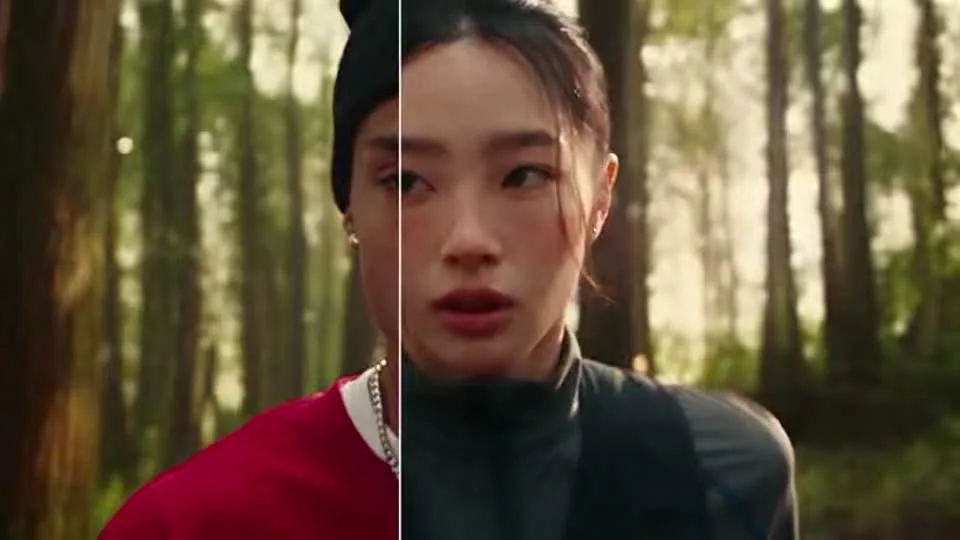
Add a start or end image to give your Seedance prompt a visual reference. Specify what should move and compare the generated clip with the uploaded frame.
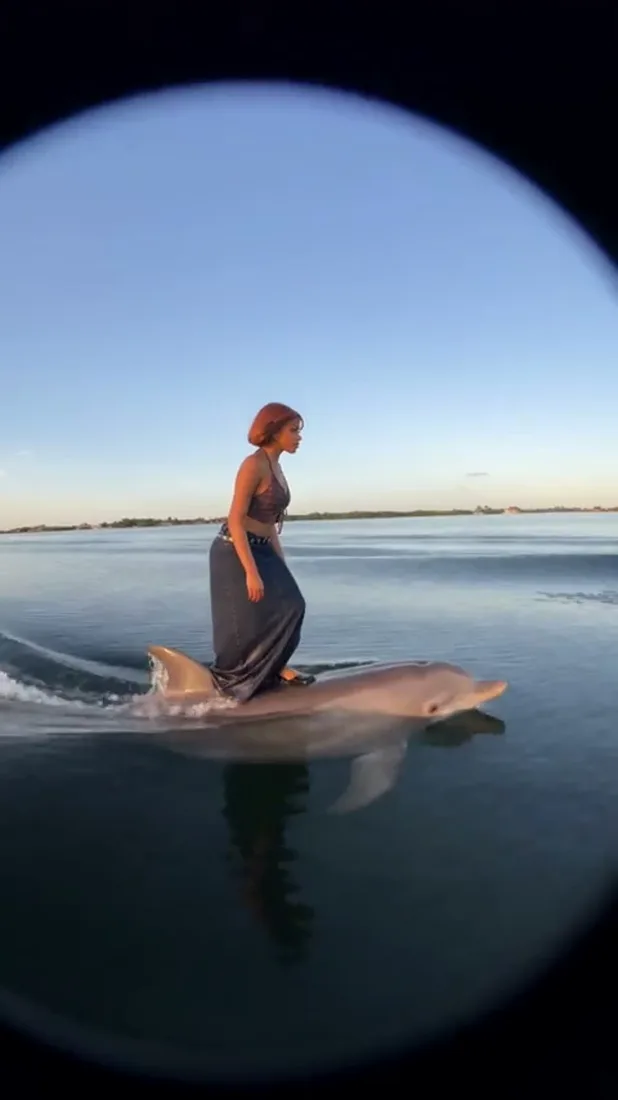
04
Keep the prompt and reference constant when comparing Seedance 2 and 2.5. Note the selected settings and credits so you can decide which take fits the shot.
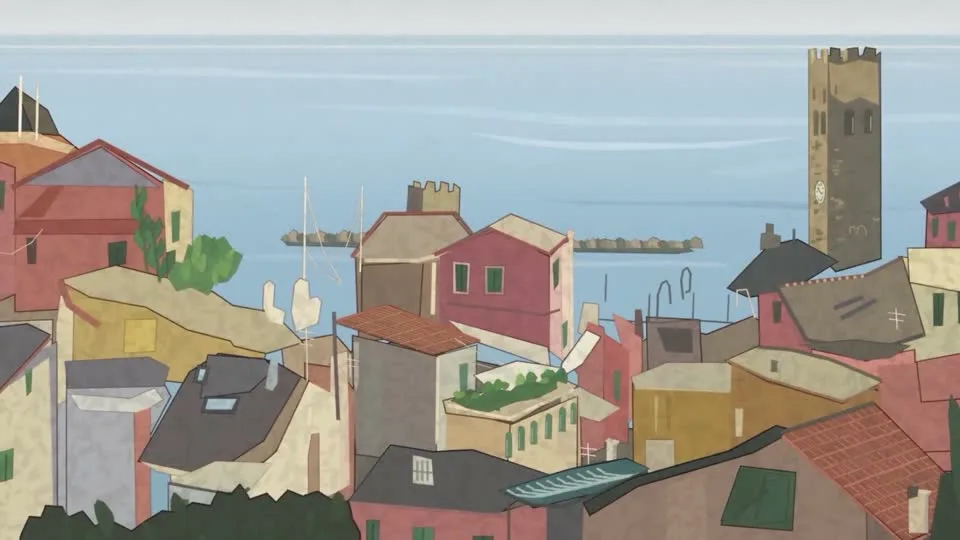
From reference to result
Prepare your brief, choose supported settings, and review the result.
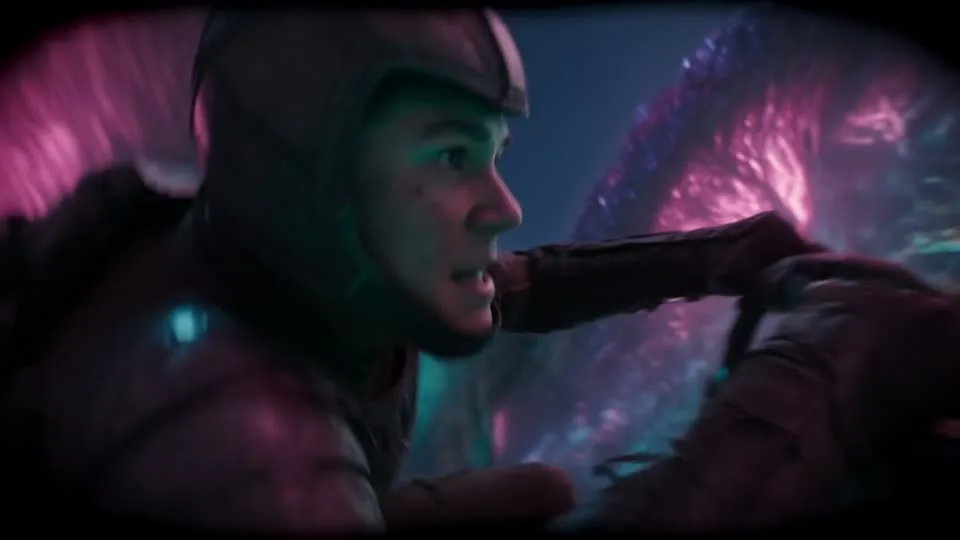 Flow AI Video
Select Seedance 2 or 2.5 in the model selector and review its available settings.
Write the subject, action, and camera move. Add a start or end image when needed.
Confirm the credit estimate, generate, and inspect motion and reference details in Create.
One clip, one creative goal
Start with the intended use, then define the subject, style, and details to review.
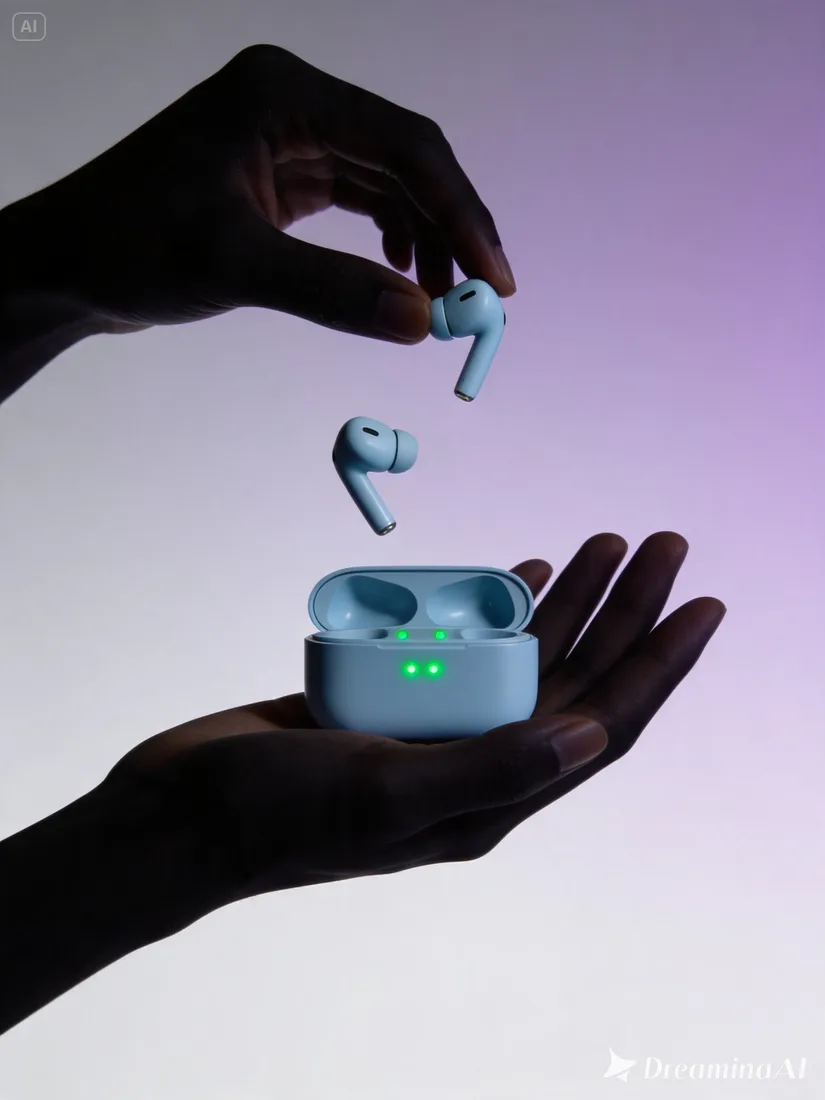
Product visuals
Describe a recognizable subject and one action so the clip has a clear focus.
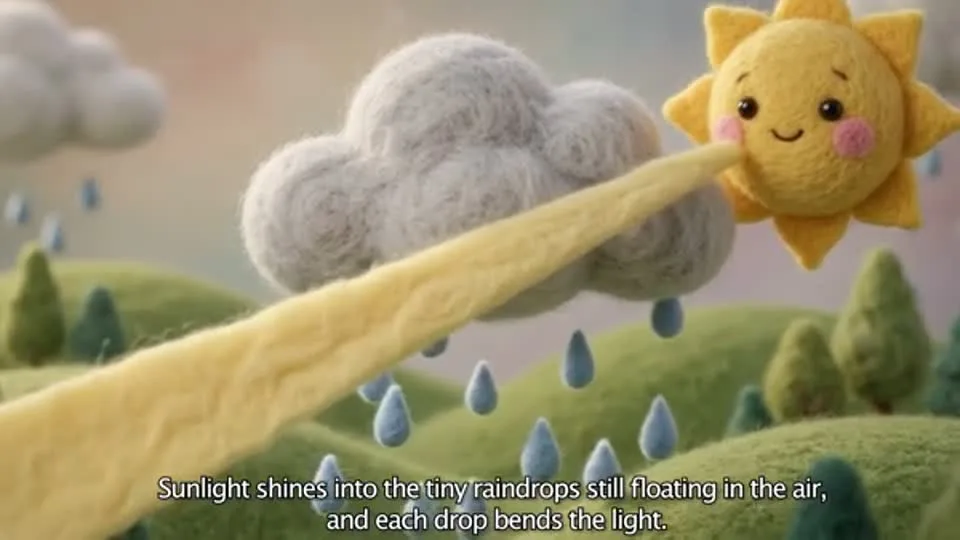
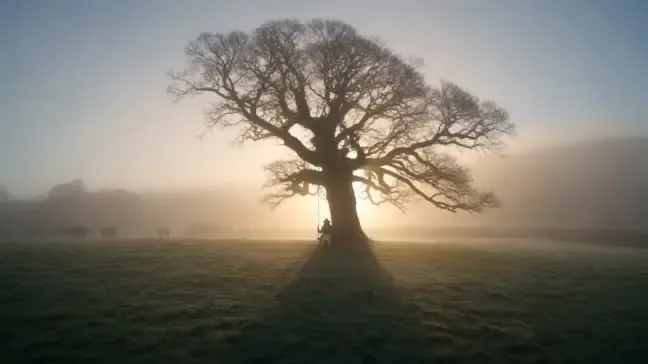
Camera and motion inspiration
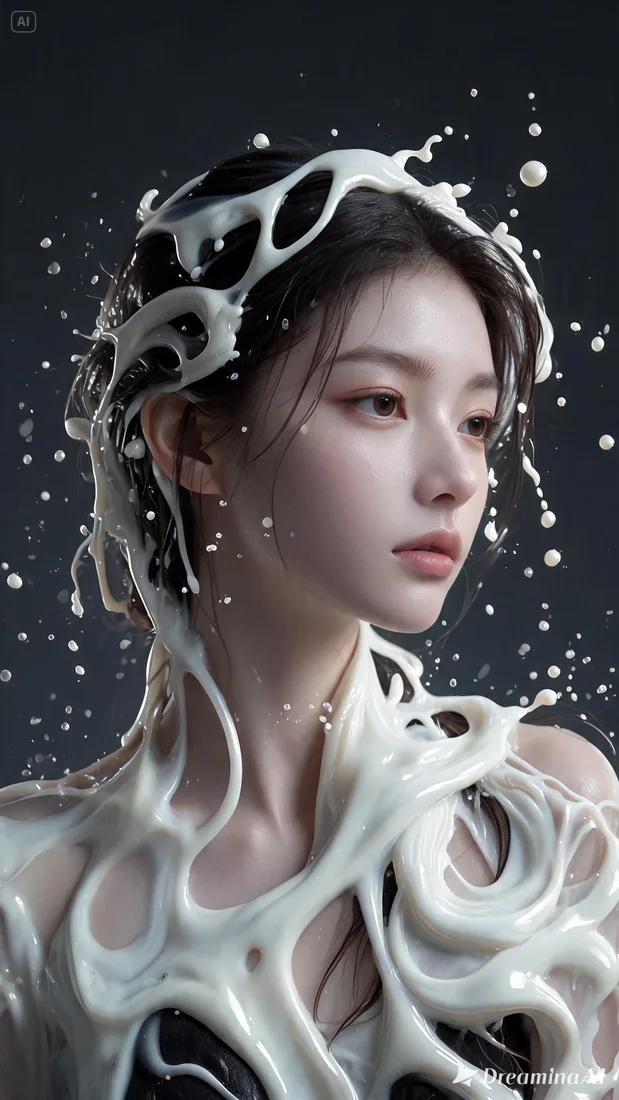
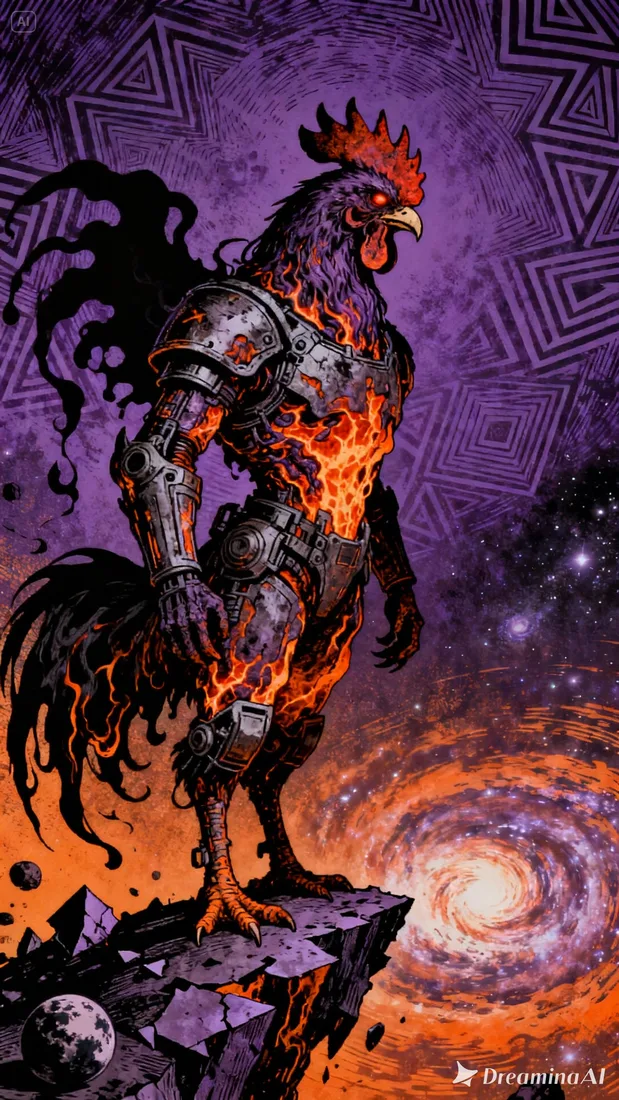
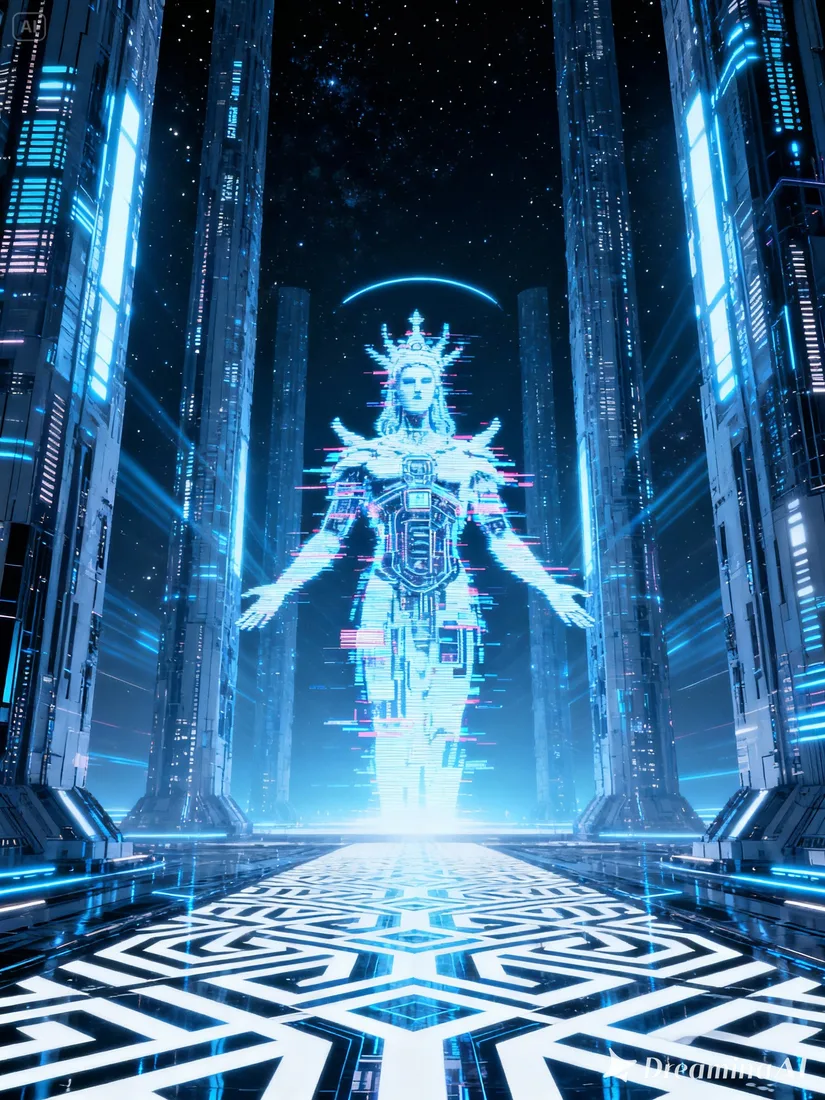
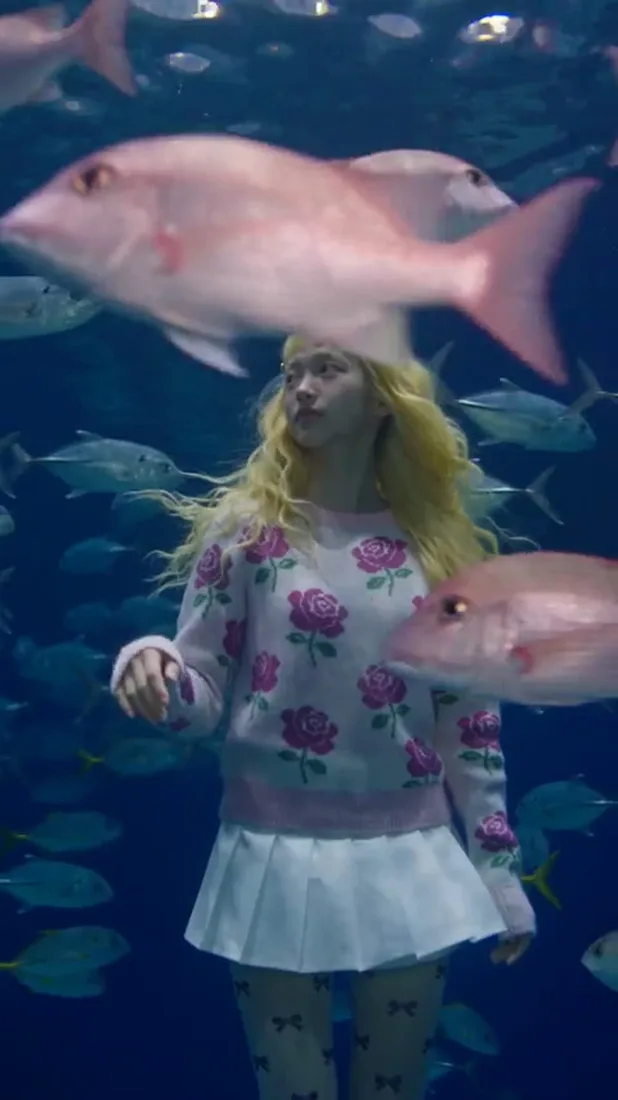
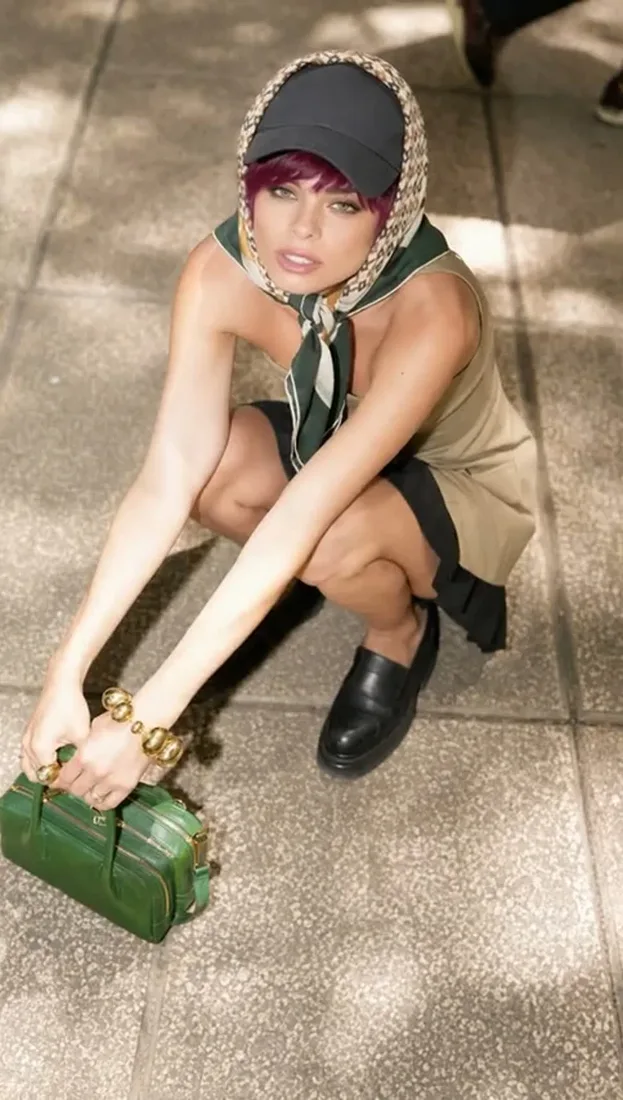
These images are visual references for composition and motion, not verified outputs from your selected model.
 Flow AI Video
Example 1 / 2
Describe a recognizable subject and one action so the clip has a clear focus.
Need a hand?
Review the requirements for this workflow before you generate.
Contact supportUse the model selector above the Generate button. After switching versions, review the available format and output settings and the updated credit estimate.
These images illustrate creative directions and are not verified outputs from this model. Review your own generated result for the details that matter.
Choose a model and supported settings to review estimated credits. Opening the page and preparing a draft does not start a paid generation.
Start with the image you already have
Choose Seedance 2 or 2.5 above and describe one action. Add an image reference if you have one, then review the estimate and generate.