Flow AI plansSave up to 50% with yearly plansView pricing
Nano Banana 2 image generator

Nano Banana 2 Image Generator on Flow AI Video

Use the Nano Banana 2 Image Generator to create a product scene, portrait, or reference-based edit. Choose Nano Banana 2 or 2.1 and review settings before generating.

10 credits
Tip: press Ctrl/⌘ + Enter to generateSign in to generate. Check the Nano Banana credit estimate beside the button before you submit.

Prompt to image

Build a visual brief for the Nano Banana 2 Image Generator

Keep your prompt, reference images, model, and output settings together as you shape a usable visual.

01 / DEFINE THE FRAME

Describe what the viewer should notice.

Name the main subject, its position, and the background. Add material, lighting, or camera details when they matter to the image.

  • One clear subject
  • Composition and background
  • Lighting and surface details
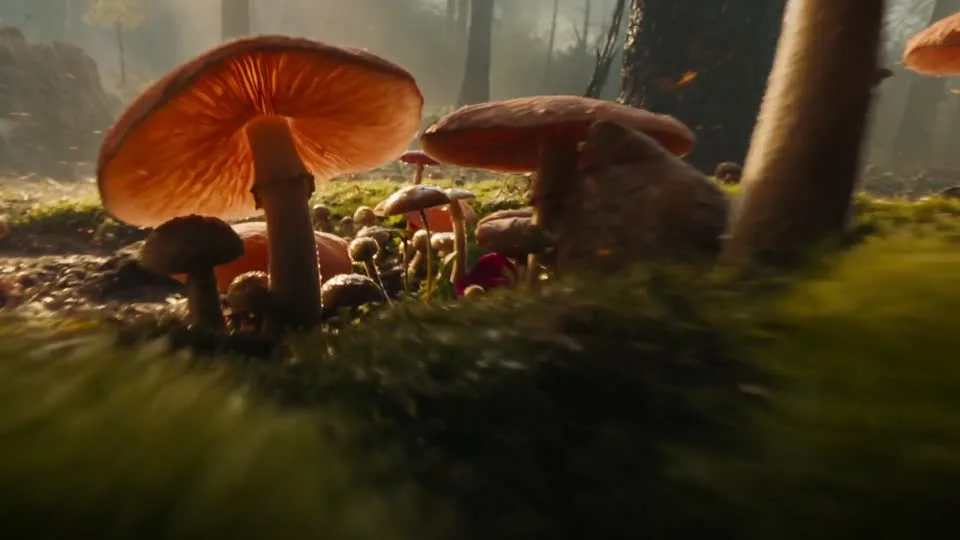
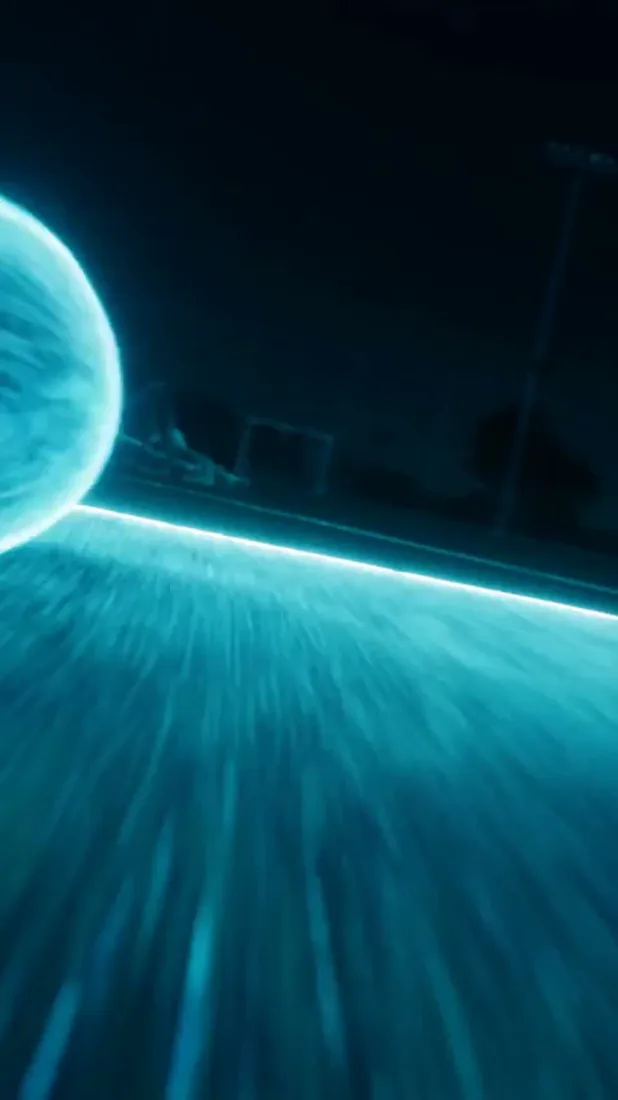
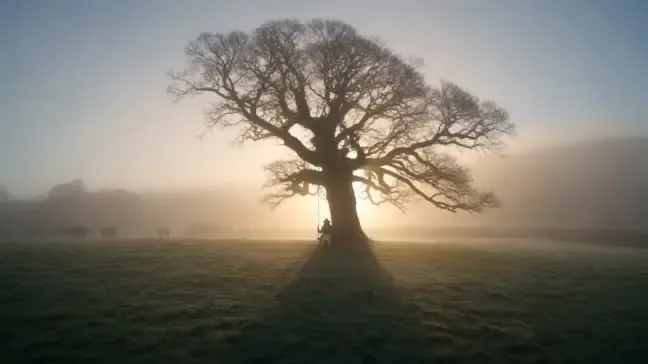
Creative scene from a project video
01 / DEFINE THE FRAMEFlow AI Video
02 / ADD REFERENCES

Use images to clarify the visual direction.

Upload a reference when you want to guide colors, objects, or composition. Keep the written prompt specific about what should change.

  • Choose images from your library
  • Upload new references
  • See selected images in the composer
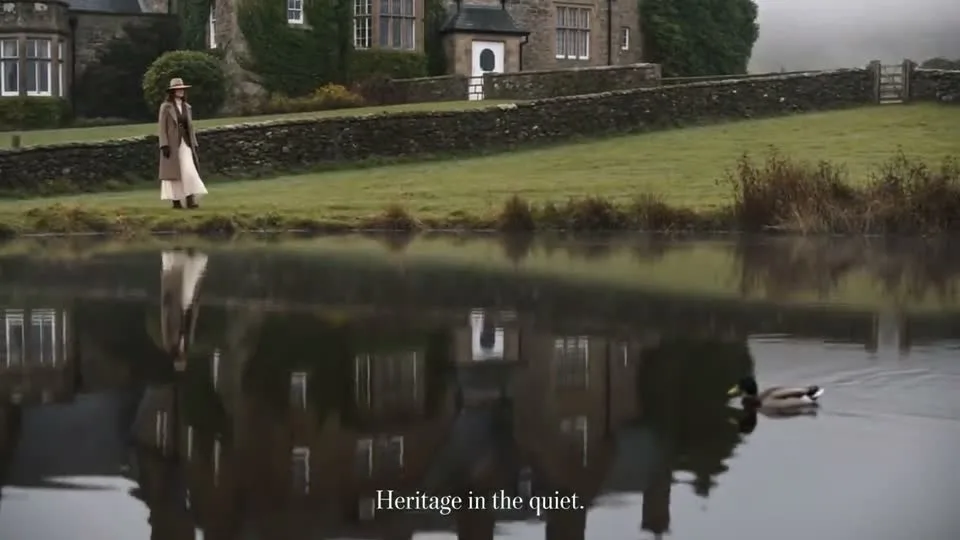
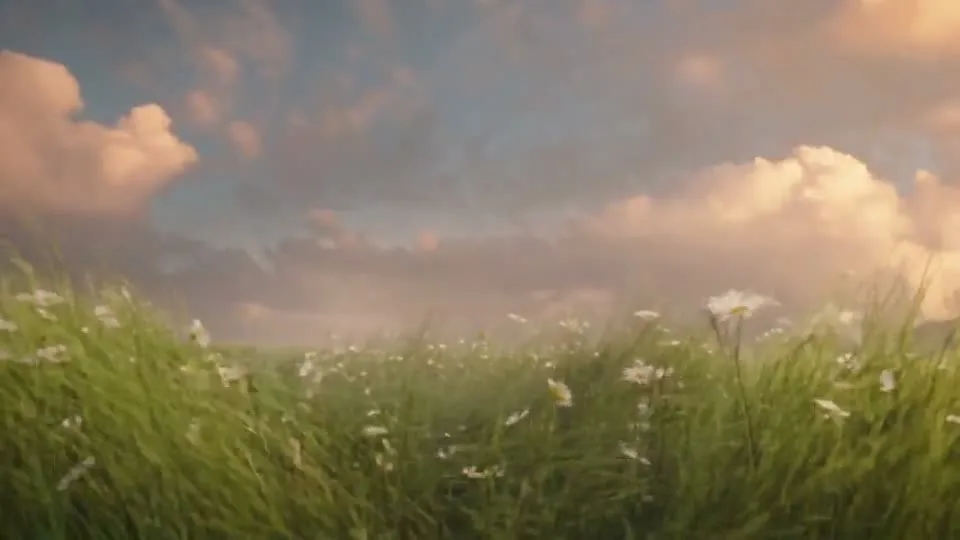
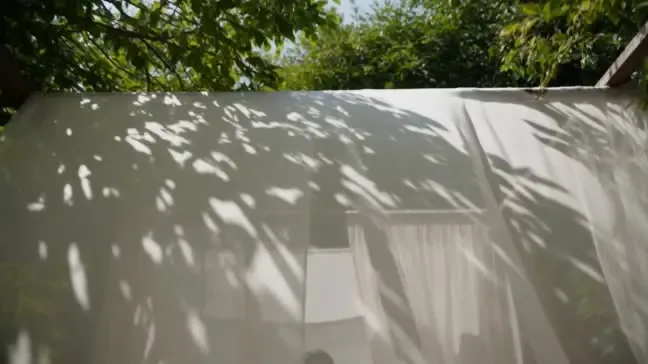
Creative scene from a project video
02 / ADD REFERENCESFlow AI Video

03 / CHOOSE A MODEL

Match Nano Banana to the image task.

Select Nano Banana 2 or 2.1, then review the available aspect ratios, resolution options, and estimated credits.

  • Two Nano Banana options
  • Model-supported image settings
  • Estimate before Generate
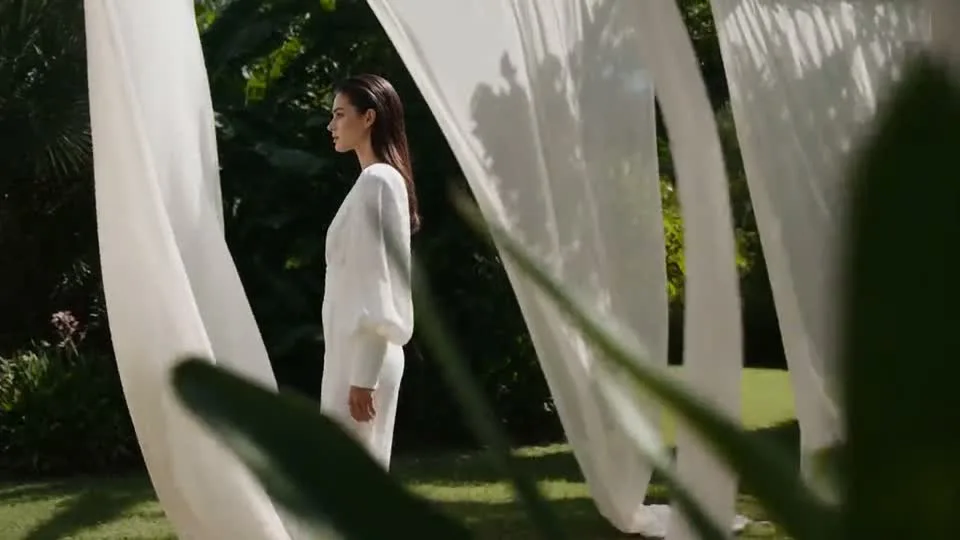
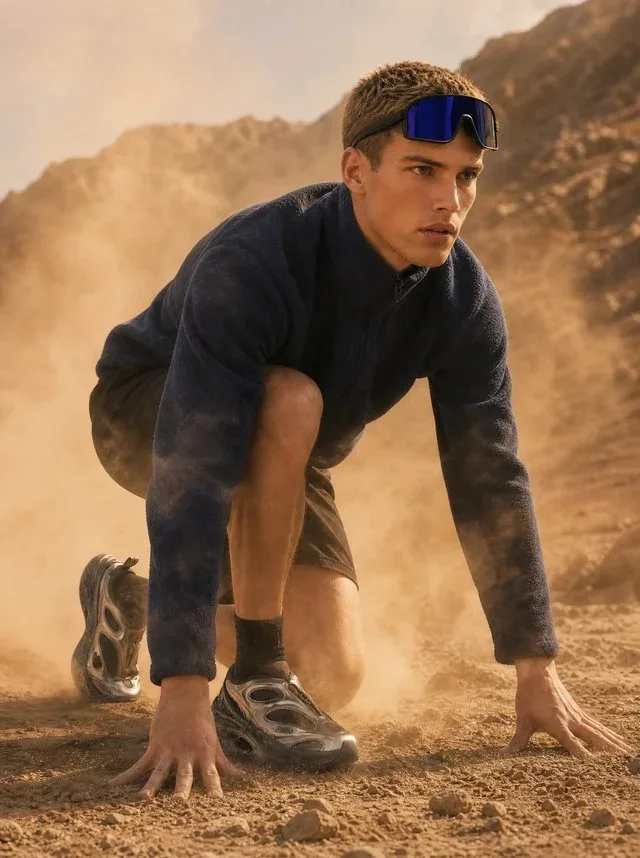
Creative scene from a project video
03 / CHOOSE A MODELFlow AI Video

04 / REVIEW AND REFINE

Keep each image ready for the next step.

Open the generated result, inspect important details, and adjust the prompt. Your completed images are available in Assets.

  • Preview completed images
  • Download the result
  • Find generated media in Assets
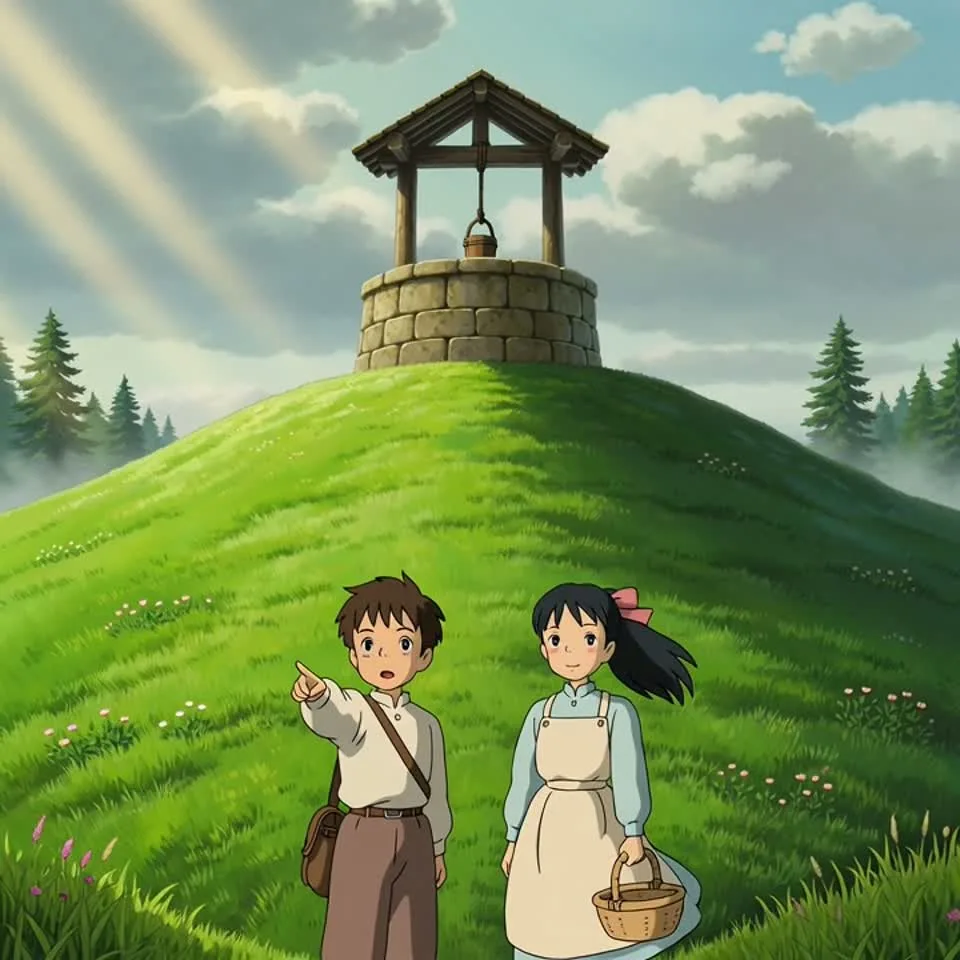
Creative scene from a project video
04 / REVIEW AND REFINEFlow AI Video

From brief to image

From a visual brief to an image you can review

Describe what should be in frame, then inspect the result and refine the prompt where needed.

Creative scene from a project video
Flow AI Video
1

Step 1: Describe the composition

Write the subject, framing, background, and lighting you want.

2

Step 2: Add image references

Upload or select images when they help explain the look or details.

3

Step 3: Choose Nano Banana

Select a model and inspect the aspect ratio, resolution, and estimated credits.

4

Step 4: Generate and refine

Review the image in Create, adjust your prompt, and find saved results in Assets.

Images for real workflows

For people who need a usable image draft

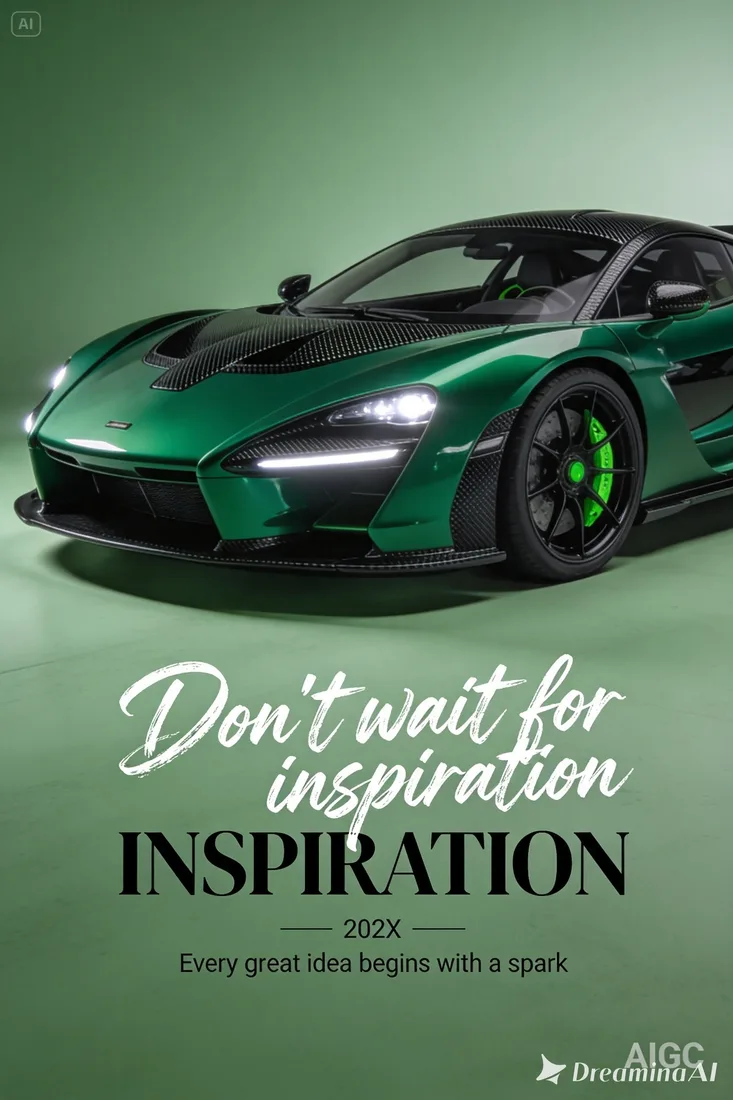
Create product concepts, campaign visuals, and polished scene studies from a written brief or image reference.

E-commerce teams

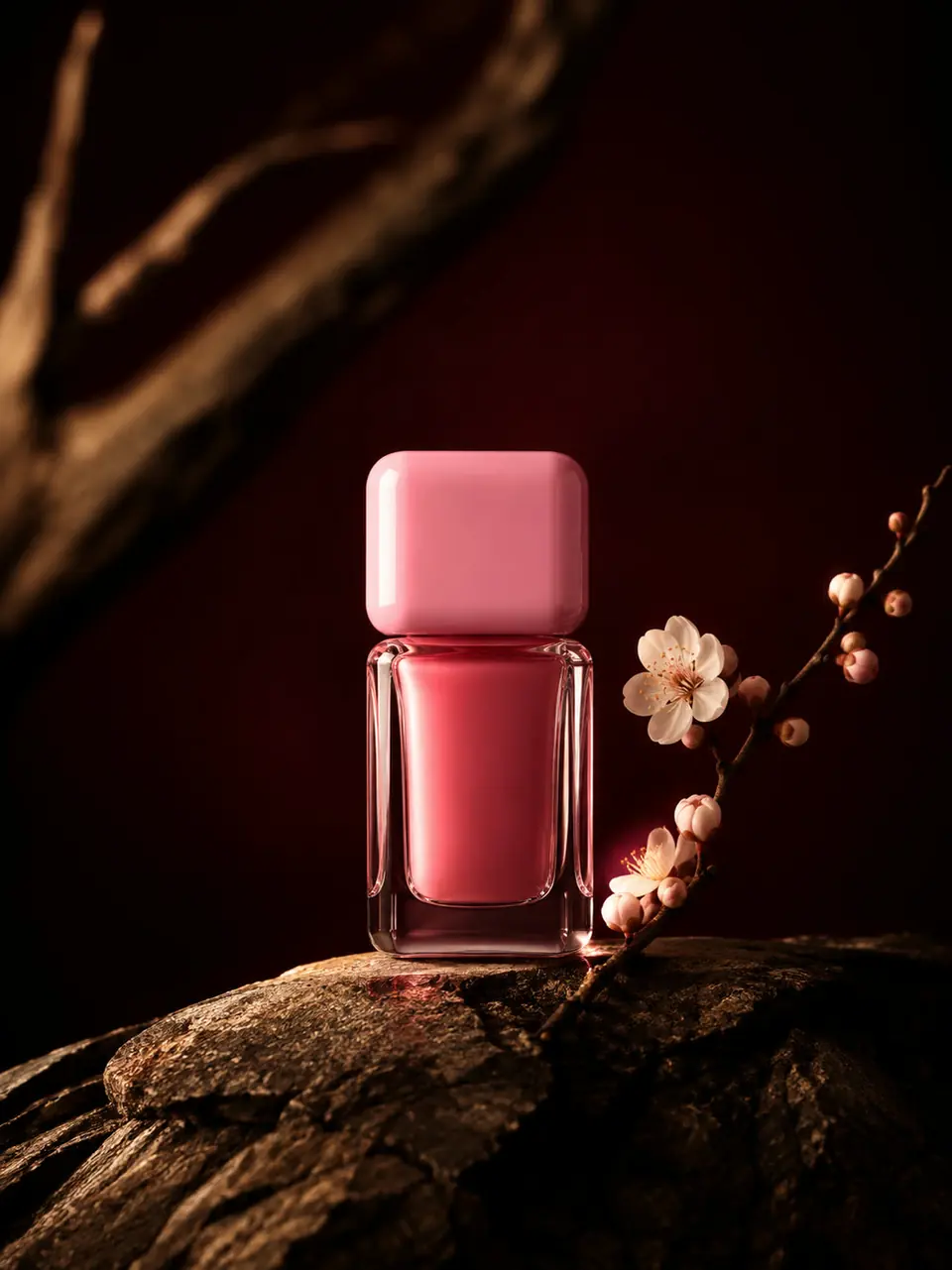
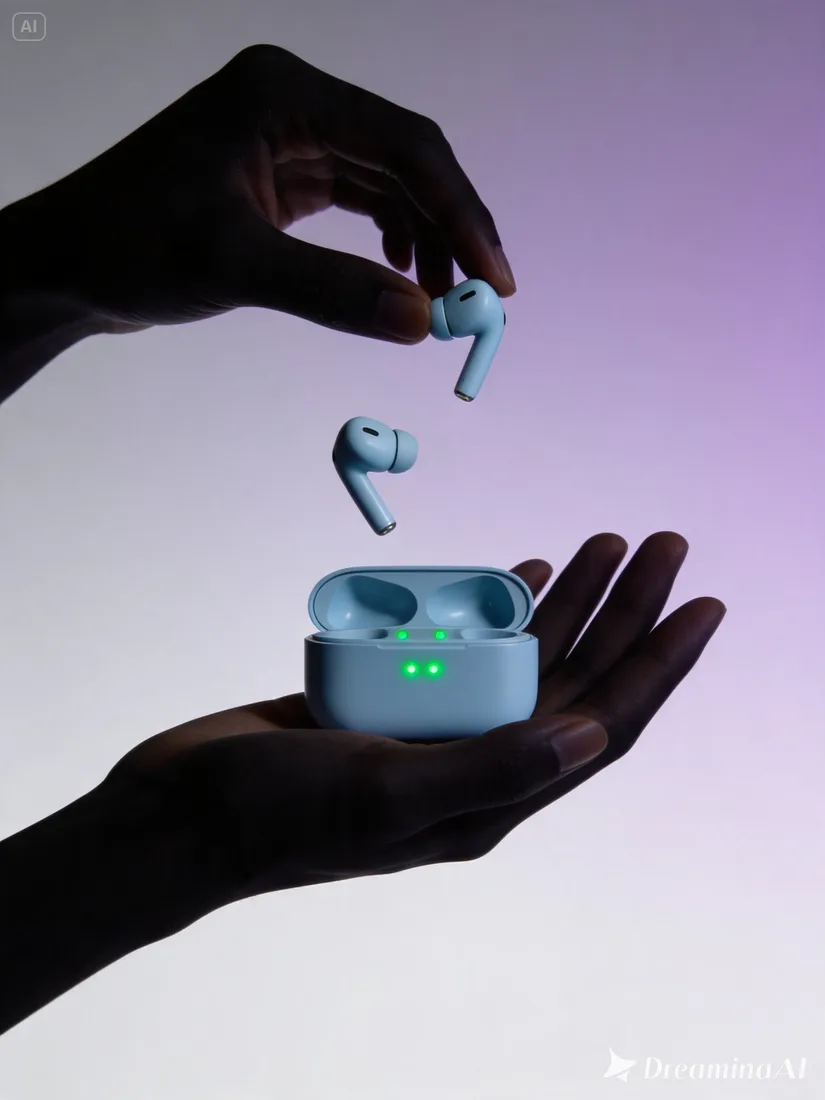
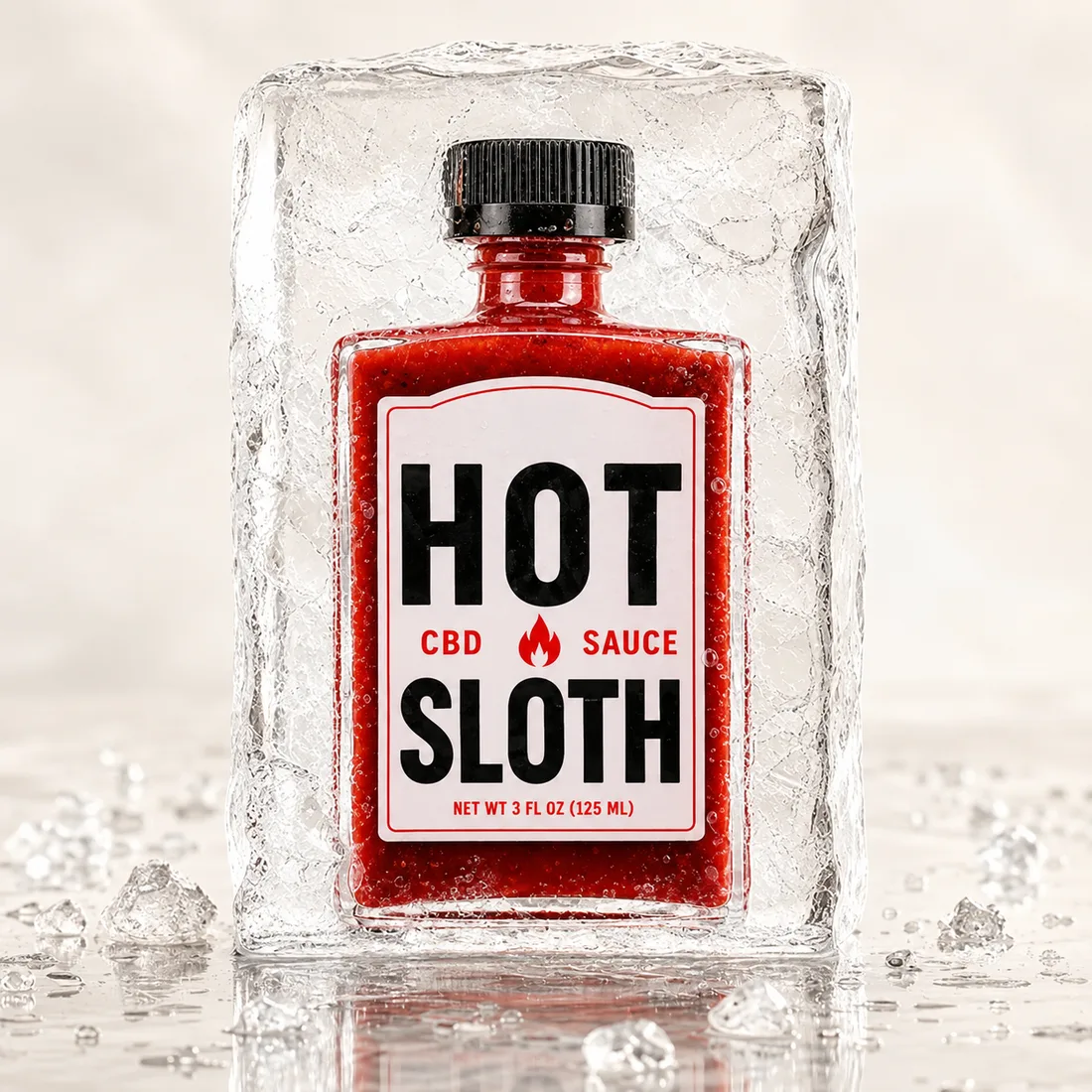
Create a product image around one buying detail.

Set the product against a useful scene and call out the finish, label, or feature shoppers need to see.

  • Keep the product in focus
  • Specify materials and light
  • Inspect text and packaging
Creative scene from a project video

Image references

Explore image directions before you create

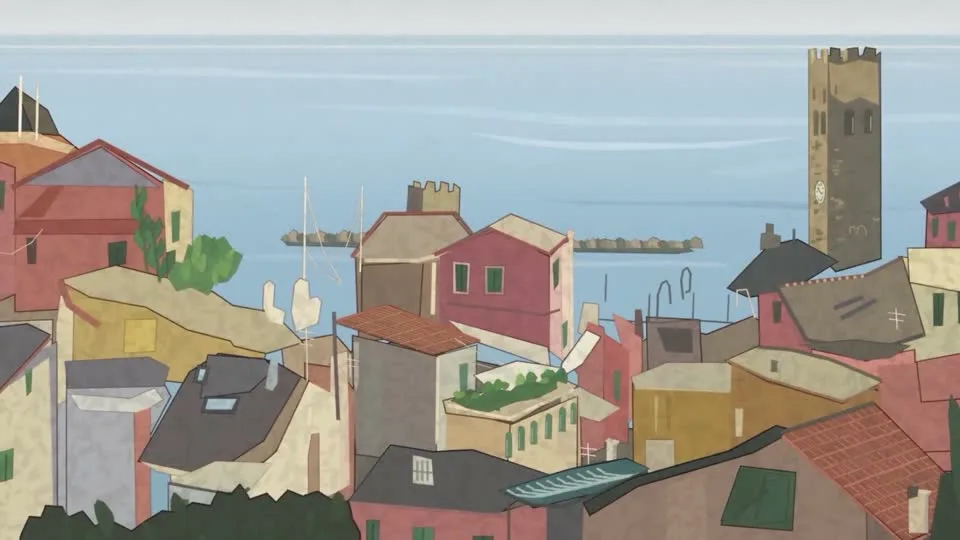
Use these images as visual references for composition, lighting, and materials. They are examples, not verified model outputs.

Creative scene from a project video
Flow AI Video

Example 1 / 3

Let the material carry the detail.

Use a controlled background and directional light to show glass, metal, fabric, or a clean label.

Need a hand?

Nano Banana 2 image generator questions

Learn about model choices, image references, settings, credits, and saved results.

Contact support
Which Nano Banana model should I choose?+

Choose Nano Banana 2 or 2.1 from the selector. Available settings are displayed for the selected model.

Can I edit an existing image?+

Add an image reference and describe the change you want. Review the generated image to confirm the details that matter.

Can I choose the image size?+

The composer lists aspect ratios and resolution options supported by the selected model.

How do I check the credit cost?+

Sign in and select a model to see an estimated credit cost beside Generate before you submit.

Where are my generated images saved?+

Completed results appear in the Create workspace and in your Assets library.

Is this an official Google product page?+

No. Flow AI Video is an independent workspace and is not affiliated with or endorsed by Google.

Your next visual starts here

Build the image your brief calls for

Describe the frame, choose a Nano Banana model, and review the estimate before generating.

See plans
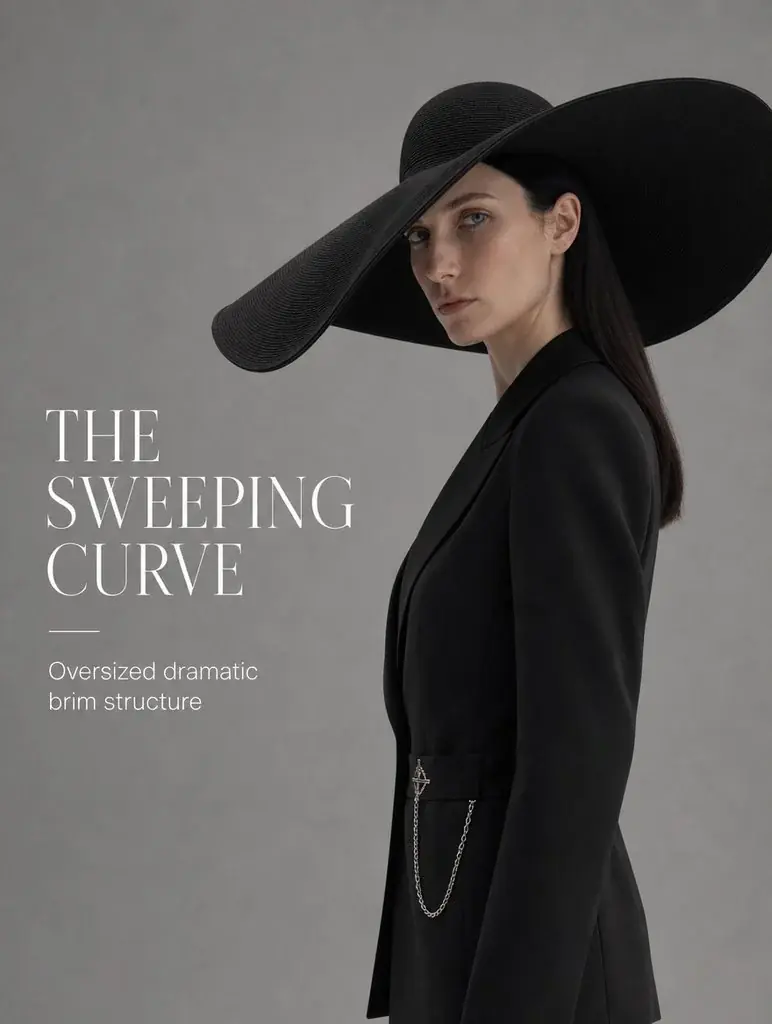
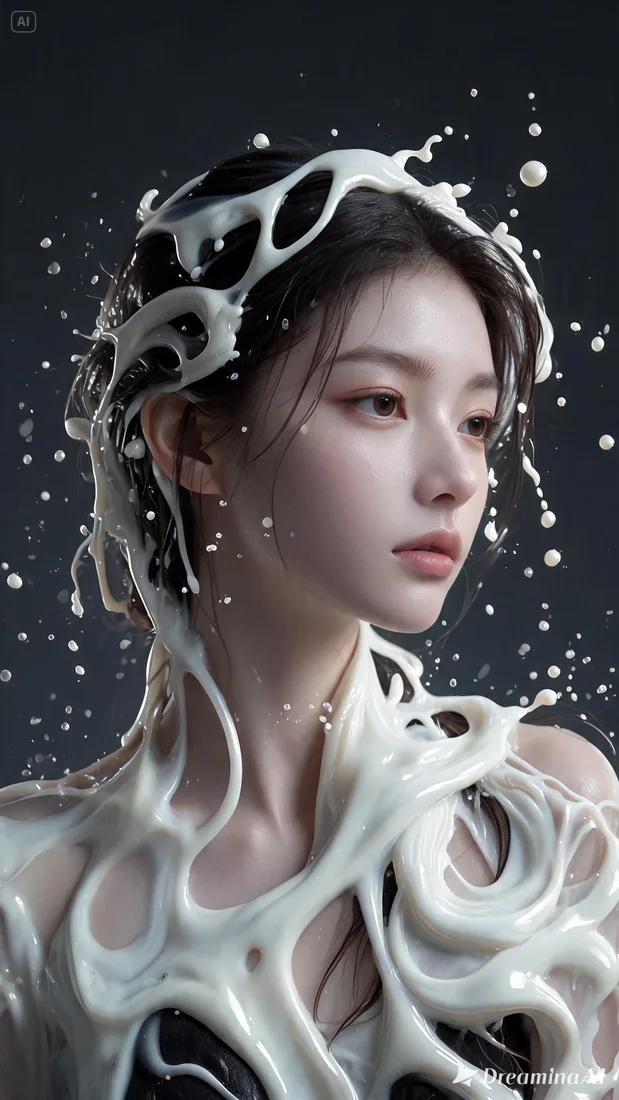
Skincare product visual from the Flow AI Video asset libraryFashion campaign visual from the Flow AI Video asset library