
01
Start with the idea you already have
Describe a recognizable subject and one action so the clip has a clear focus.
01Flow AI Video
Use the AI Video Generator to create clips from text or images. Compare available models, choose the framing and duration, and review credits before generating your first take.
A clearer brief, a more deliberate first take
Turn a written scene or a still image into a video for your next post or product story. Choose the model and framing, check credits, and create a take you can review.
01
Describe a recognizable subject and one action so the clip has a clear focus.
02
Compare the video models available in Flow AI Video. Switching models updates the supported ratios, durations, resolutions, and estimated cost.
03
Choose portrait for a vertical post or landscape for a wider scene when the model supports it. Describe the framing so the subject has room to move.
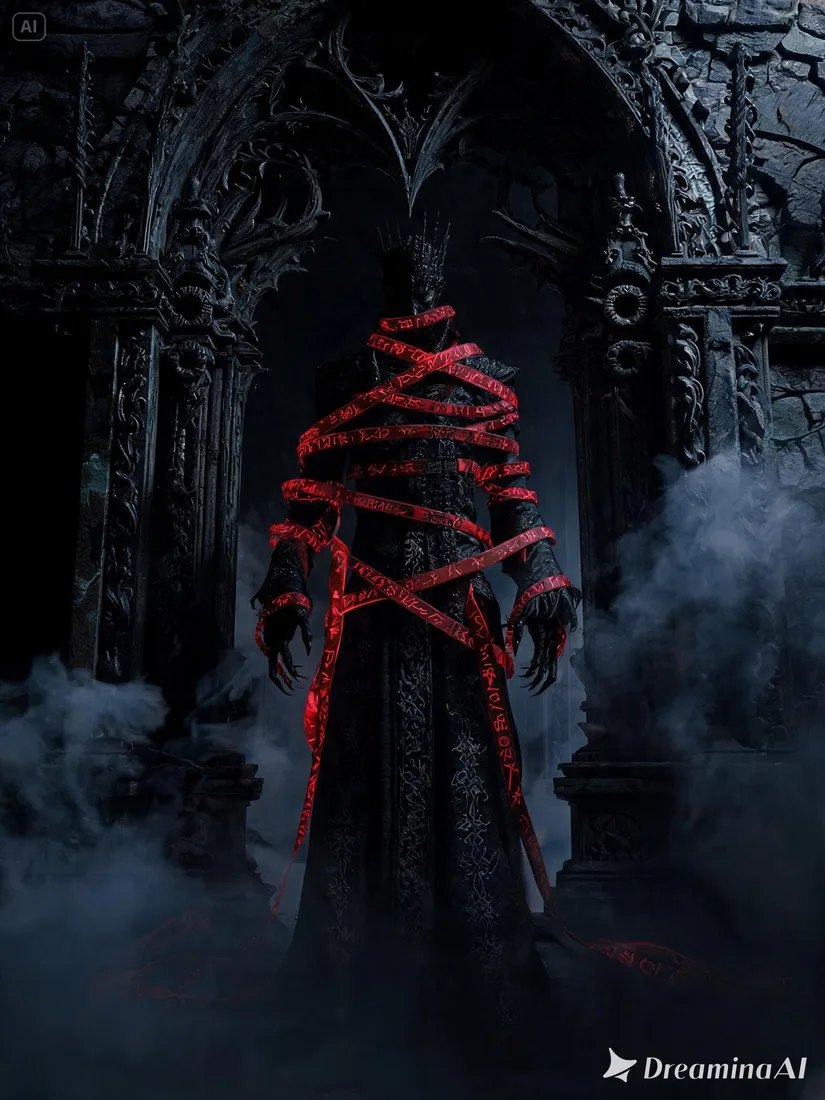
04
Compare motion and visual details. Change one part of the direction before generating another take.
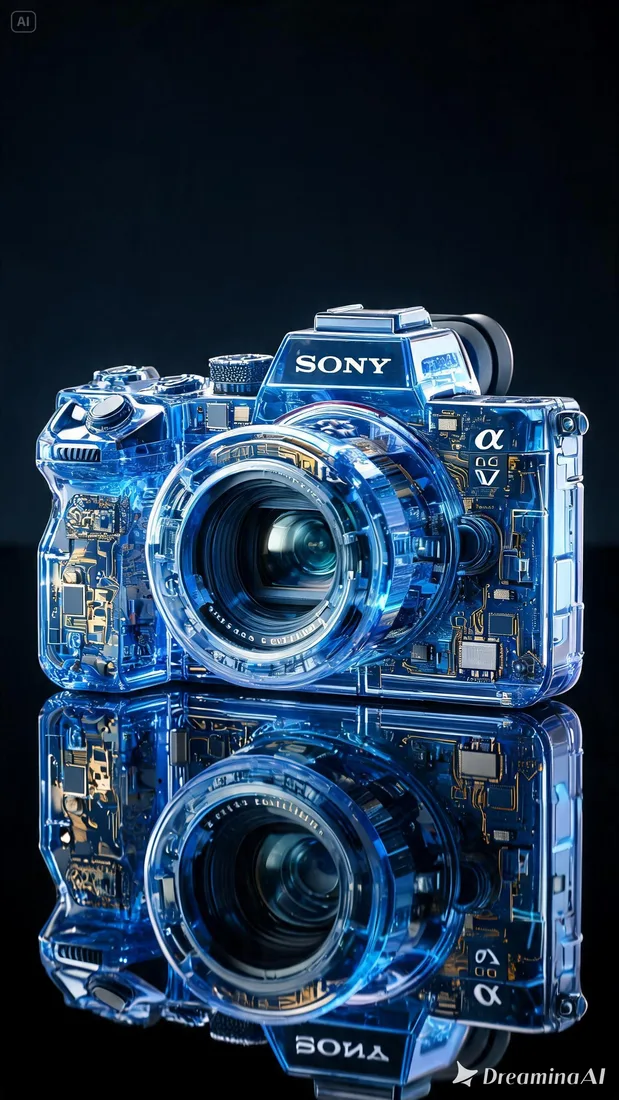
From reference to result
Prepare your brief, choose supported settings, and review the result.
 Flow AI Video
Name the subject, setting, and result you want.
Choose the supported format and duration; check estimated credits.
Sign in to generate, inspect important details, and download the result.
One clip, one creative goal
Start with the intended use, then define the subject, style, and details to review.
Product visuals
Describe a recognizable subject and one action so the clip has a clear focus.

Camera and motion inspiration
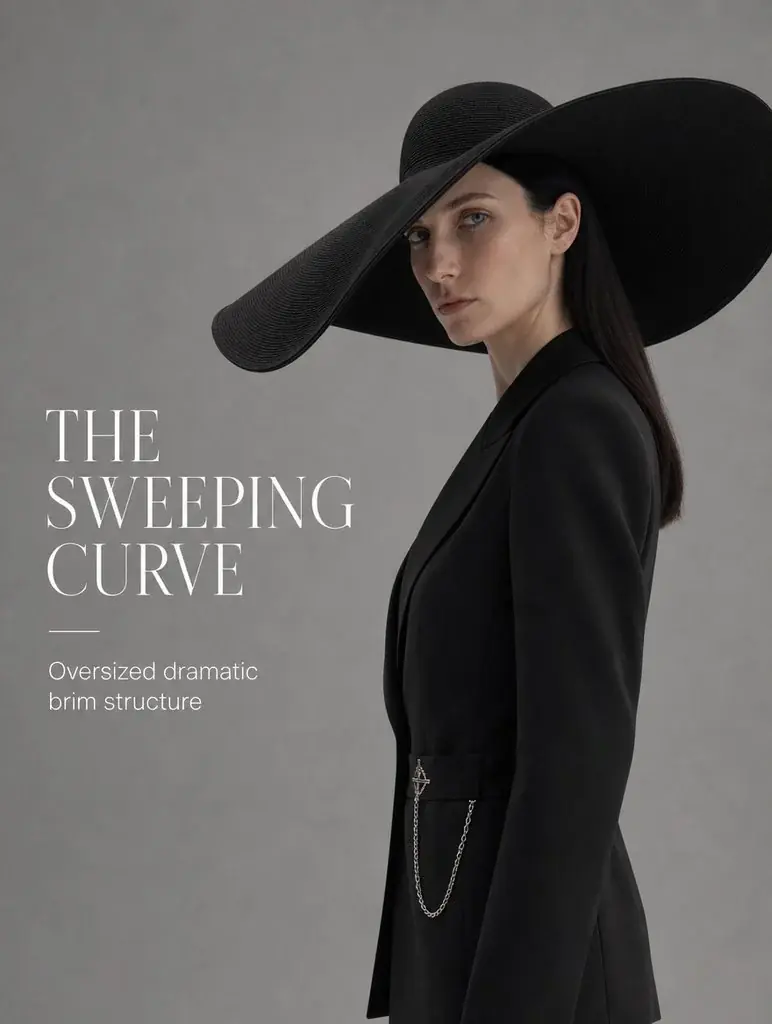
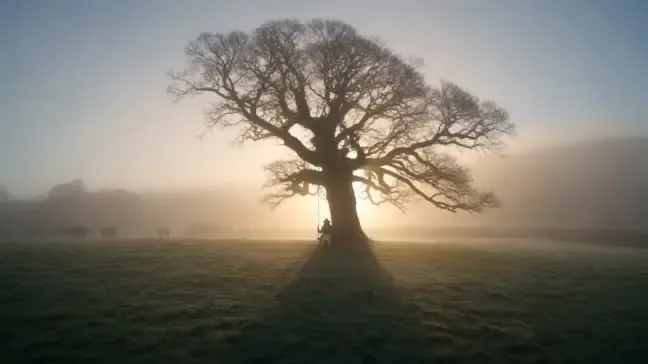
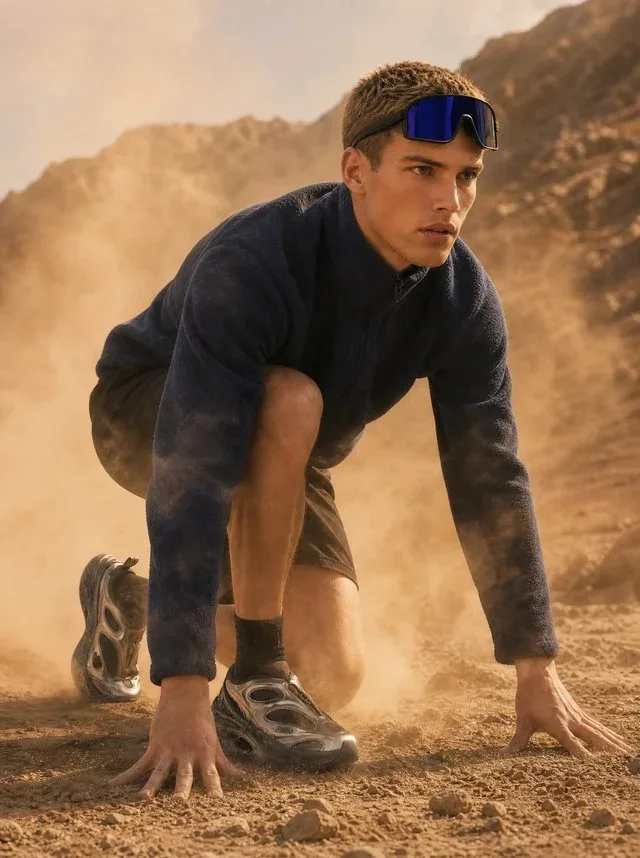
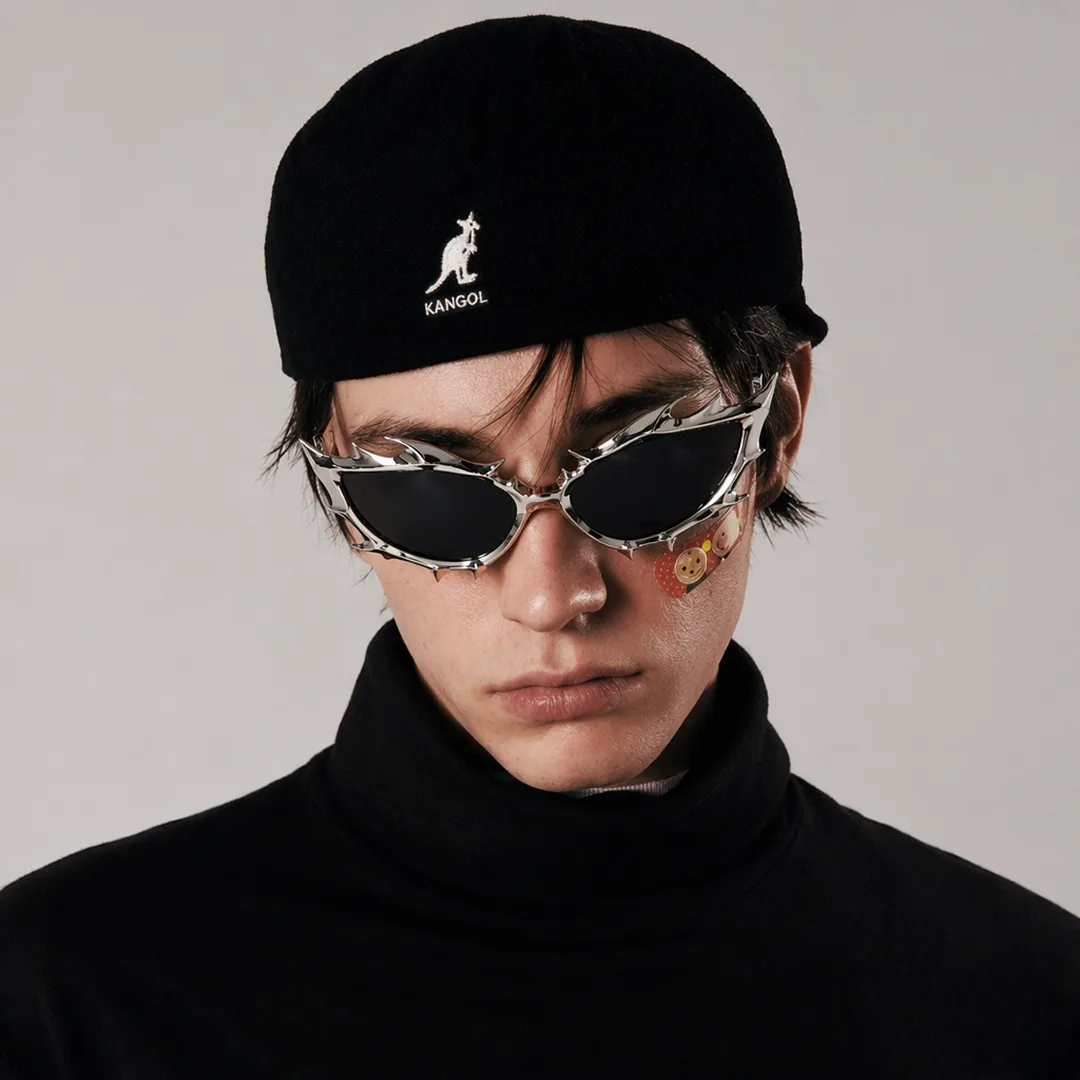
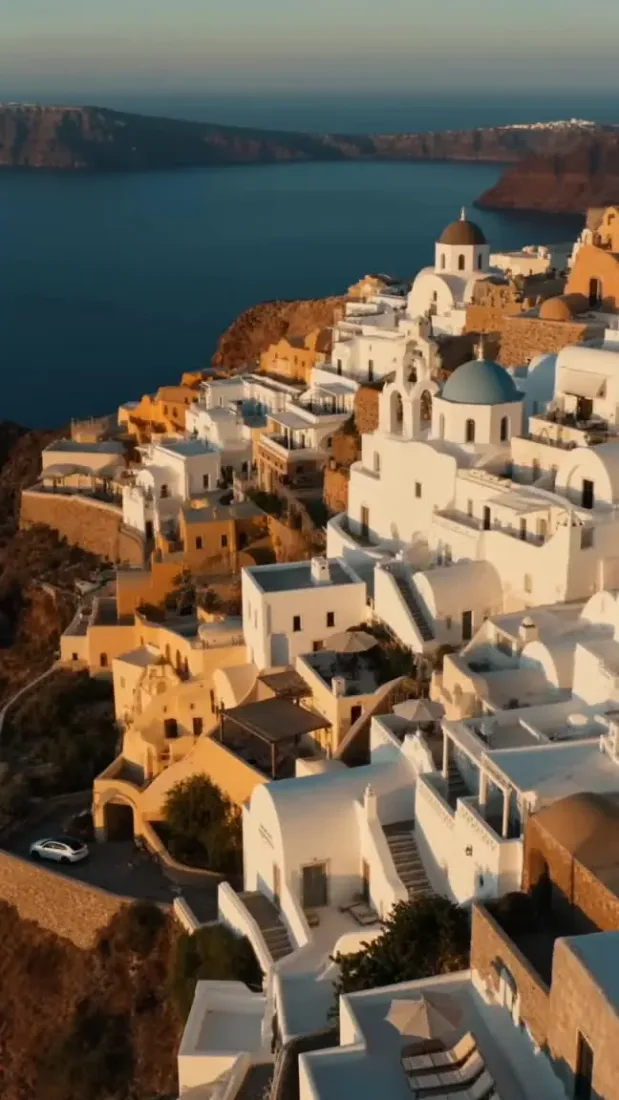
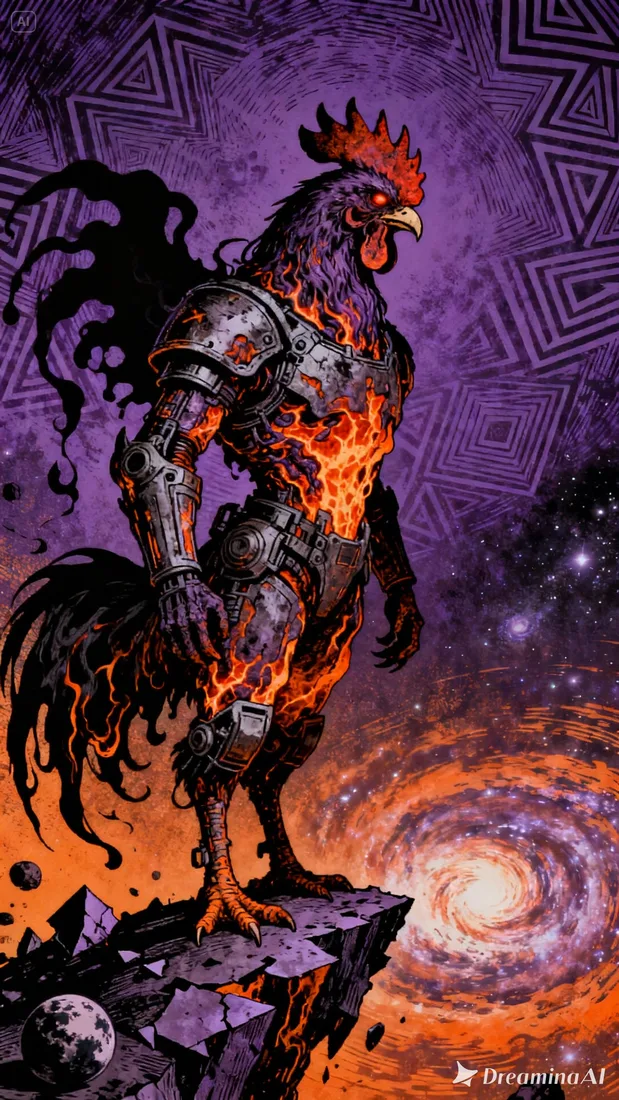
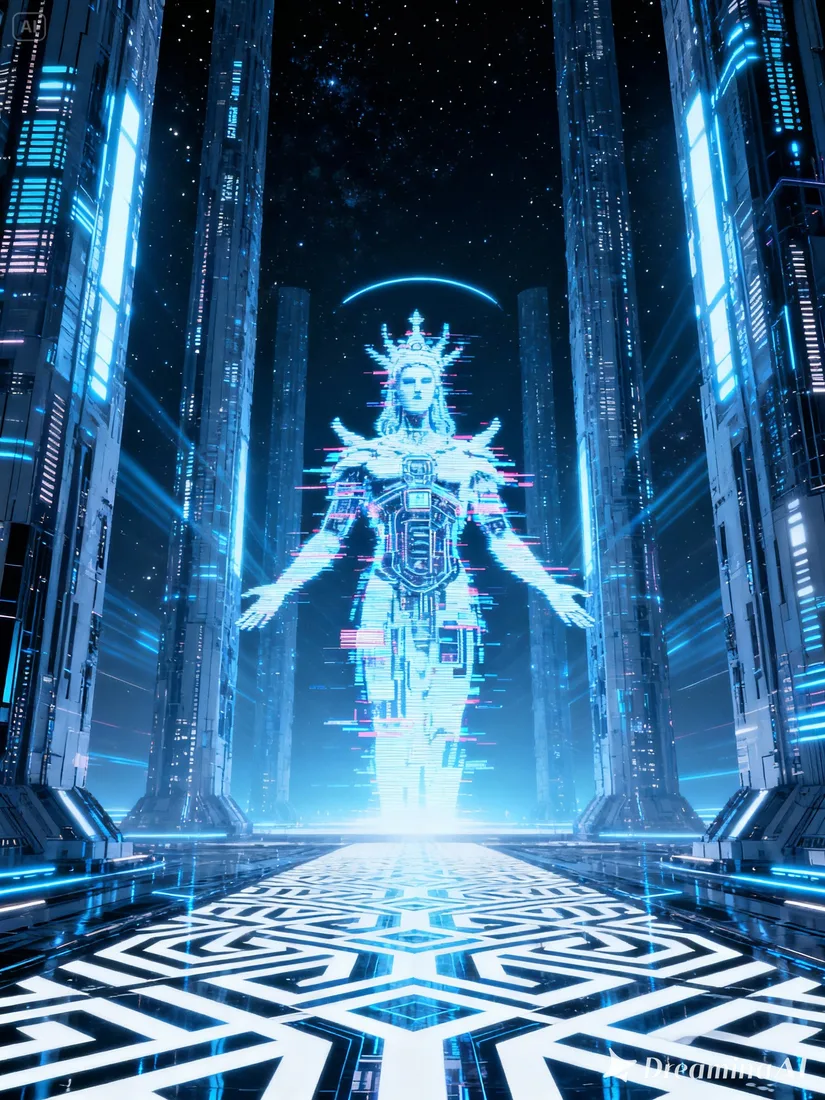
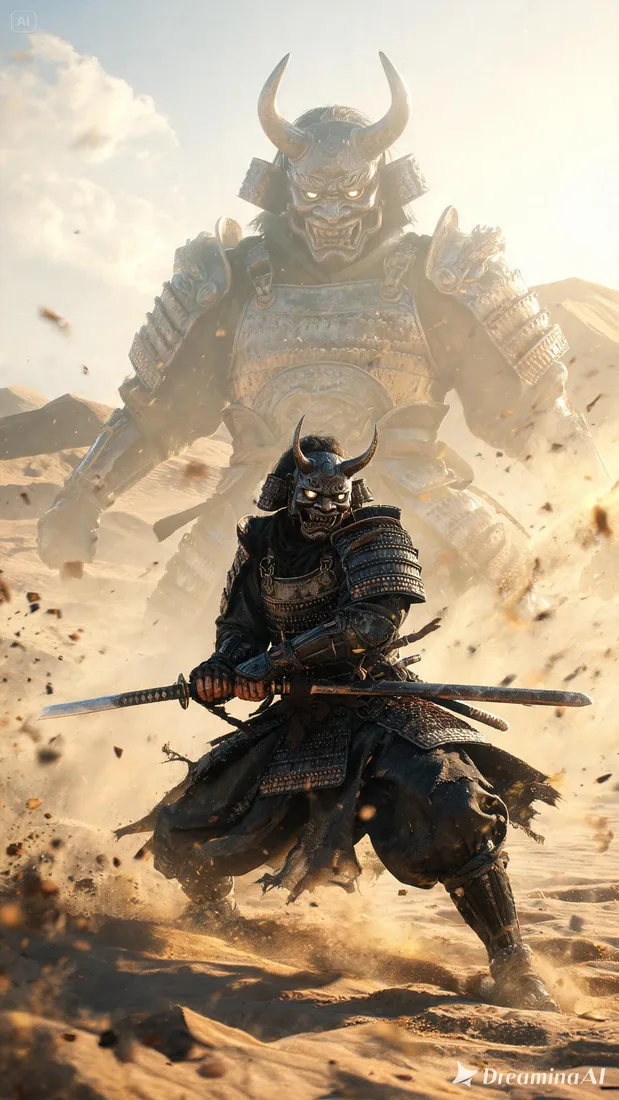
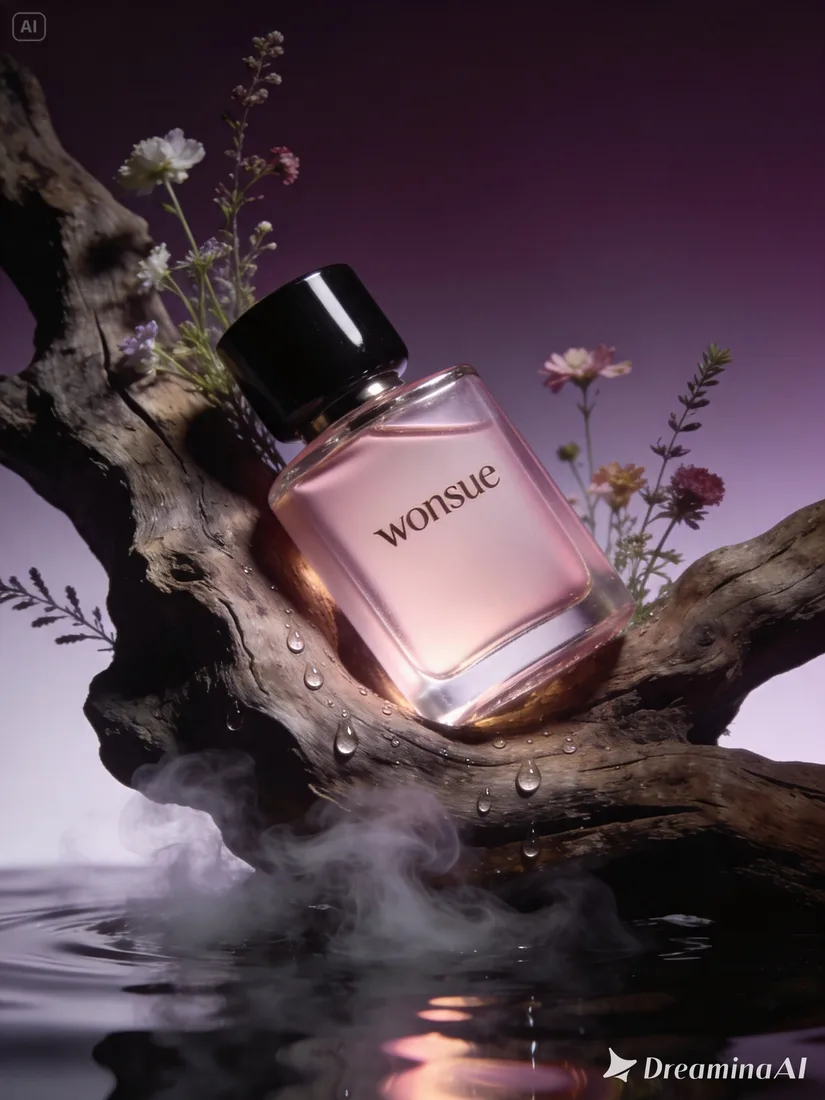
These images are visual references for composition and motion, not verified outputs from your selected model.
 Flow AI Video
Example 1 / 2
Describe a recognizable subject and one action so the clip has a clear focus.
Need a hand?
Review the requirements for this workflow before you generate.
Contact supportStart with a text prompt, photo, or video reference on the matching feature page. Describe one shot, choose a model and supported settings, check the credit estimate, then click Generate. Review and download the completed clip in Create. How do I make an AI video?
These images illustrate creative directions and are not verified outputs from this model. Review your own generated result for the details that matter.
Generation uses credits. A new account may receive welcome credits when enabled, but the offer and amount can vary. Compare your actual balance with the estimate before submitting; if it is too low, you need more credits. Unlimited free generation is not included.
Start with the image you already have
Write one scene in the AI Video Generator above. Choose the model and format, check credits, and generate a take to review in Create.