



01
Start from an existing clip
Select footage with a clear subject. Write down the visual change you want before preparing the edit.
01Flow AI Video
Use the AI Video Editor to generate a new visual take from a reference clip. Describe the scene or style to change, then compare the result with your source video.
A clearer brief, a more deliberate first take
Use a source clip to guide a new generated take. This workflow focuses on visual regeneration; finish precise cuts, captions, and audio in your editing workflow.
01
Select footage with a clear subject. Write down the visual change you want before preparing the edit.
02
Describe a new mood, lighting treatment, or setting. Keep the requested change specific enough to evaluate.

03
Try one major visual change per take. A focused prompt makes it easier to compare versions.

04
Inspect the regenerated clip for unwanted details and motion changes before adding it to a finished sequence.
From reference to result
Prepare your brief, choose supported settings, and review the result.
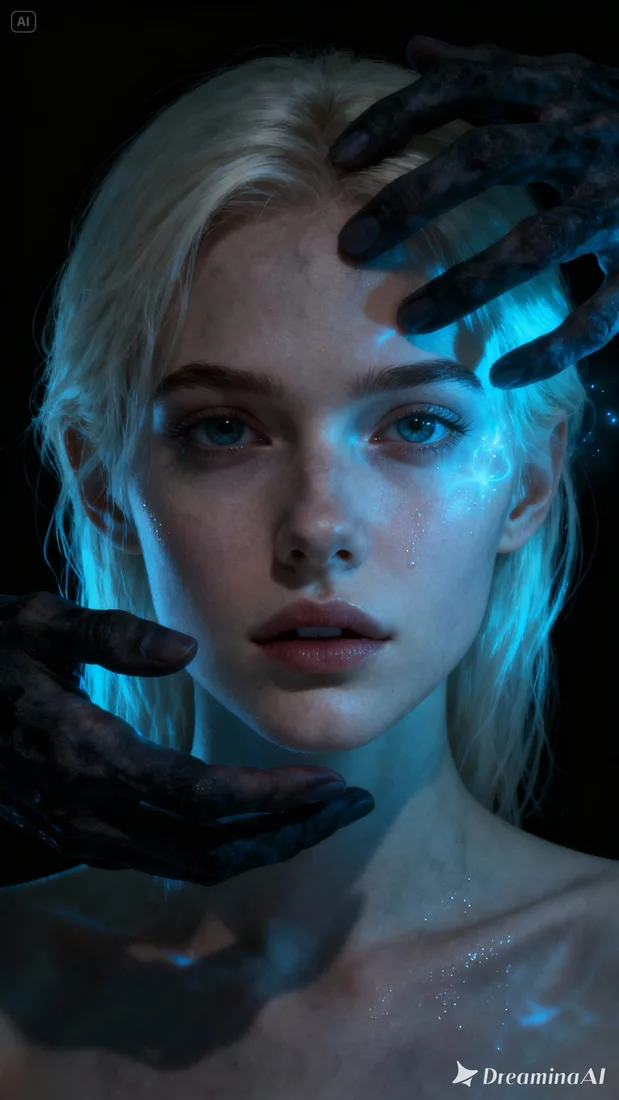 Flow AI Video
Upload a video reference or pick a saved clip.
Describe one visual change and what should remain recognizable. Check the model settings.
Review credits and generate. Compare the resulting clip with your source in Create.
One clip, one creative goal
Use a source clip to guide a new generated take. This workflow focuses on visual regeneration; finish precise cuts, captions, and audio in your editing workflow.
Content teams
Use a previous clip as a starting point for another treatment.
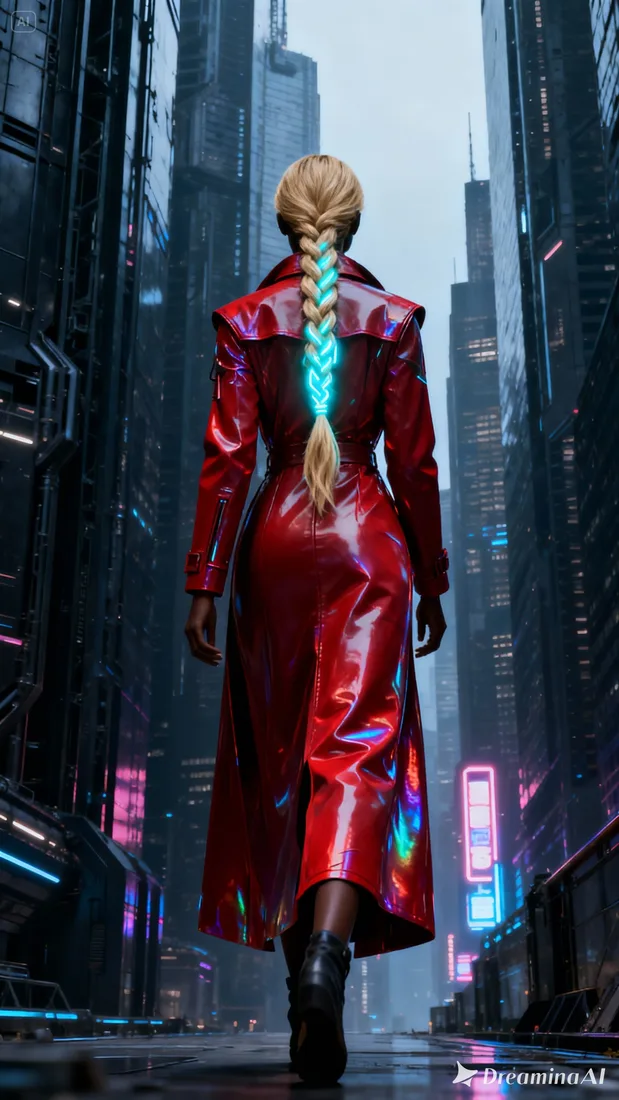
Camera and motion inspiration
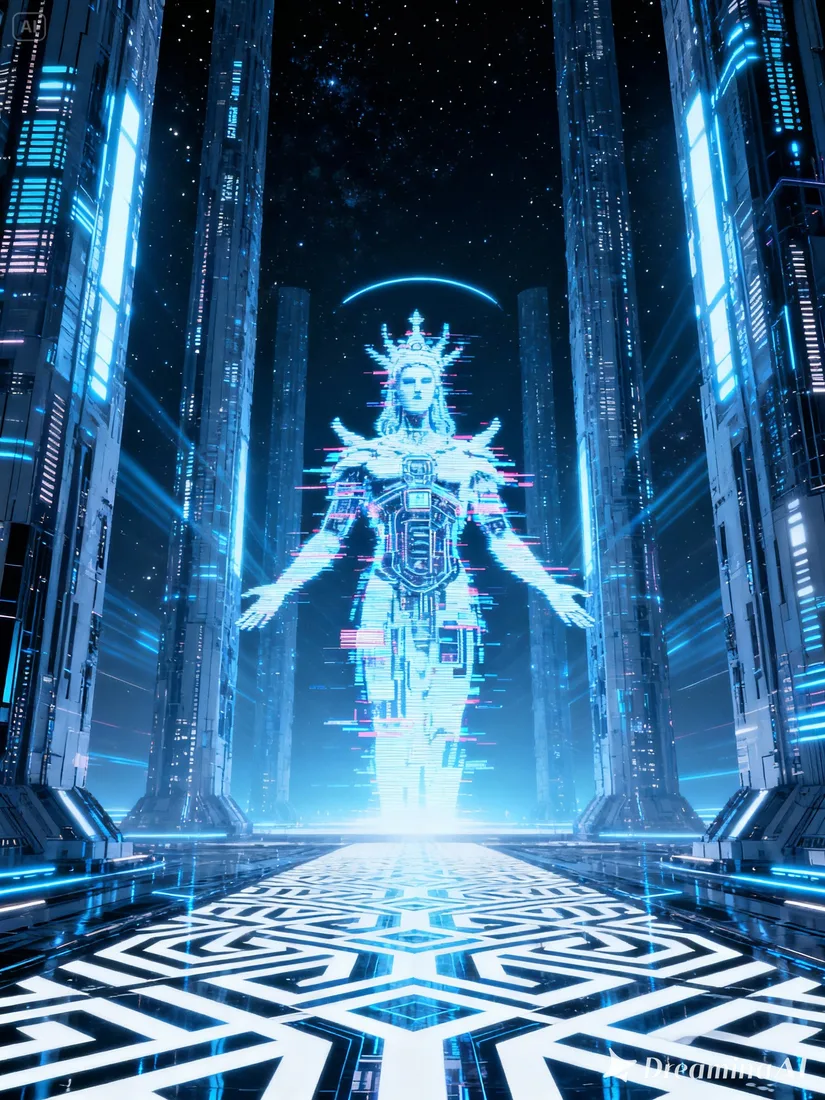
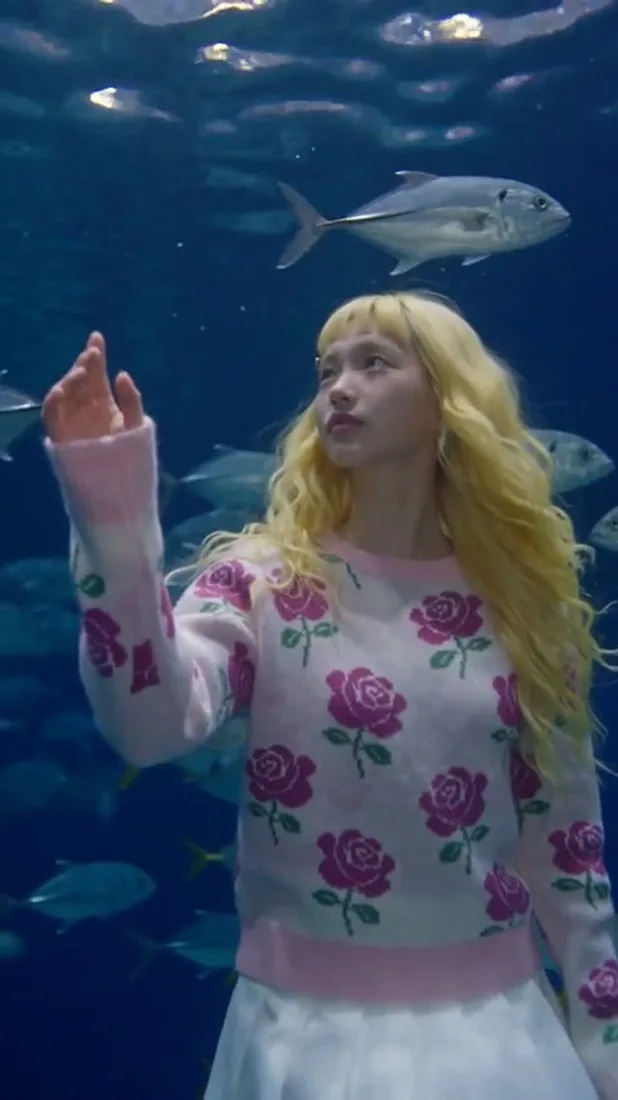
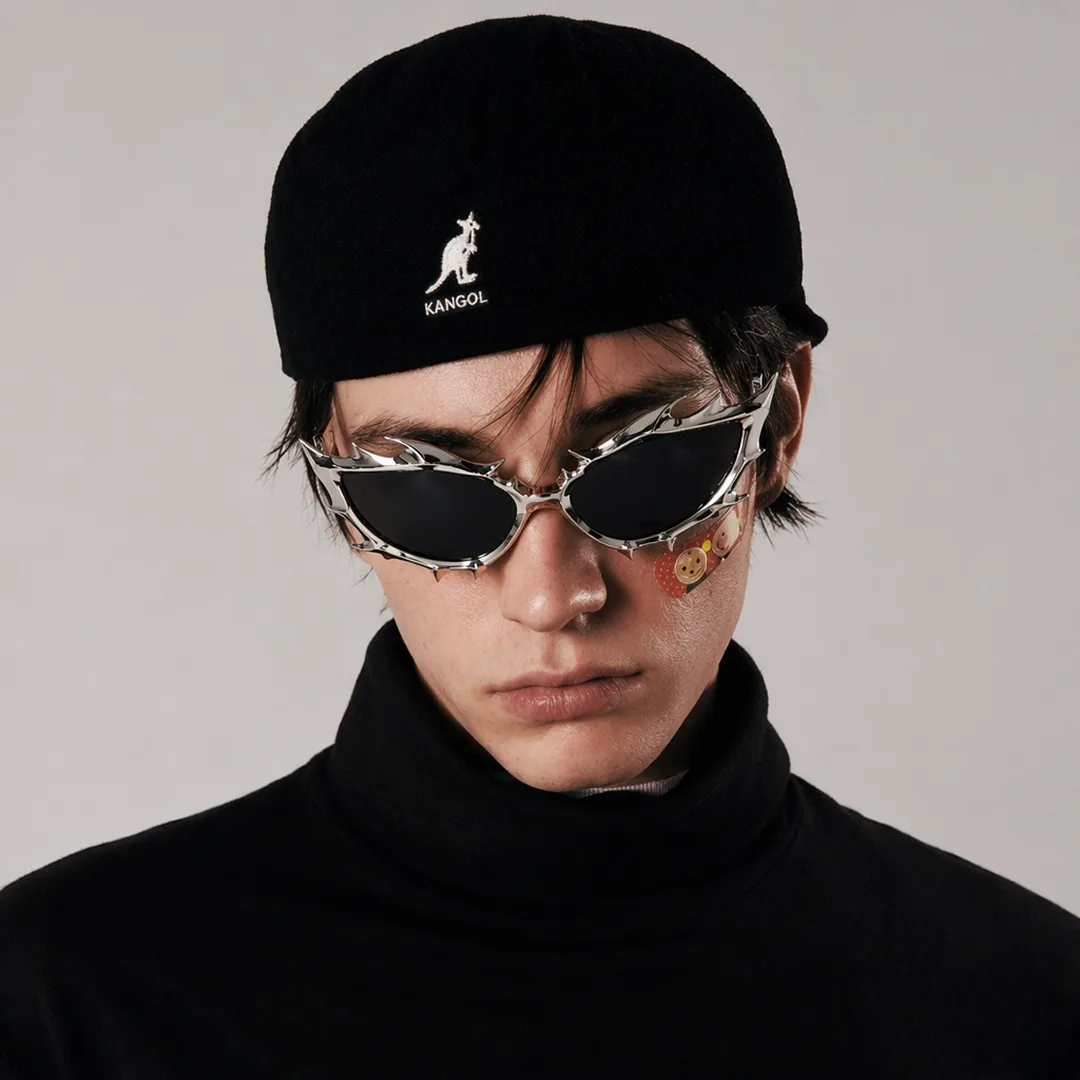
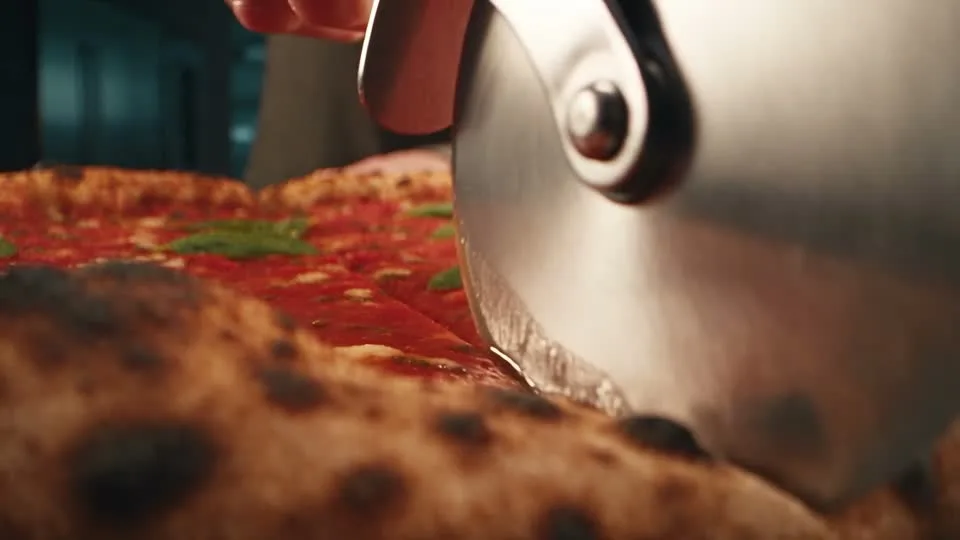
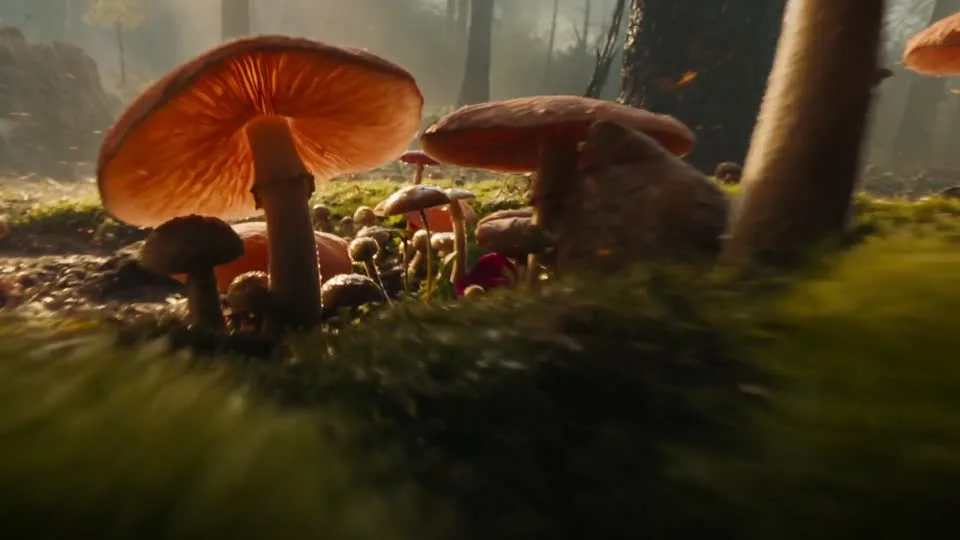
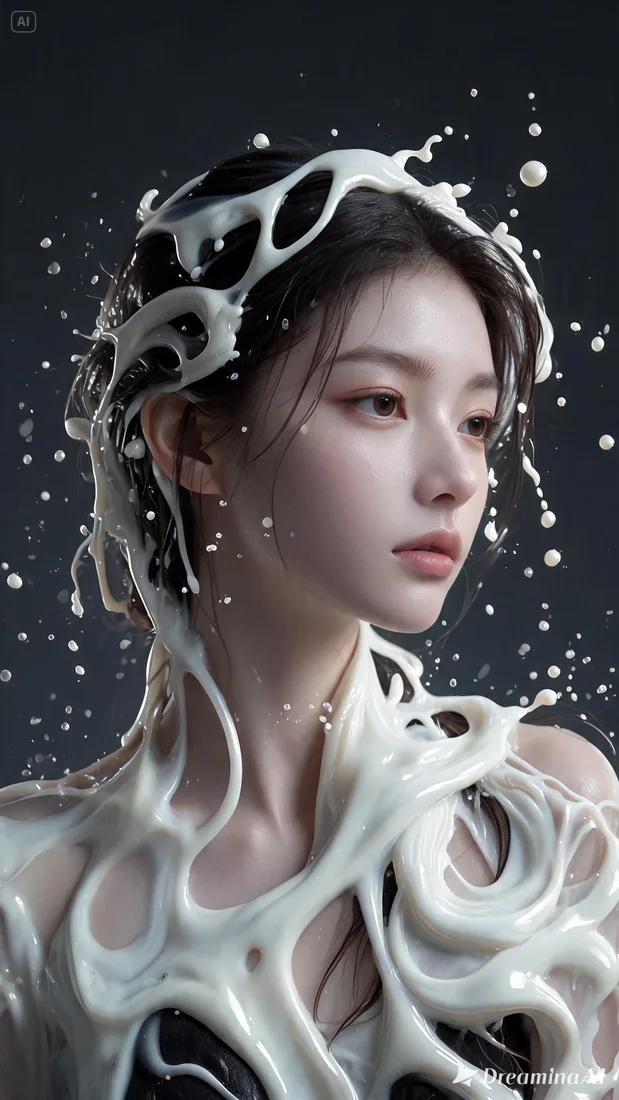
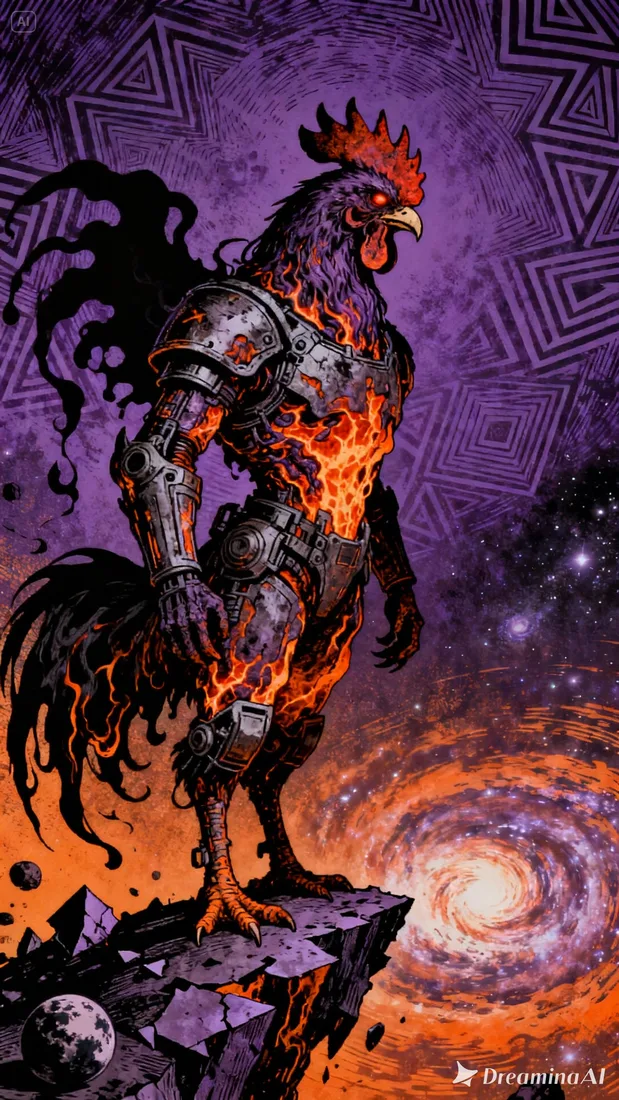
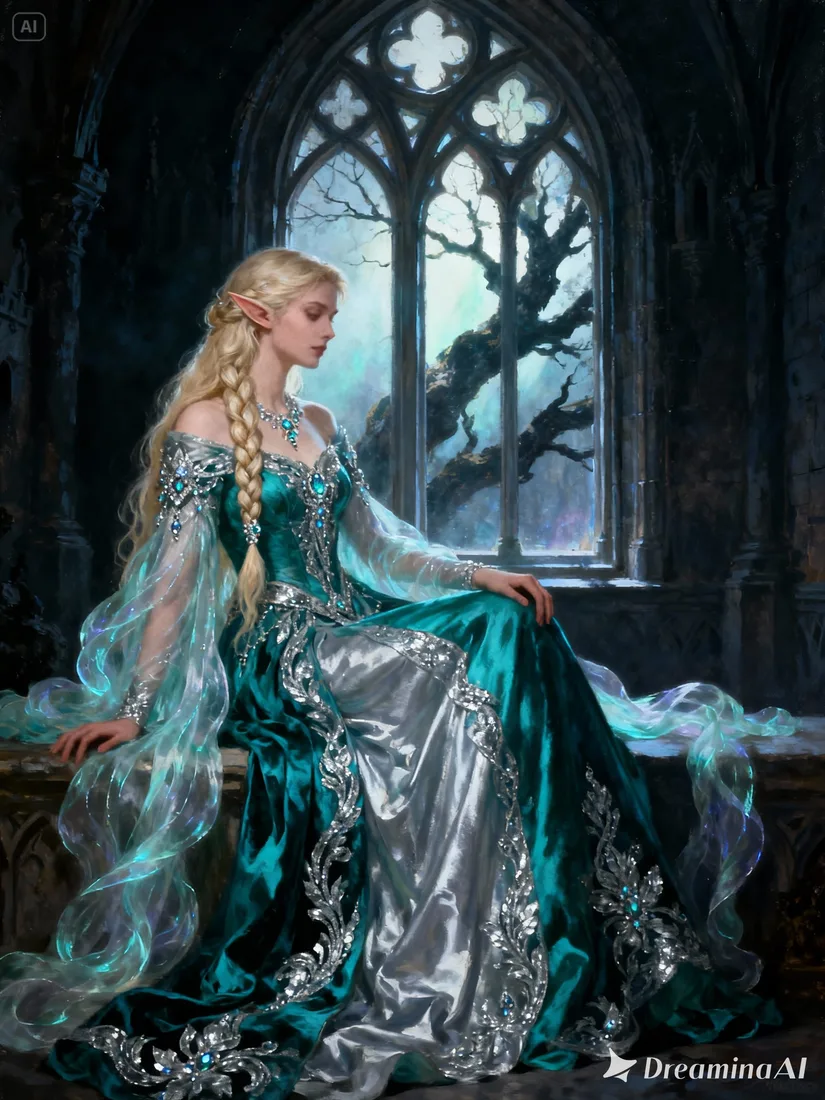
These images are visual references for composition and motion, not verified outputs from your selected model.
 Flow AI Video
Example 1 / 2
Describe softer light or a more dramatic contrast and review how the scene changes.
Need a hand?
Review the requirements for this workflow before you generate.
Contact supportThis page prepares AI regeneration from a reference clip. It does not provide frame-accurate trimming, timeline assembly, or caption editing.
Regeneration can change faces, text, motion, and composition. Check the output before replacing footage in your project.
Review the estimated credits in the generation workspace before submitting. Opening this page or preparing a draft does not start a paid generation.
Start with the image you already have
Add the source video and write one clear visual change. Review the generation settings before you submit.