

01
Turn a short brief into a visual
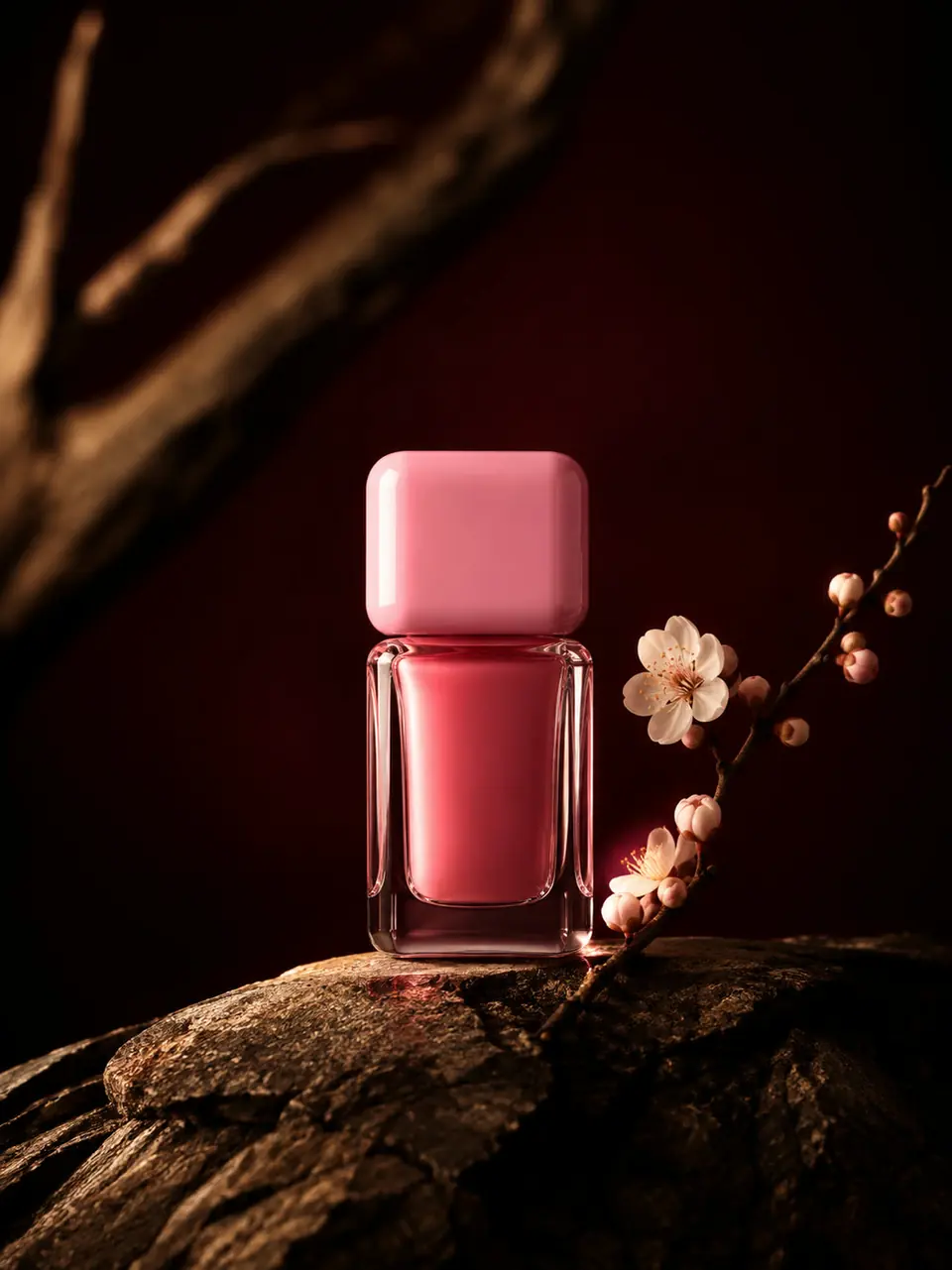
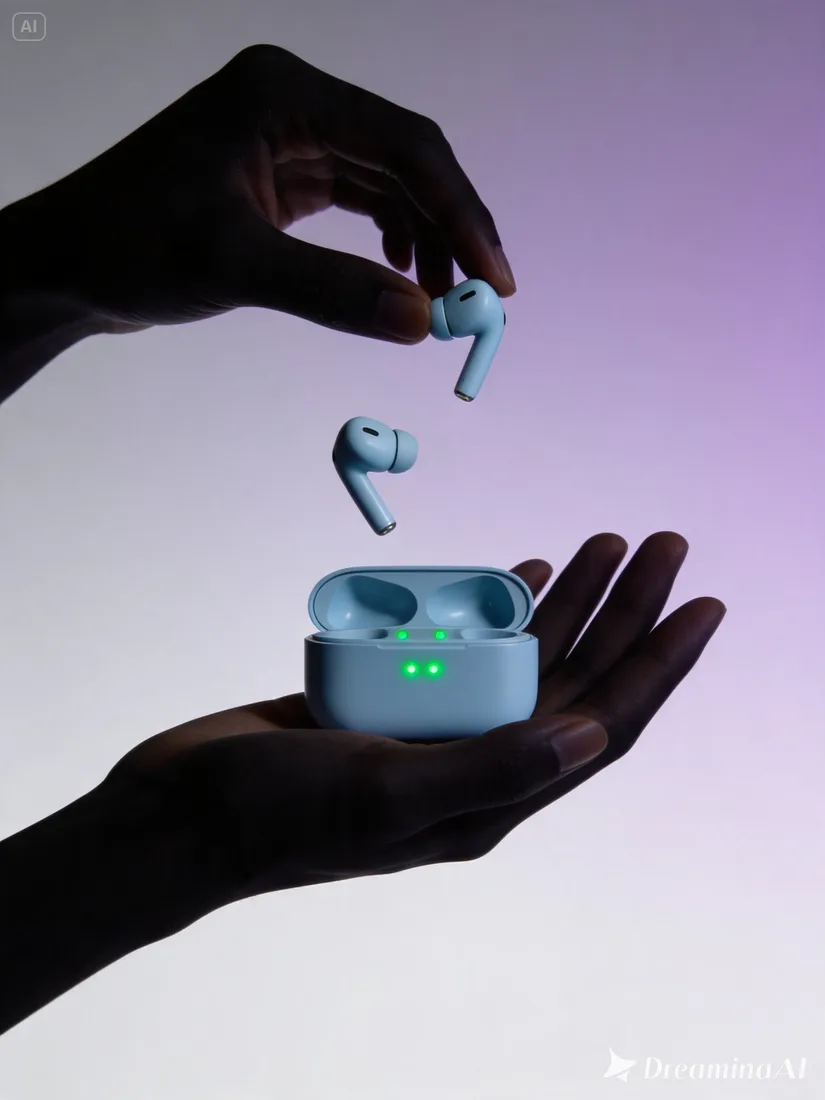
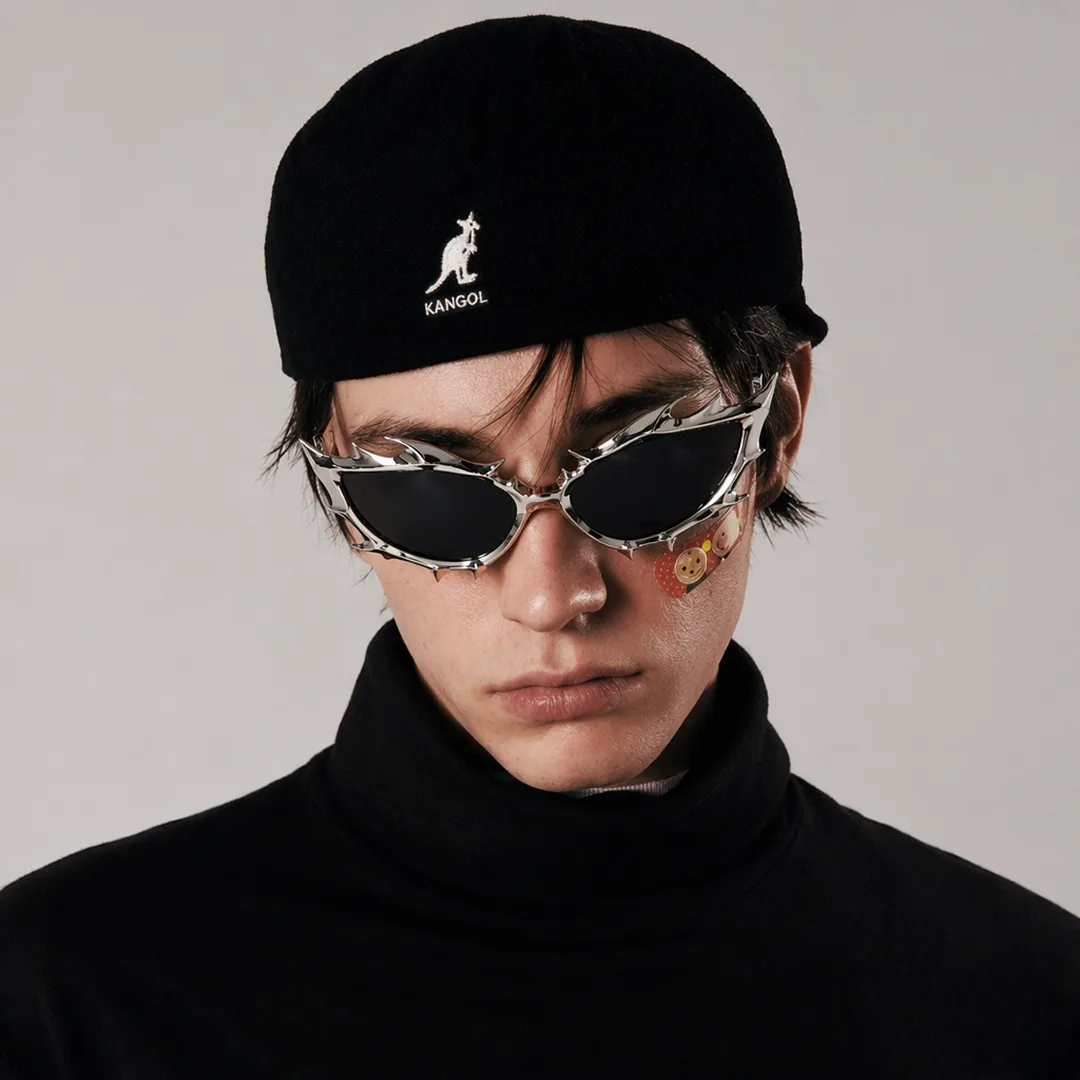
Give GPT Image a subject, setting, and light direction. For a product image, specify the surface, material, and space you need around the object.
01Flow AI Video
Use the GPT Image Generator to create a new image or revise a reference. Choose GPT Image 2 or 2.5, describe the composition or change you want, and check credits before generating.
A clearer brief, a more deliberate first take
Create a visual from a precise brief with GPT Image 2 & 2.5. Describe the subject, setting, and light, then review a first image before refining the details.
01
Give GPT Image a subject, setting, and light direction. For a product image, specify the surface, material, and space you need around the object.
02
Select GPT Image 2 or 2.5 in the same composer. Keep your brief consistent when comparing versions, and check each version’s available settings and estimated credits.
03
Upload an image to guide a revision, then describe the background, light, or arrangement you want to change. Name the details you want to keep recognizable.
04
Inspect GPT Image results for lettering, product edges, and small details before downloading. Refine one part of the prompt when the first version needs adjustment.
From reference to result
Prepare your brief, choose supported settings, and review the result.
 Flow AI Video
Select GPT Image 2 or 2.5 and choose a supported aspect ratio.
Describe a new image, or add a reference and explain the change you want.
Review credits and generate. Inspect the composition, text, and important details before downloading.
One clip, one creative goal
Start with the intended use, then define the subject, style, and details to review.
Product visuals
Name the subject and its surroundings. Concrete details give you a clearer result to evaluate.
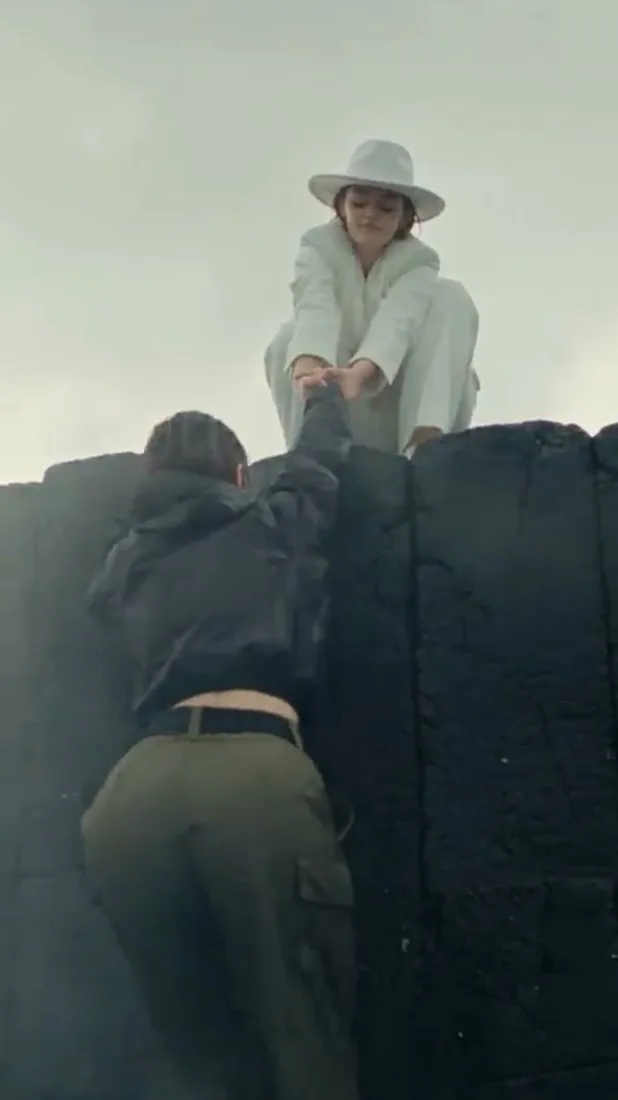
Camera and motion inspiration
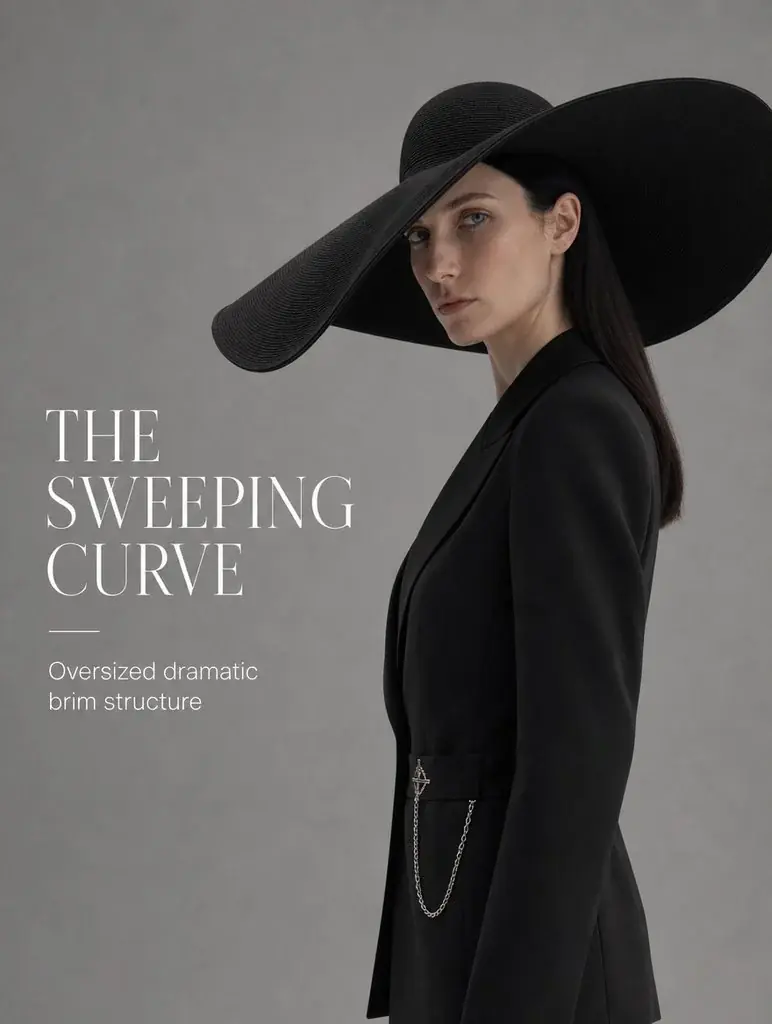
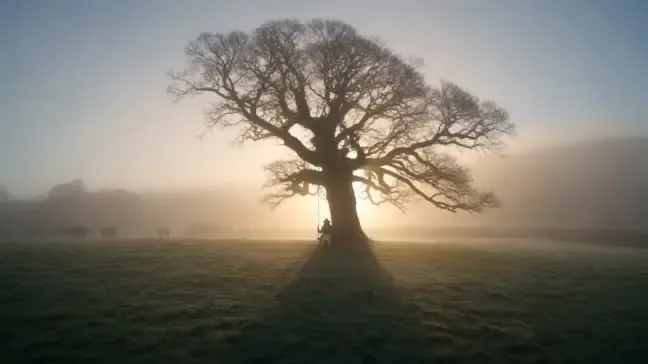
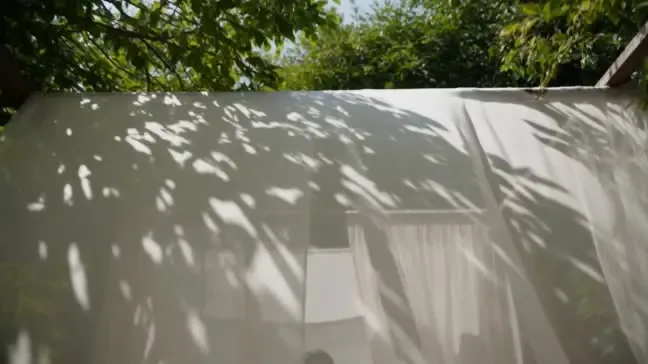
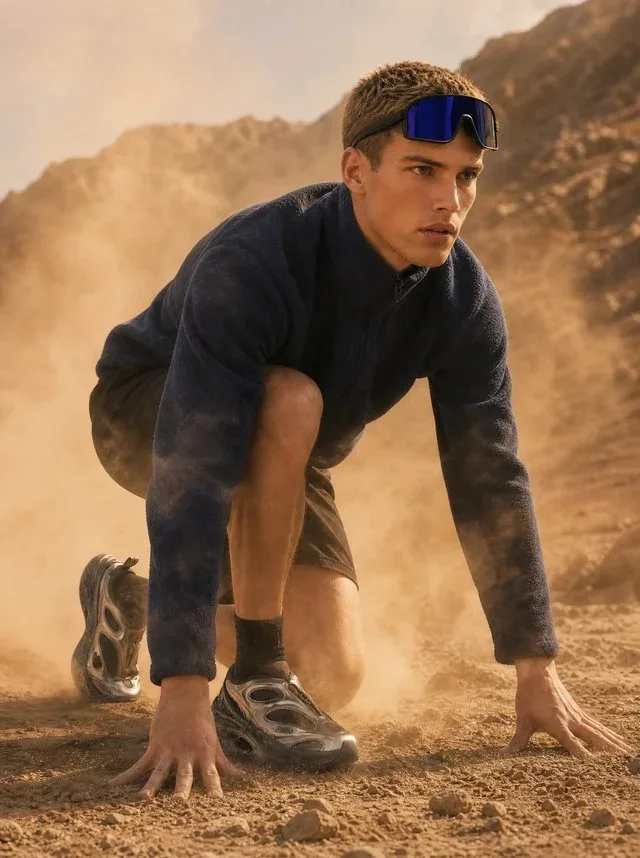
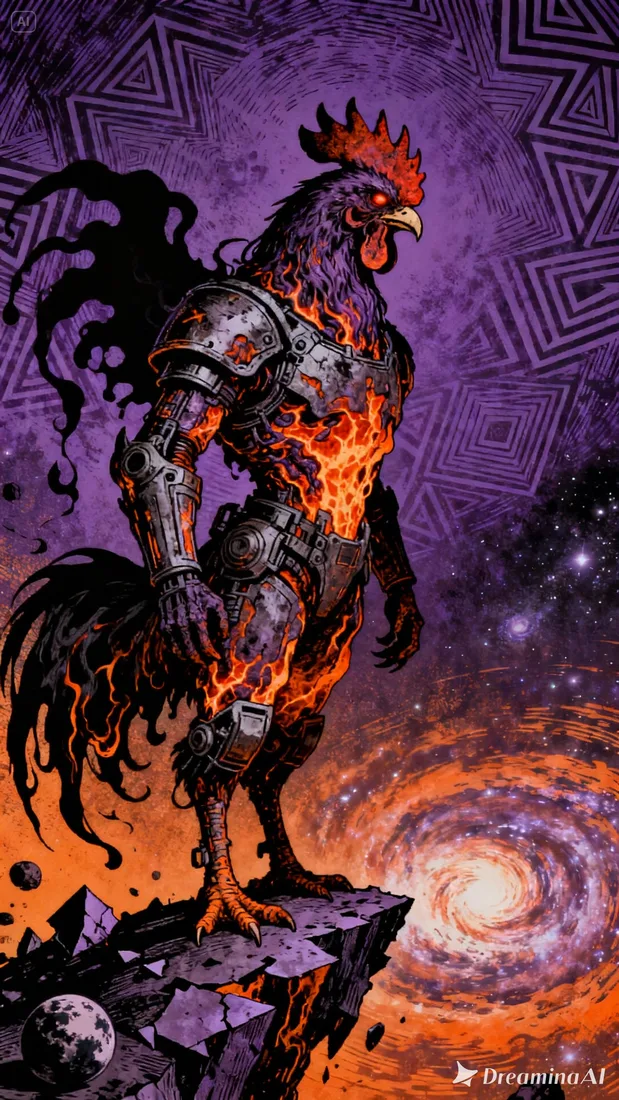
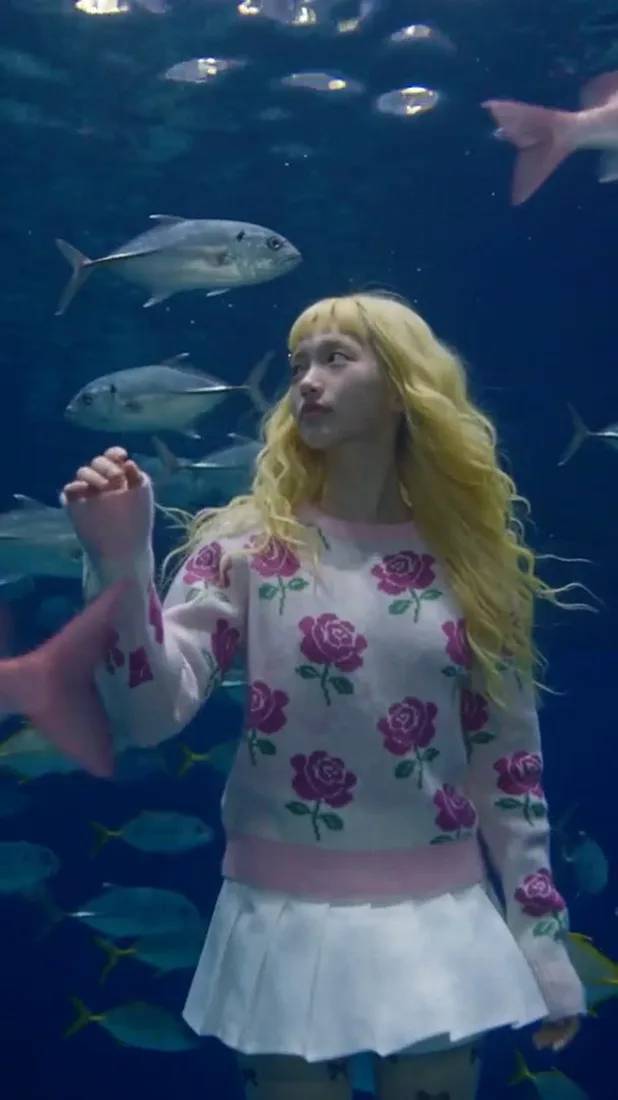
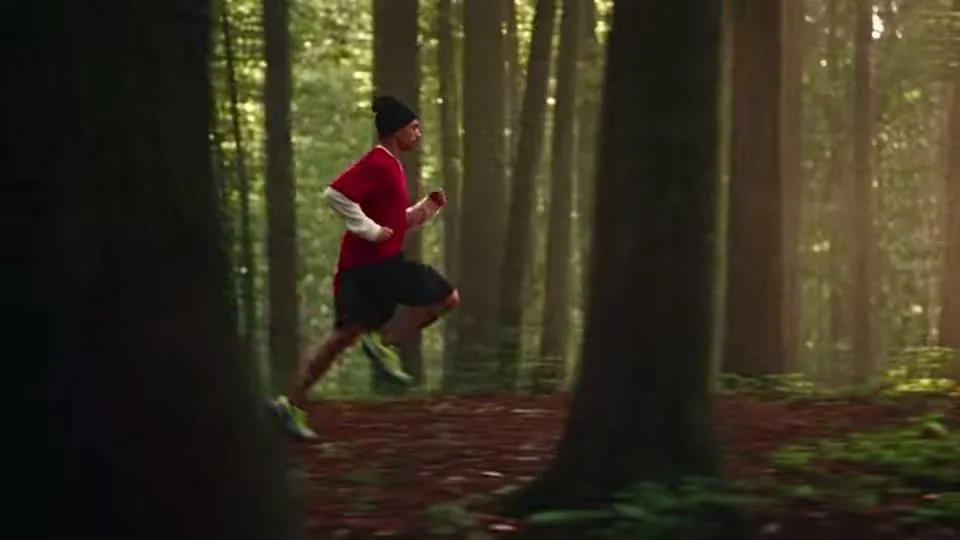
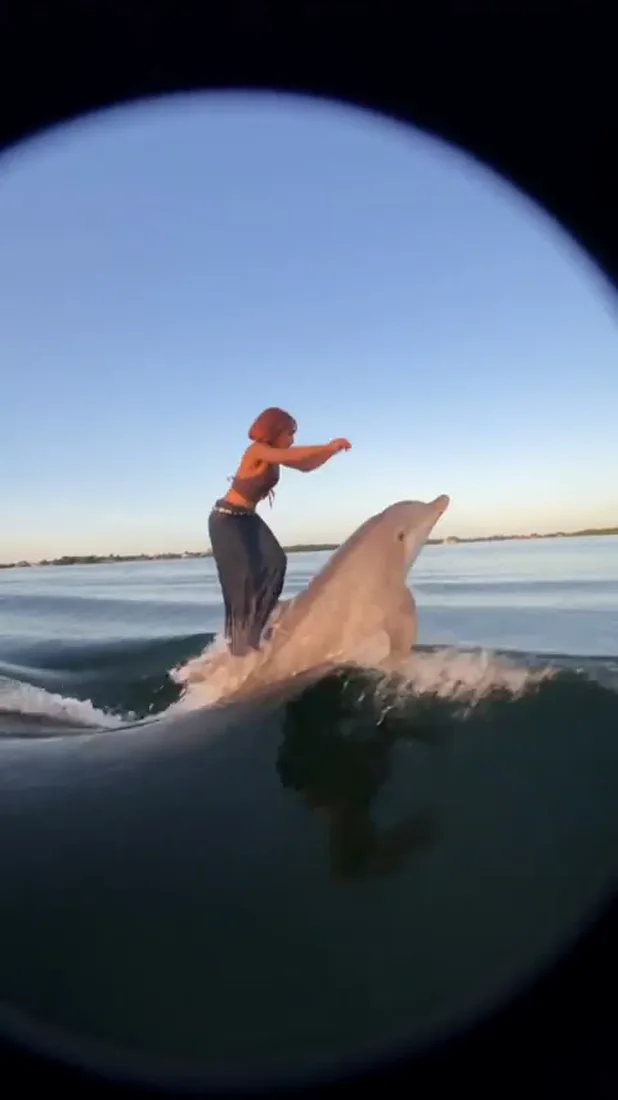
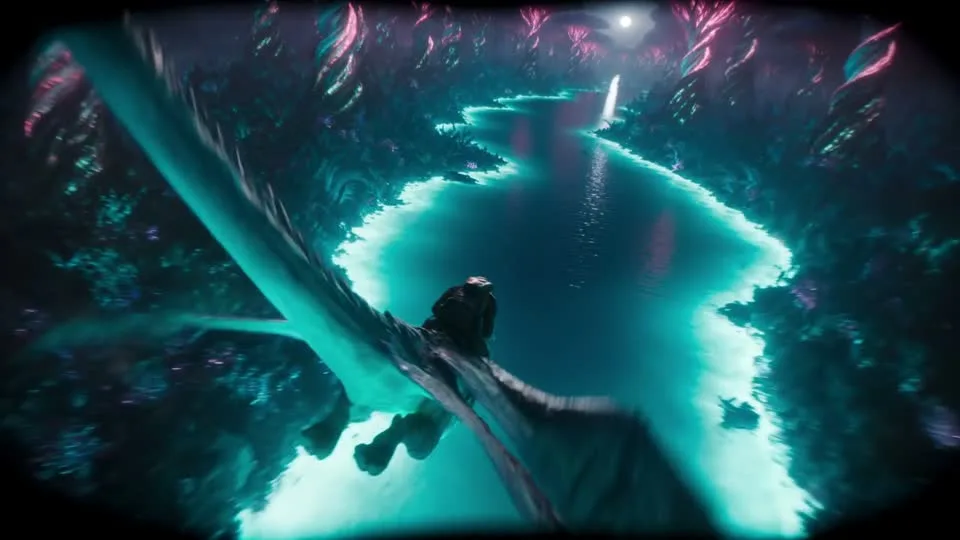
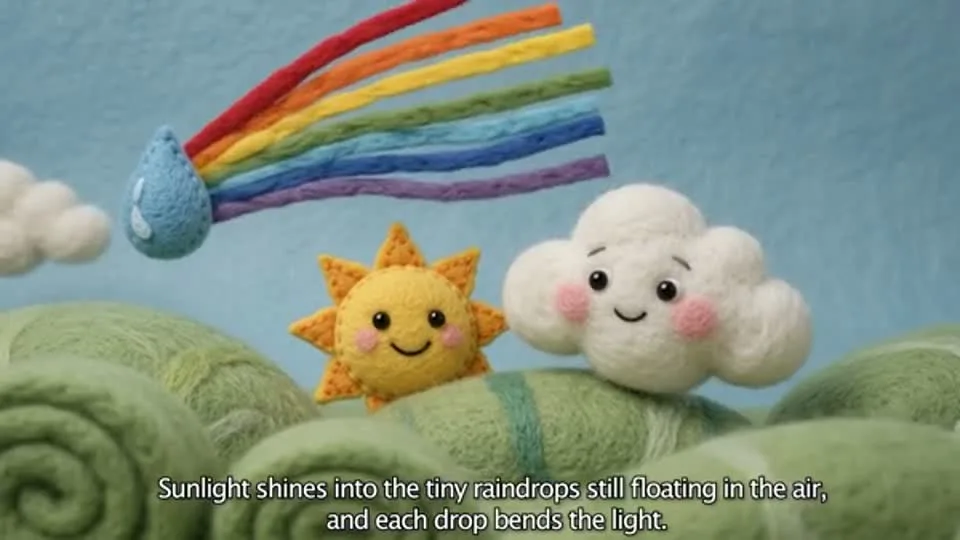
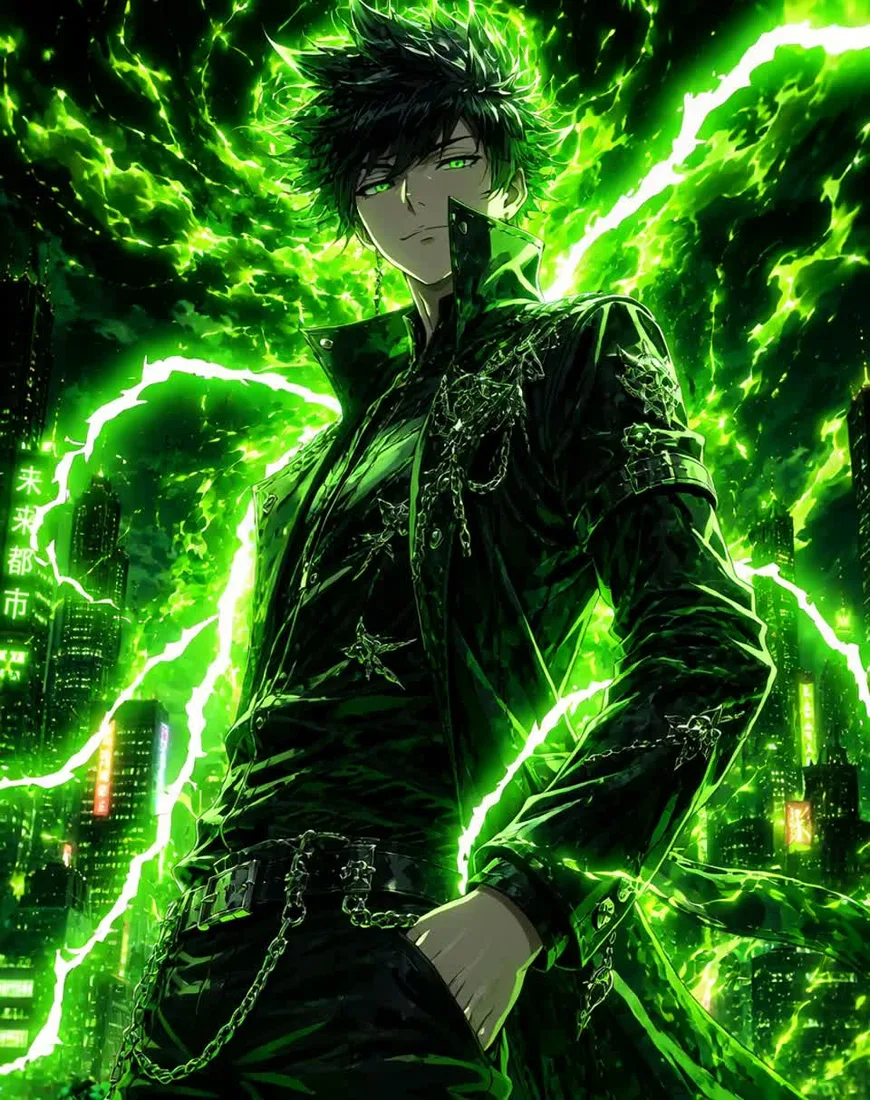
These images are visual references for composition and motion, not verified outputs from your selected model.
 Flow AI Video
Example 1 / 2
Name the subject and its surroundings. Concrete details give you a clearer result to evaluate.
Need a hand?
Review the requirements for this workflow before you generate.
Contact supportUse the model selector above the Generate button. After switching versions, review the available format and output settings and the updated credit estimate.
These images illustrate creative directions and are not verified outputs from this model. Review your own generated result for the details that matter.
Choose a model and supported settings to review estimated credits. Opening the page and preparing a draft does not start a paid generation.
Start with the image you already have
Choose GPT Image 2 or 2.5 above. Start with a composition brief or a reference to edit, then check credits and generate the next version.