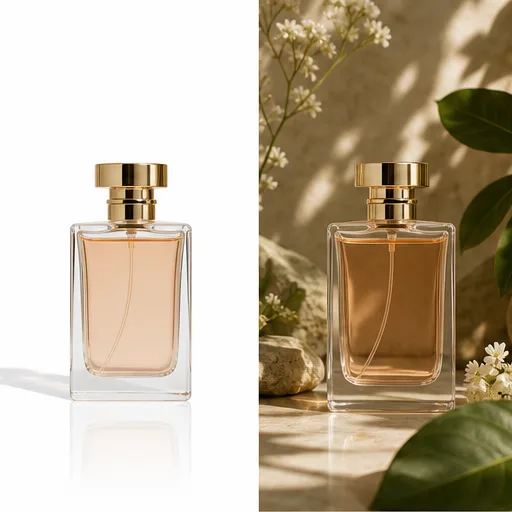
✨ Editing Prompt
Replace a Photo Background
Create a polished image concept for Replace a Photo Background. Describe the subject, composition, style, lighting, camera or framing, key details, and the final visual result.
The created video result will appear here
No generated result yet
Submit a prompt to create a real AI result. Placeholder media is not shown here.
Generated files are displayed only after the provider returns them.
AI PHOTO EDITING EXAMPLES
Tell the AI what should change while the uploaded photo provides the subject and composition.
✨ Editing Prompt
Create a polished image concept for Replace a Photo Background. Describe the subject, composition, style, lighting, camera or framing, key details, and the final visual result.
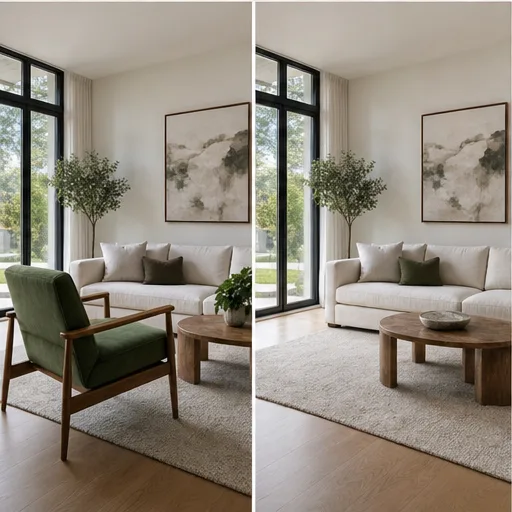
✨ Editing Prompt
Create a polished image concept for Remove an Unwanted Object. Describe the subject, composition, style, lighting, camera or framing, key details, and the final visual result.
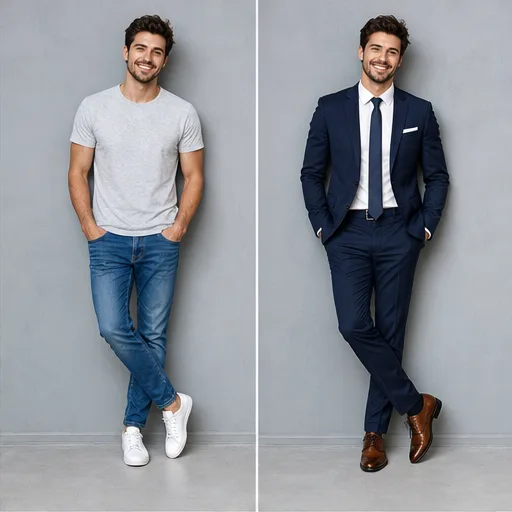
✨ Editing Prompt
Create a polished image concept for Change an Outfit. Describe the subject, composition, style, lighting, camera or framing, key details, and the final visual result.
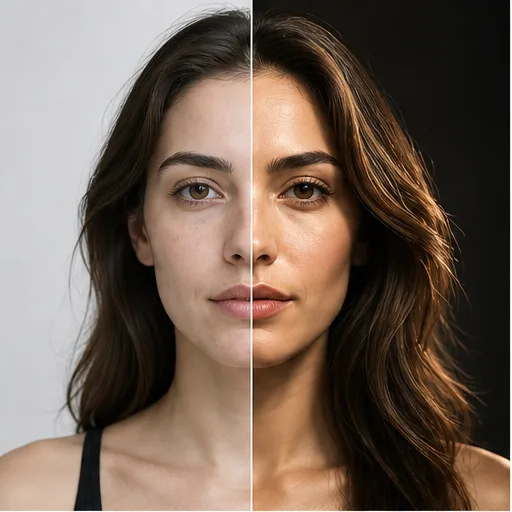
✨ Editing Prompt
Create a polished image concept for Relight a Portrait. Describe the subject, composition, style, lighting, camera or framing, key details, and the final visual result.
✨ Editing Prompt
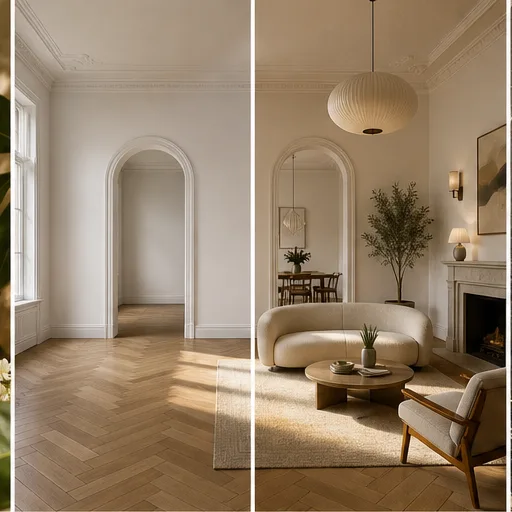
Create a polished image concept for Redesign a Room. Describe the subject, composition, style, lighting, camera or framing, key details, and the final visual result.
✨ Editing Prompt
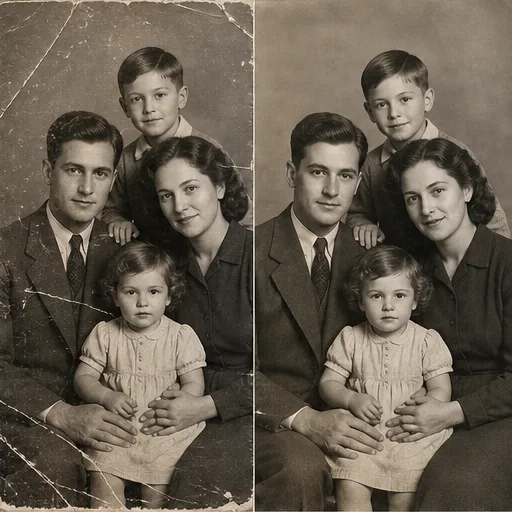
Create a polished image concept for Restore an Old Photo. Describe the subject, composition, style, lighting, camera or framing, key details, and the final visual result.
Why Flow AI Video
Create and compare variations while keeping the original photo as the visual anchor.
Describe changes in natural language instead of masking every pixel manually.
Improve backgrounds, lighting, and context for ecommerce and ads.
Restyle portraits, scenes, and assets while preserving key details.
Send polished frames into image-to-video for animated campaign assets.
AI photo editing workflow
Start with a portrait, product photo, room, object, or campaign image that needs a specific edit.
Tell the editor what to change, what to keep, and what style or lighting should guide the result.
Review multiple edited versions and check identity, product details, perspective, and realism.
Adjust one detail at a time, then download or continue into upscaling, background removal, or image-to-video.
AI photo editor tools
Make targeted changes to portraits, product photos, interiors, campaign images, and everyday pictures.
01 Background change
Swap locations, surfaces, skies, sets, or product scenes while preserving the main subject.
02 Object removal
Clean up distractions, props, people, or visual clutter with a direct editing prompt.
03 Outfit change
Try new clothing, colors, fabrics, accessories, and styling while keeping the pose and face consistent.
04 Photo relighting
Change time of day, studio setup, ambience, shadow softness, and color temperature.
05 Product edit
Update backgrounds, materials, props, labels, or campaign styling around a product photo.
06 Interior redesign
Restyle furniture, wall color, materials, lighting, and decor from an existing room photo.
Creator feedback
The generator is fast enough to test multiple hooks before choosing a final direction.
Prompt examples and model pages make it easier to move from rough idea to campaign-ready video.
References help keep products and styles consistent while exploring new scenes.
Select the ideal package to create stunning videos with Flow Video Generator.
Basic
Perfect for hobbyists and beginners
Everything you need to start:
Enterprise
For teams and businesses
Everything in Professional, plus:
Pro
For creators and professionals
Everything in Basic, plus:
Cancel subscription, please contact the support email: support@flowaivideo.net
AI image questions
Continue your photo workflow
Create images from text
Generate image concepts from text prompts, then continue into editing, upscaling, background removal, or image-to-video workflows.
Open generatorClean product images
Remove or replace image backgrounds before using assets in product ads, thumbnails, marketplaces, or image-to-video scenes.
Open generatorImprove image detail
Enhance image resolution and detail before using your visuals in campaigns, product pages, or image-to-video workflows.
Open generatorCreate your first result
Open Flow AI Video, add a prompt or reference, choose your model settings, and generate your next AI creative asset.
