




Flow AI benefitsUP TO 50% OFFExplore plans
Flow AI plansSave up to 50% with yearly plansView pricing
Kling 4.0 · reference-guided video

Kling 4.0 AI Video Generator

Create Kling 4.0 AI videos from a prompt, images, or video references. Choose 3–30 seconds and 720p or 1080p; see the credit estimate before you generate.

Optional
⇄
Optional
100 credits
Tip: press Ctrl/⌘ + Enter to generateSign in to generate. Review the estimate for your selected duration and resolution before submitting.

Clear references, deliberate shot control

Create Kling 4.0 videos with prompts and references

Combine references, plan the action, and review the settings so the next iteration has a clear direction.

01 / START WITH A PROMPT OR REFERENCE

Give Kling 4.0 a clear visual direction.

Describe the subject, action, and camera movement, then add image or video references when you want to guide the scene. Use the asset tags in your prompt to point to each reference.

  • Text-to-video prompts
  • Up to 10 reference images
  • Up to 5 reference videos
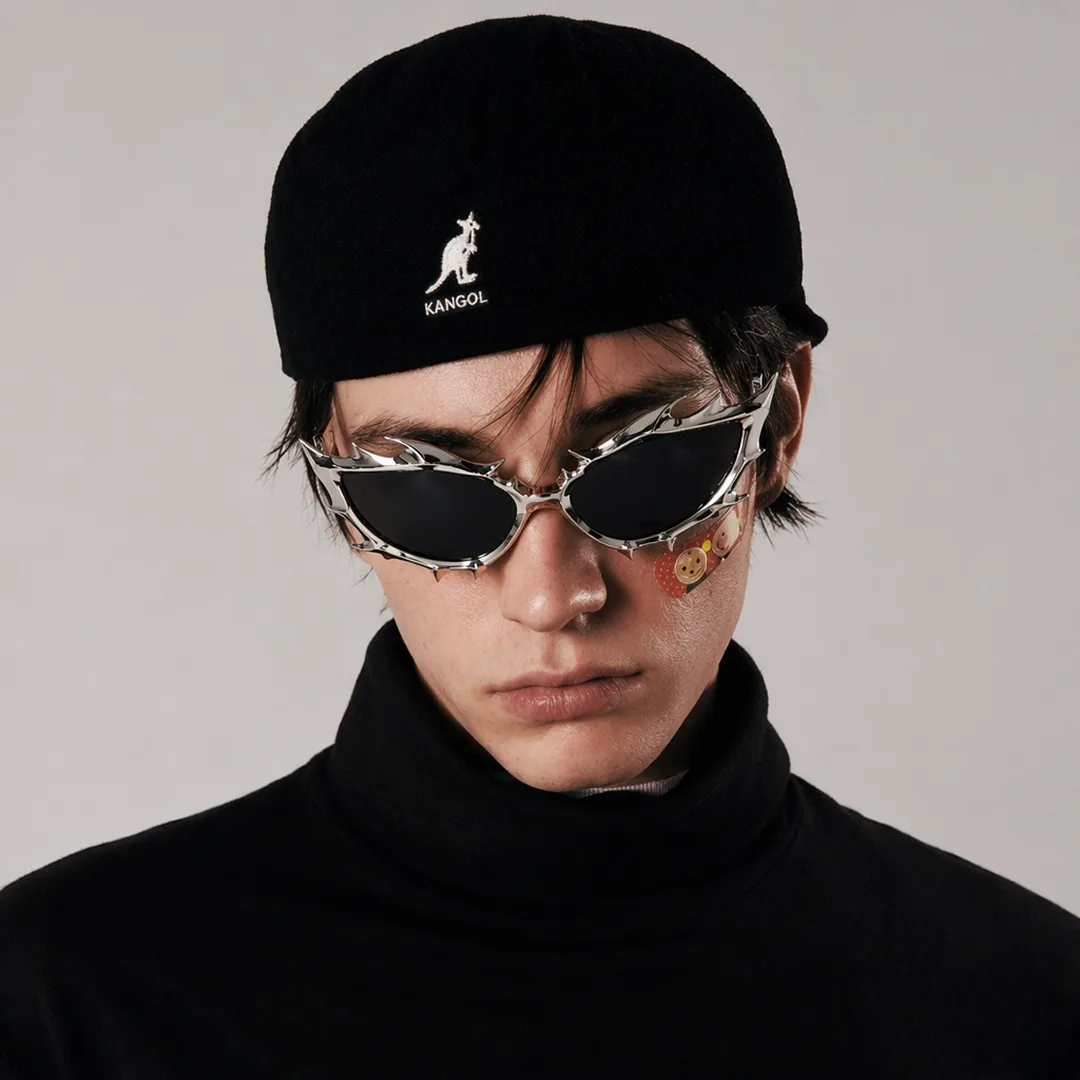
Portrait with black cap and sunglasses
01 / START WITH A PROMPT OR REFERENCEFlow AI Video
02 / SET DURATION AND QUALITY

Choose output settings for your next cut.

Pick a duration from 3 to 30 seconds and choose 720p or 1080p. Your credit estimate updates before you submit.

  • 3–30 second duration
  • 720p: 20 credits per second
  • 1080p: 30 credits per second
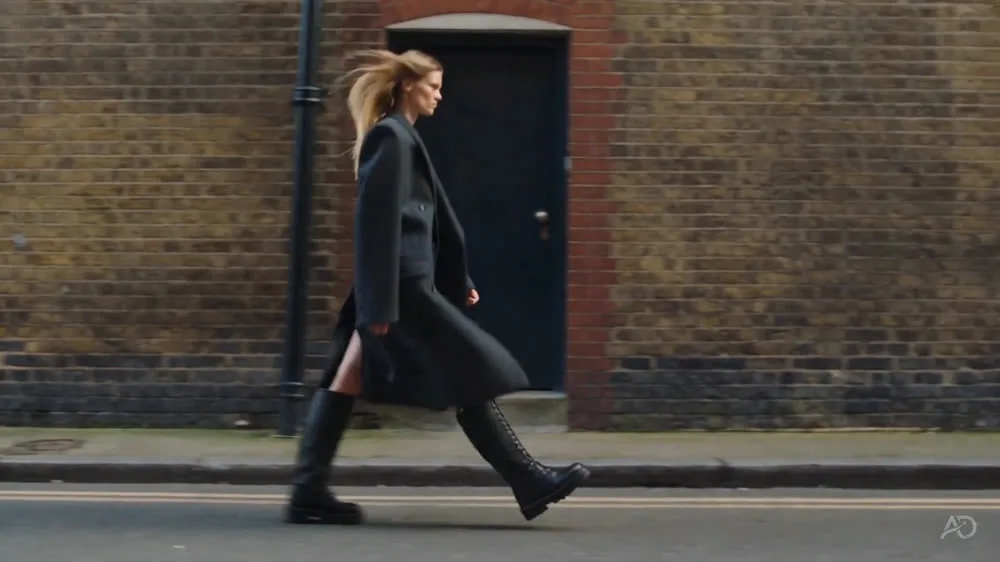
Fashion figure walking along a brick wall
02 / SET DURATION AND QUALITYFlow AI Video

03 / DIRECT THE CAMERA

Describe how the shot should change.

Write what the subject does, how the scene changes, and where the camera moves. Start with one main action so you can judge the result against a clear brief.

  • Name the subject and action
  • Describe camera movement
  • Give the shot an ending
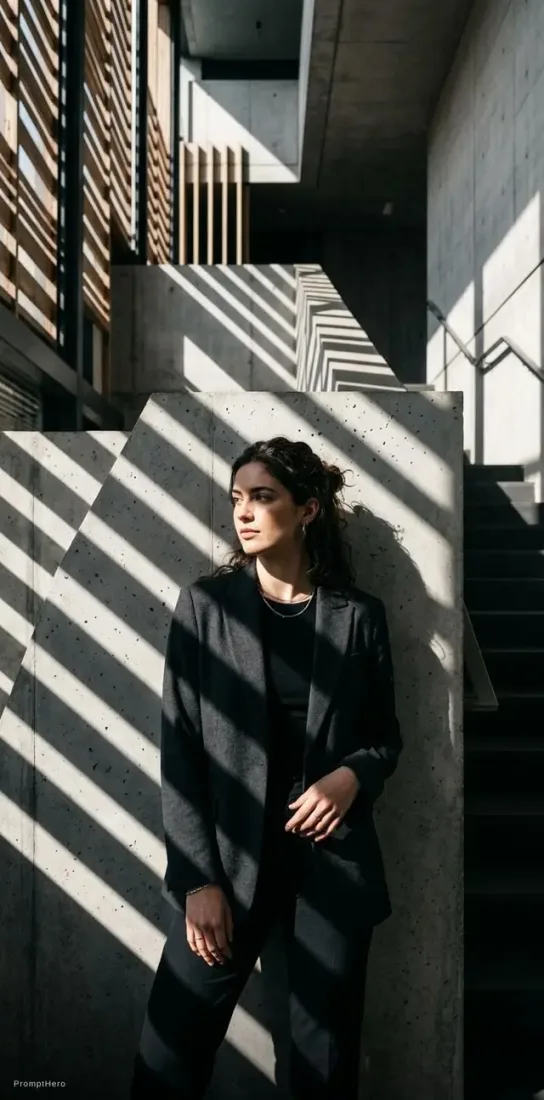
Portrait framed by architectural shadows
03 / DIRECT THE CAMERAFlow AI Video

04 / REVIEW AND REFINE

Check the estimate before you generate.

Confirm the credit estimate, submit your task, and follow its progress in Create. Preview and download the finished video when it is ready.

  • See credits before submission
  • Track progress in Create
  • Preview and download the result
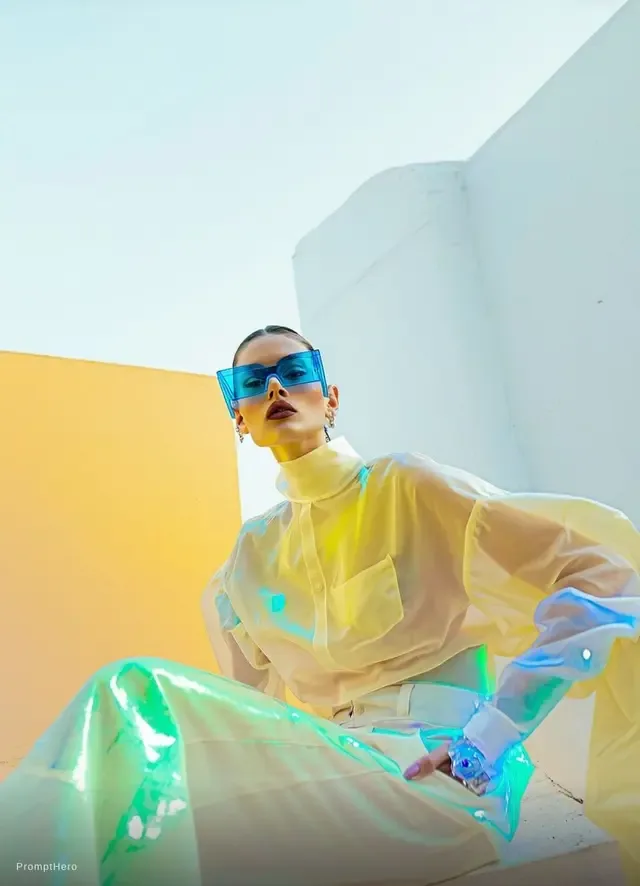
Colorful stylized fashion figure
04 / REVIEW AND REFINEFlow AI Video

From brief to finished clip

How to use the Kling 4.0 video generator

Set the shot goal, add optional image or video references, then check output settings and the credit estimate.

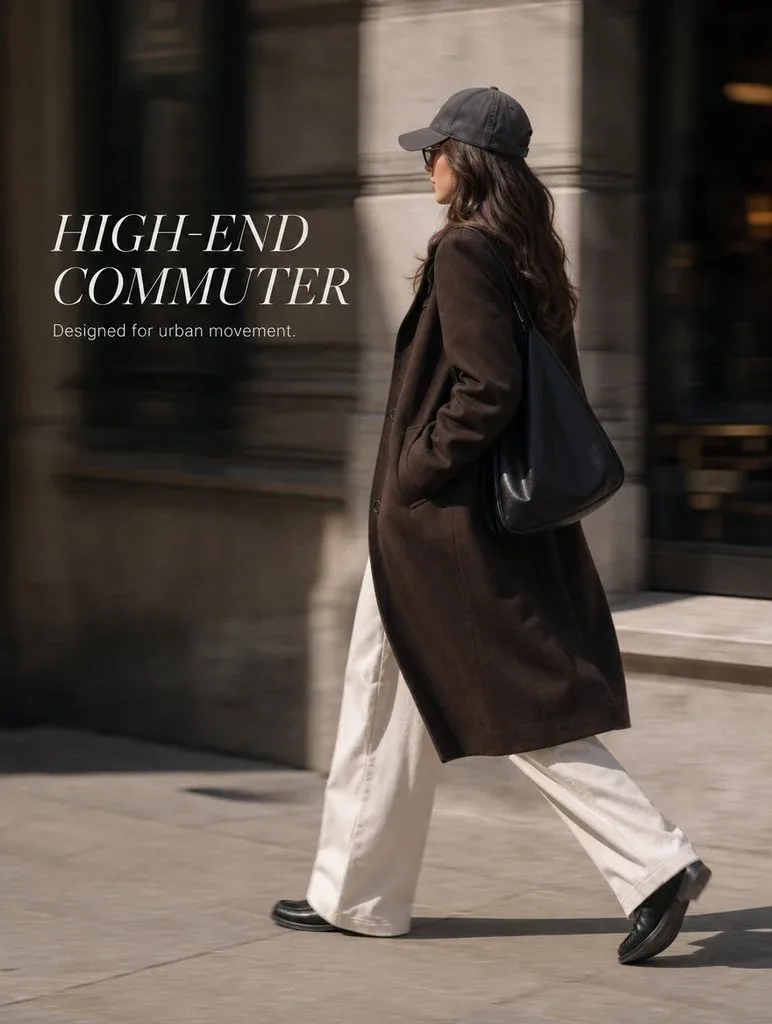
Fashion figure walking beside a wall
Flow AI Video
1

Step 1: Describe the scene and action

Write the subject, action, camera move, and ending. When using references, name them in the prompt with their @tag.

2

Step 2: Add optional references

Generate from text alone or upload images and video clips to guide the subject, setting, or visual style.

3

Step 3: Set Kling 4.0 options

Choose a 3–30 second duration, 720p or 1080p output, and a supported aspect ratio. Review the credit estimate before submitting.

4

Step 4: Review and download

Open the Create workspace to follow progress, preview the completed video, and keep it in your Assets library.

One video, one clear purpose

Shape the next shot around your creative goal

Start from a specific shot brief for a product clip or social post.

E-commerce teams

Keep product details at the center of the shot.

Add product images as visual references, then describe material, action, and camera distance for a draft you can refine.

  • Keep the product in focus
  • Direct movement and lighting
  • Check brand details in the result
Cozy winter Christmas scene, heavy soft

Prompt and shot inspiration

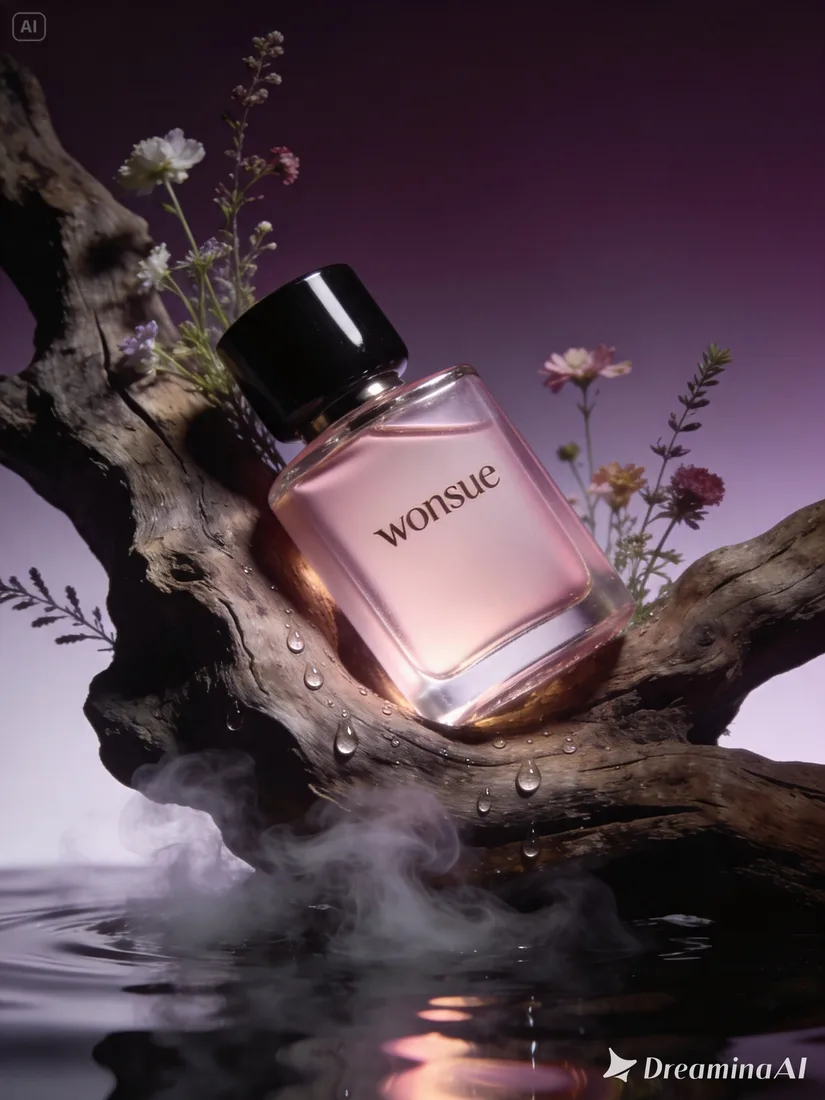
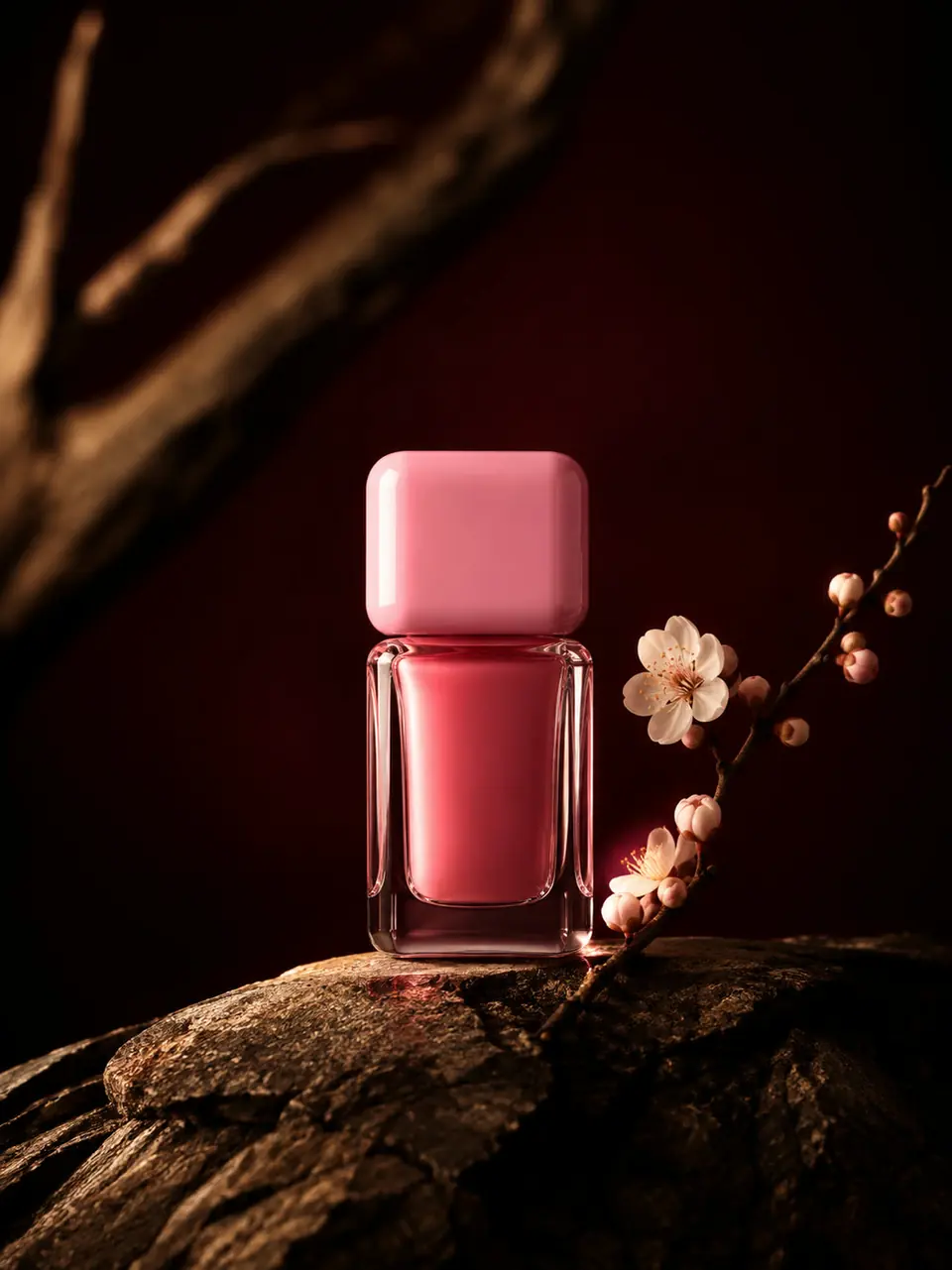
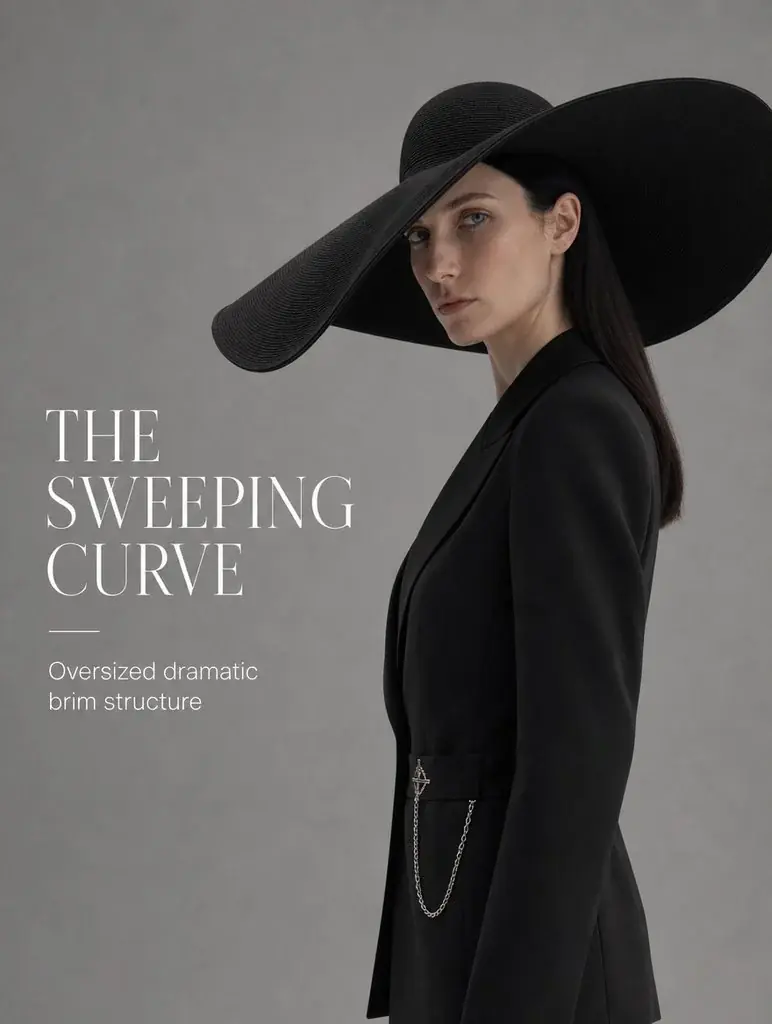
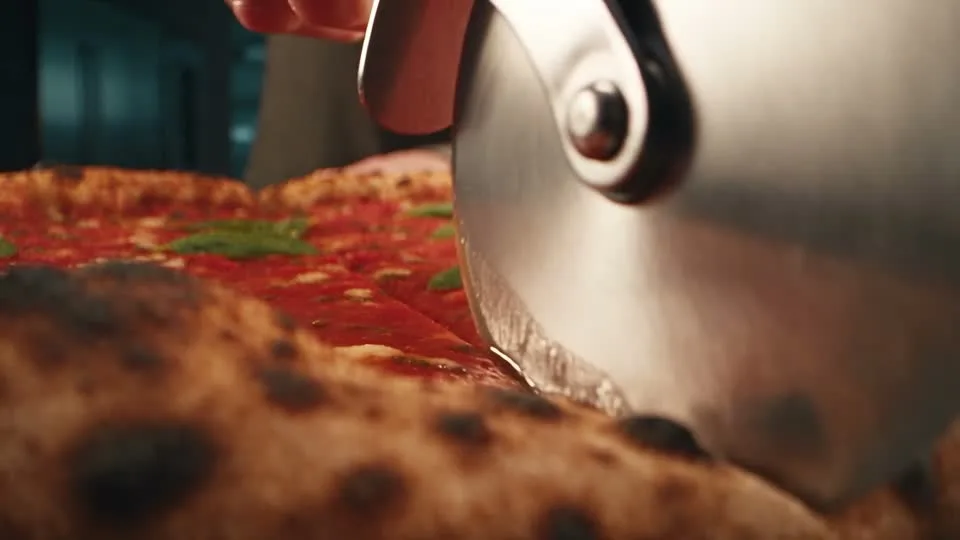
Start with product, people, and scene references

These project assets illustrate prompt directions. They are not verified outputs from Kling 4.0.

Luxury pastel pink glass perfume bottle
Flow AI Video

Example 1 / 3

Move from a tactile detail to the full product.

Open on one useful detail, then reveal the full silhouette with a deliberate camera move.

Need a hand?

Before you generate with Kling 4.0

Understand the modes, reference inputs, available settings, and credit estimate.

Contact support
How can I use Kling 4.0 on this page?+

Enter a prompt to generate a video, or add images and video clips as references. This page currently uses the reference-to-video workflow.

What duration and resolution can I choose?+

The current API supports 3–30 second video and 720p or 1080p output. Available options are shown in the generator.

How do I refer to an uploaded asset in my prompt?+

After adding an asset, use its tag, such as @image_1 or @video_1, to tell the model which visual reference to follow.

How many credits does Kling 4.0 cost?+

720p costs 20 credits per second and 1080p costs 30 credits per second. Choose a duration and resolution to see the estimate beside Generate.

Can I check the credit estimate first?+

Sign in, choose a duration, resolution, and model, then review the estimate beside Generate before submitting.

Bring the assets you already have

Create your first Kling 4.0 video

Enter a prompt and optionally add image or video references. Choose a format, duration, and resolution, then review the credit estimate before generating.

See plans
Skincare product visual from the Flow AI Video asset libraryFashion campaign visual from the Flow AI Video asset library