
Flow AI plansSave up to 50% with yearly plansView pricing
Your next product shot, in motion

Veo Video Generator on Flow AI Video

Use the Veo Video Generator to turn a scene description or product photo into a short clip. Choose Veo 3.1 Lite, Fast, or Quality and review credits before generating.

Optional
⇄
Optional
40 credits
Tip: press Ctrl/⌘ + Enter to generateSign in with Google to generate. Review the estimated credits for your selected Veo settings before submitting.

A clearer brief, a more deliberate first take

Shape your shot with the Veo Video Generator

Frame the scene, guide the motion, and review the cost. Each decision has a place in this Veo workspace.

01 / FRAME YOUR SUBJECT

Your product photo gives the scene a starting point.

Add an image you have permission to use. Tell Veo what should move and which details deserve attention. Review the result for product accuracy.

  • Start and End image slots
  • Your references travel to the Create page
  • Inspect labels and shapes before publishing
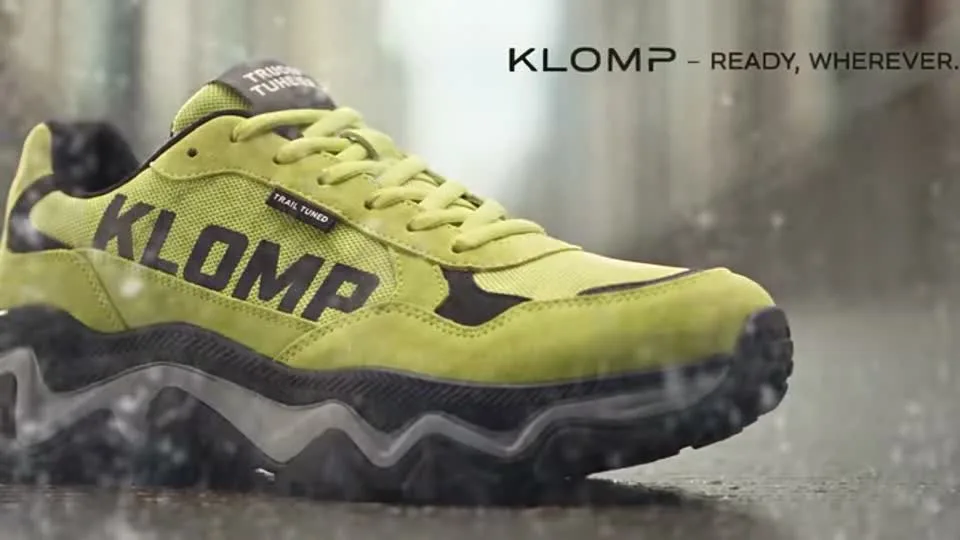
Creative scene from a project video
01 / FRAME YOUR SUBJECTFlow AI Video
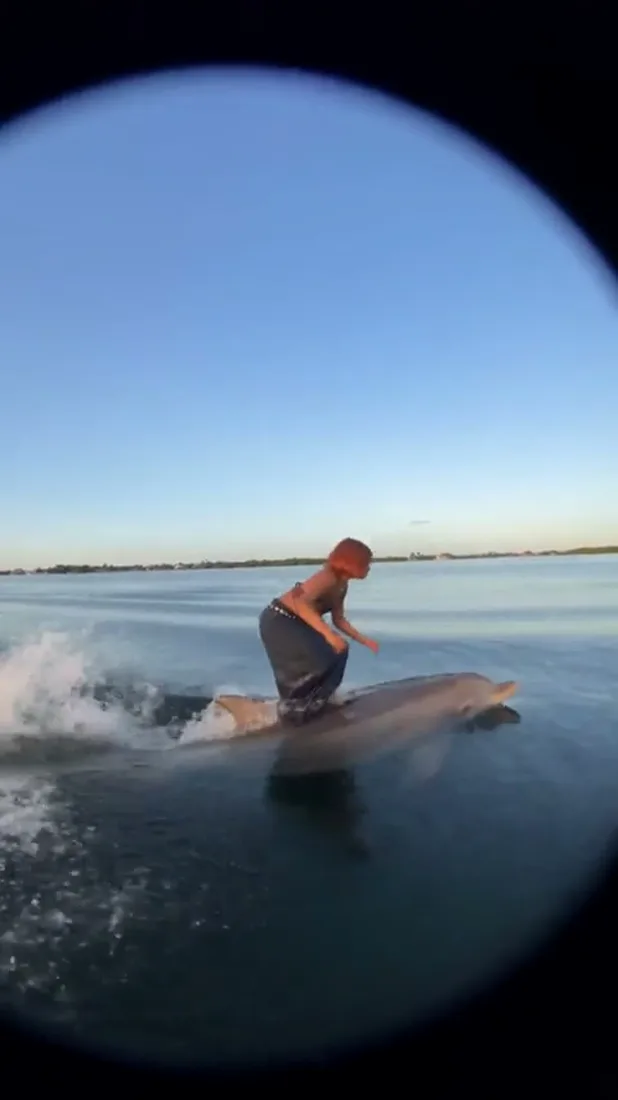
02 / DIRECT THE MOVEMENT

Ask for a shot you can picture.

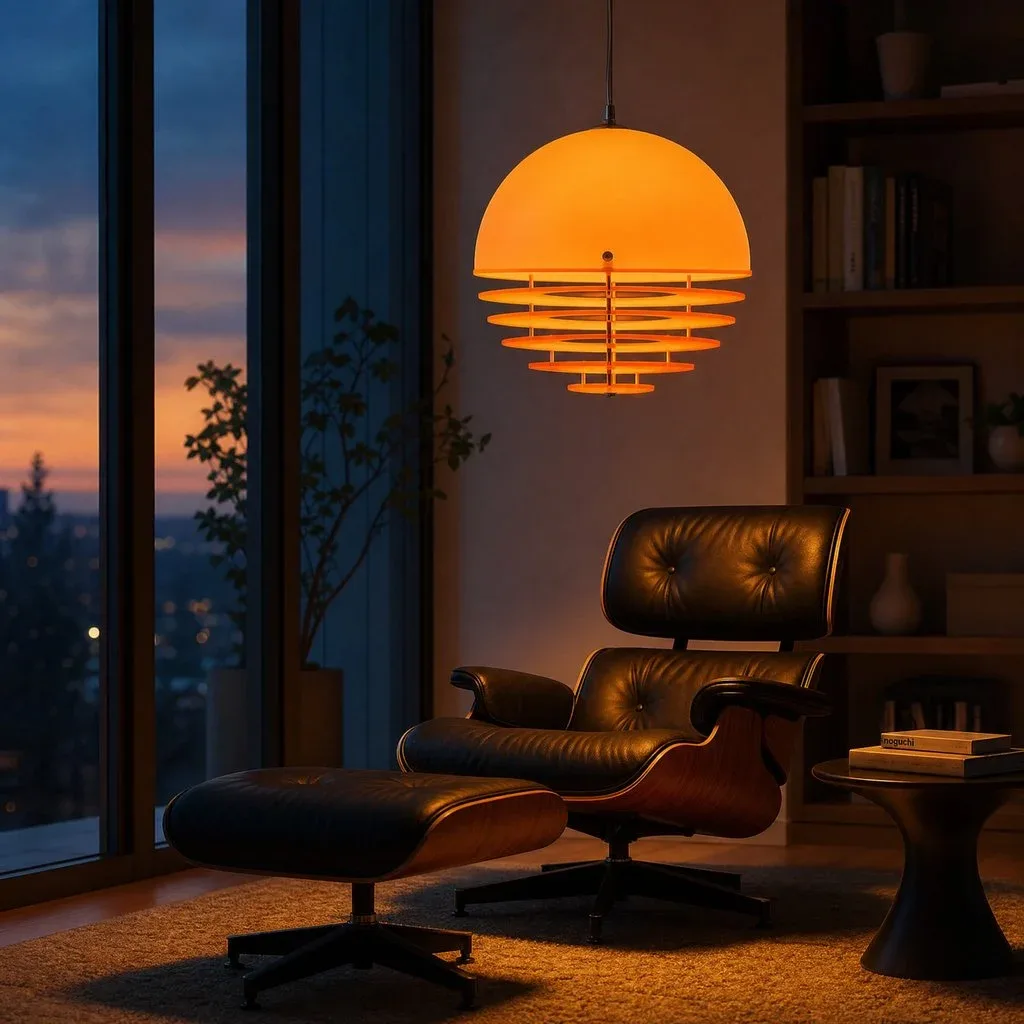
A slow push toward a bottle. A gentle orbit around a lamp. Put the subject, camera movement, and lighting in your prompt so you can refine one decision at a time.

  • One subject and a clear action
  • Describe the camera and the light
  • Load and edit a ready-made shot prompt
Creative scene from a project video
02 / DIRECT THE MOVEMENTFlow AI Video

03 / REVIEW YOUR CHOICES

See the credit estimate before you commit.

Select Veo 3.1 Lite, Fast, or Quality and review the settings it supports. Check the estimated credits for that combination before submitting.

  • Three Veo variants in one selector
  • Model-supported format and duration
  • Credit estimate beside the generate button
Creative scene from a project video
03 / REVIEW YOUR CHOICESFlow AI Video

04 / REVIEW YOUR TAKE

Keep the result in your own creative library.

Follow the task on the Create page, preview the completed clip, and download it. Return to Assets to find your generated media for the next step.

  • Task progress in the Create page
  • Preview and download completed video
  • Your generated media in Assets
Creative visual from the project image library
04 / REVIEW YOUR TAKEFlow AI Video

From reference to result

How to use the Veo Video Generator

A specific brief is easier to refine. Pick a subject, describe its motion, and use the settings shown for your chosen model.

Creative scene from a project video
Flow AI Video
1

Step 1: Describe a single shot

Write the subject, action, camera move, and lighting. Add your own Start image if you want a visual reference.

2

Step 2: Set up your Veo take

Choose Lite, Fast, or Quality, then select from the format, duration, and resolution options shown.

3

Step 3: Review credits and generate

Sign in with Google. Check the estimated credits beside the generate button, then submit when the brief is ready.

4

Step 4: Watch, inspect, and download

Follow progress on the Create page. Check the completed clip and download it; your generated media remains accessible in Assets.

One clip, one creative goal

Make the next shot for your actual brief

A product reveal, a social post, or a motion concept: give each generation a specific job.

Product sellers

Give one product a focused reveal.

Start with a product photo and ask for a controlled camera move. Review shape, label, and packaging before using the clip in a listing or campaign.

  • A single product as the focal point
  • A clear opening and final frame
  • Inspect the result before publishing
Creative scene from a project video

Camera and motion inspiration

Describe the motion you want Veo to explore

These reference clips illustrate camera and scene ideas. They are inspiration, not verified Veo outputs or a promise of your result.

Creative scene from a project video
Flow AI Video

Example 1 / 3

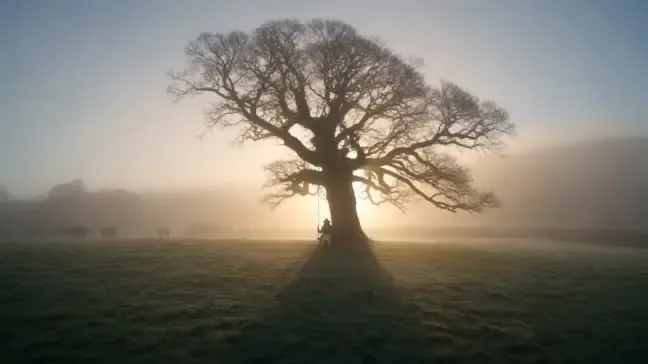
Let the camera reveal the landscape.

A wide landscape at dawn. Ask for a slow forward move, a distant focal point, and mist drifting across the foreground.

Need a hand?

Before you generate with Veo

Know what you are choosing, what it costs, and where your result will appear.

Contact support
Which Veo 3.1 model should I select?+

Lite, Fast, and Quality are available in the model selector. Begin with your intended format and credit budget, then review the estimate for each variant. Results and generation times can vary.

Can I animate a product photo?+

Yes. Add your photo as a Start image and describe the motion you want. Start and End image slots are available in the composer. References guide generation; inspect product details and lettering in the finished video.

Do I need an account, and where does the result go?+

Sign in with Google to submit a generation. The Create page shows task progress and the completed video. Your generated images and videos are also available in your own Assets library.

How do I check the price before generating?+

After signing in, select a model, duration, and resolution to see the estimated credits beside the generate button. You can review available plans and credit packs on the pricing page.

Is this Google’s official Veo website?+

This is an independent workspace offering access to supported Veo models. It is not affiliated with or endorsed by Google.

Start with the image you already have

Give your next product photo a moving first draft

Add your reference image, describe one deliberate camera move, and check the estimate. Your first Veo brief is ready to take shape.

See plans
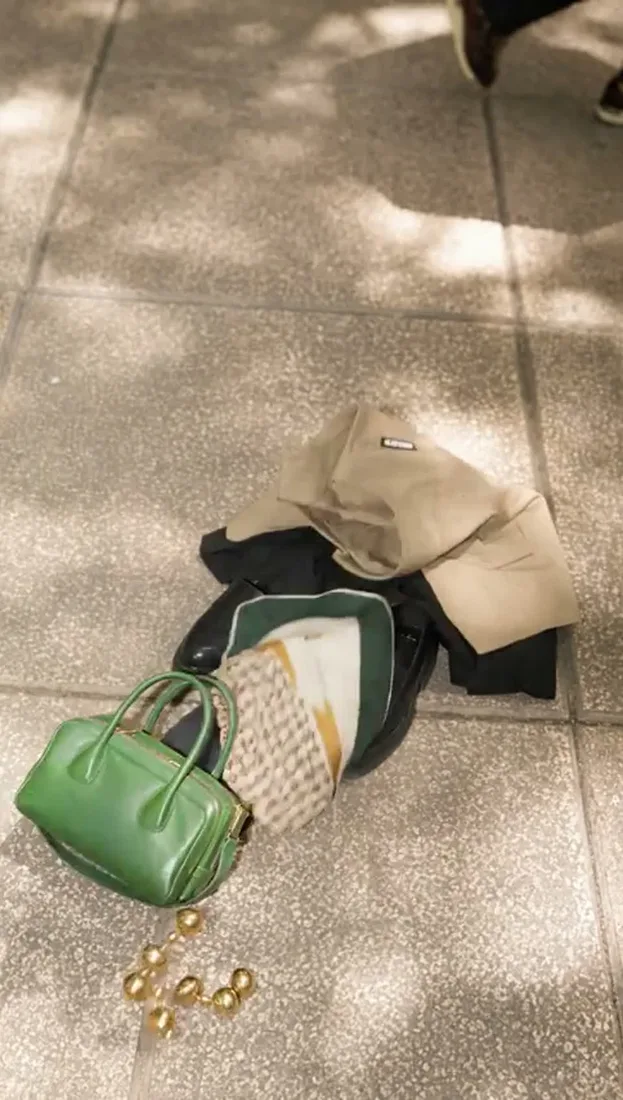
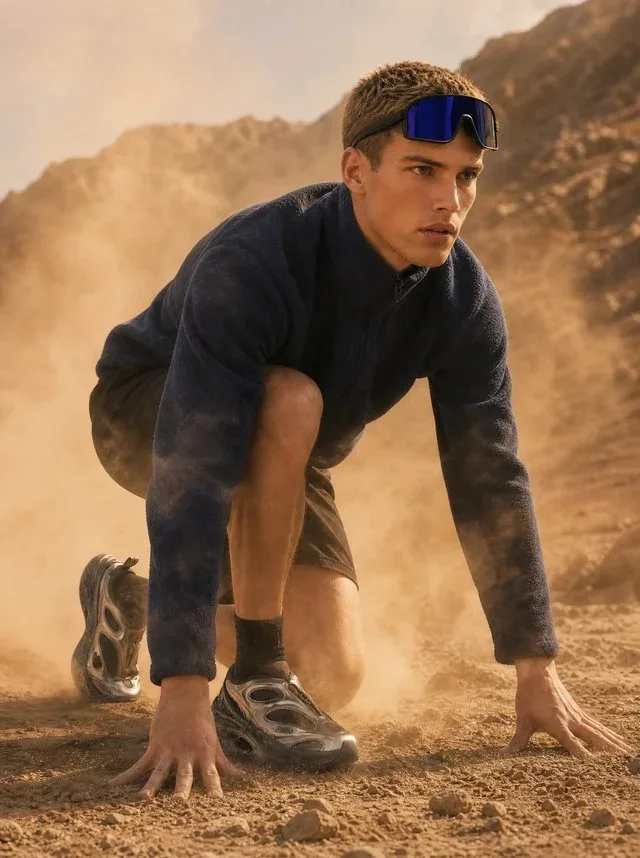
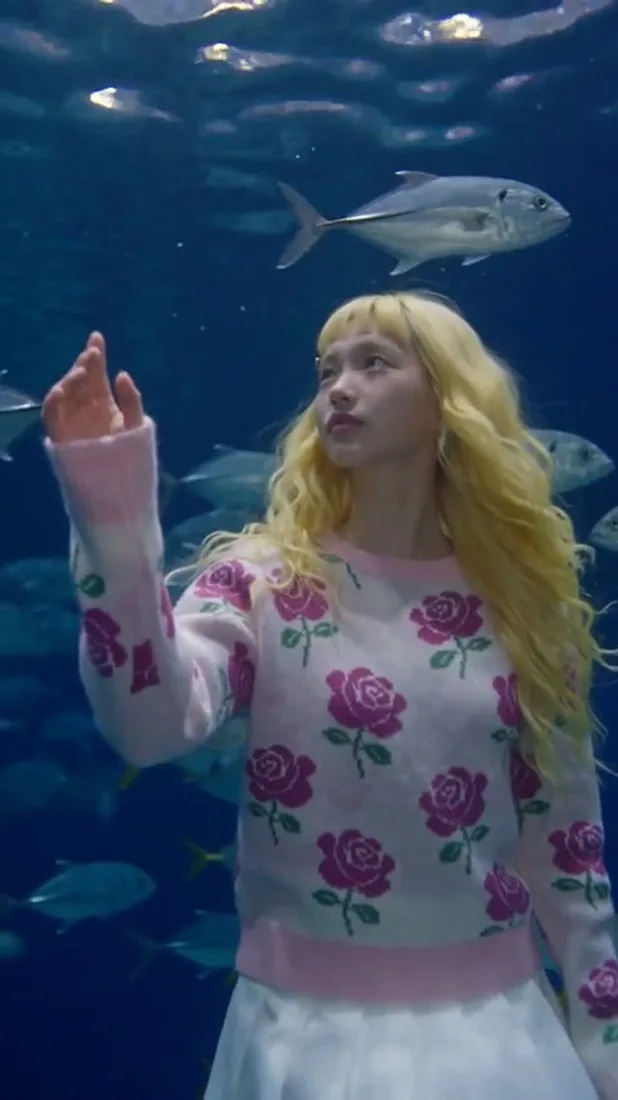
Skincare product visual from the Flow AI Video asset libraryFashion campaign visual from the Flow AI Video asset library