01
Available settings for GPT Image 2.5
Create and edit with GPT Image 2.5. Choose from auto/1:1/3:2 formats, review supported settings, and check credits before generating.
01Flow AI Video
Create and edit with GPT Image 2.5. Choose from auto/1:1/3:2 formats, review supported settings, and check credits before generating.
These are the controls currently offered in this workspace. Availability can change; confirm the selected settings and live estimate before submitting. Version names do not guarantee speed or output quality.
| Model | Duration | Resolution / quality | Aspect ratios | Example estimate |
|---|---|---|---|---|
| GPT Image 2 | — | 1K, 2K, 4K | auto, 1:1, 3:2, 2:3, 4:3, 3:4, 16:9, 9:16, 2:1, 1:2, 3:1, 1:3, 21:9, 9:21, 5:4, 4:5 | One image: 10 credits |
| GPT Image 2.5 | — | 1K, 2K, 4K | auto, 1:1, 3:2, 2:3, 16:9, 9:16, 4:3, 3:4, 21:9, 27:16, 16:27, 9:8, 8:9 | One image: 10 credits |
From brief to visual
Use the same source image and brief for a comparison. Check shapes, lettering, and important details at the chosen aspect ratio.
 Flow AI Video
Create and edit with GPT Image 2.5. Choose from auto/1:1/3:2 formats, review supported settings, and check credits before generating.
Use the same source image and brief for a comparison. Check shapes, lettering, and important details at the chosen aspect ratio.
These are the controls currently offered in this workspace. Availability can change; confirm the selected settings and live estimate before submitting. Version names do not guarantee speed or output quality.
Explore more options in AI Image Generator. Return to the homepage.
Every detail starts with your brief
Use the same source image and brief for a comparison. Check shapes, lettering, and important details at the chosen aspect ratio.
01
Create and edit with GPT Image 2.5. Choose from auto/1:1/3:2 formats, review supported settings, and check credits before generating.
02
One image: 10 credits
03
Use the same source image and brief for a comparison. Check shapes, lettering, and important details at the chosen aspect ratio.
04
These are the controls currently offered in this workspace. Availability can change; confirm the selected settings and live estimate before submitting. Version names do not guarantee speed or output quality.
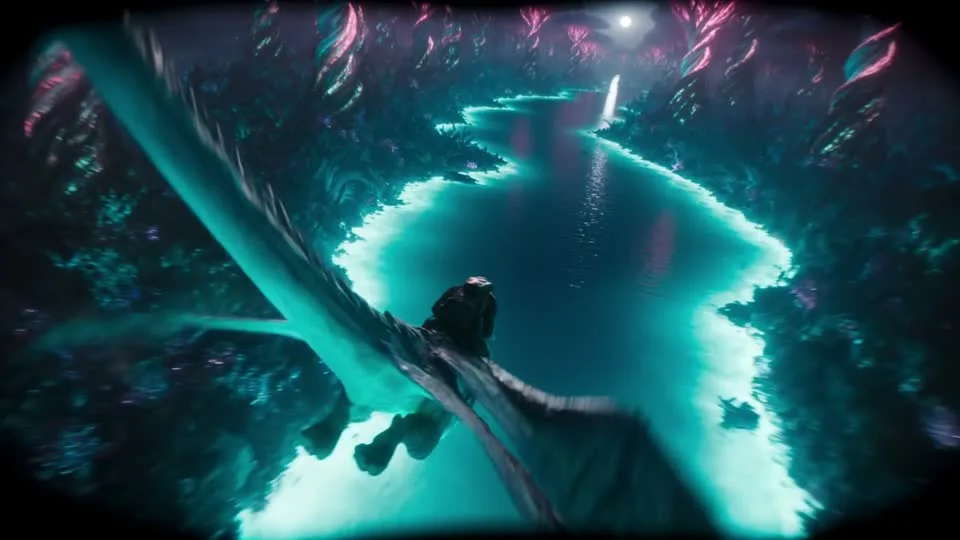
One image, one clear purpose
Start with the intended use, then define the subject, style, and details to review.
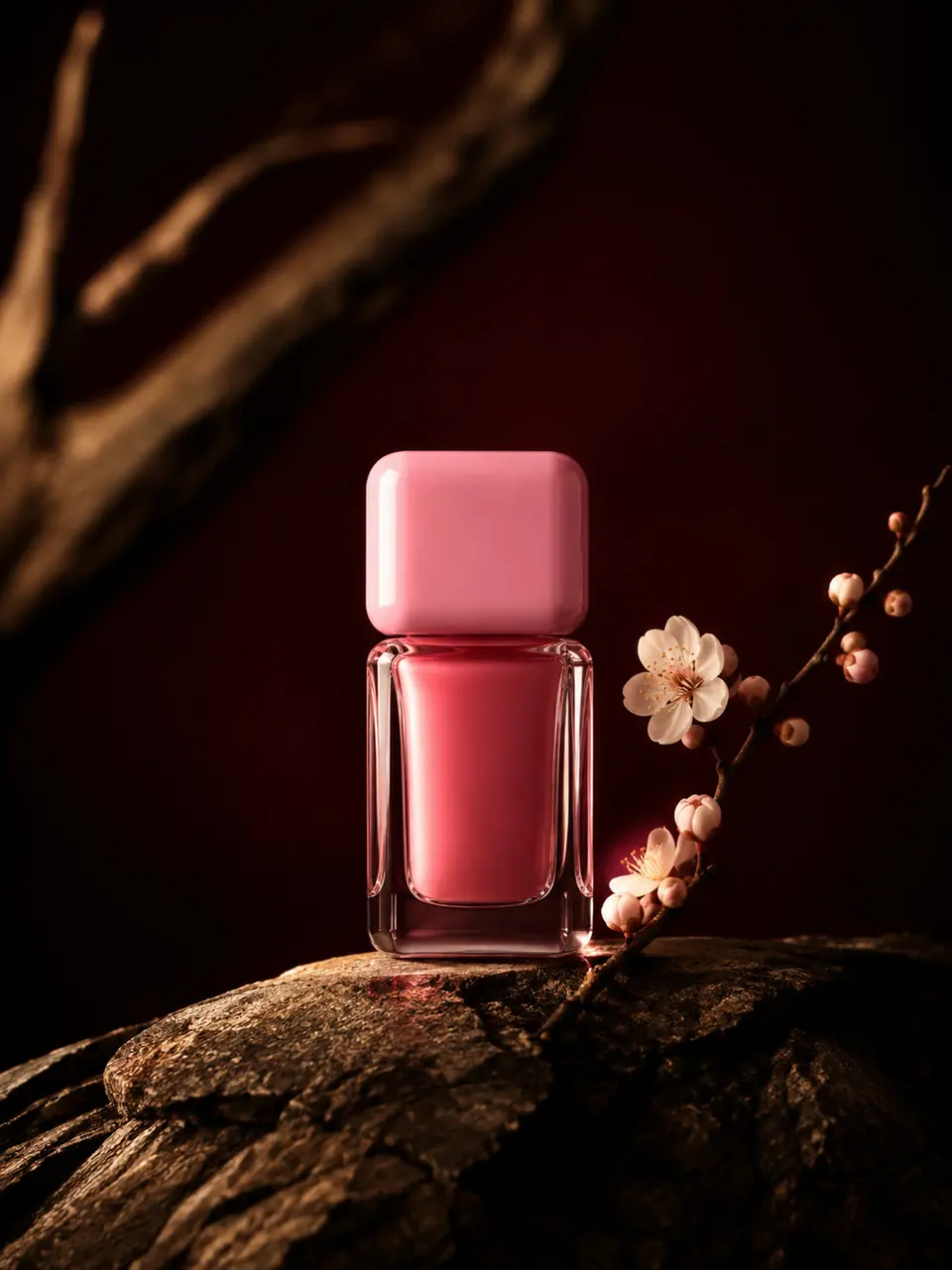
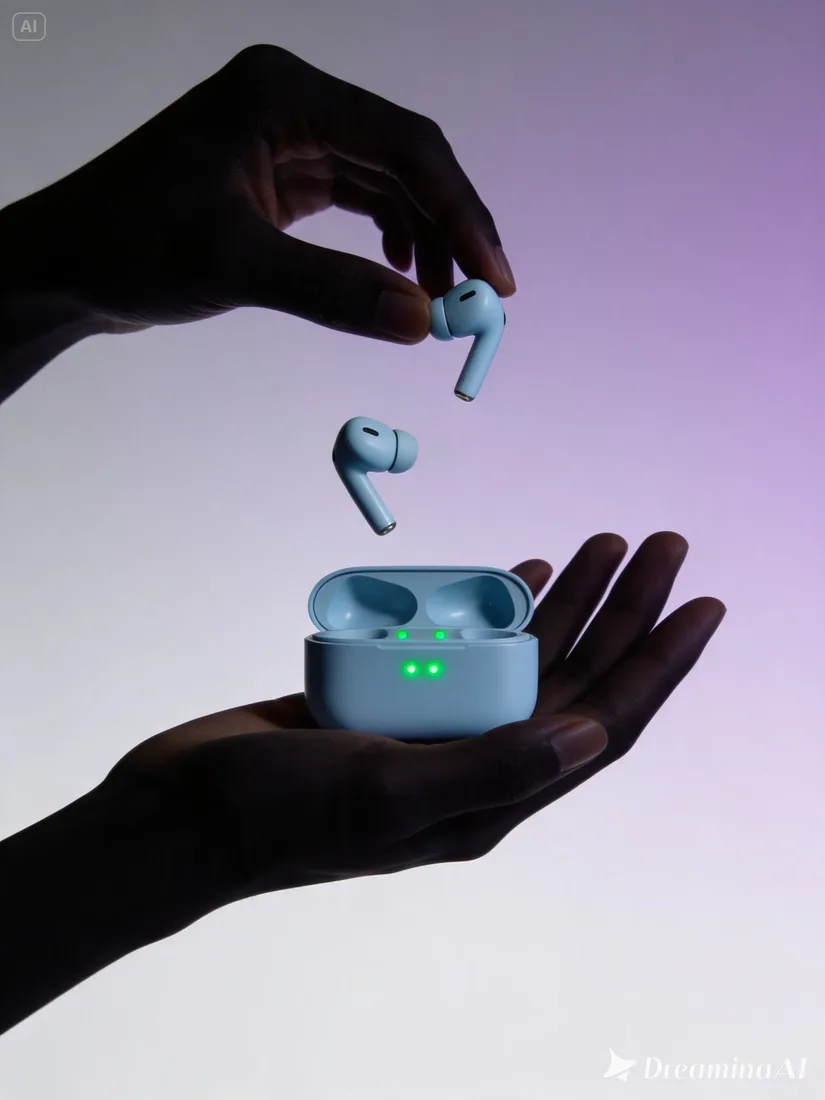
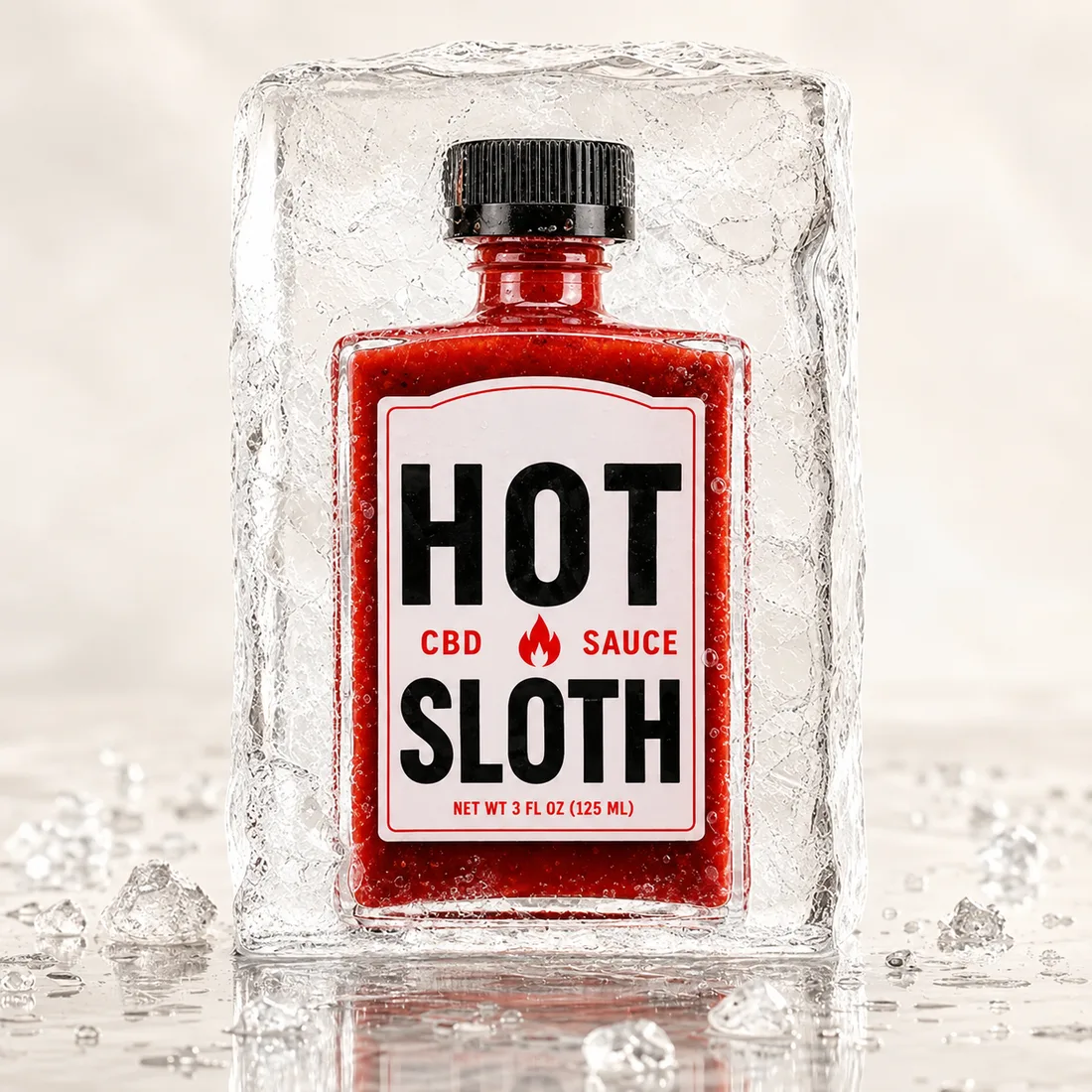
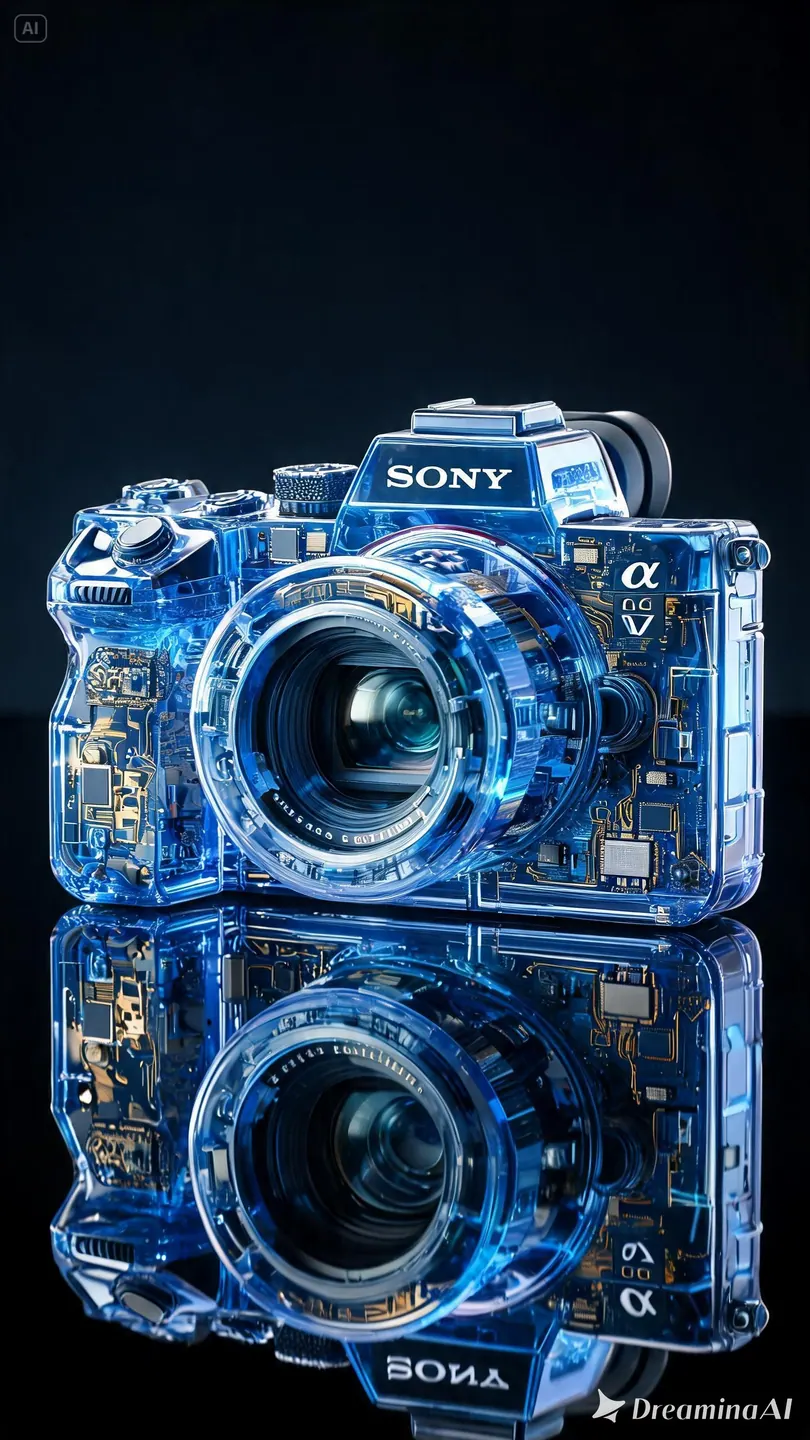
Product visuals
Name the subject and its surroundings. Concrete details give you a clearer result to evaluate.
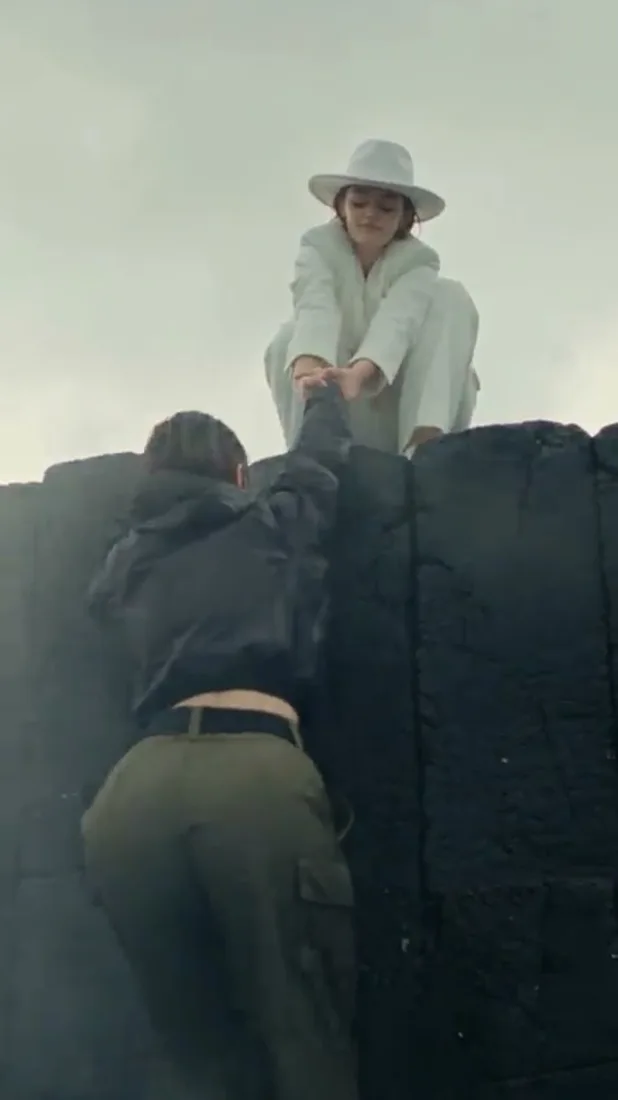
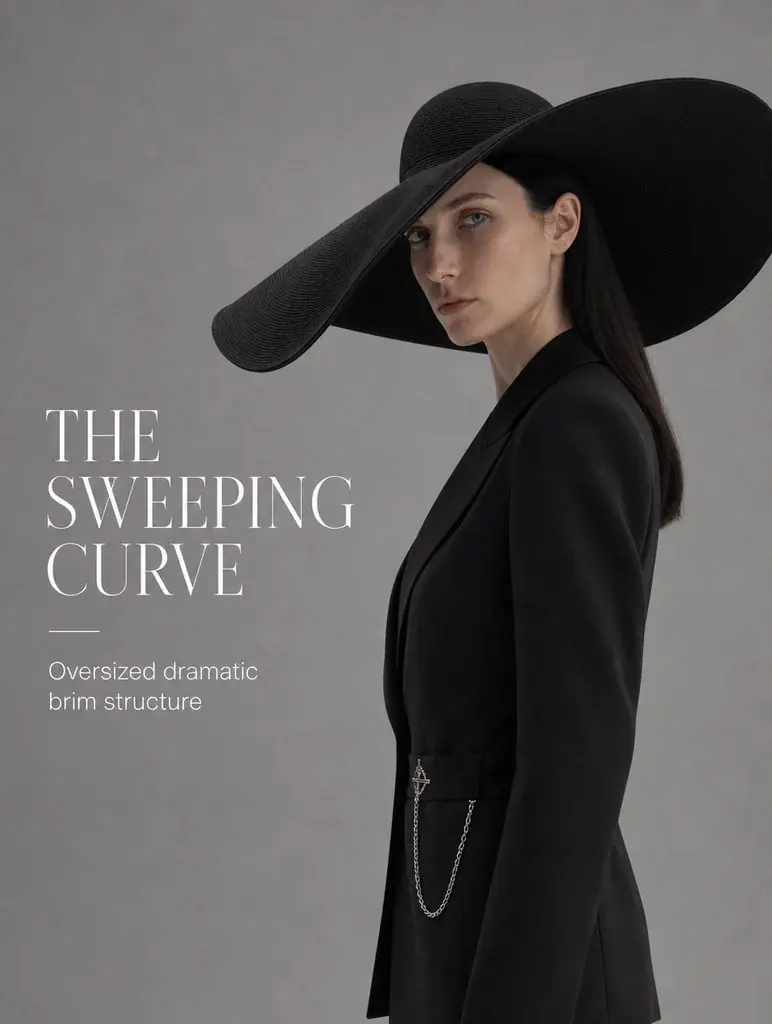
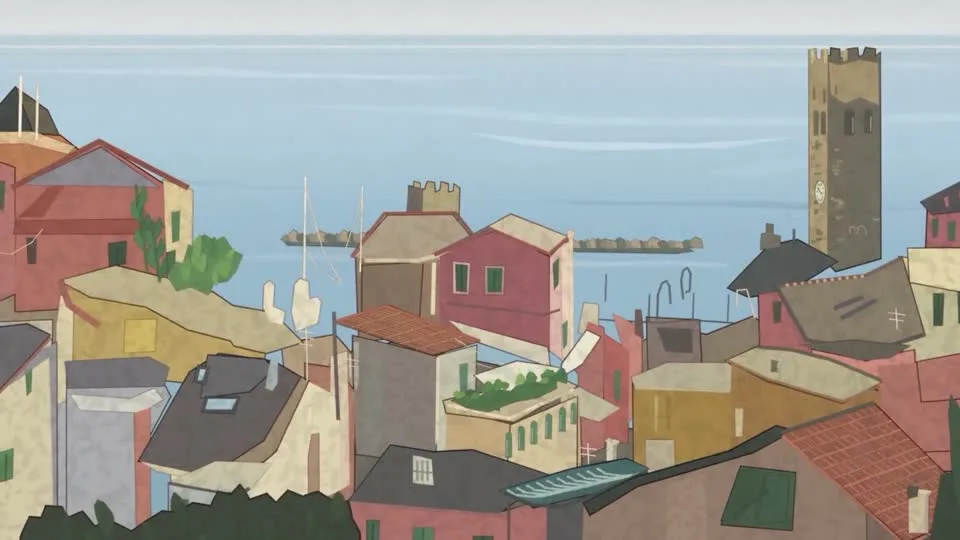
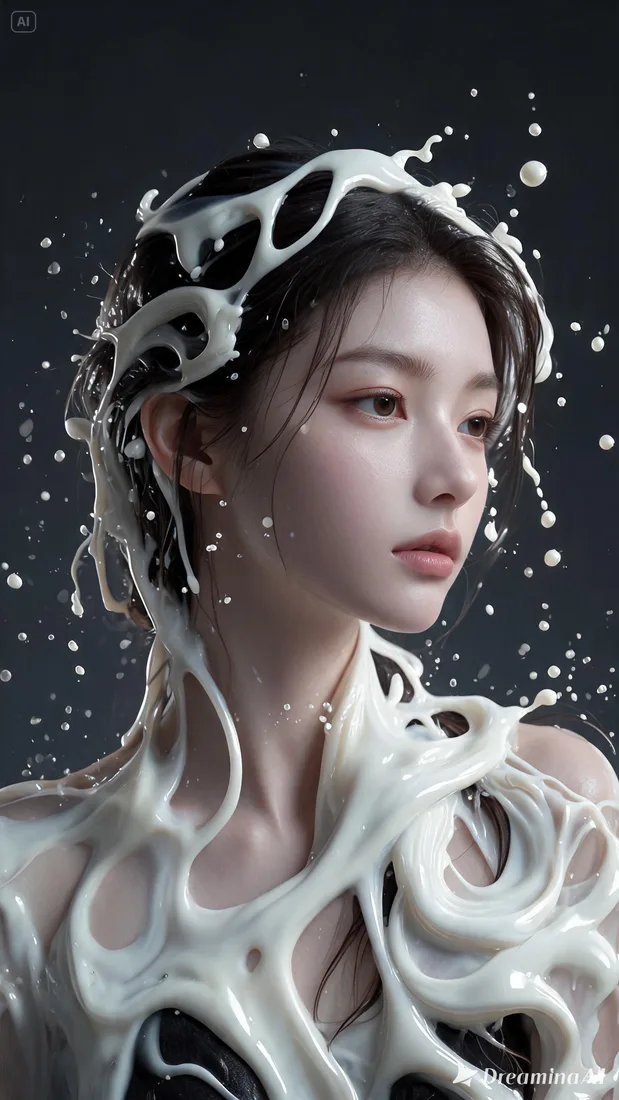
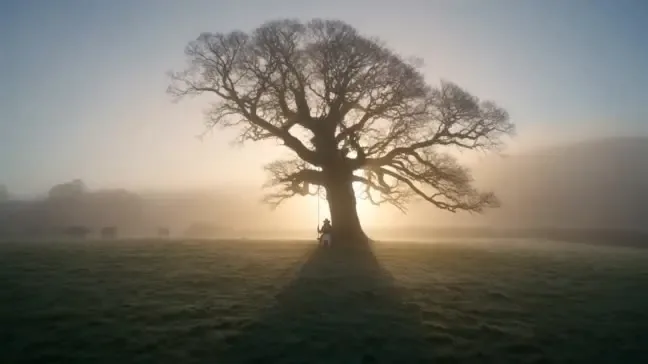
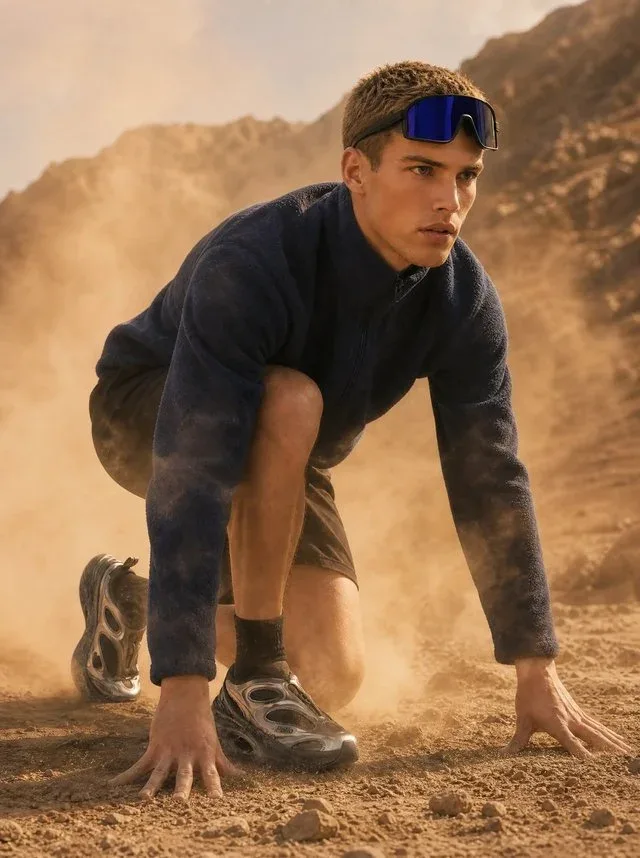
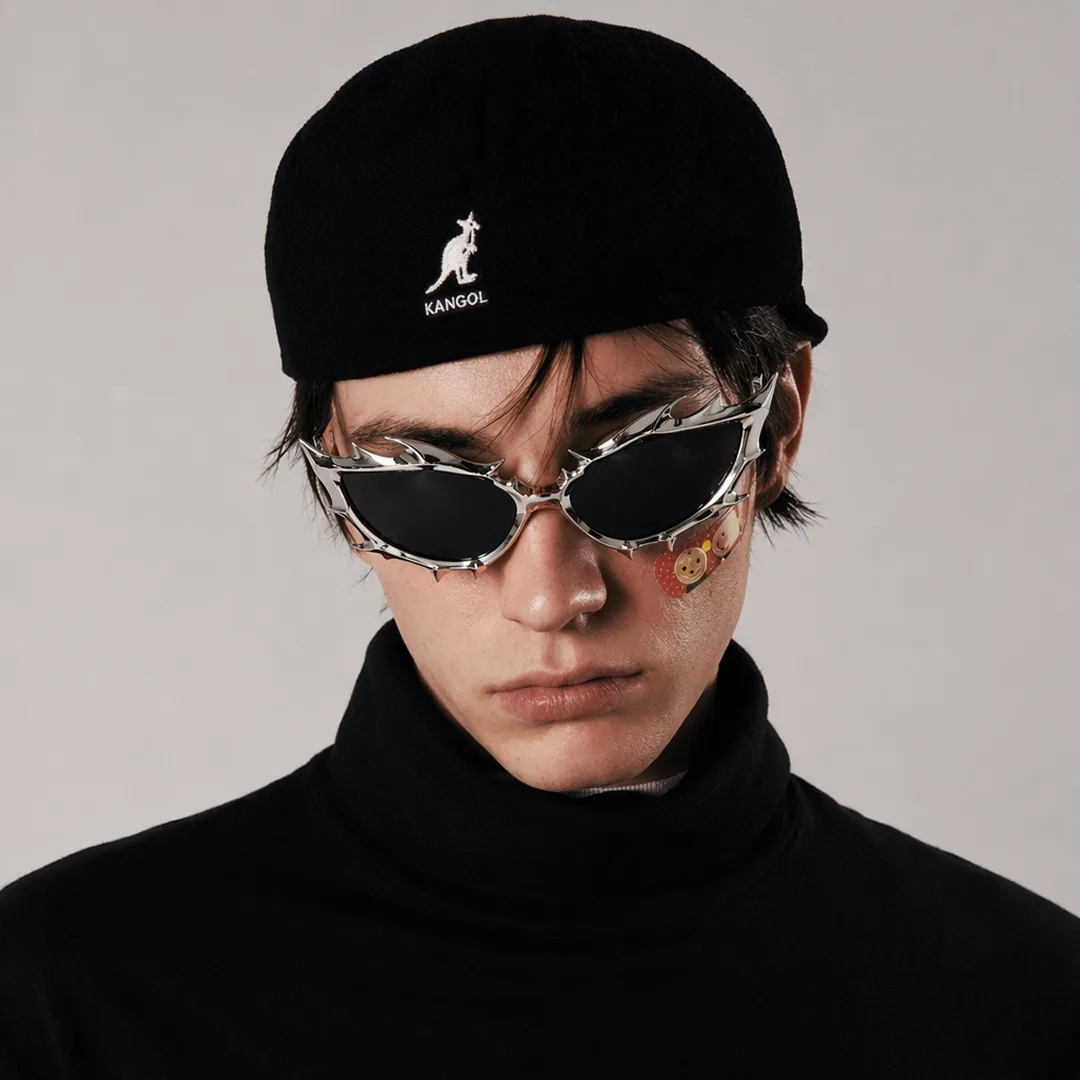
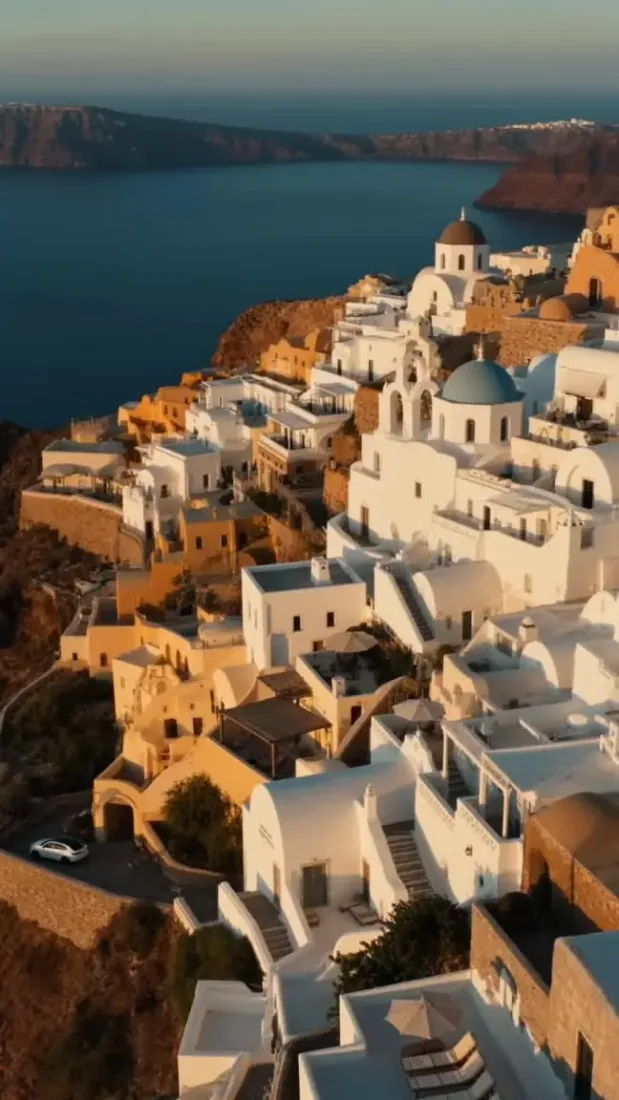
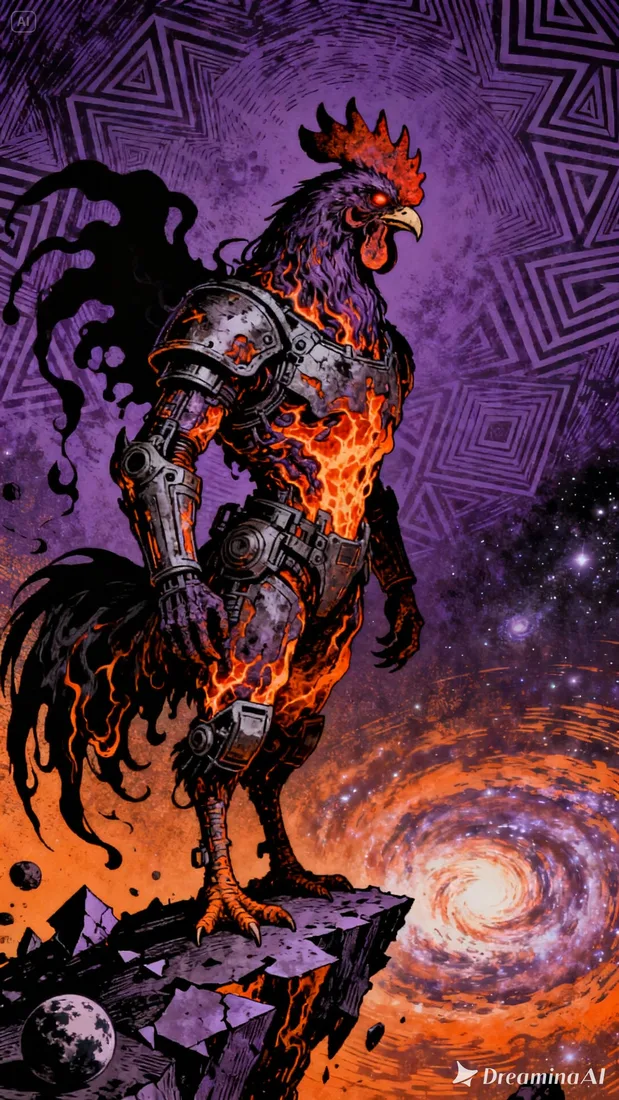
Composition and style inspiration
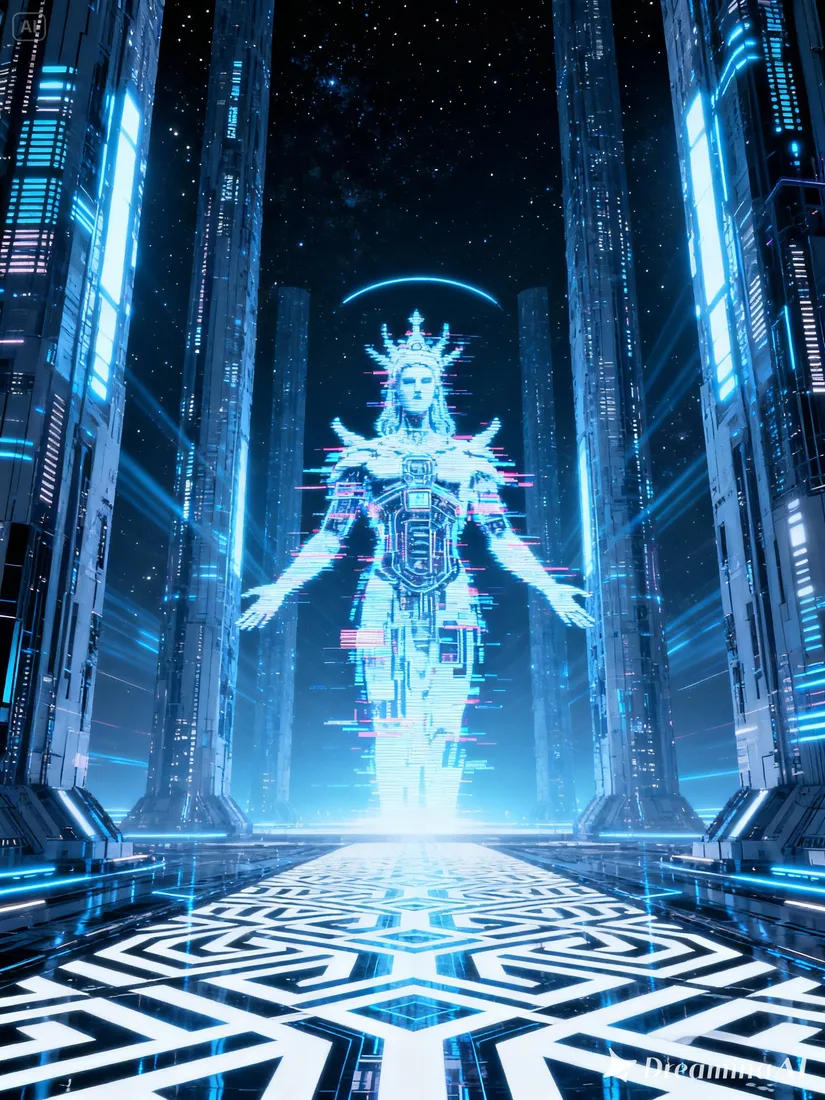
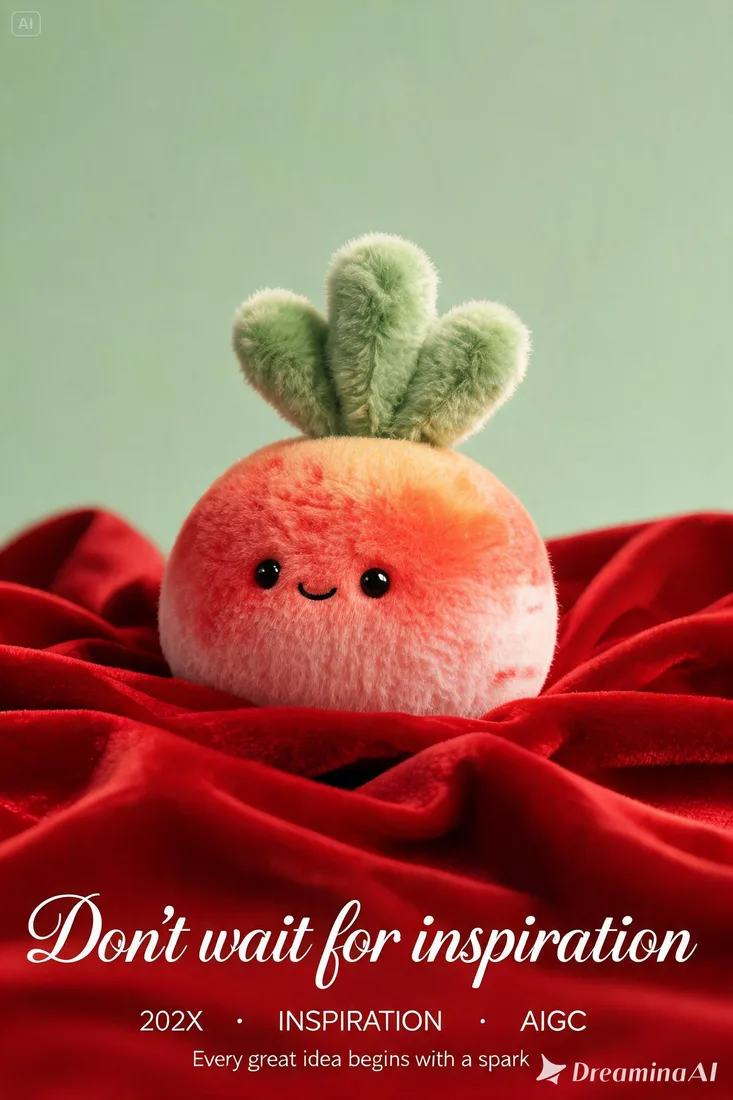
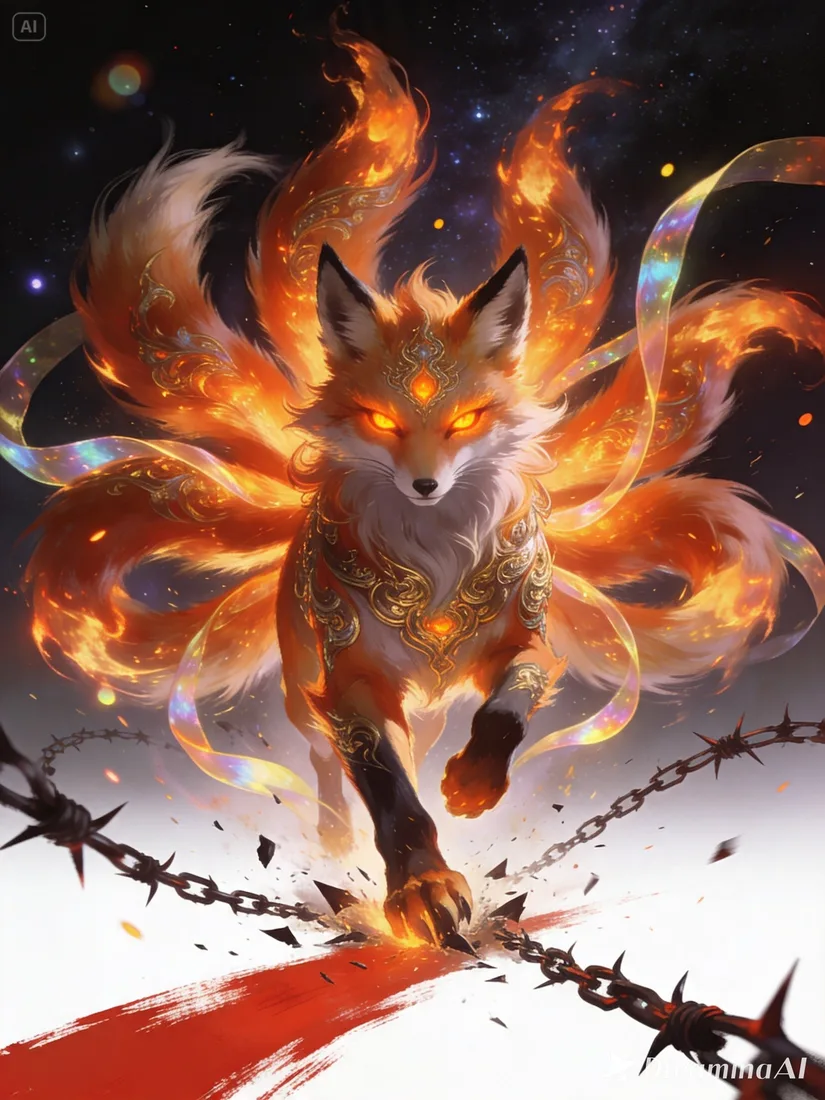
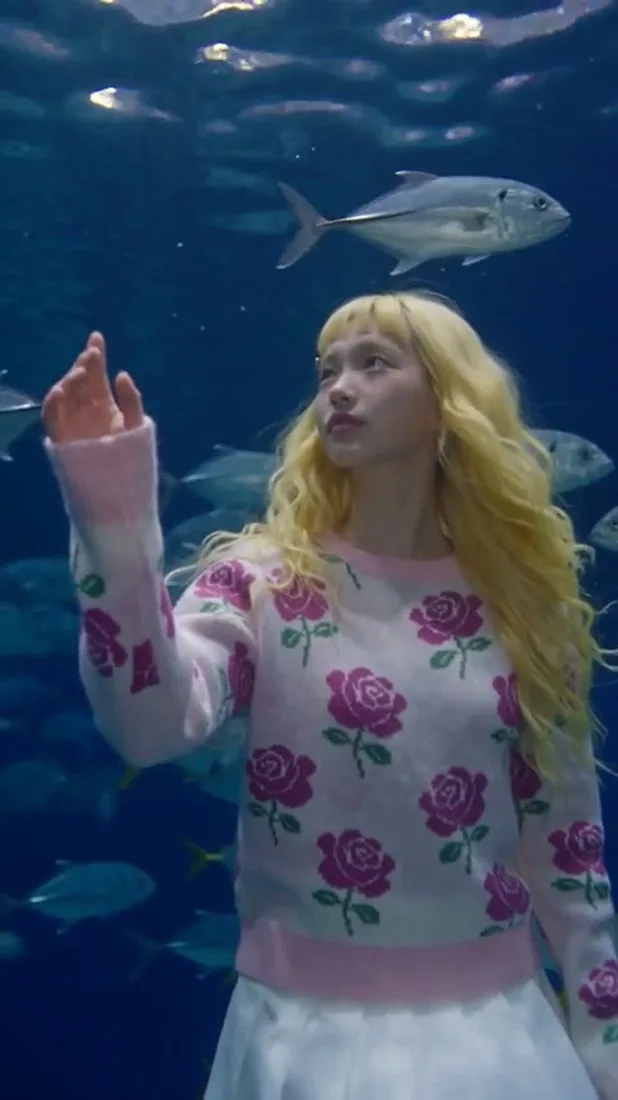
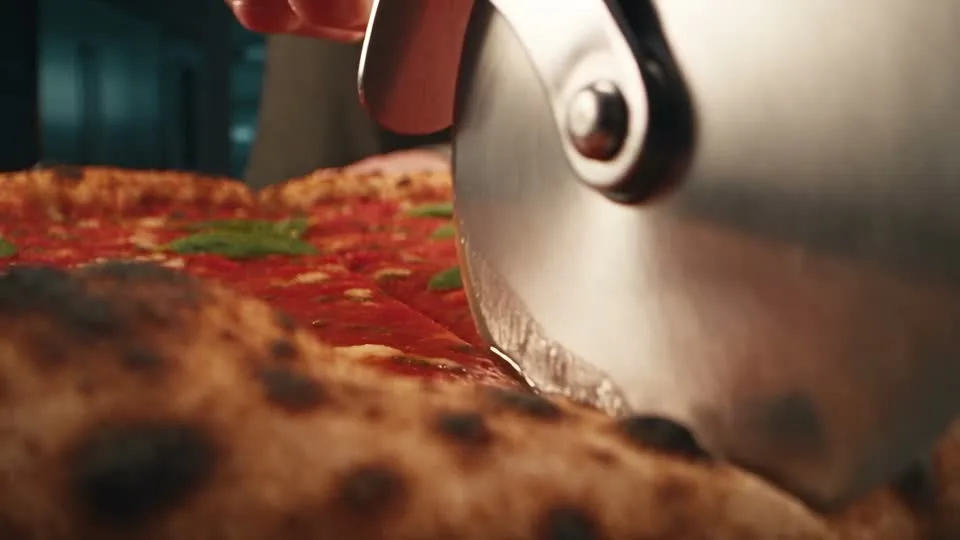
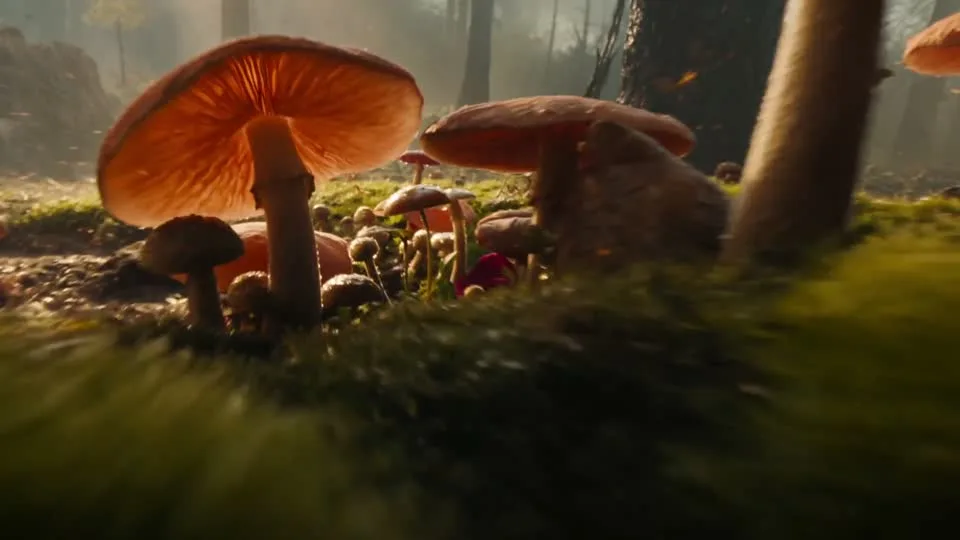
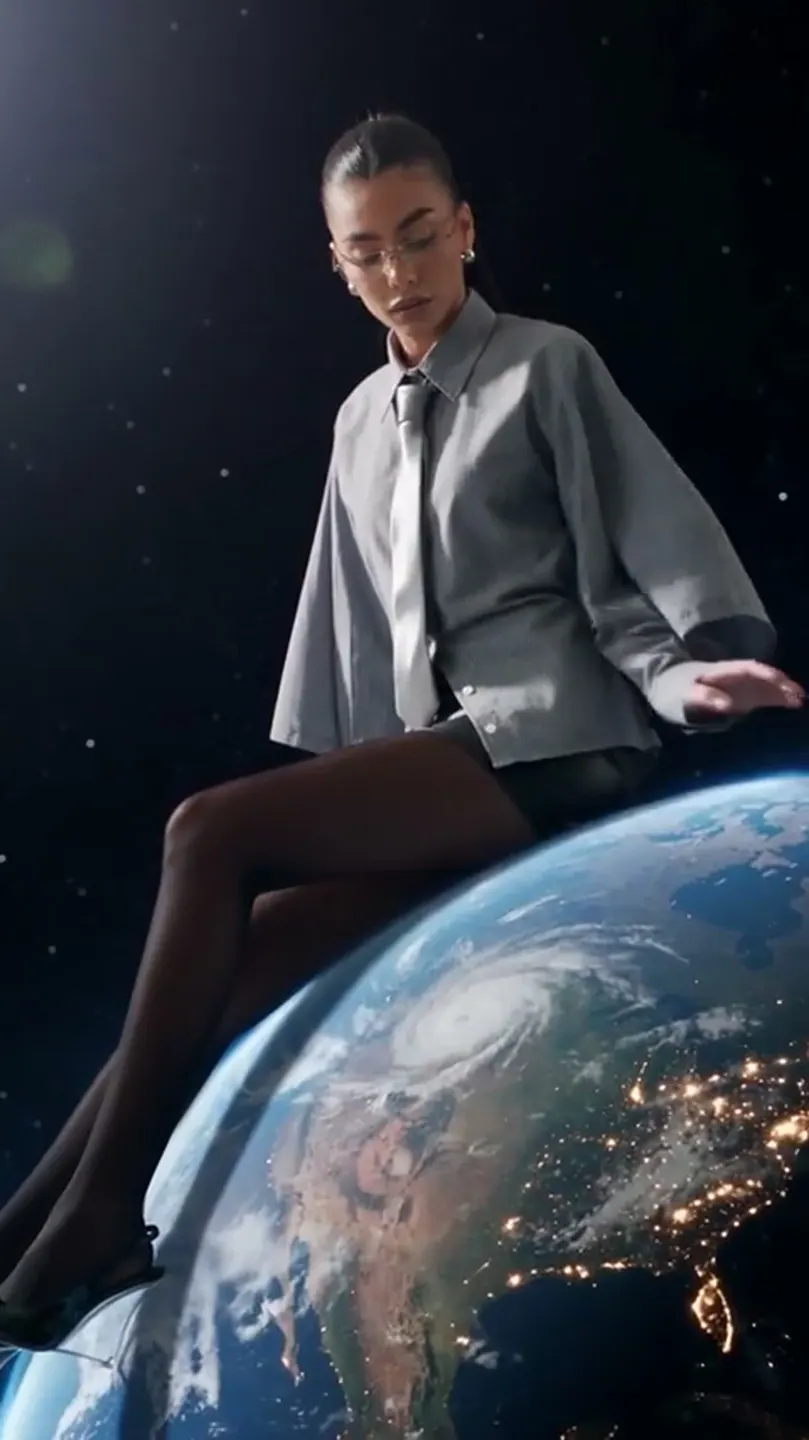
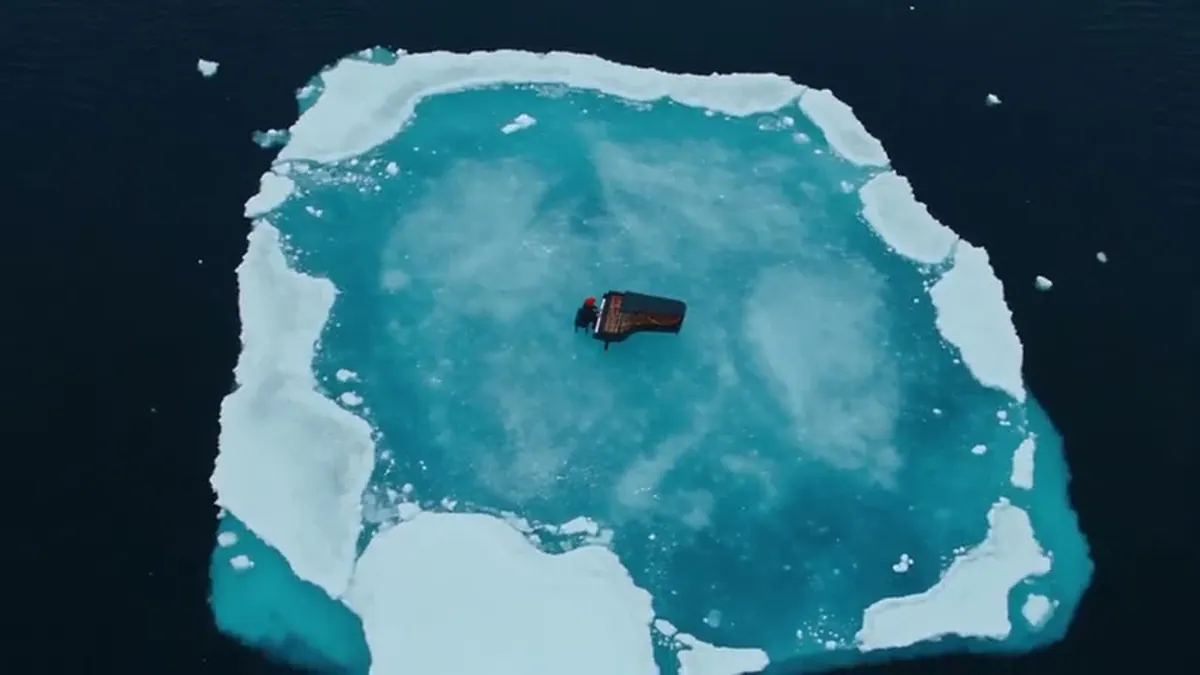
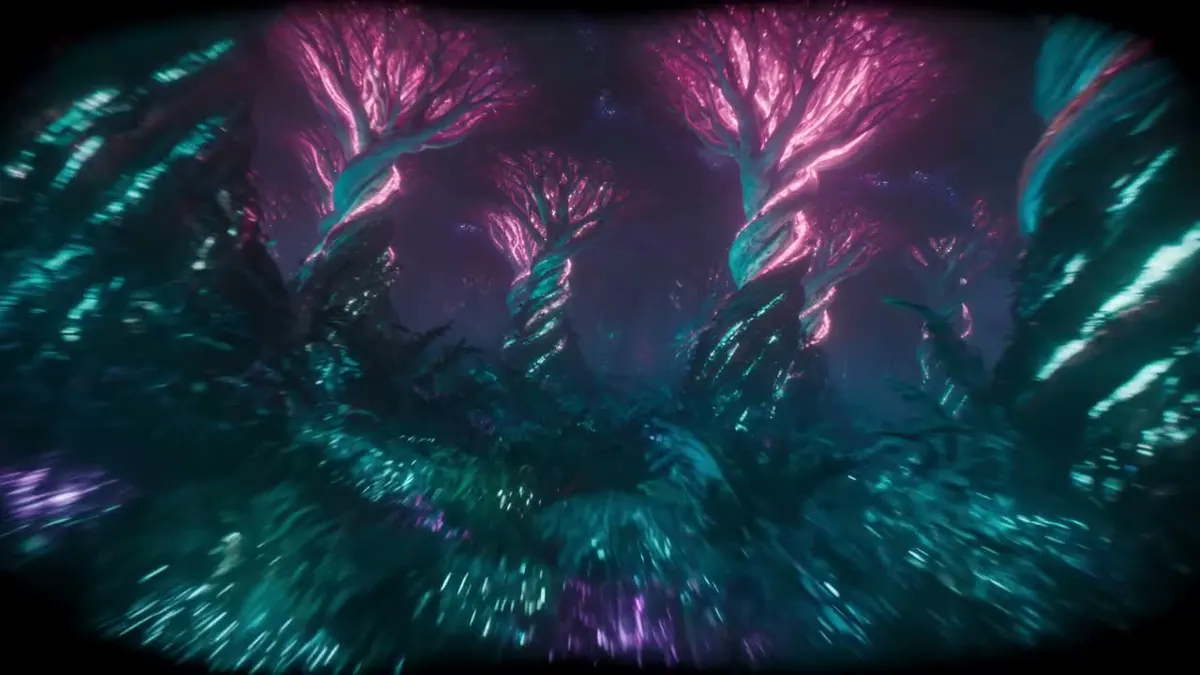
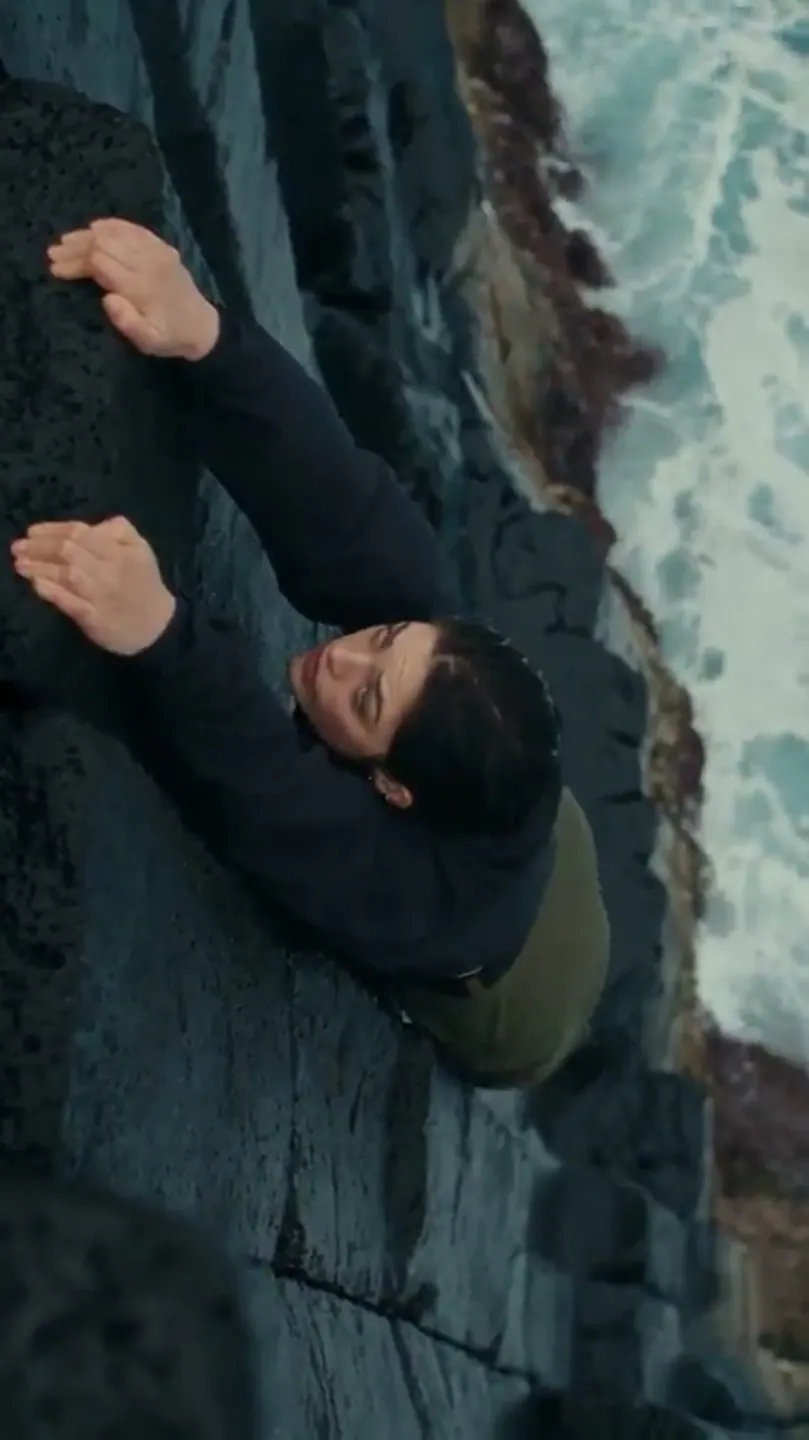
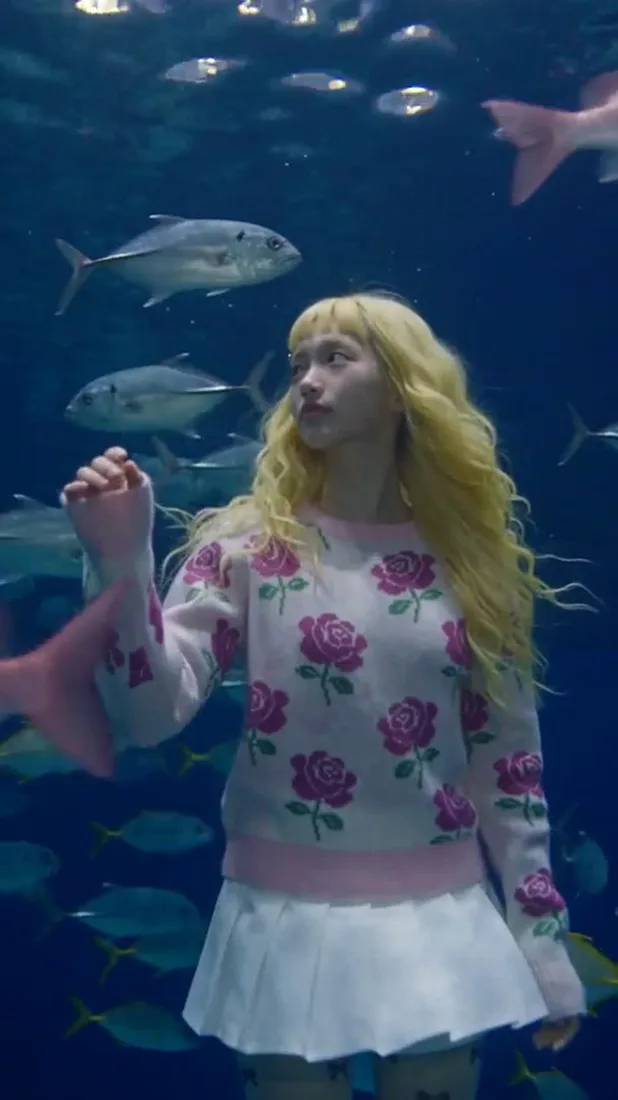
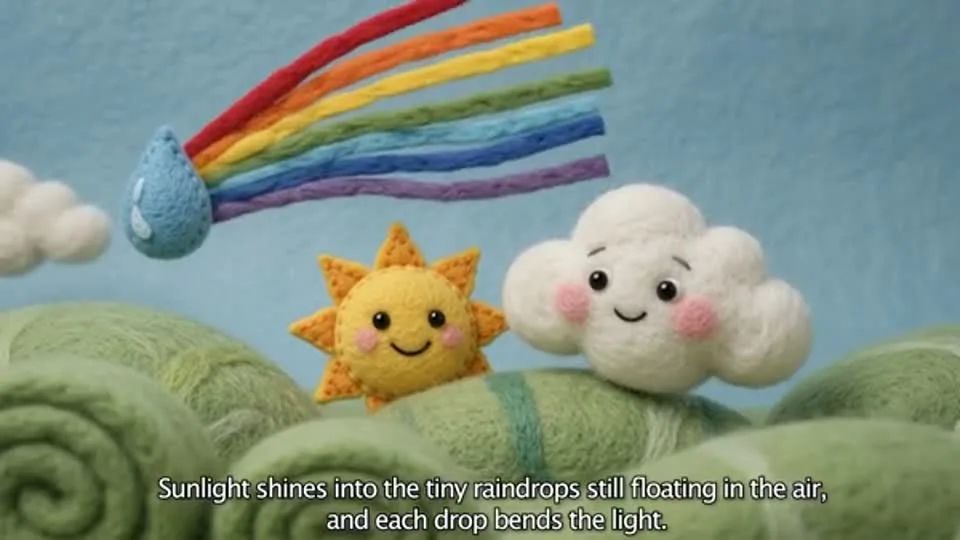
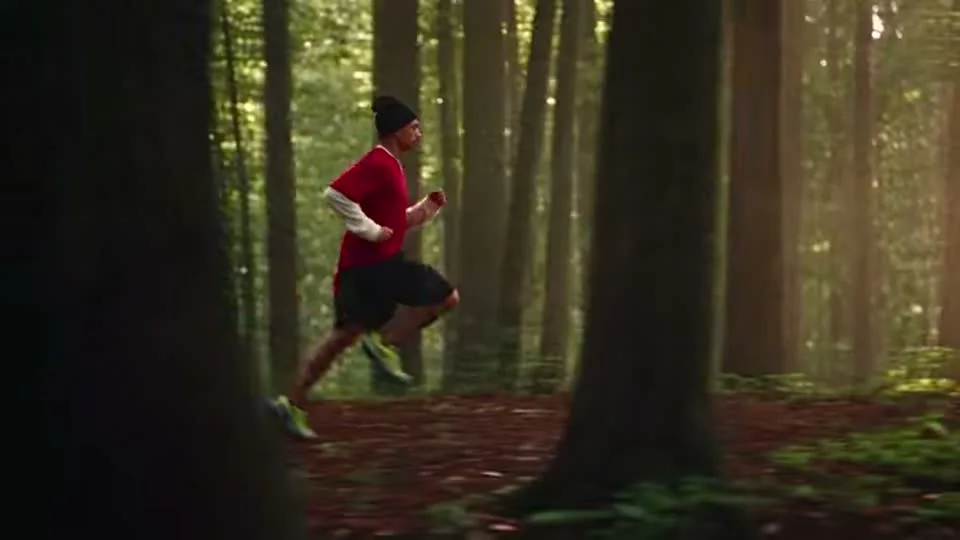
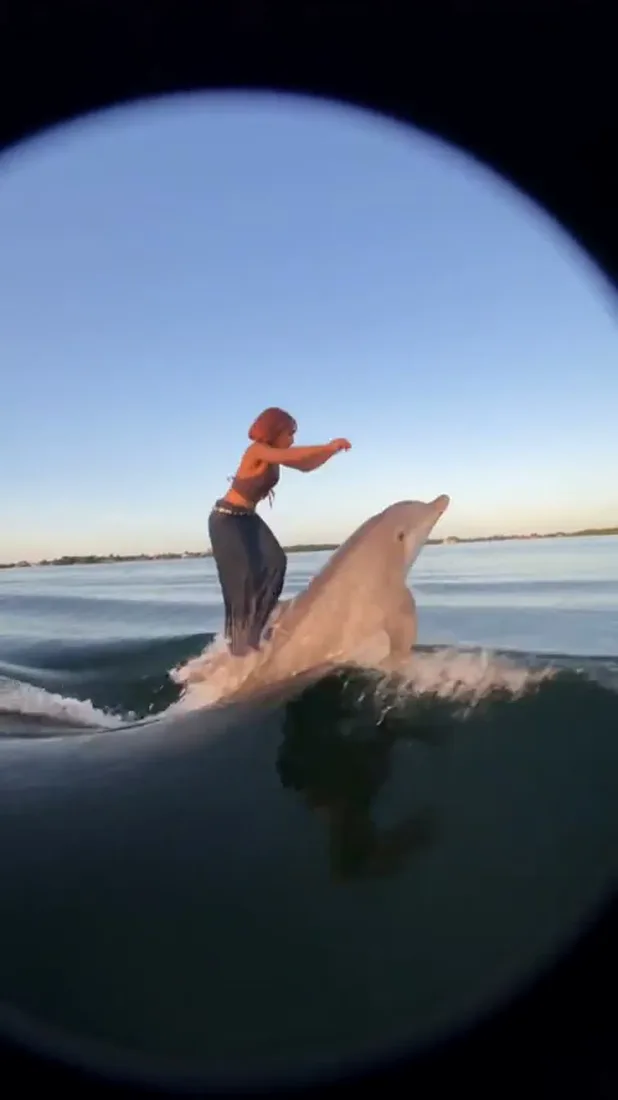
These images are visual references for composition and motion, not verified outputs from your selected model.
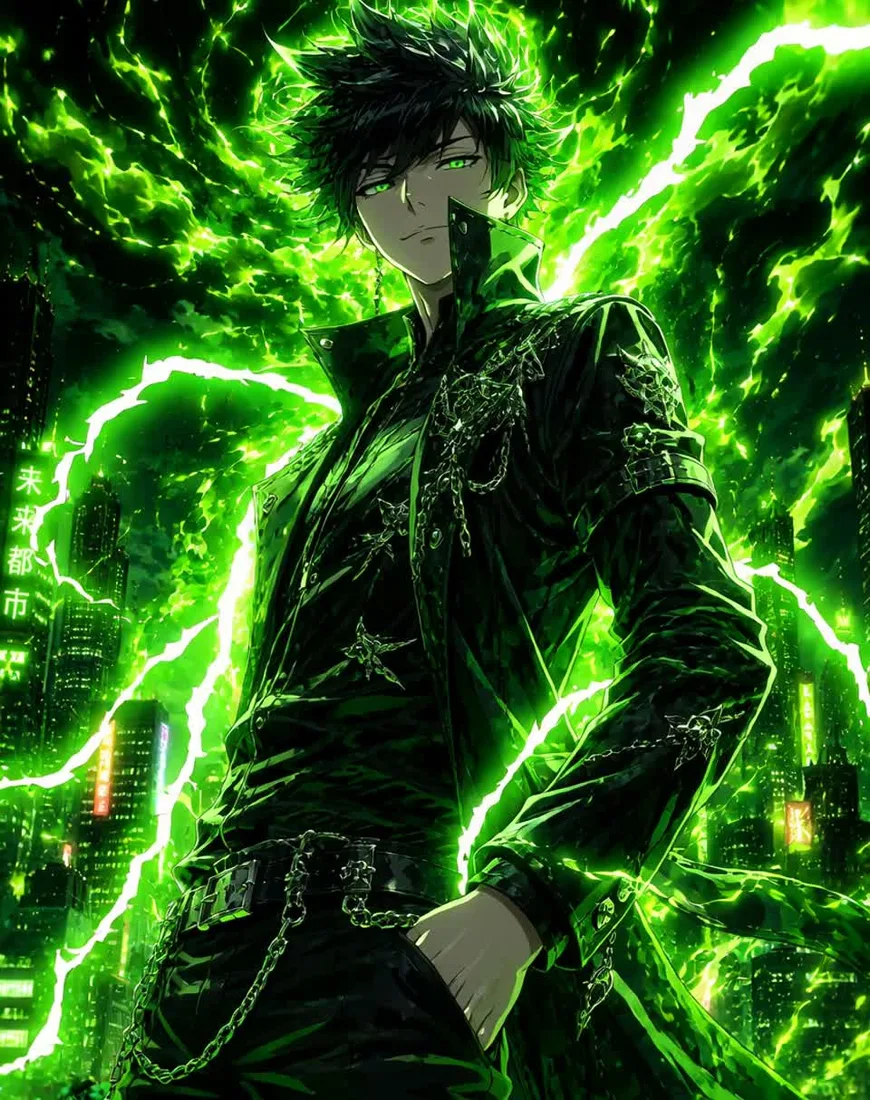 Flow AI Video
Example1 / 2
Name the subject and its surroundings. Concrete details give you a clearer result to evaluate.
Need a hand?
Review the requirements for this workflow before you generate.
Contact supportCreate and edit with GPT Image 2.5. Choose from auto/1:1/3:2 formats, review supported settings, and check credits before generating.
One image: 10 credits. These are the controls currently offered in this workspace. Availability can change; confirm the selected settings and live estimate before submitting. Version names do not guarantee speed or output quality.
Use the same source image and brief for a comparison. Check shapes, lettering, and important details at the chosen aspect ratio.
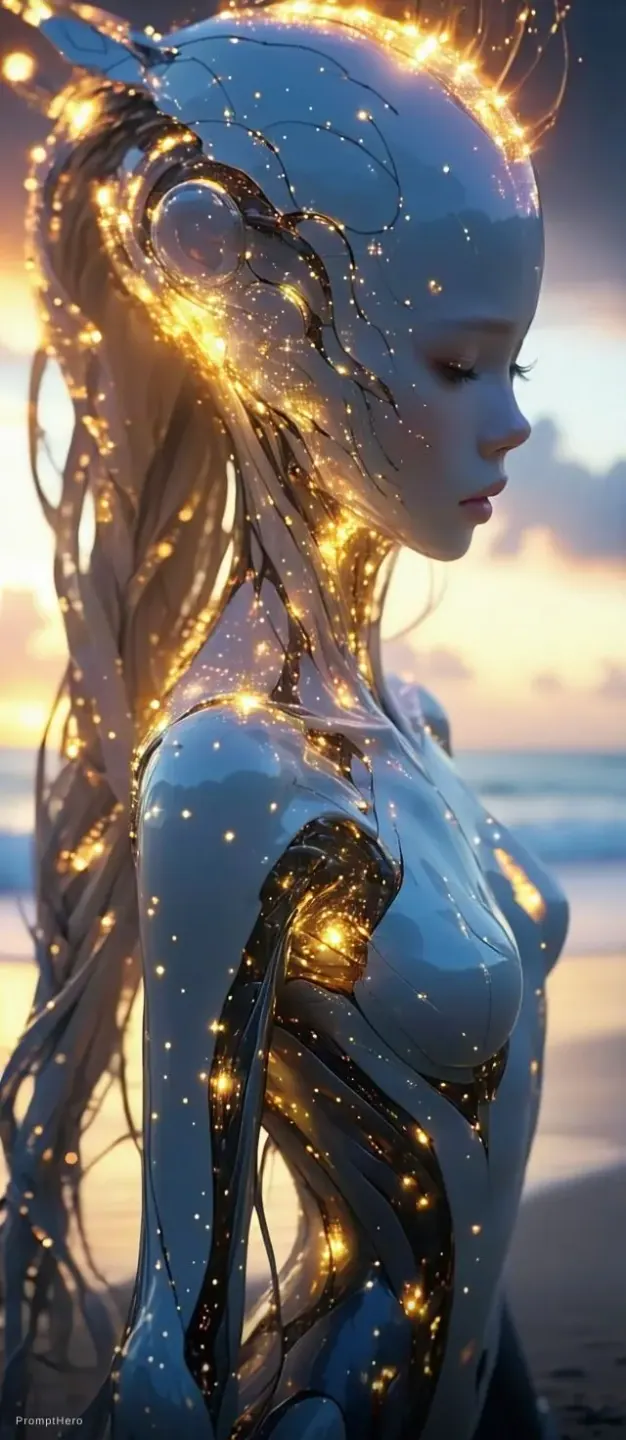
These project images illustrate composition and style, not verified outputs from the selected model.
Start with a prompt or reference
Use the same source image and brief for a comparison. Check shapes, lettering, and important details at the chosen aspect ratio.