







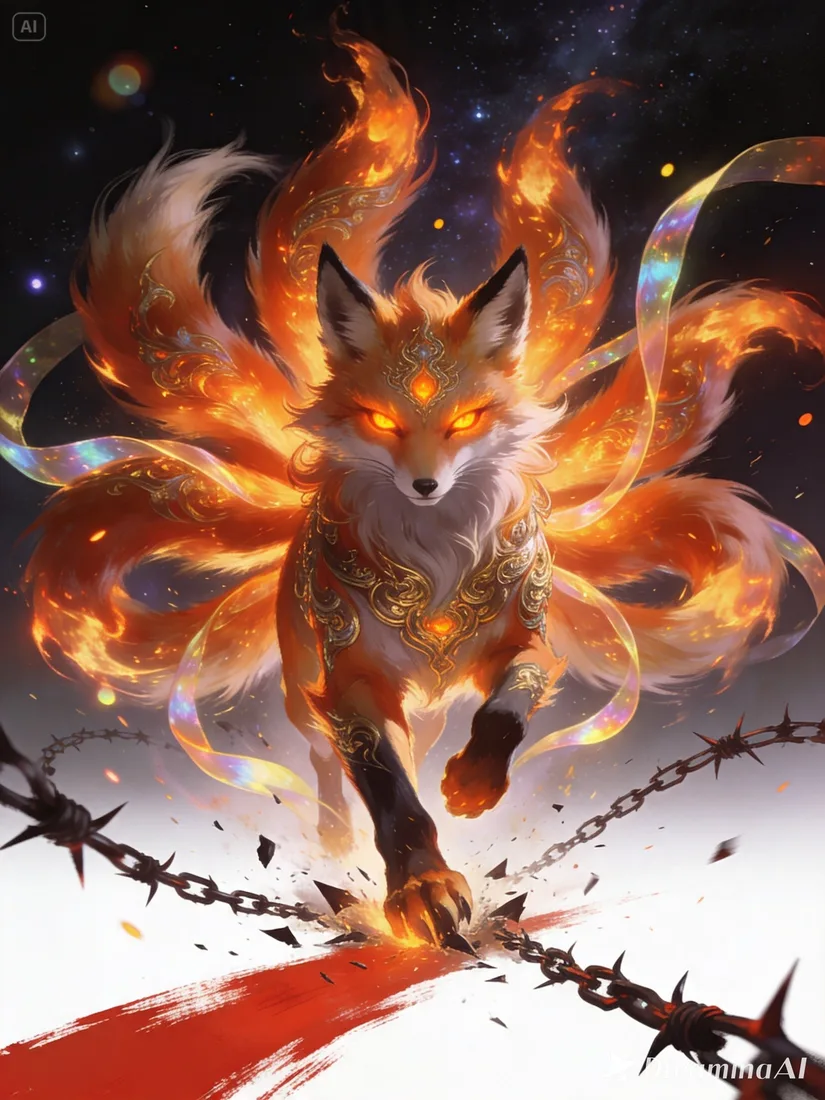
01 / WRITE THE SHOT
Available settings for Gemini Omni Video
Create with Gemini Omni Video: 4s/6s/8s/10s, 720p/1080p/4K, and 16:9/9:16 formats. Compare settings and review estimated credits before generating.
01 / WRITE THE SHOTFlow AI Video
Create with Gemini Omni Video: 4s/6s/8s/10s, 720p/1080p/4K, and 16:9/9:16 formats. Compare settings and review estimated credits before generating.
From brief to video
Keep the same prompt and reference while comparing versions. Review identity, motion, framing, and the full clip before keeping a take.
 Flow AI Video
Create with Gemini Omni Video: 4s/6s/8s/10s, 720p/1080p/4K, and 16:9/9:16 formats. Compare settings and review estimated credits before generating.
Keep the same prompt and reference while comparing versions. Review identity, motion, framing, and the full clip before keeping a take.
These are the controls currently offered in this workspace. Availability can change; confirm the selected settings and live estimate before submitting. Version names do not guarantee speed or output quality.
These are the controls currently offered in this workspace. Availability can change; confirm the selected settings and live estimate before submitting. Version names do not guarantee speed or output quality.
Explore more options in AI Video Generator from Text & Images. Return to the homepage.
Prompt to motion
Keep the same prompt and reference while comparing versions. Review identity, motion, framing, and the full clip before keeping a take.
01 / WRITE THE SHOT
Create with Gemini Omni Video: 4s/6s/8s/10s, 720p/1080p/4K, and 16:9/9:16 formats. Compare settings and review estimated credits before generating.
02 / PICK THE MODEL
4s at 720p: 80 credits
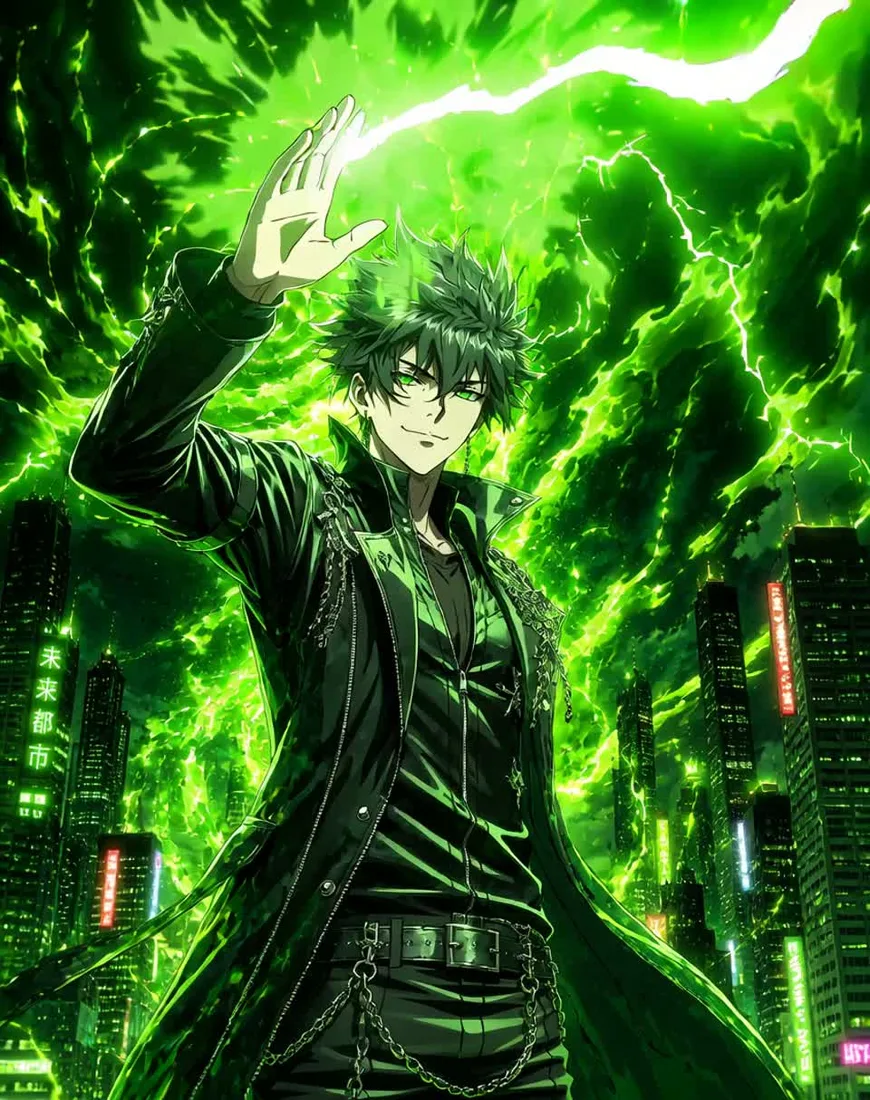
03 / REFINE THE DIRECTION
Keep the same prompt and reference while comparing versions. Review identity, motion, framing, and the full clip before keeping a take.
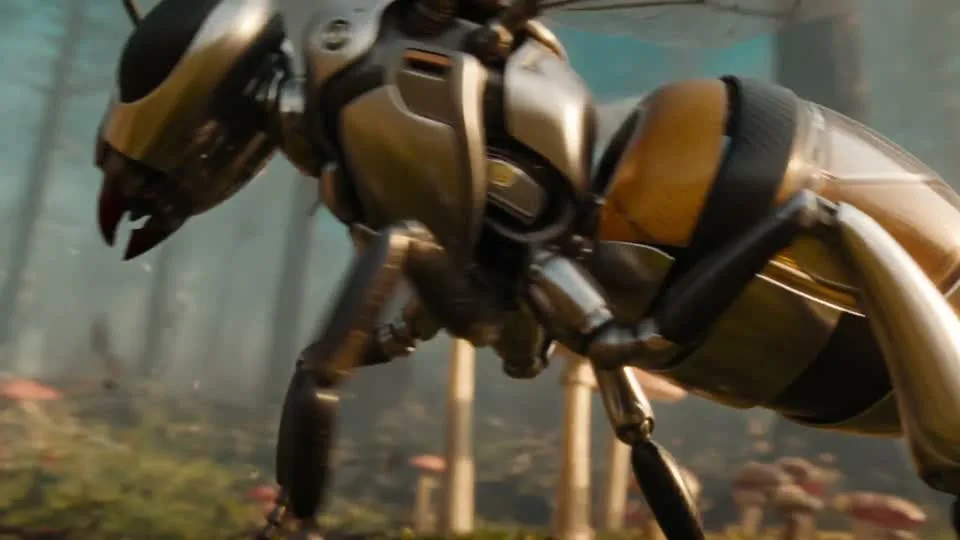
04 / REVIEW THE RESULT
These are the controls currently offered in this workspace. Availability can change; confirm the selected settings and live estimate before submitting. Version names do not guarantee speed or output quality.
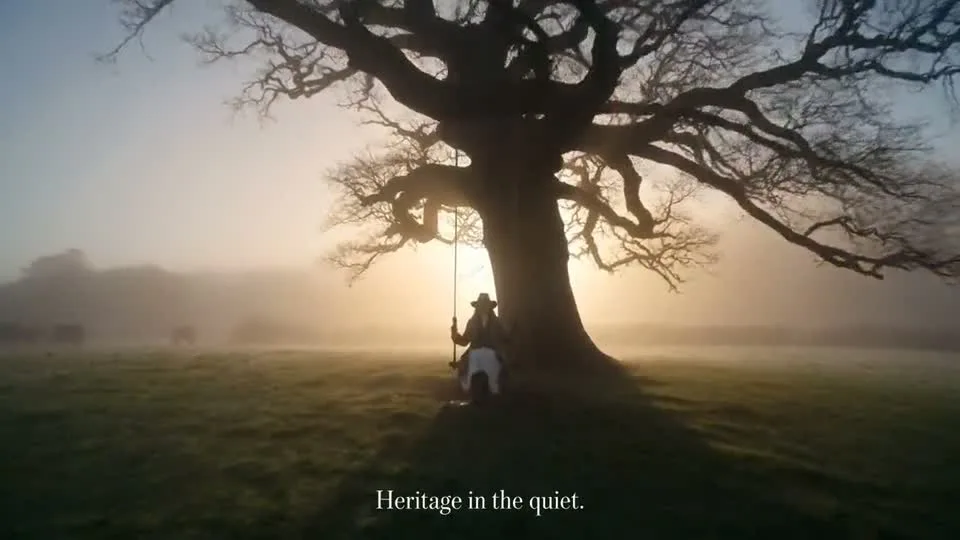
Video drafts for real workflows
Use Gemini Omni Video to explore campaign scenes, social clips, and visual concepts from a prompt or image.
Campaign teams
Explore a product moment or campaign scene before you refine the final direction.

Scene references
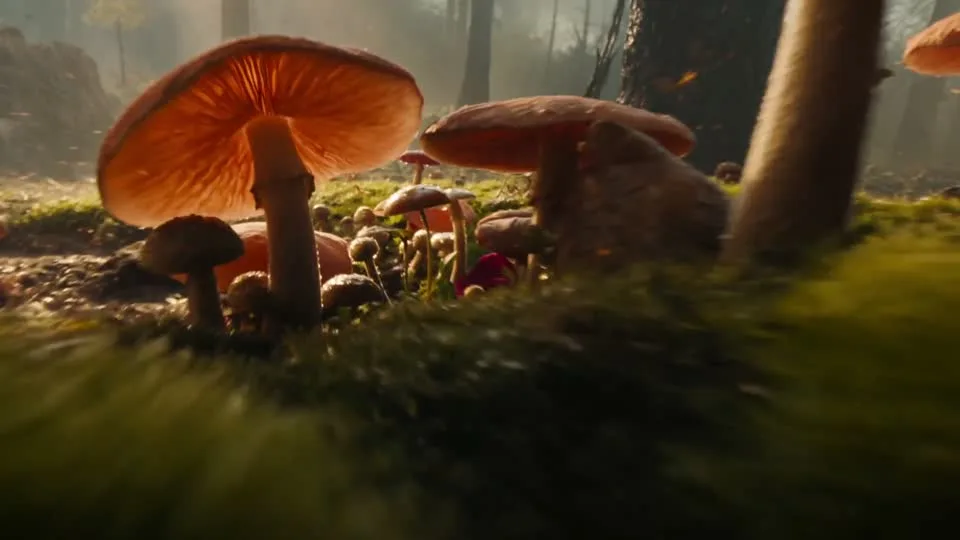
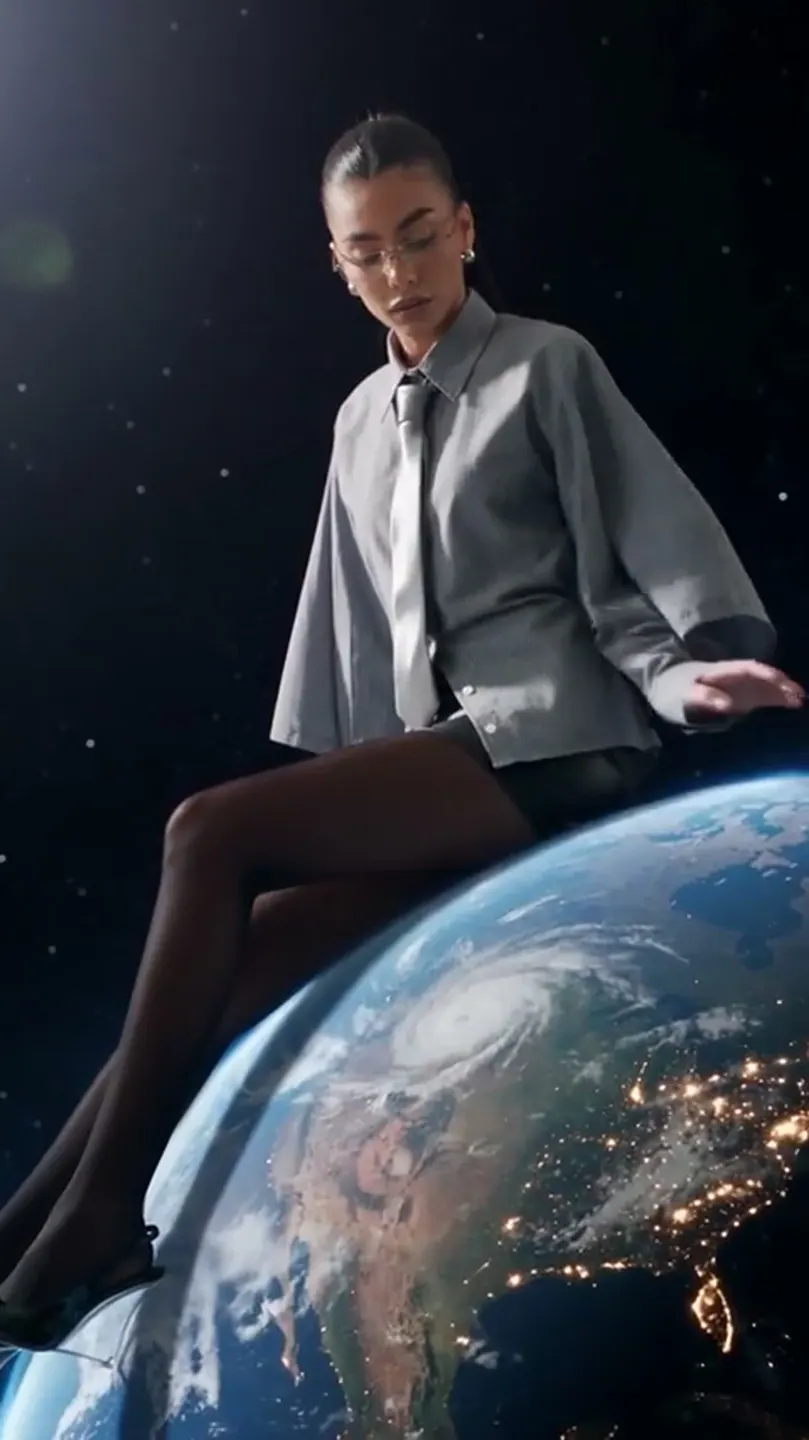
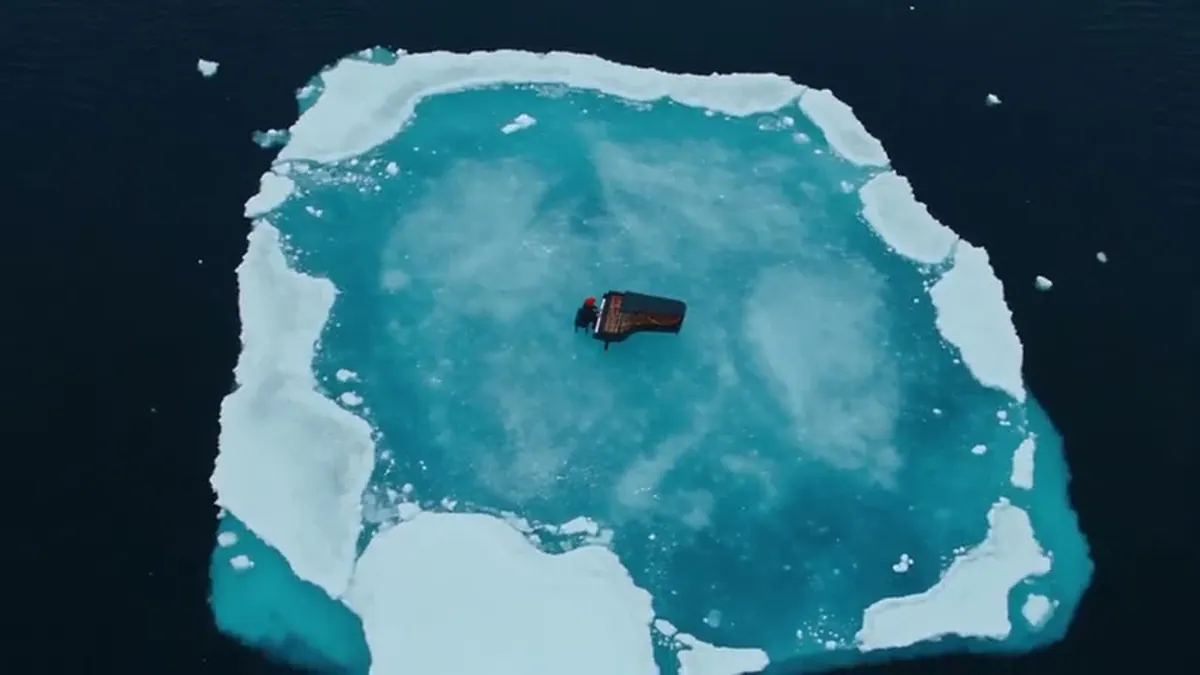
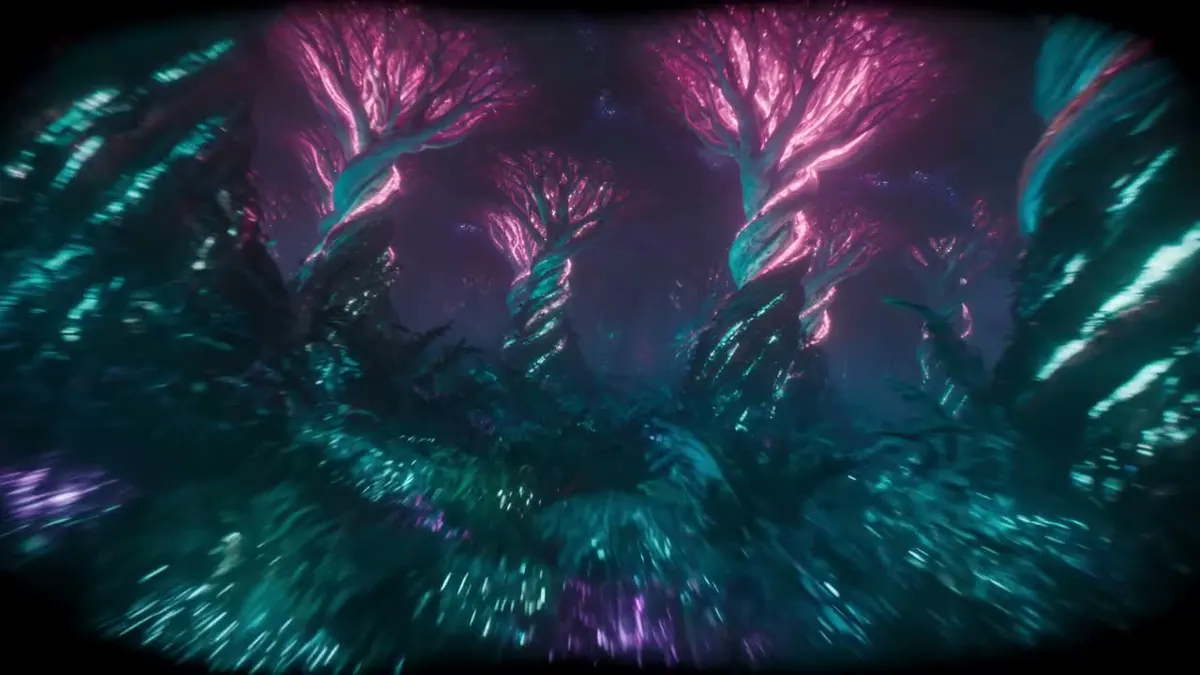
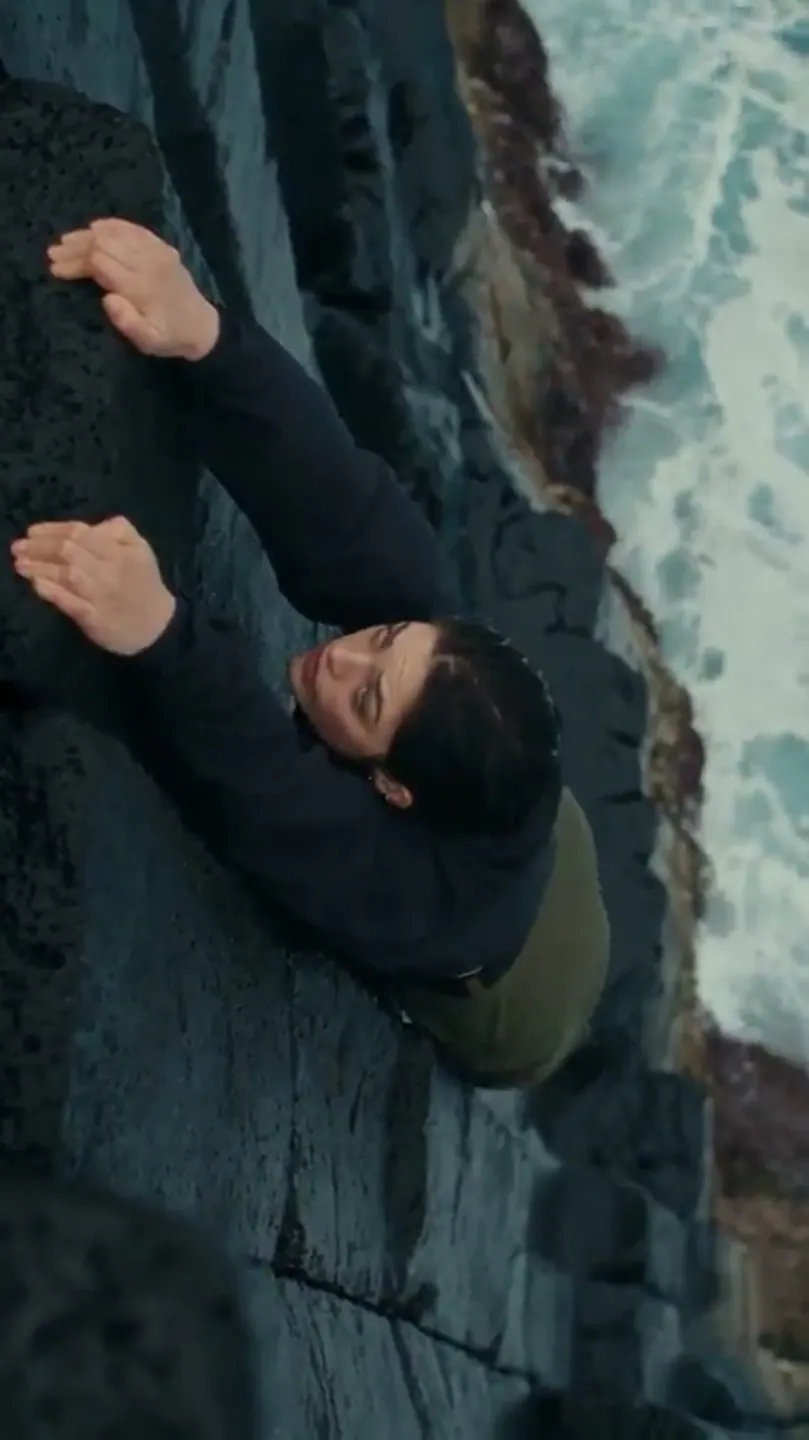
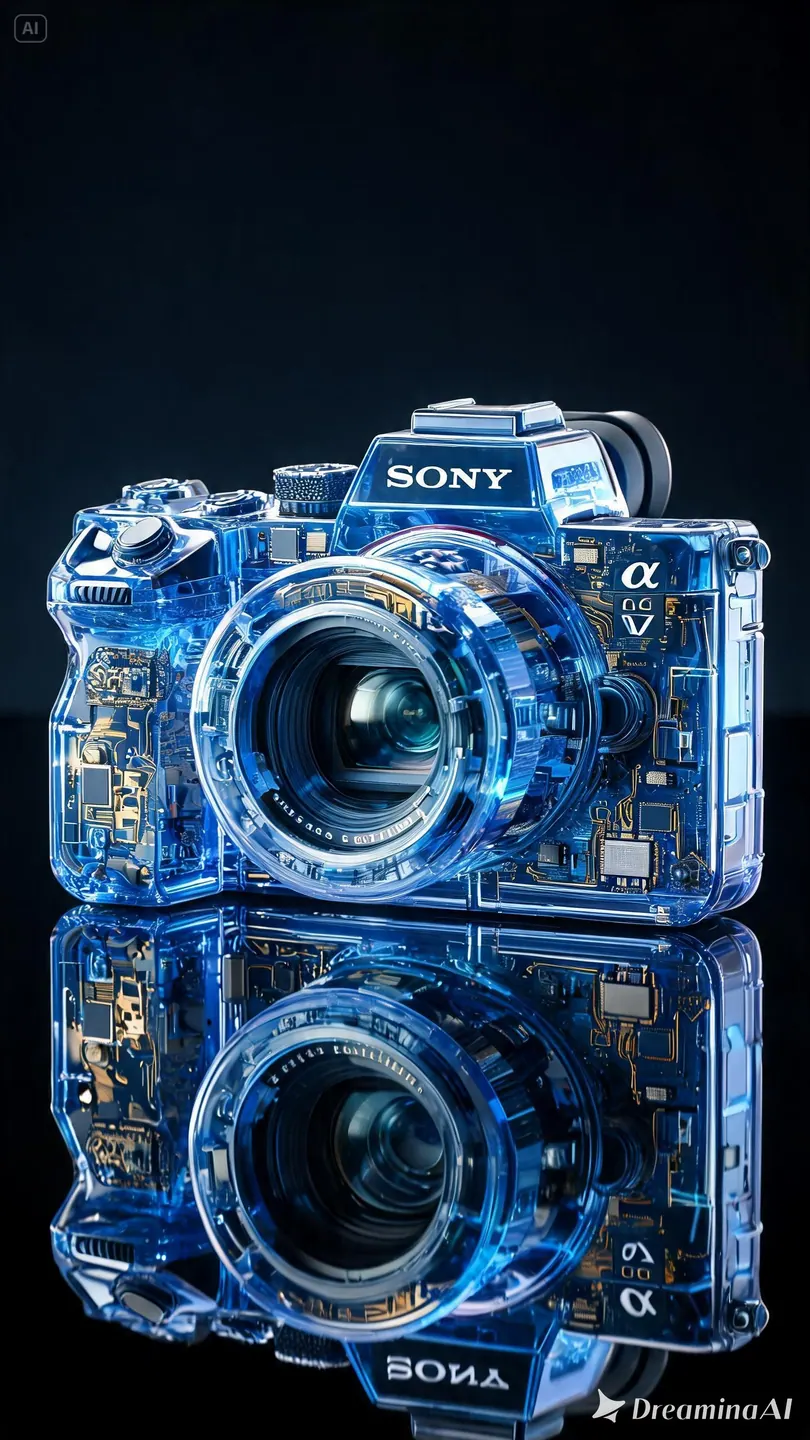
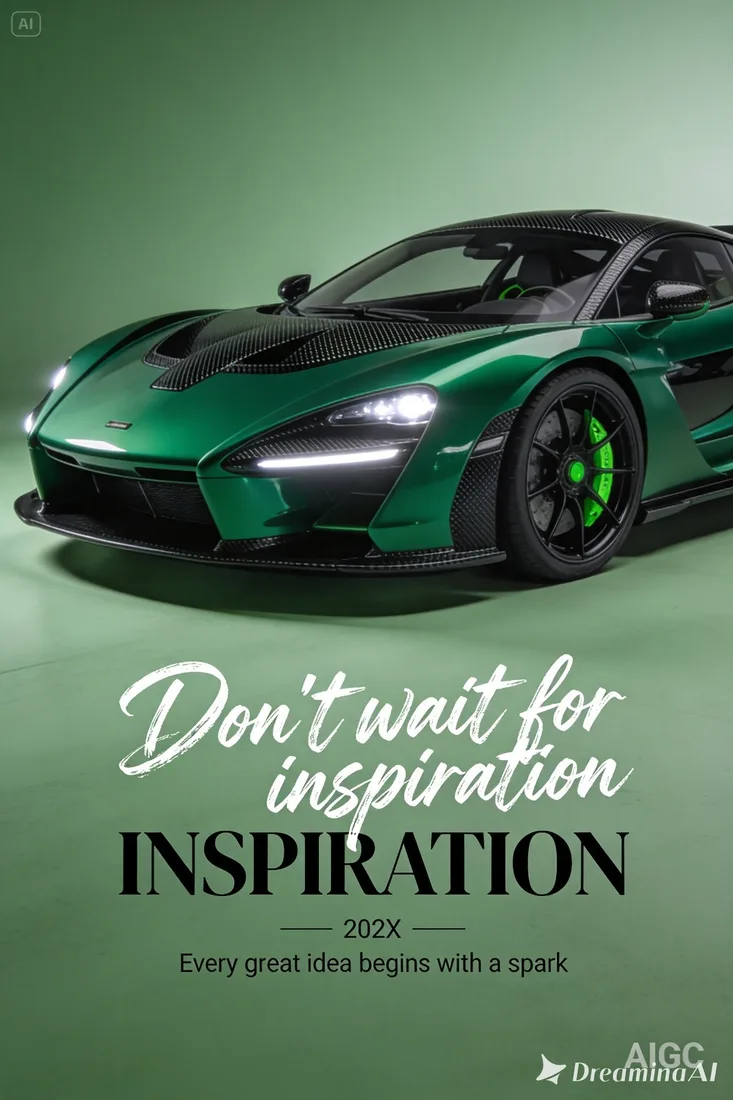
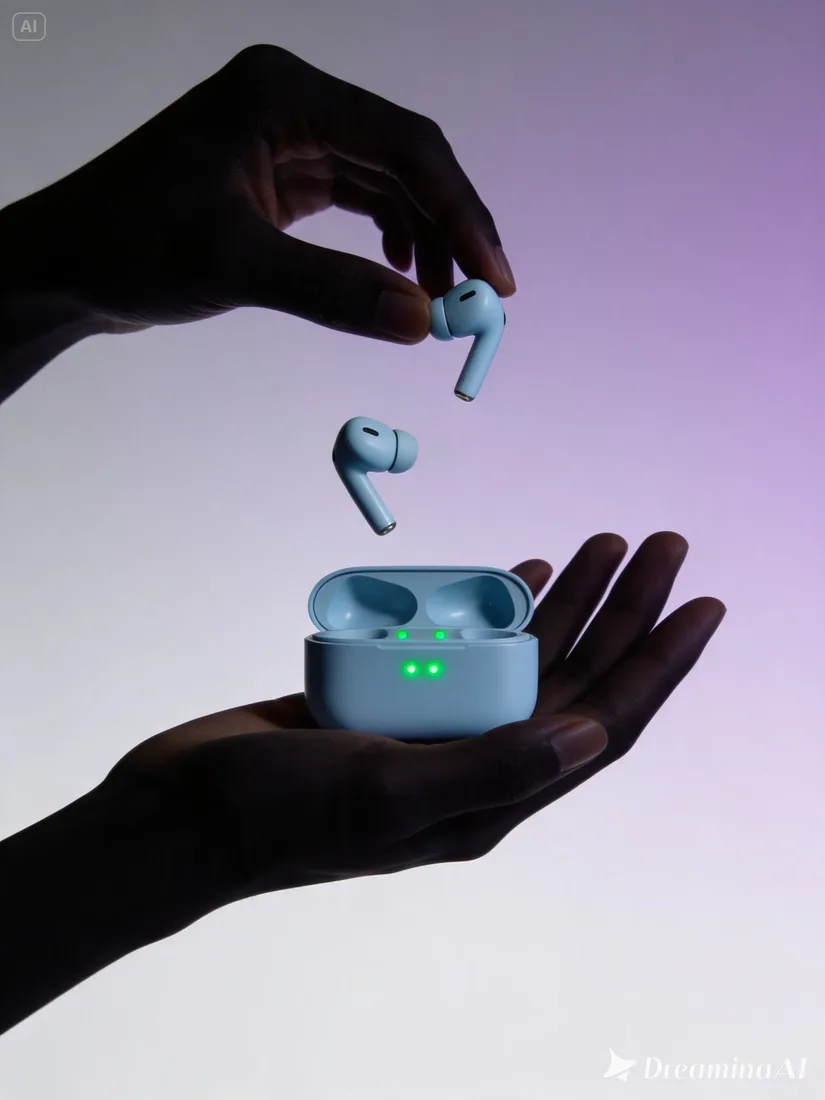
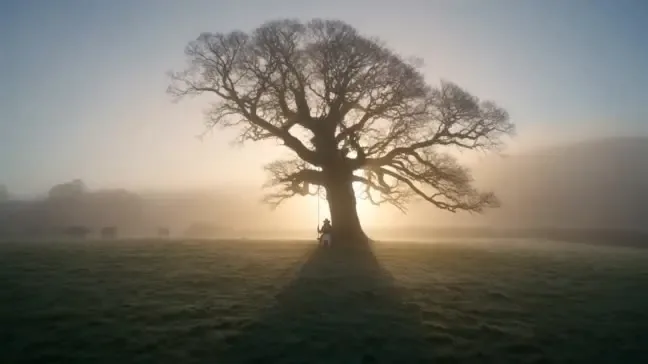
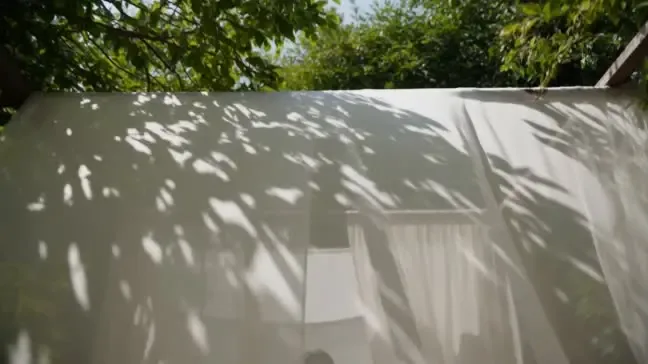
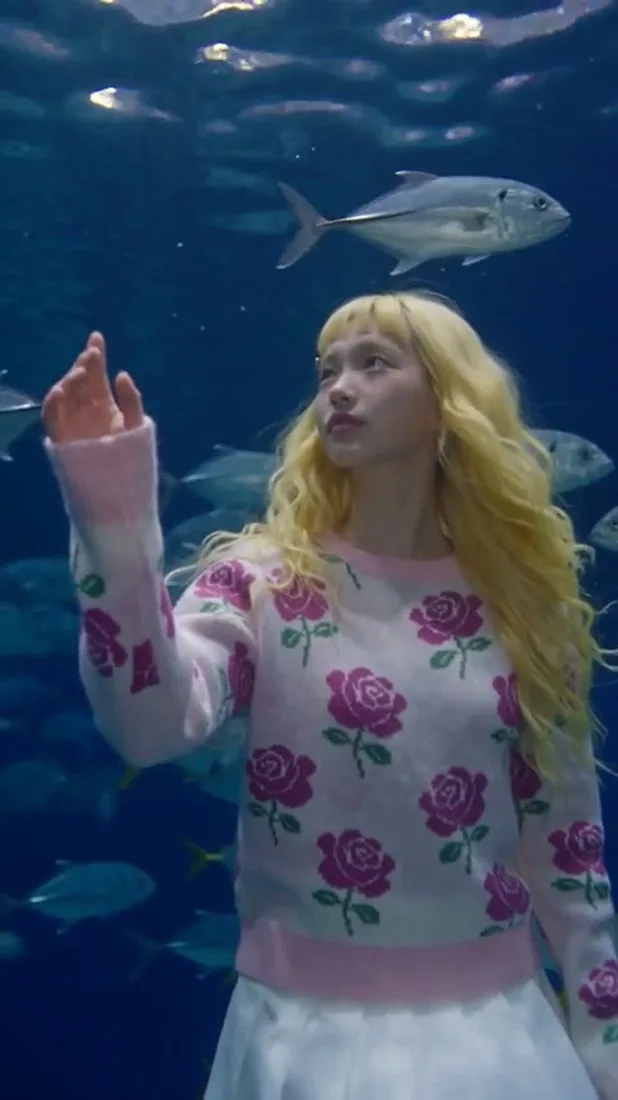
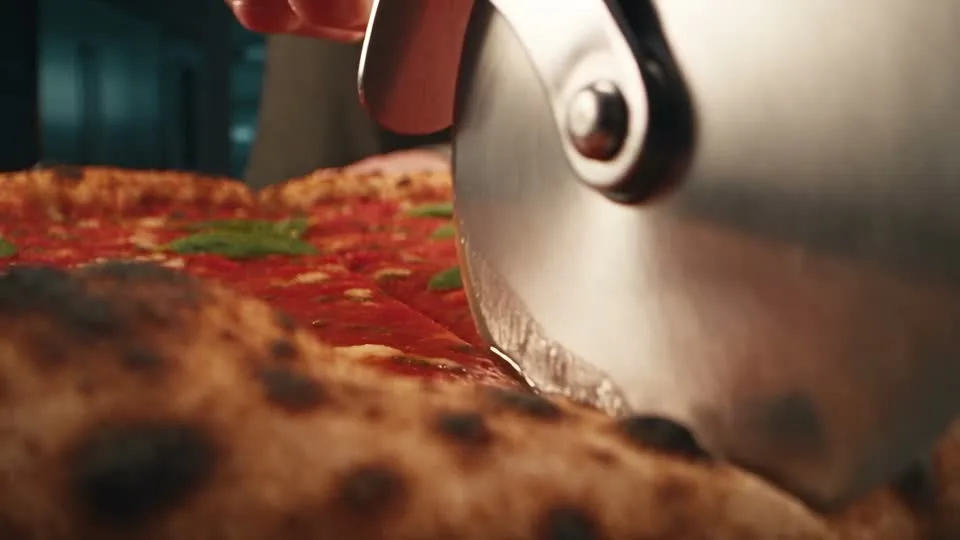
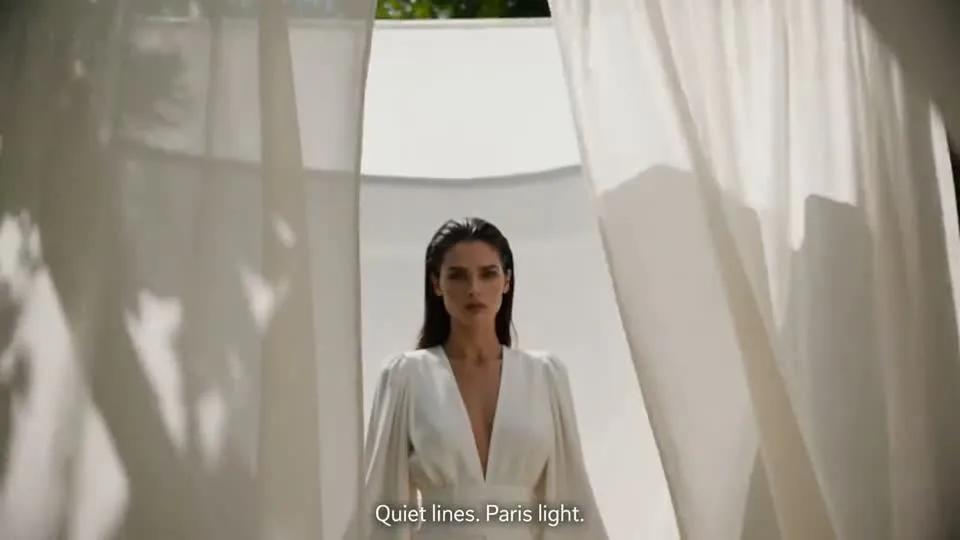
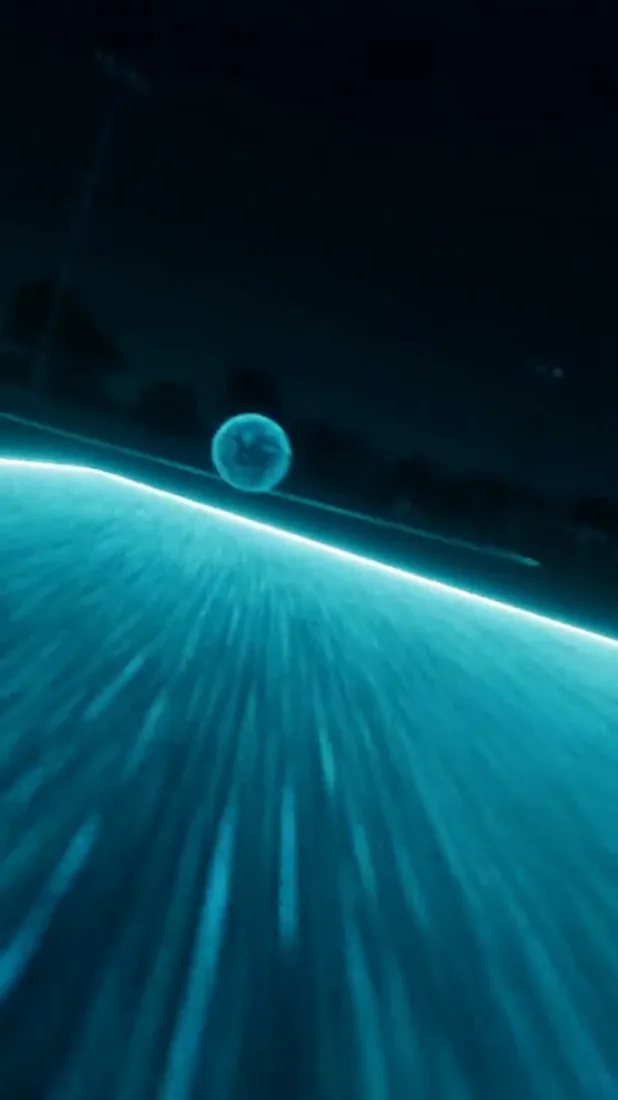
Use these visual references to plan a scene. They are examples, not verified Gemini Omni Video outputs.
 Flow AI Video
Example1 / 3
Open on the full object, move closer to one feature, and finish on a steady frame.
Need a hand?
Model availability, references, credits, and where to find generated videos.
Contact supportCreate with Gemini Omni Video: 4s/6s/8s/10s, 720p/1080p/4K, and 16:9/9:16 formats. Compare settings and review estimated credits before generating.
4s at 720p: 80 credits. These are the controls currently offered in this workspace. Availability can change; confirm the selected settings and live estimate before submitting. Version names do not guarantee speed or output quality.
Keep the same prompt and reference while comparing versions. Review identity, motion, framing, and the full clip before keeping a take.
These project images illustrate composition and style, not verified outputs from the selected model.
Your next scene starts here
Keep the same prompt and reference while comparing versions. Review identity, motion, framing, and the full clip before keeping a take.