








01
Available settings for Wan 3.0
Create with Wan 3.0: 2s–30s, 480p/720p/1080p, and adaptive/16:9/4:3 formats. Compare settings and review estimated credits before generating.

01Creative reference
Create with Wan 3.0: 2s–30s, 480p/720p/1080p, and adaptive/16:9/4:3 formats. Compare settings and review estimated credits before generating.
These are the controls currently offered in this workspace. Availability can change; confirm the selected settings and live estimate before submitting. Version names do not guarantee speed or output quality.
| Model | Duration | Resolution / quality | Aspect ratios | Example estimate |
|---|---|---|---|---|
| Wan 3.0 | 2s, 3s, 4s, 5s, 6s, 7s, 8s, 9s, 10s, 11s, 12s, 13s, 14s, 15s, 16s, 17s, 18s, 19s, 20s, 21s, 22s, 23s, 24s, 25s, 26s, 27s, 28s, 29s, 30s | 480p, 720p, 1080p | adaptive, 16:9, 4:3, 1:1, 3:4, 9:16 | 4s at 720p: 100 credits |
| Wan 3.0 Prime | 2s, 3s, 4s, 5s, 6s, 7s, 8s, 9s, 10s, 11s, 12s, 13s, 14s, 15s, 16s, 17s, 18s, 19s, 20s, 21s, 22s, 23s, 24s, 25s, 26s, 27s, 28s, 29s, 30s | 480p, 720p, 1080p | adaptive, 16:9, 4:3, 1:1, 3:4, 9:16 | 4s at 720p: 160 credits |
From reference to result
Keep the same prompt and reference while comparing versions. Review identity, motion, framing, and the full clip before keeping a take.
 Creative reference
Create with Wan 3.0: 2s–30s, 480p/720p/1080p, and adaptive/16:9/4:3 formats. Compare settings and review estimated credits before generating.
Keep the same prompt and reference while comparing versions. Review identity, motion, framing, and the full clip before keeping a take.
These are the controls currently offered in this workspace. Availability can change; confirm the selected settings and live estimate before submitting. Version names do not guarantee speed or output quality.
Explore more options in AI Video Generator. Return to the homepage.
A clearer brief, a more deliberate first take
Keep the same prompt and reference while comparing versions. Review identity, motion, framing, and the full clip before keeping a take.
01
Create with Wan 3.0: 2s–30s, 480p/720p/1080p, and adaptive/16:9/4:3 formats. Compare settings and review estimated credits before generating.
02
4s at 720p: 100 credits
03
Keep the same prompt and reference while comparing versions. Review identity, motion, framing, and the full clip before keeping a take.
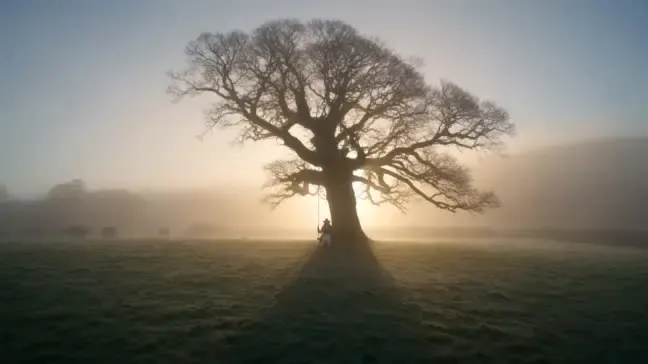
04
These are the controls currently offered in this workspace. Availability can change; confirm the selected settings and live estimate before submitting. Version names do not guarantee speed or output quality.
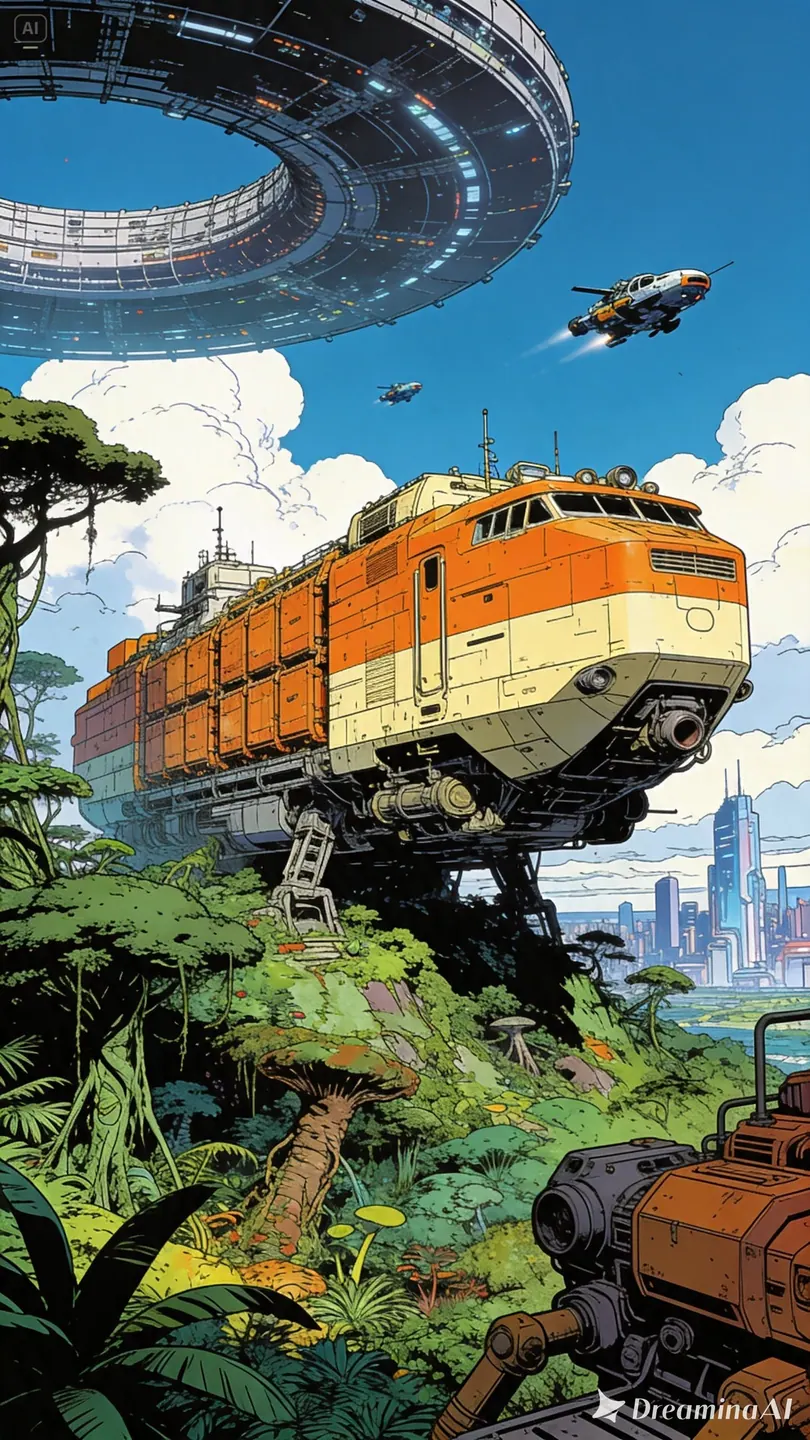
One clip, one creative goal
Start with the destination, then define the subject, style, and details that matter.
Products and brands
Define the product, setting, and visual treatment, then review the details against your brief.

Camera and motion inspiration
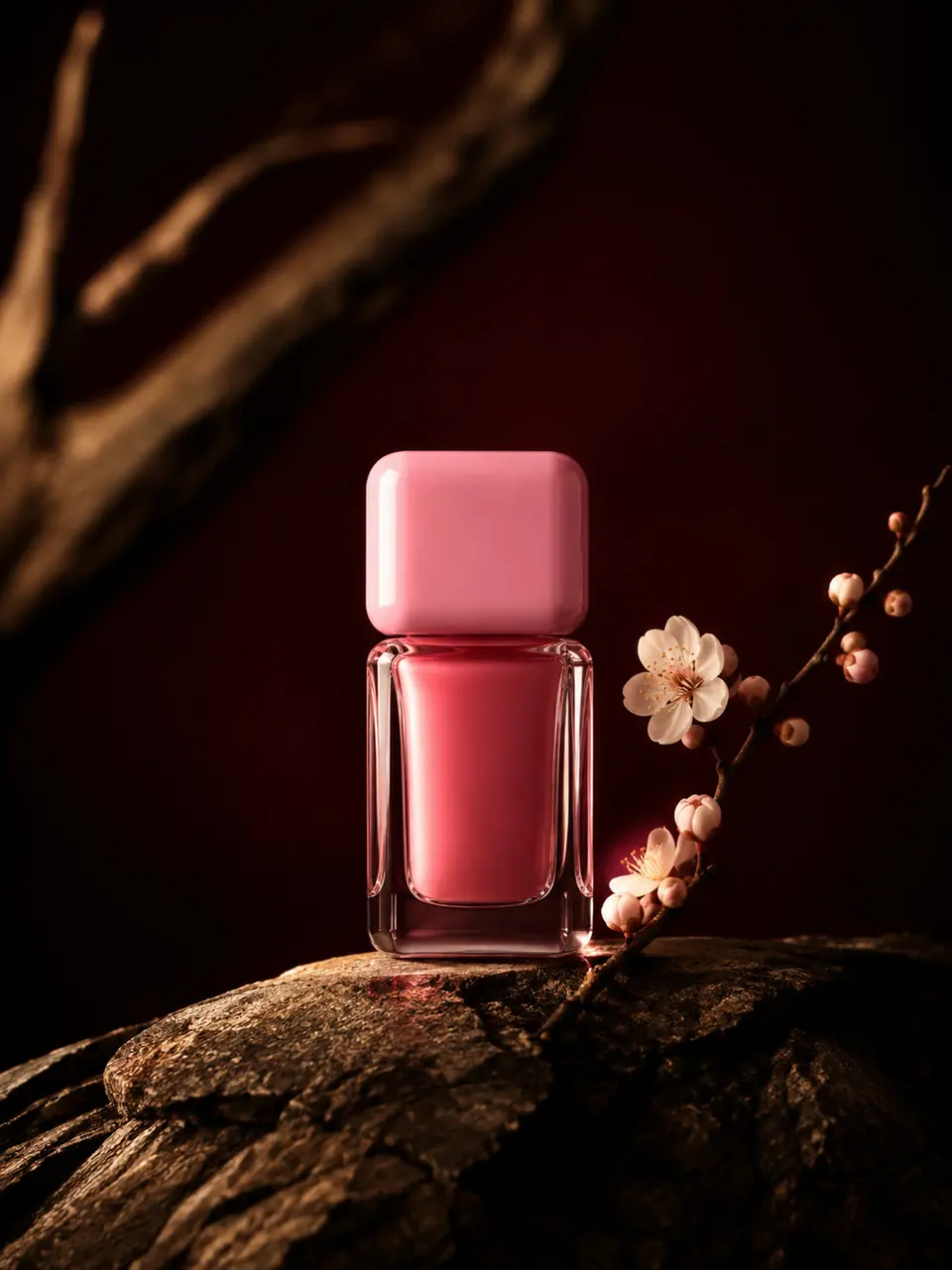
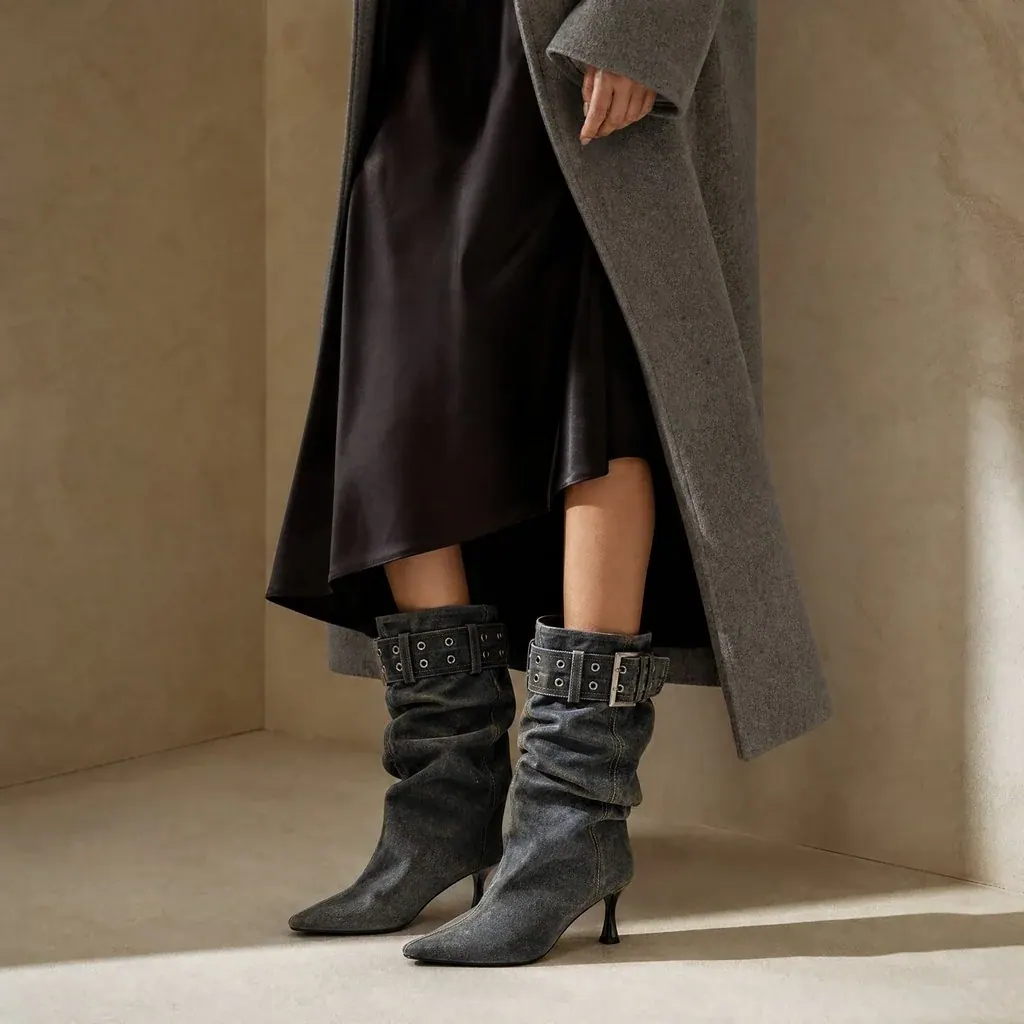
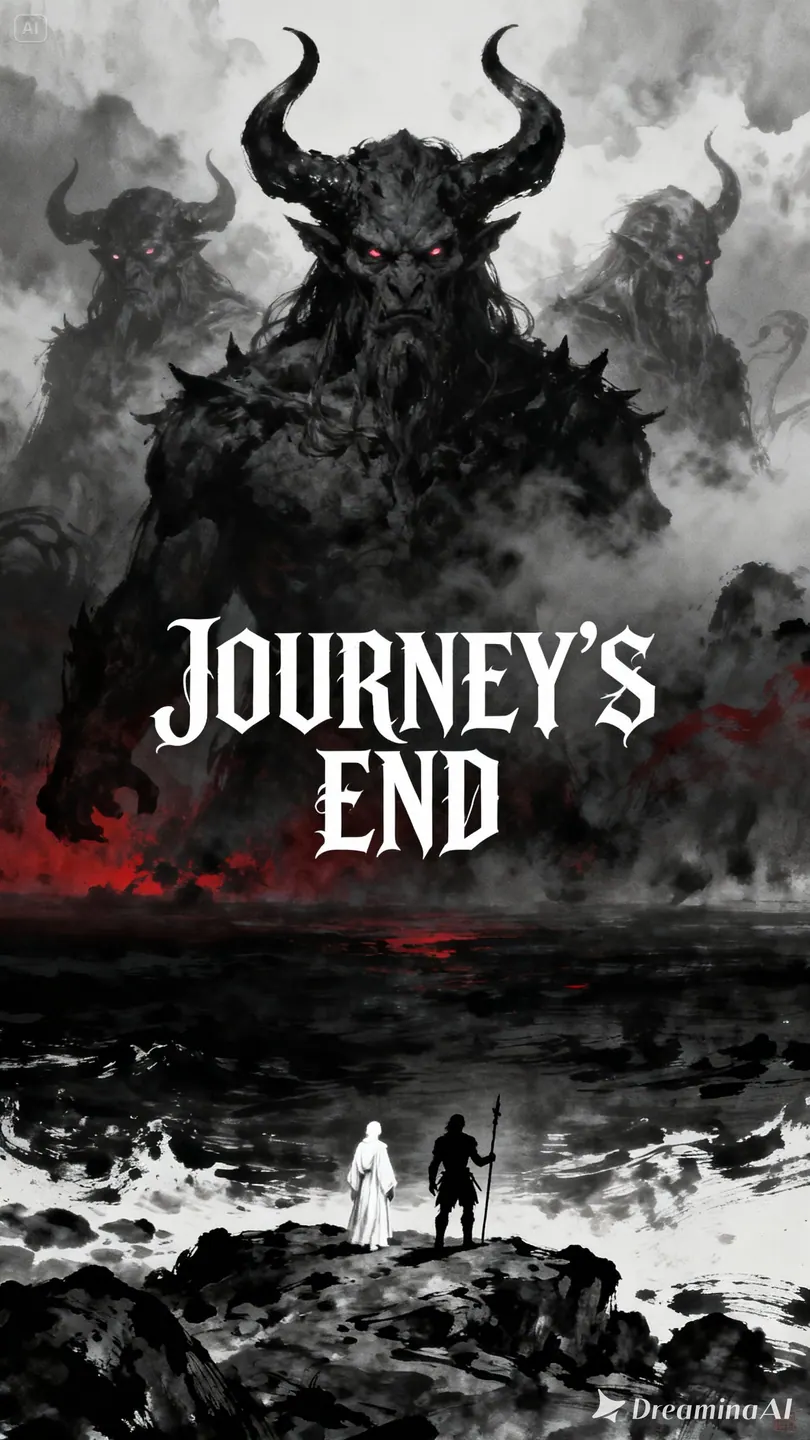
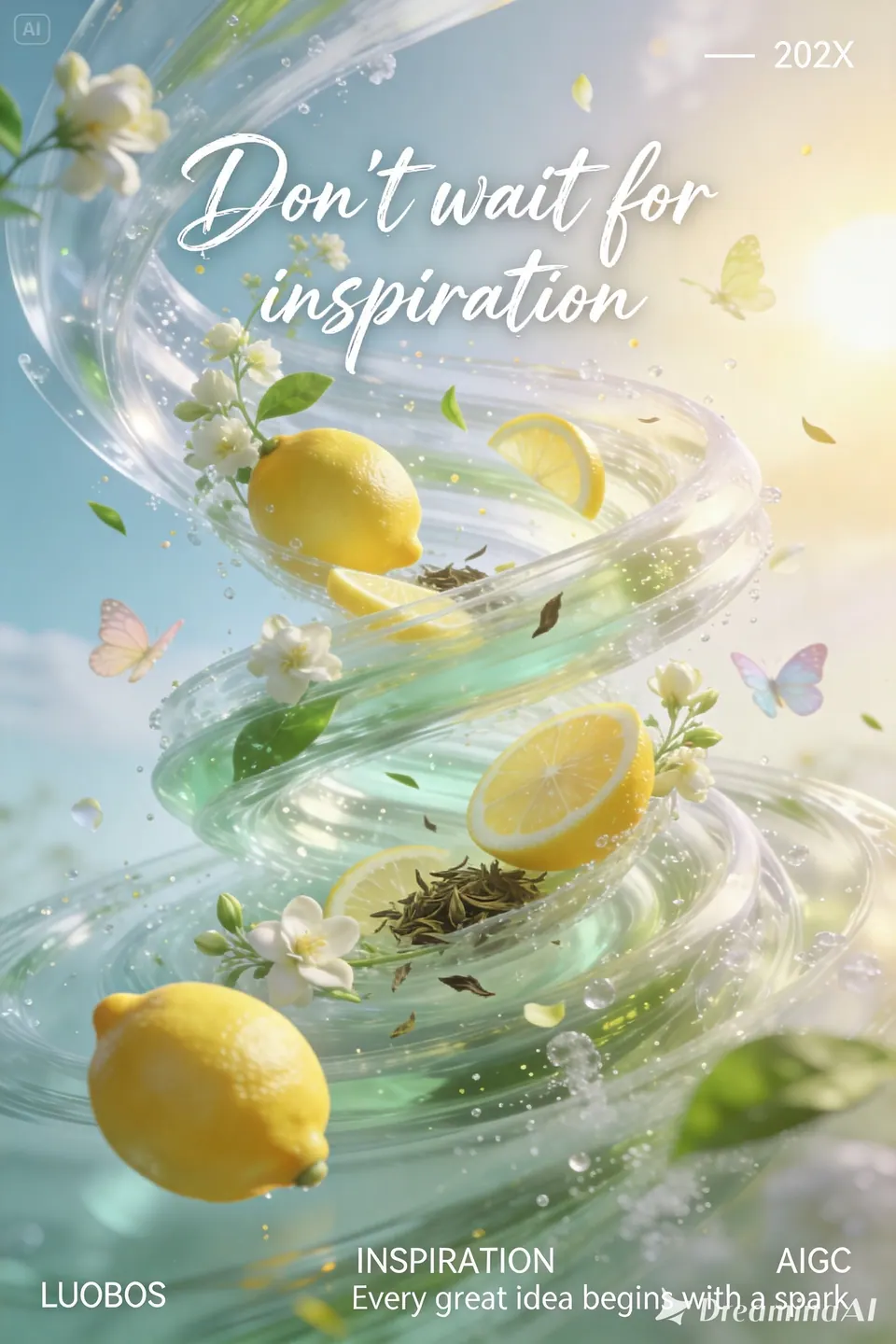
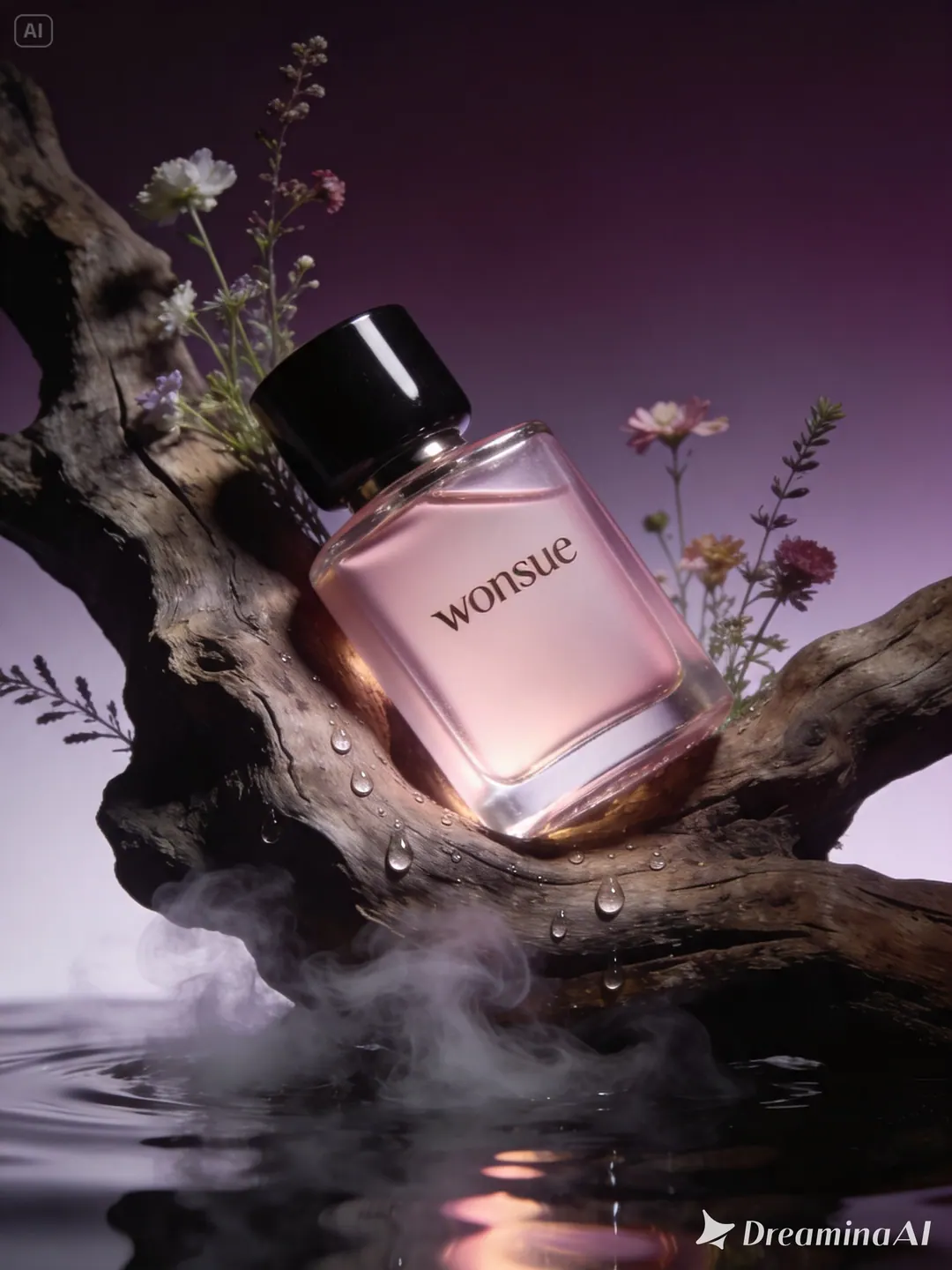
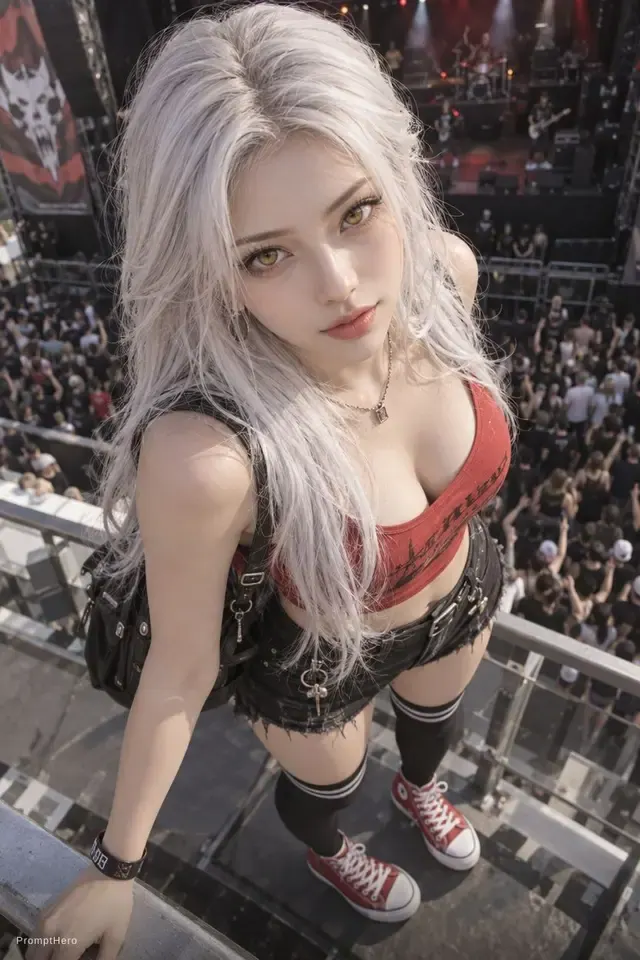
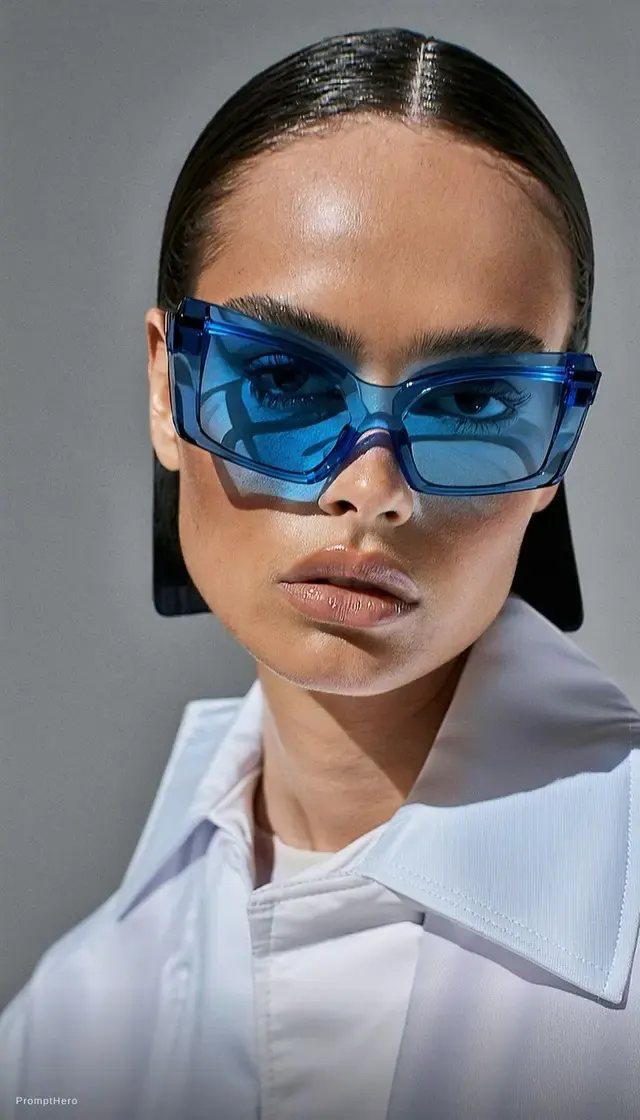
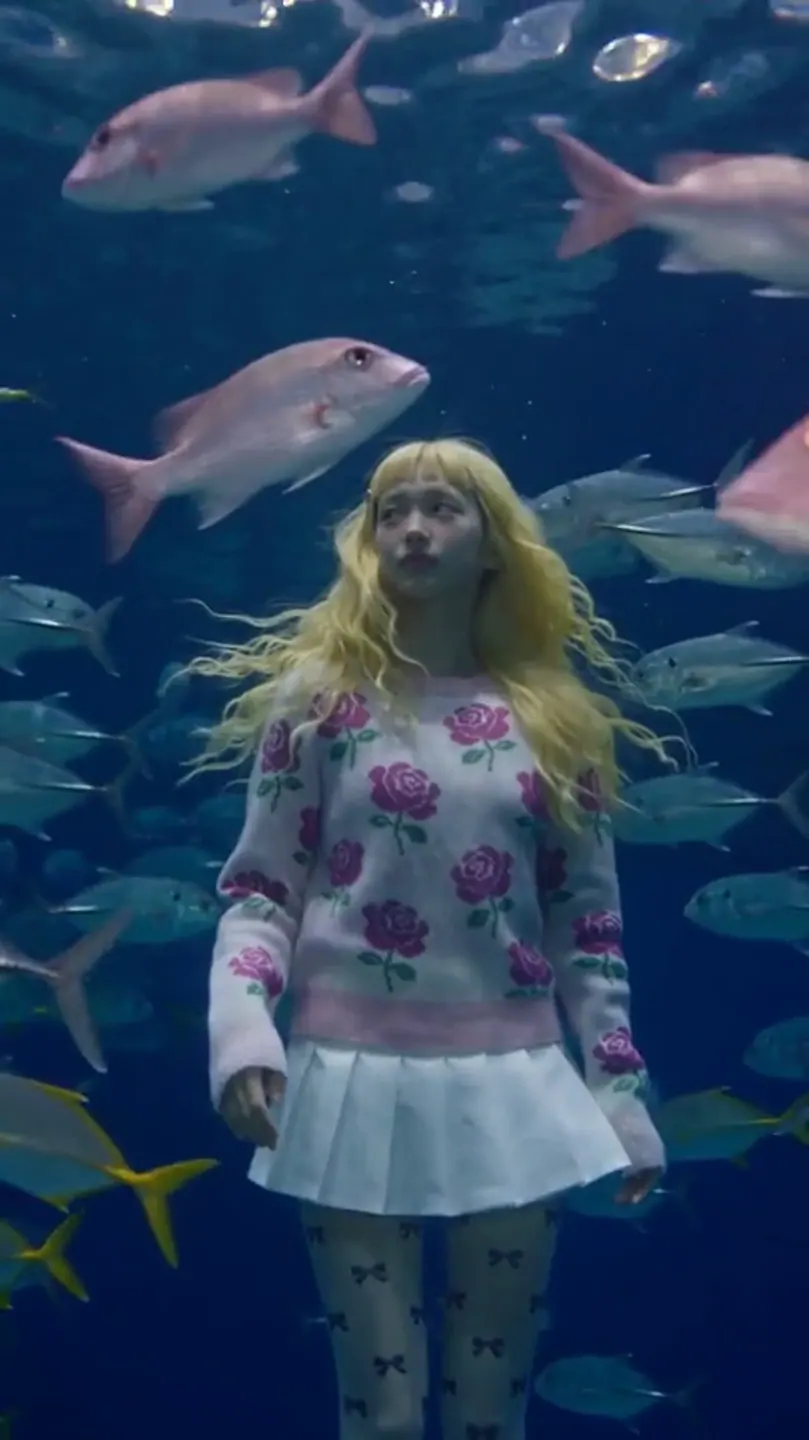
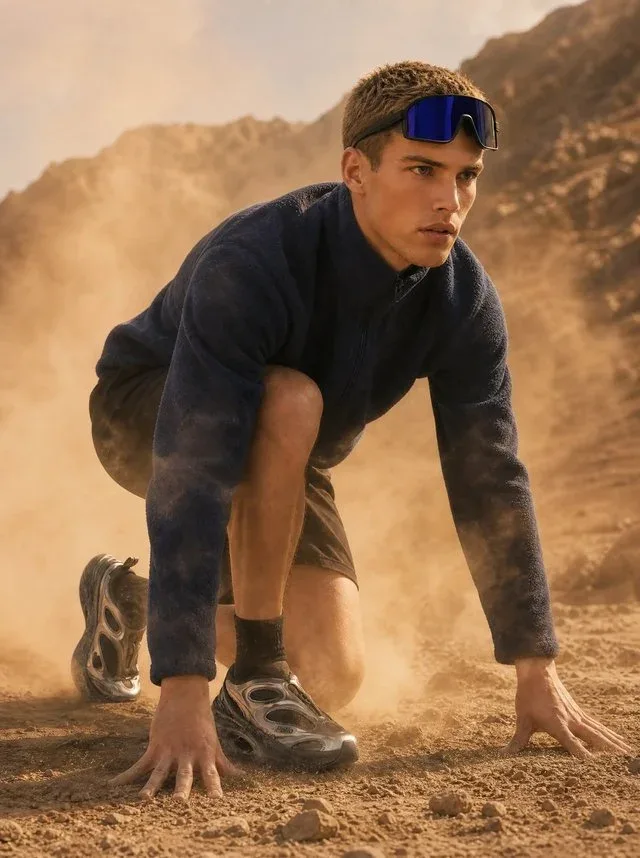
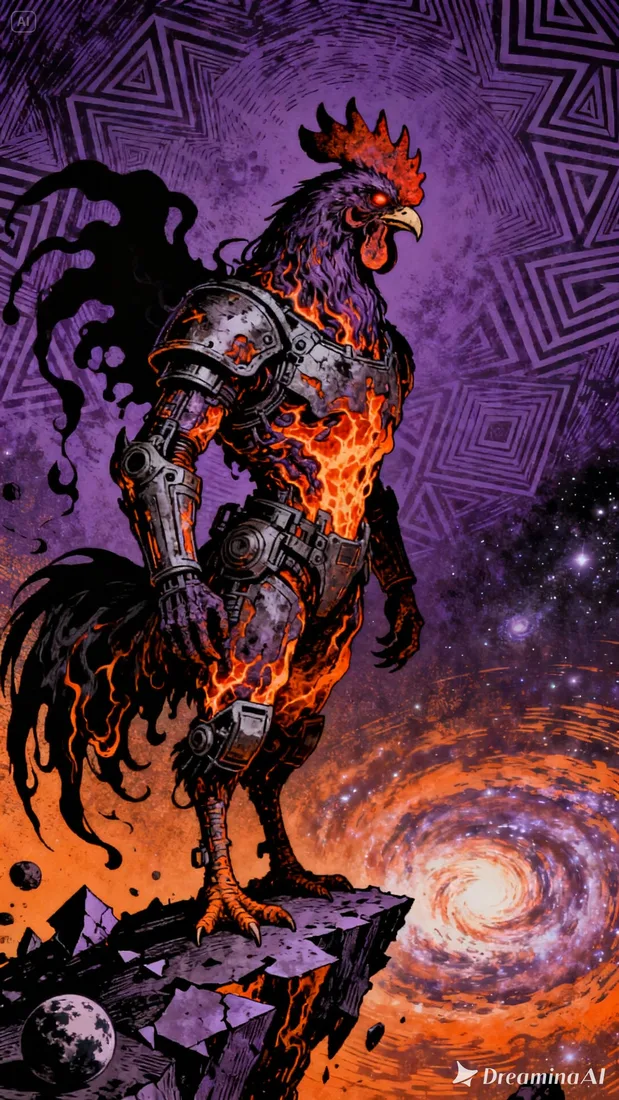
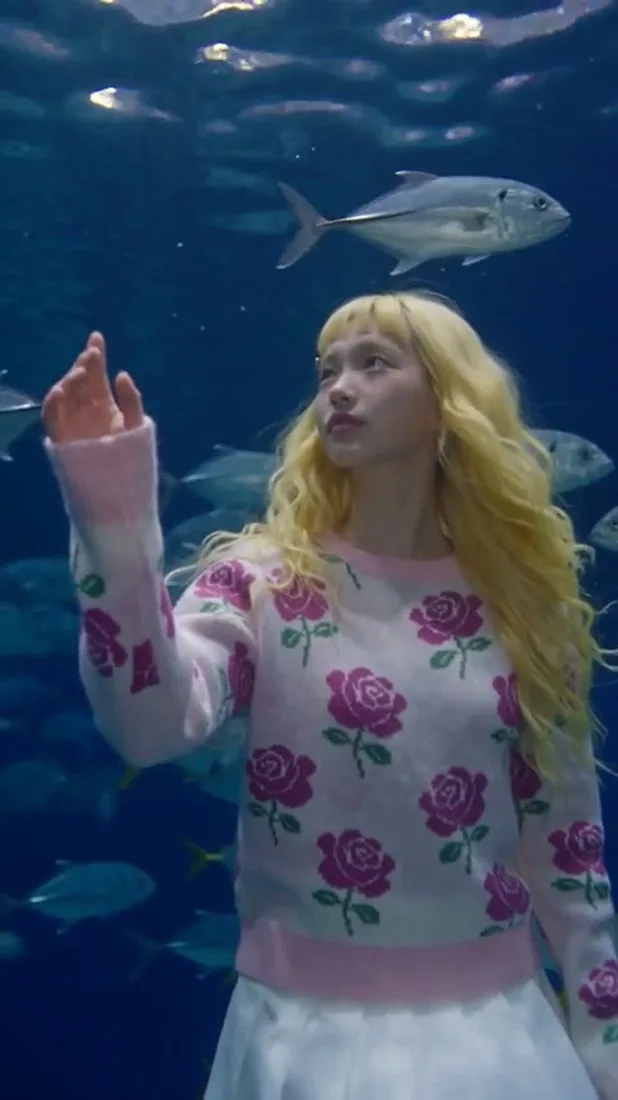
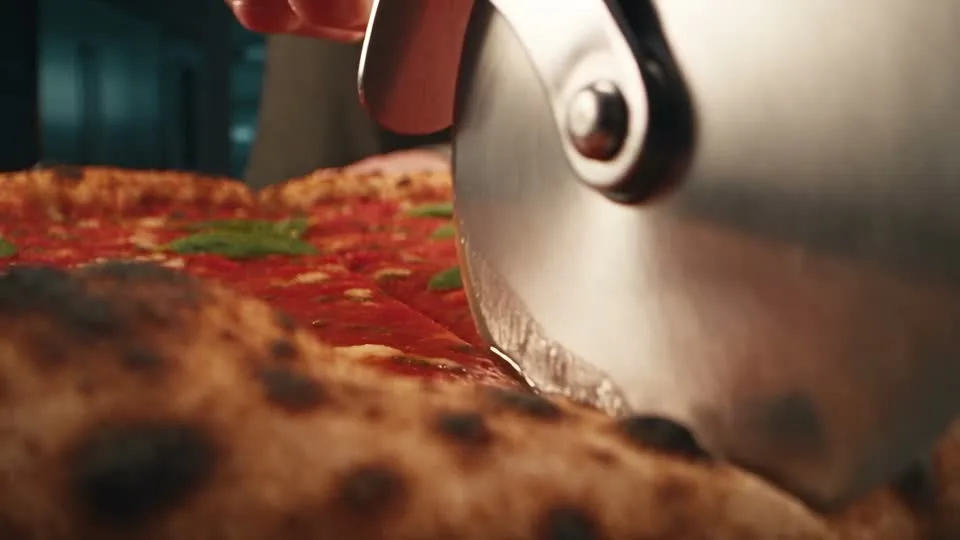
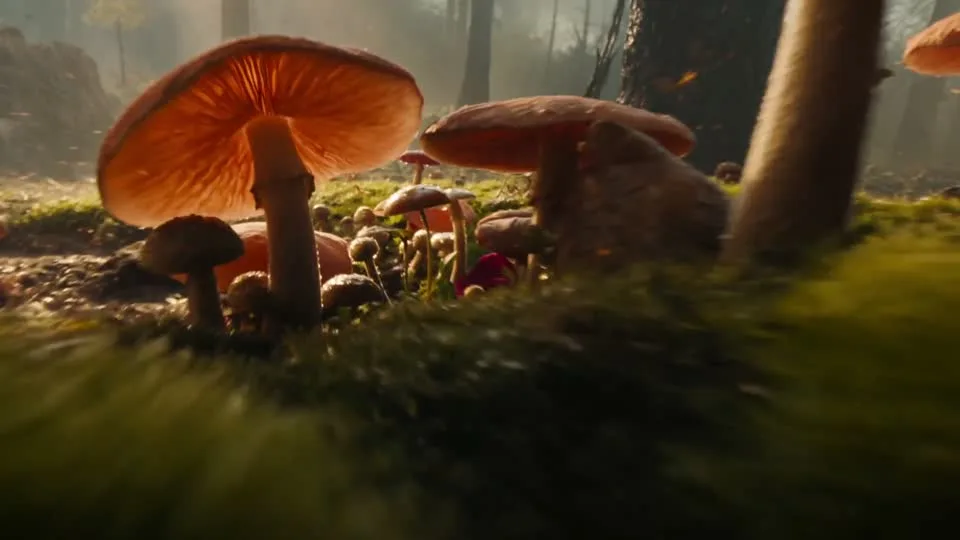
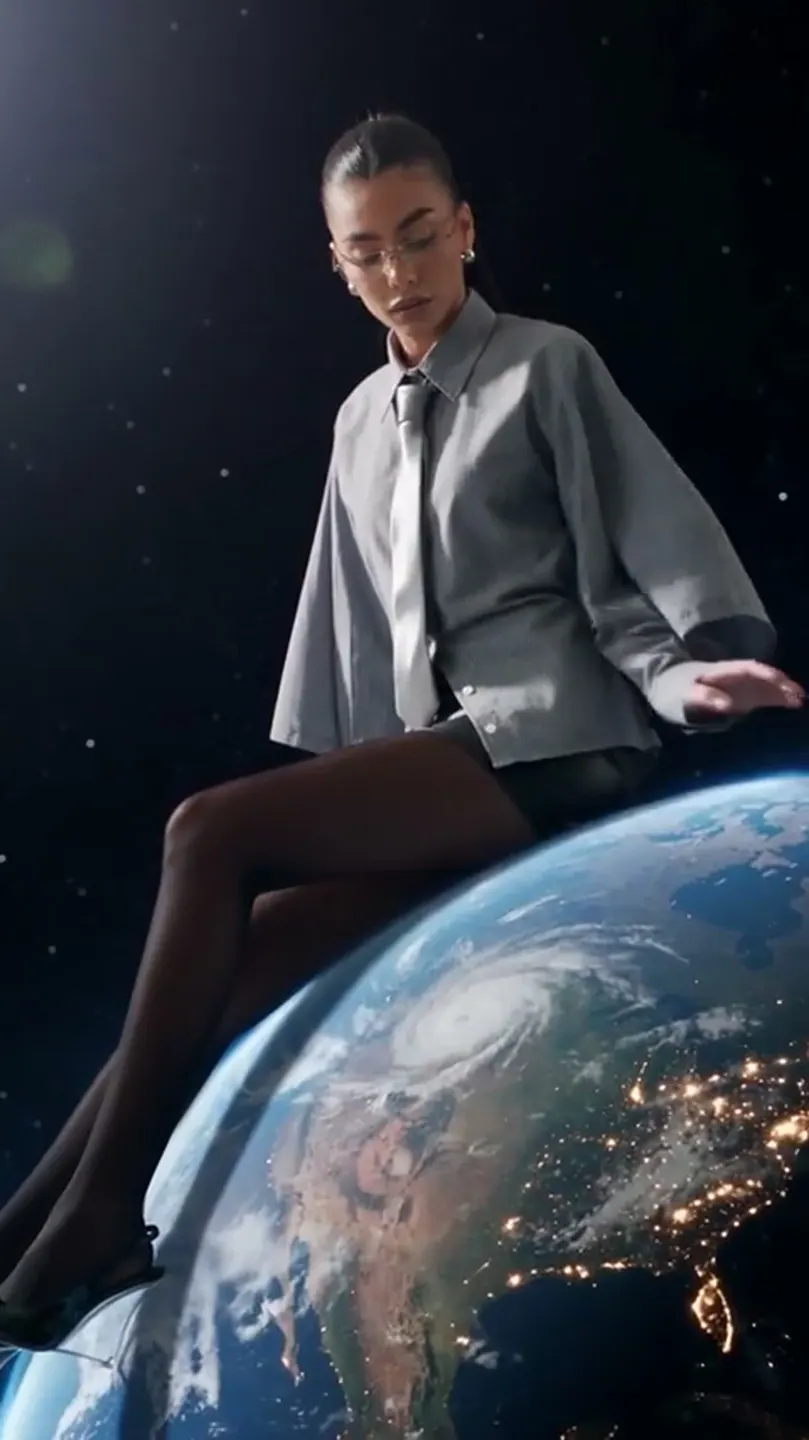
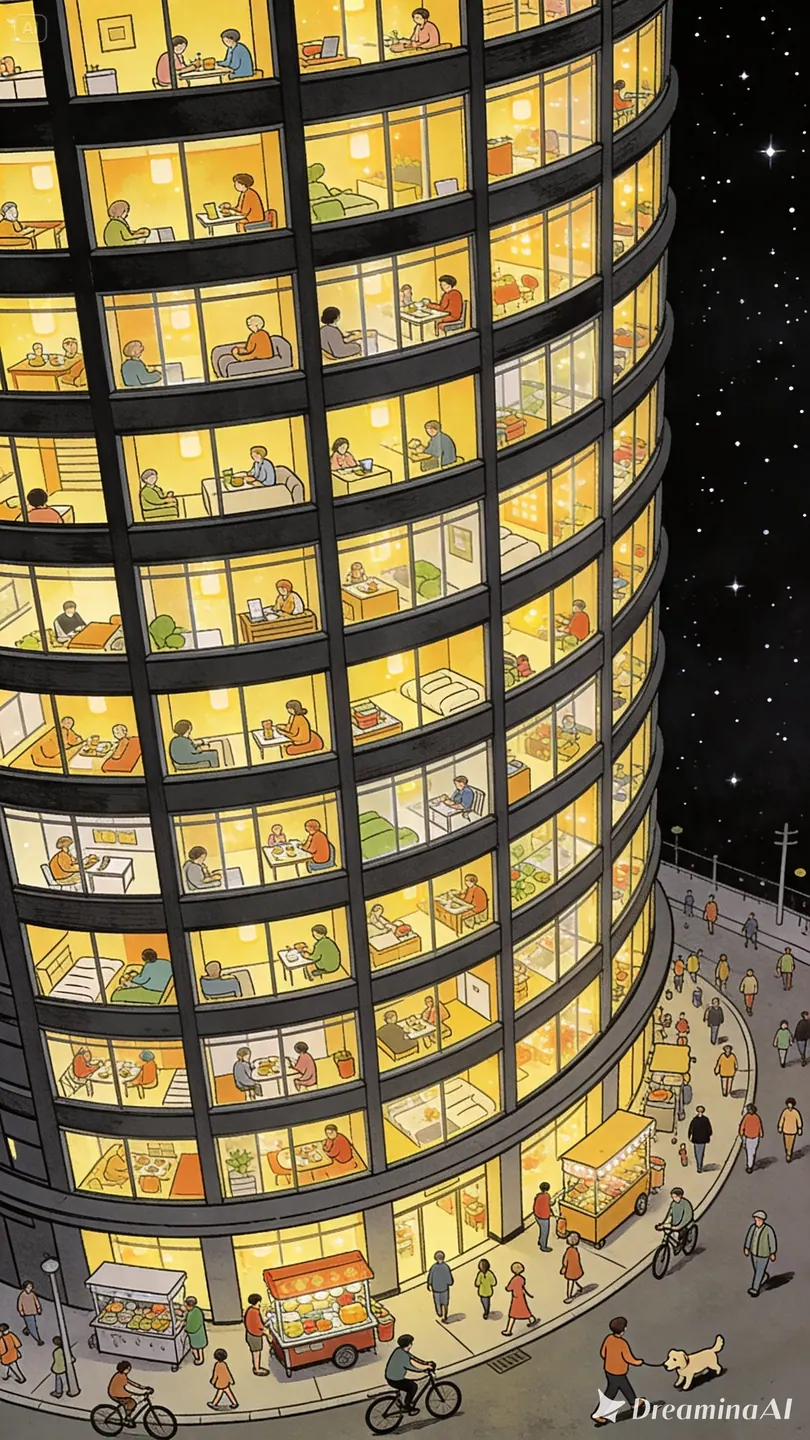
These project images illustrate composition and style, not verified outputs from the selected model.
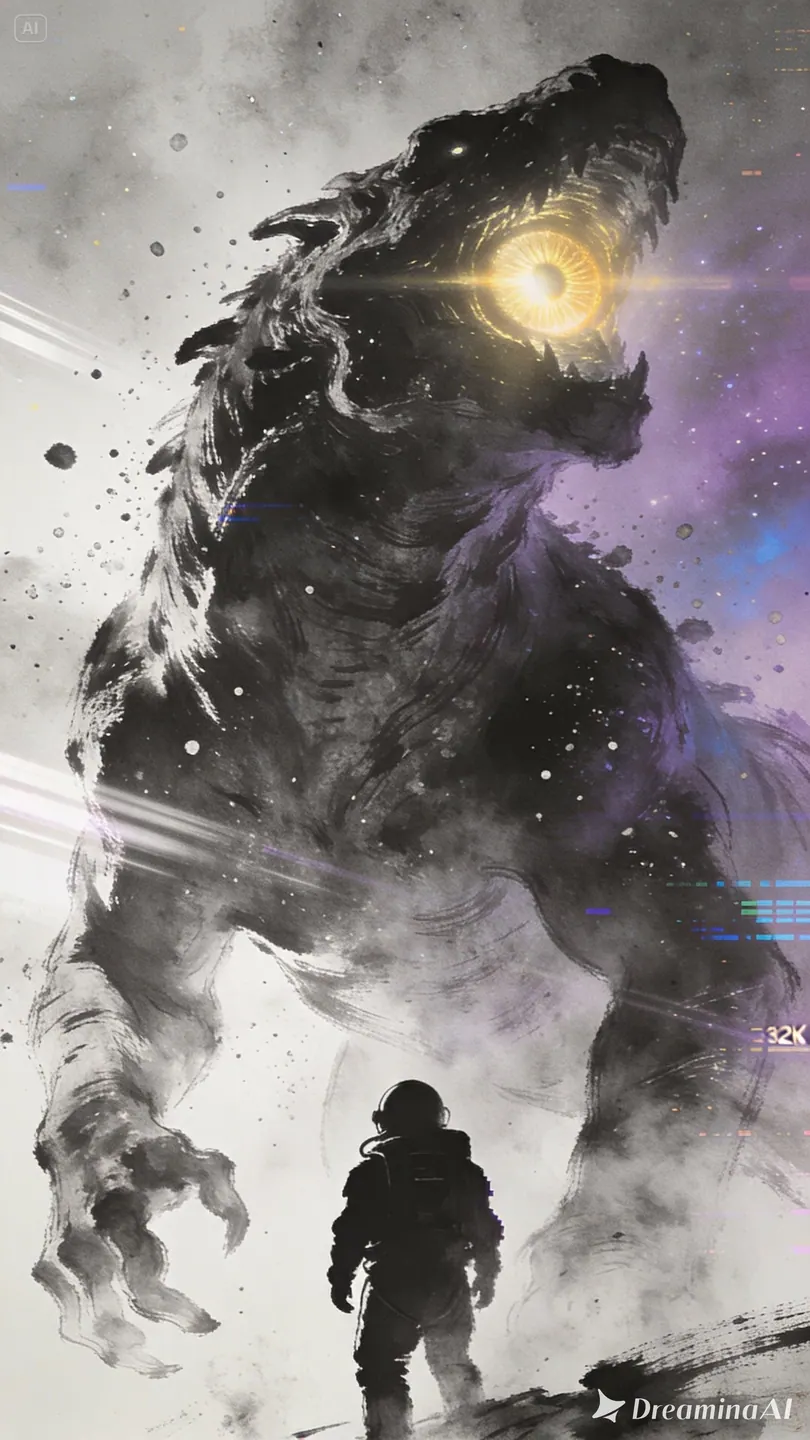 Flow AI Video
Example1 / 2
Describe a new scene or upload a photo to establish its appearance. Give the subject one clear action and explain how the camera should follow it.
Need a hand?
Questions about inputs, output formats, and preparing your next draft.
Contact supportCreate with Wan 3.0: 2s–30s, 480p/720p/1080p, and adaptive/16:9/4:3 formats. Compare settings and review estimated credits before generating.
4s at 720p: 100 credits. These are the controls currently offered in this workspace. Availability can change; confirm the selected settings and live estimate before submitting. Version names do not guarantee speed or output quality.
Keep the same prompt and reference while comparing versions. Review identity, motion, framing, and the full clip before keeping a take.
These project images illustrate composition and style, not verified outputs from the selected model.
Your next idea is one prompt away
Your next shot starts with a prompt or image. Set up your Flow AI Video generation above, check the estimate, and follow its progress in Create.