Flow AI Video: A Credit-Smart Guide to Better Clips
Plan better clips with Flow AI Video. Learn how to set a shot brief, compare takes, check credits, and review results before publishing.
 Flow AI Video Team
A video can look impressive and still be wrong for your project. The camera may move beautifully while a product label changes, the subject drifts out of frame, or the ending leaves no room for your message.
The useful question is not just “How do I generate a video?” It is “How do I decide what to generate, what to change, and when a clip is ready?”
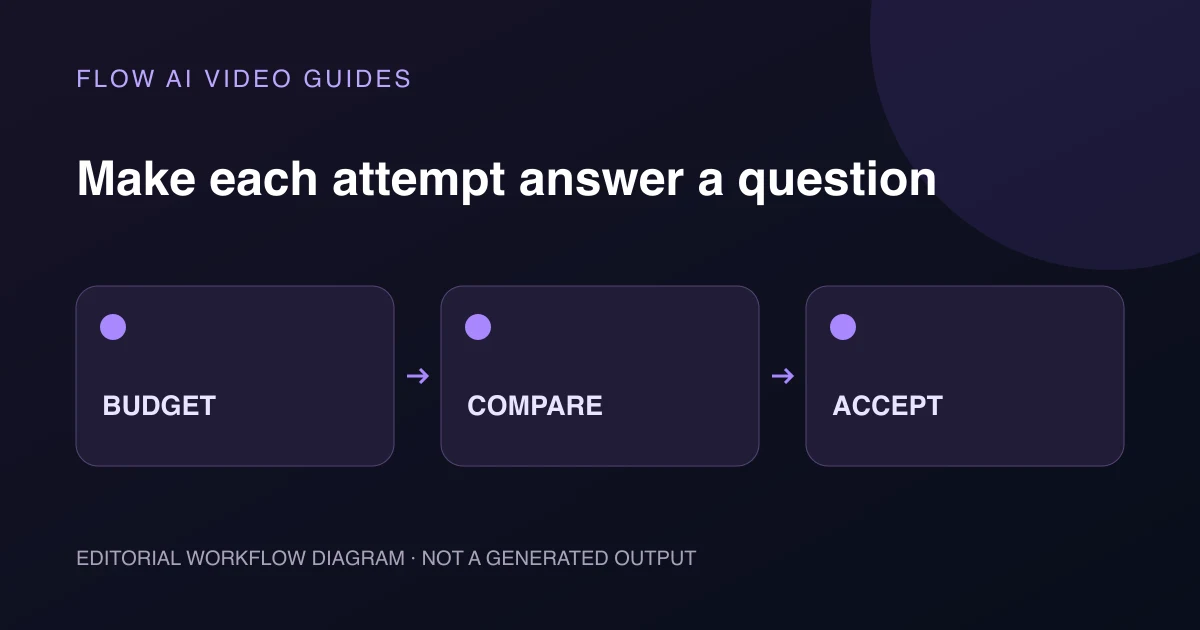
Flow AI Video turns text prompts and images into video clips, with available models and output settings shown in its generator. You can review estimated credits before submitting, then preview and download completed work. That makes a clear testing plan valuable: each take should answer a specific creative question.
This guide shows you how to build that plan, budget for variations, and judge the result without confusing a promising visual with a publish-ready asset.
First, make sure you have the right Flow
Searches for “flow ai video” can lead to more than one website. This guide covers Flow AI Video at flowaivideo.net, the workspace for generating images and videos from prompts and reference media.
Google also offers Google Flow, its own AI filmmaking tool, described in Google's official getting-started guide. Do not assume a tutorial for Google's interface, subscription, or credits applies to flowaivideo.net.
Other domains, including flowaivideo.org, use similar product names, too. This guide does not cover their plans or interfaces. Before following pricing advice or opening an account, check the address bar. For this article, the relevant generator, pricing page, and support information all belong to flowaivideo.net.
What Flow AI Video can help you make
The site supports text-to-video and image-to-video workflows. It also describes reference-video workflows when the selected model supports them. Typical starting points include social clips, product visuals, campaign concepts, and individual creative scenes.
The homepage lists model options such as Kling, Veo, and Seedance. However, a model name alone does not tell you every available control. Aspect ratios, resolutions, durations, and reference options depend on the selected model and the current generator.
Treat the workflow as generate, inspect, and refine. It is not a guarantee of exact lettering, product identity, or continuity. The site's existing workflow guide also distinguishes reference-based generation from editing on a frame-accurate timeline. Plan to handle precise cuts, captions, and final audio in an editing workflow suited to those tasks.
Start with an acceptance brief, not a longer prompt
Before opening the generator, write down what a usable clip must accomplish. This is different from describing everything you would like to see.
For example, imagine you need a short visual for a ceramic desk planter. Your acceptance brief could look like this:
| Decision | Example brief |
|---|---|
| Purpose | Introduce the planter in a social post |
| Main subject | One matte ceramic planter with a small plant |
| Essential detail | The planter's silhouette and surface finish remain recognizable |
| Motion | A restrained camera move toward the object |
| Composition | Clear space above the subject for a caption added later |
| Rejection criteria | Changing shape, floating leaves, unreadable framing, or invented features |
These are proposed creative criteria, not features or output guarantees.
The brief gives you a reason to accept or reject a take. Without it, you can spend credits chasing a vague feeling that the next version might be better.
Separate requirements from preferences
A recognizable product shape may be essential. A particular shade of background may only be a preference. Decide which is which before comparing results.
If a clip meets every requirement, changing an optional detail is a creative choice—not an automatic reason to generate again.
Choose the input that answers your question
Text, images, and reference footage solve different starting problems. Choose the input based on what you already know about the shot.
Use text when you are exploring the scene
Text to Video AI is a suitable starting point when your subject and setting exist only as a written idea. Describe a visible subject, a specific action, and a camera direction.
For the planter concept:
A small leafy plant in a matte cream ceramic planter sits on a tidy wooden desk beside a window. Soft daylight reveals the ceramic texture. The camera slowly moves closer while the planter stays still. Leave clear space above the plant.
This is an original prompt to test, not a verified generation. Its value is that the requested movement and composition are easy to evaluate.
Use an image when appearance matters
If you already have an approved product photograph, start with Image to Video AI. The reference establishes a visual starting point; your prompt can focus on movement and framing.
Do not treat the upload as a promise of exact reproduction. Compare the generated object with the original throughout the clip, including its outline, surface, and any branding.
For the planter, ask for restrained movement around the referenced object rather than an elaborate transformation. If exact appearance is essential and generation changes it, use real footage or the original photograph in the final edit.
Use reference footage when movement is the starting point
Reference to Video is another route when supported by the selected model. Use footage you have permission to upload, and explain which movement matters to the new scene.
A reference is guidance, not a guarantee of matching every frame. If you are uncertain which input to use, the site's introductory guide explains the available starting pages.
Build a small comparison before spending on variations
Changing the prompt, reference, model, duration, and resolution together makes a result hard to interpret. If the next take improves, you will not know which change helped.
Instead, keep a baseline and change one meaningful variable at a time.
| Take | Keep the same | Change | Question to answer |
|---|---|---|---|
| A: baseline | Reference, model, output settings | Nothing | Does the basic idea work? |
| B: motion test | Reference, model, output settings, lighting | Request a smaller camera move | Is the subject more stable? |
| C: composition test | Reference, model, output settings, motion | Request more space above the subject | Is there room for the planned caption? |
This table is a planning method, not a built-in comparison feature. Keep your notes in whichever document or spreadsheet you already use.
Compare models as a separate experiment
If you want to compare models, use the same brief and reference, with equivalent supported settings where possible. Check the estimate for each model before submitting.
When equivalent settings are unavailable, note the difference. A longer clip at a different resolution is not a like-for-like comparison. Judge whether the result fits your project rather than declaring one model universally best.
Understand Flow AI Video credits before you generate
Flow AI Video uses credits, and generation costs vary by model, duration, and resolution. The pricing page gives an example of 40 credits for a four-second, 720p Veo 3.1 Fast video. Always use the live estimate for your actual request.
At that example rate:
- One attempt uses 40 credits.
- Three attempts use 120 credits.
- Five attempts use 200 credits.
These are arithmetic examples, not a promise that every clip costs 40 credits or that every attempt produces a usable result.
A practical planning formula is:
Attempt budget = planned submissions × displayed credits per submission
If you change the model or output settings, recalculate. Budget for attempts rather than assuming every generation will become a finished asset.
Set a review point before you start
For a first concept, you might choose one baseline and two targeted revisions. That is a suggested working limit, not a platform restriction.
After those attempts, stop and ask:
- Is the brief realistic for a short clip?
- Is the reference clear enough?
- Are you asking for too many actions?
- Would real footage solve the important problem more reliably?
Sometimes the next useful step is a better source image or a simpler concept, not another submission.
Read billing periods carefully
Pricing checked on November 7, 2026. The public pricing page offers monthly and yearly subscriptions as well as one-time credit packs. In its displayed annual view, Creative is listed at $12 per month equivalent, billed at $144 annually, with 4,800 annual credits. The displayed Professional option is $174 annually for 9,600 credits, and Studio is $1,188 annually for 60,000 credits.
Annual credits are issued upfront after payment and each successful annual renewal. Monthly plans issue credits monthly after payment; one-time packs do not renew. Check current prices and the selected allocation before purchasing. A monthly-equivalent annual price is not a monthly billing commitment.
Review the whole clip, not just its strongest frame
Once your generation is complete, preview it in the workspace. Watch from beginning to end before downloading it for publication.
Use your acceptance brief alongside this checklist:
- Identity: Does the main subject remain recognizable?
- Continuity: Do shapes, clothing, packaging, or environmental details change unexpectedly?
- Motion: Is the action coherent, with no distracting jumps or distortions?
- Framing: Does the composition suit the intended placement?
- Text: Are generated letters or labels altered?
- Accuracy: Does the clip imply something untrue about the product or scene?
- Editability: Can the beginning and ending fit into your planned sequence?
For commercial visuals, apparent realism is not evidence. A generated demonstration should not establish an unverified product capability or stand in for a genuine customer experience.
Also review rights and permissions. The site's Terms of Service require you to have permission for uploaded material and to review outputs for accuracy, rights, and suitability.
Decide whether to keep, revise, or change approach
Use three decisions to prevent endless iteration:
Keep: The clip meets the essential brief. Download it and move into finishing rather than regenerating for optional improvements.
Revise: One identifiable problem remains. Make one focused change, such as reducing camera movement or simplifying the background, then check the new estimate.
Change approach: Repeated attempts alter an essential detail or fail to show the action accurately. Try a clearer reference, a different supported workflow, or recorded footage.
For the planter example, a beautiful clip that changes the ceramic shape is not a successful product visual. A simpler take that preserves the recognizable object may be the more useful asset.
Frequently asked questions
Is Flow AI Video free to try?
The homepage says new accounts may receive a one-time welcome credit grant when enabled. The amount can vary, and a generation may cost more than the available balance. Check your account and the live estimate; do not assume a guaranteed free video.
Can I choose any duration or resolution?
No. Supported options depend on the selected model. Choose the model first and review its available settings in the generator.
Do paid plans include unlimited generation or guaranteed faster queues?
The pricing FAQ describes credit-based generation, not unlimited generations. It also says plans do not currently guarantee dedicated or fixed queue priority. Wait times depend on the selected model and provider load.
Can I finish a complete ad inside the generator?
Use it to develop and download generated clips. Plan your verified offer, precise cuts, captions, final audio, and call to action in your finishing workflow. Do not assume the generation composer includes a full timeline editor.
Make your next generation answer one clear question
A deliberate AI video workflow starts before the Generate button. Define a usable shot, choose the right input, check the estimate, and compare each result against the same requirements.
Ready to test your idea? Open Flow AI Video, prepare one focused shot, and review the supported settings and credit estimate before creating your first take.