
01
Keep a visual starting point
Upload an image before generating. Use it to establish the character, product, or scene while the prompt explains what happens next.
01Creative reference
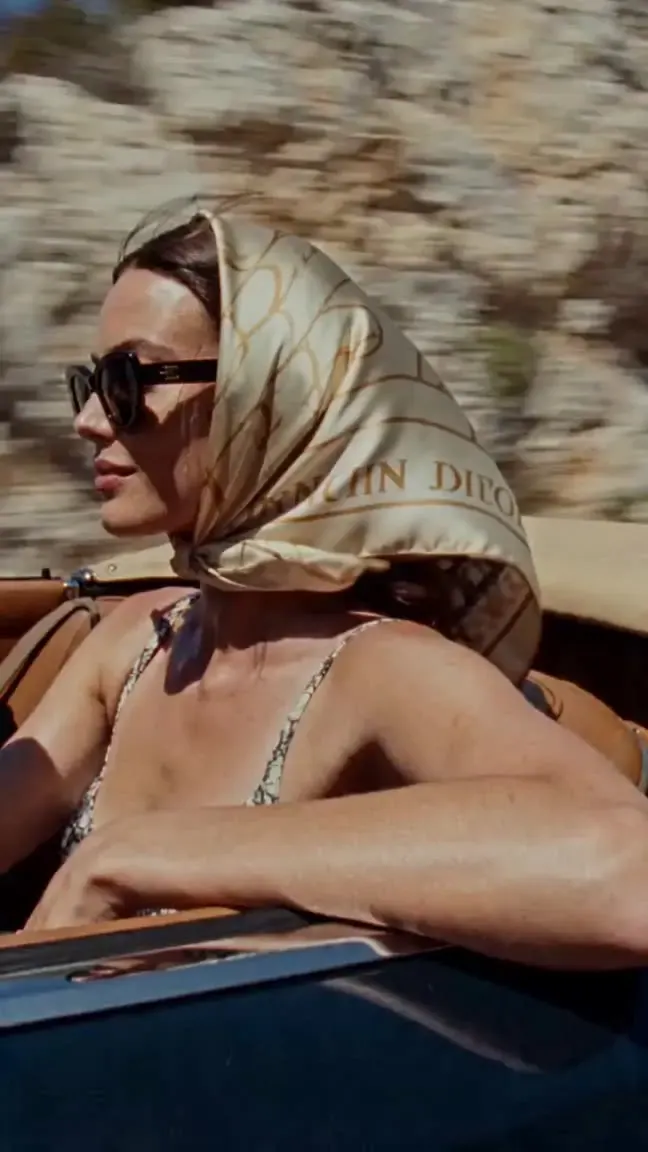
Bring a product photo or character image into motion with Vidu Q4. Describe a gesture, expression, or camera move, select 3–16 seconds and up to 4K, then prepare the shot in Create.
From reference to result
Prepare your brief, choose supported settings, and review the result.
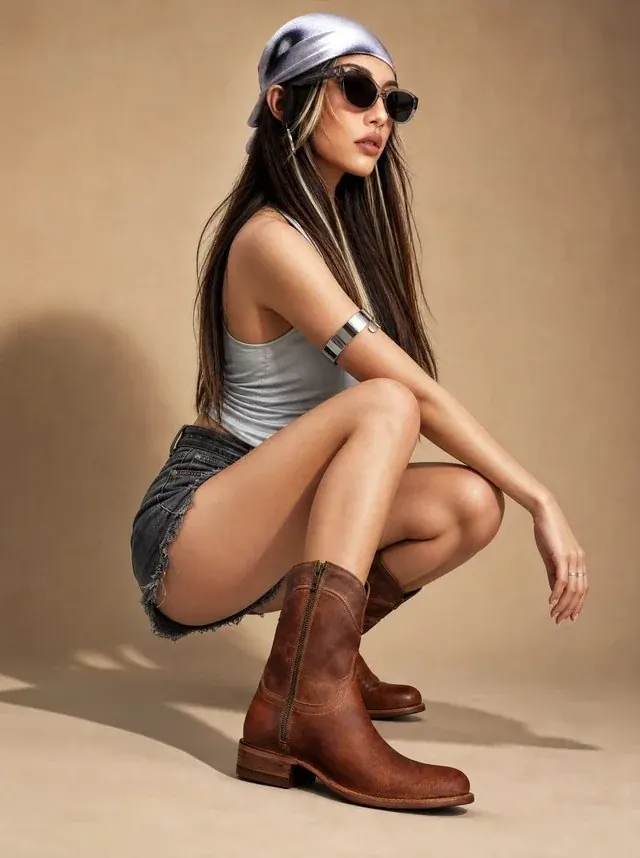 Creative reference
Upload a reference image, select 3–16 seconds, and choose a supported resolution up to 4K.
Describe the action, camera movement, and sound.
Open Create with your draft. Review inputs, settings, and credits before submitting a generation.
Explore more options in AI Video Generator. Return to the homepage.
A clearer brief, a more deliberate first take
Let an image establish the appearance. Use the prompt to direct the movement: a turn toward the camera, a change in expression, or a slow reveal of the setting.
01
Upload an image before generating. Use it to establish the character, product, or scene while the prompt explains what happens next.
02
Specify a gesture, expression, or reaction. A focused performance brief makes it easier to judge whether the generated action fits the story.
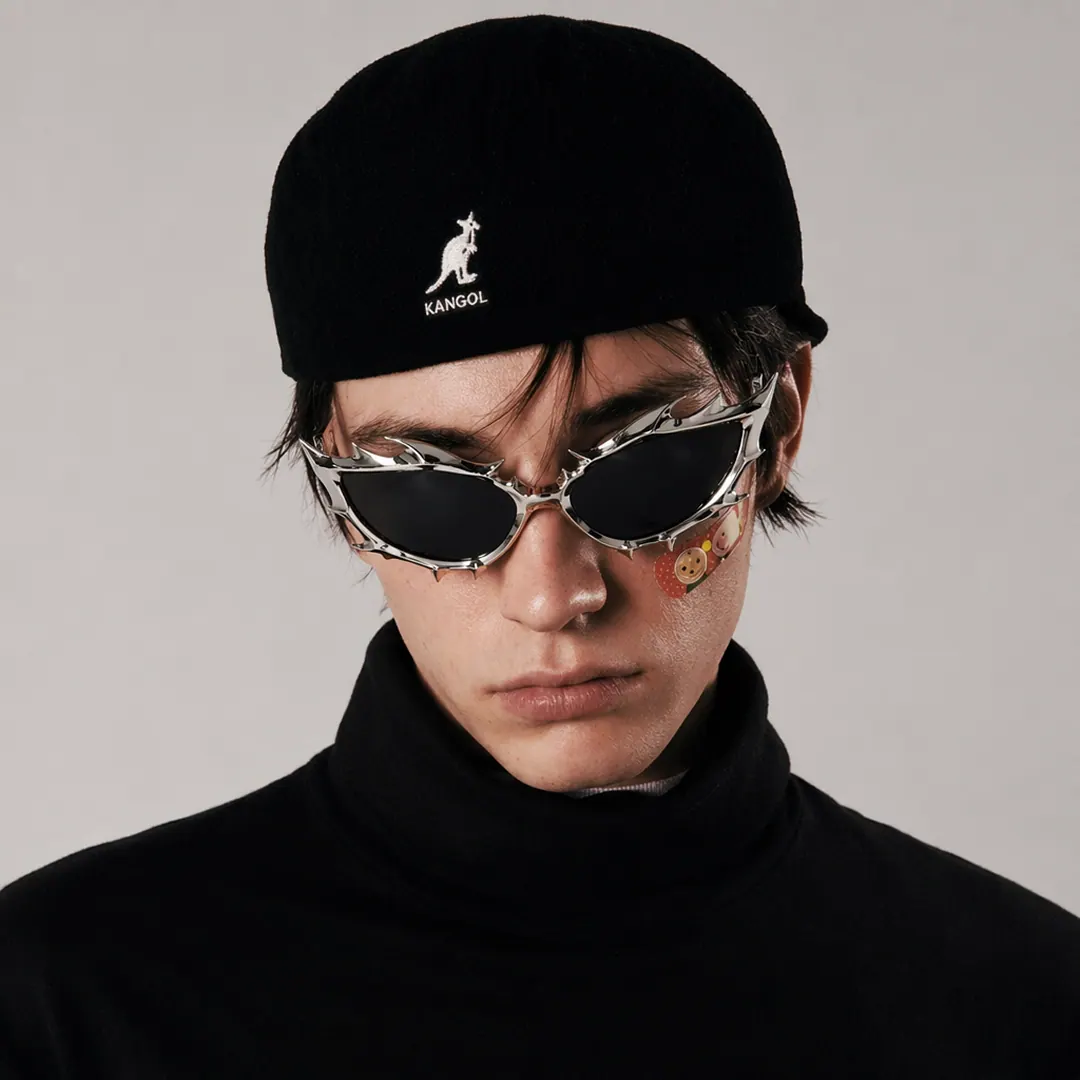
03
Match the selected duration to the action. Leave space for an expression to change or a camera to reveal the setting.
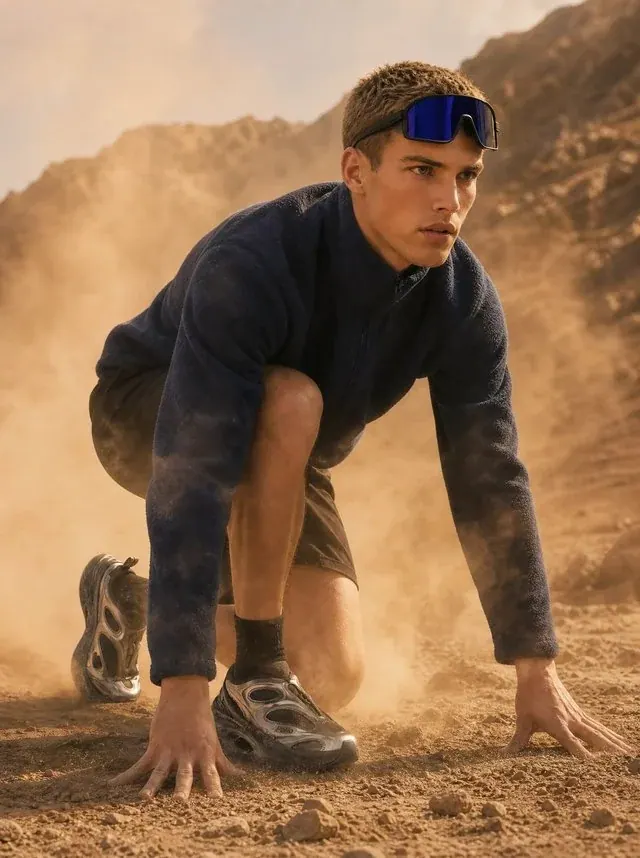
04
Choose 540p, 720p, 1080p, 2K, or 4K. Vidu Q4 also generates synchronized audio; review both picture and sound before export.
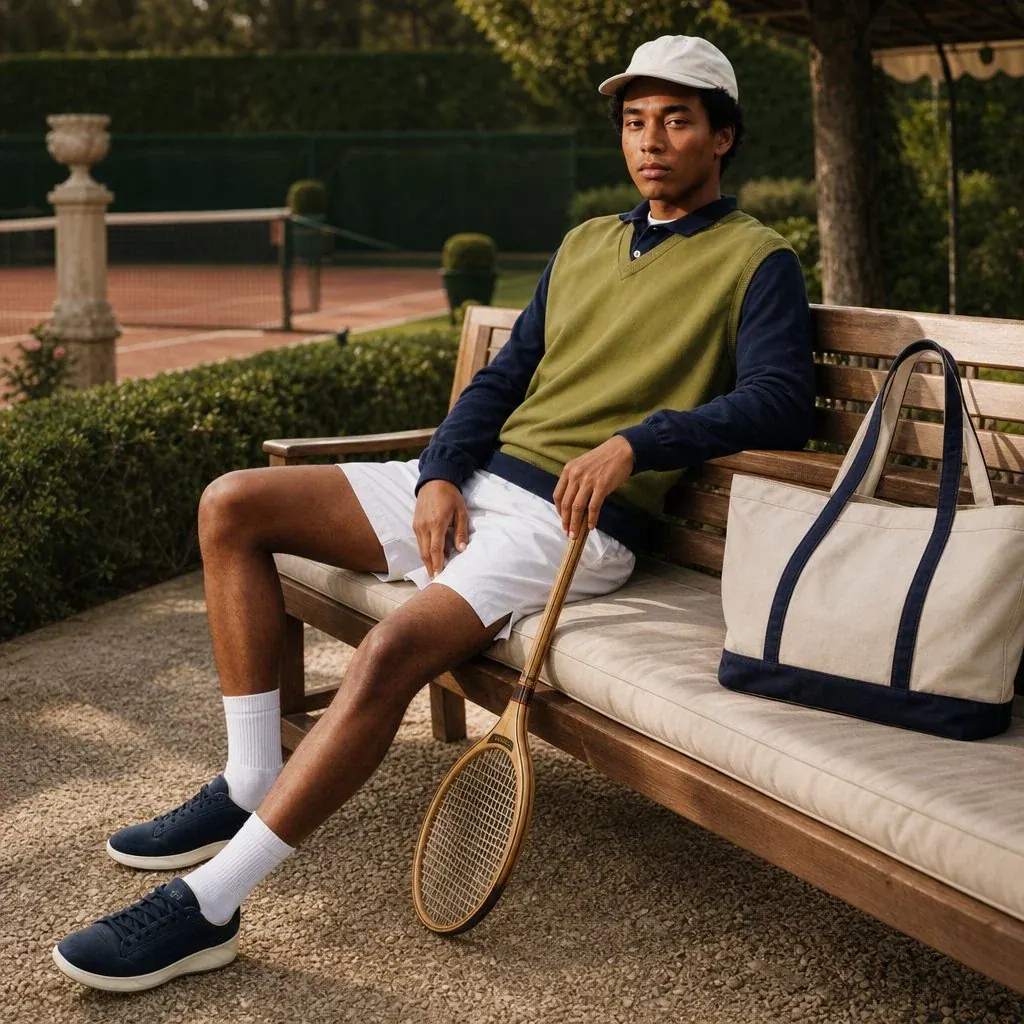
One clip, one creative goal
Start with the destination, then define the subject, style, and details that matter.
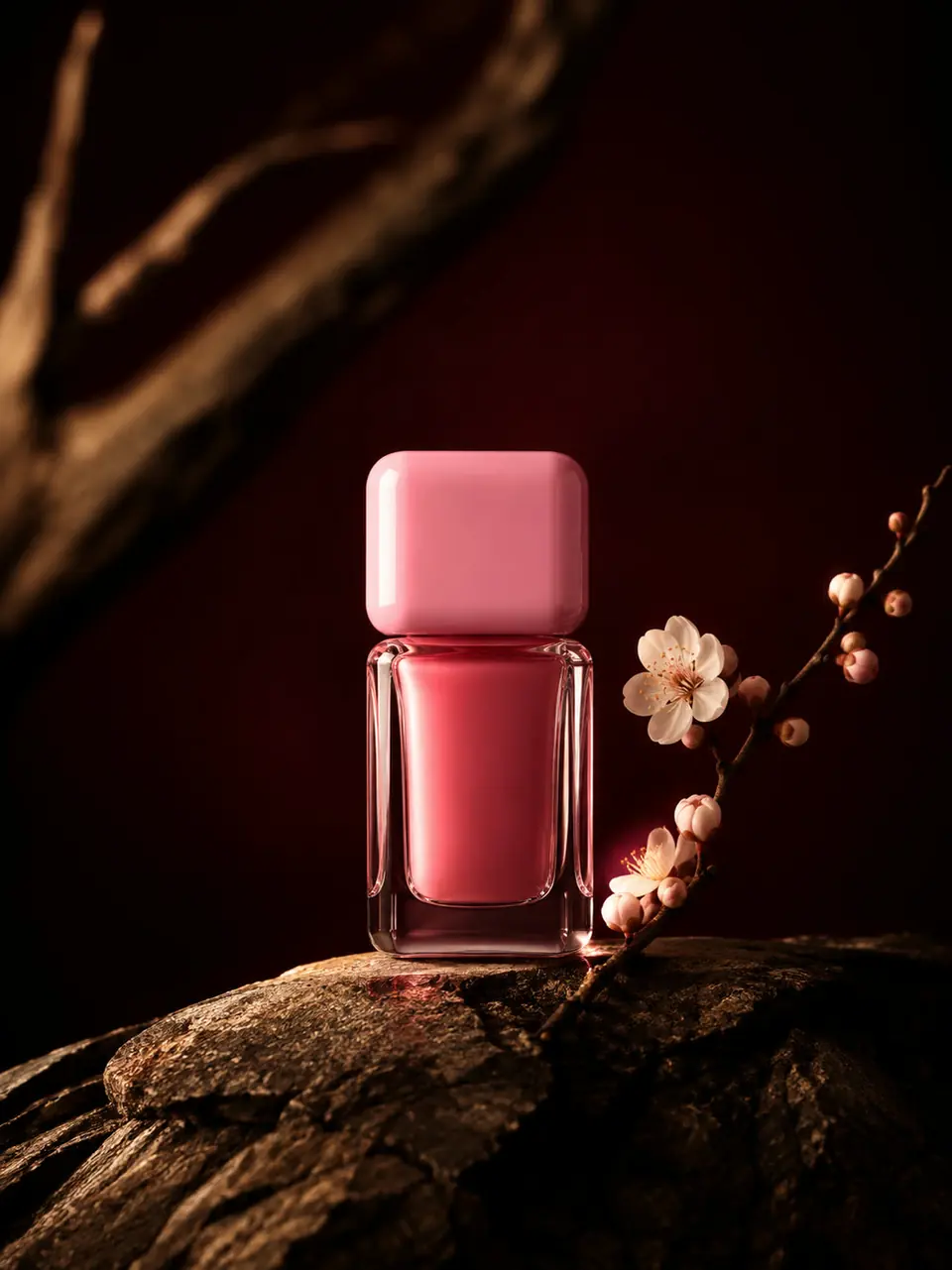
Products and brands
Define the product, setting, and visual treatment, then review the details against your brief.
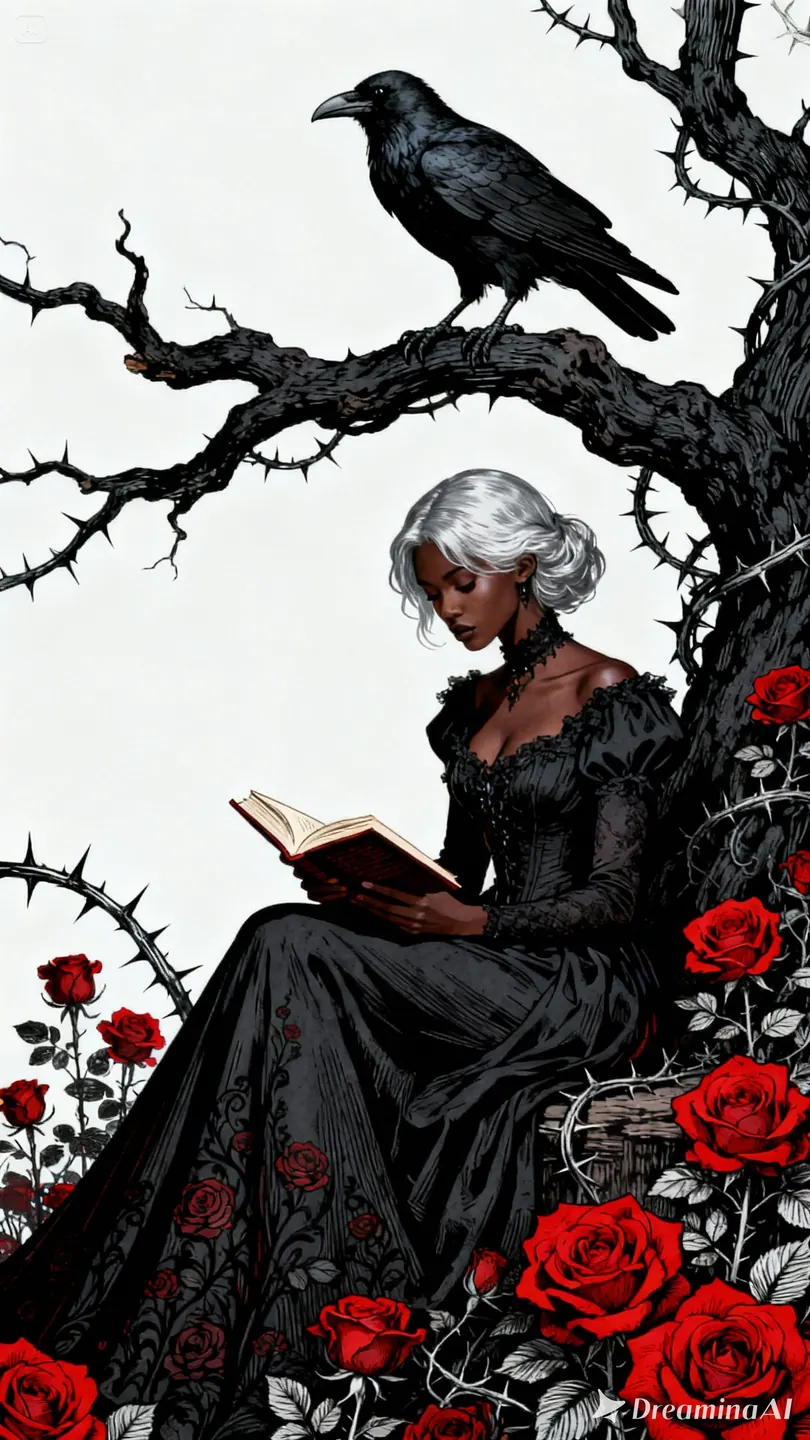
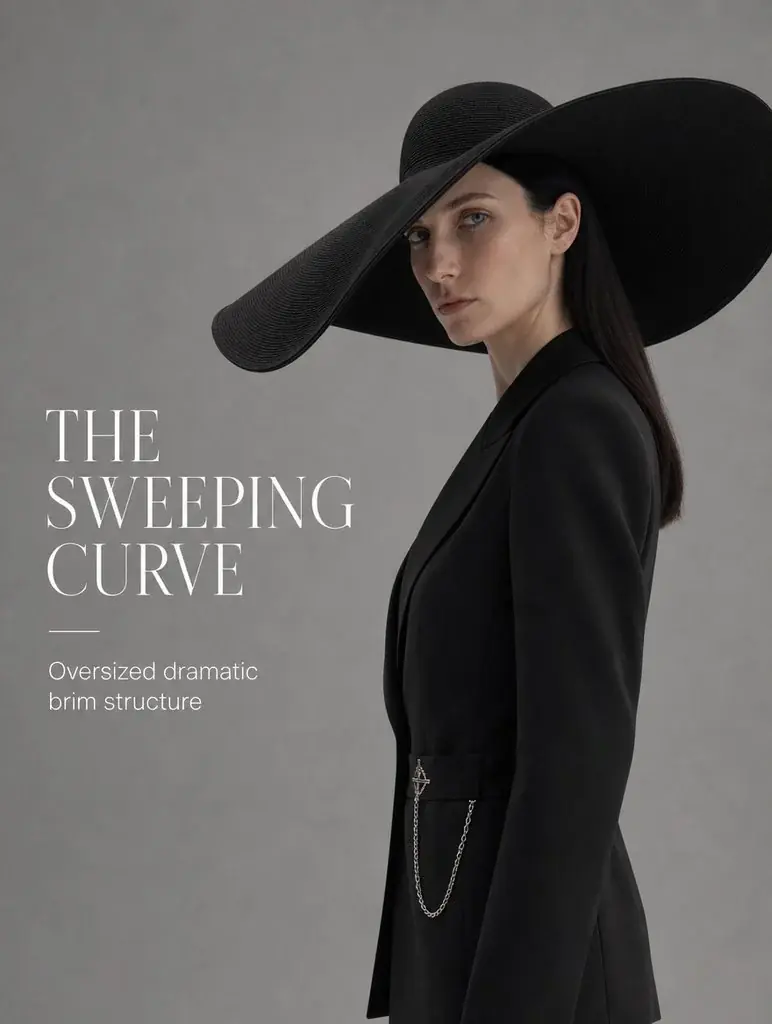
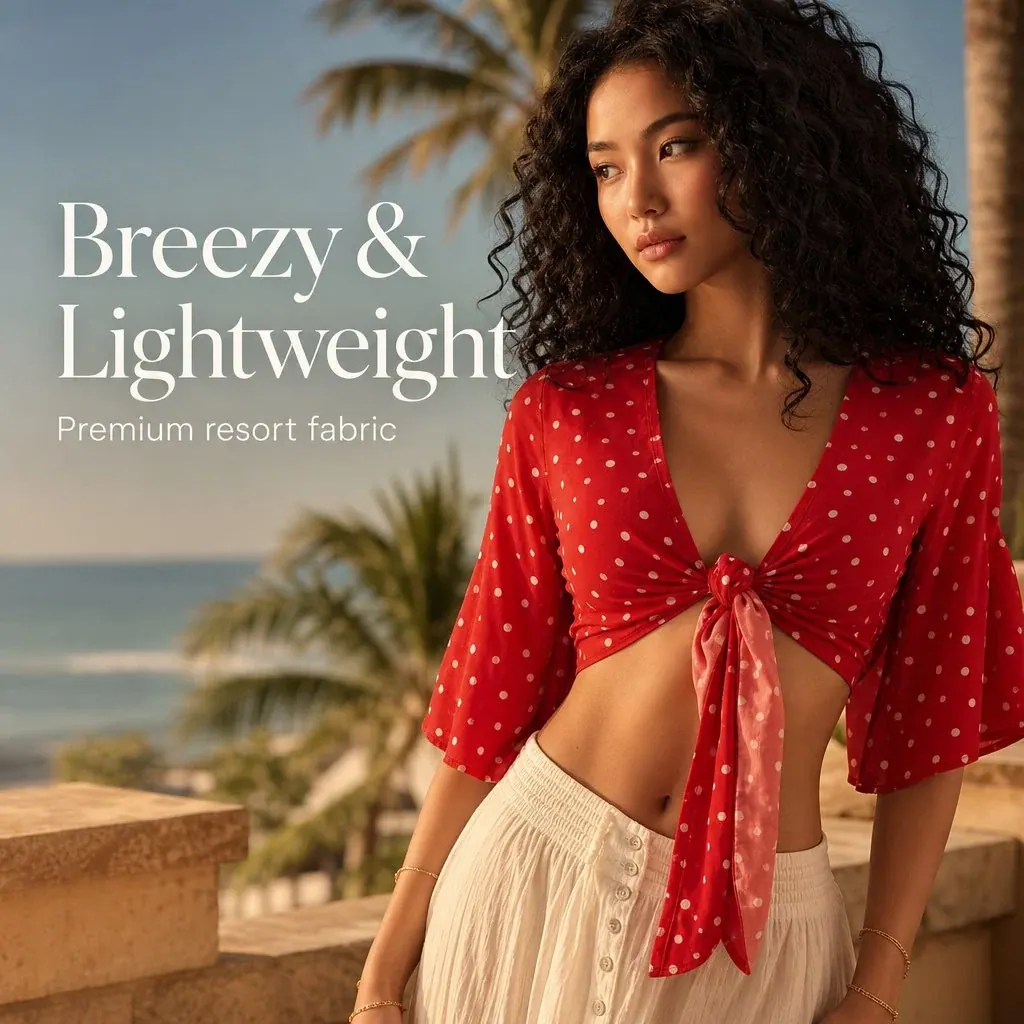
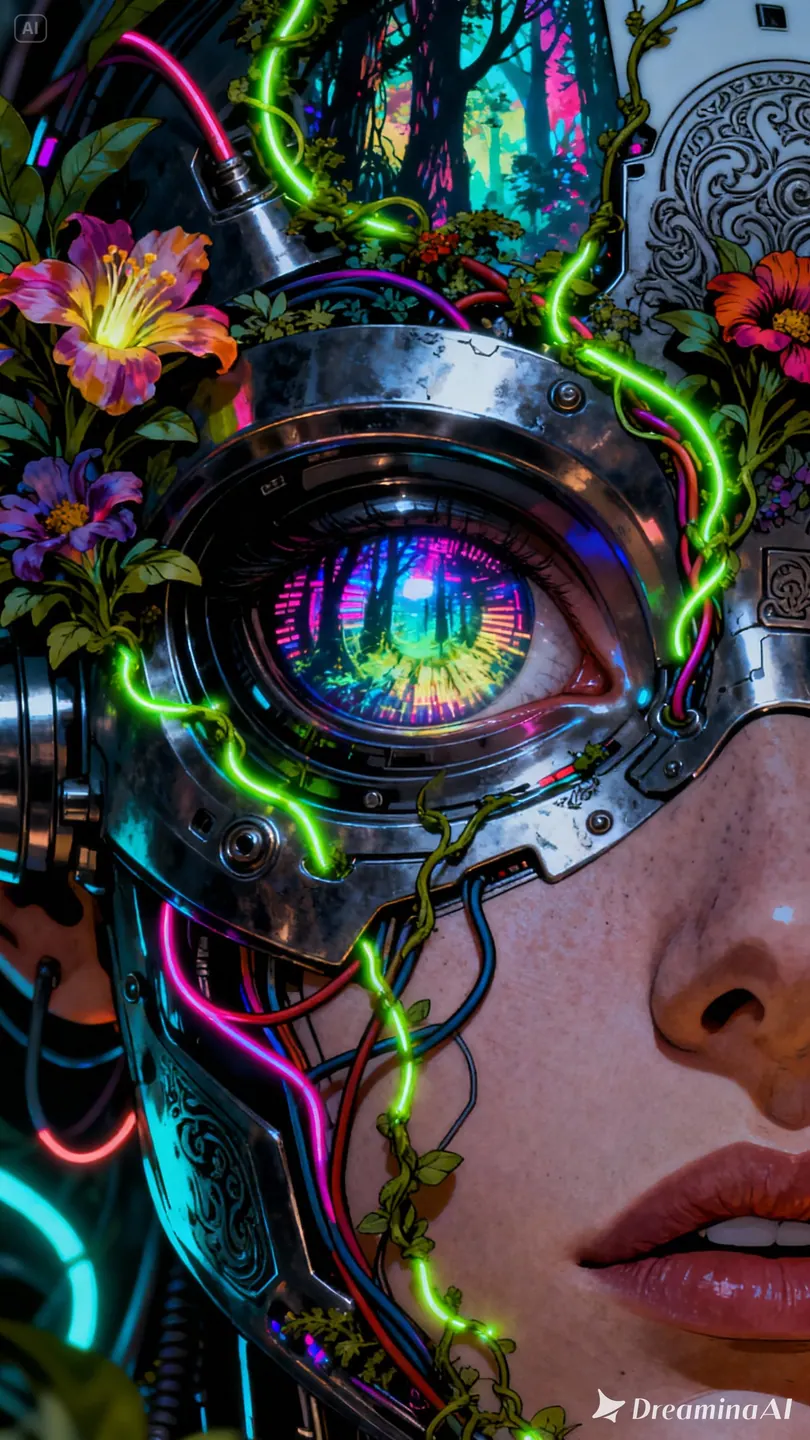
Camera and motion inspiration
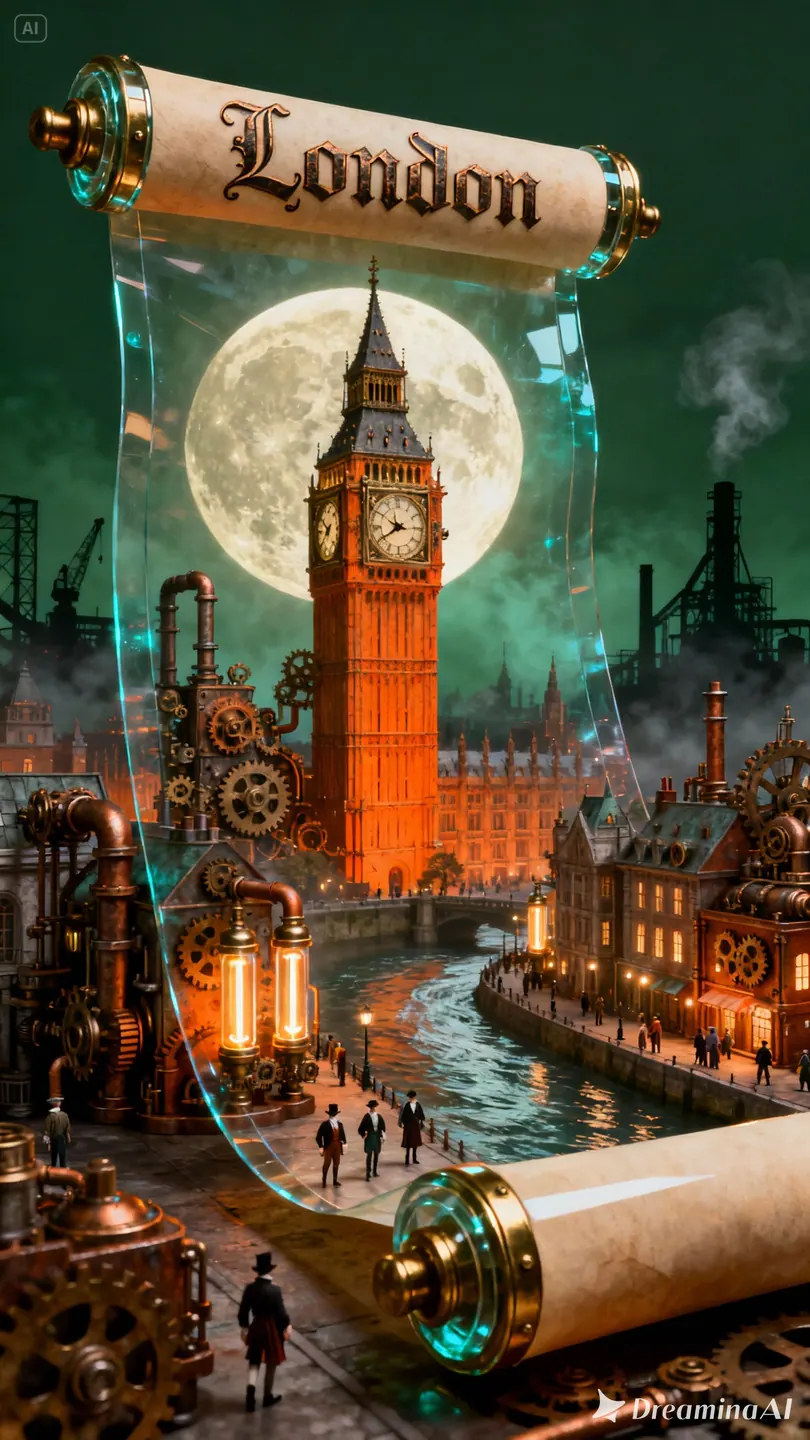
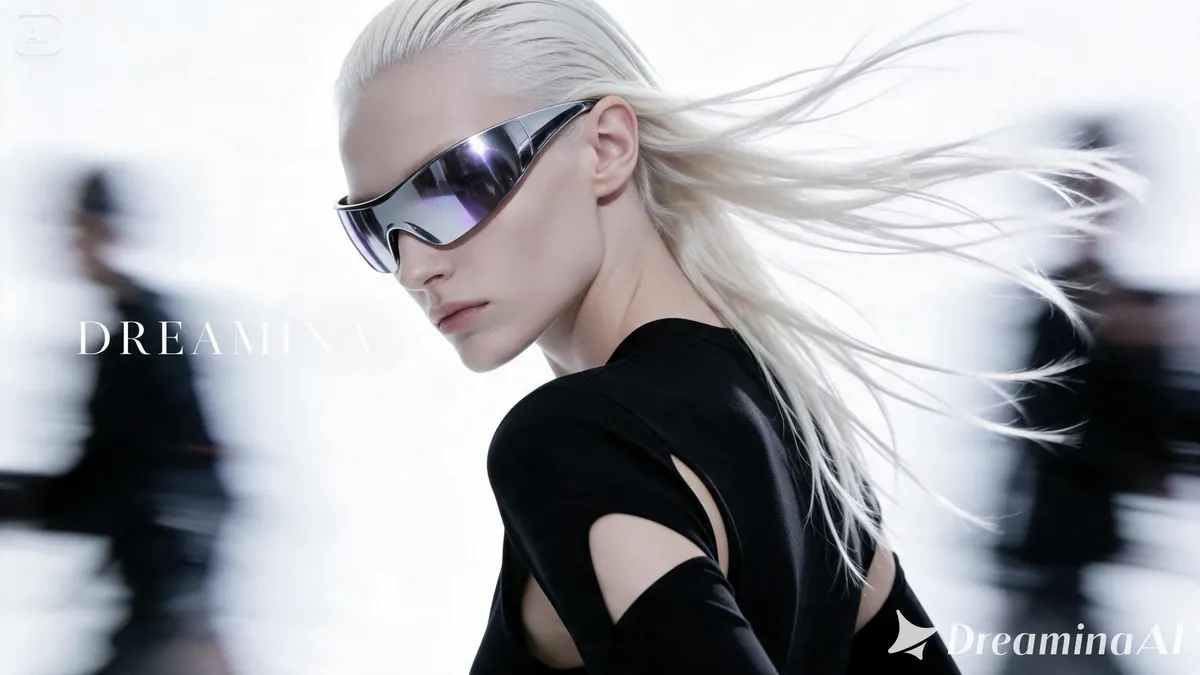
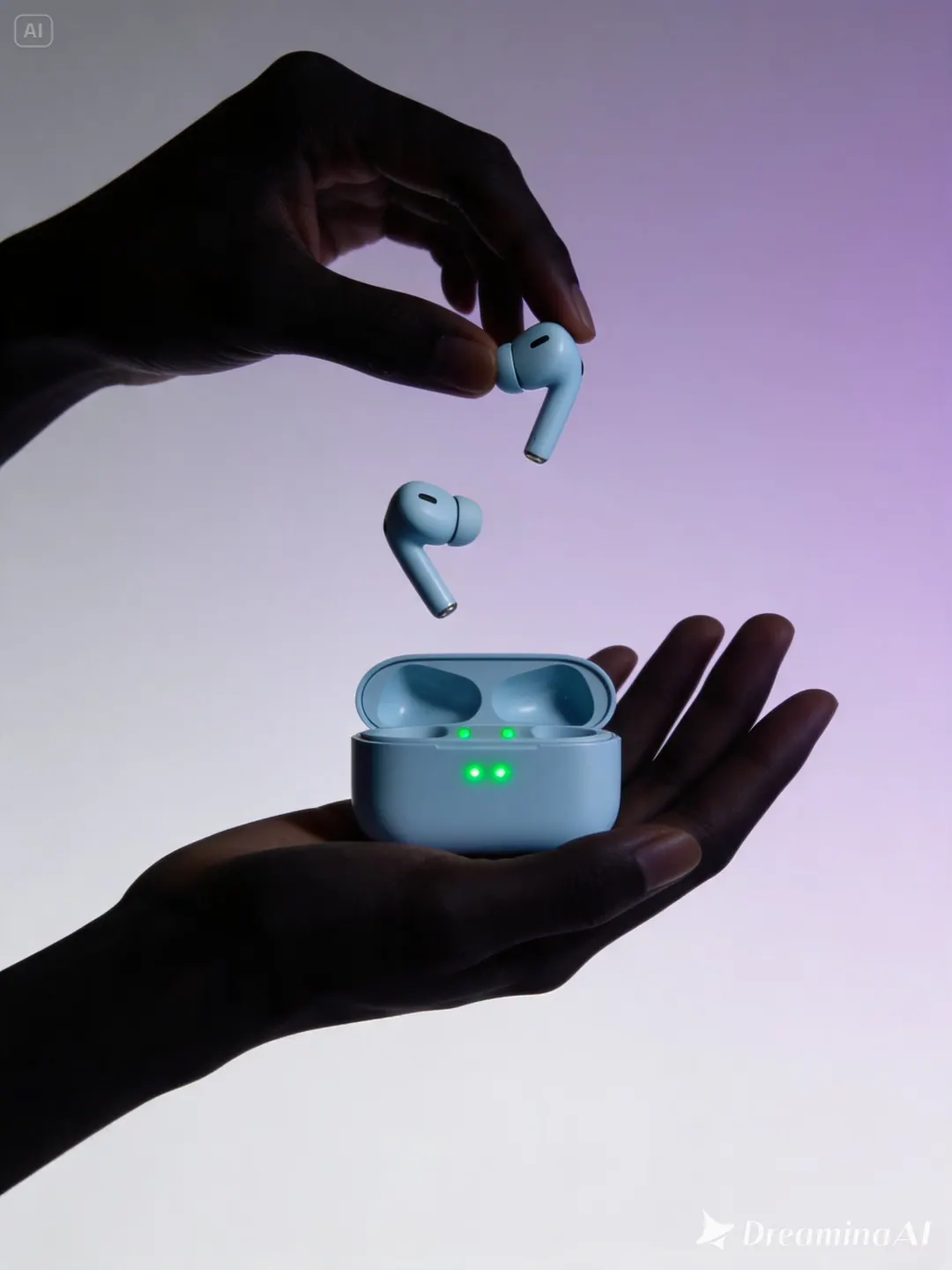
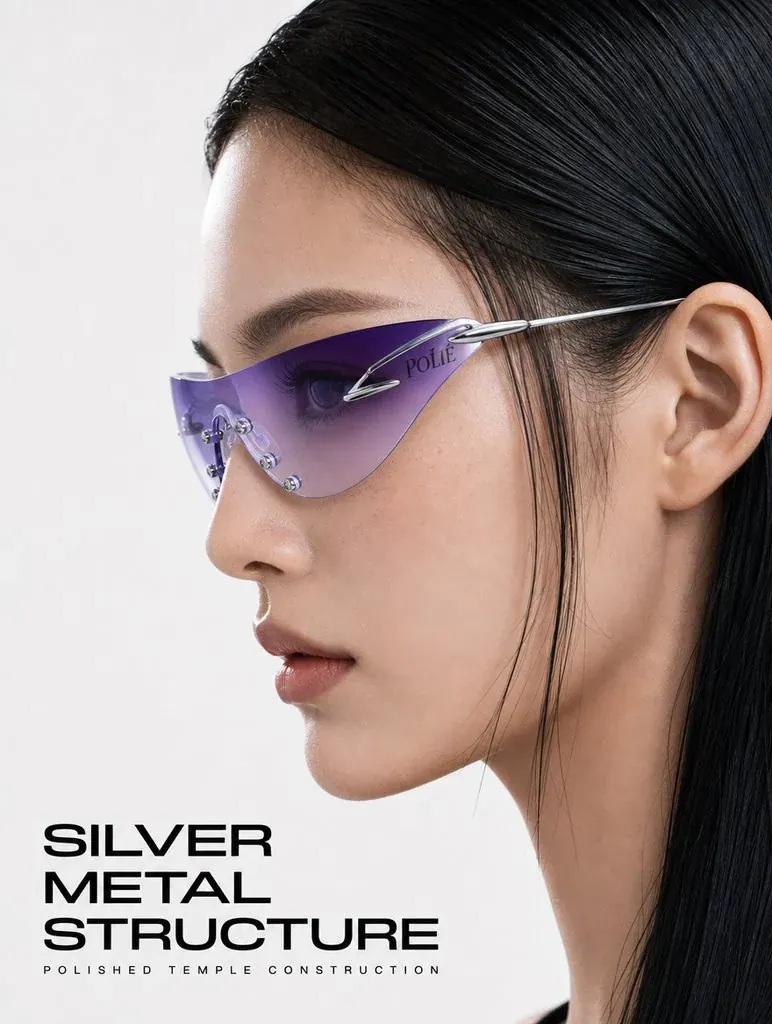
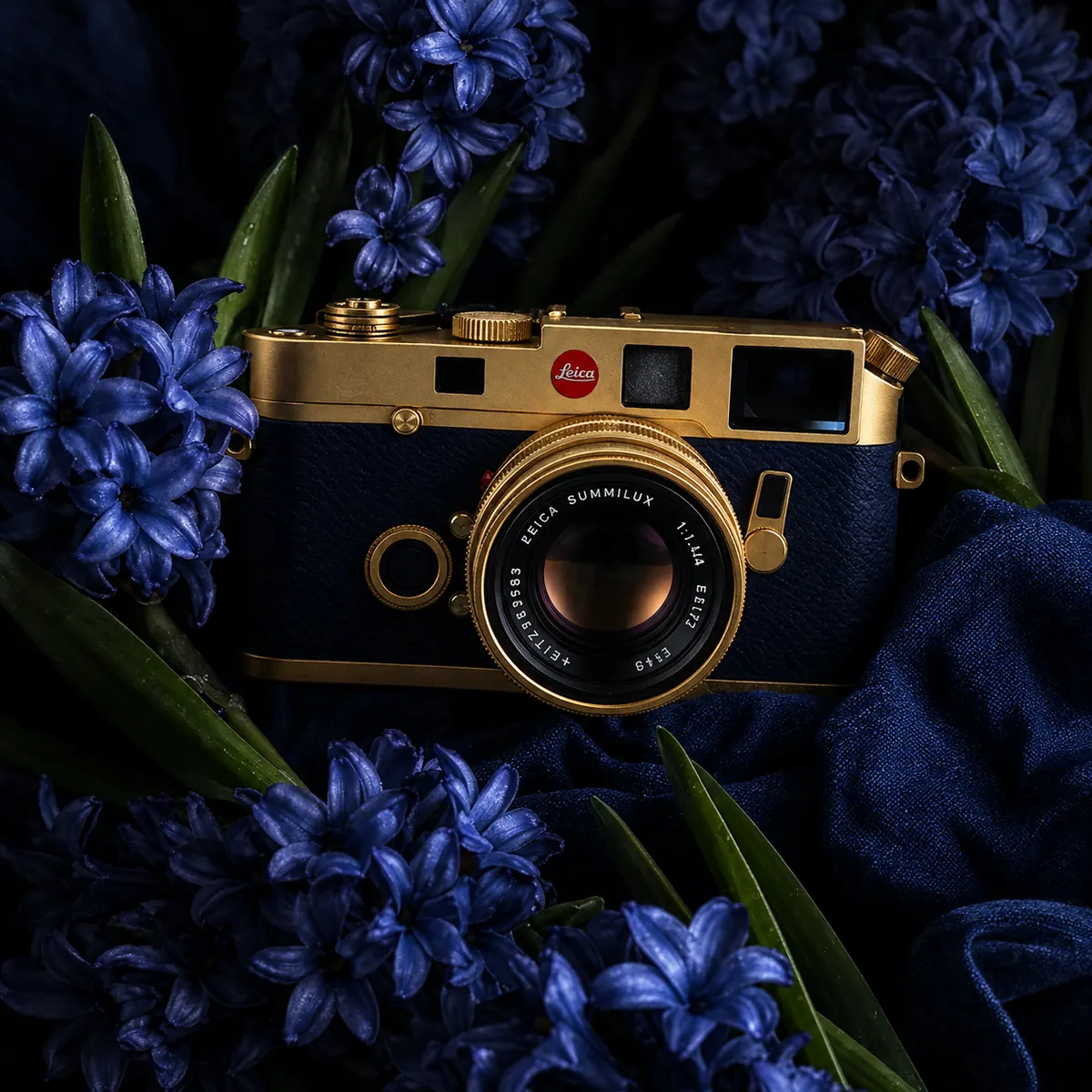
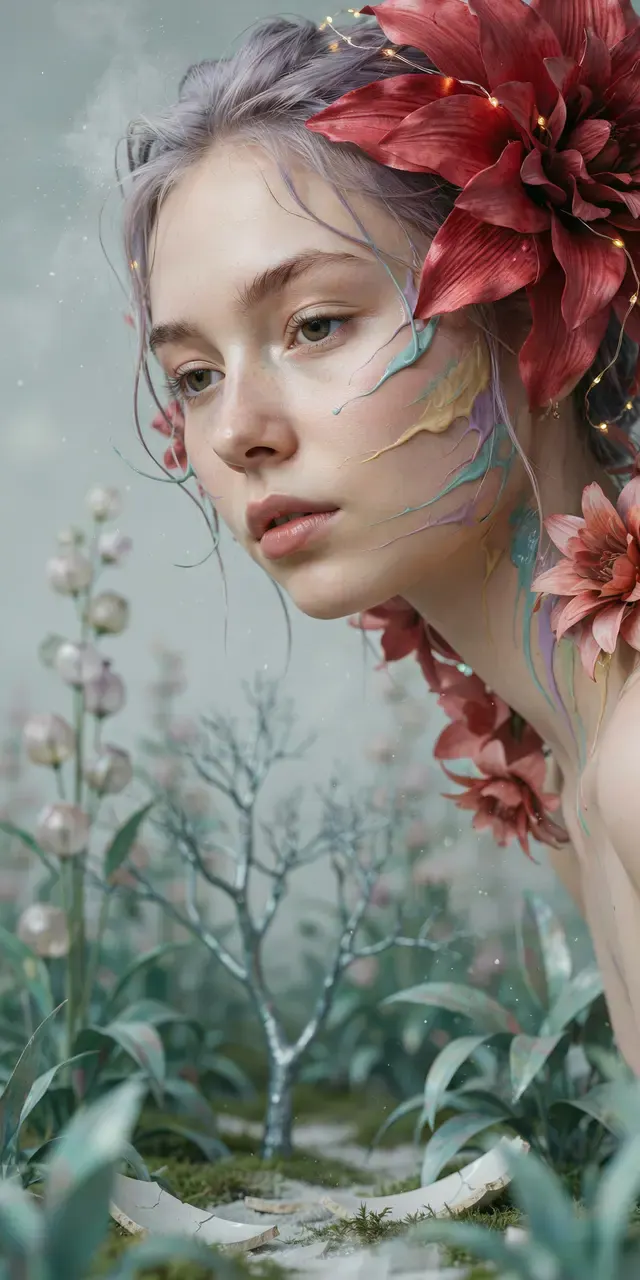
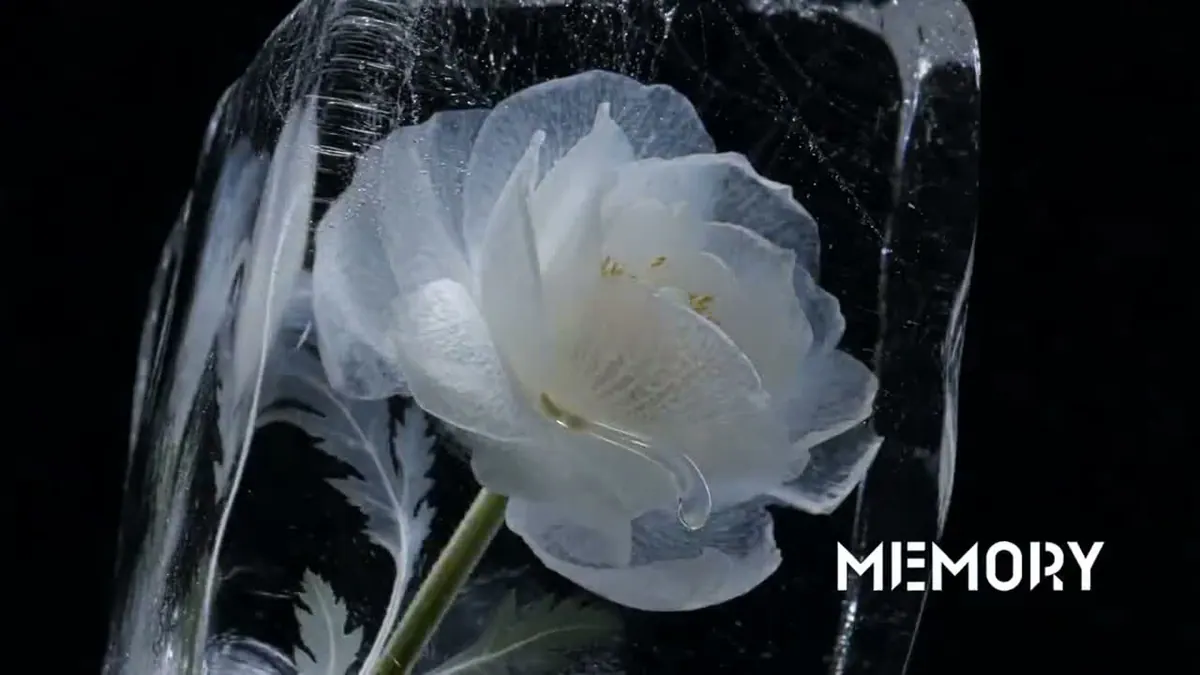
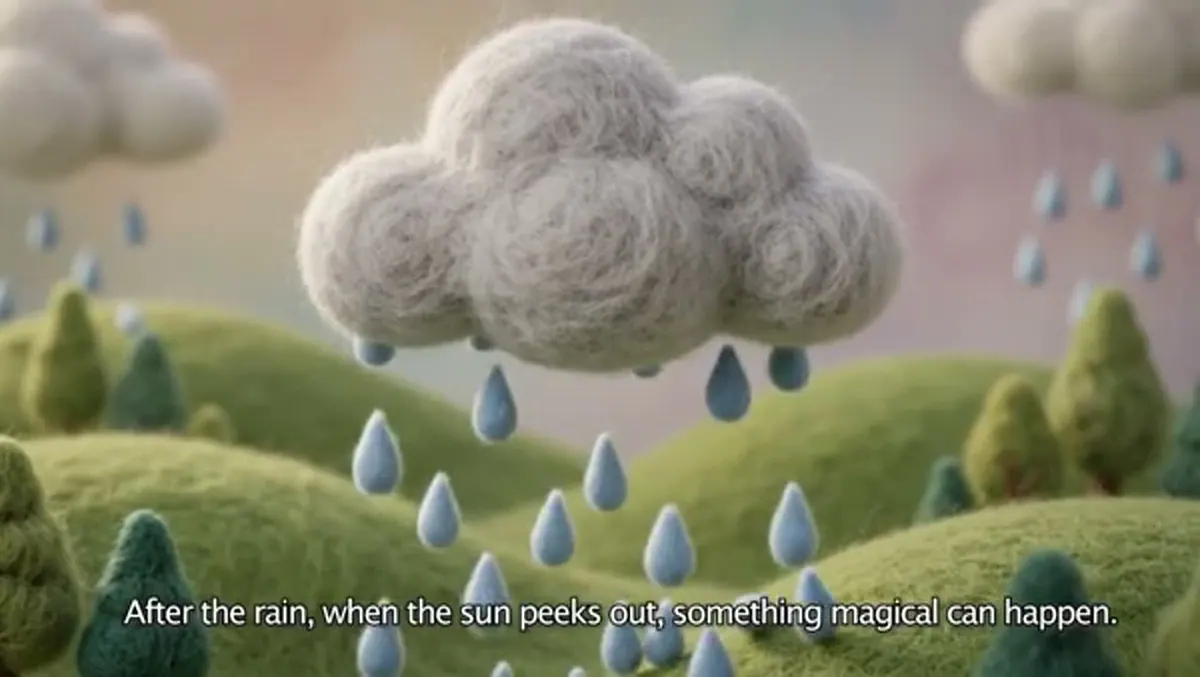
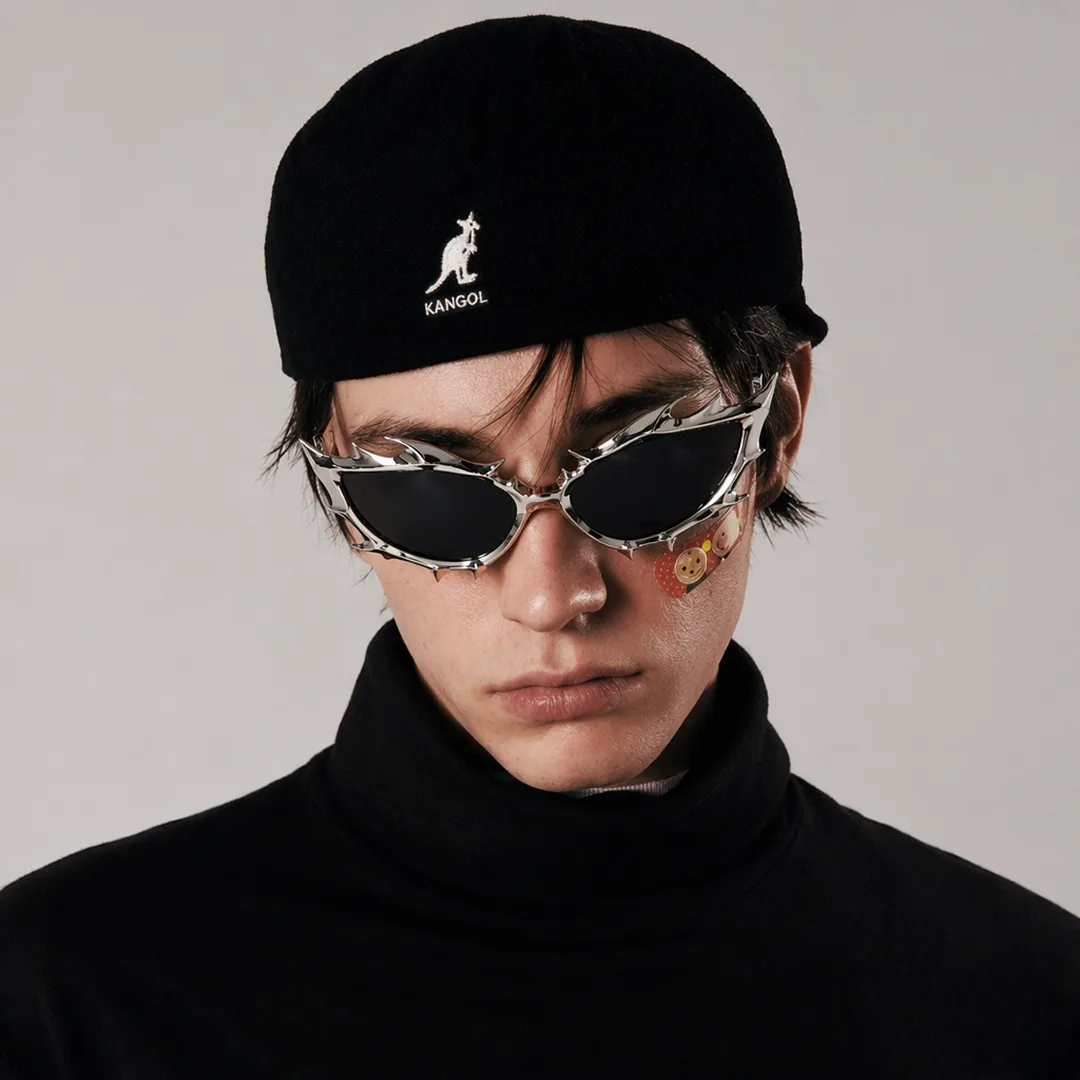
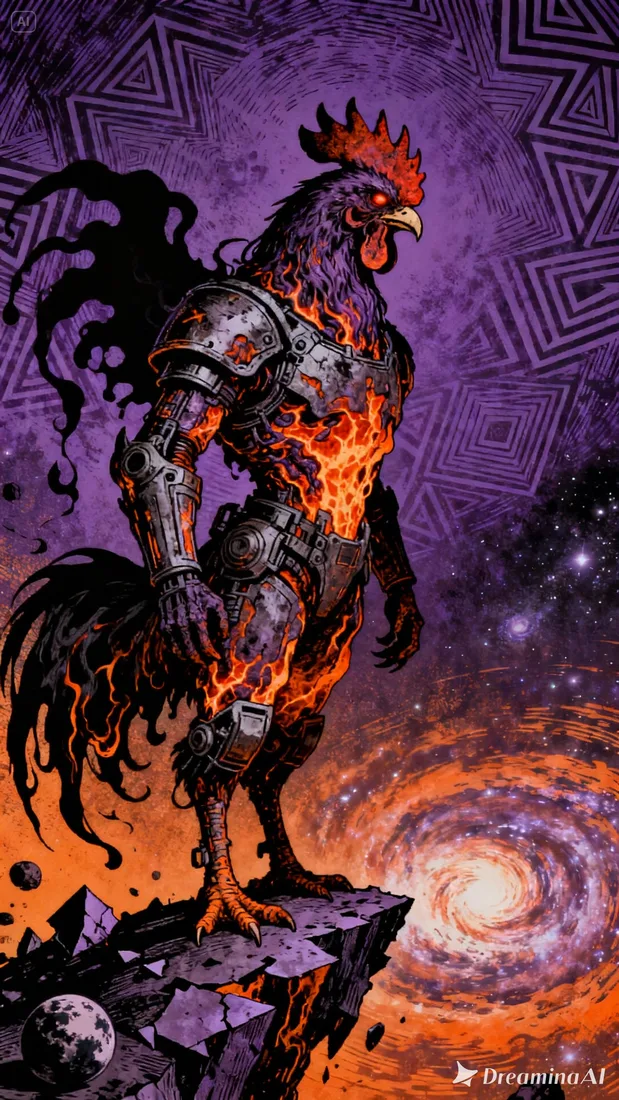
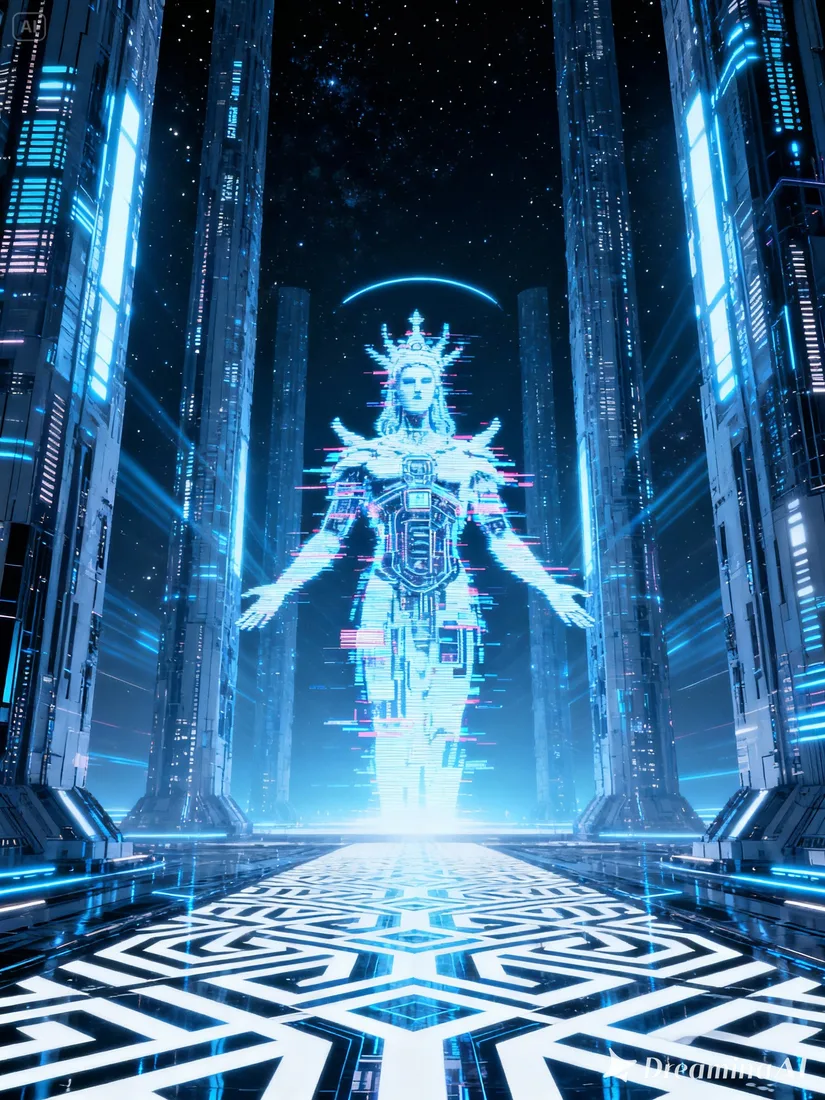
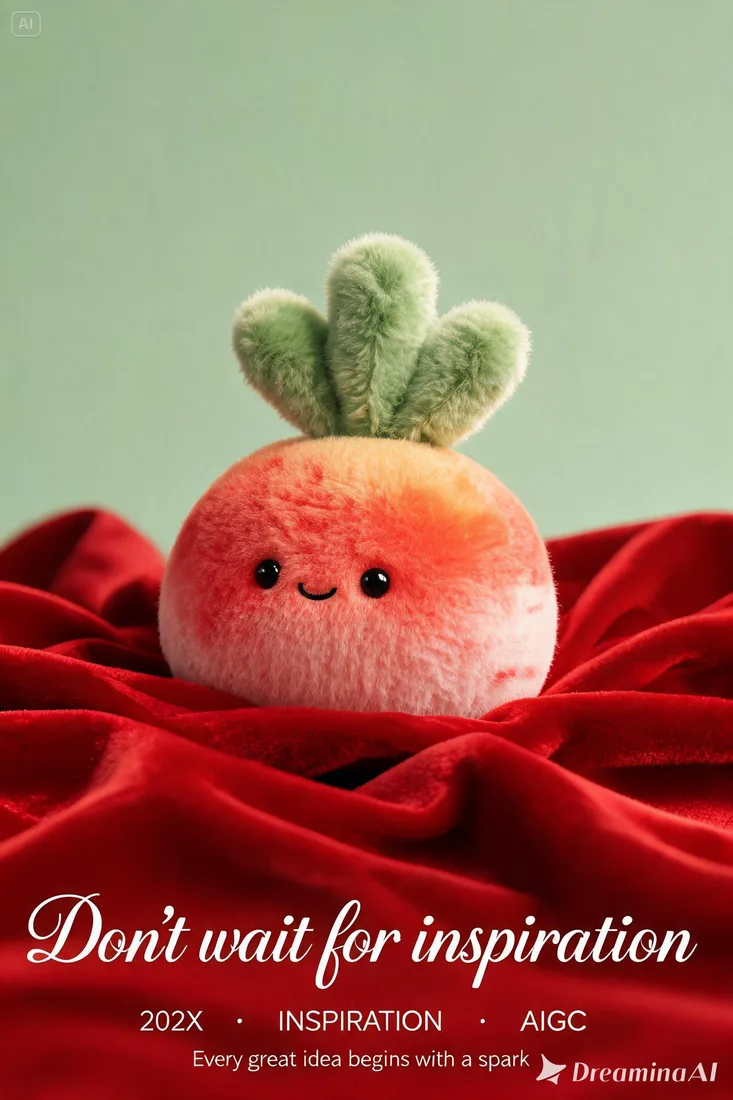
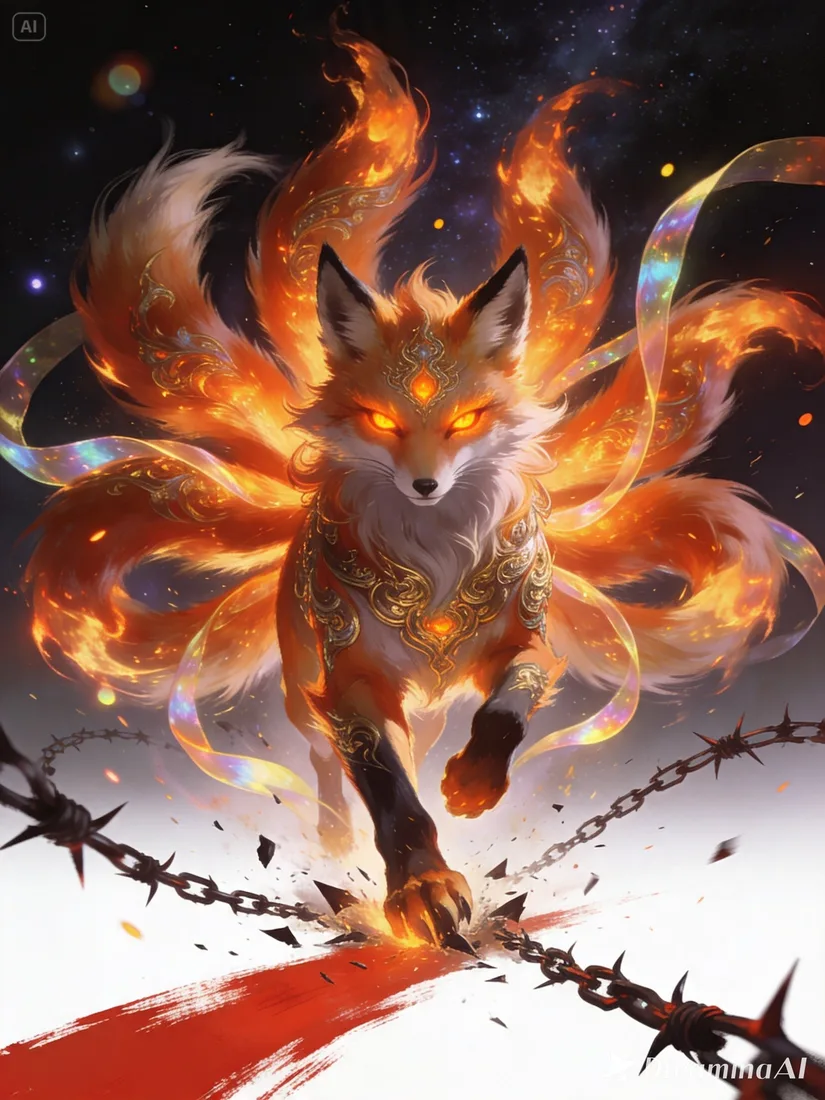
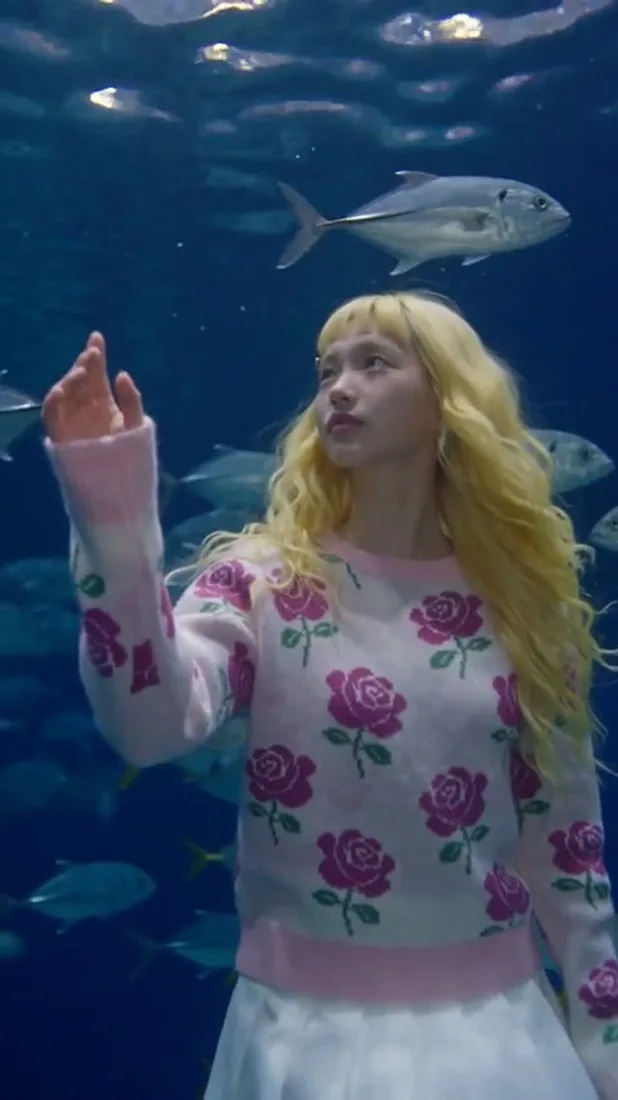
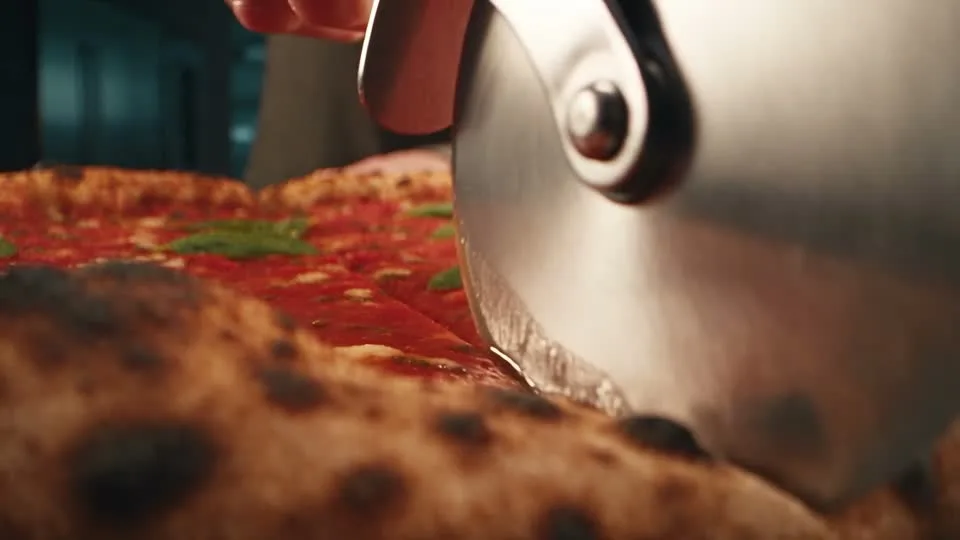
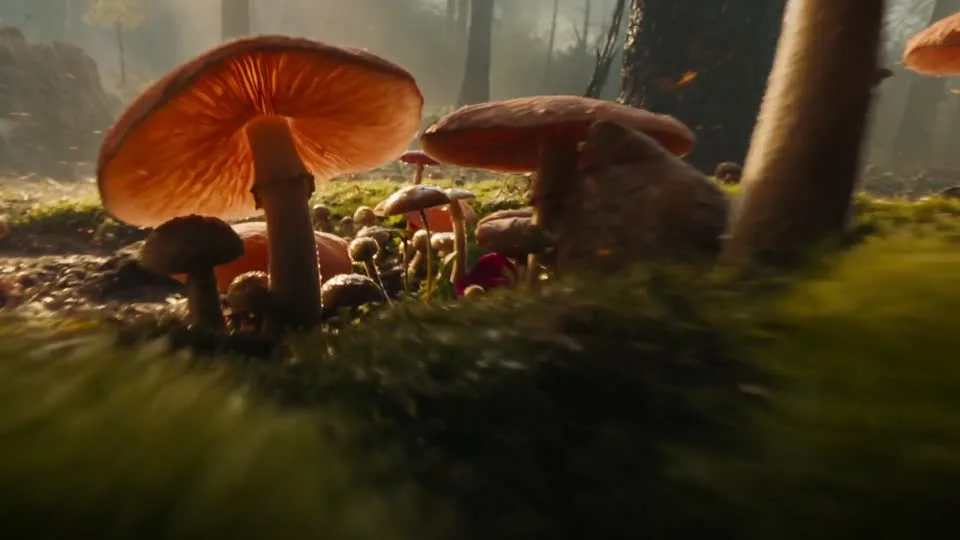
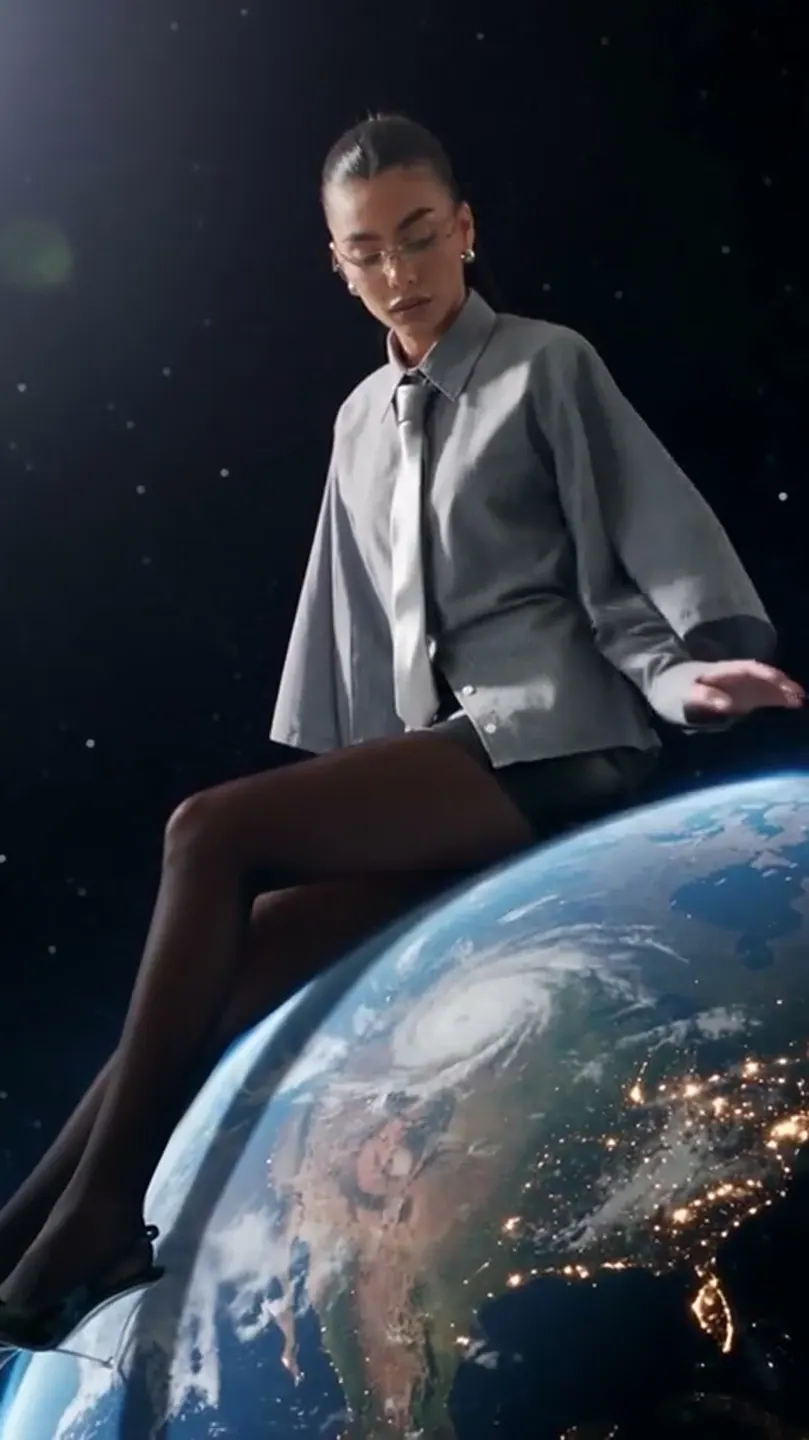
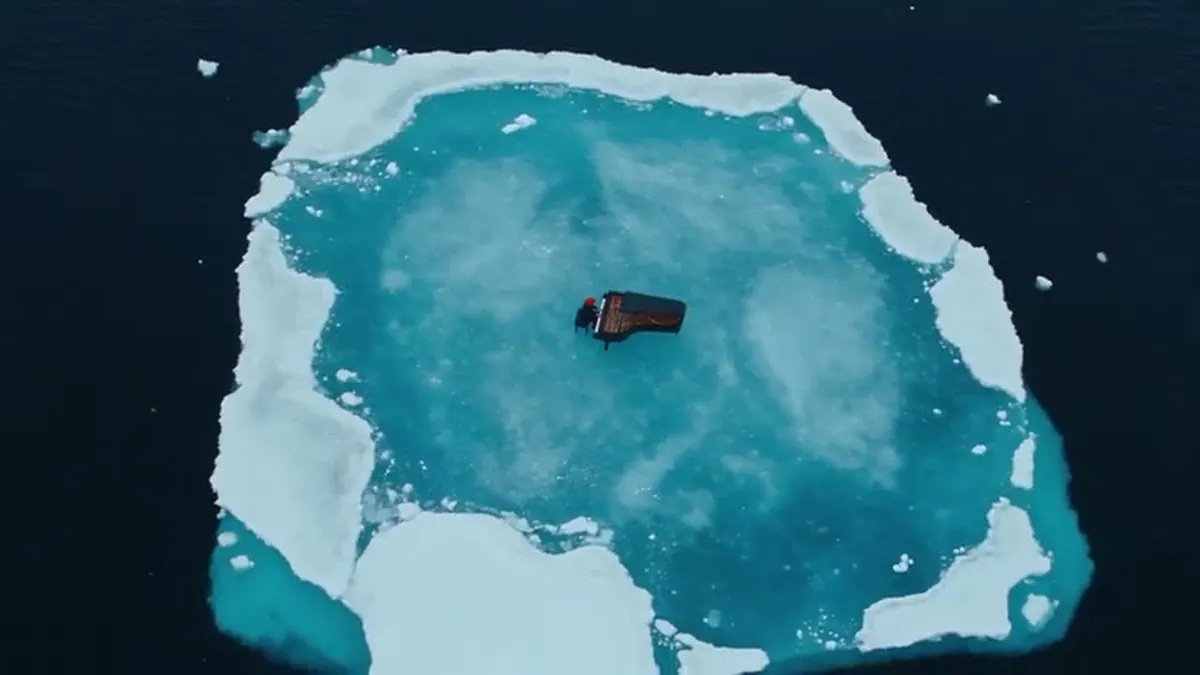
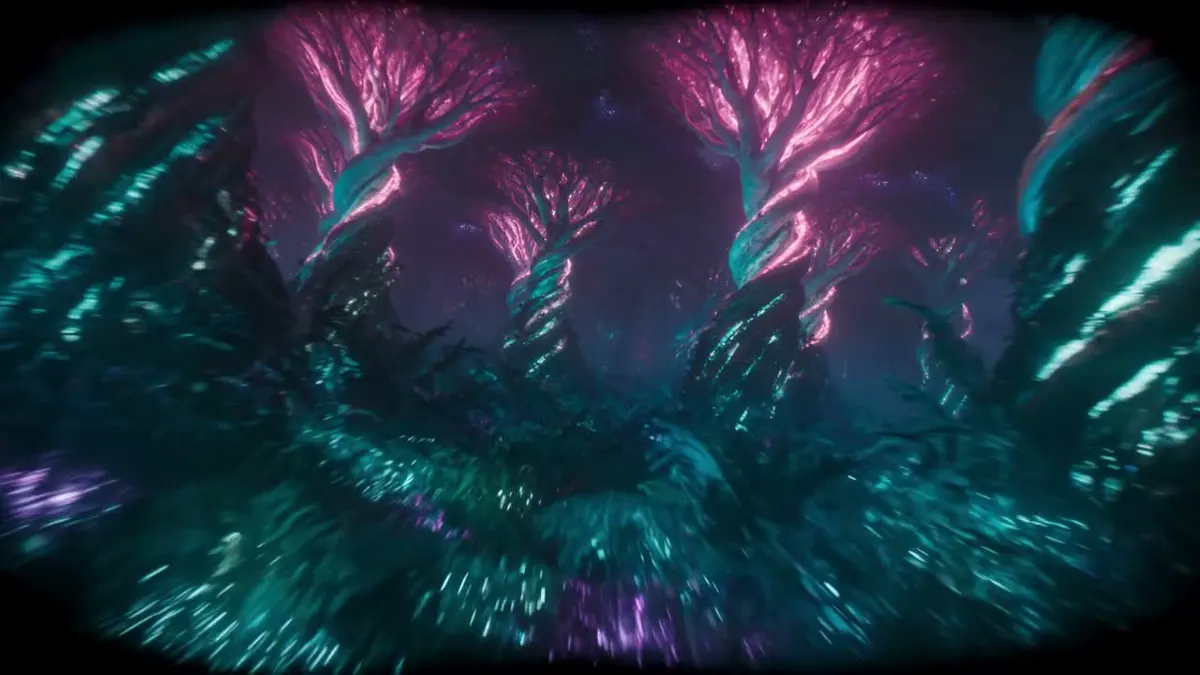
These project images illustrate composition and style, not verified outputs from the selected model.
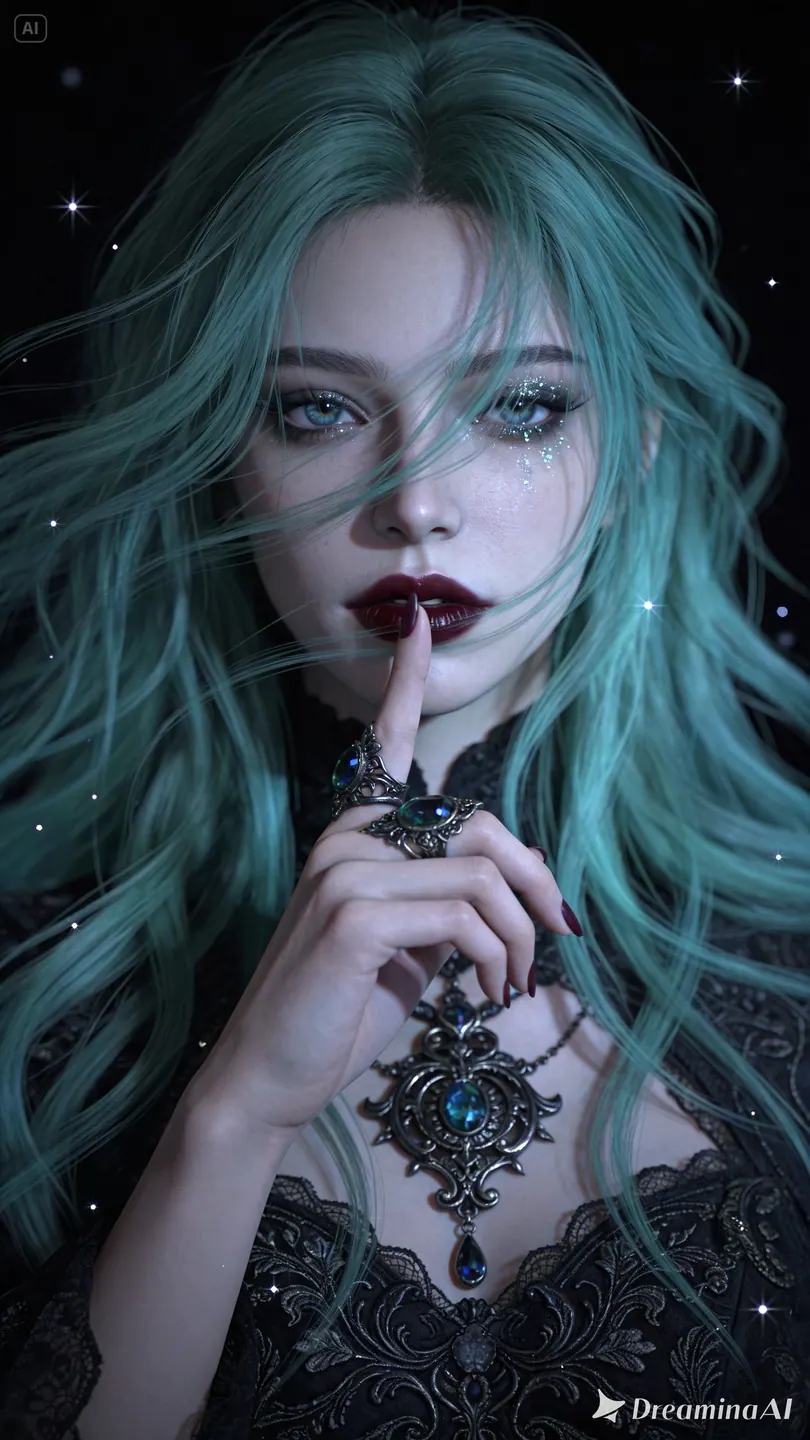 Flow AI Video
Example1 / 2
Upload an image before generating. Use it to establish the character, product, or scene while the prompt explains what happens next.
Need a hand?
Questions about inputs, output formats, and preparing your next draft.
Contact supportYes. Add at least one image before submitting in Create. A single image uses image-to-video; multiple images use the reference-guided workflow. This interface accepts up to eight images.
The project scenes illustrate creative directions and are not verified outputs from this model. Review your own result for the details that matter to your brief.
No. The button opens Create with your draft and does not submit a paid generation. Review the credit estimate there; an insufficient-credit dialog can take you to pricing.
Output options are 540p, 720p, 1080p, 2K, and 4K, with a 3–16 second duration. Synchronized audio is enabled; check both motion and sound in the result.
This interface uses image references. The provider has additional audio-reference capabilities, but audio uploads and video-input workflows are not exposed here.
Your next idea is one prompt away
Your next shot starts with a prompt or image. Set up your Flow AI Video generation above, check the estimate, and follow its progress in Create.