01
Build an image from a detailed brief
Describe subject placement, lighting, materials, and mood. Put the most important requirements first so you can compare them with the result.
01Creative reference
Build a campaign visual or refine a product image with Grok Imagine Image 2.0. Write the composition and exact wording, add up to five editing references, then prepare your image in Create.
From brief to visual
Prepare your brief, choose supported settings, and review the result.
 Creative reference
Choose Grok Imagine Image 2.0. Add a reference image for editing or start from a text description.
Describe the subject, composition, lighting, and style.
Open Create with your draft. Review inputs, settings, and credits before submitting a generation.
Explore more options in AI Image Generator. Return to the homepage.
Every detail starts with your brief
Plan where the product, headline, and background belong. Start from a written brief or use reference images to explain what should change and what should stay recognizable.
01
Describe subject placement, lighting, materials, and mood. Put the most important requirements first so you can compare them with the result.
02
Upload an image and explain the change you want. Name the details to preserve as well as the background, object, or style to revise.
03
Include the words you want and their place in the composition. Review spelling and readability in the generated image before publishing.
04
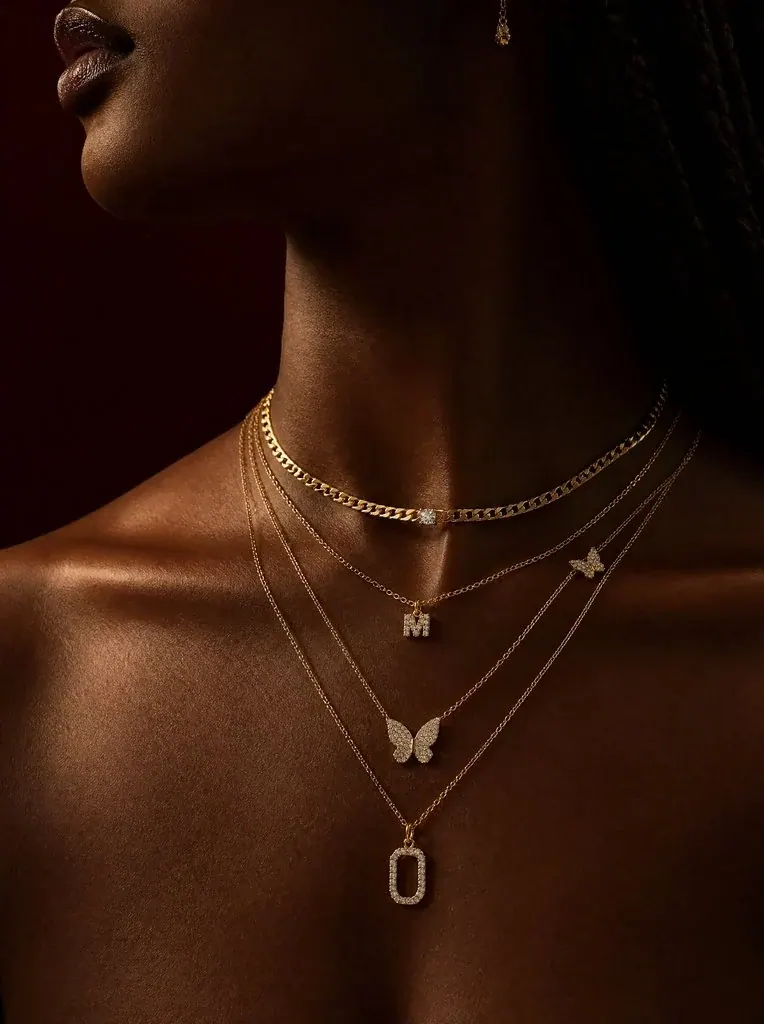
Keep the reference and main brief stable while varying one detail. Compare versions for a campaign, product concept, or editorial illustration.
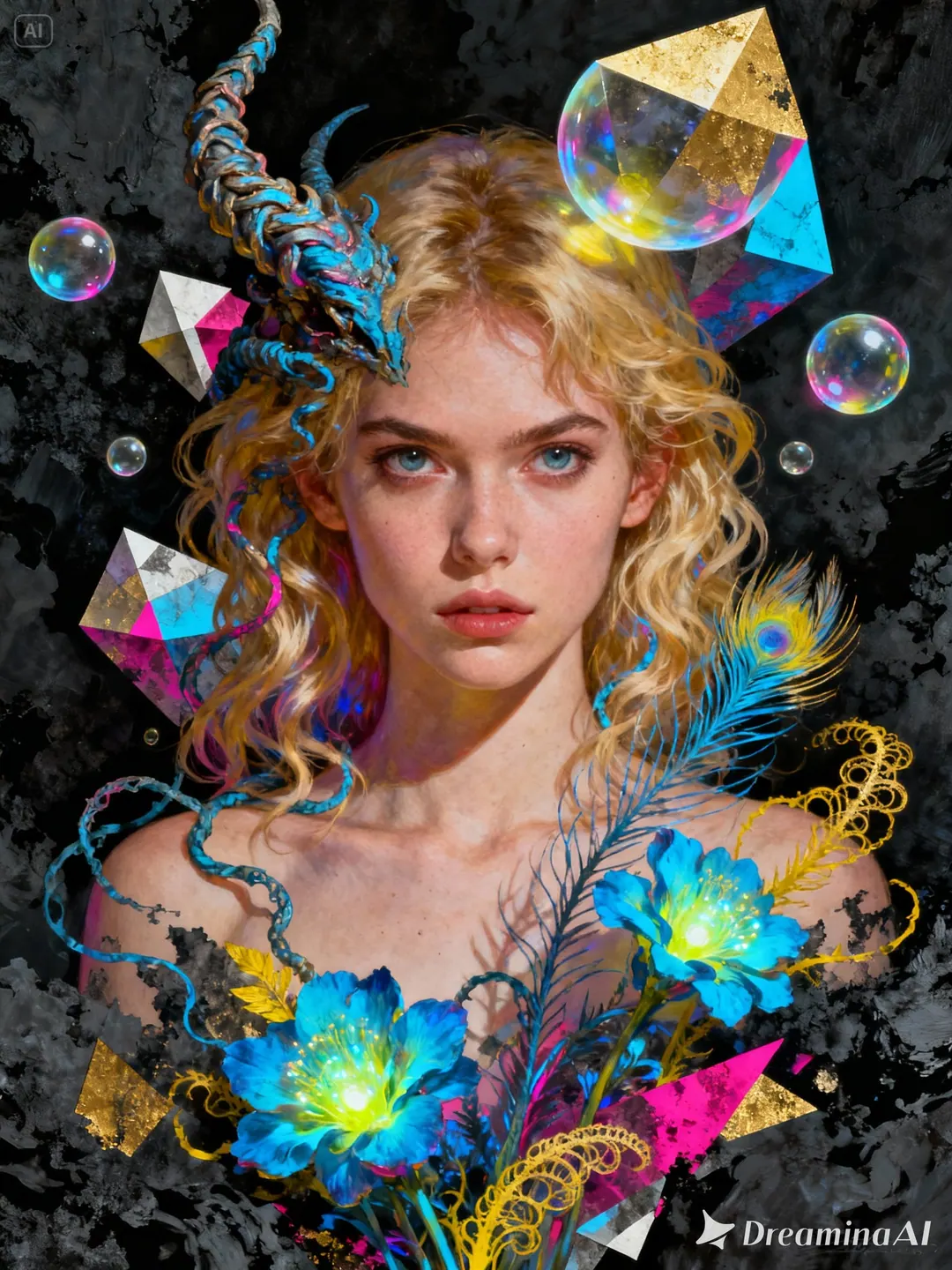
One image, one clear purpose
Start with the destination, then define the subject, style, and details that matter.
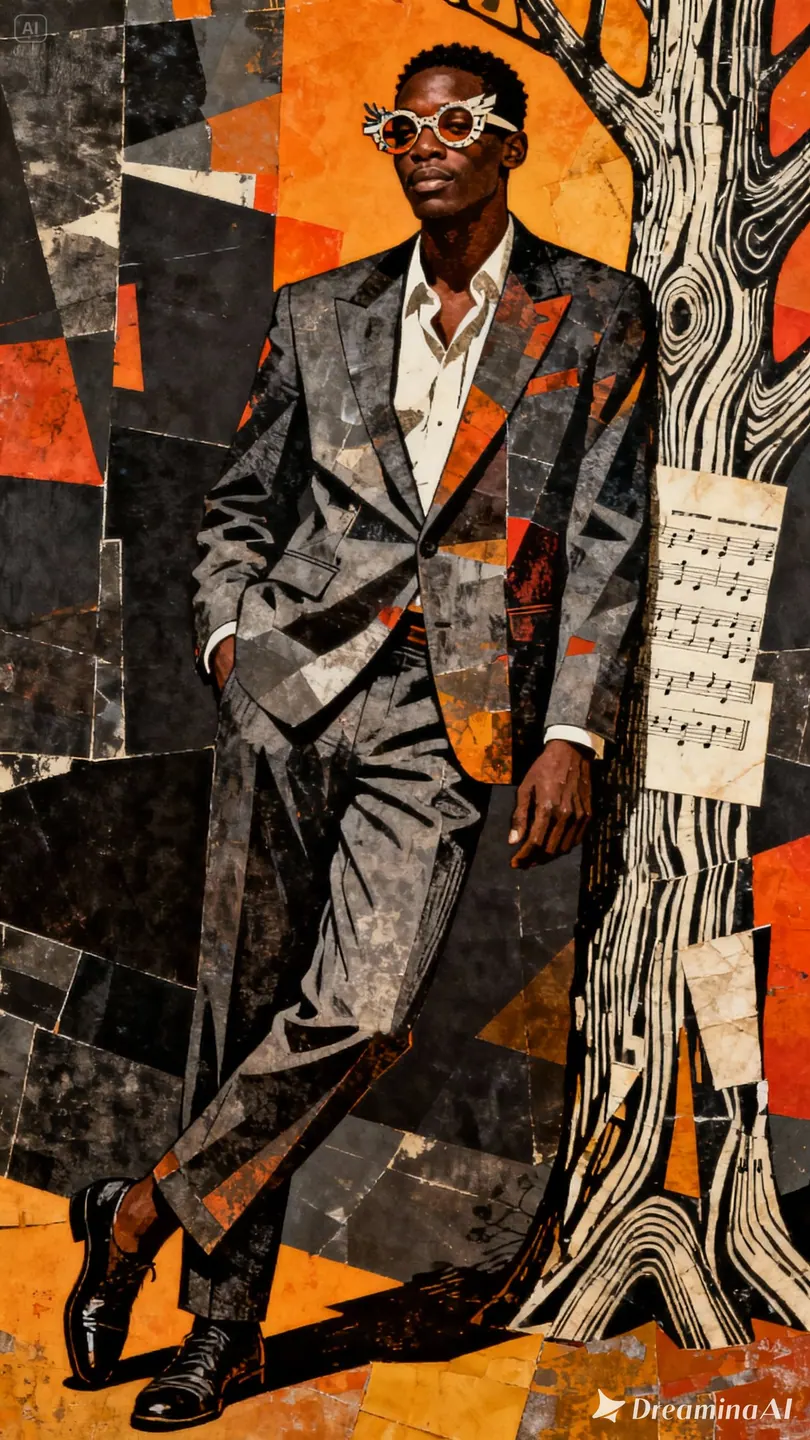
Products and brands
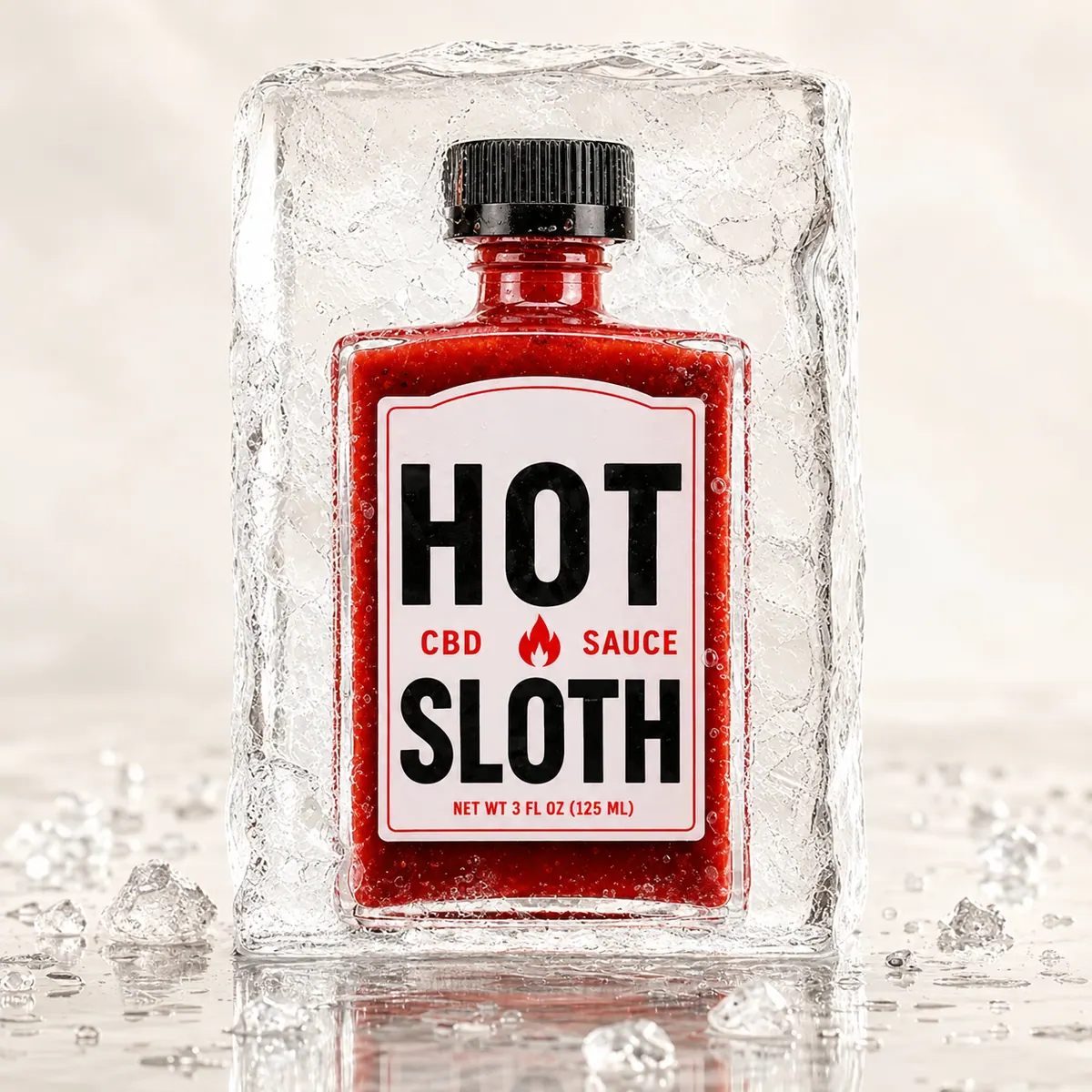
Define the product, setting, and visual treatment, then review the details against your brief.
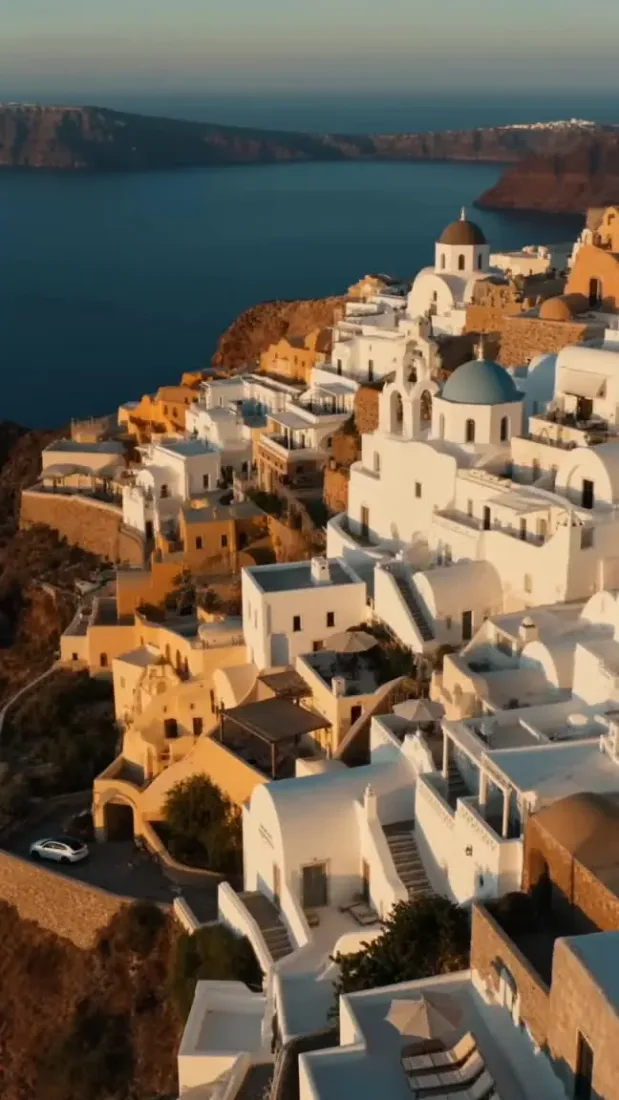
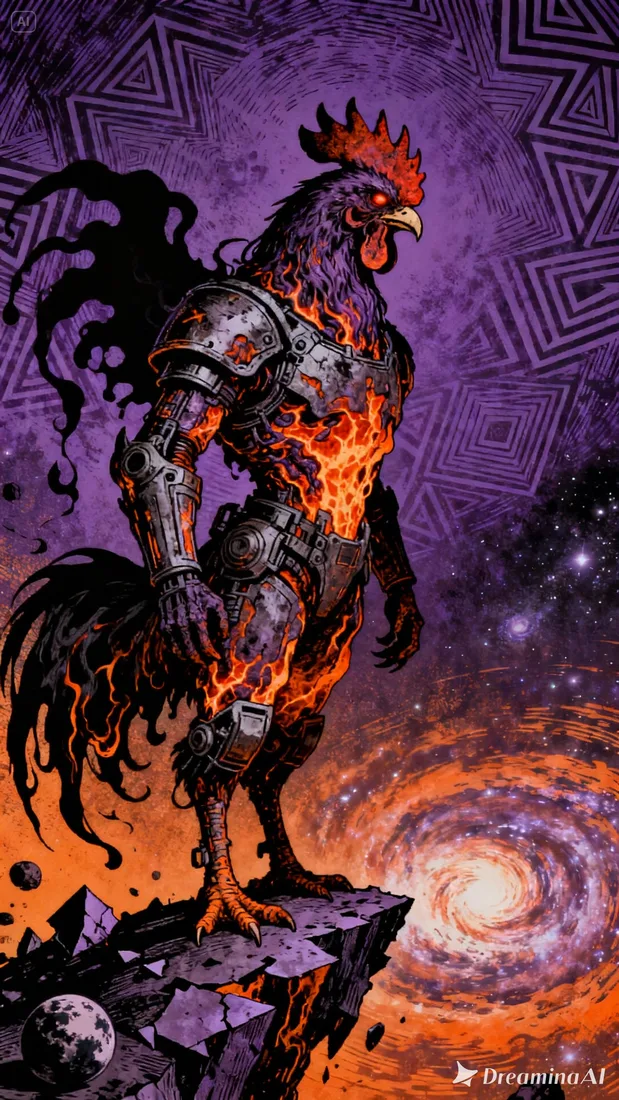
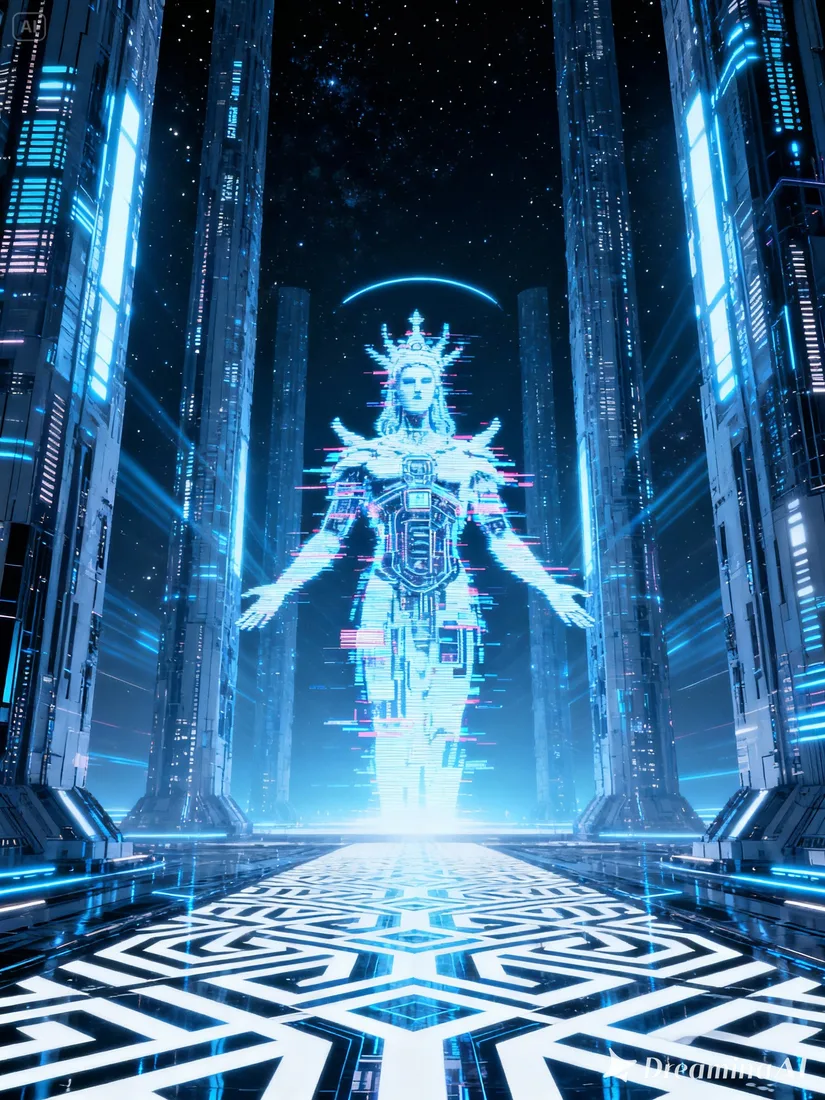
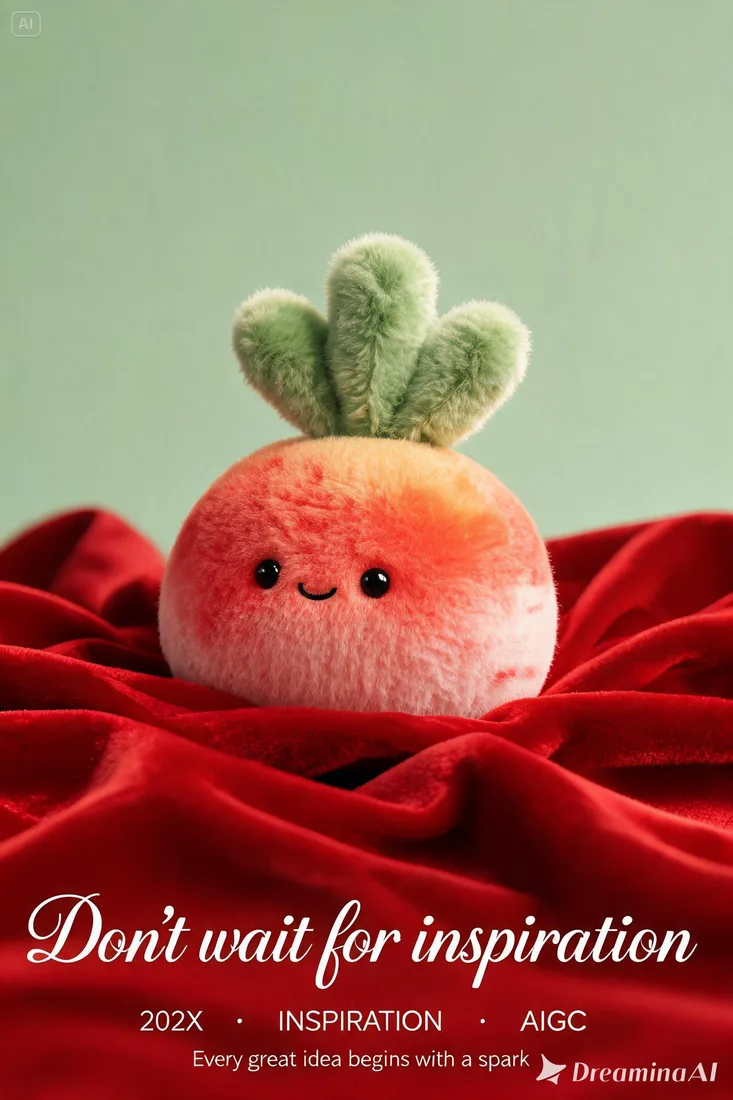
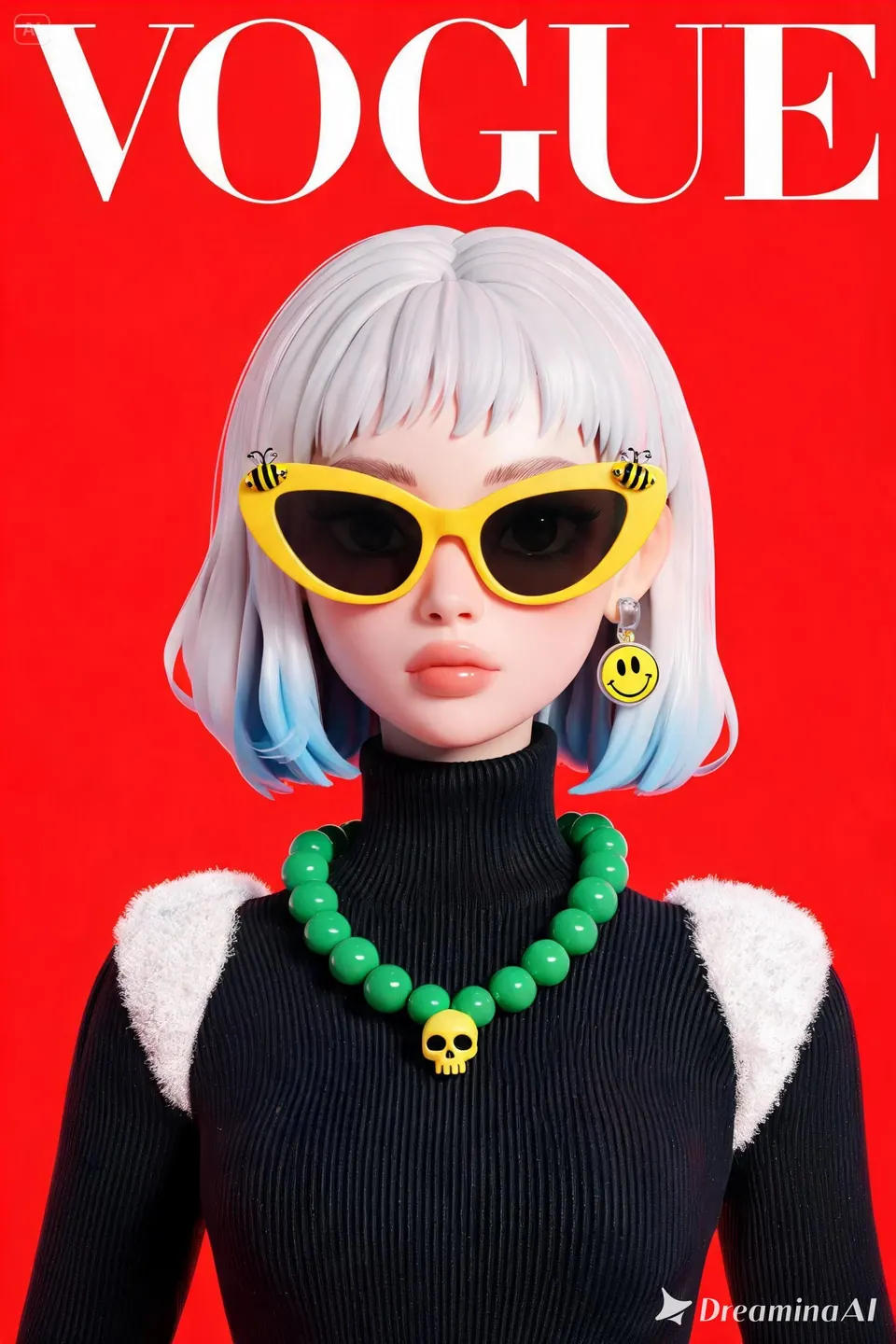
Composition and style inspiration
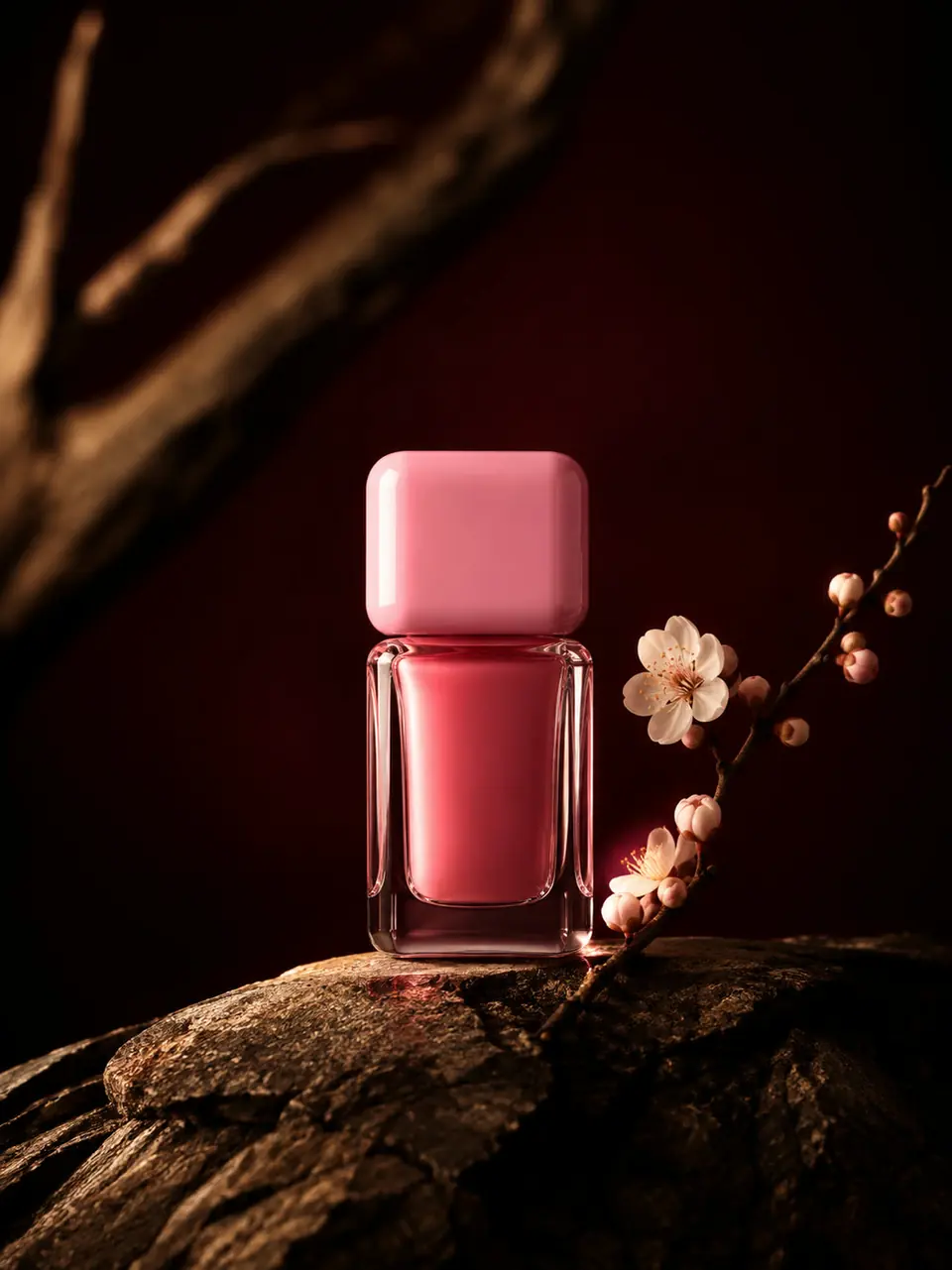
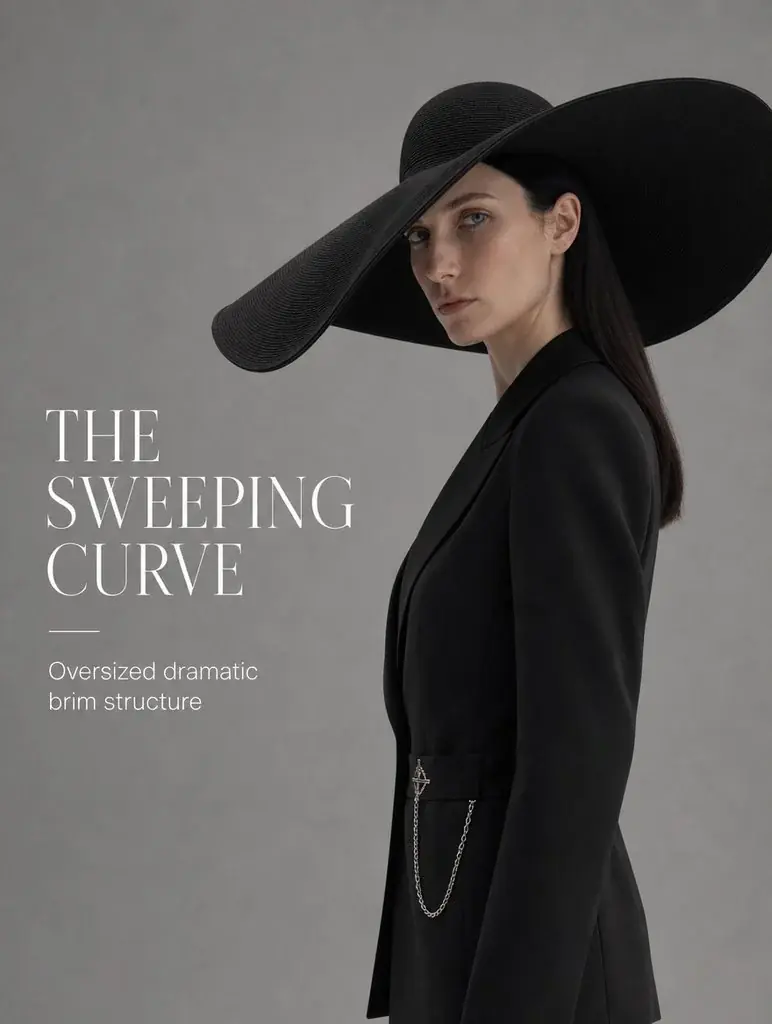
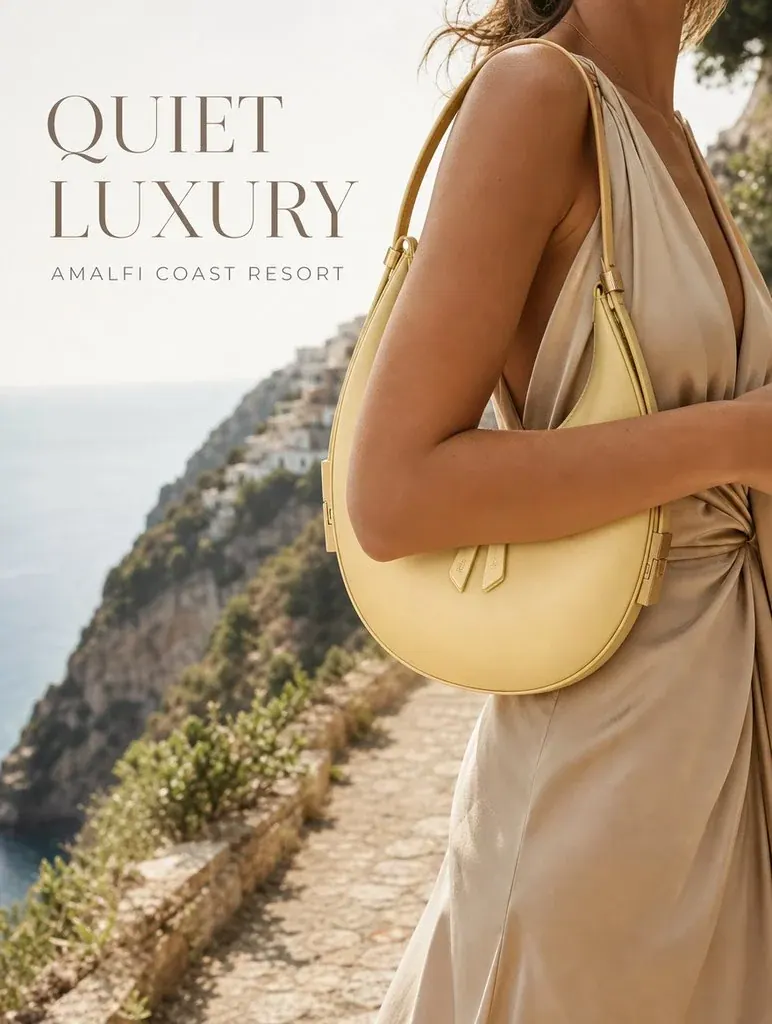
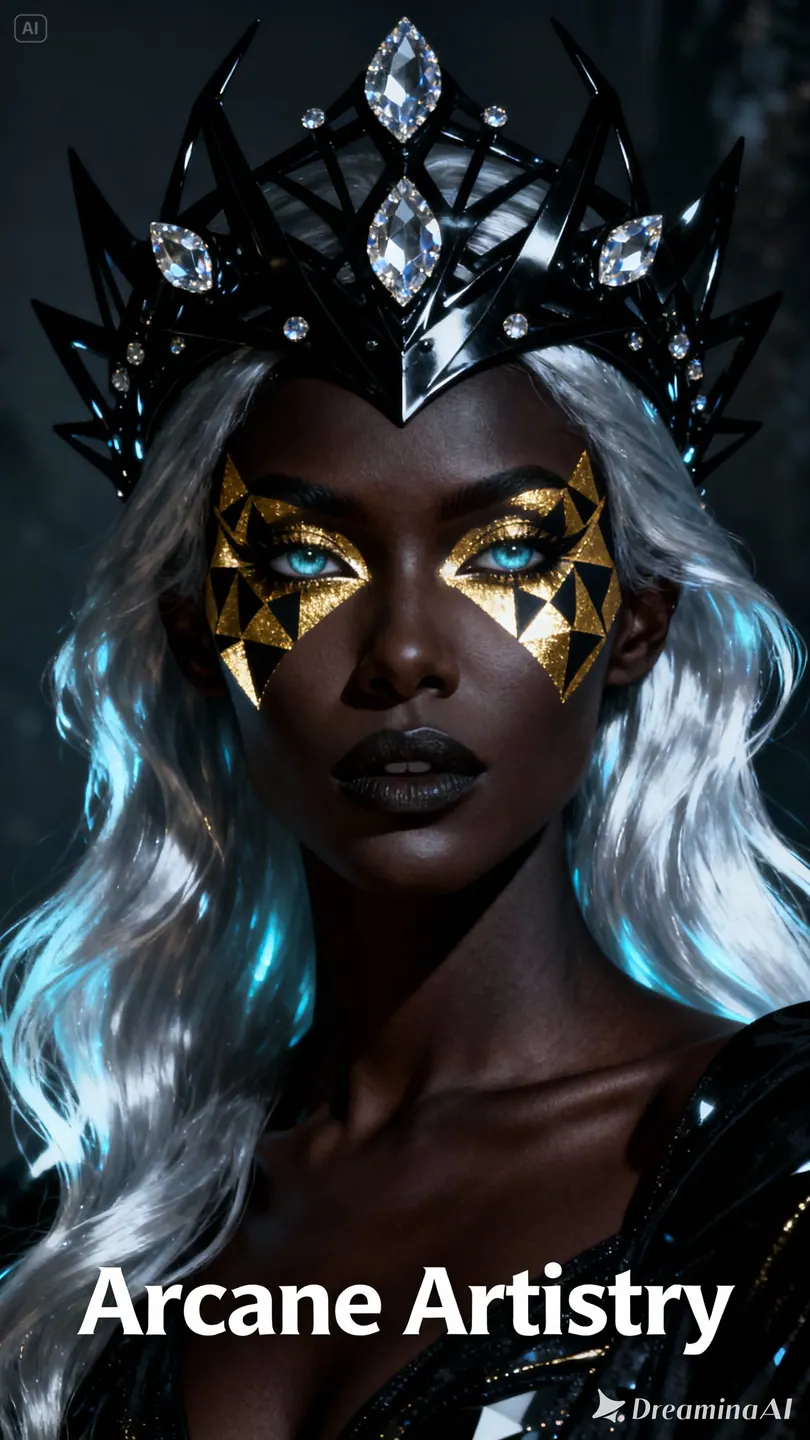
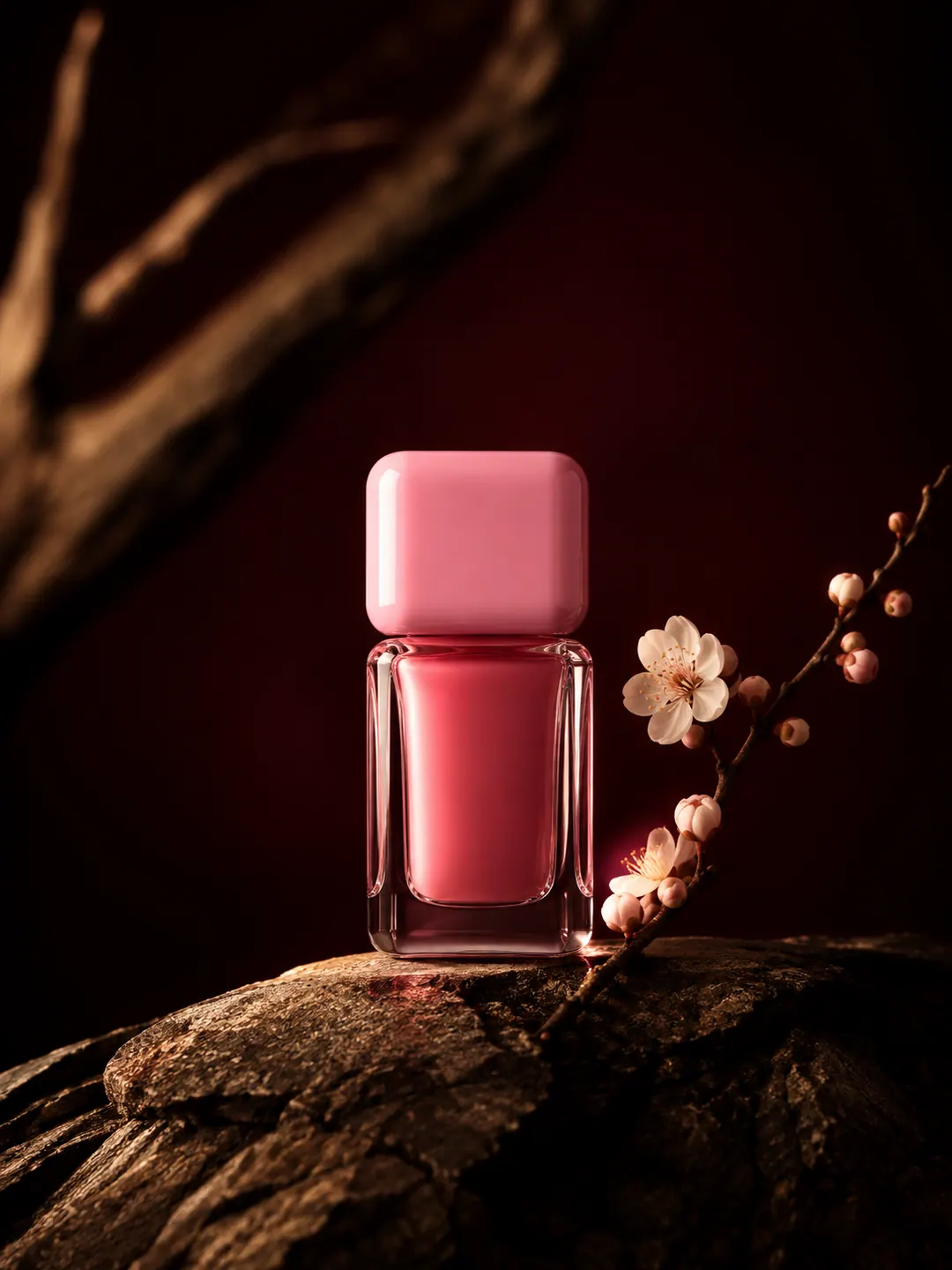
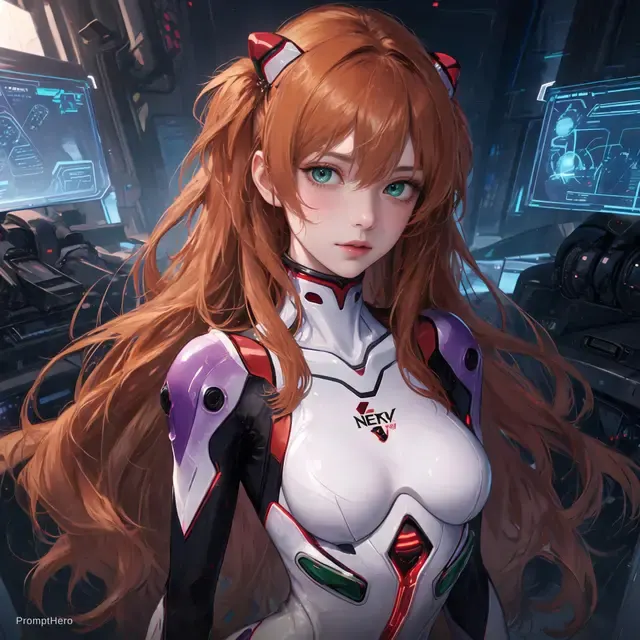
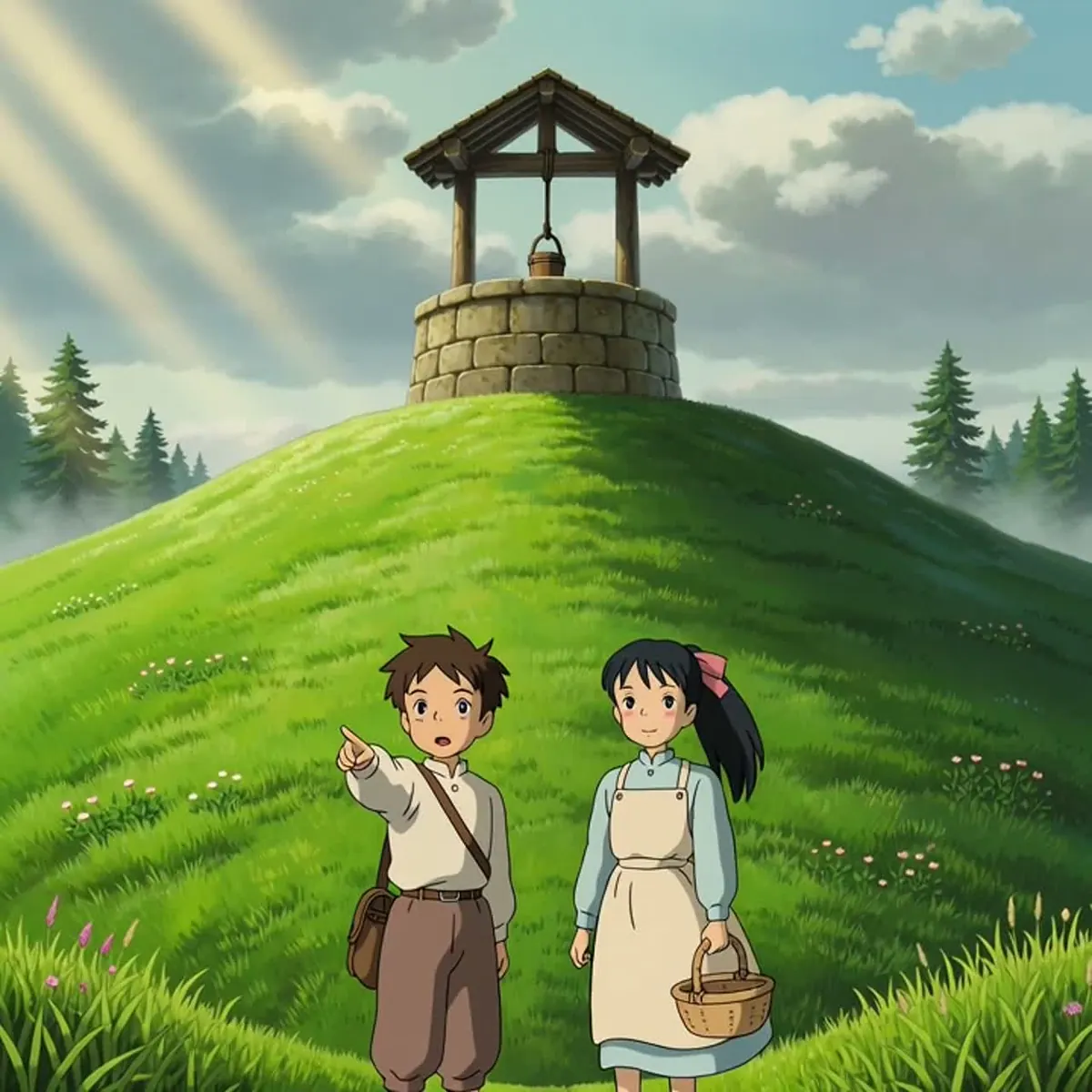
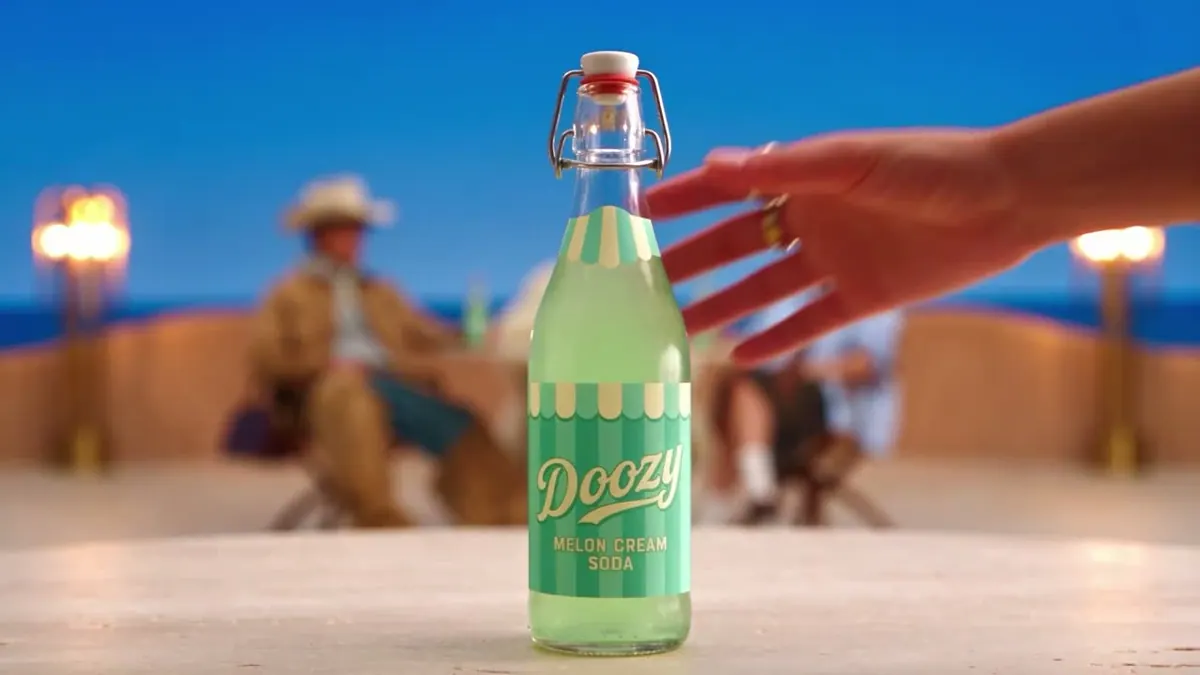
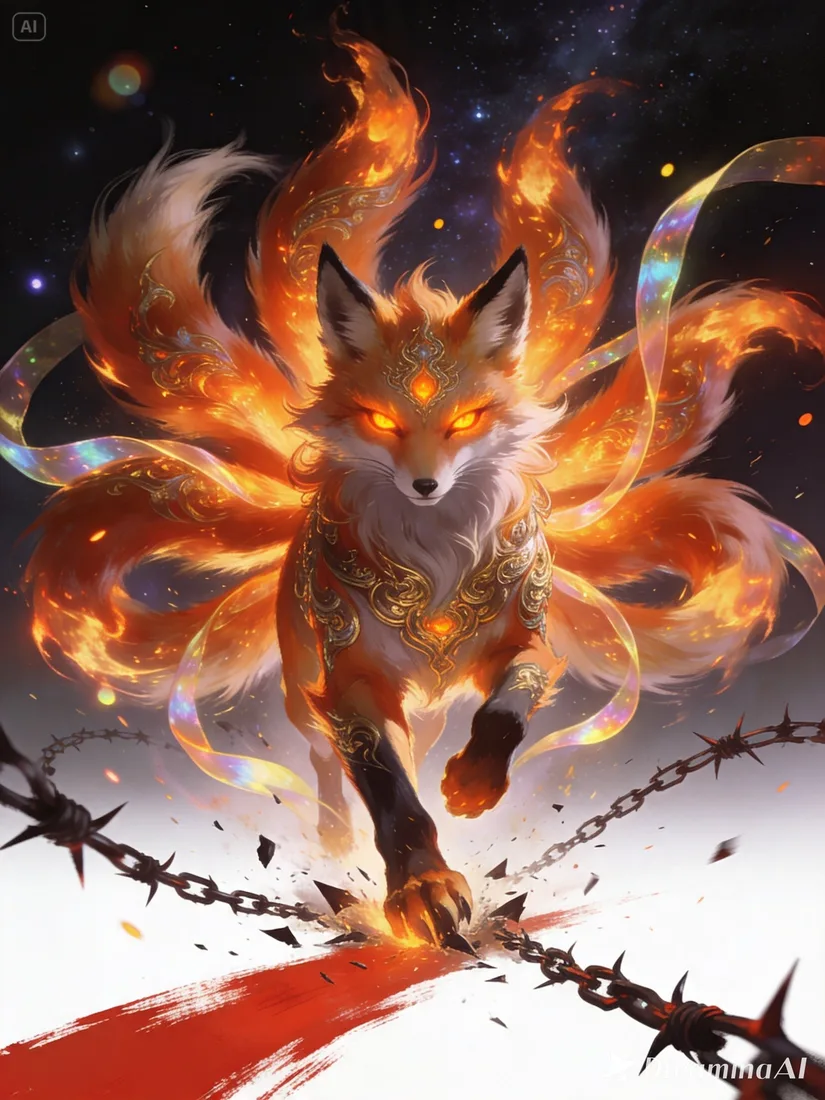
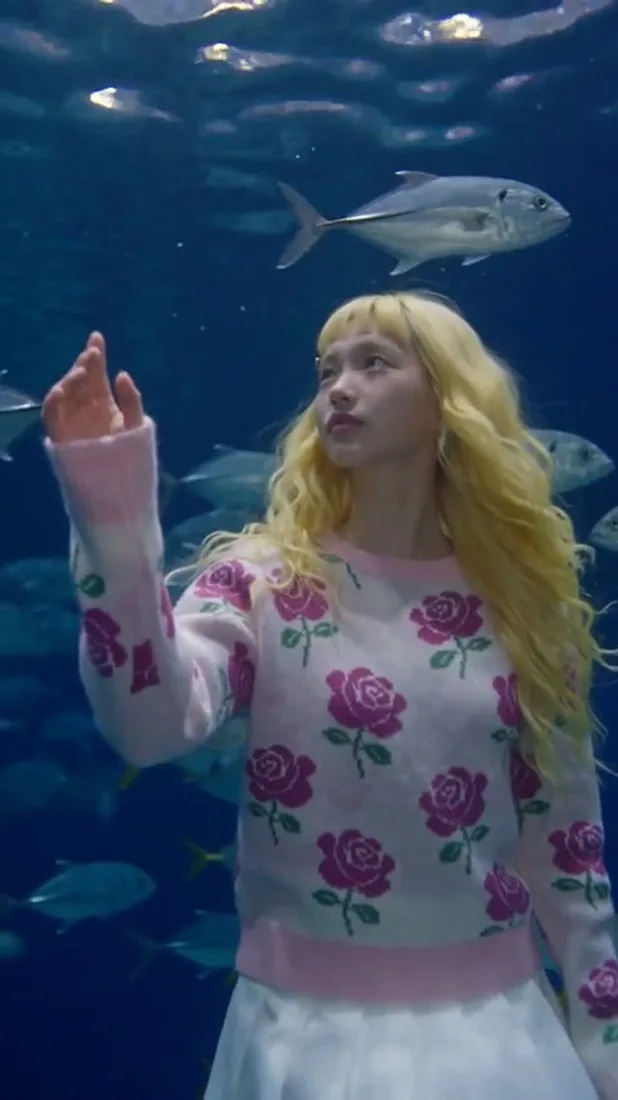
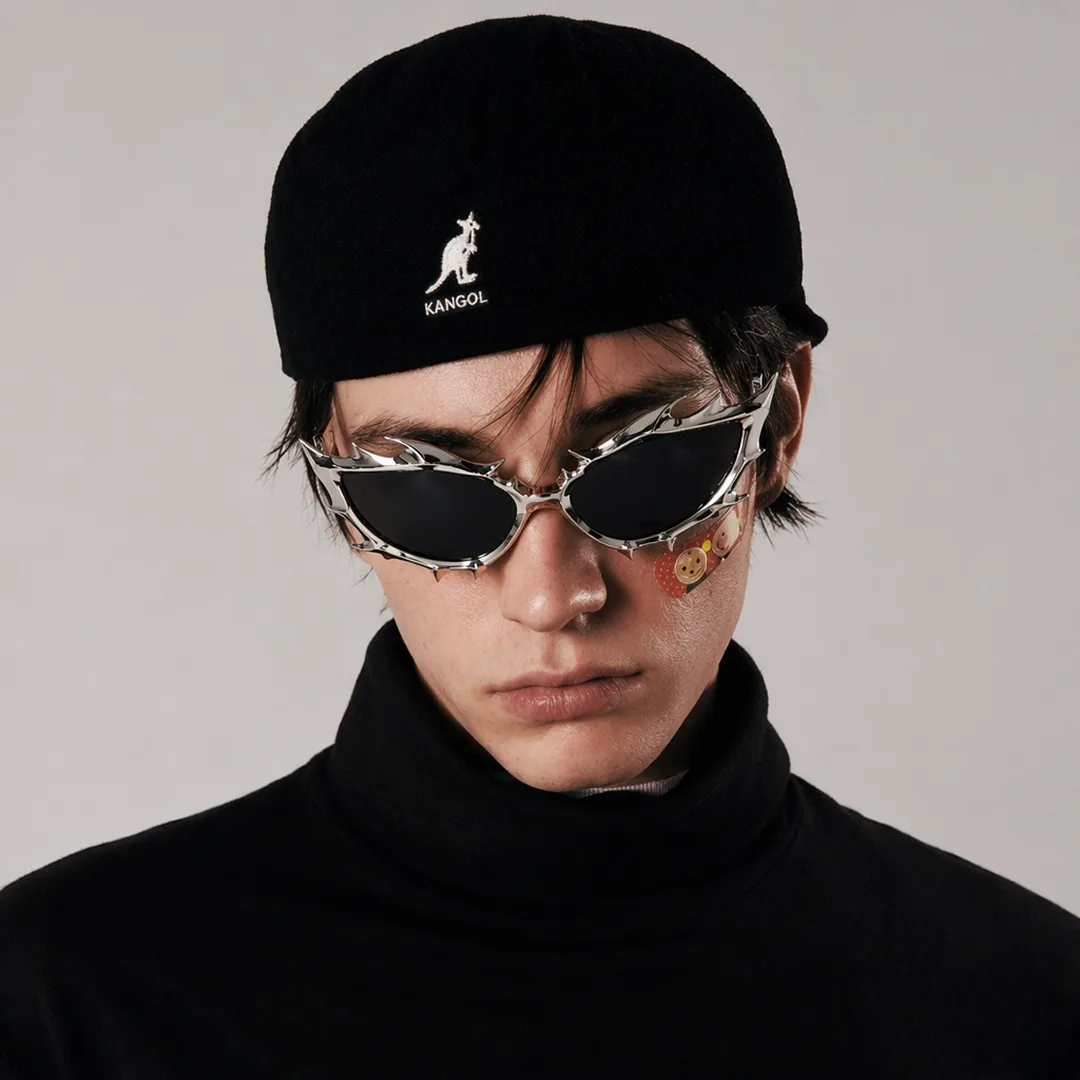
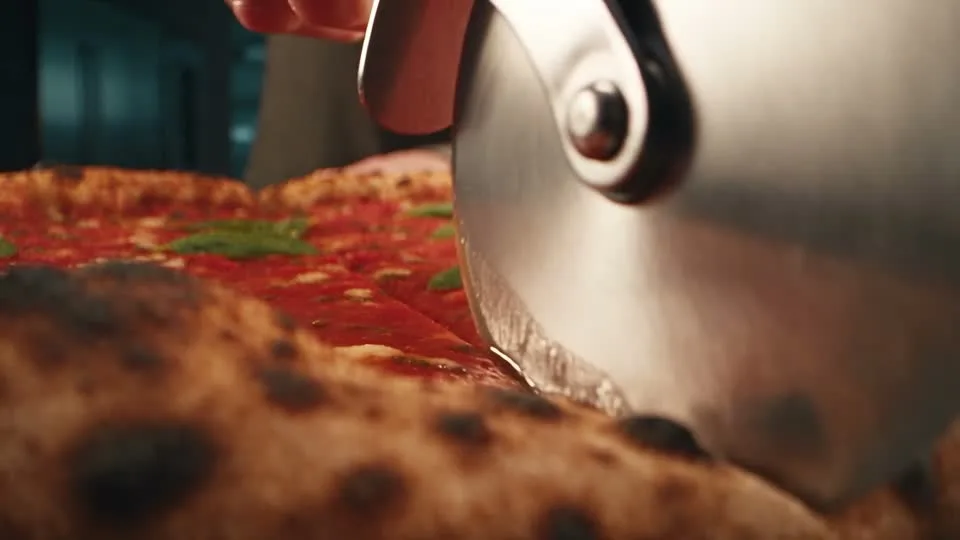
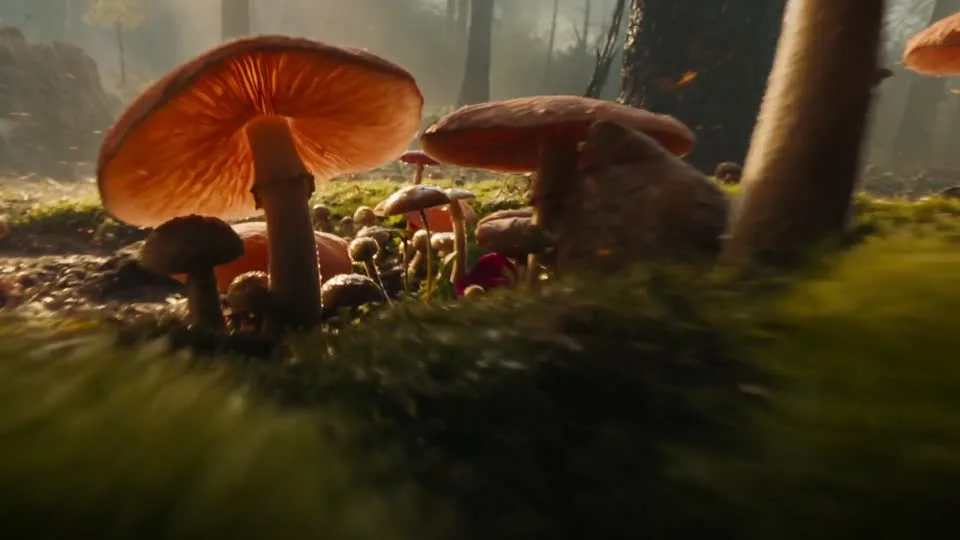
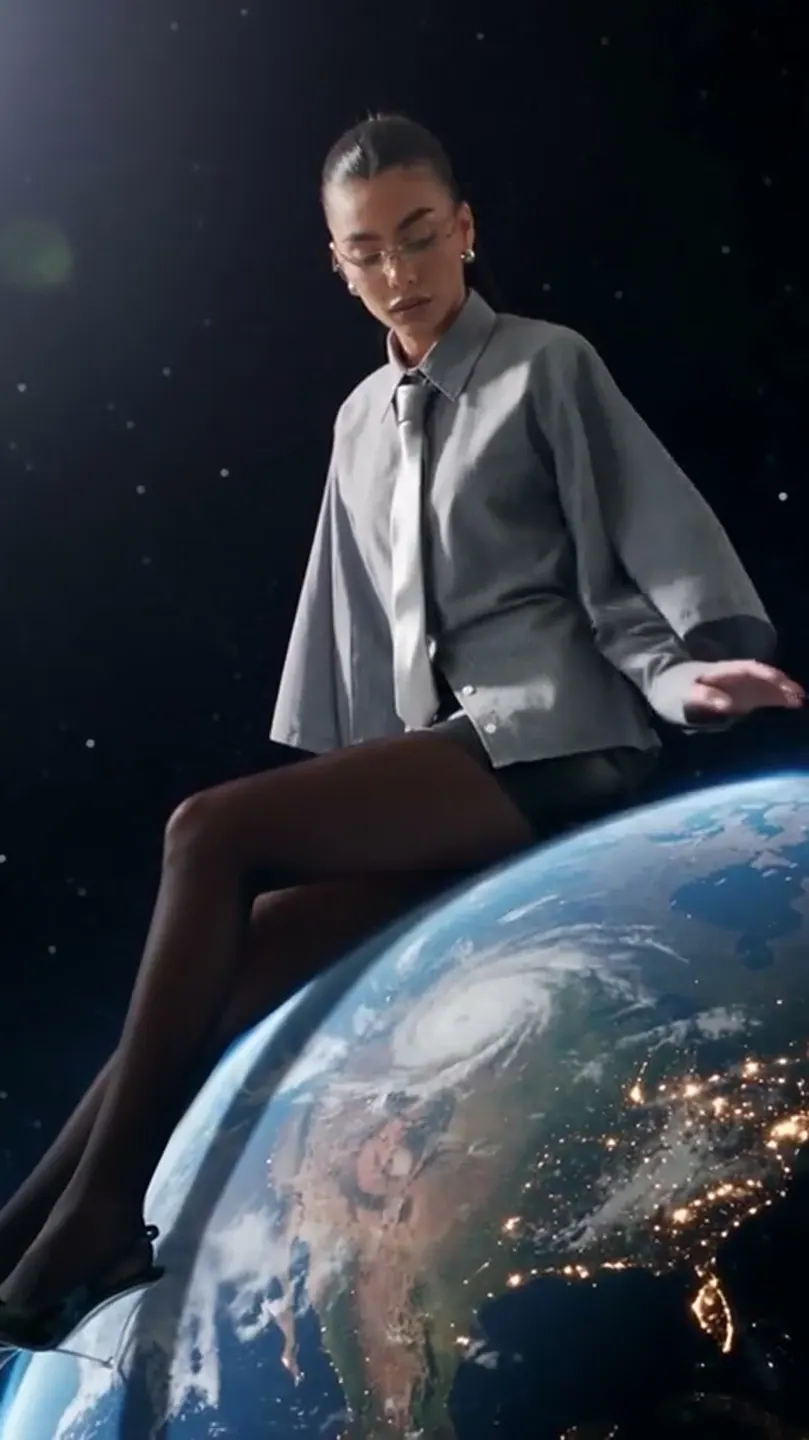
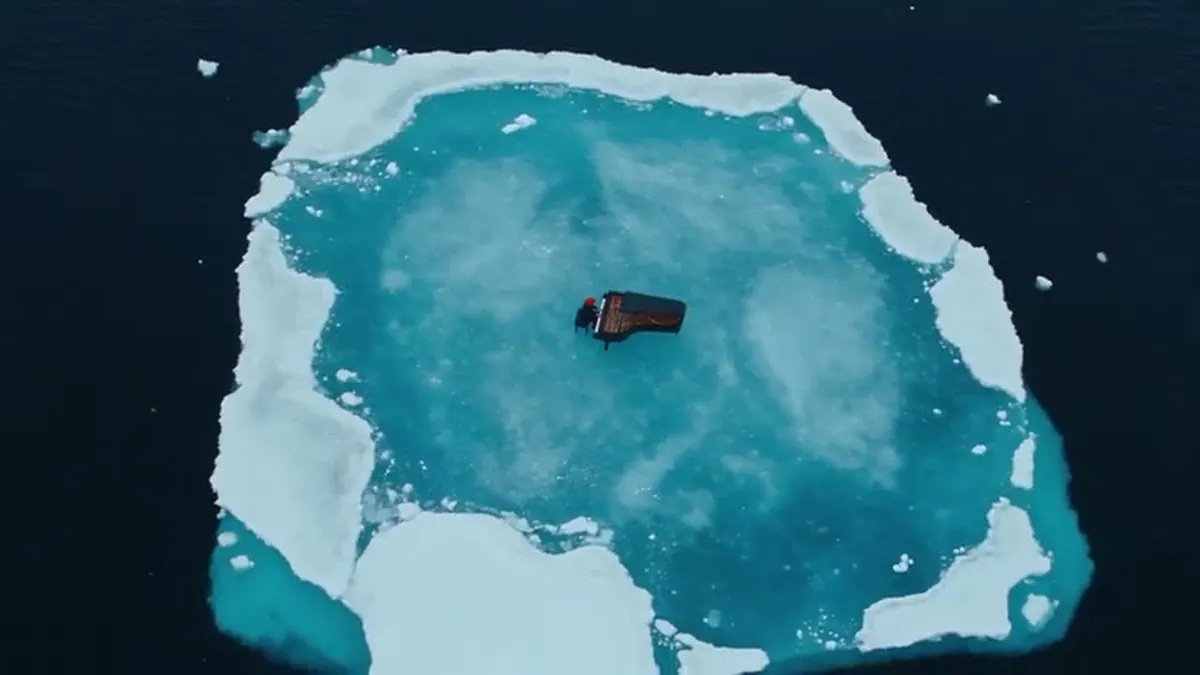
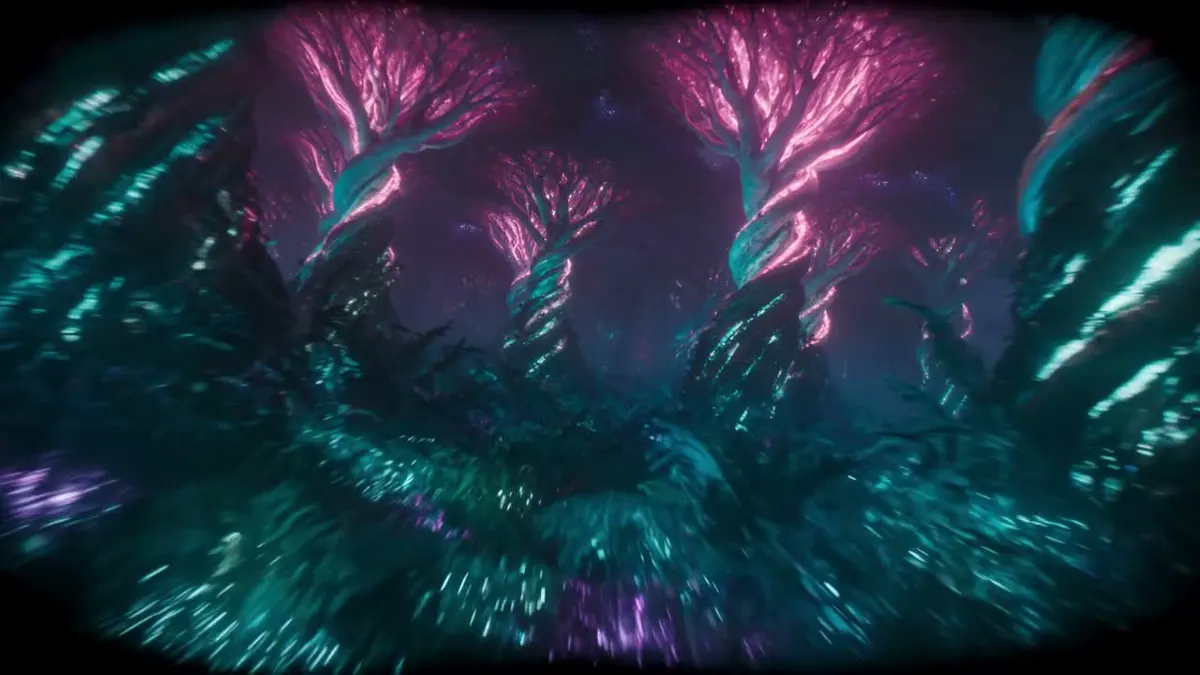
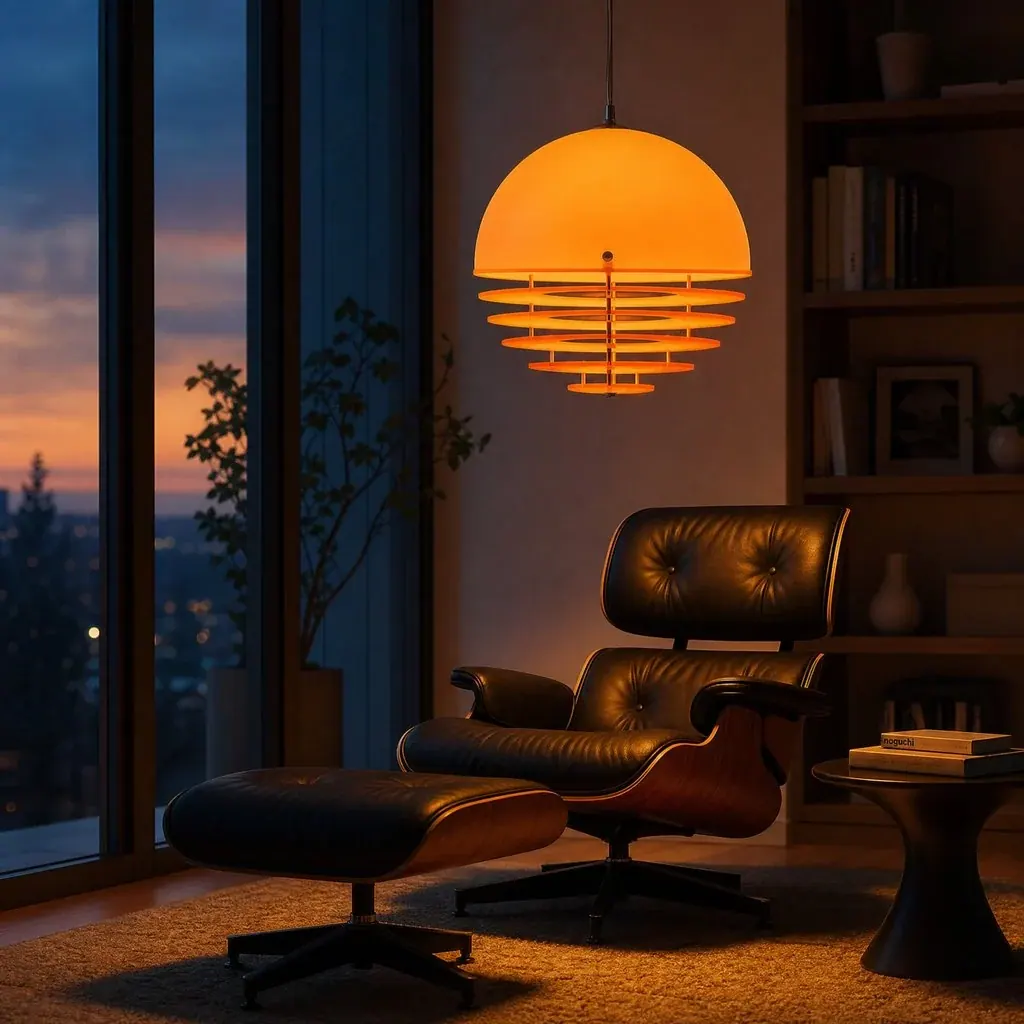
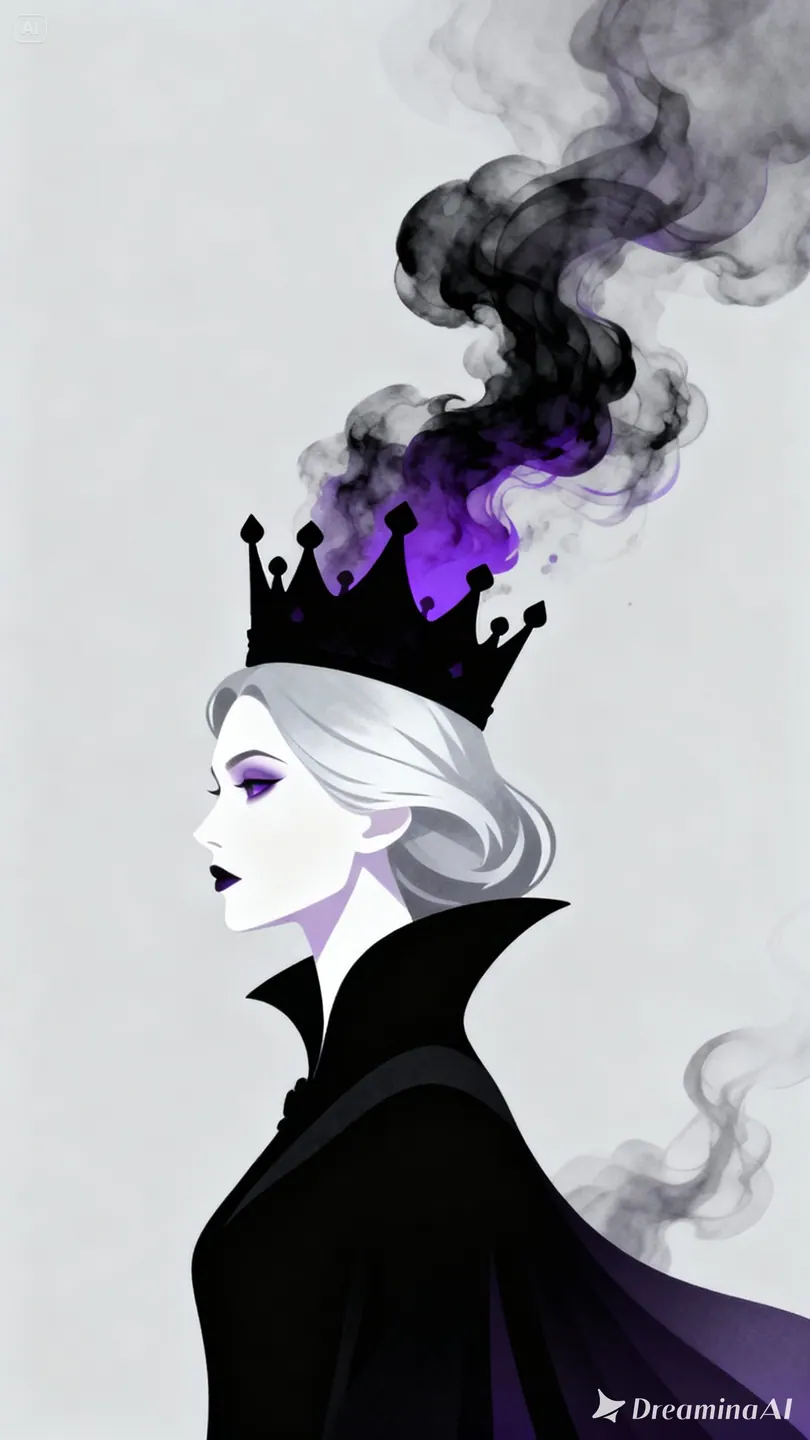
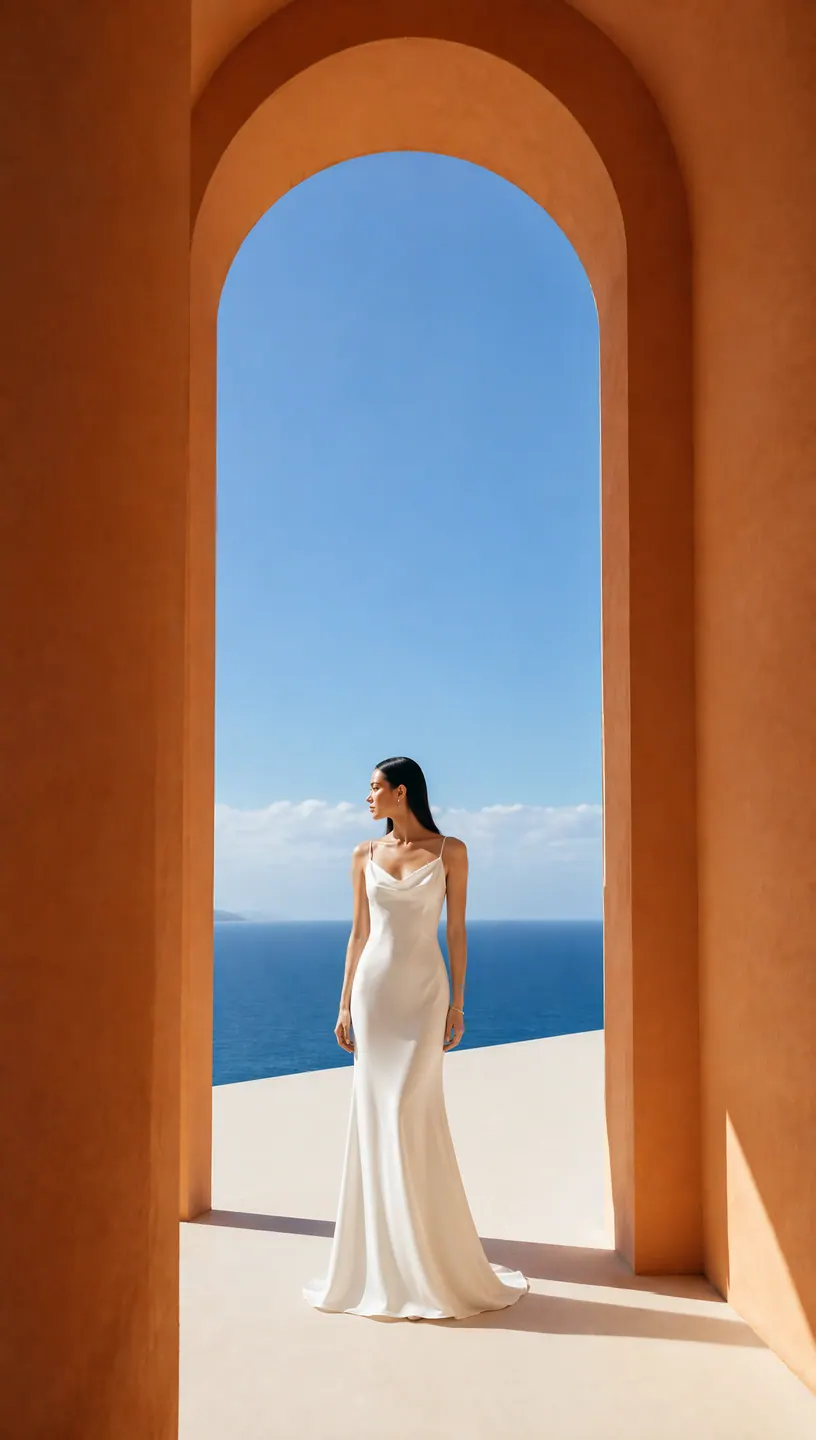
These project images illustrate composition and style, not verified outputs from the selected model.
 Flow AI Video
Example1 / 2
Describe subject placement, lighting, materials, and mood. Put the most important requirements first so you can compare them with the result.
Need a hand?
Questions about inputs, output formats, and preparing your next draft.
Contact supportWrite a prompt to create a new image. Add up to five reference images for the editing workflow, then describe the changes and the details to preserve.
The project scenes illustrate creative directions and are not verified outputs from this model. Review your own result for the details that matter to your brief.
No. The button opens Create with your draft and does not submit a paid generation. Review the credit estimate there; an insufficient-credit dialog can take you to pricing.
This integration exposes aspect ratio for text-to-image and image editing. A fixed-resolution selector, segment maps, and mask-based segment edits are not part of this page.
Include the exact wording and its position in your prompt. Check spelling, legibility, and product details in your result before publishing; generated lettering is not guaranteed to be error-free.
Your next idea is one prompt away
Your next shot starts with a prompt or image. Set up your Flow AI Video generation above, check the estimate, and follow its progress in Create.