

01
Organize information into a visual hierarchy
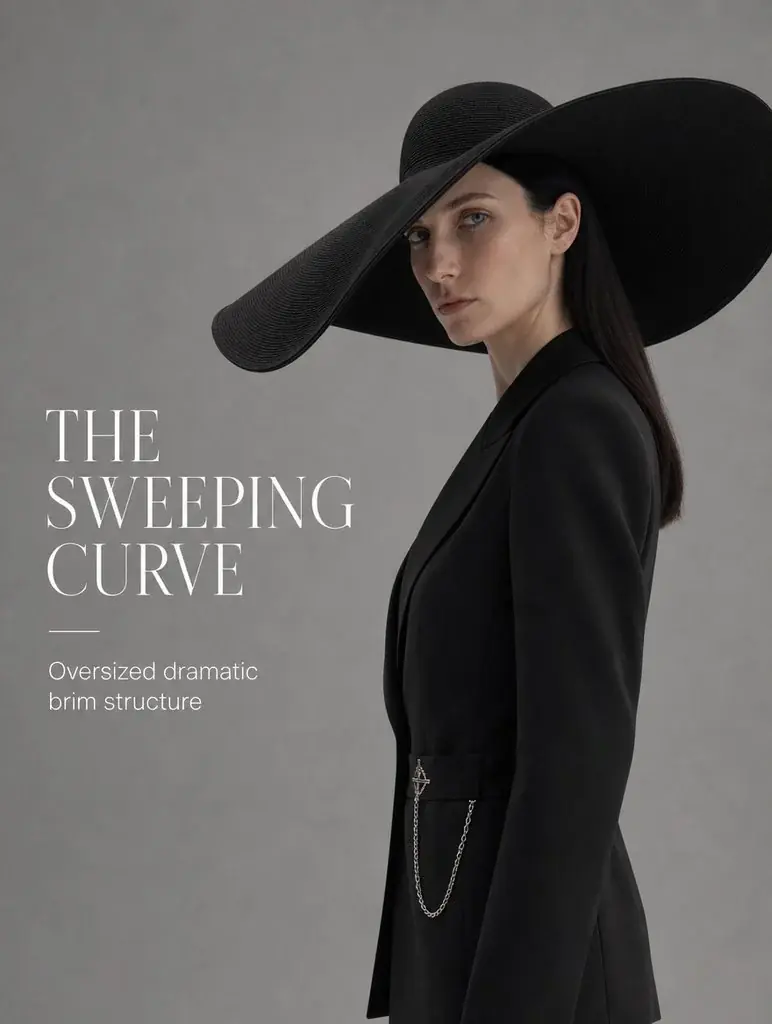
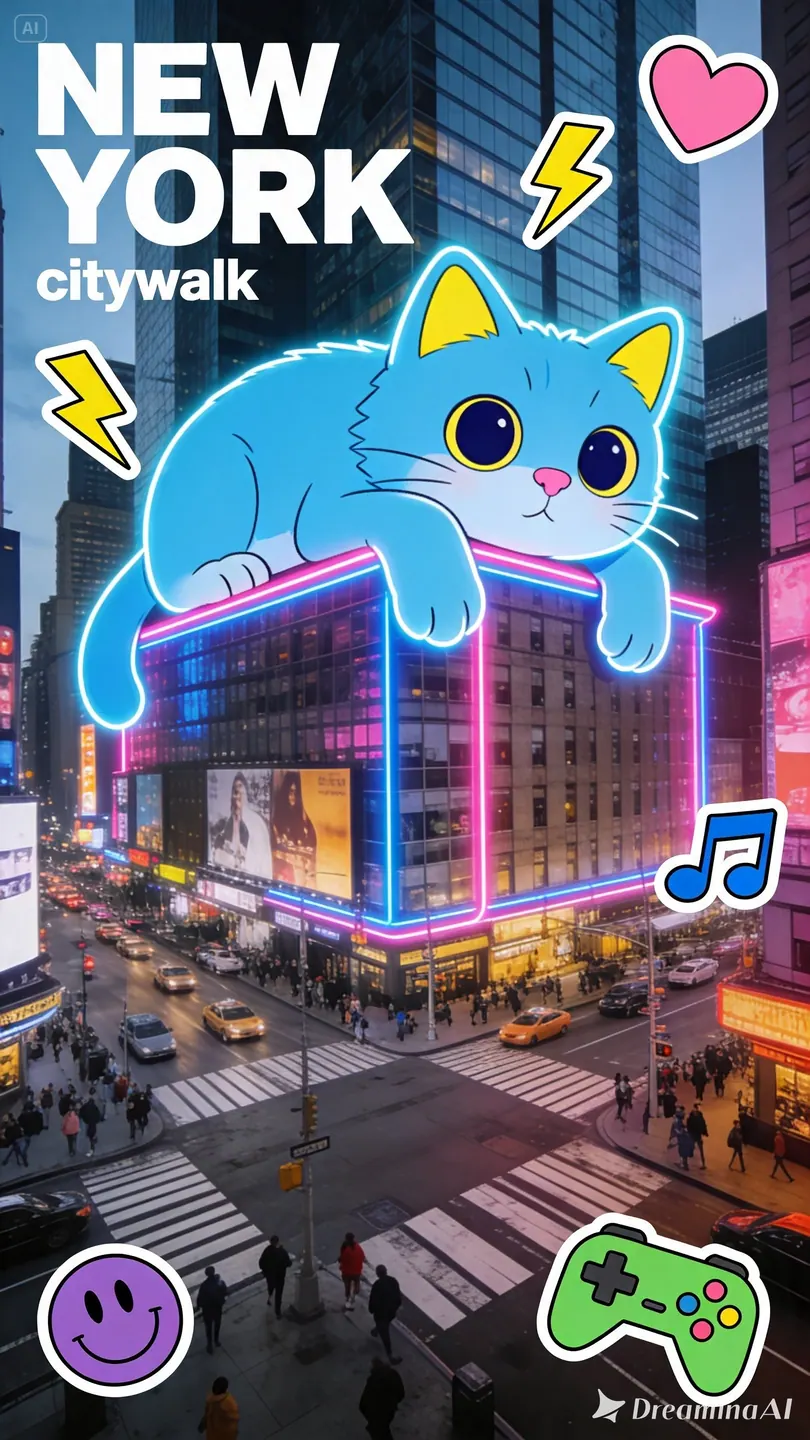
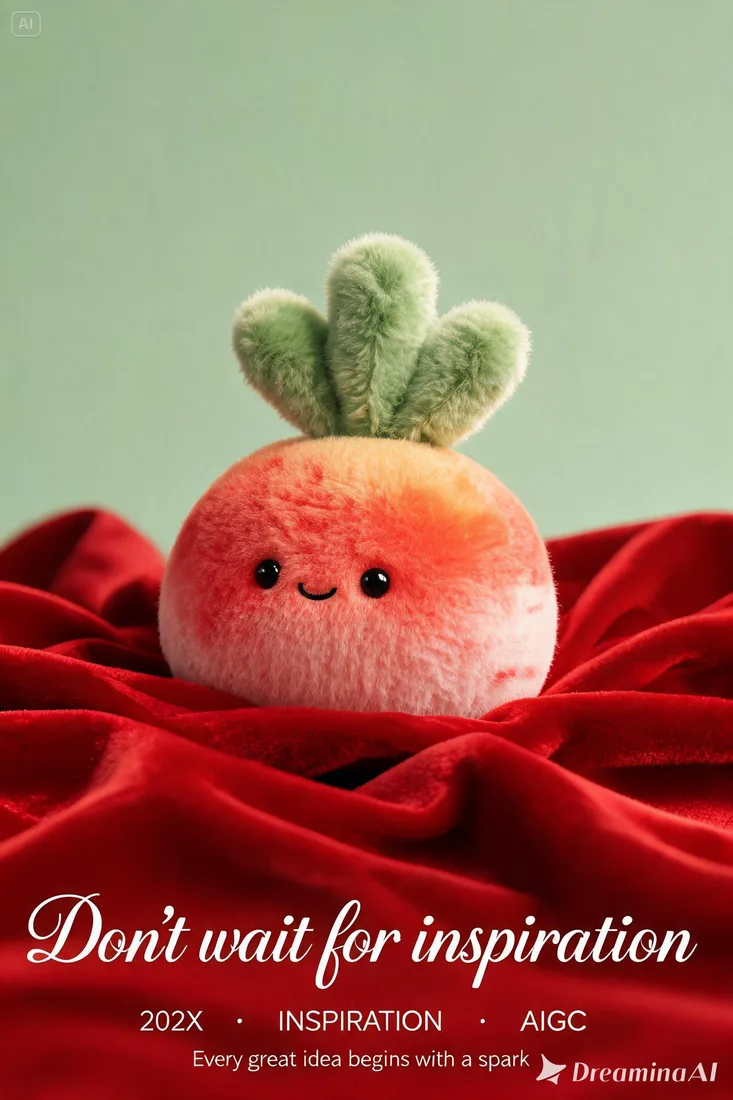
Describe a headline, supporting labels, and the relationship between elements. Keep the amount of text appropriate to the final image size.
01Creative reference
Create a product scene, portrait, or information-rich visual with Seedream 5.0 Pro. Guide the layout with text or references, choose Basic 1K or High 2K, then refine the brief in Create.
From brief to visual
Prepare your brief, choose supported settings, and review the result.
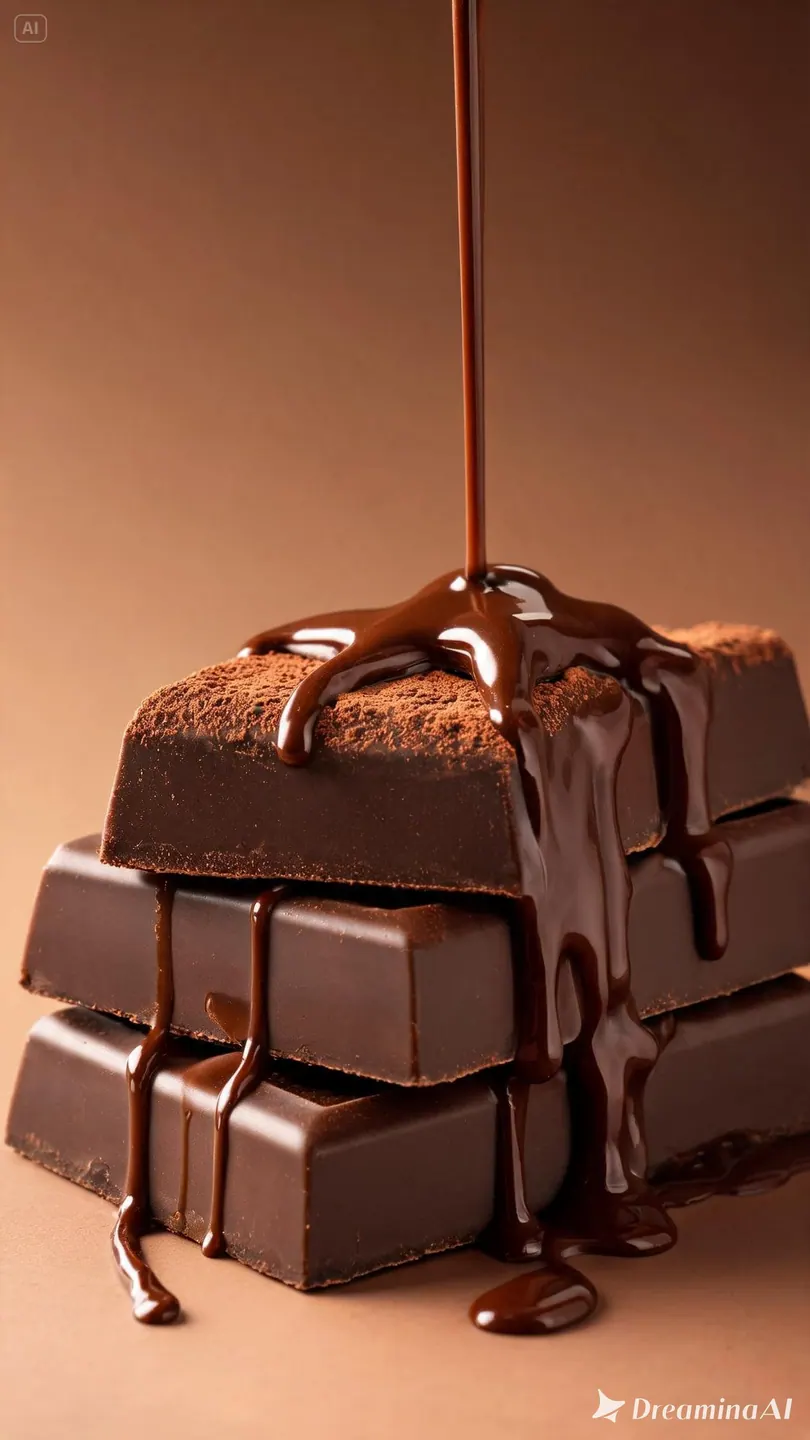 Creative reference
Select Basic (1K) or High (2K), choose an aspect ratio, and add image references if needed.
Describe the subject, composition, lighting, and style.
Open Create with your draft. Review inputs, settings, and credits before submitting a generation.
Explore more options in AI Image Generator. Return to the homepage.
Every detail starts with your brief
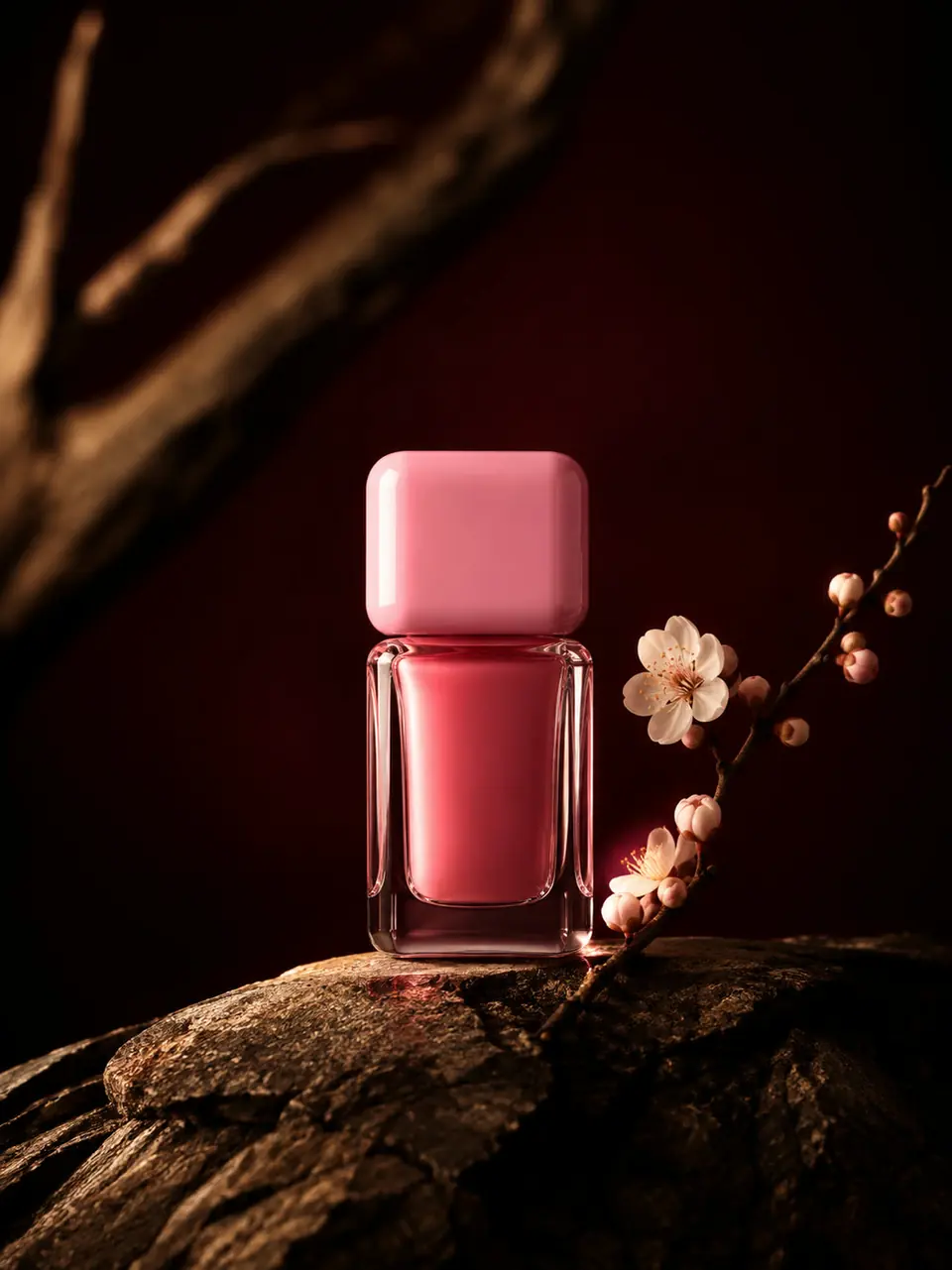
Plan a product, headline, and supporting detail as one visual. Use a reference to guide materials or layout, and choose a quality level that suits the final image.
01
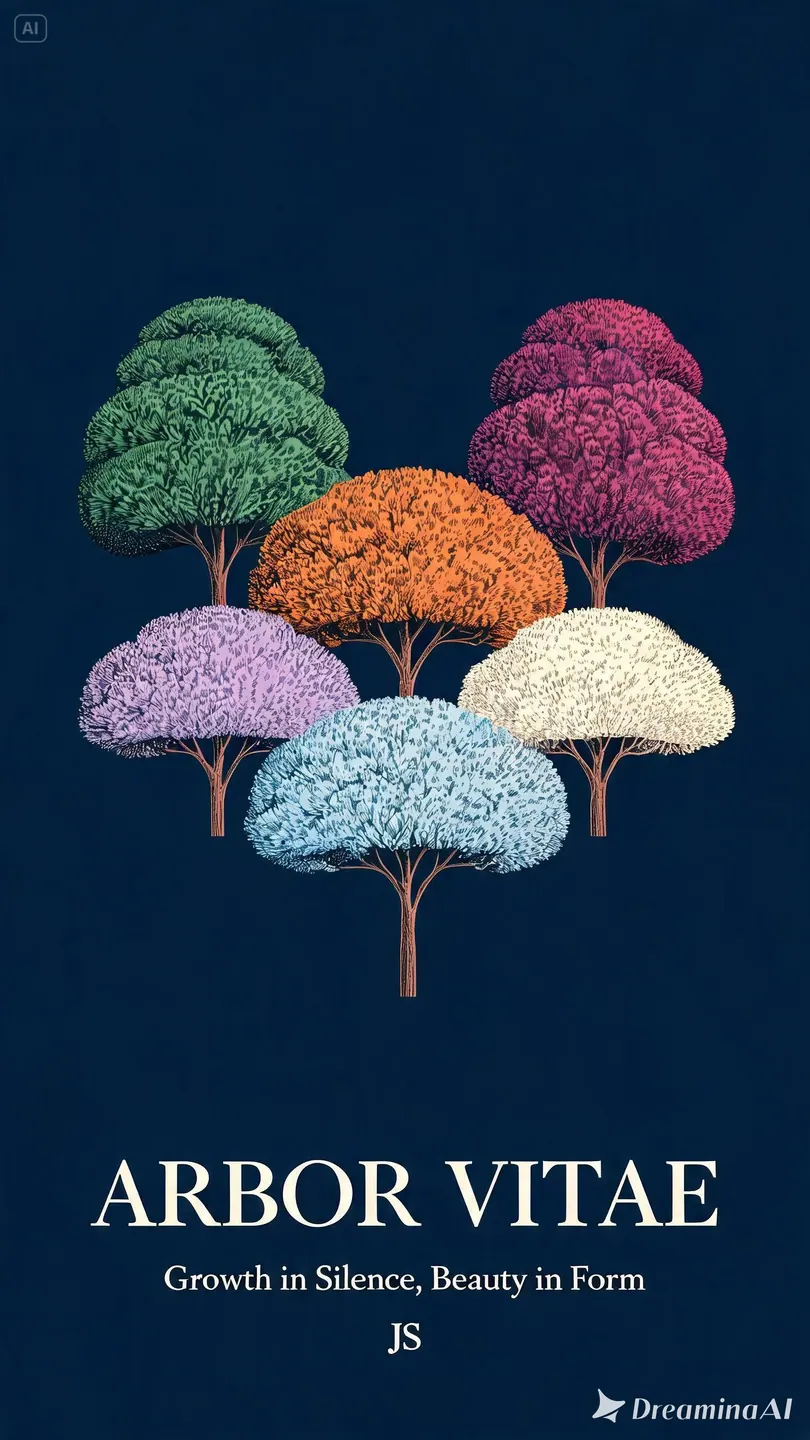
Describe a headline, supporting labels, and the relationship between elements. Keep the amount of text appropriate to the final image size.
02
Upload a product photo or visual draft and explain the desired edit. Specify which proportions, objects, and textures should stay recognizable.
03
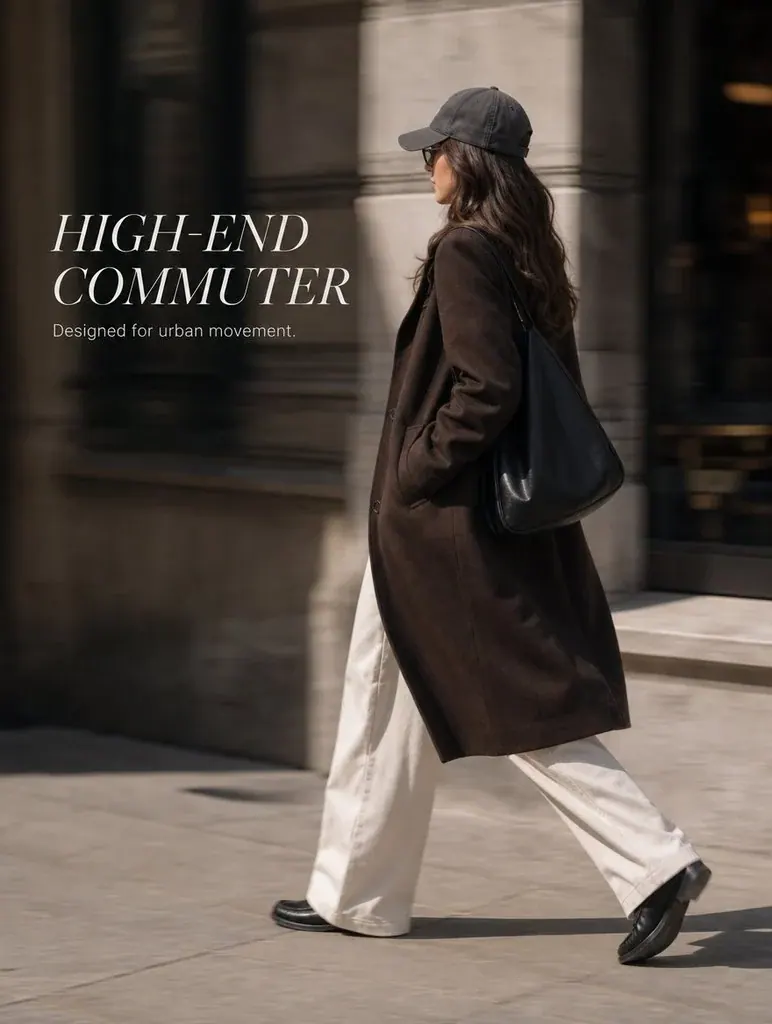
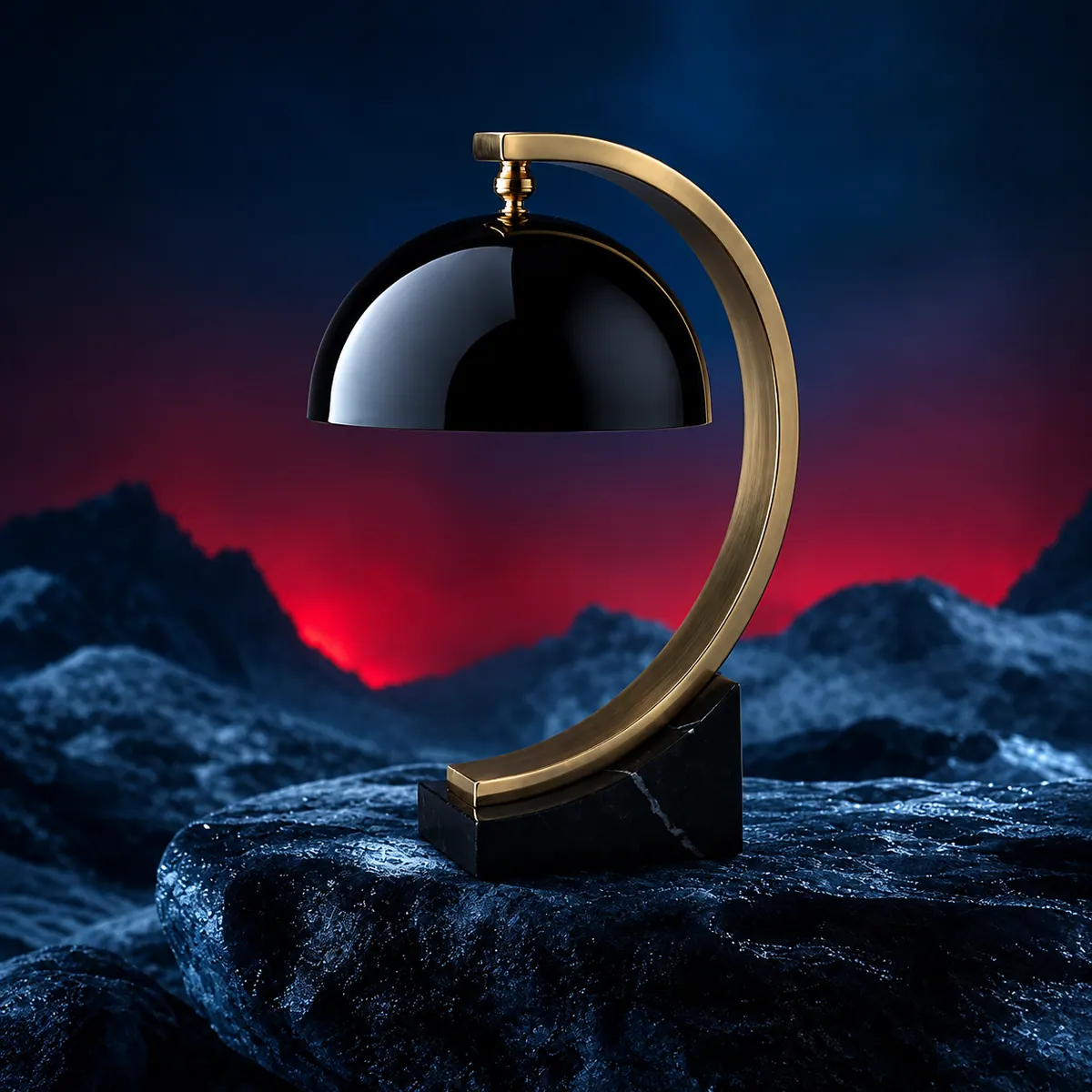
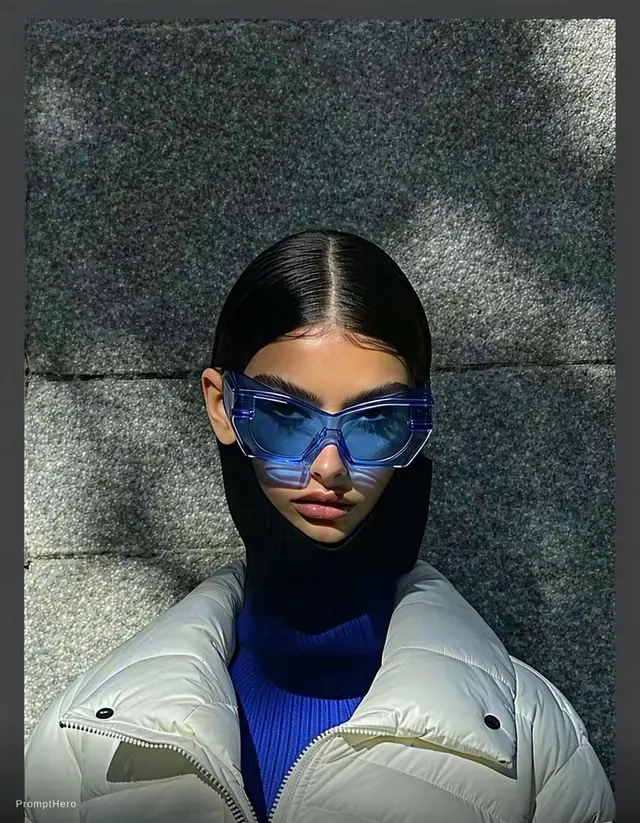
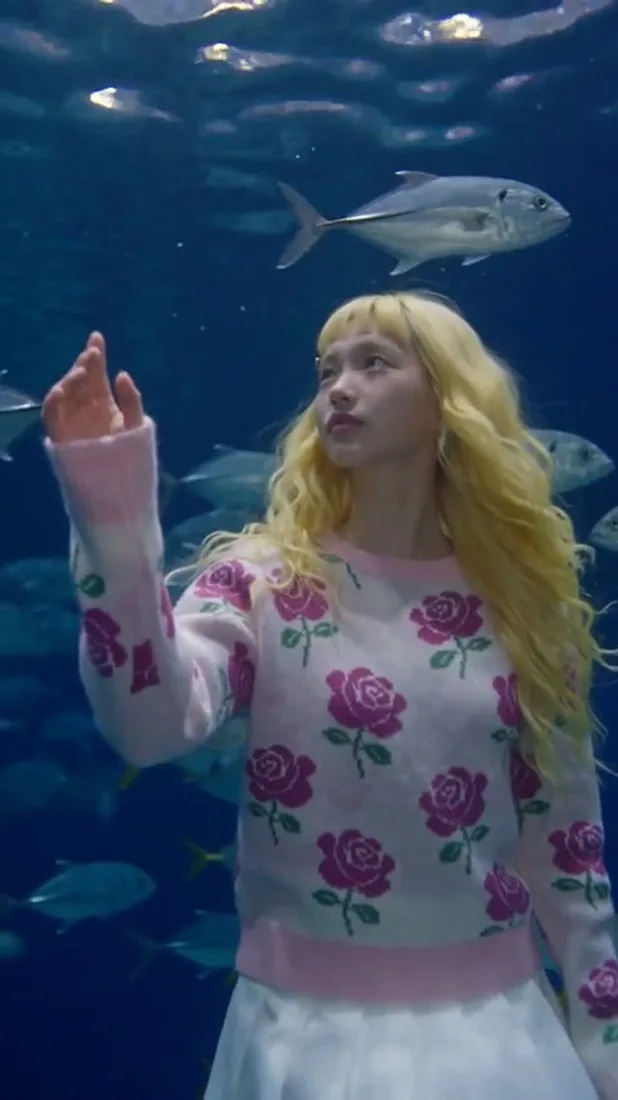
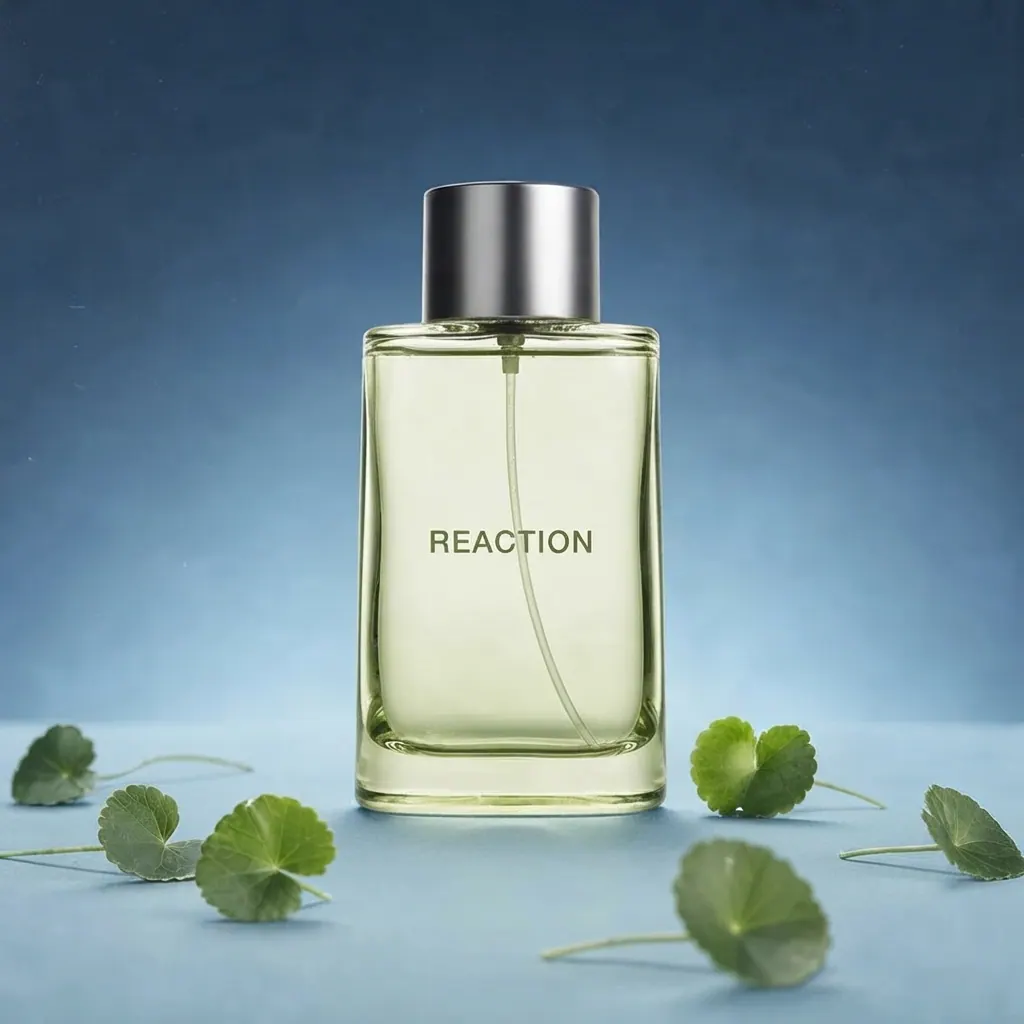
Describe the surface finish, light direction, and environment. Review reflections, shadows, and facial detail in the generated image.
04
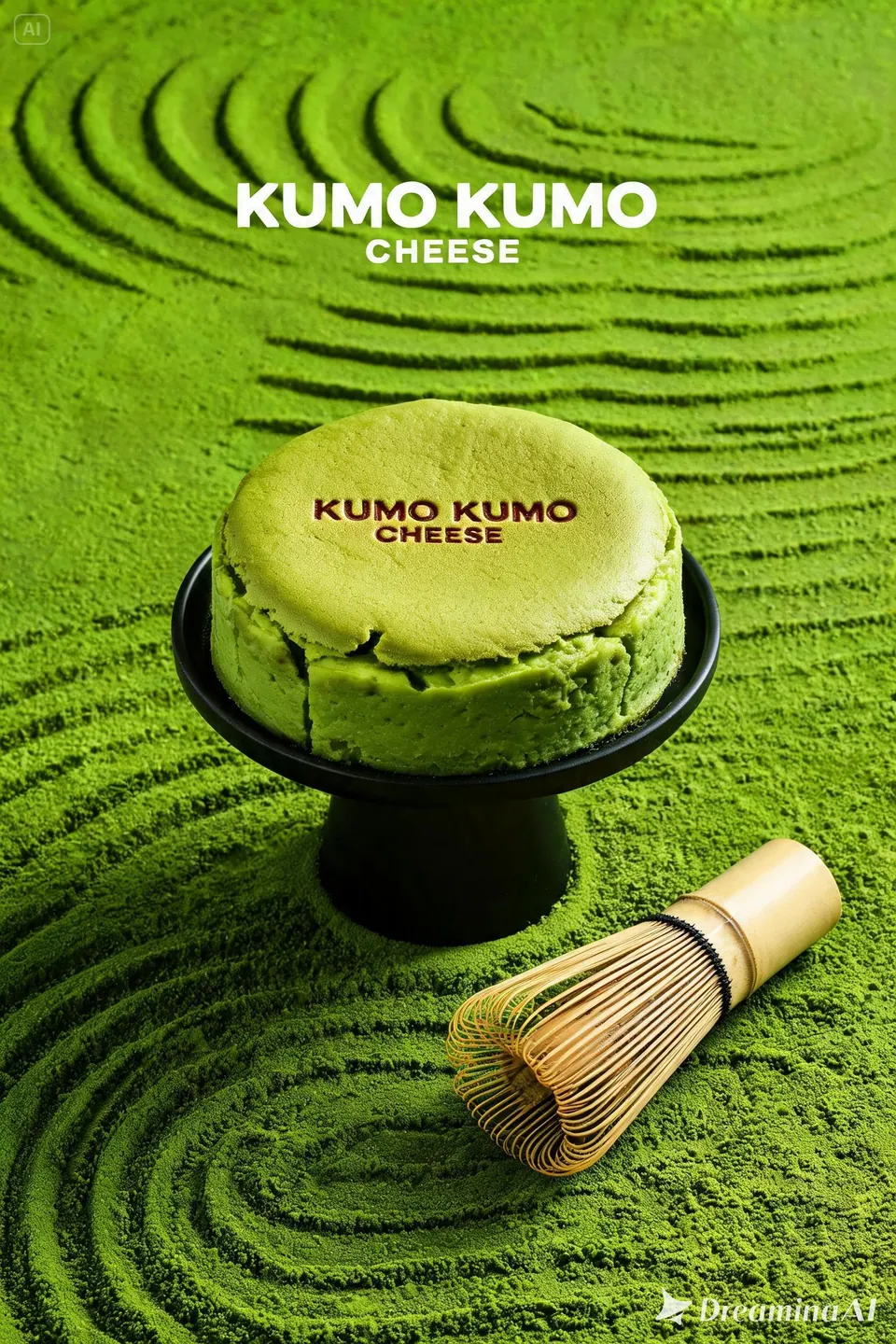
Basic quality produces 1K images and High produces 2K. Use text or reference images to guide a single finished visual per request.
One image, one clear purpose
Start with the destination, then define the subject, style, and details that matter.
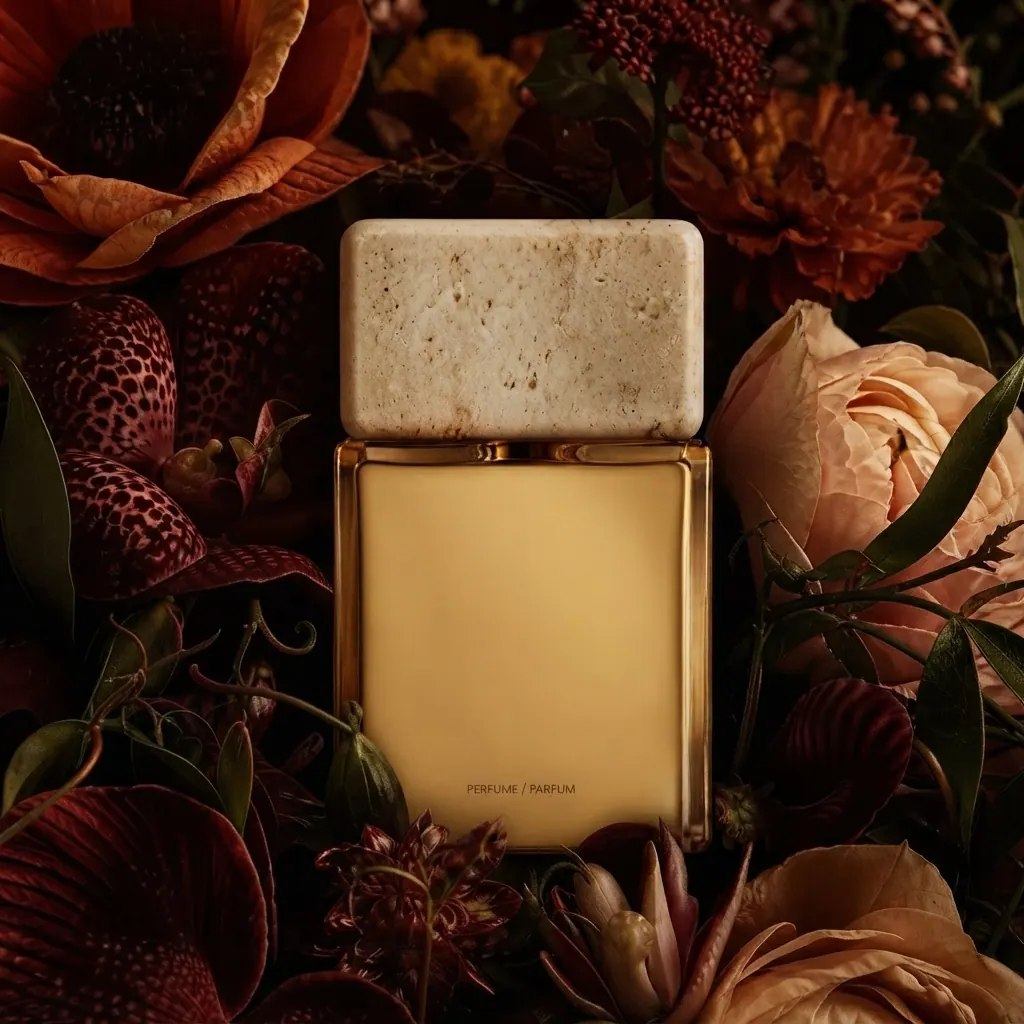
Products and brands
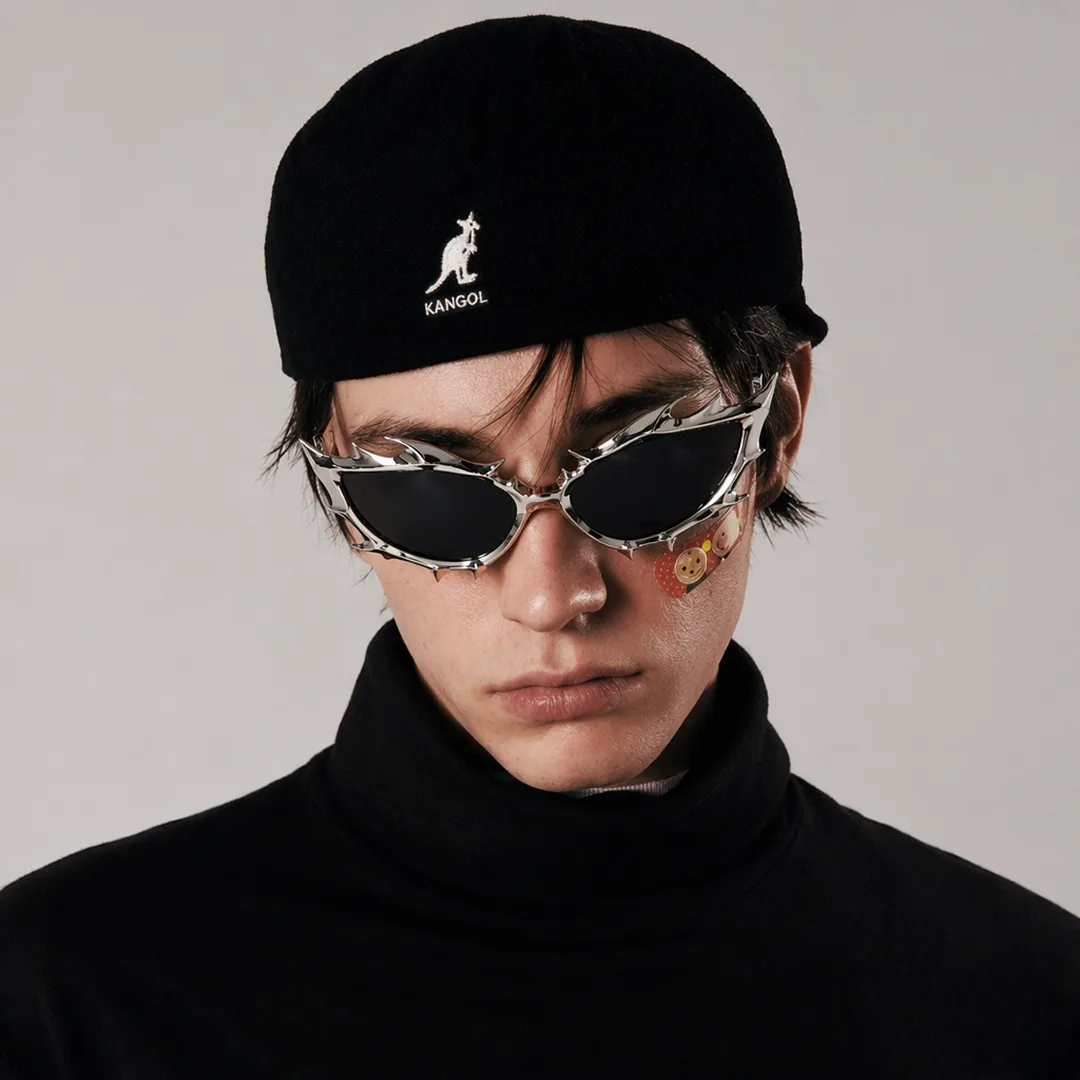
Define the product, setting, and visual treatment, then review the details against your brief.
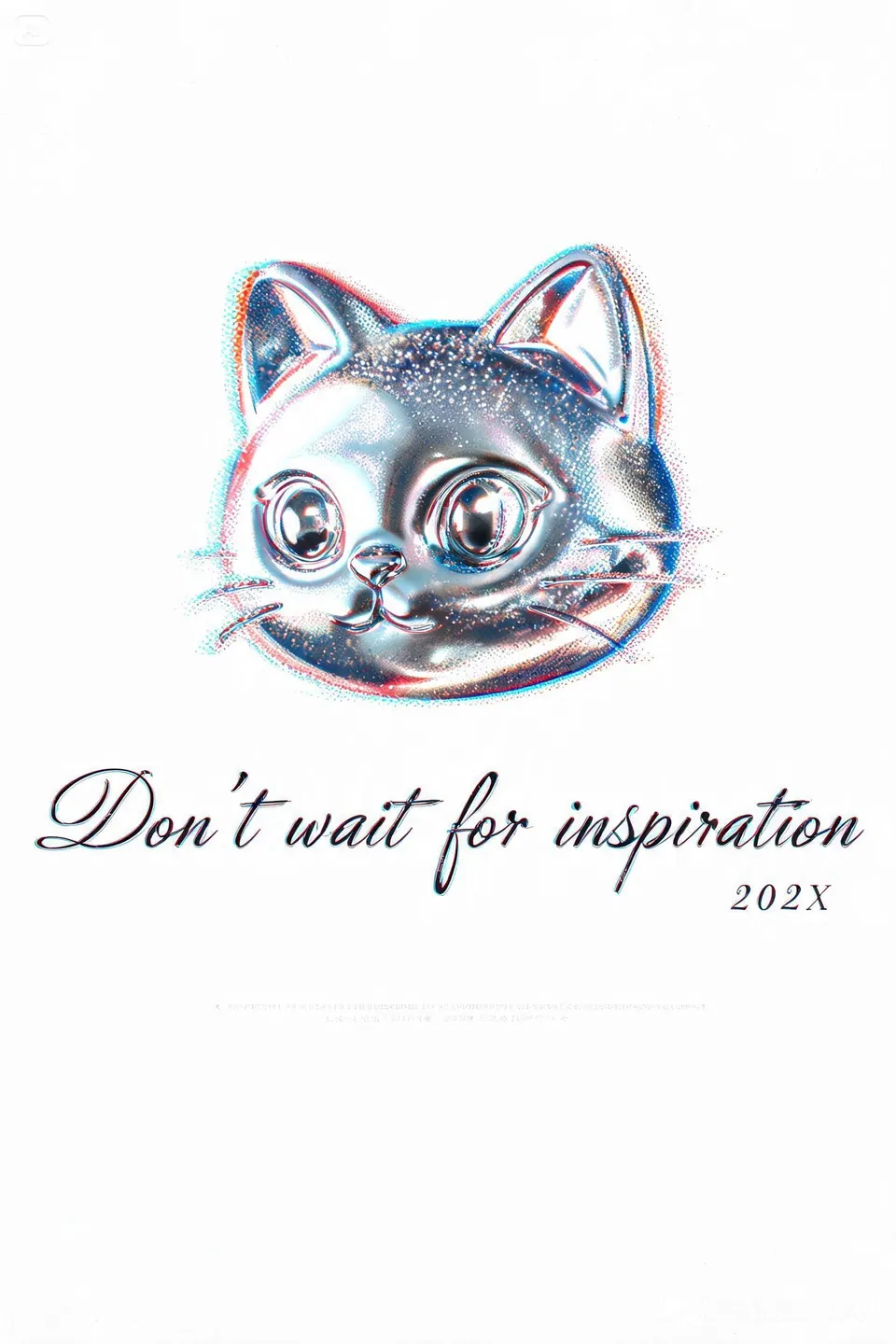
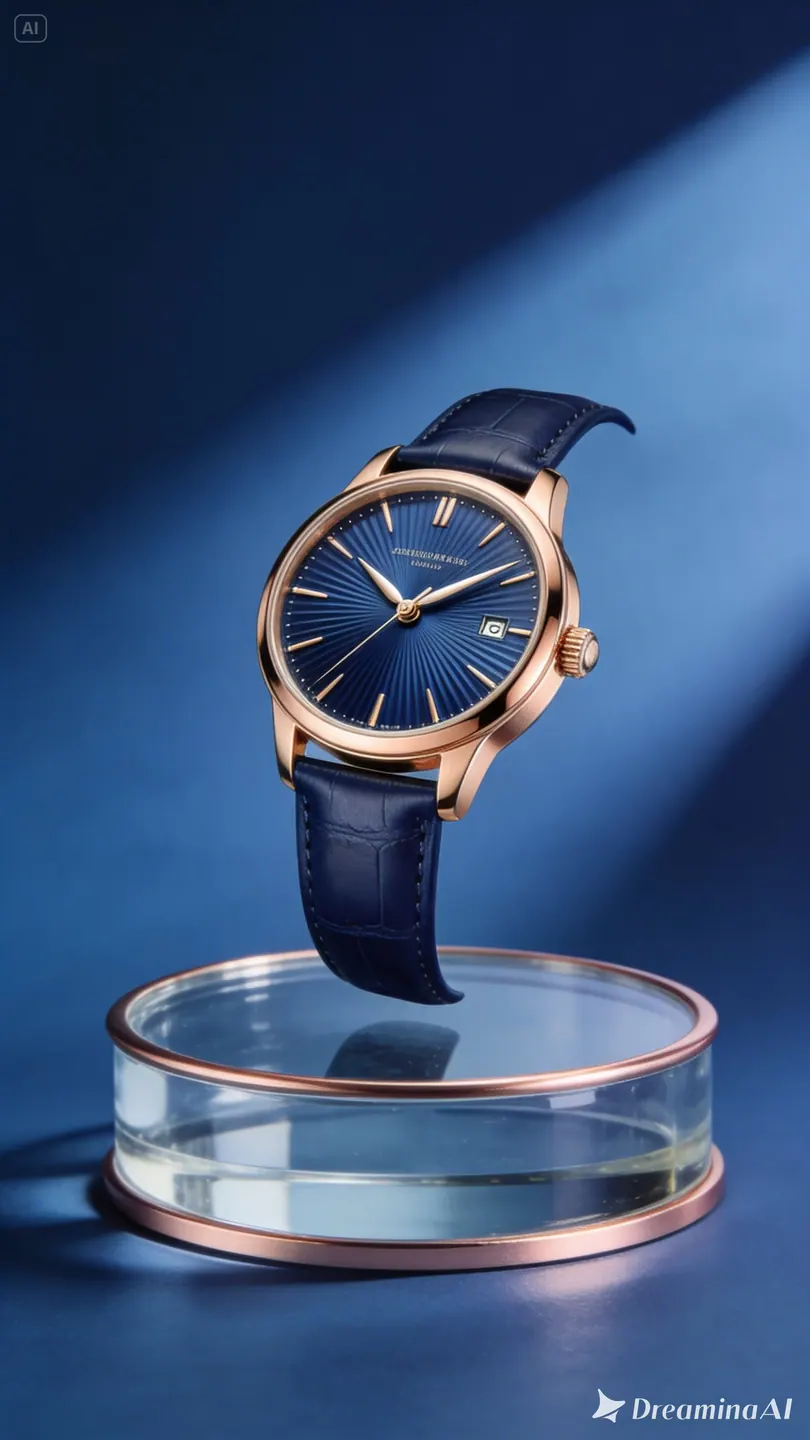
Composition and style inspiration
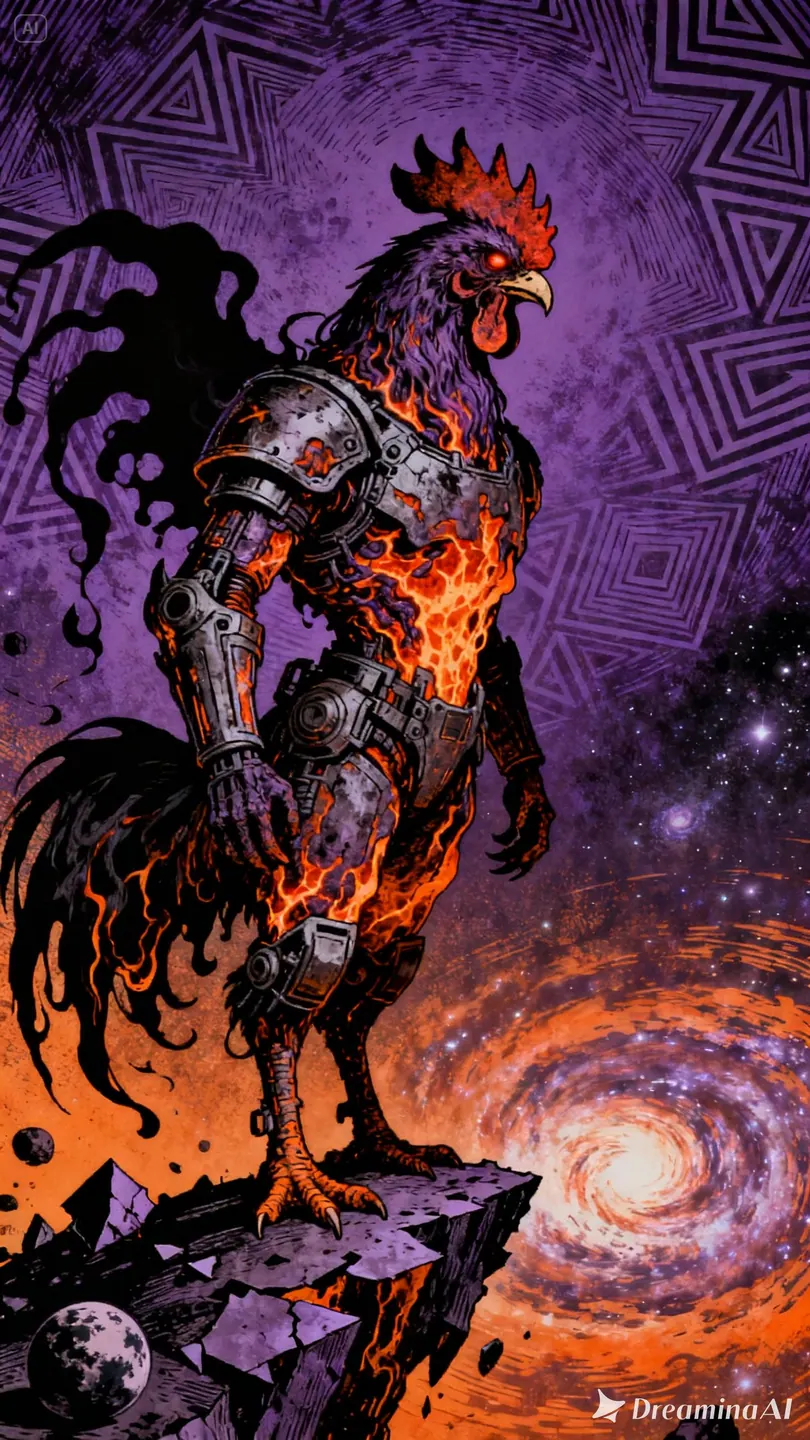
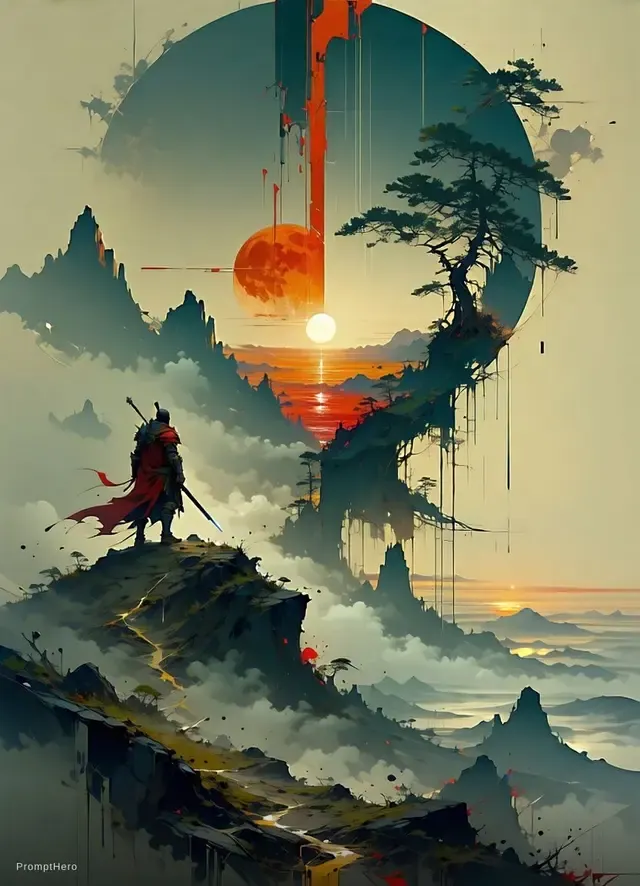
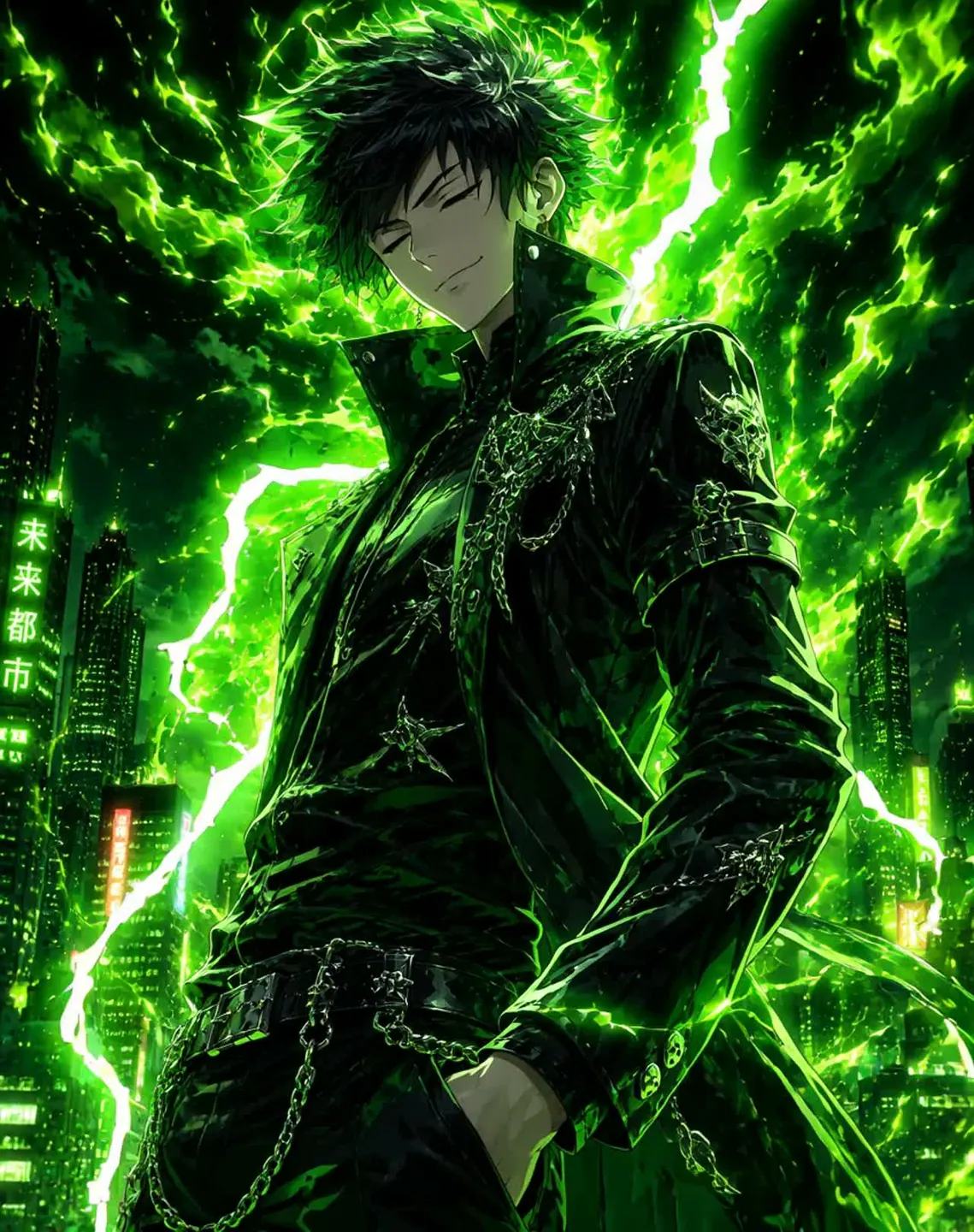
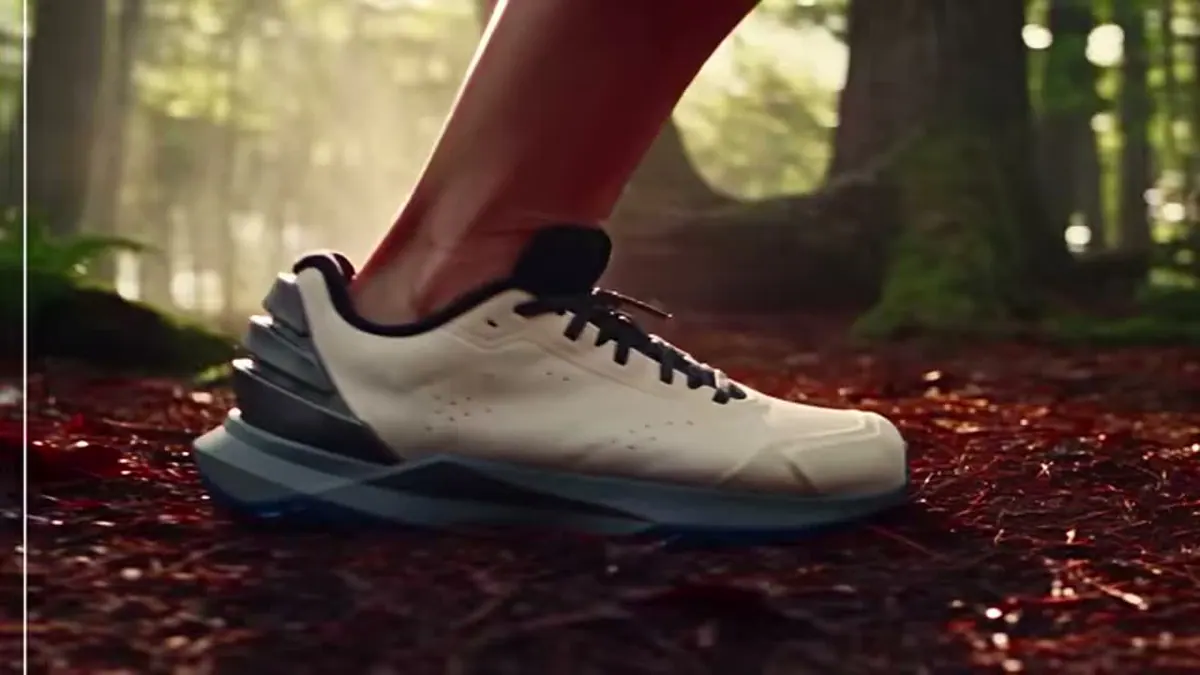
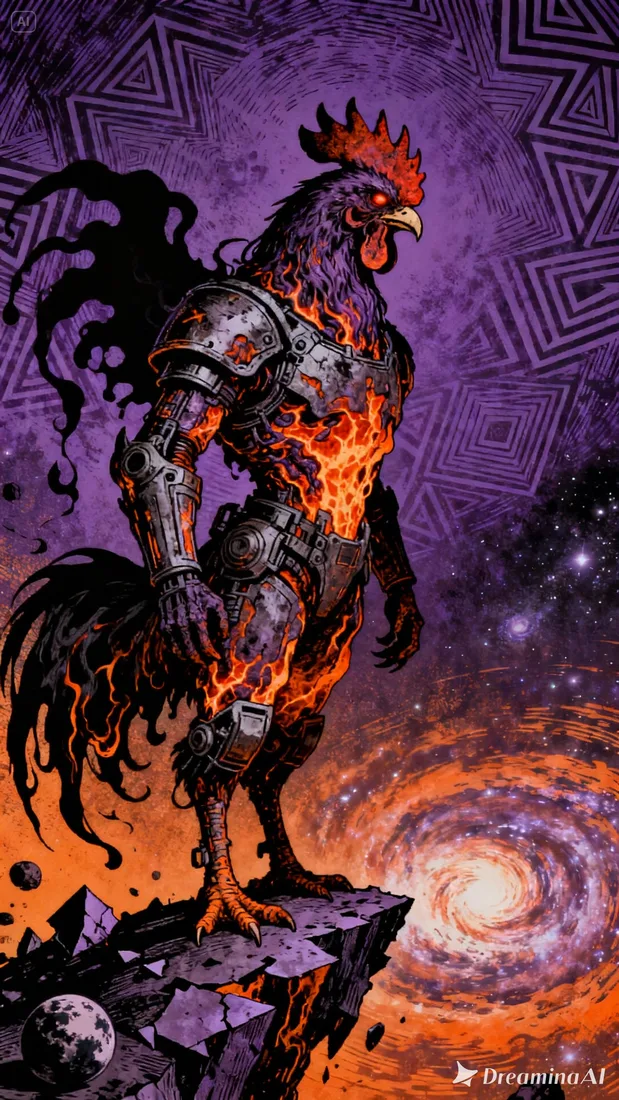
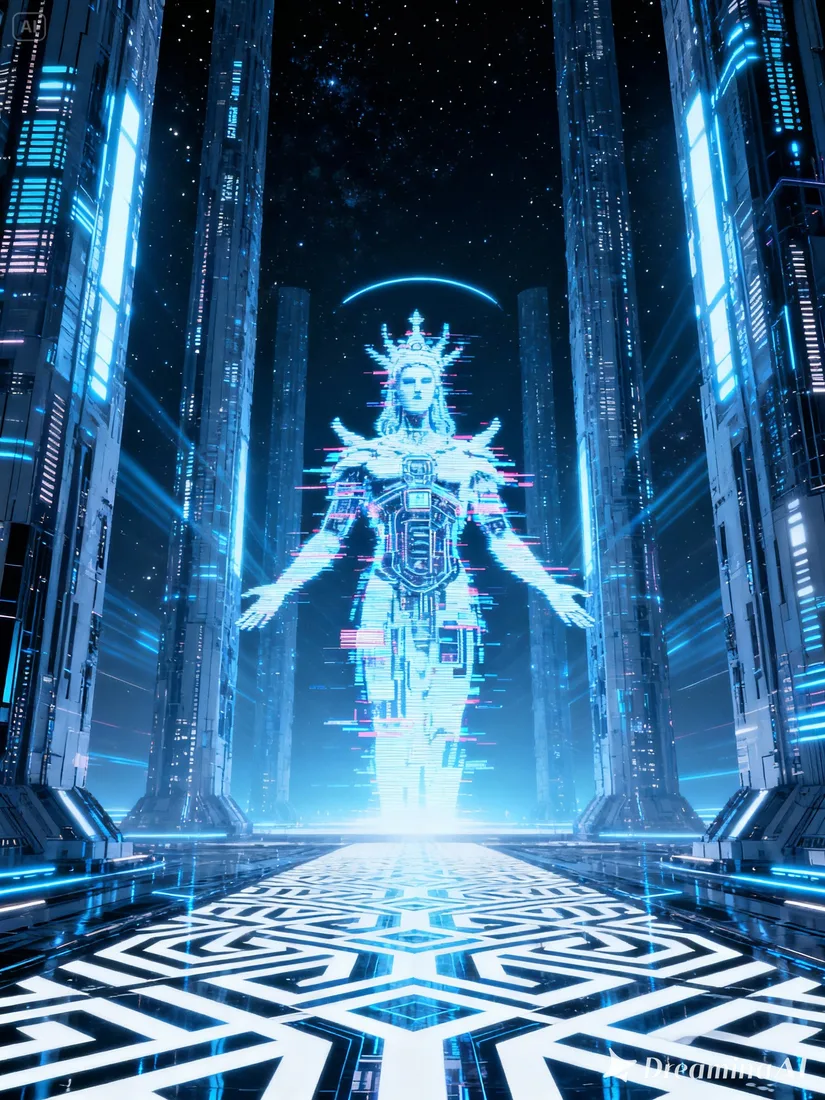
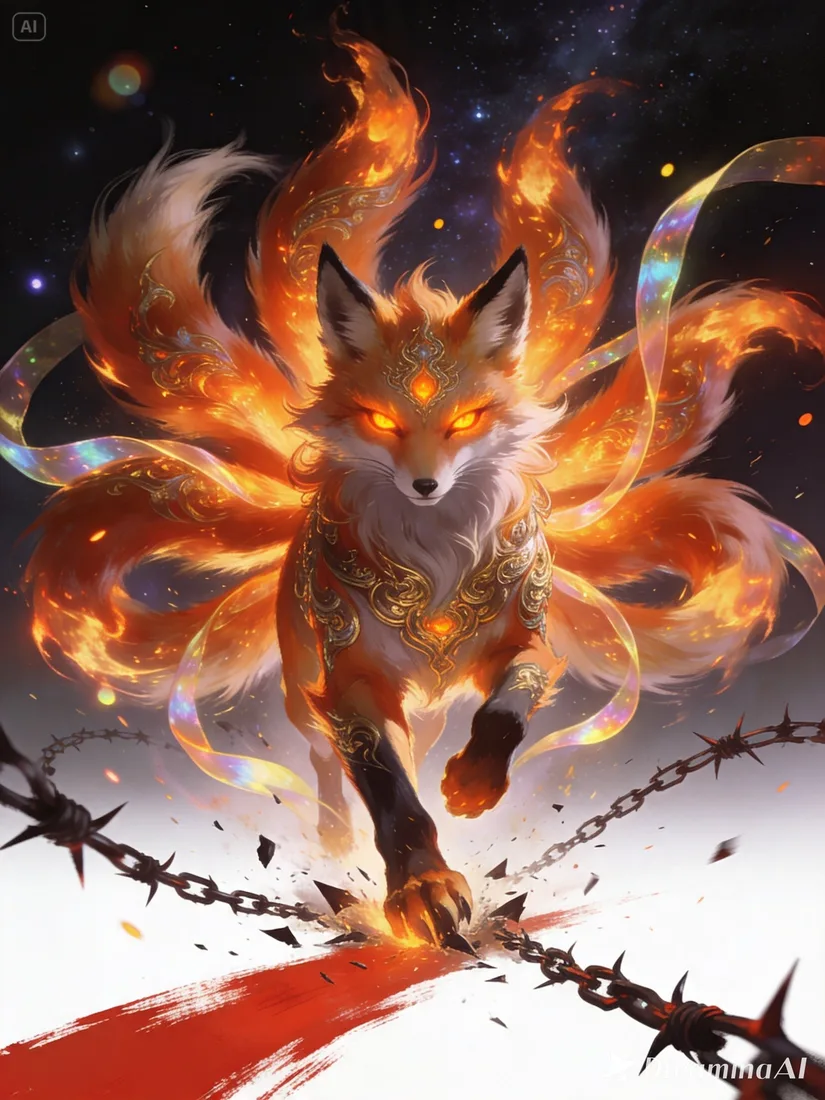
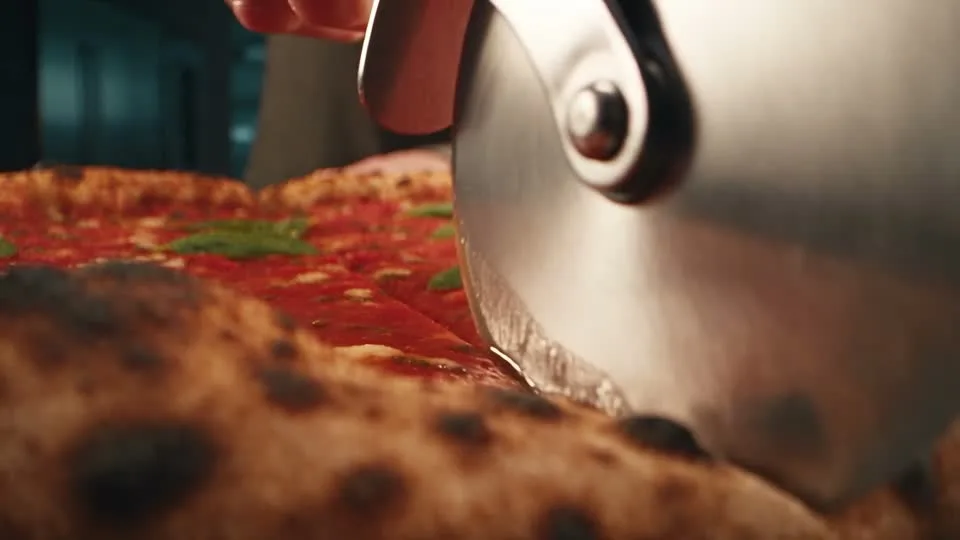
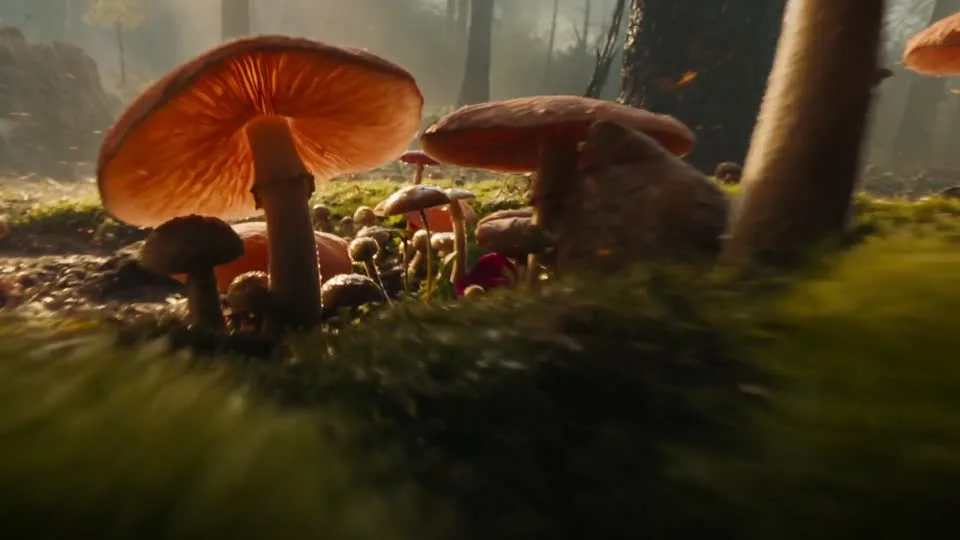
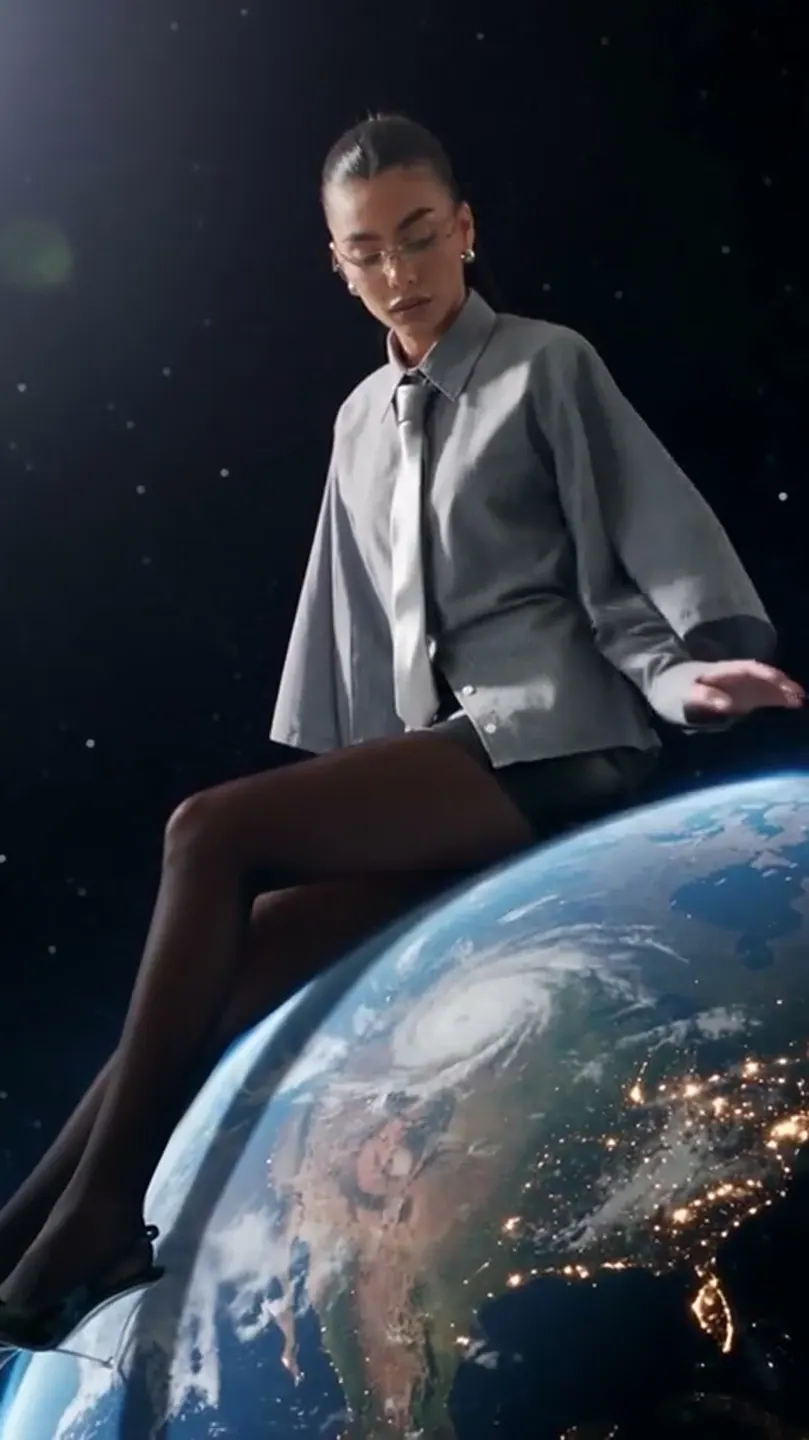
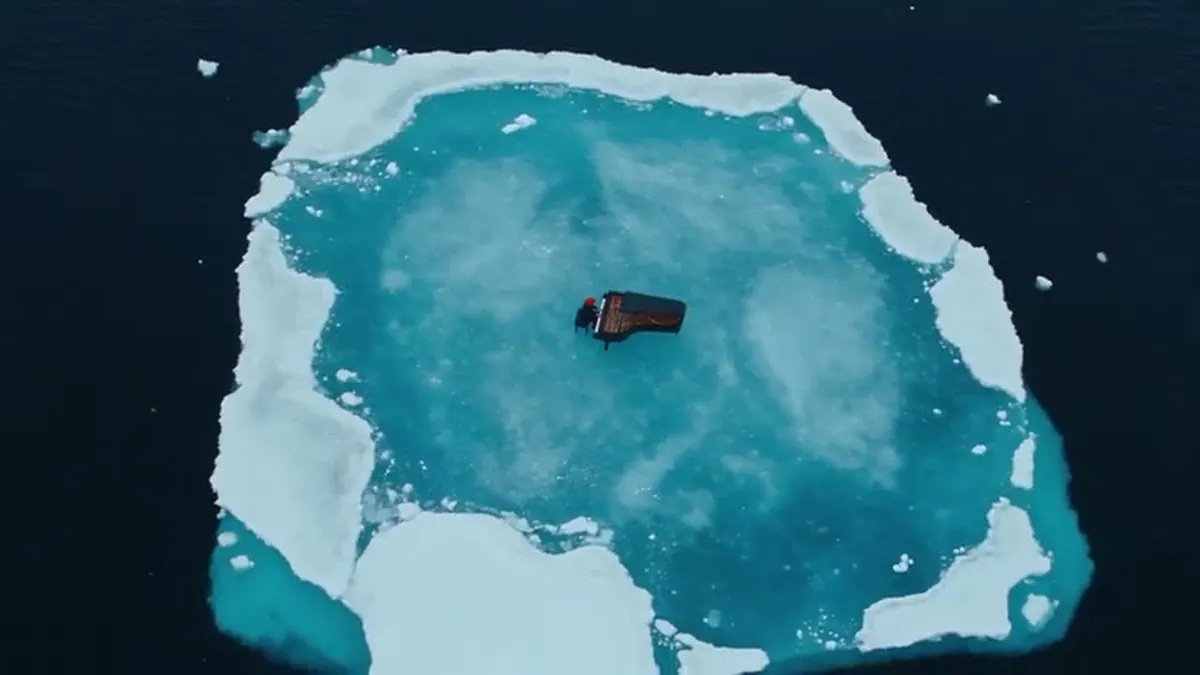
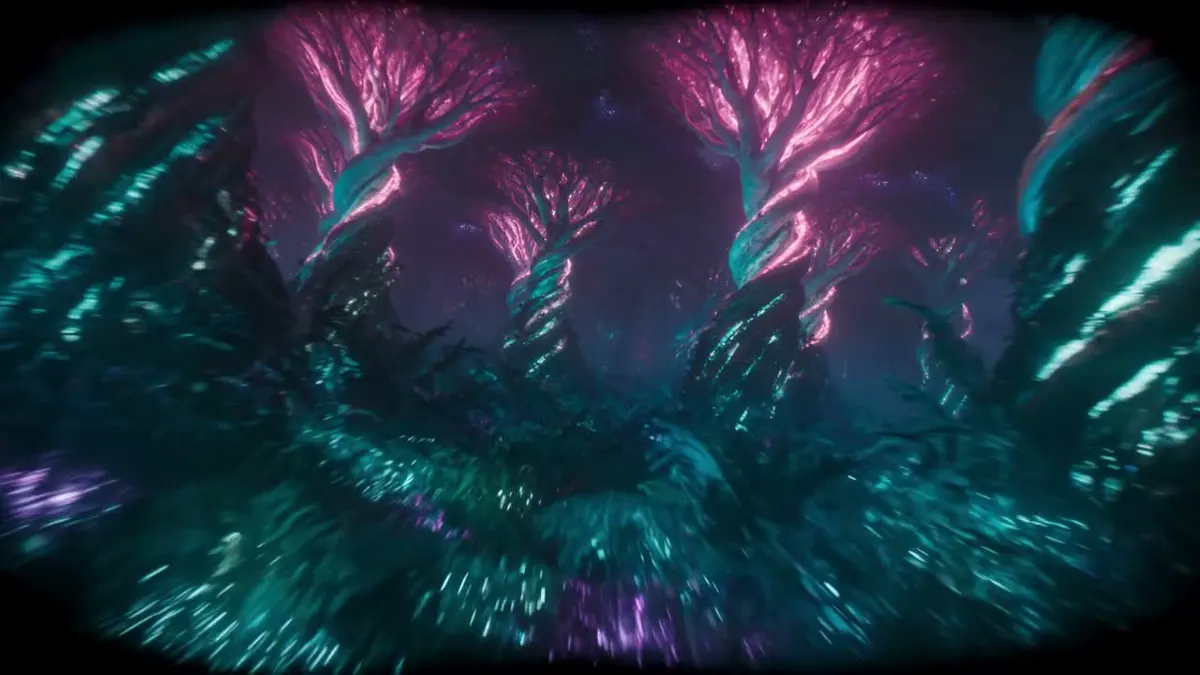
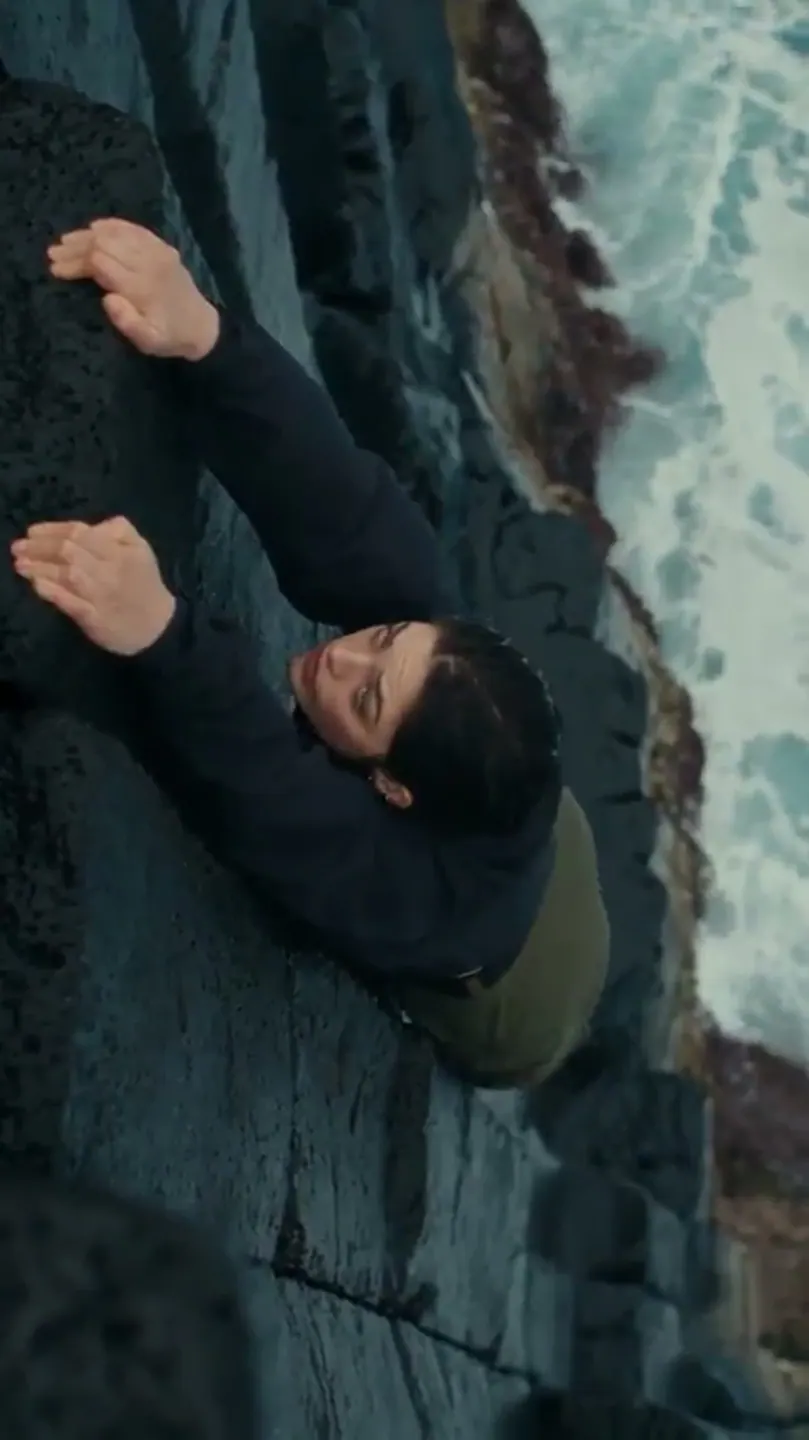
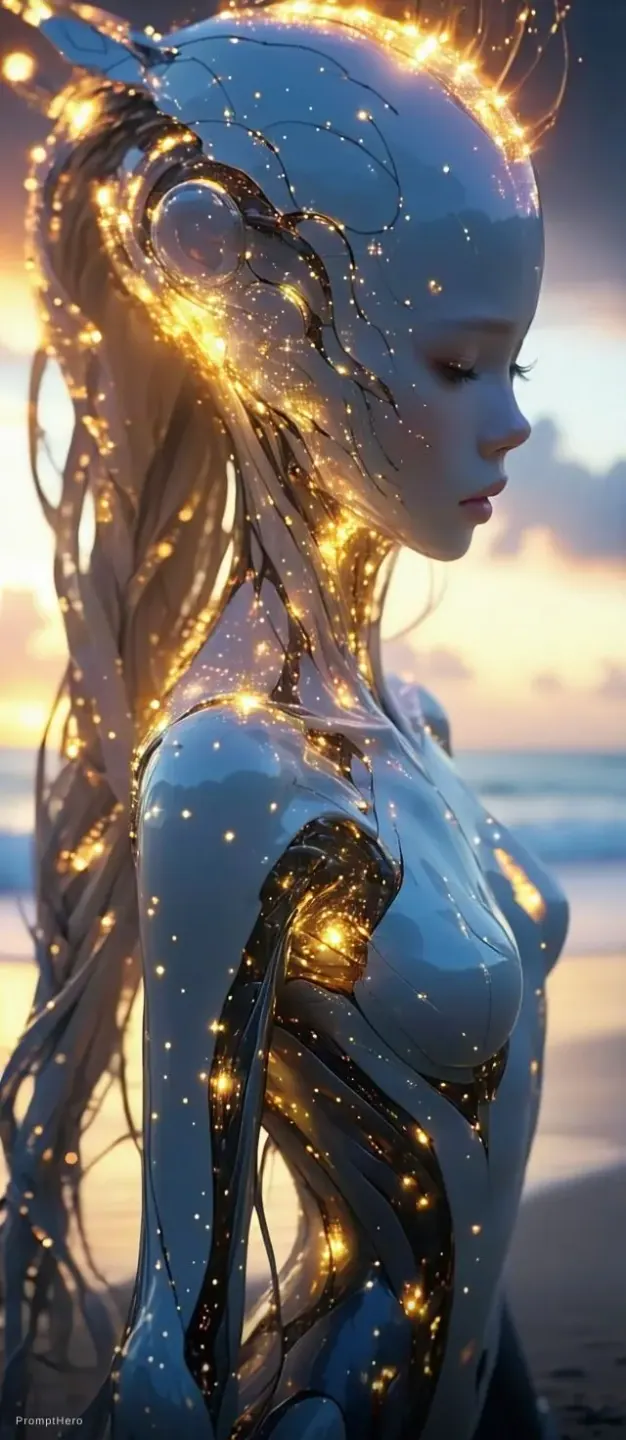
These project images illustrate composition and style, not verified outputs from the selected model.
 Flow AI Video
Example1 / 2
Describe a headline, supporting labels, and the relationship between elements. Keep the amount of text appropriate to the final image size.
Need a hand?
Questions about inputs, output formats, and preparing your next draft.
Contact supportStart from text or add reference images for editing. This interface accepts up to eight references. Describe the subject, layout, and changes, then continue to Create.
The project scenes illustrate creative directions and are not verified outputs from this model. Review your own result for the details that matter to your brief.
No. The button opens Create with your draft and does not submit a paid generation. Review the credit estimate there; an insufficient-credit dialog can take you to pricing.
Basic maps to 1K output and High maps to 2K. These are quality values in the provider request, not a video-resolution setting.
This page integrates text-to-image and image-to-image creation. The provider has a separate layer-decomposition endpoint; that workflow is not exposed here.
Your next idea is one prompt away
Your next shot starts with a prompt or image. Set up your Flow AI Video generation above, check the estimate, and follow its progress in Create.