
01
Compare Wan 3.0 Prime with the standard model
Use the same scene brief to compare the two variants. Check the selected model and credit estimate in Create before submitting.
01Creative reference
Turn a written scene or a starting frame into a product reveal, social clip, or story with Wan 3.0. Compare the Prime variant, choose your shot settings, and carry your draft into Create.
From reference to result
Prepare your brief, choose supported settings, and review the result.
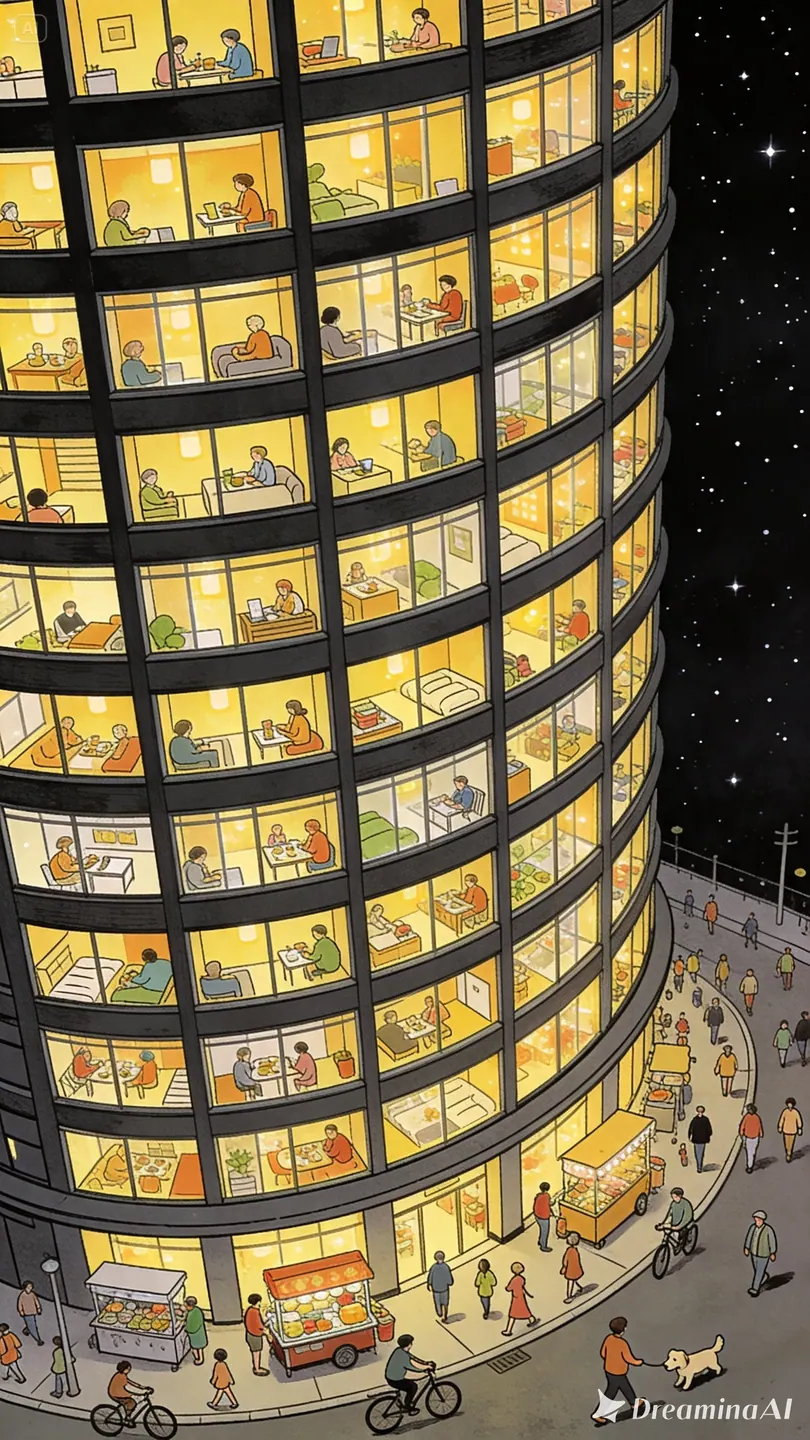 Creative reference
Choose 480p, 720p, or 1080p and a supported duration. Add an image if it helps establish the subject.
Describe the action, camera movement, and sound.
Open Create with your draft. Review inputs, settings, and credits before submitting a generation.
Explore more options in AI Video Generator. Return to the homepage.
A clearer brief, a more deliberate first take
Describe one action, the camera move, and the final frame. A longer shot can make room for a gradual reveal; a shorter one can focus on a single gesture.
01
Use the same scene brief to compare the two variants. Check the selected model and credit estimate in Create before submitting.
02
Choose 2–30 seconds for a scene without video input. A slow reveal needs different timing from a quick social hook; select a duration that matches your brief.
03
Work with 480p, 720p, or 1080p output. Review the credit estimate before generating and use consistent settings when comparing takes.
04
Describe atmosphere, speech, or effects alongside the visual action. Review the generated sound and picture together before using a clip in your project.
One clip, one creative goal
Start with the destination, then define the subject, style, and details that matter.
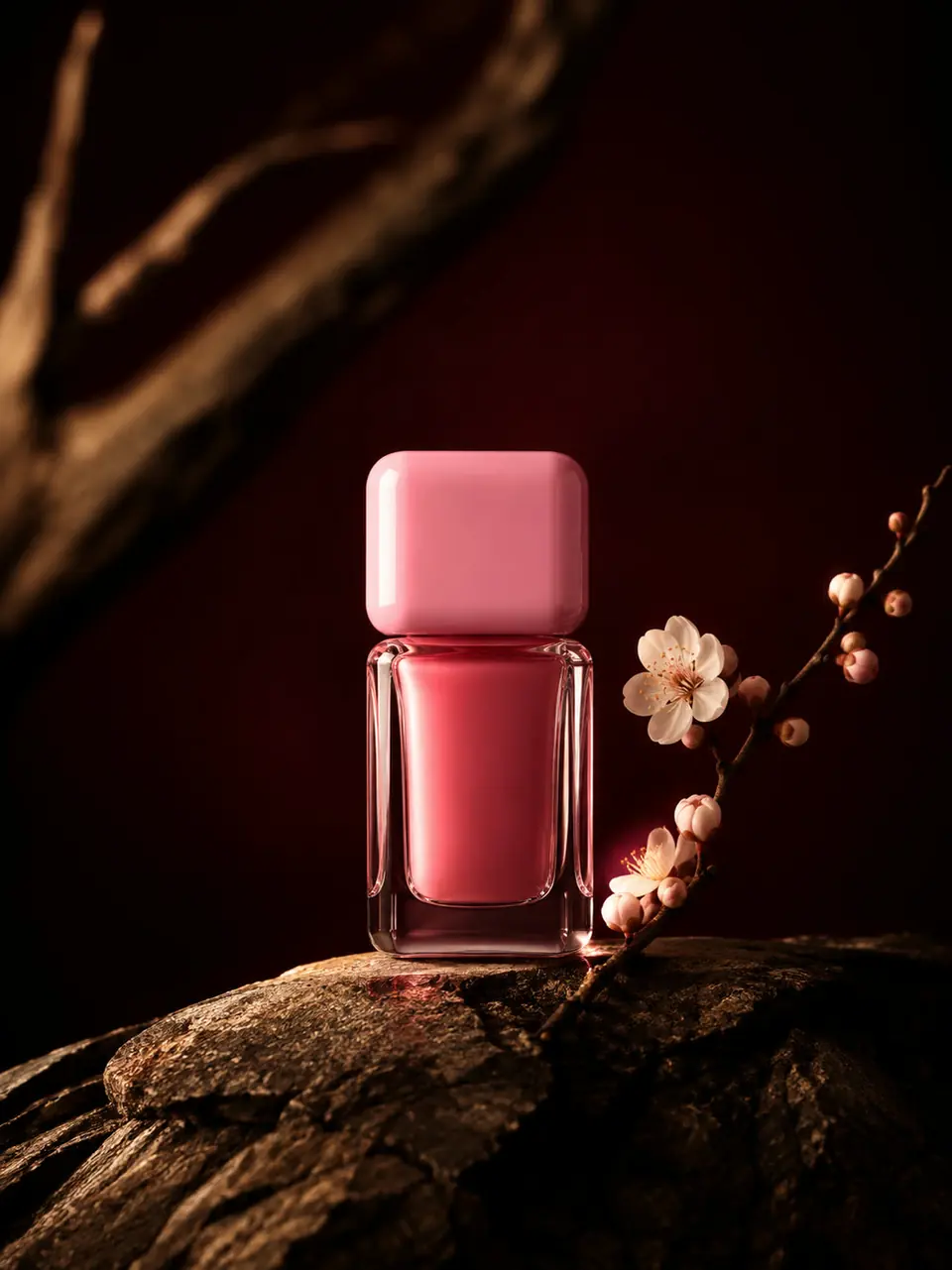
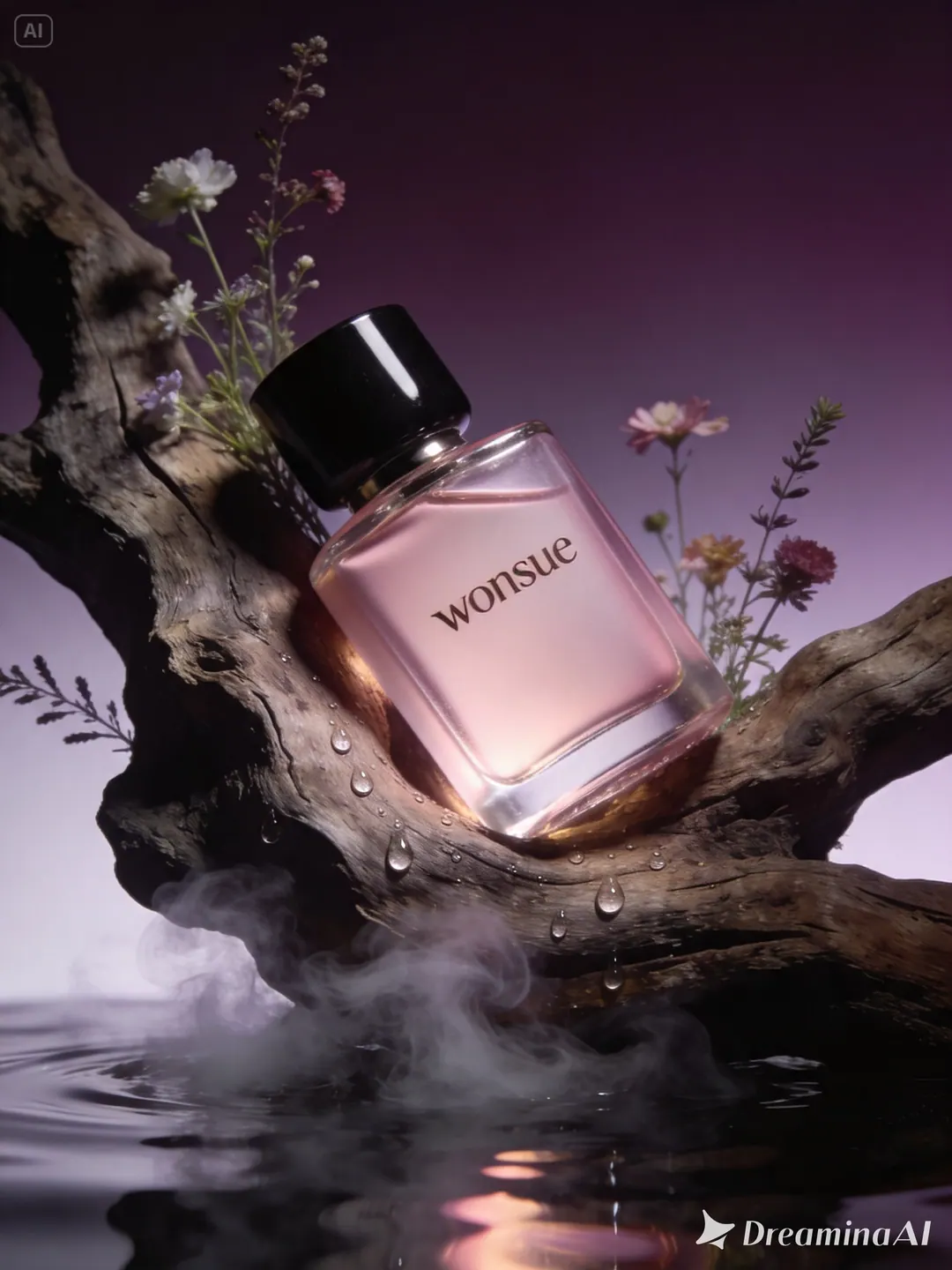
Products and brands
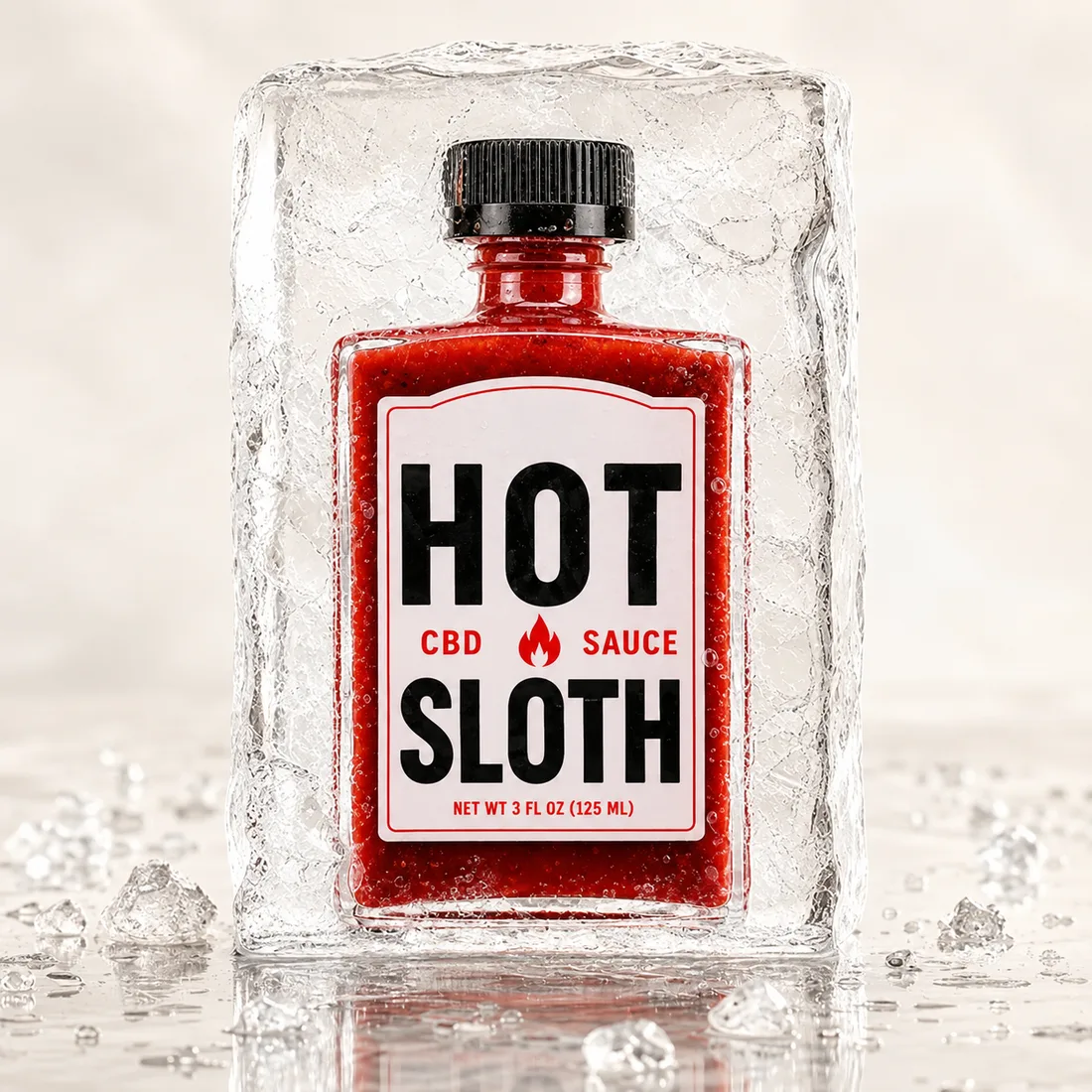
Define the product, setting, and visual treatment, then review the details against your brief.
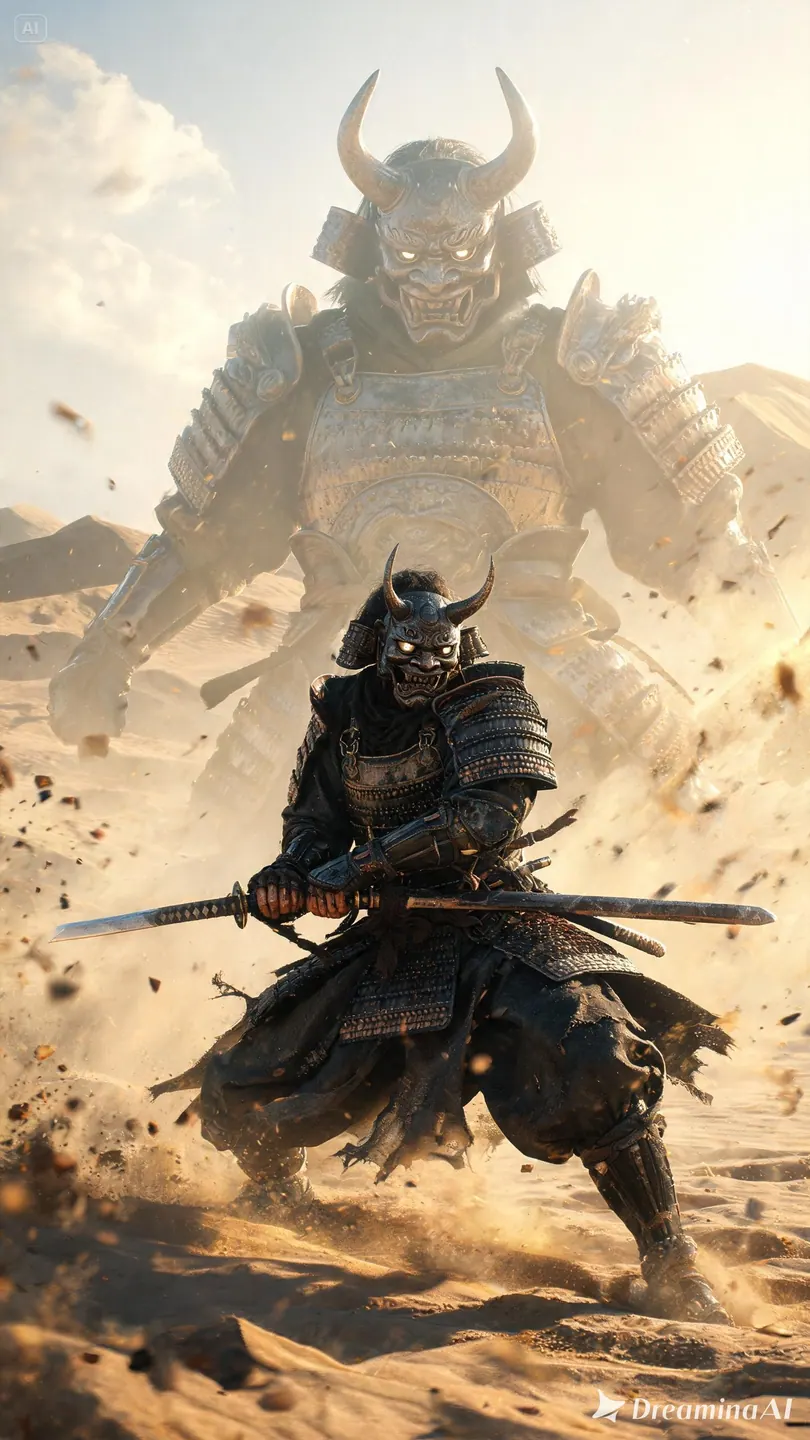
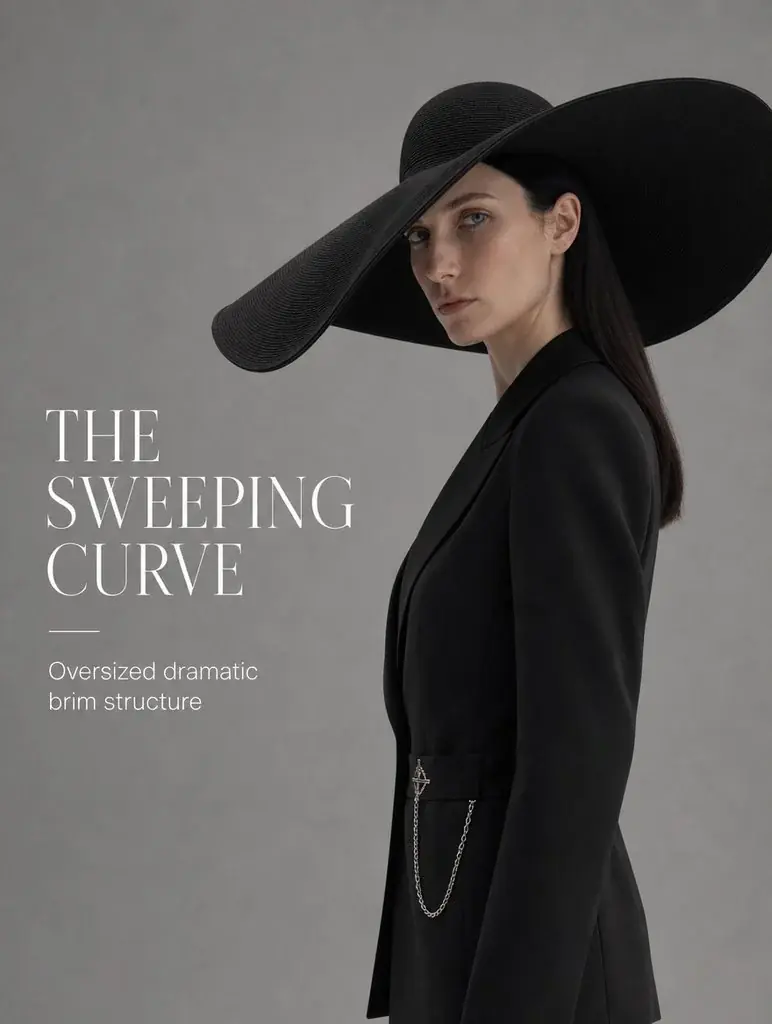
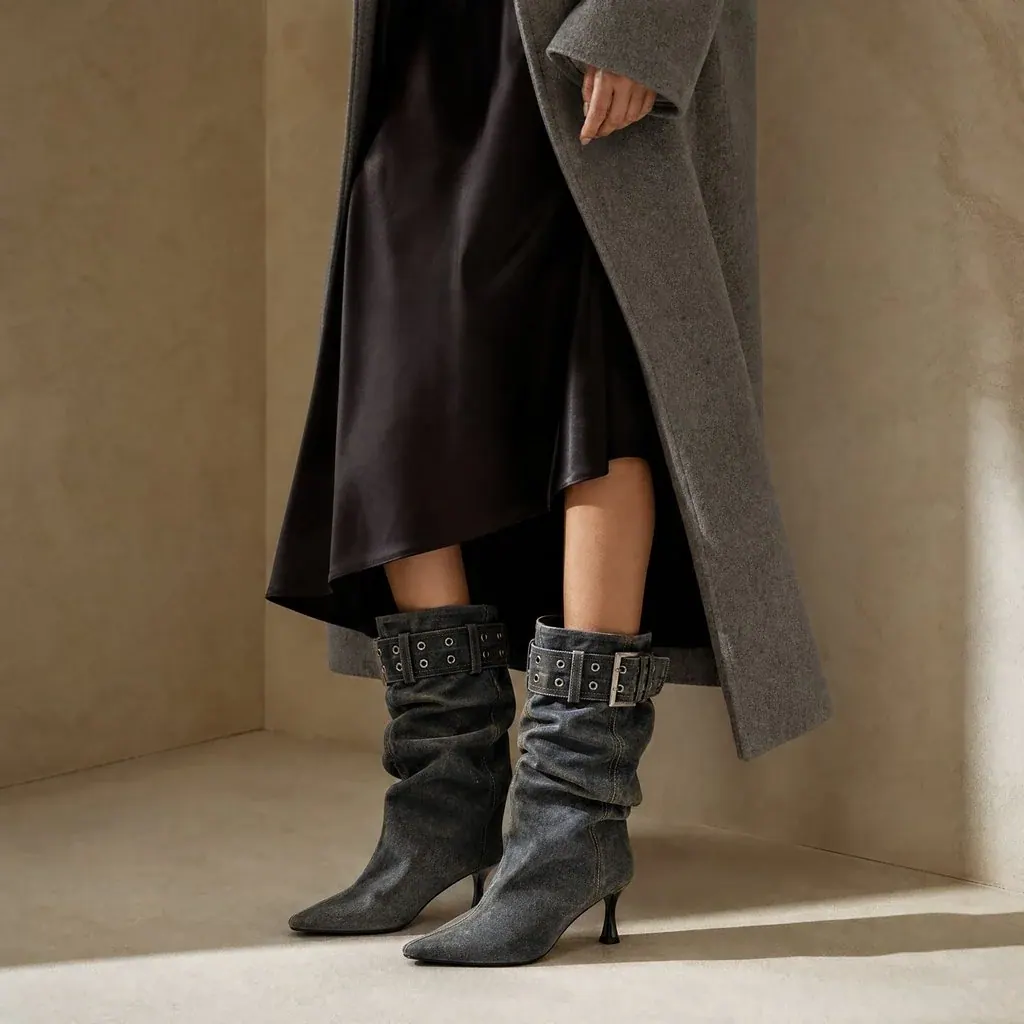
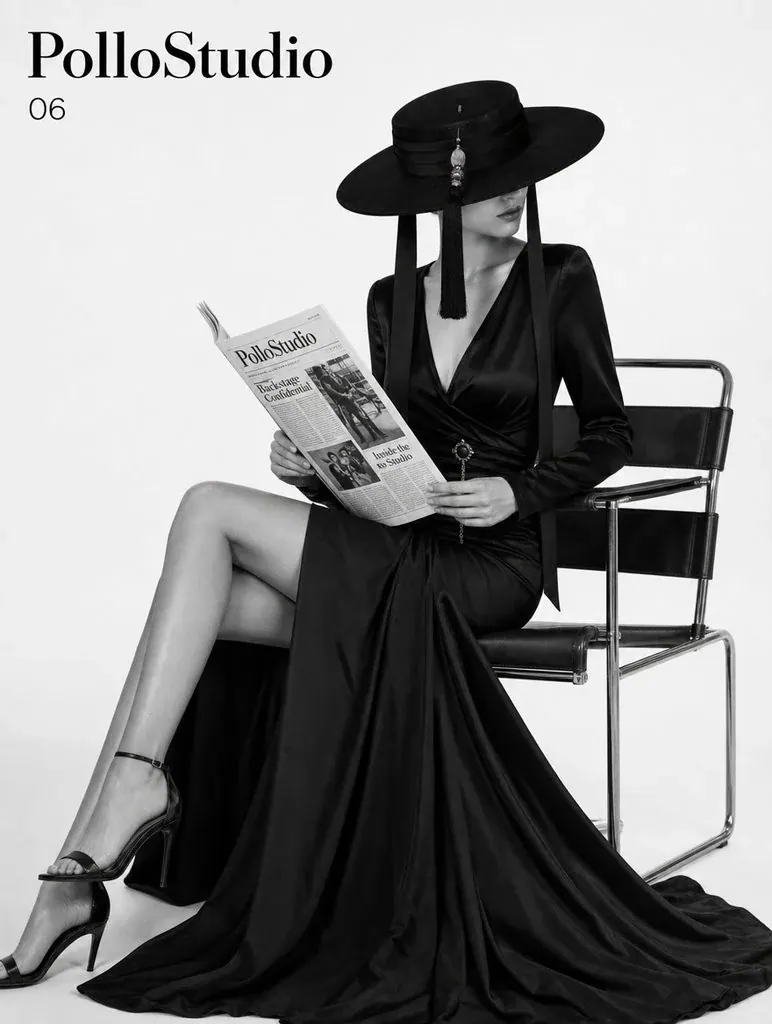
Camera and motion inspiration
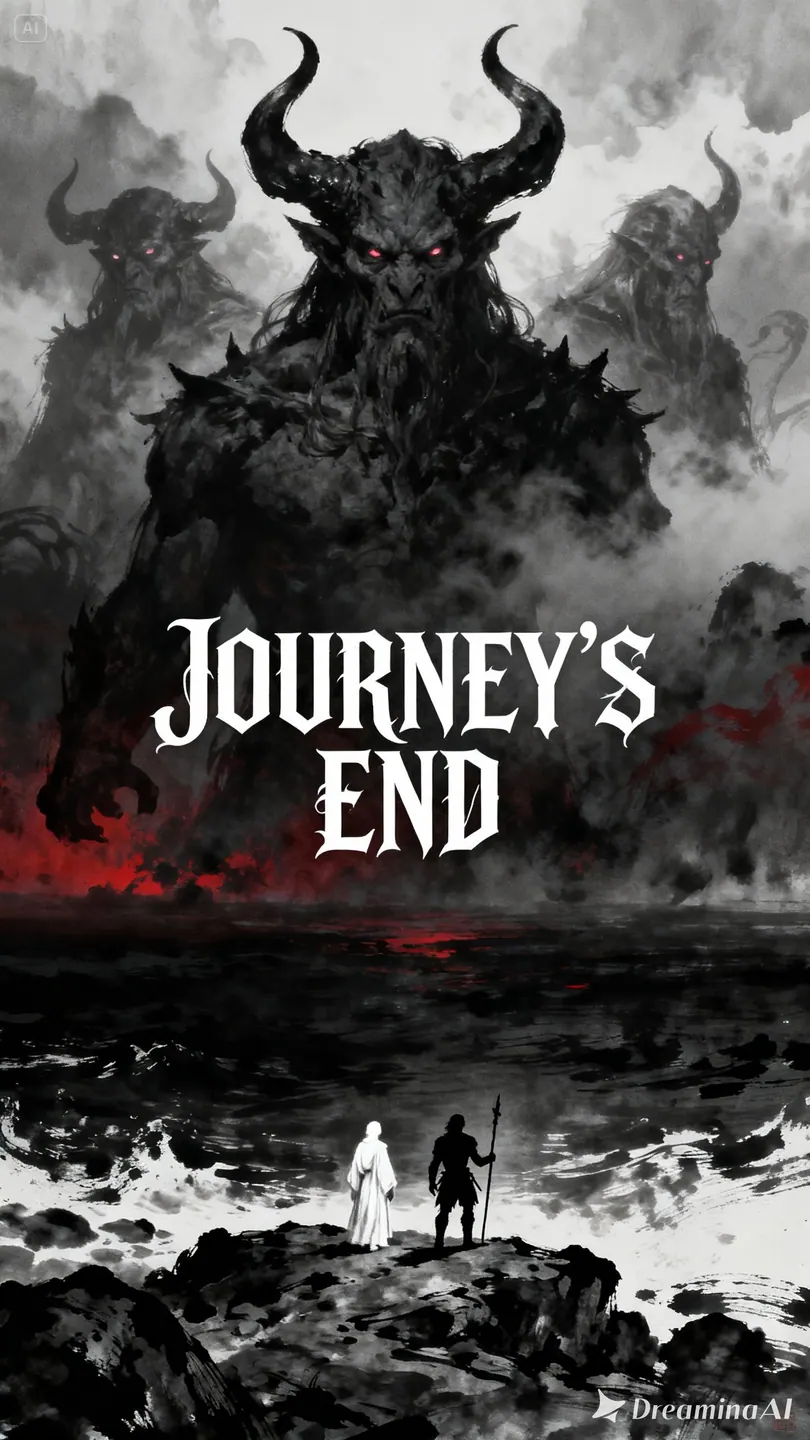
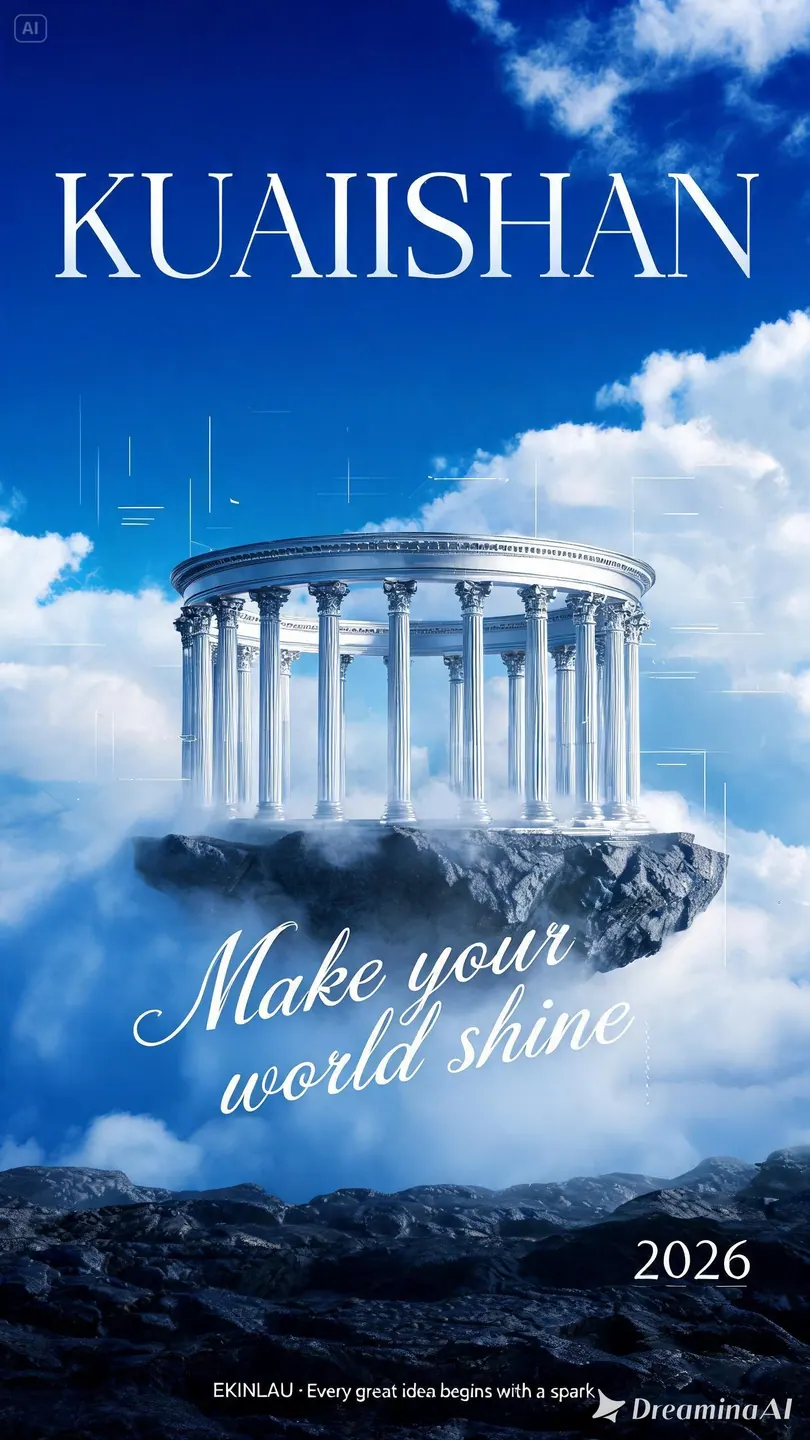
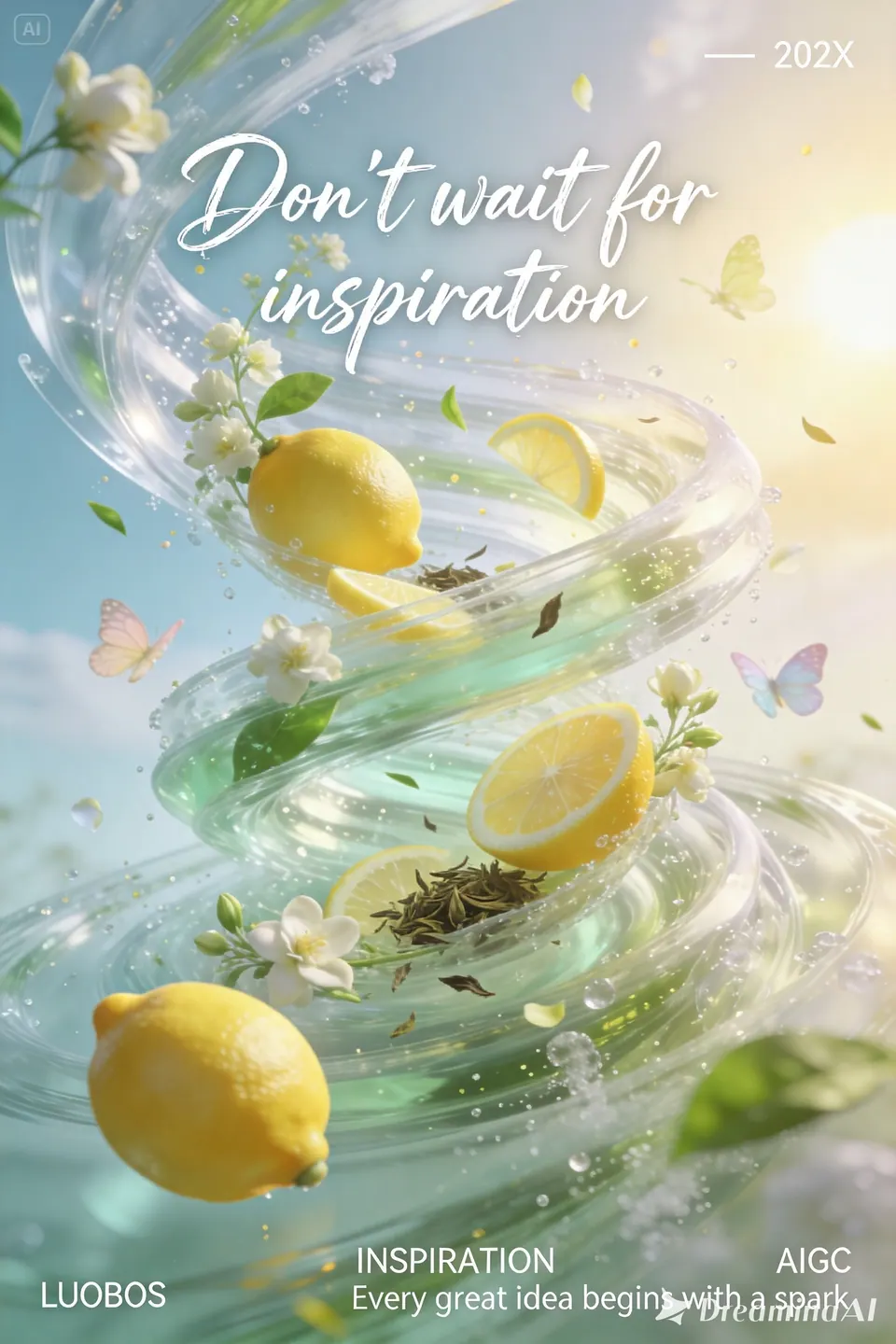
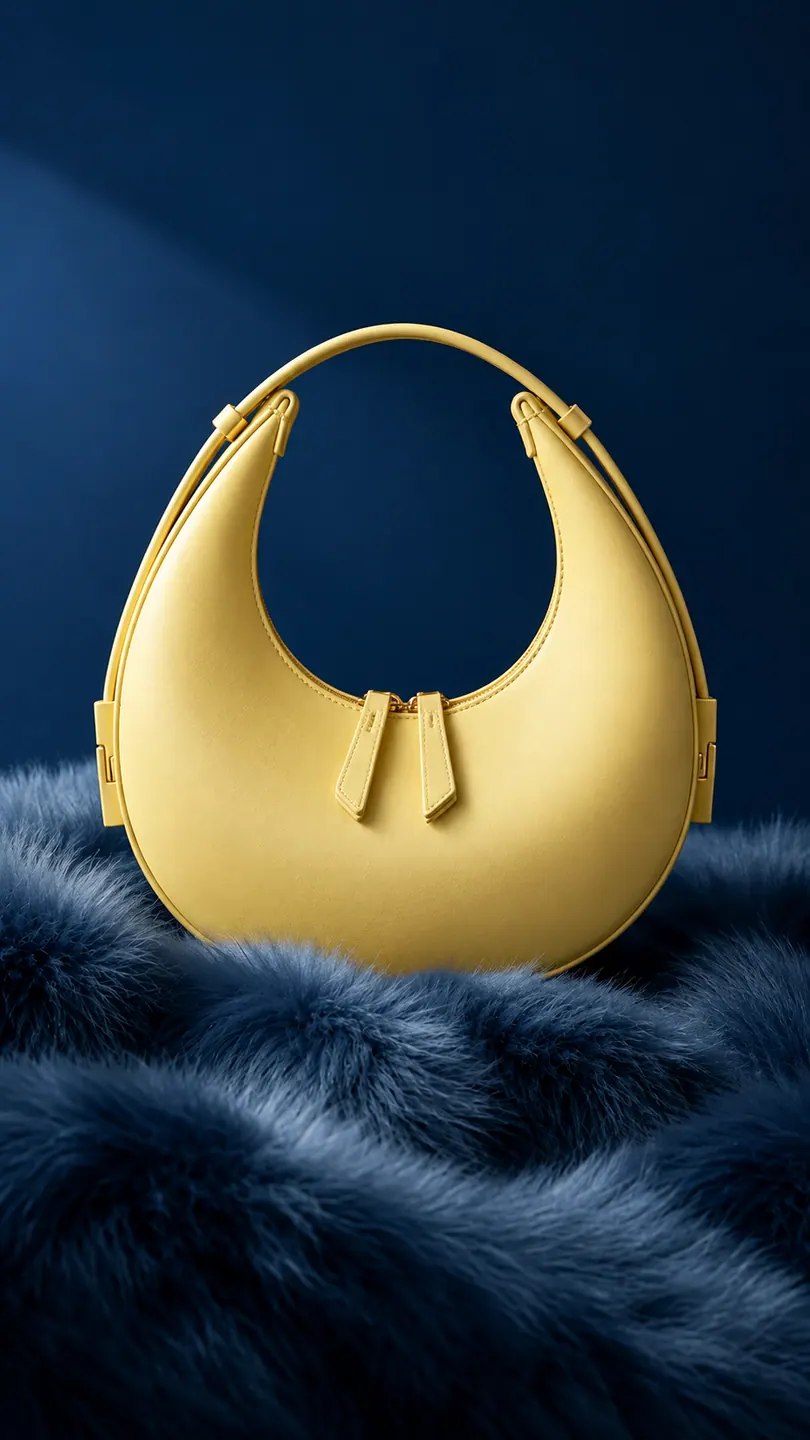
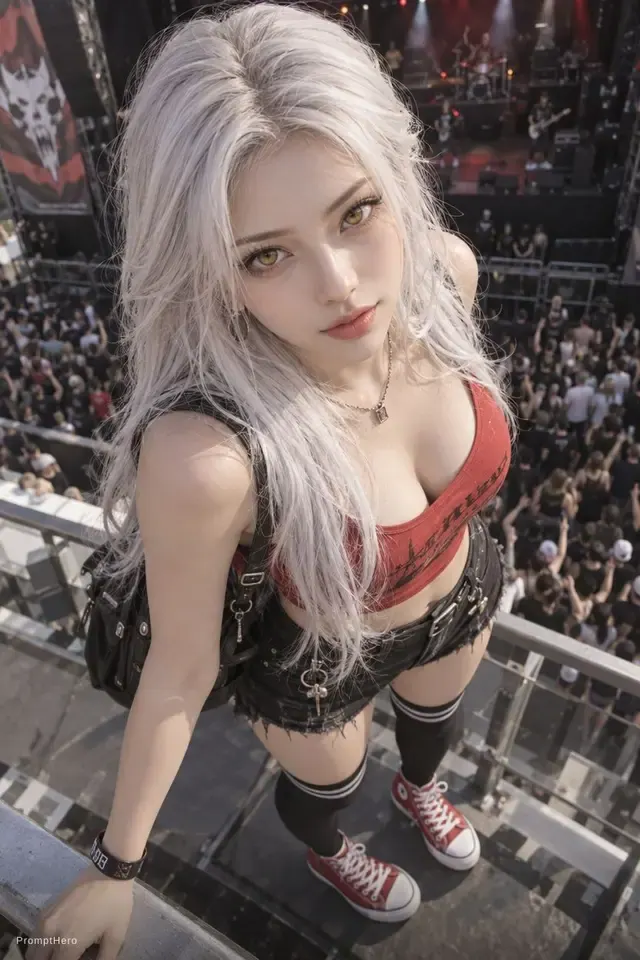
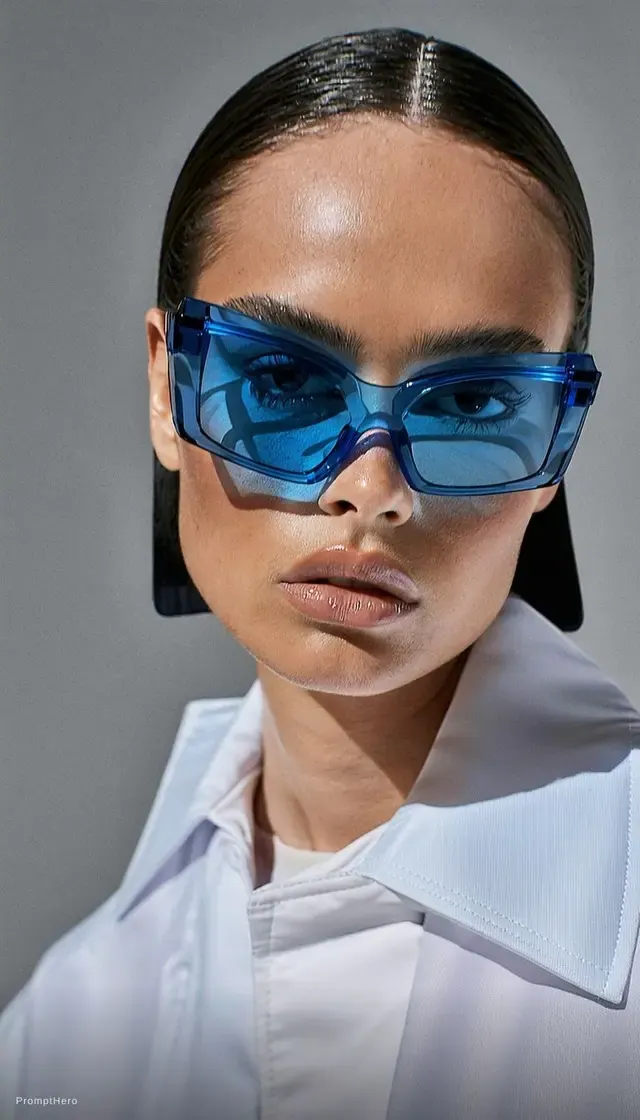
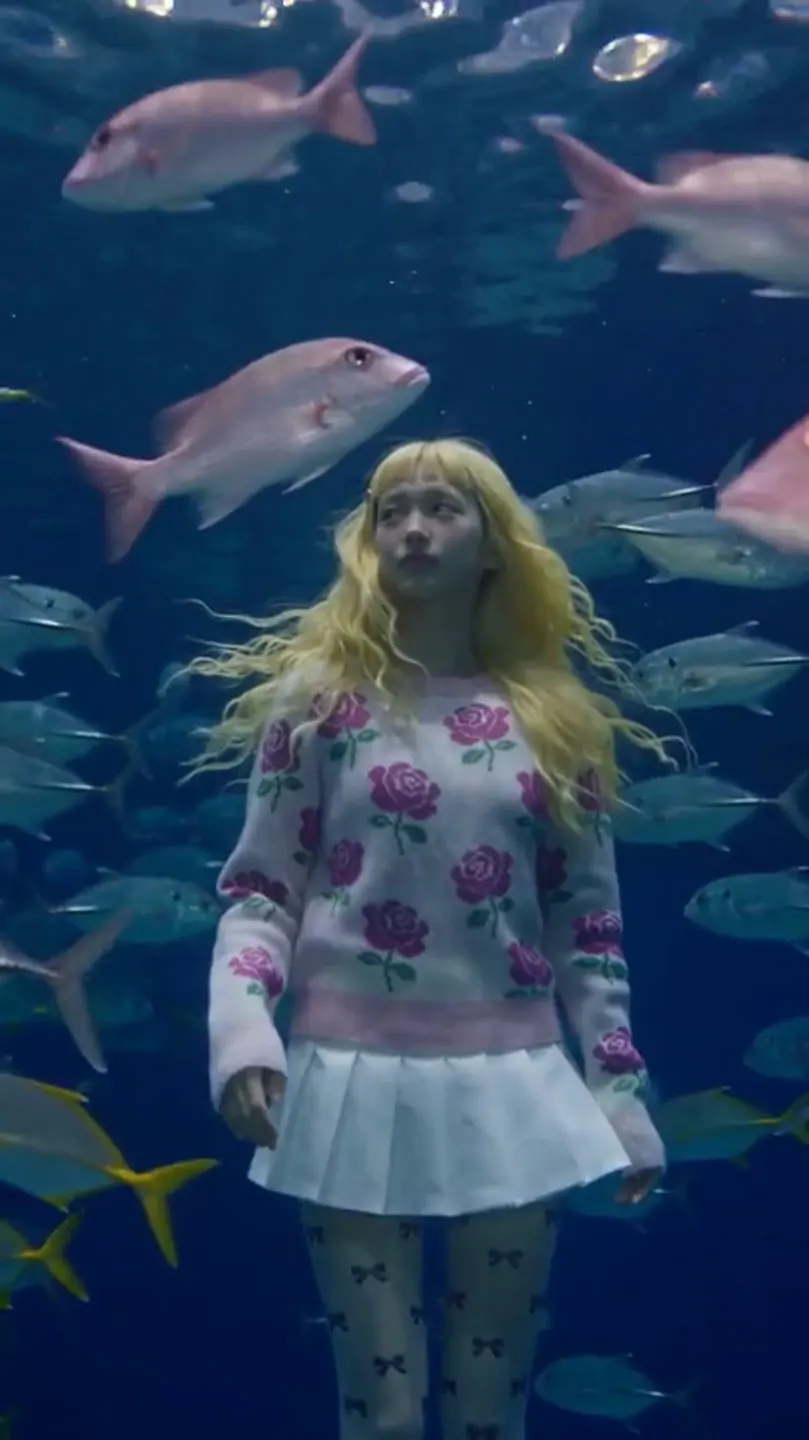
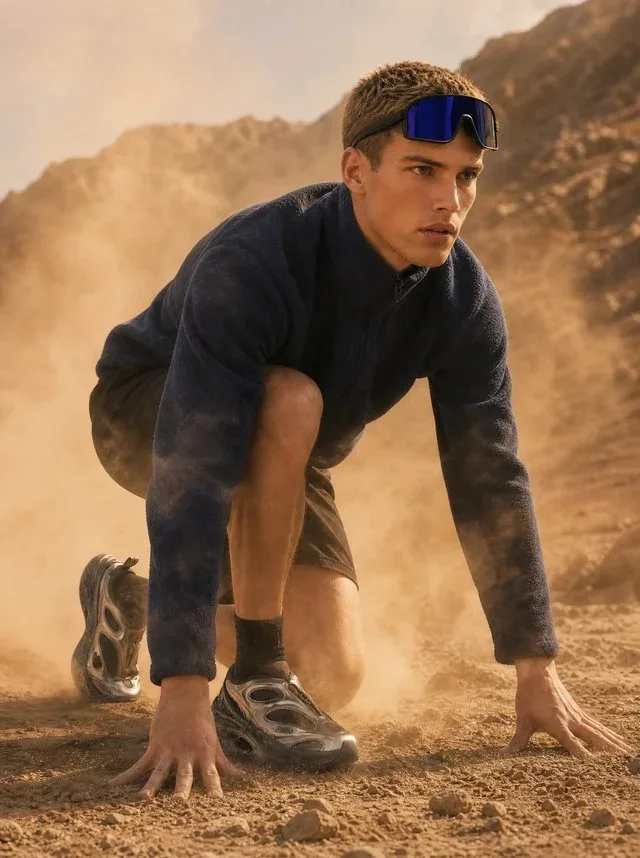
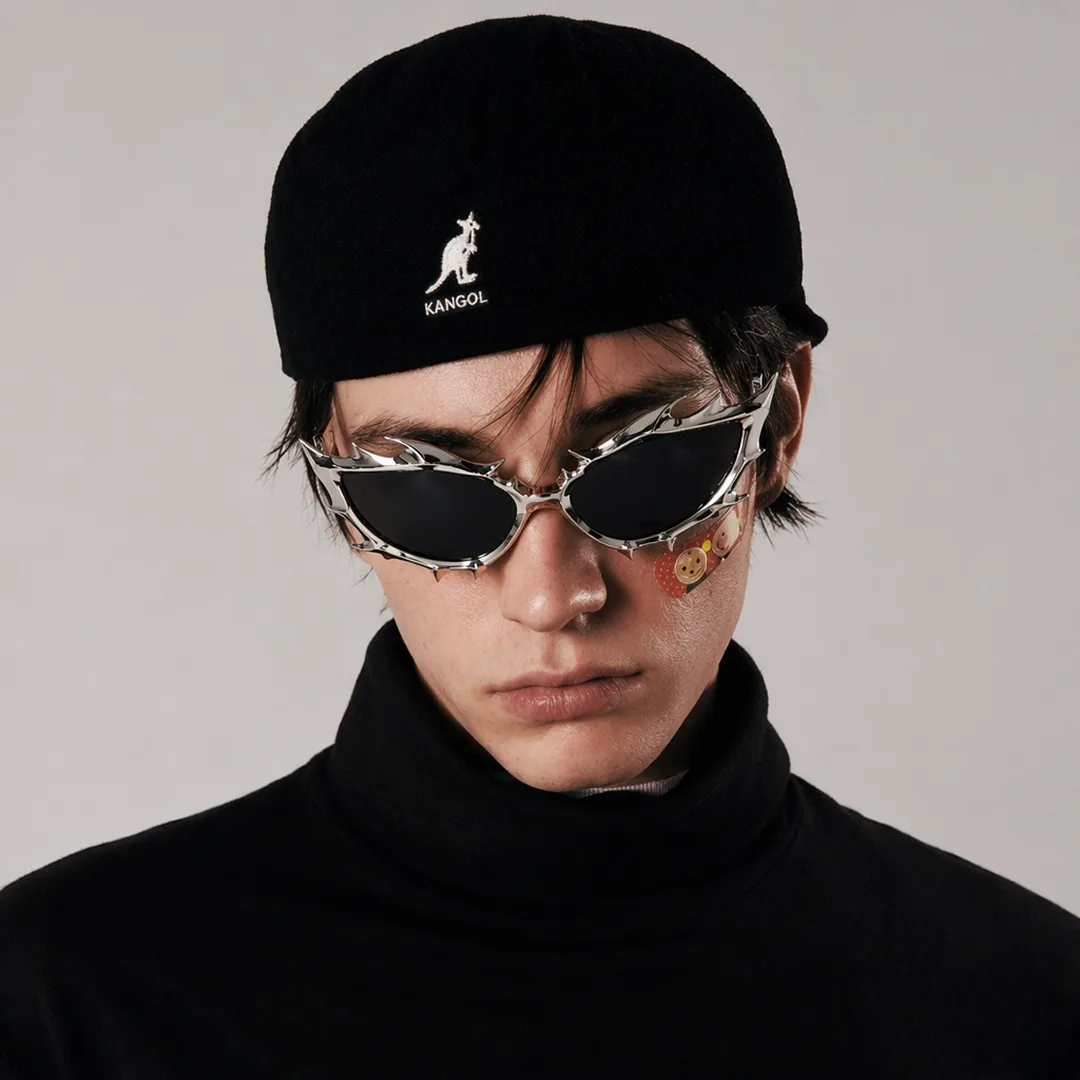
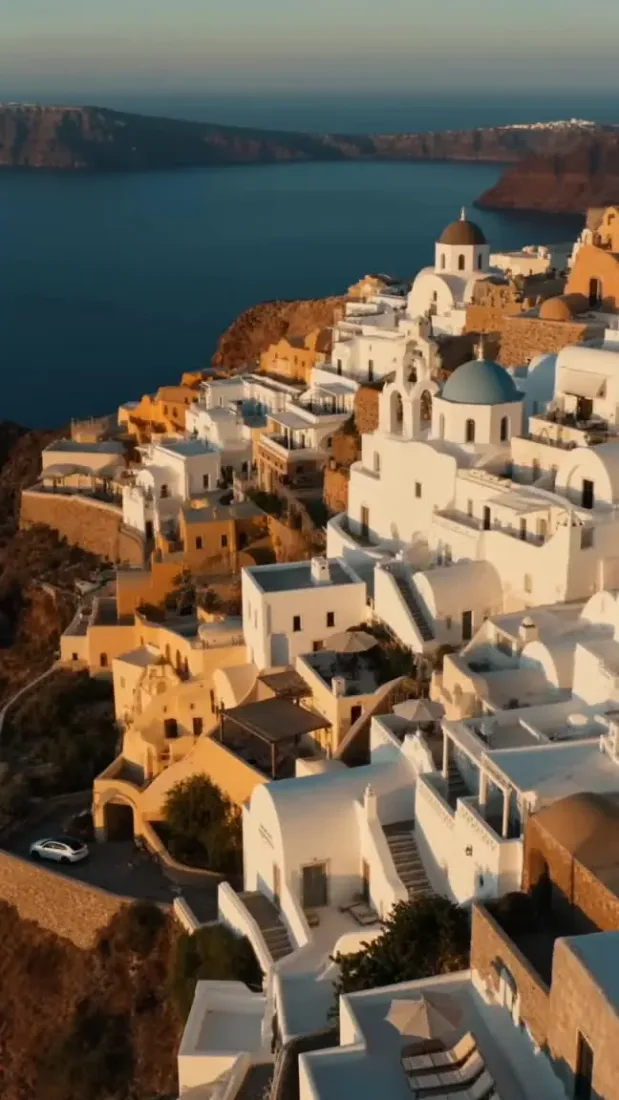
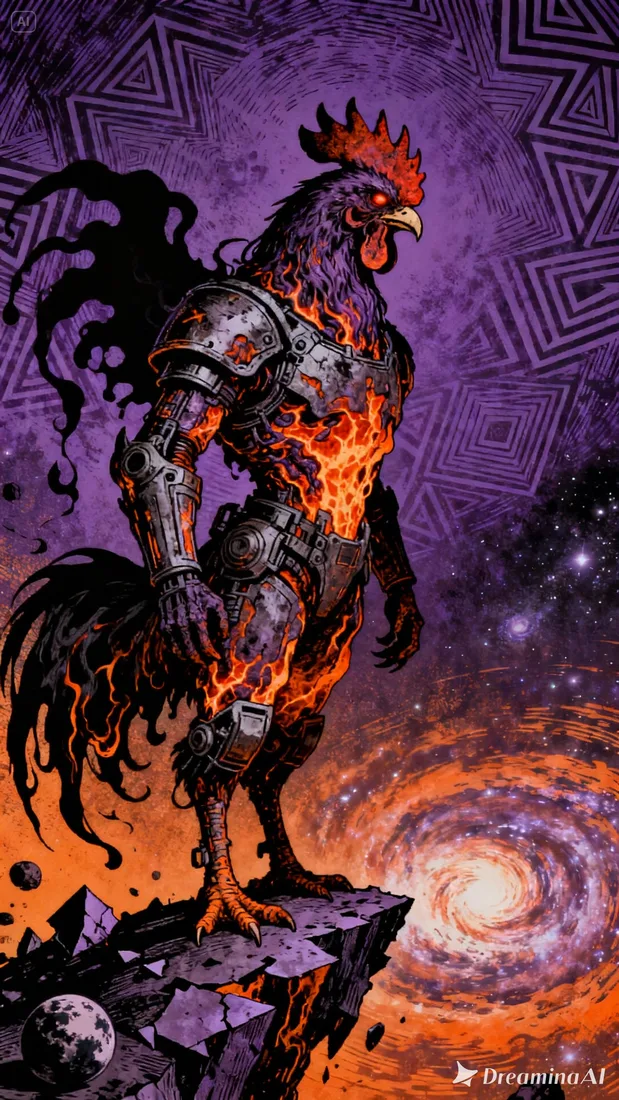
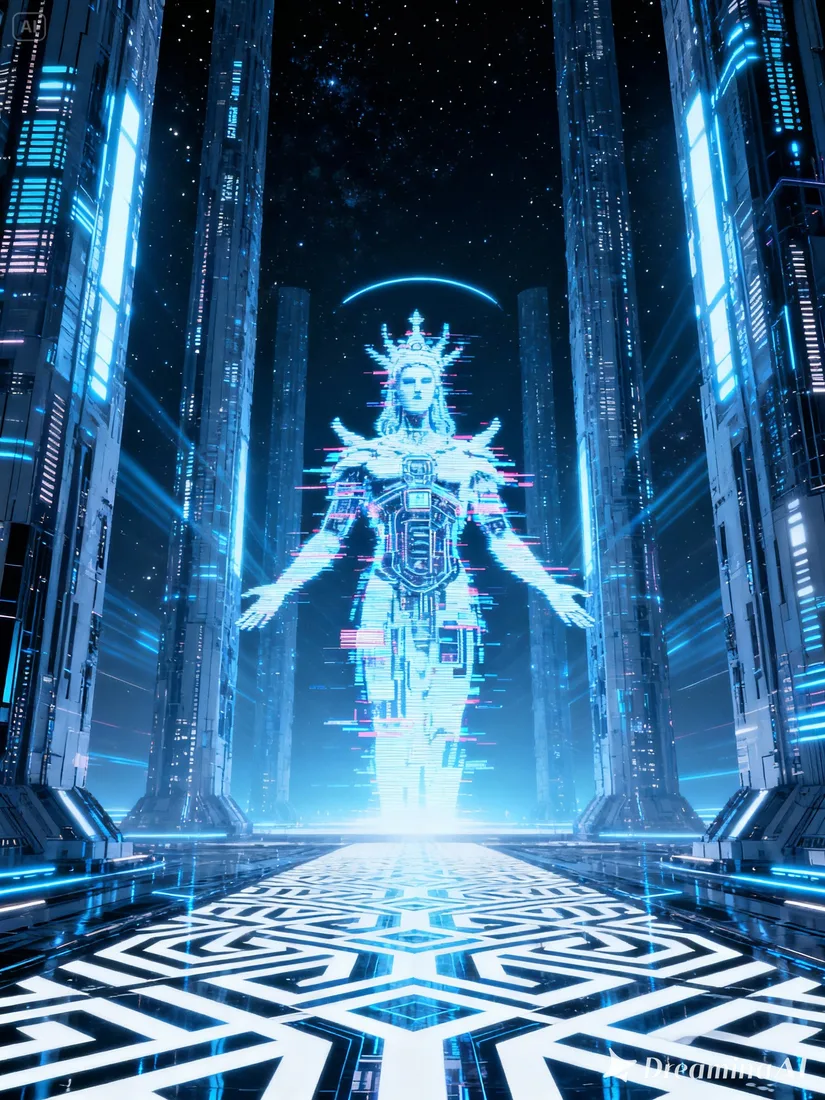
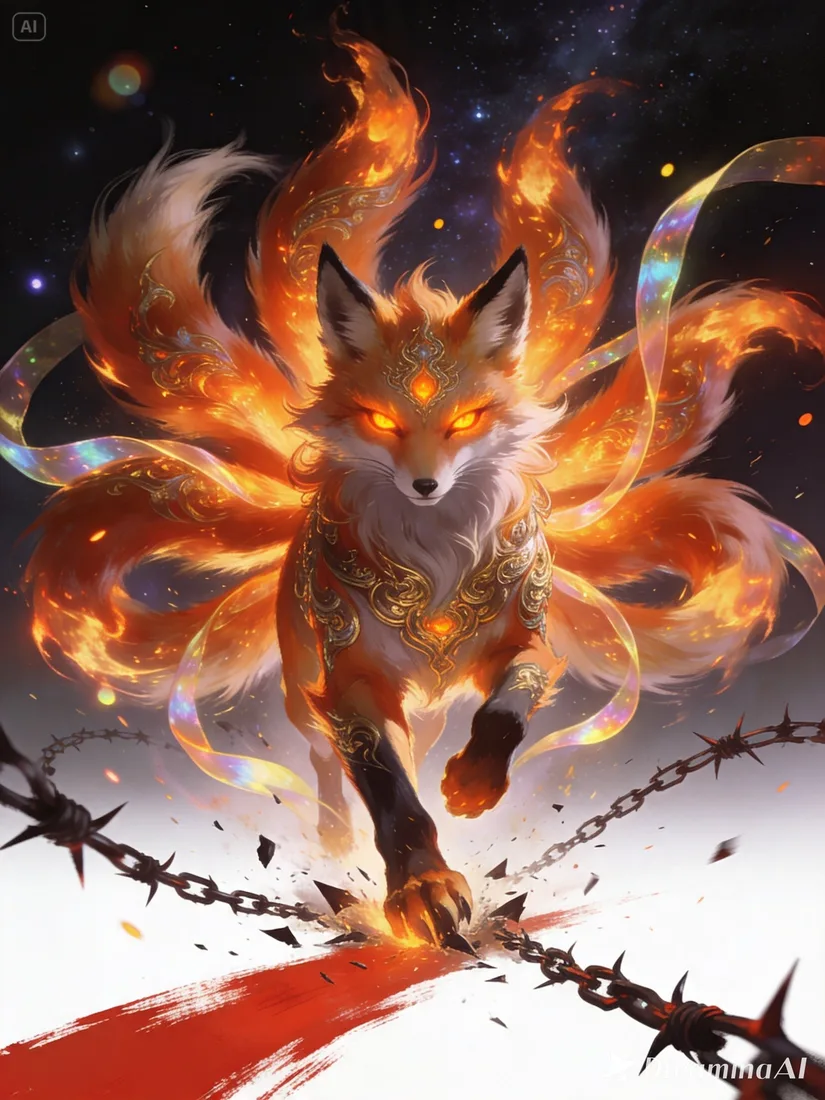
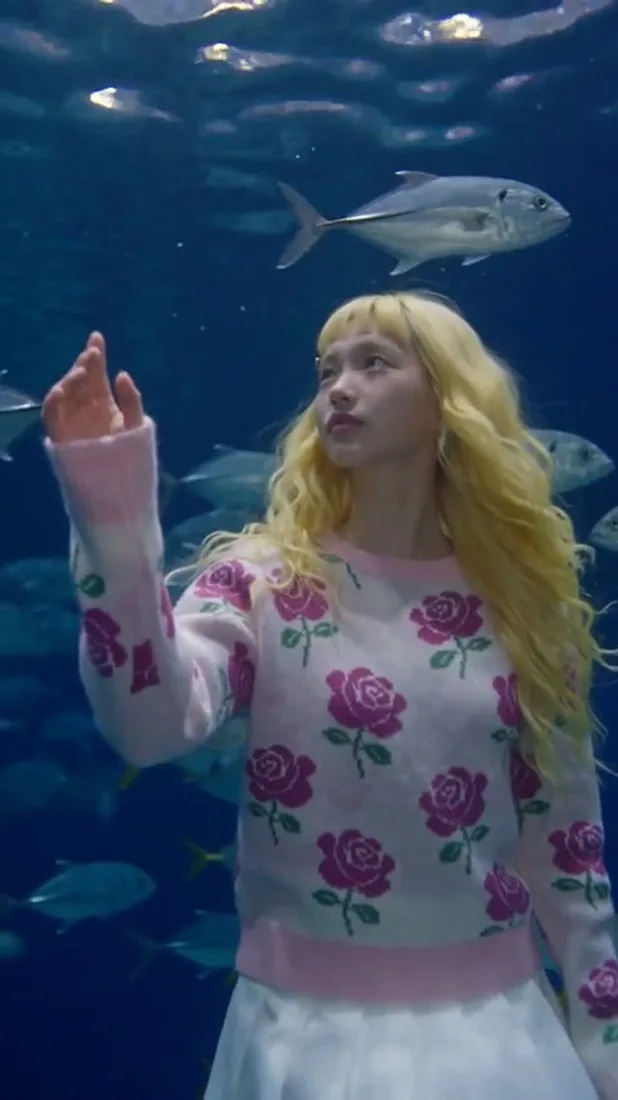
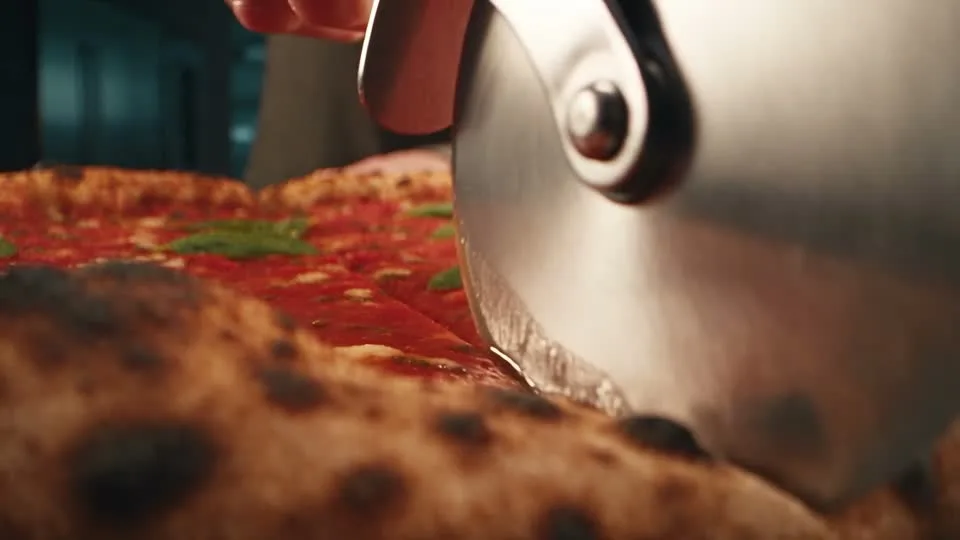
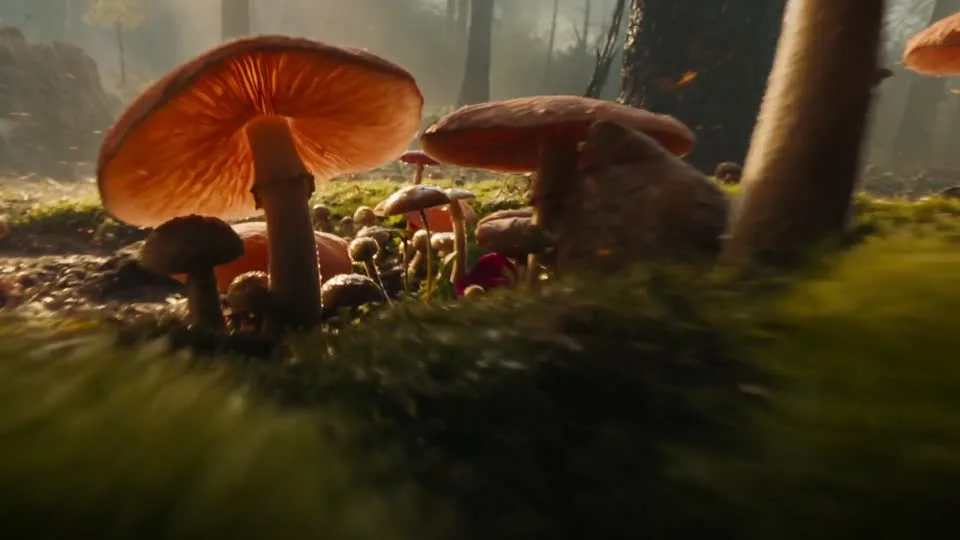
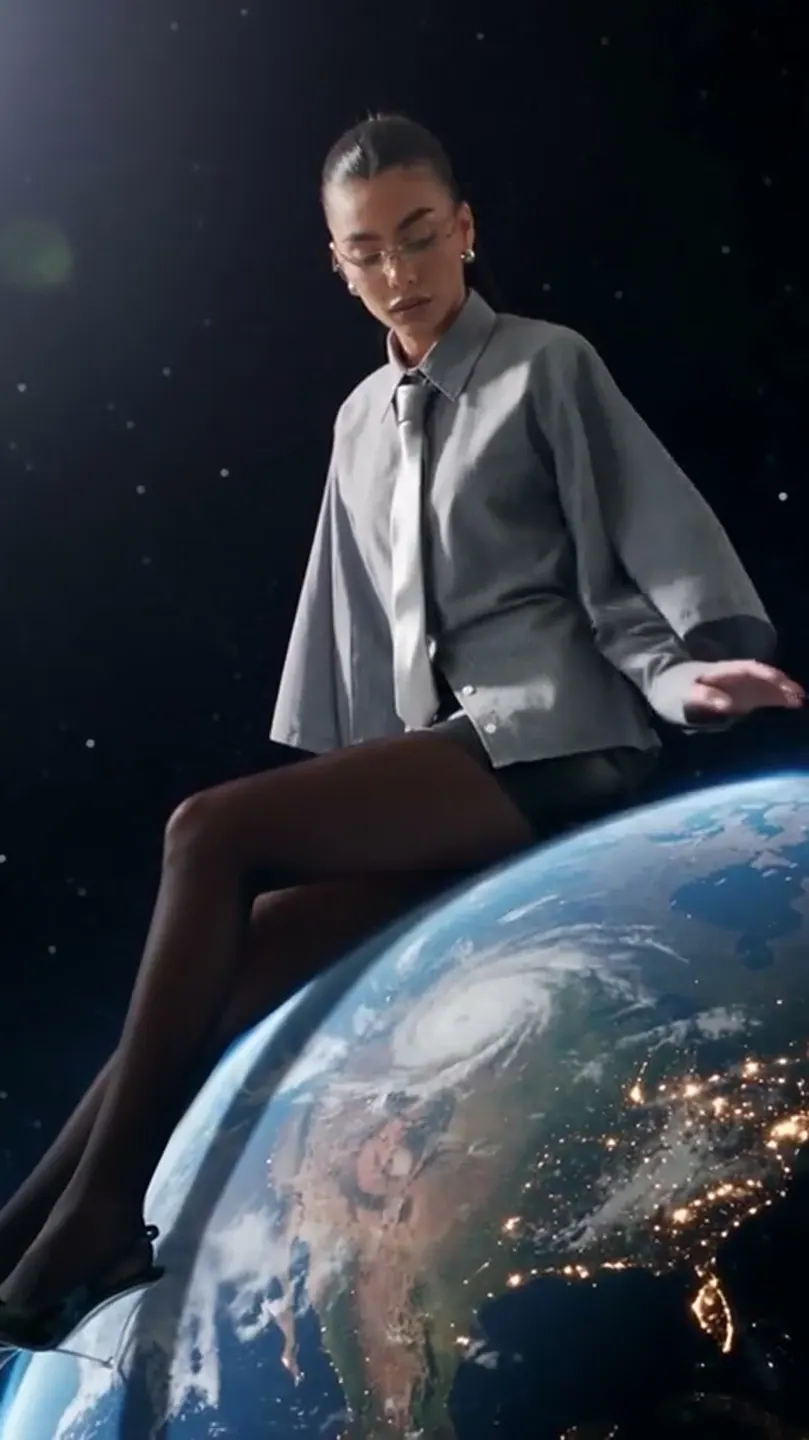
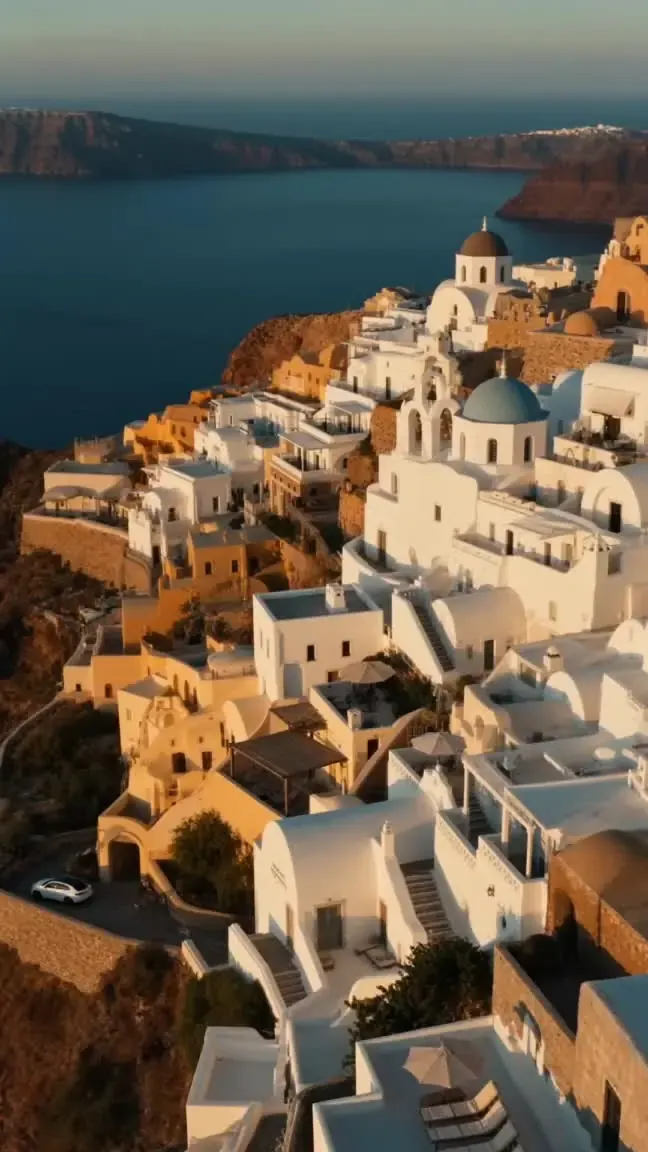
These project images illustrate composition and style, not verified outputs from the selected model.
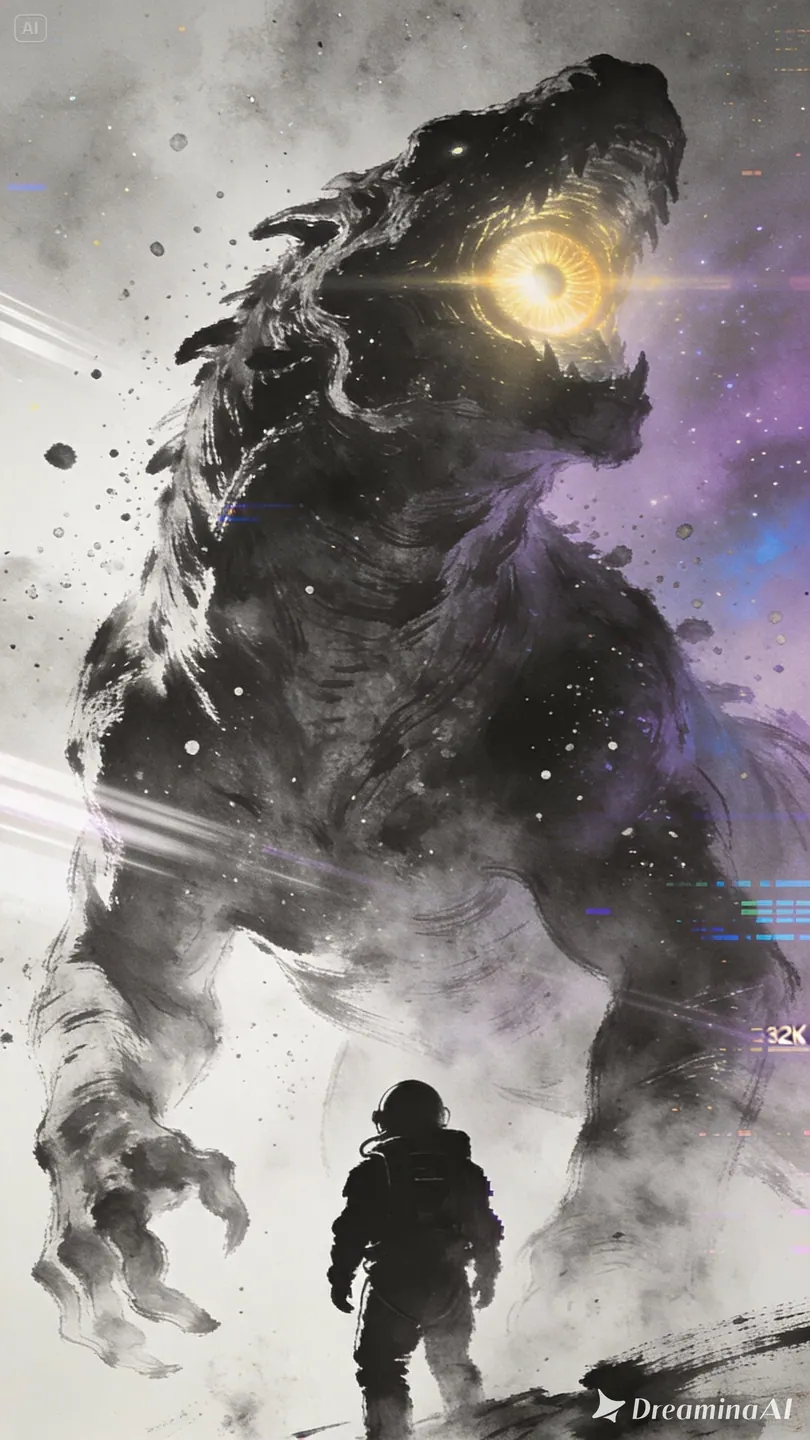 Flow AI Video
Example1 / 2
Describe a new scene or upload a photo to establish its appearance. Give the subject one clear action and explain how the camera should follow it.
Need a hand?
Questions about inputs, output formats, and preparing your next draft.
Contact supportChoose Wan 3.0 or Wan 3.0 Prime, write the scene, and optionally add first and last frames. The generator supports 2–30 seconds without video input and 480p, 720p, or 1080p output.
The project scenes illustrate creative directions and are not verified outputs from this model. Review your own result for the details that matter to your brief.
No. The button opens Create with your draft and does not submit a paid generation. Review the credit estimate there; an insufficient-credit dialog can take you to pricing.
Prime is positioned as a faster variant of the same model family. Both use this page; select a variant before checking its credit estimate. Generation time depends on the task and service load.
This page prepares text and frame-based drafts. Audio files, document inputs, webpage inputs, and automatic duration are not exposed here. Reference-video workflows require additional input-duration checks in Create.
Your next idea is one prompt away
Your next shot starts with a prompt or image. Set up your Flow AI Video generation above, check the estimate, and follow its progress in Create.