
01
Plan one clear shot
Describe the subject, the action, and the final view. This workflow prepares a single clip; focus the brief on a product turn, camera move, or short reaction.
01Creative reference
Create a short product shot or social clip with PixVerse V6, or choose V6 Max on the same page. Add text or an image, choose supported settings, and check credits before generating.
From reference to result
Prepare your brief, choose supported settings, and review the result.
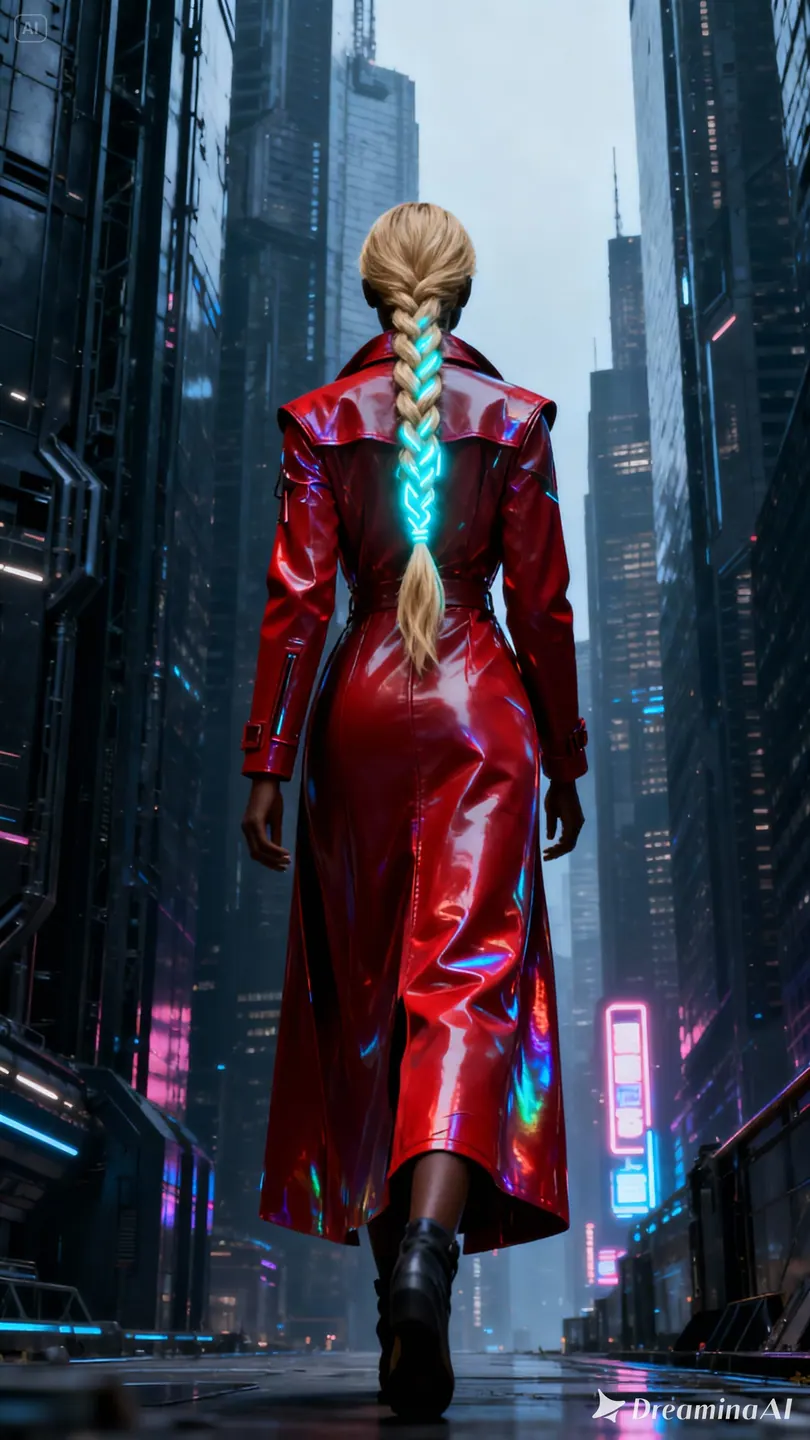 Creative reference
Select the duration, aspect ratio, and 360p, 540p, 720p, or 1080p output. Add a reference image when needed.
Describe the action, camera movement, and sound.
Open Create with your draft. Review inputs, settings, and credits before submitting a generation.
Explore more options in AI Video Generator. Return to the homepage.
A clearer brief, a more deliberate first take
Give the product one clear movement and keep the camera direction simple. Use up to two reference images to guide the appearance, then describe the action you want to explore.
01
Describe the subject, the action, and the final view. This workflow prepares a single clip; focus the brief on a product turn, camera move, or short reaction.
02
Upload a reference and describe what moves while keeping the main subject recognizable. Use a deliberate camera move rather than several competing directions.
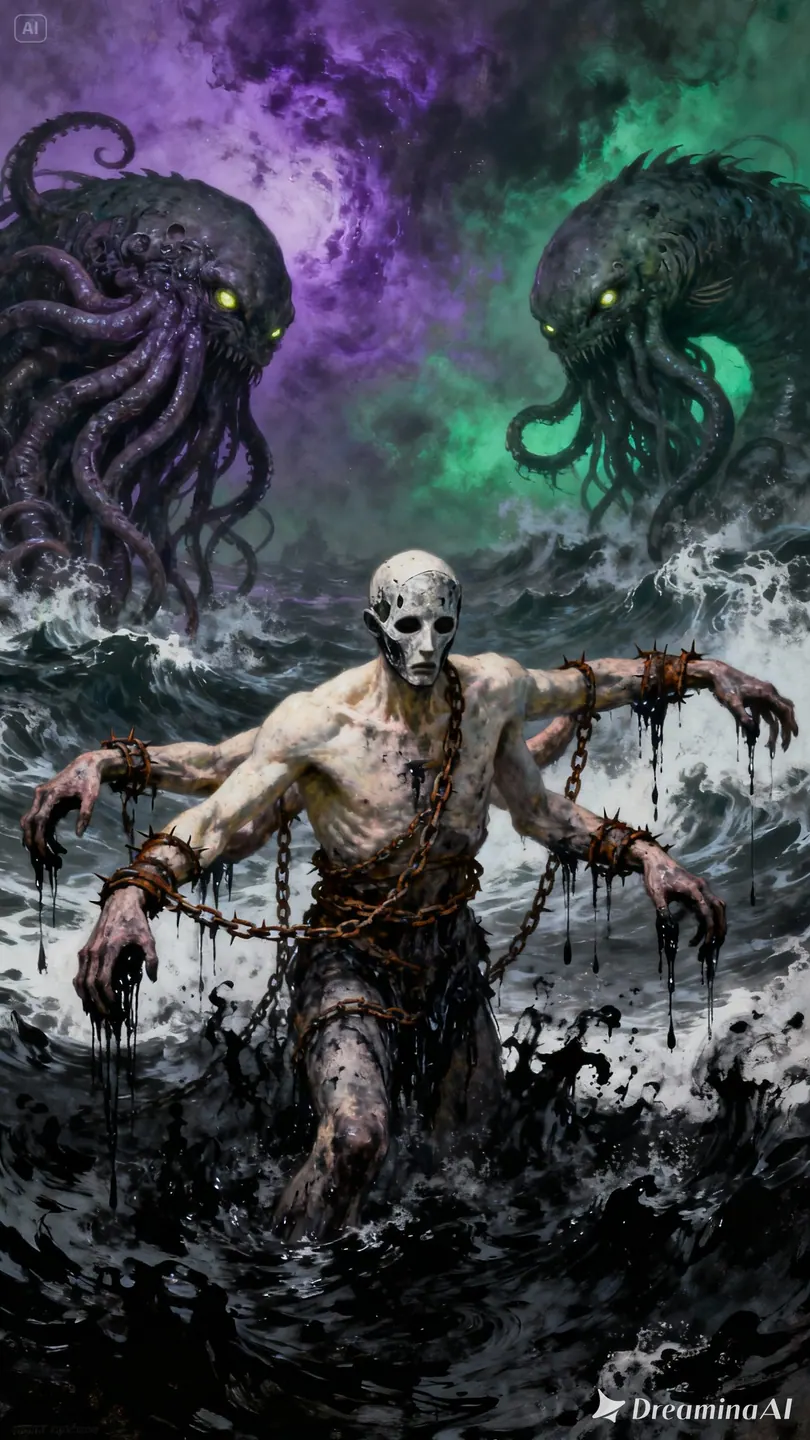
03
Describe the sound of the setting alongside the visual action. Check the generated audio before placing the clip into an edit.
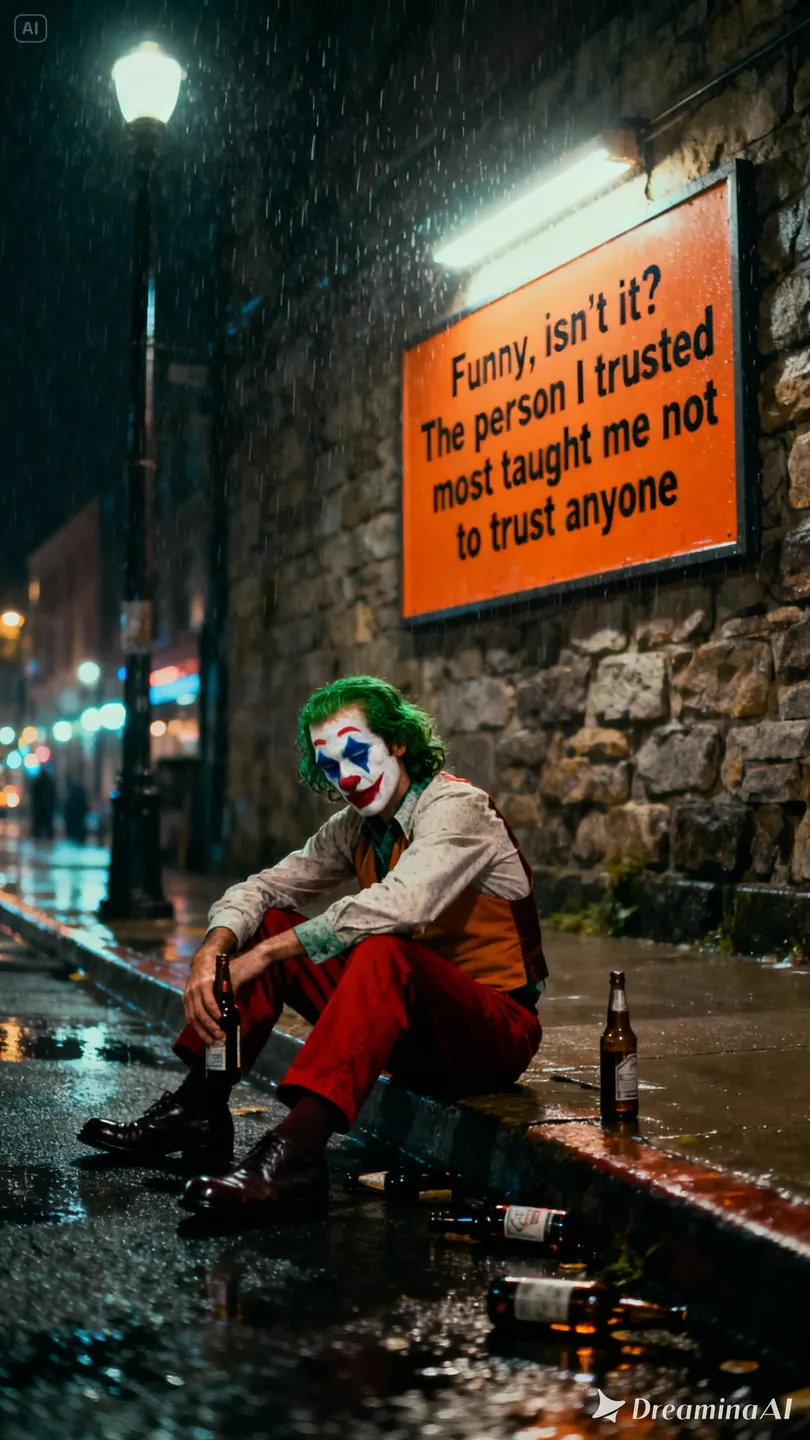
04
Select 360p, 540p, 720p, or 1080p, with clips up to 15 seconds. Review the duration, aspect ratio, and credit estimate together.
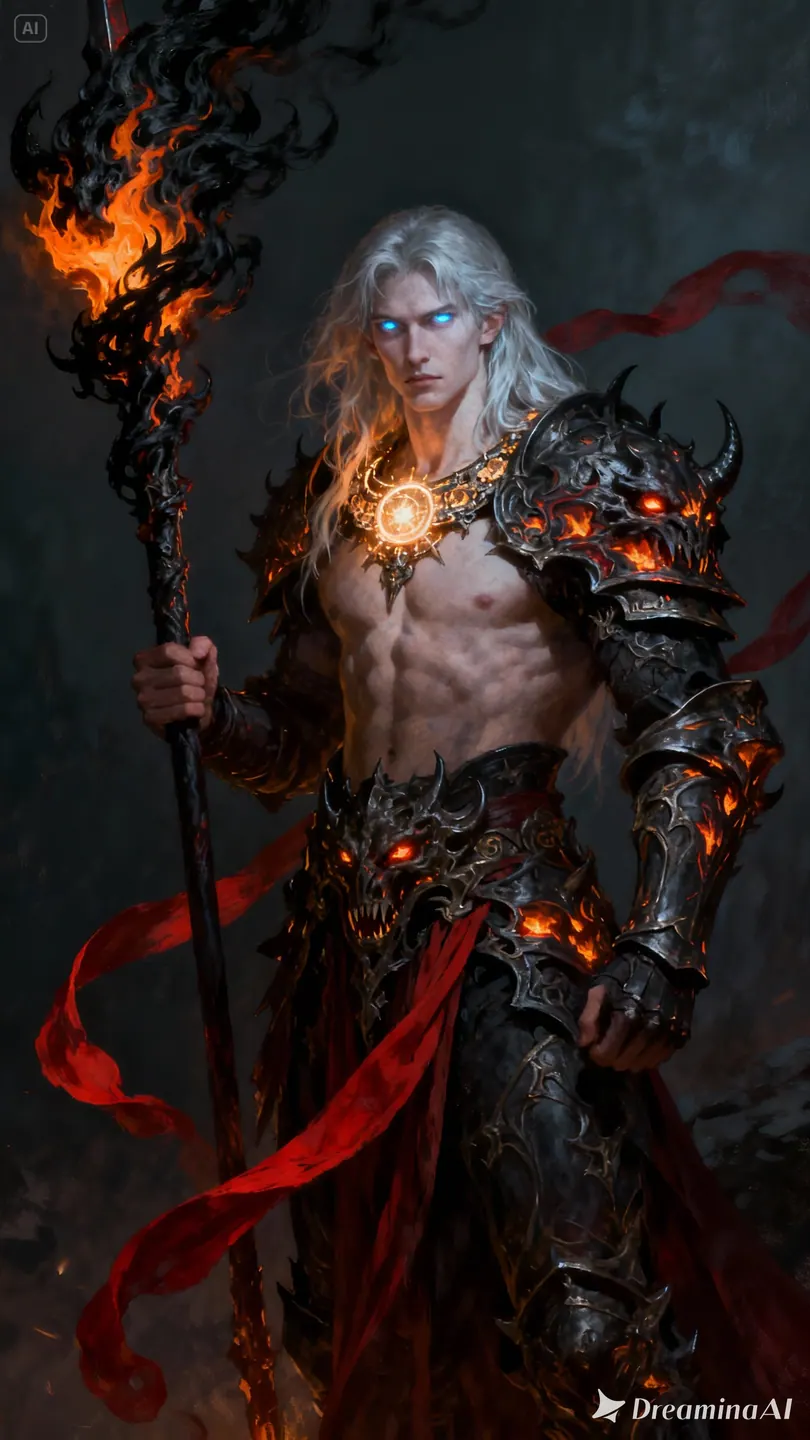
One clip, one creative goal
Start with the destination, then define the subject, style, and details that matter.
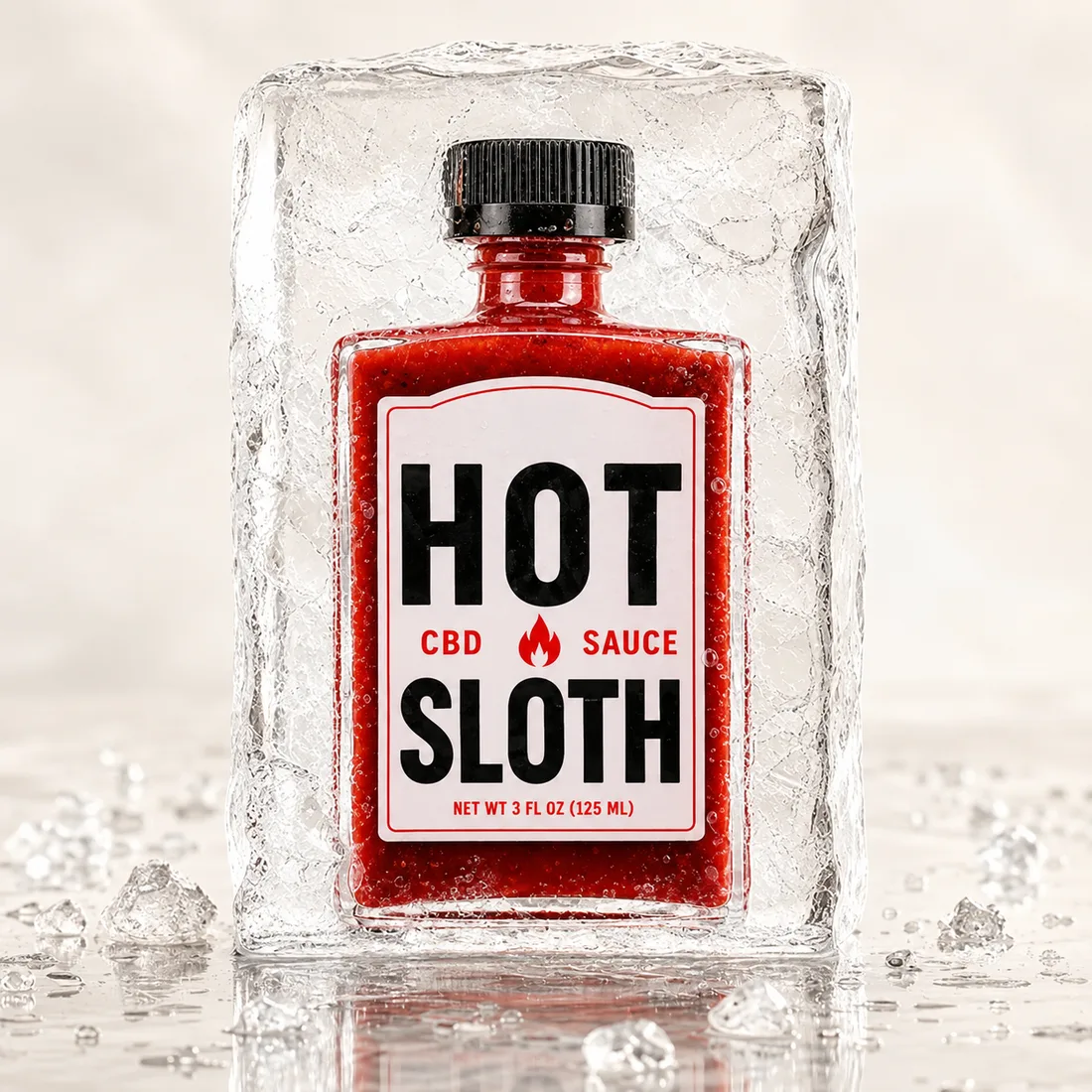
Products and brands
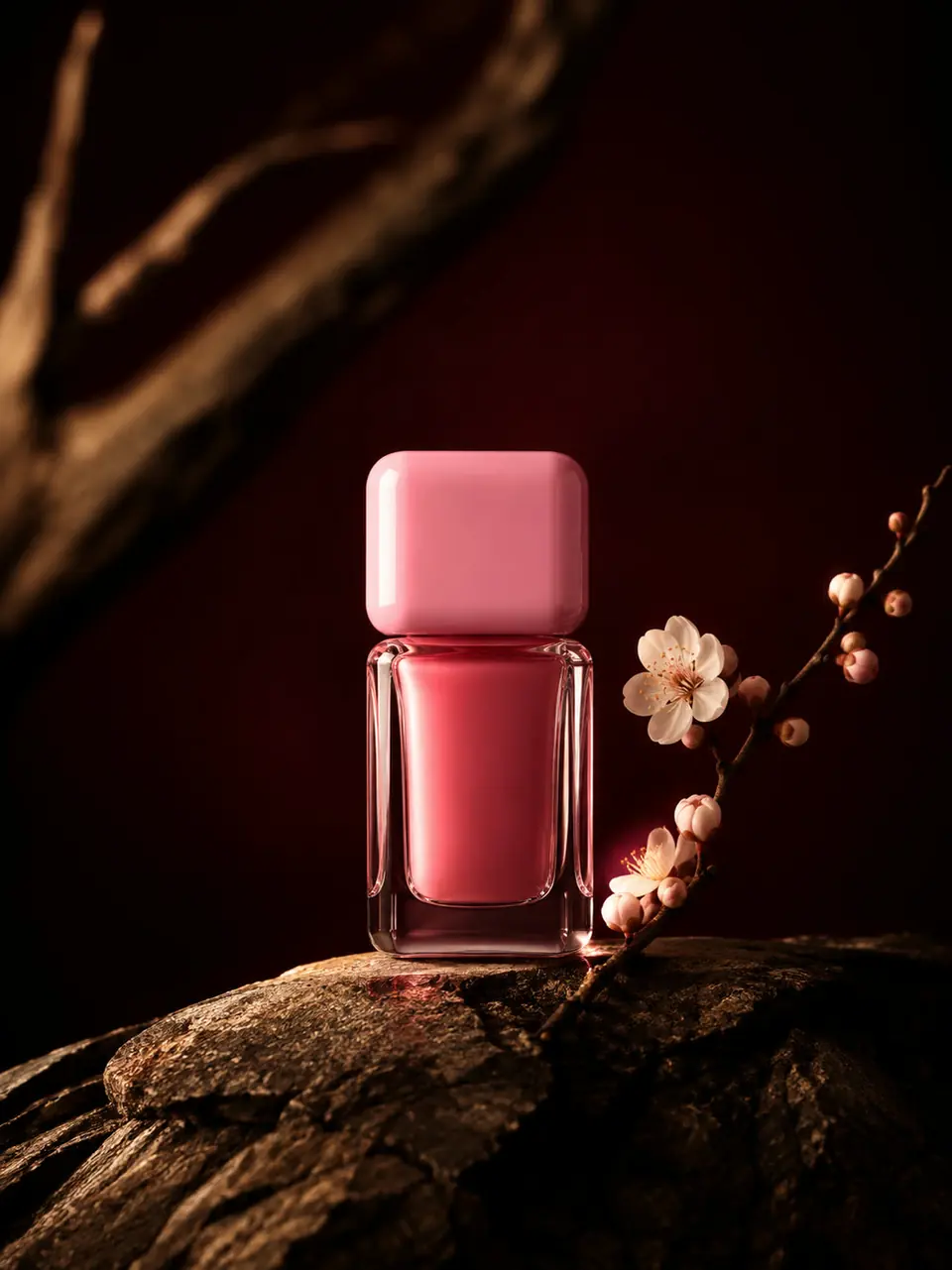
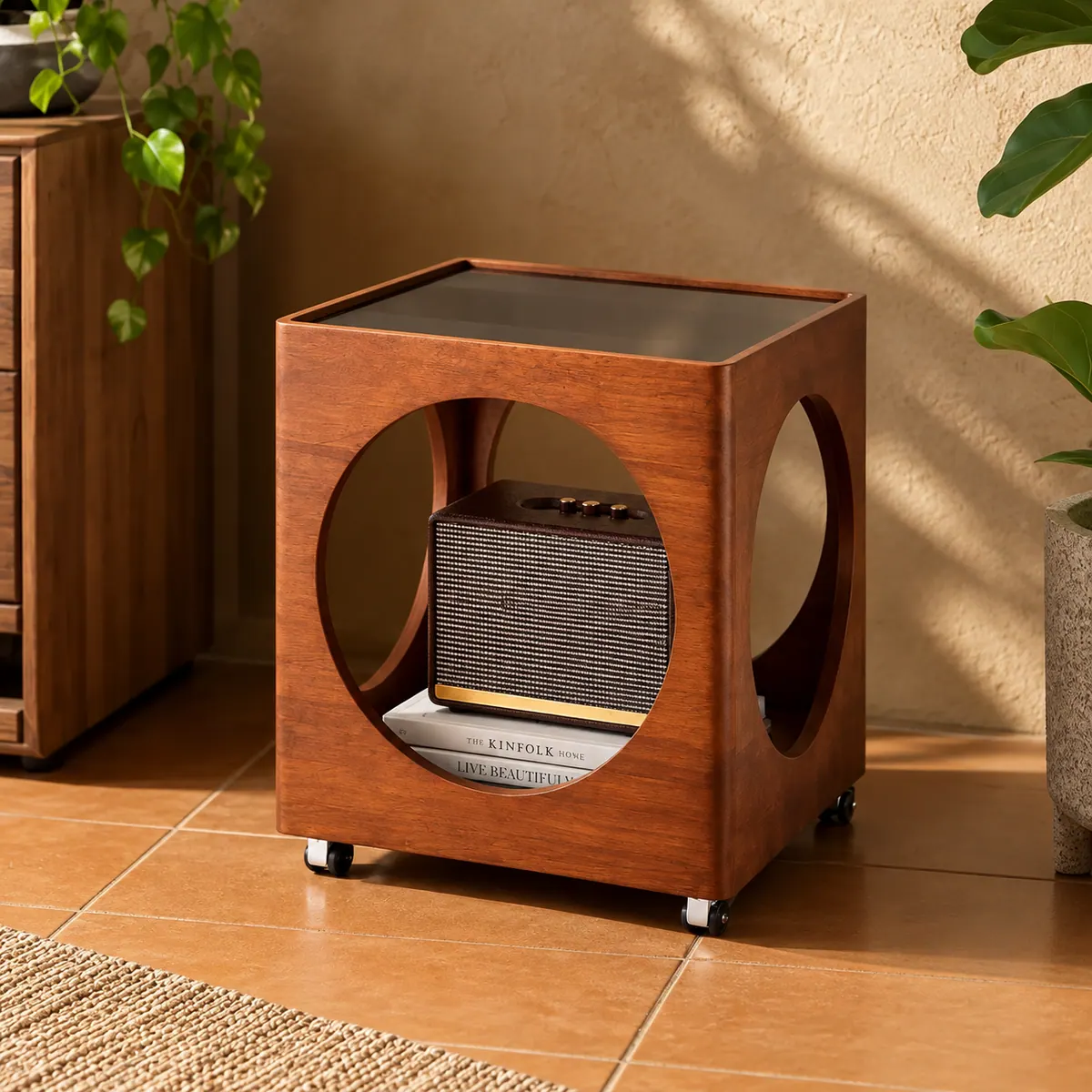
Define the product, setting, and visual treatment, then review the details against your brief.
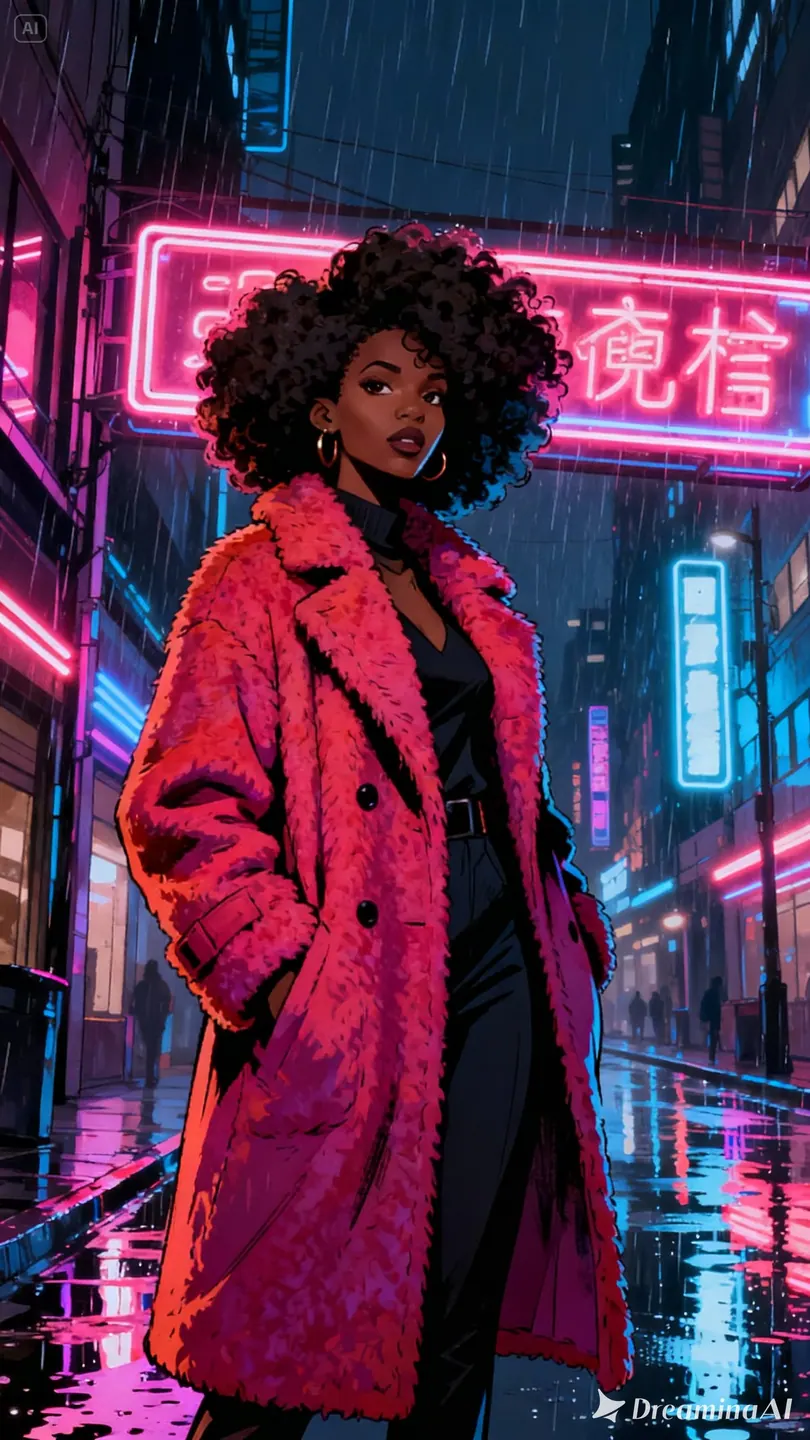
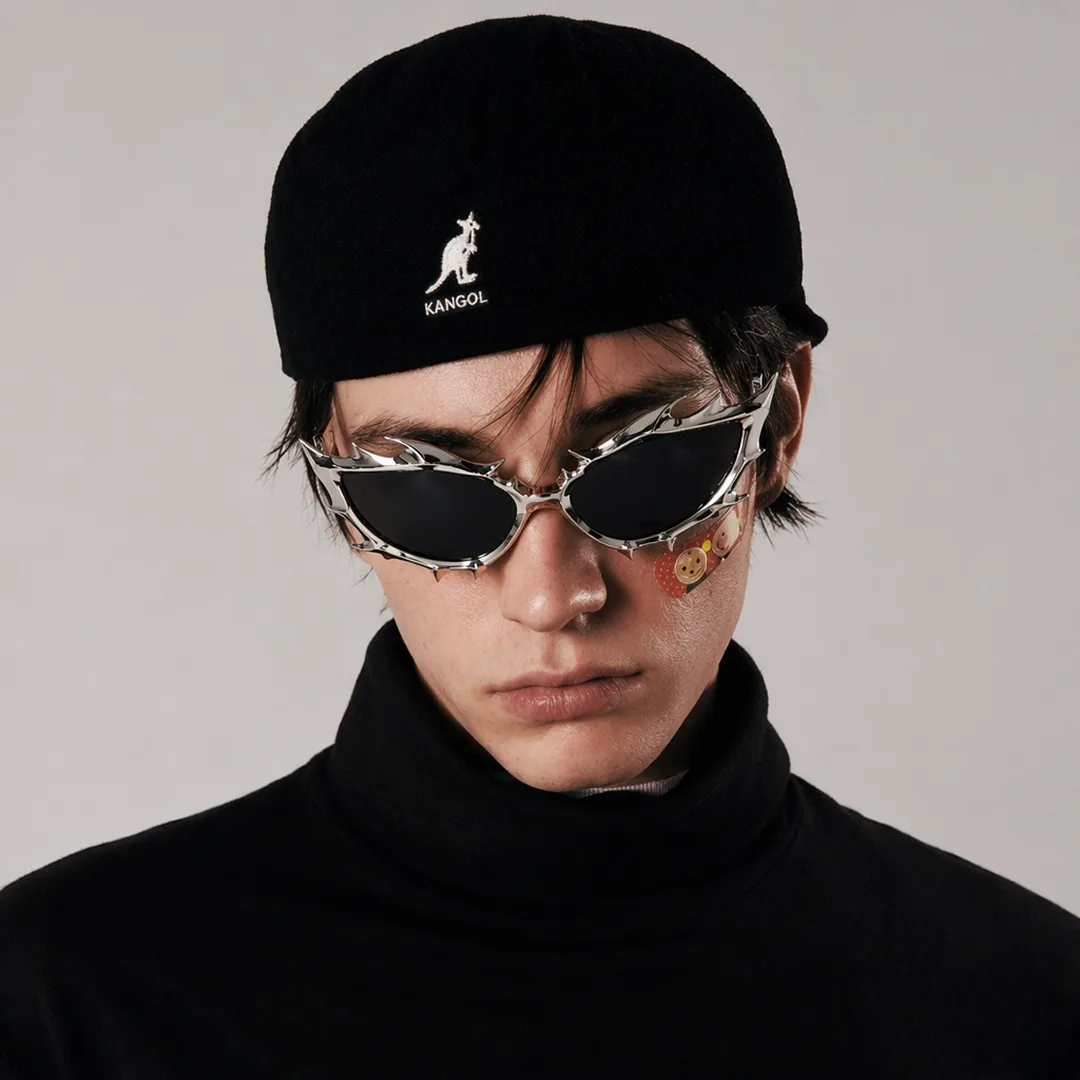
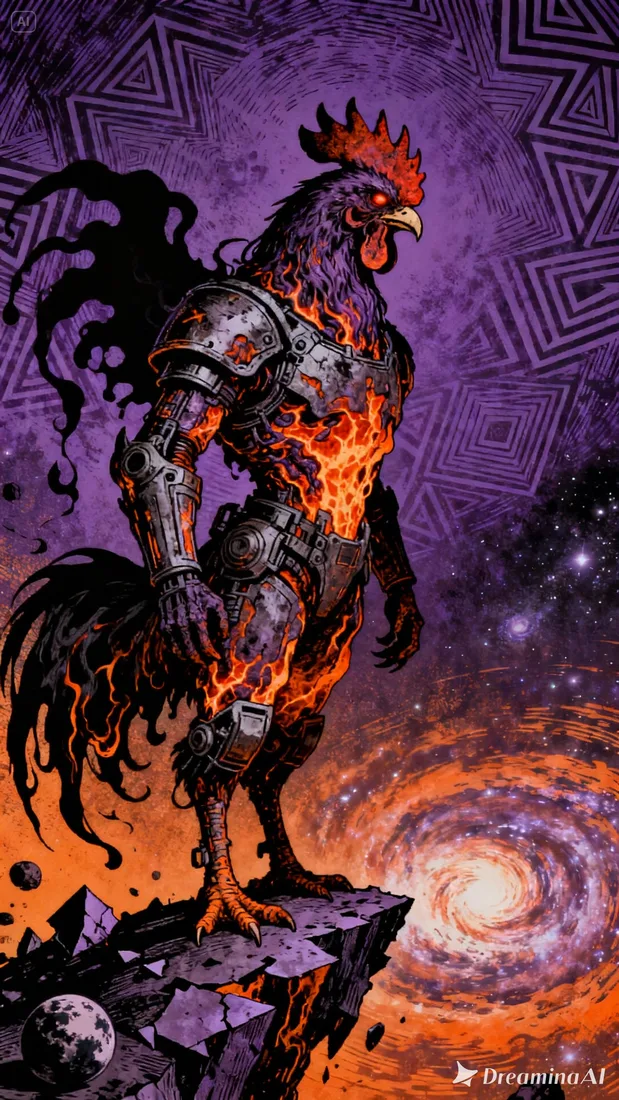
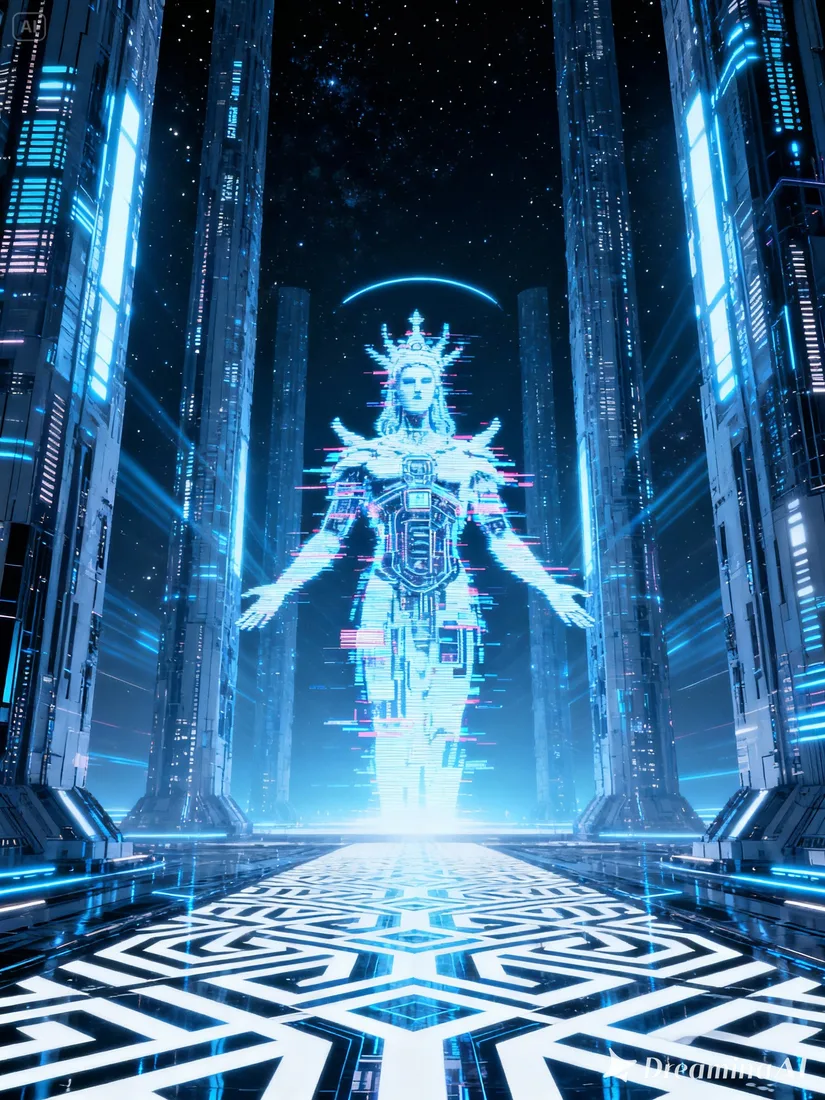
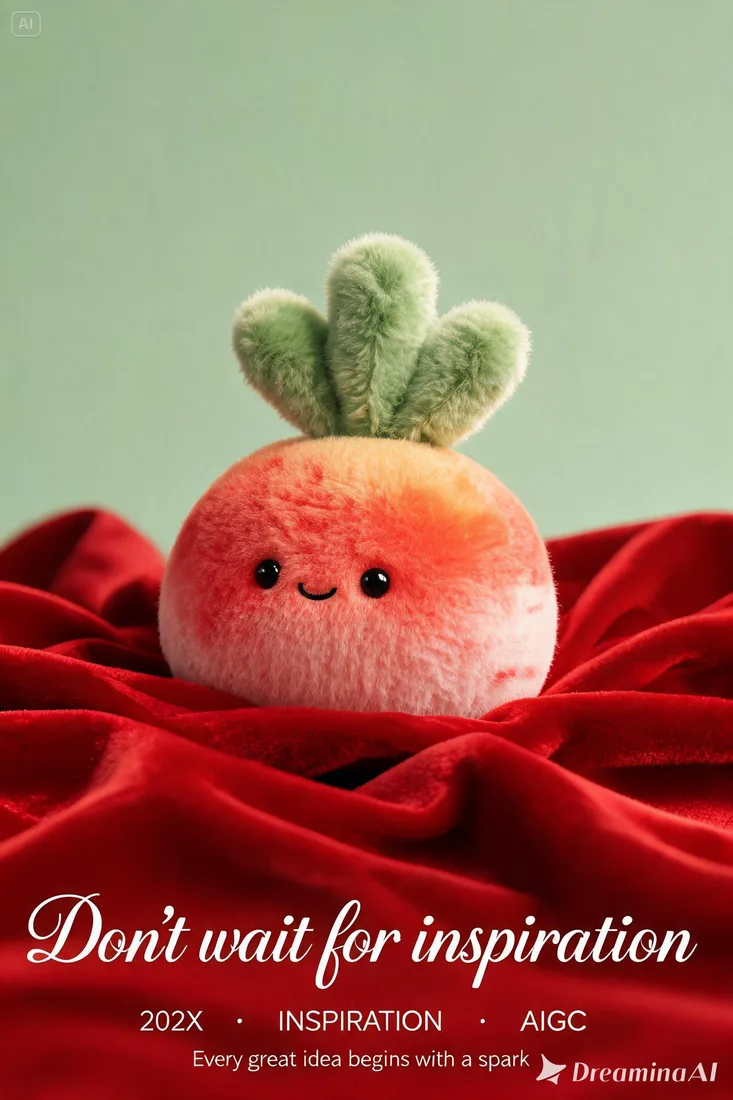
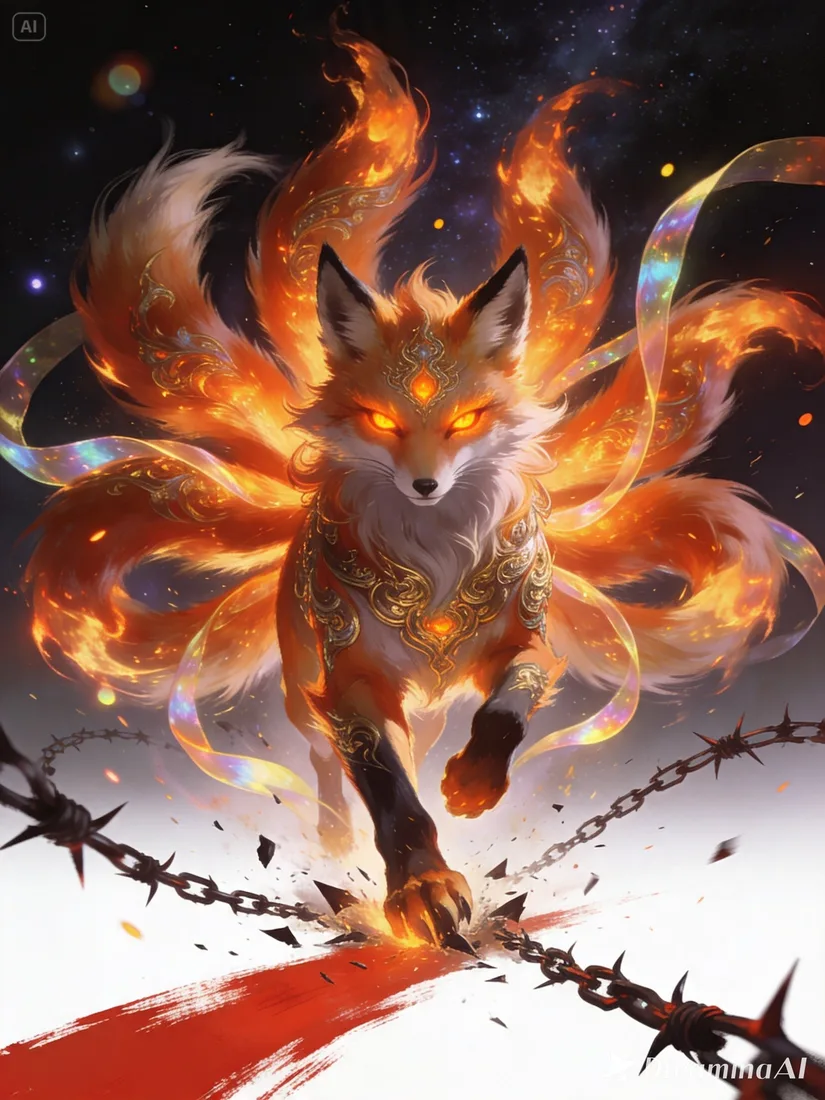
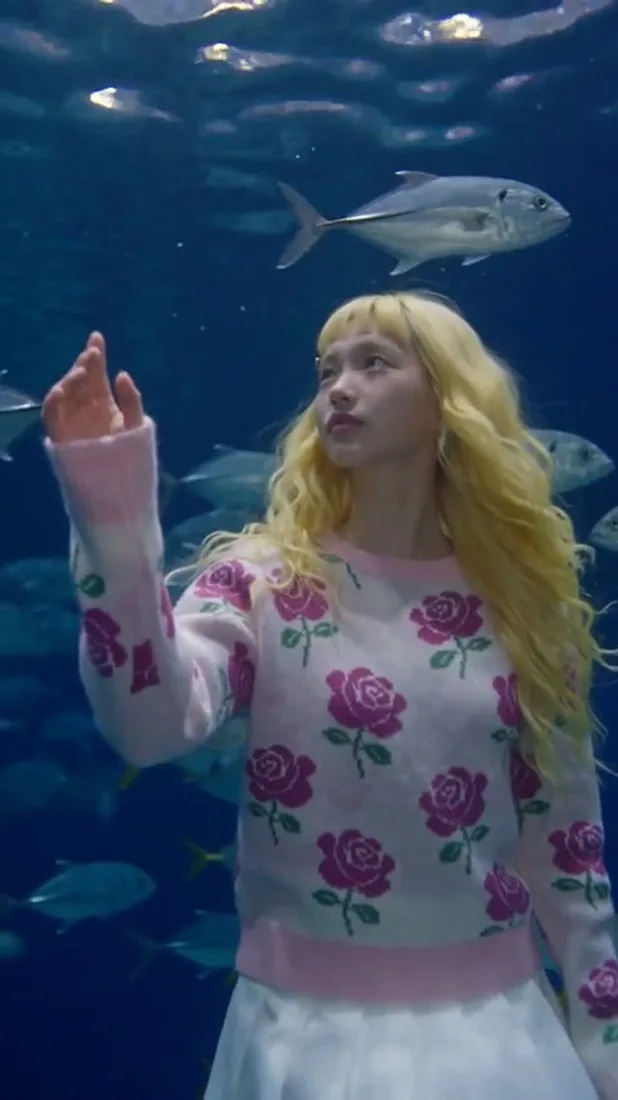
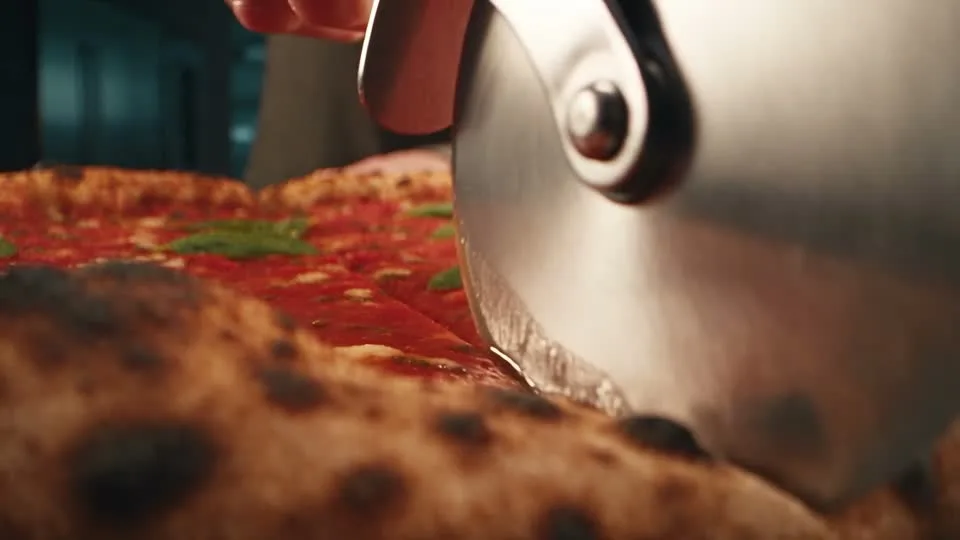
Camera and motion inspiration
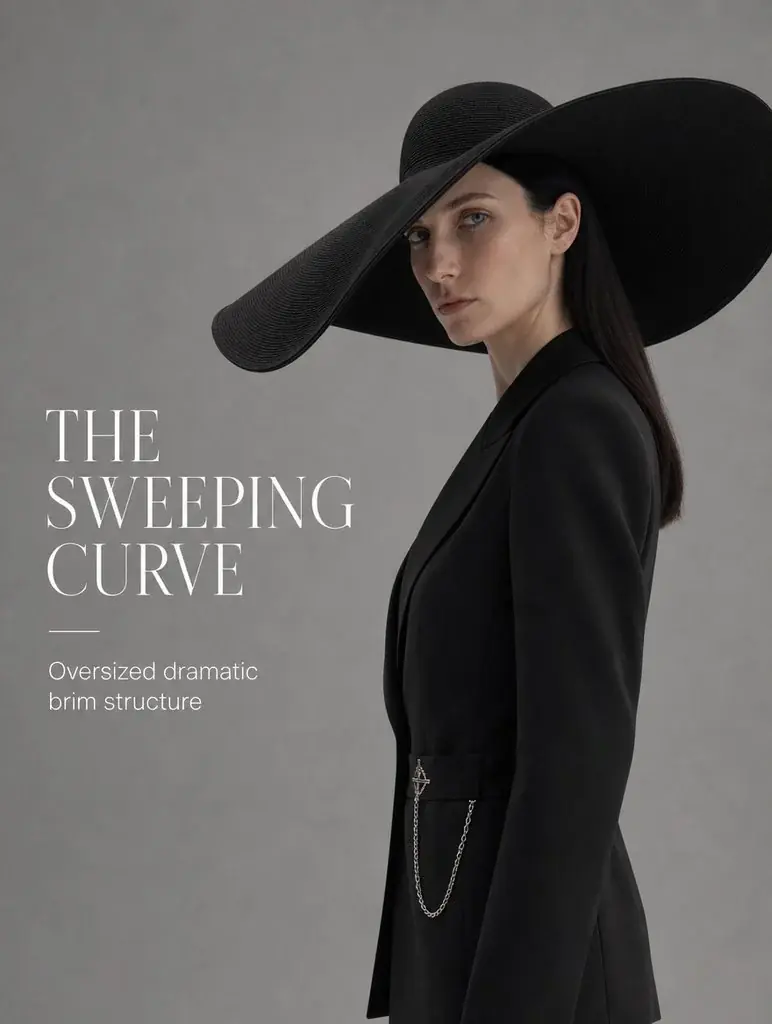
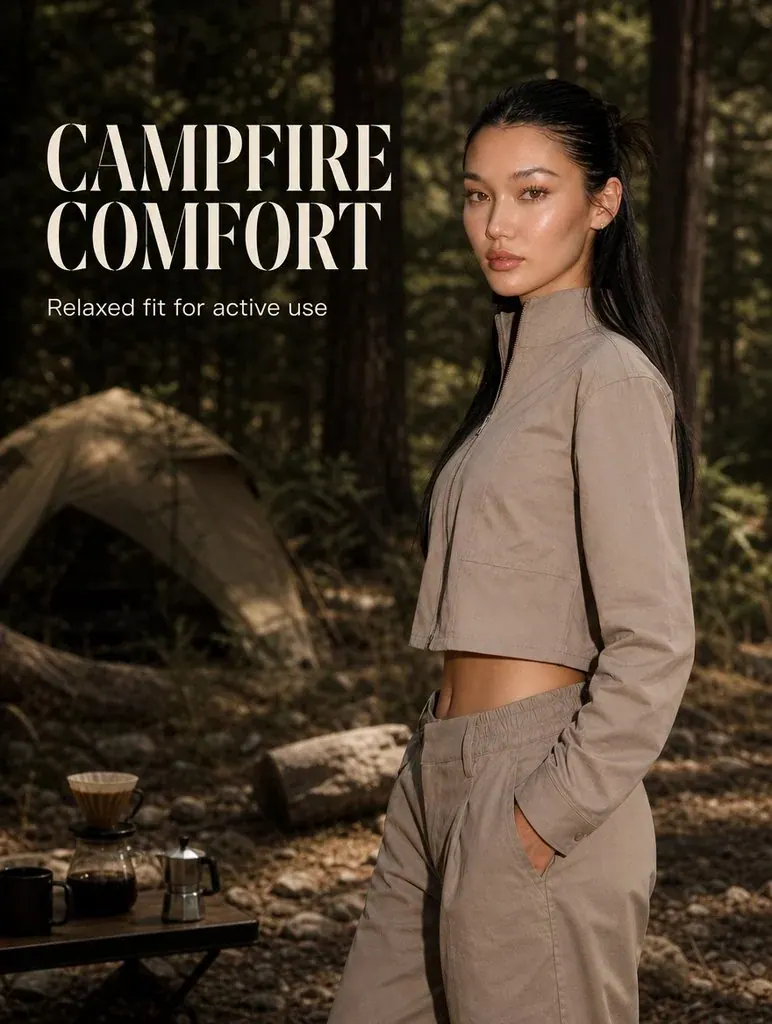
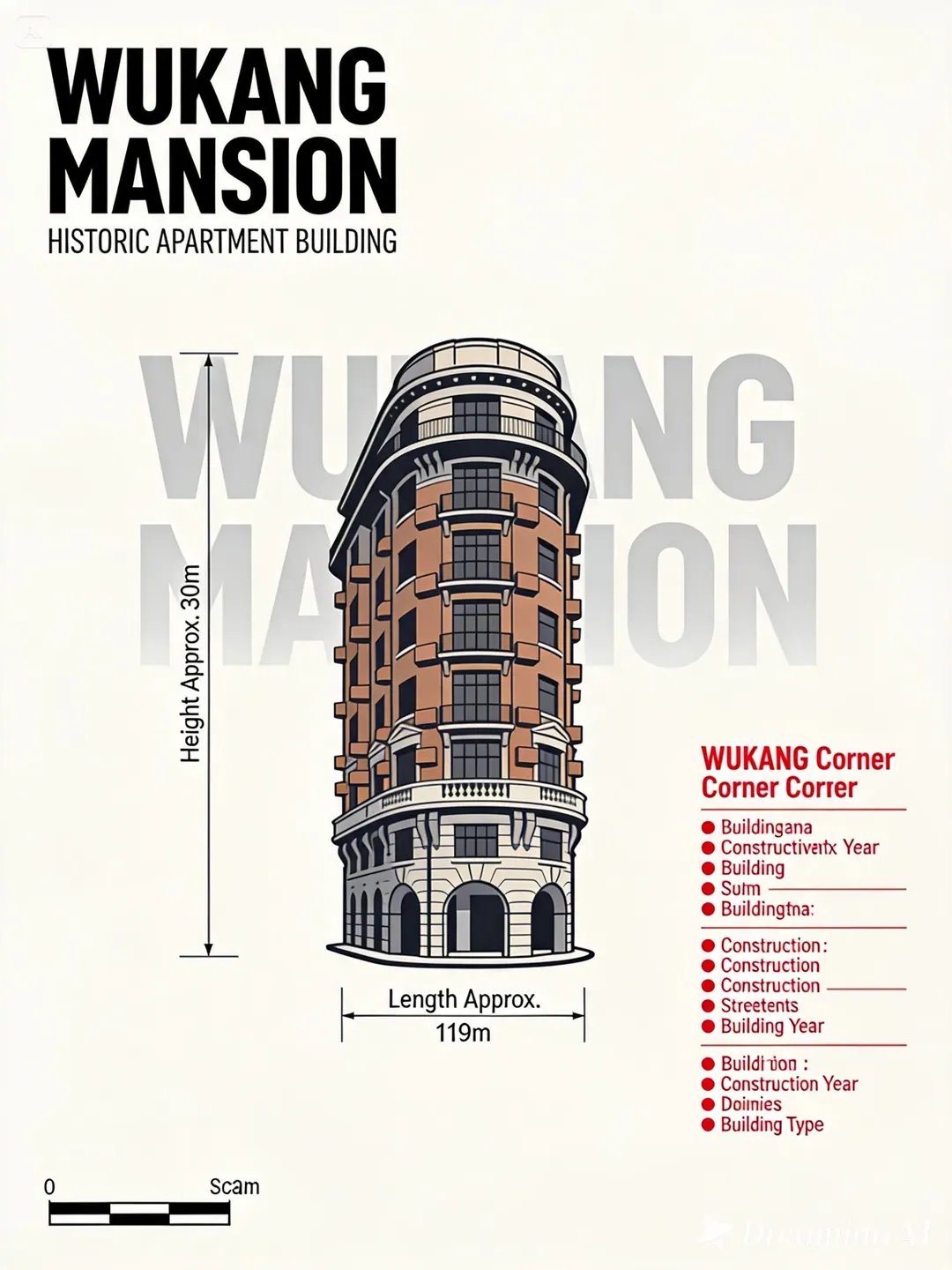
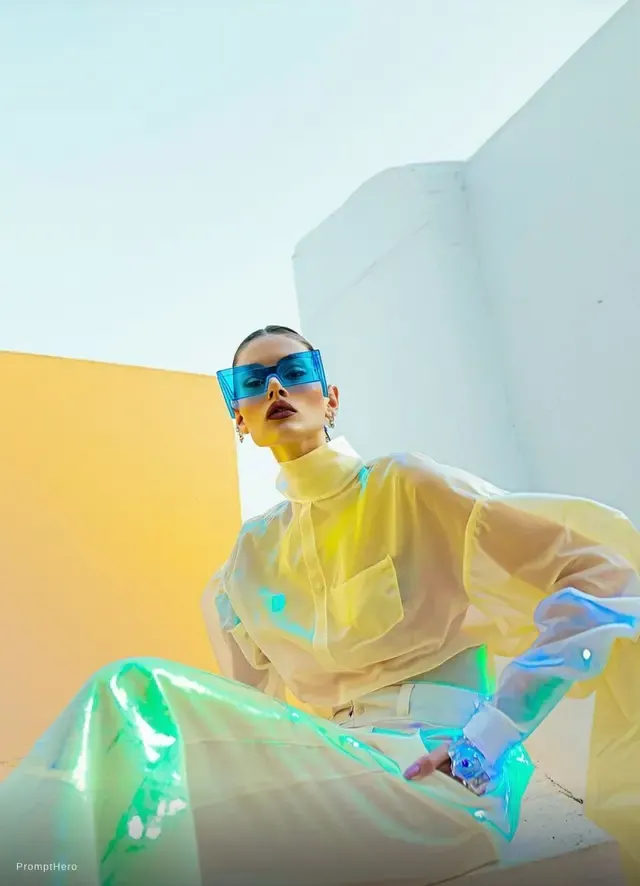
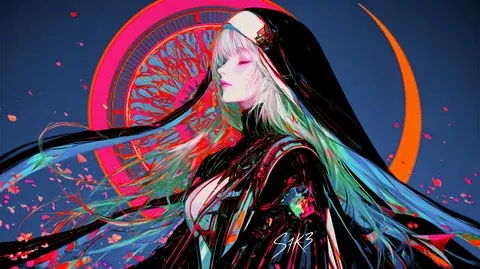
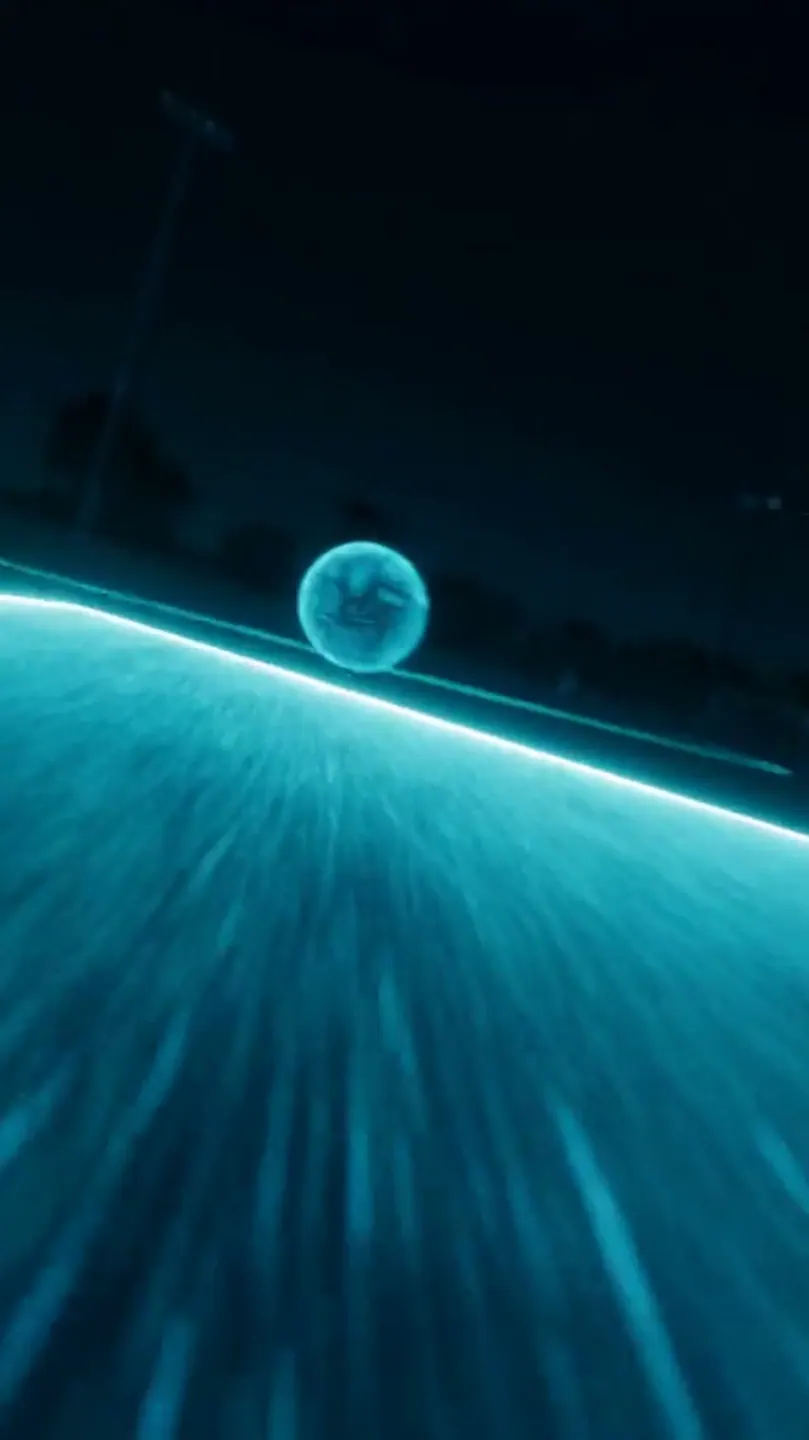
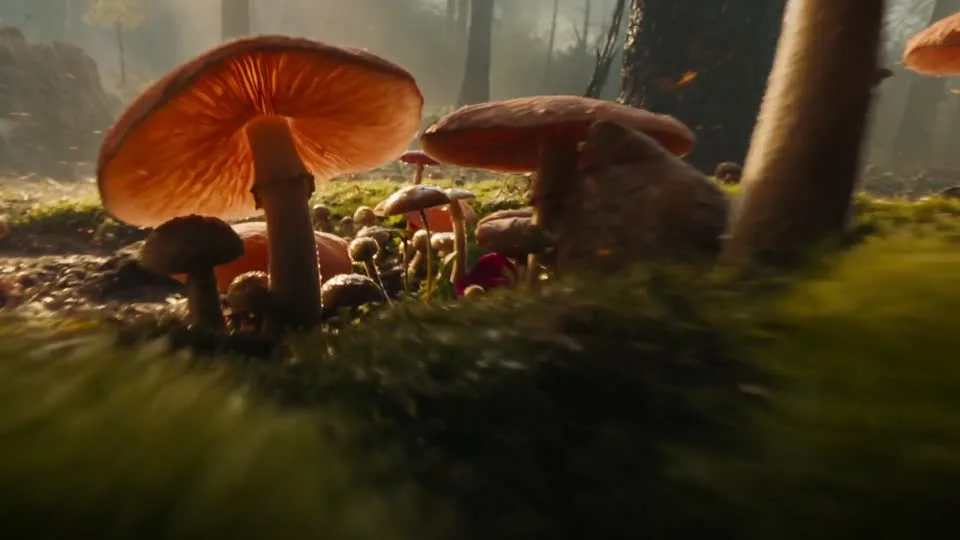
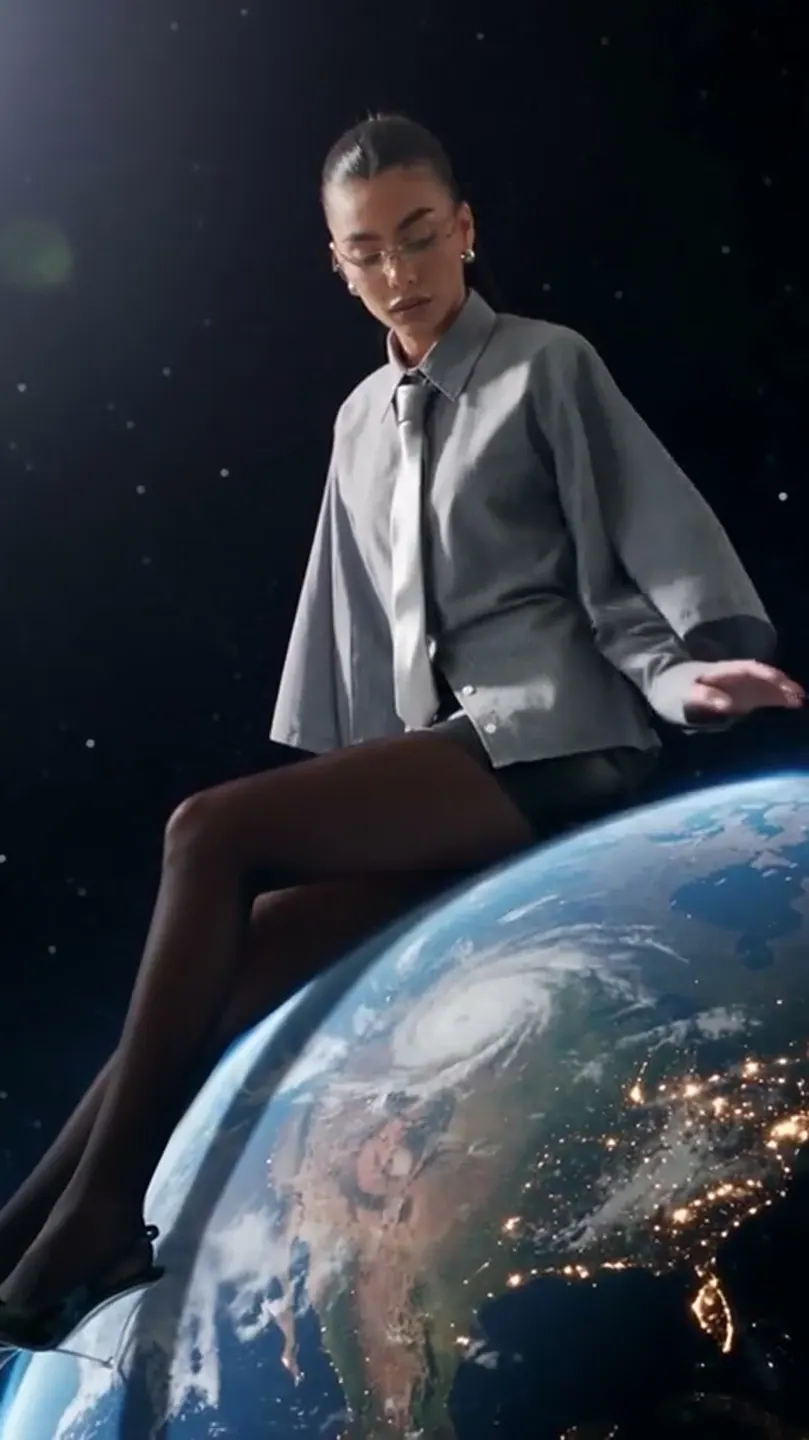
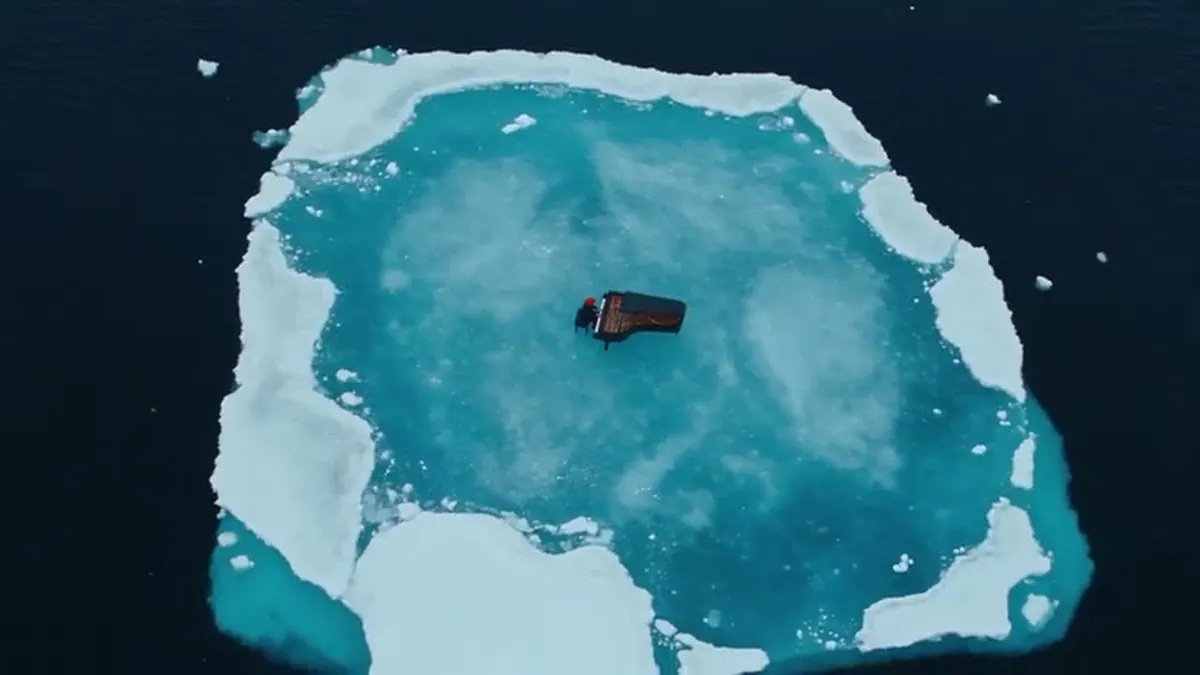
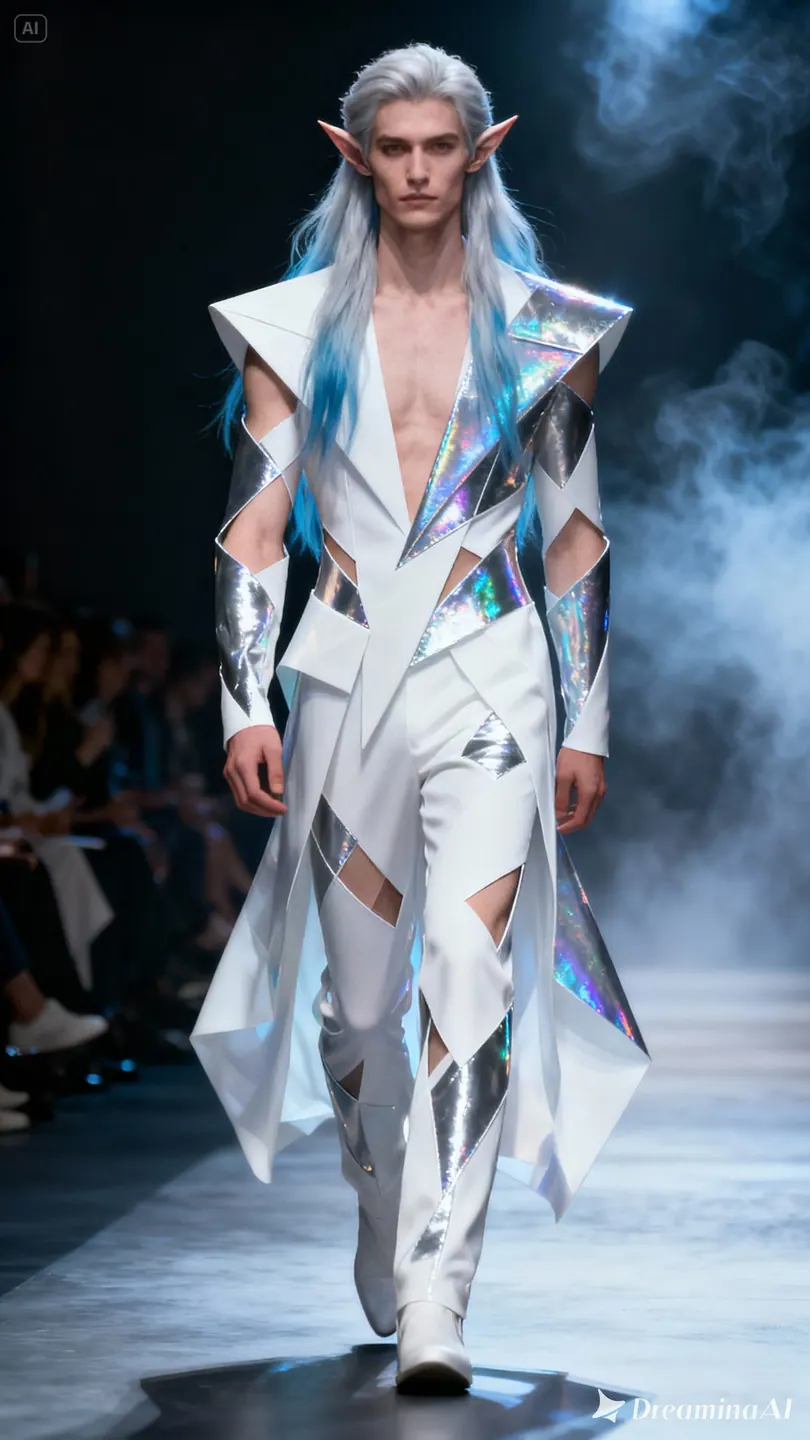
These project images illustrate composition and style, not verified outputs from the selected model.
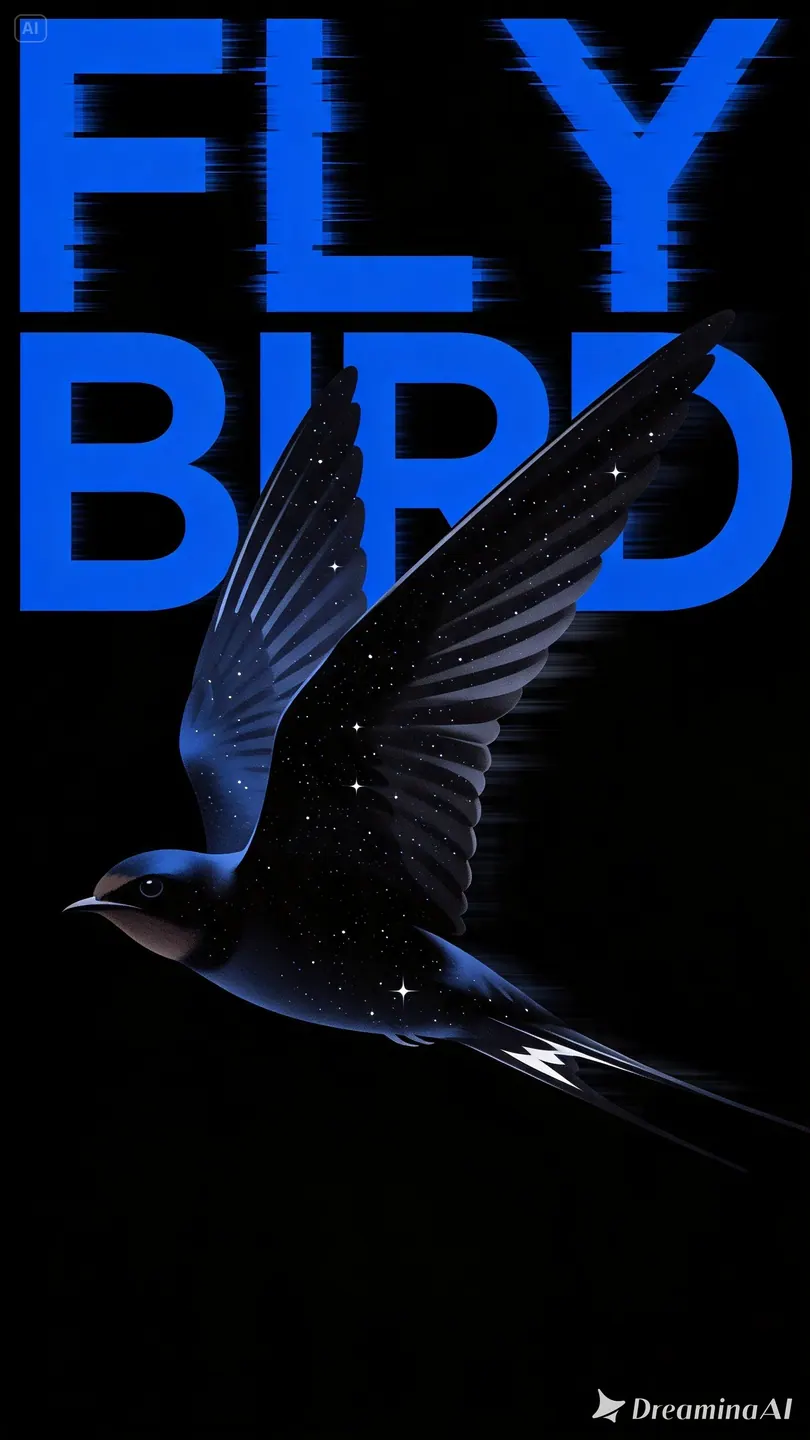 Flow AI Video
Example1 / 2
Use a surface detail as the opening, then pull back to show the full object. Specify how the light and camera change while the product stays recognizable.
Need a hand?
Questions about inputs, output formats, and preparing your next draft.
Contact supportChoose PixVerse V6 or PixVerse V6 Max. V6 accepts up to two reference images; Max accepts one. Image-to-video follows the input framing. The separate first/last-frame transition endpoint is not integrated here. V6 Max currently offers the priced 5-second and 6-second options.
The project scenes illustrate creative directions and are not verified outputs from this model. Review your own result for the details that matter to your brief.
No. The button opens Create with your draft and does not submit a paid generation. Review the credit estimate there; an insufficient-credit dialog can take you to pricing.
This workspace offers 4–15 seconds at 360p, 540p, 720p, or 1080p. Native audio is enabled. Review the selected duration and credits in Create before submitting.
This integration covers text-to-video and image-to-video. Video extension, reference-video input, and the separate multi-clip workflow are not exposed on this page.
Your next idea is one prompt away
Your next shot starts with a prompt or image. Set up your Flow AI Video generation above, check the estimate, and follow its progress in Create.