




01
Use a portrait with visible facial detail
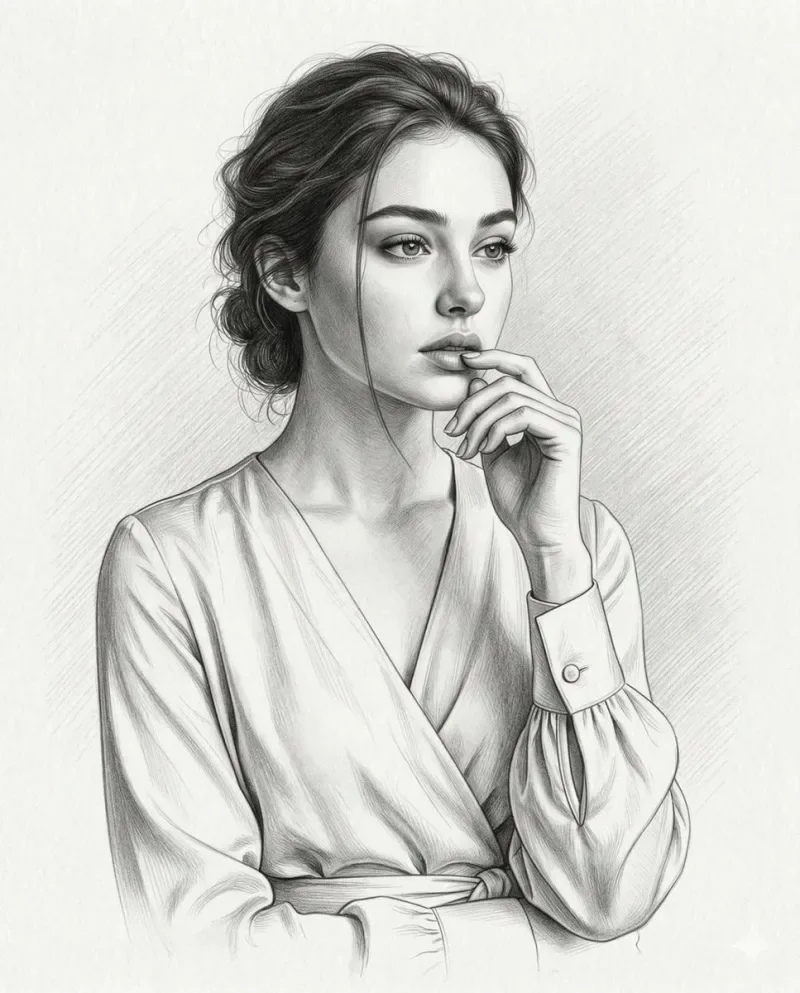
Start with a sharp portrait and even lighting so facial details remain visible.
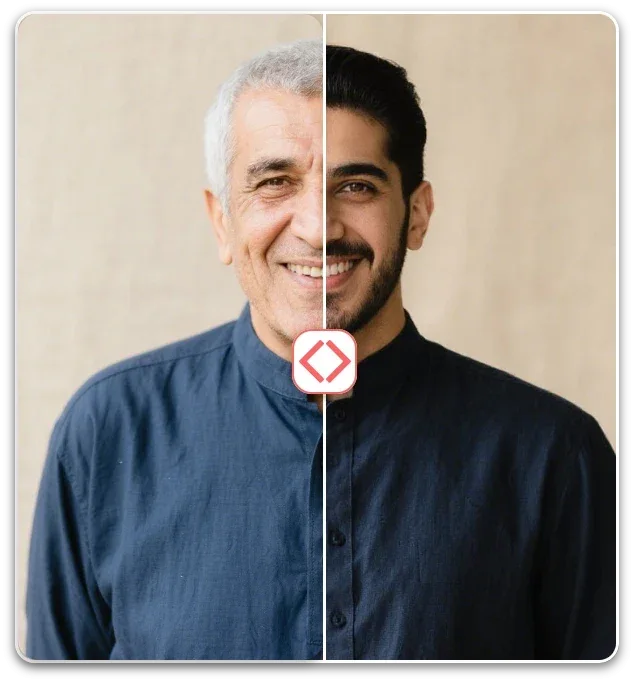
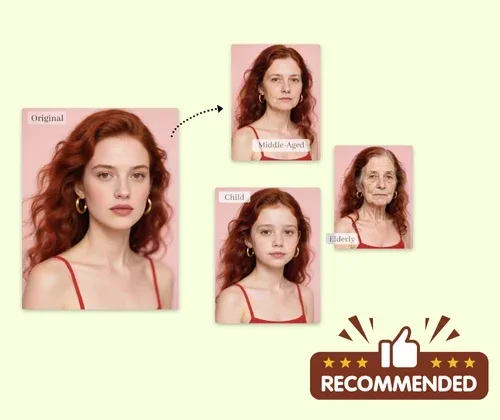
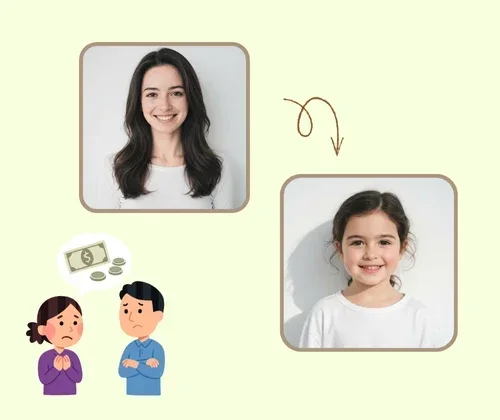
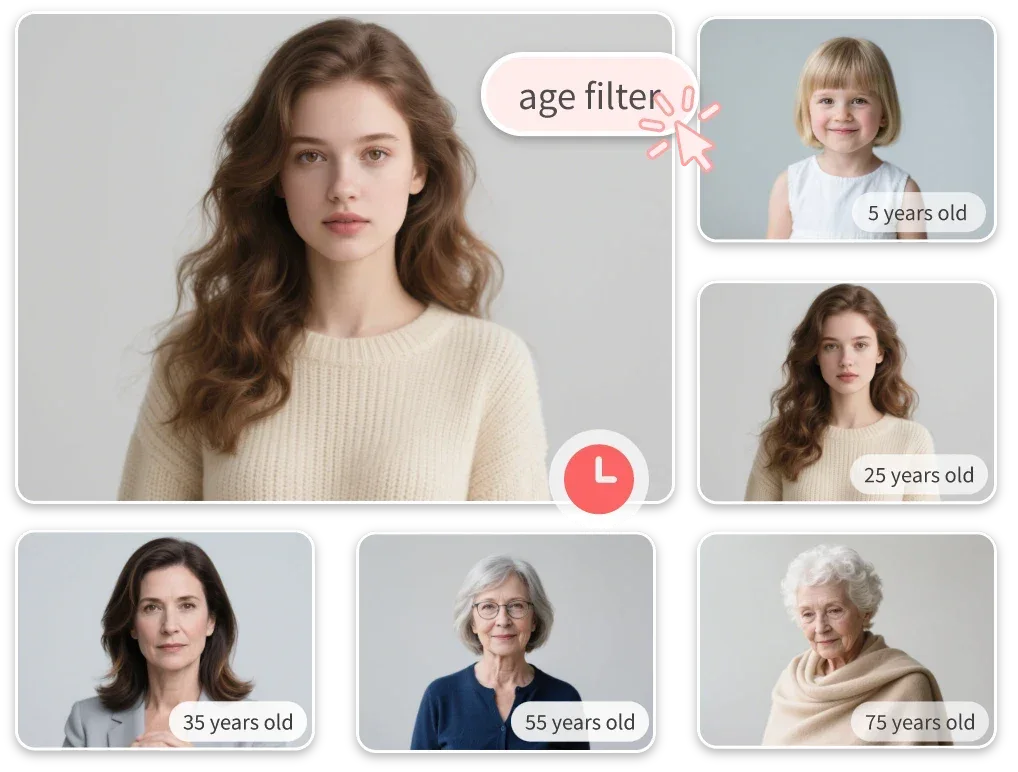
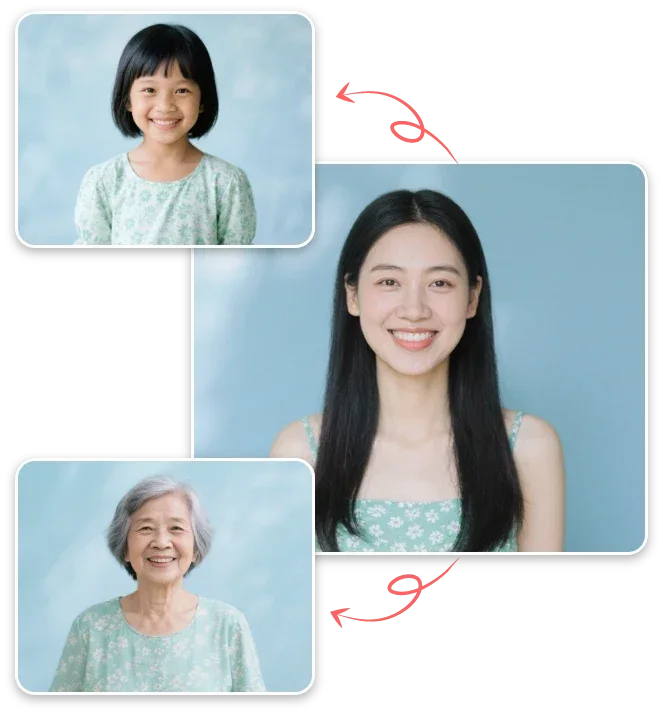
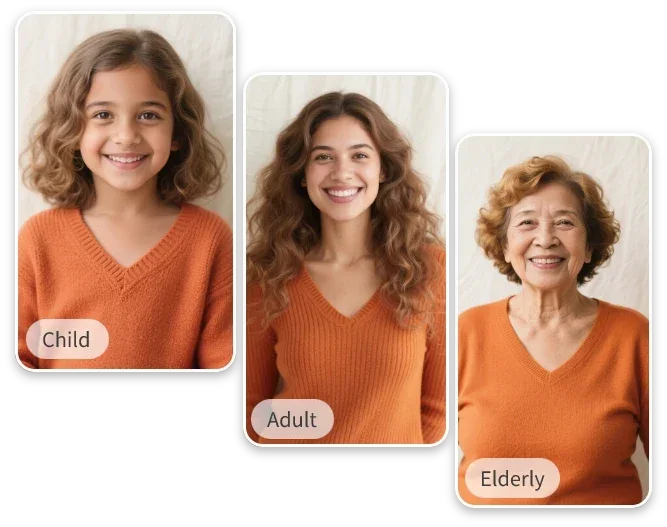
Explore younger and older portrait looks with an AI age filter. Upload a photo, choose an age style or describe your own, then review the generated image.








Creative Studio
Output model, ratio and quantity are available in Settings.
Open a reference photo or begin with the text idea accepted by this tool. Keep your original available for comparison.
Select the task options, then describe the change you want. The sections below explain the details worth specifying.
Sign in, check the displayed credit estimate and generate. Review the result before downloading.
Creative Studio
Explore younger and older portrait looks with an AI age filter. Upload a photo, choose an age style or describe your own, then review the generated image.
01
Start with a sharp portrait and even lighting so facial details remain visible.
02
Choose an age preset in Trendy, or open Custom to describe the age-inspired appearance you want.
03
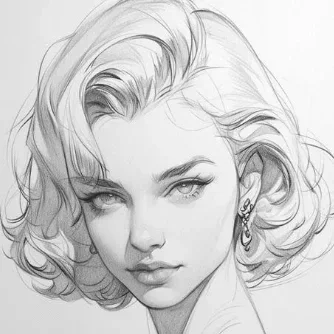
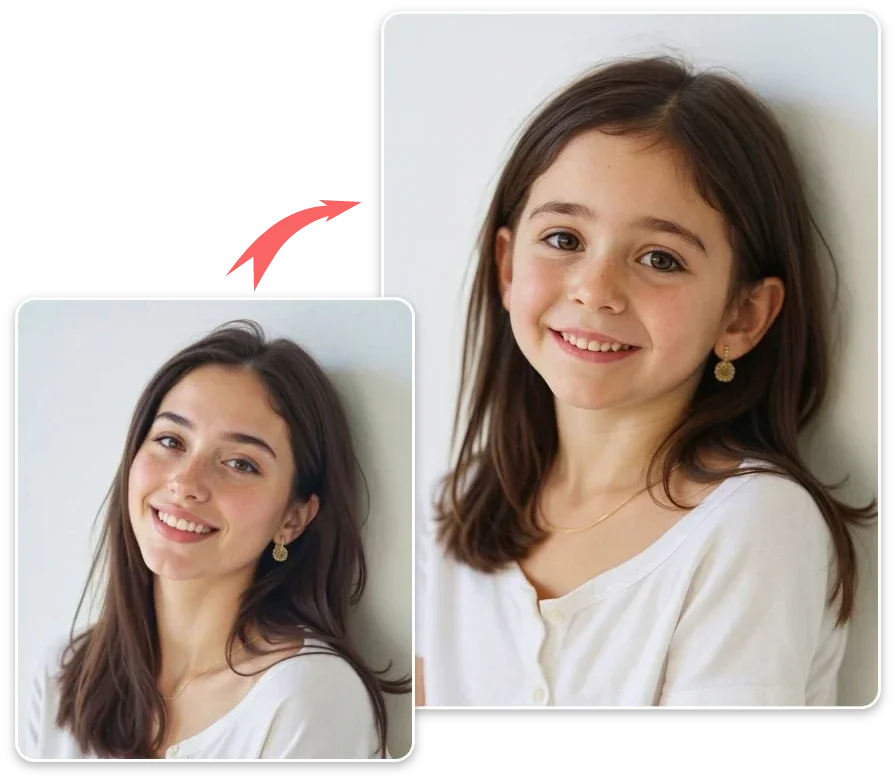
Create character age studies, personal portrait variations or story concepts from one reference.
04
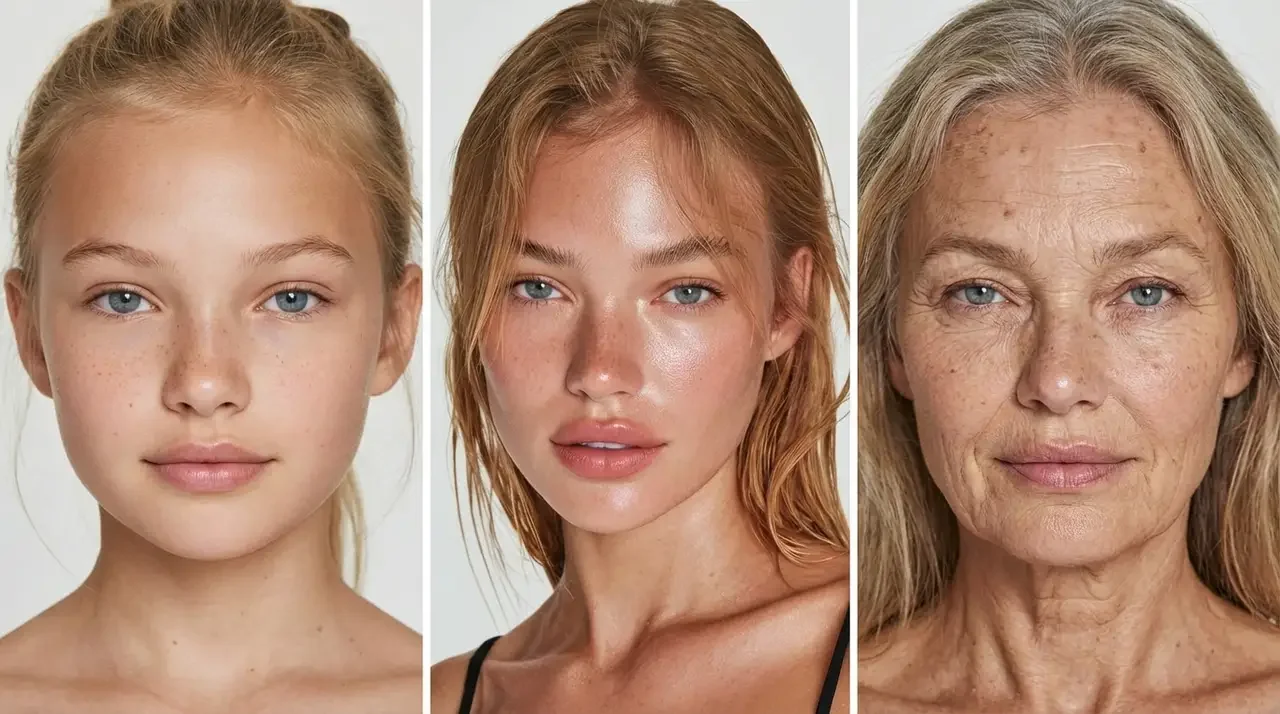
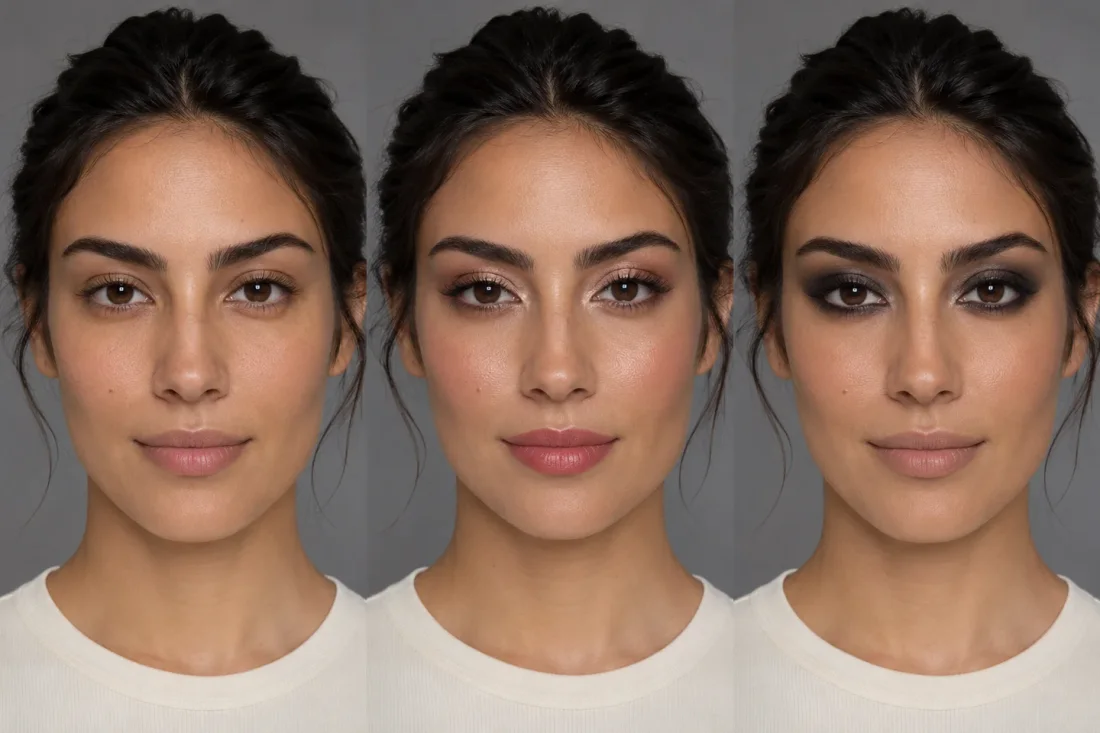
Review facial details and skin texture. Age effects are imagined appearances and cannot predict future aging.
Creative Studio
Use these starting points to plan how the tool fits your own work.
Personal projects
Create character age studies, personal portrait variations or story concepts from one reference.

Creative Studio
Example1 / 2
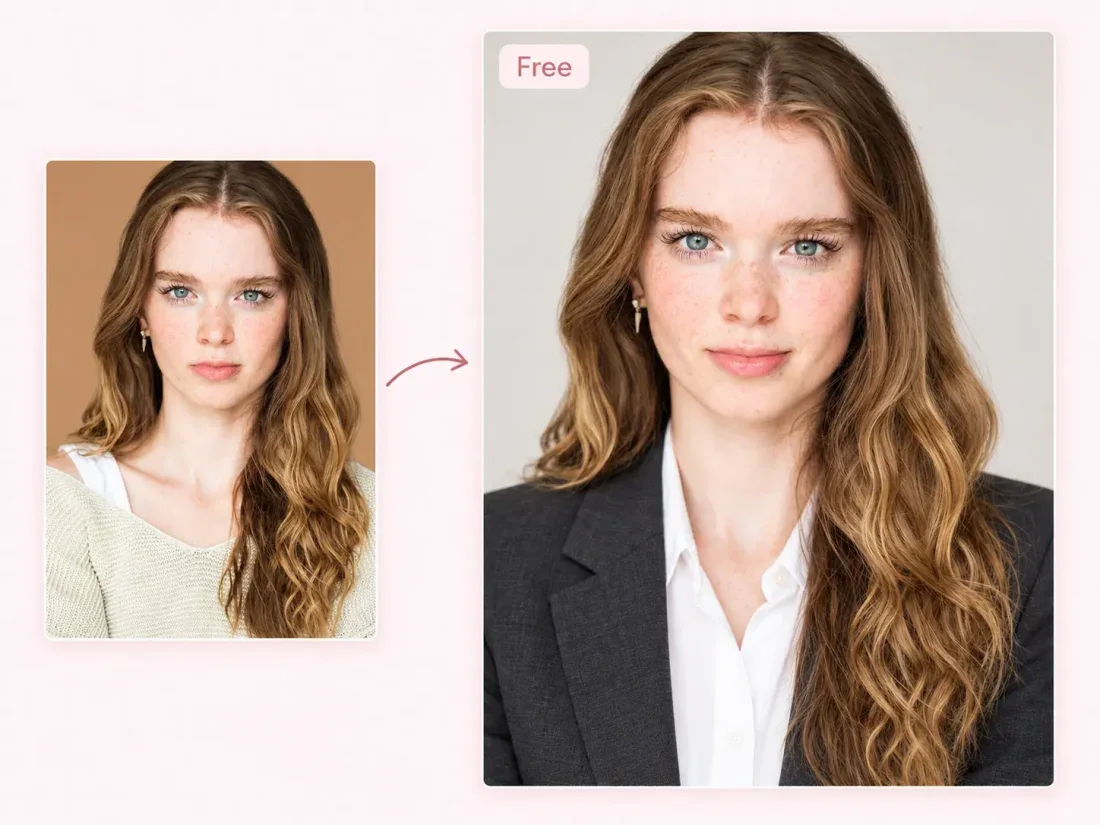
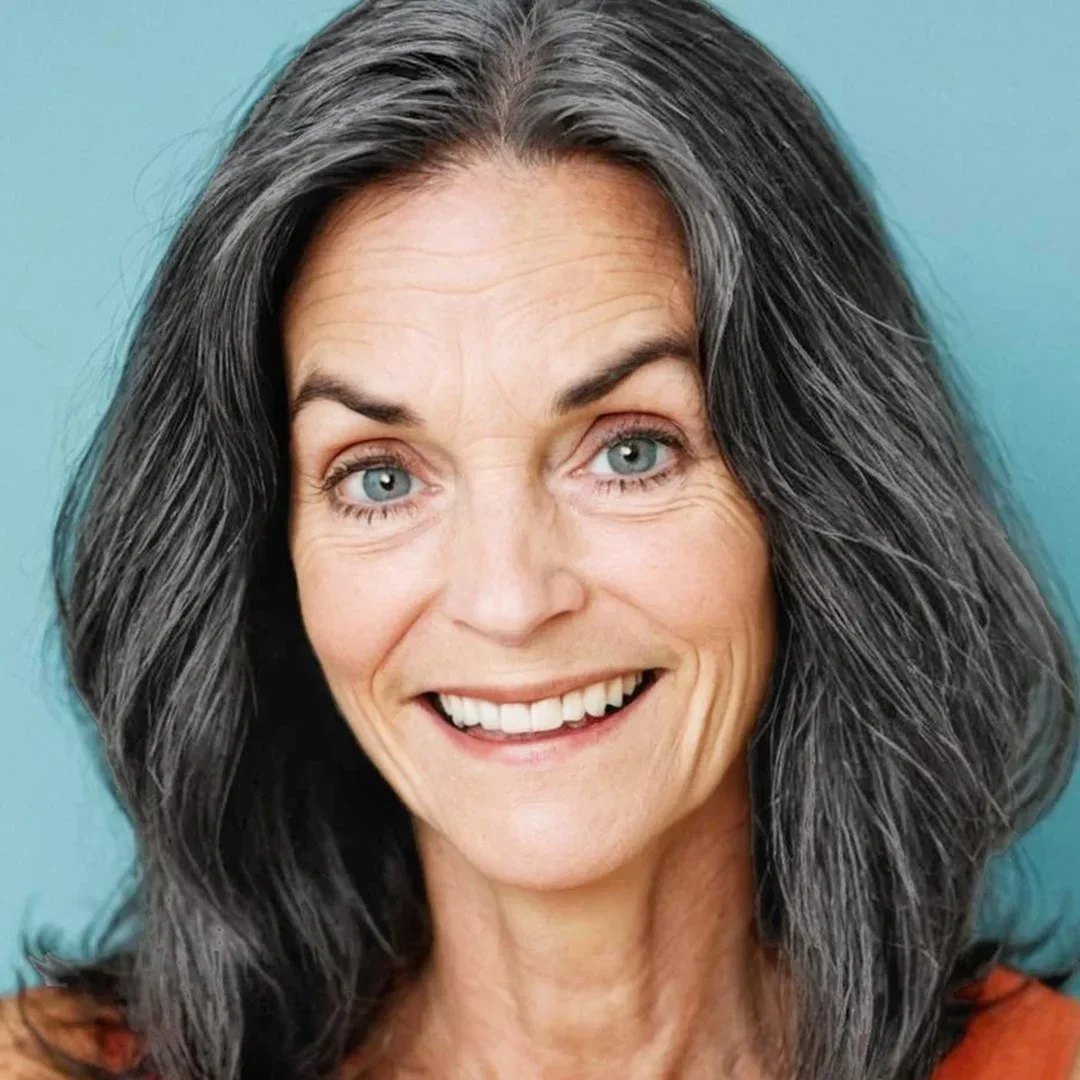
Describe an older version with subtle skin and hair changes. Keep the expression familiar to compare the interpretation with your source.
Need a hand?
Learn what to upload, which controls are available and what to check in the result.
Contact supportStart with a sharp portrait and even lighting so facial details remain visible.
Choose an age preset in Trendy, or open Custom to describe the age-inspired appearance you want.
Generating images or analyzing an image requires an account and credits. Check the cost on the action button before submitting; image cost can change with the model and quantity.
Review facial details and skin texture. Age effects are imagined appearances and cannot predict future aging.
Continue exploring with this related tool. AI Gender Swap Filter
Creative Studio
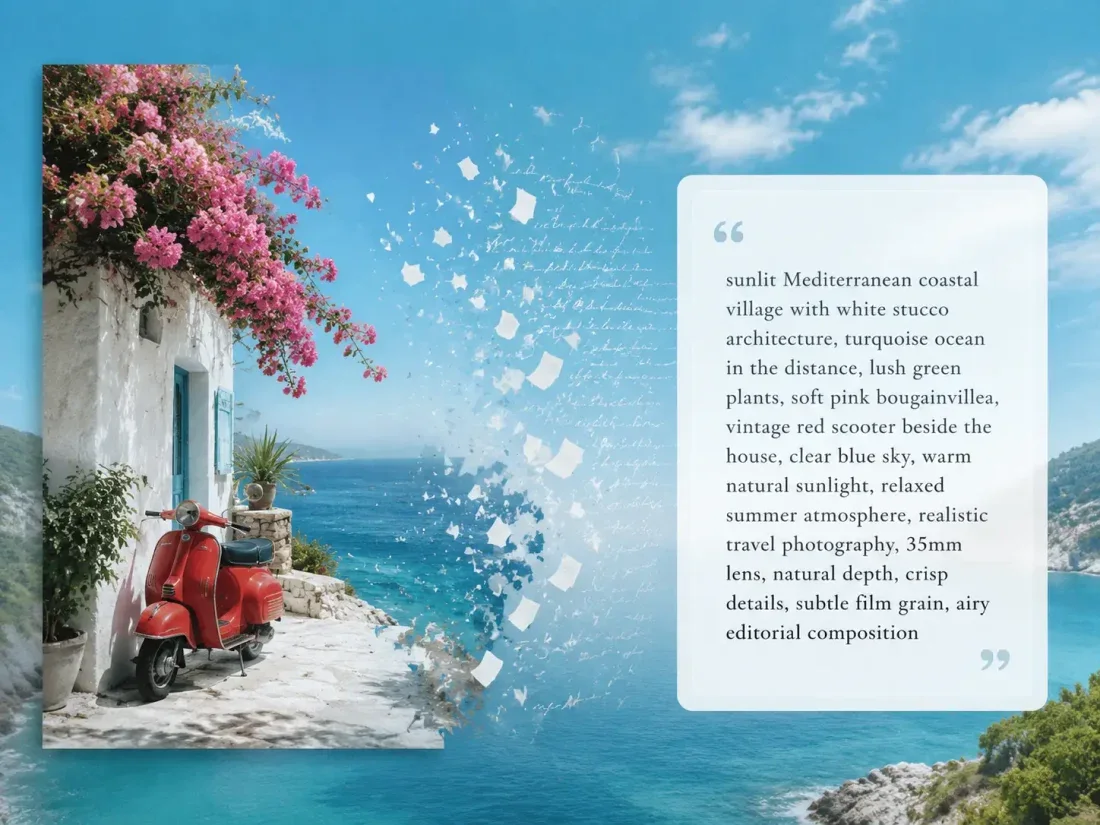
Bring one clear idea back to the tool above. Your draft stays in place while you explore these examples.