




01
Choose a photo with clear outlines
Upload a photo with clear shapes and a readable subject. Portraits and objects can guide different drawing studies.
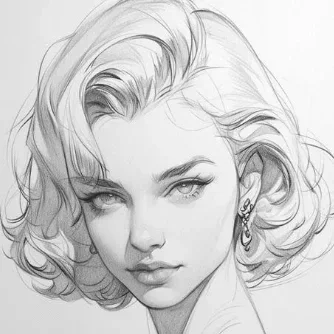
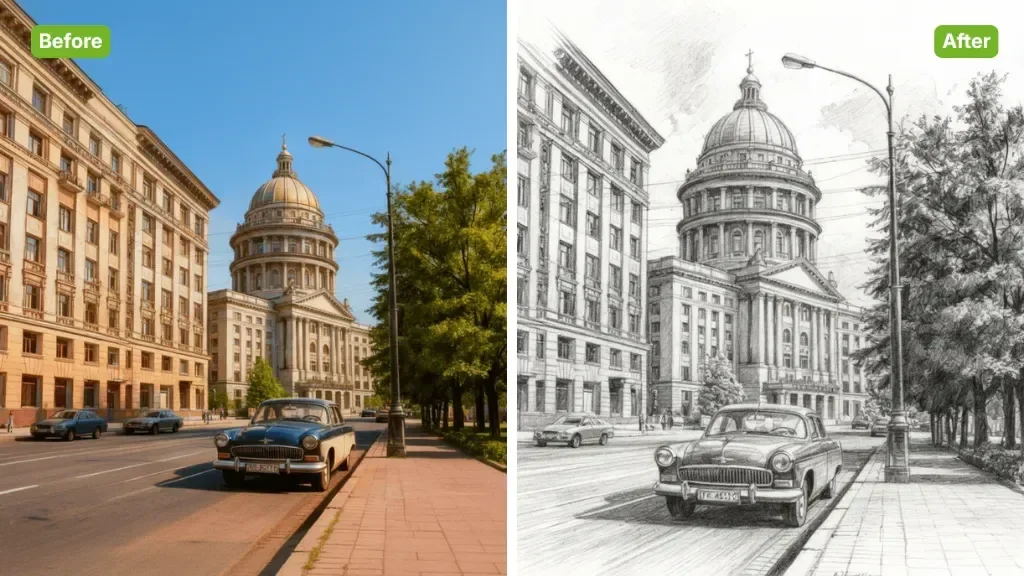
Turn a photo into an AI sketch with pencil and illustration styles. Choose a preset or describe a custom drawing treatment, then review and download the result.

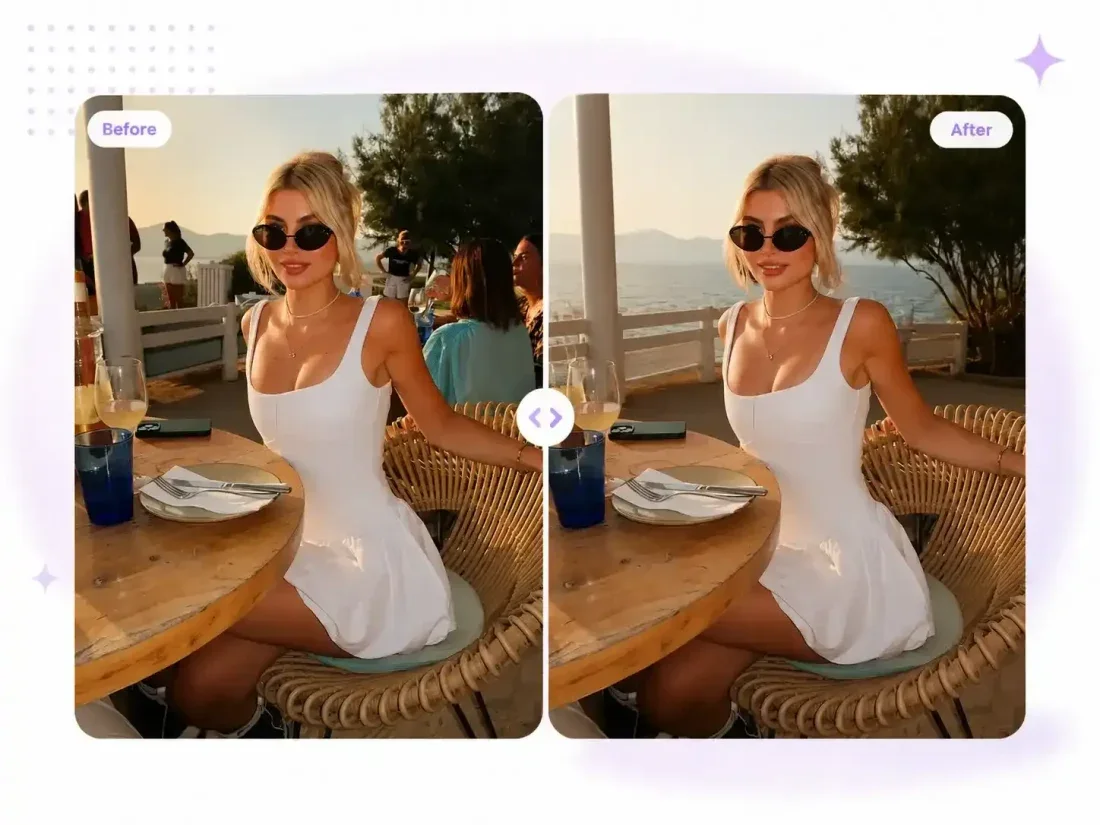


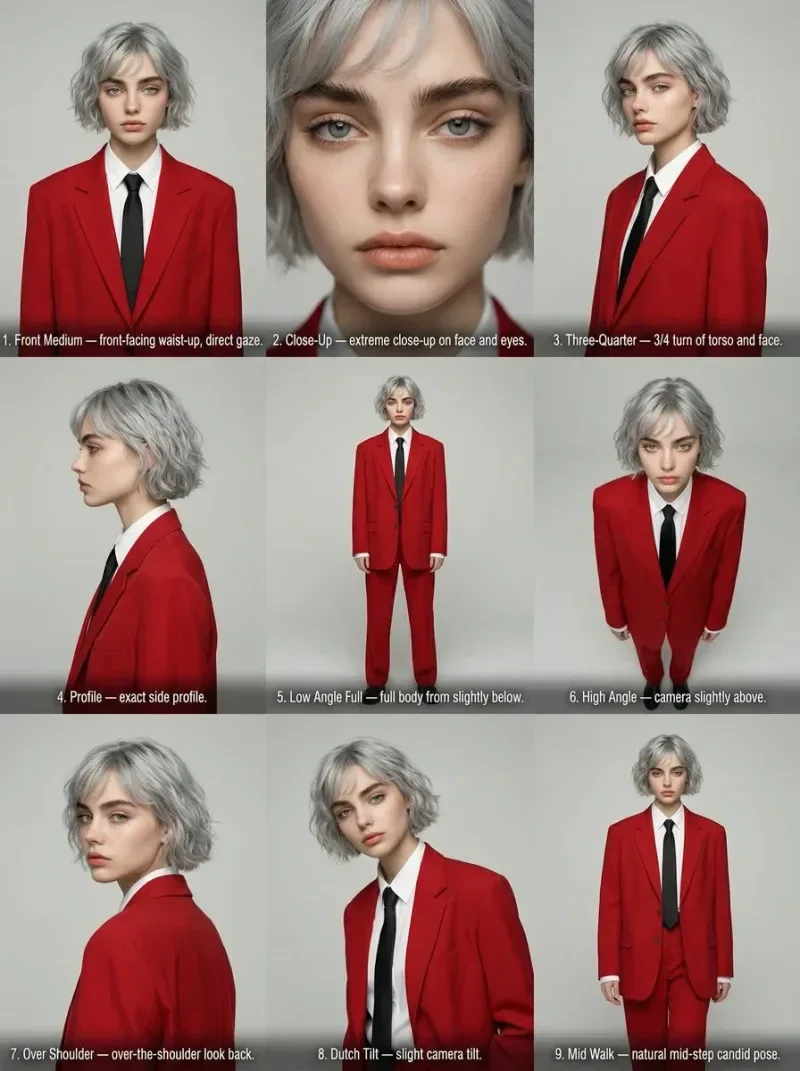


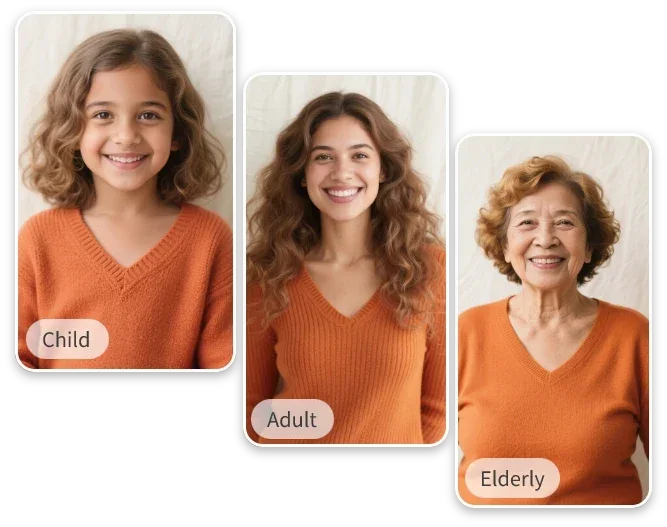
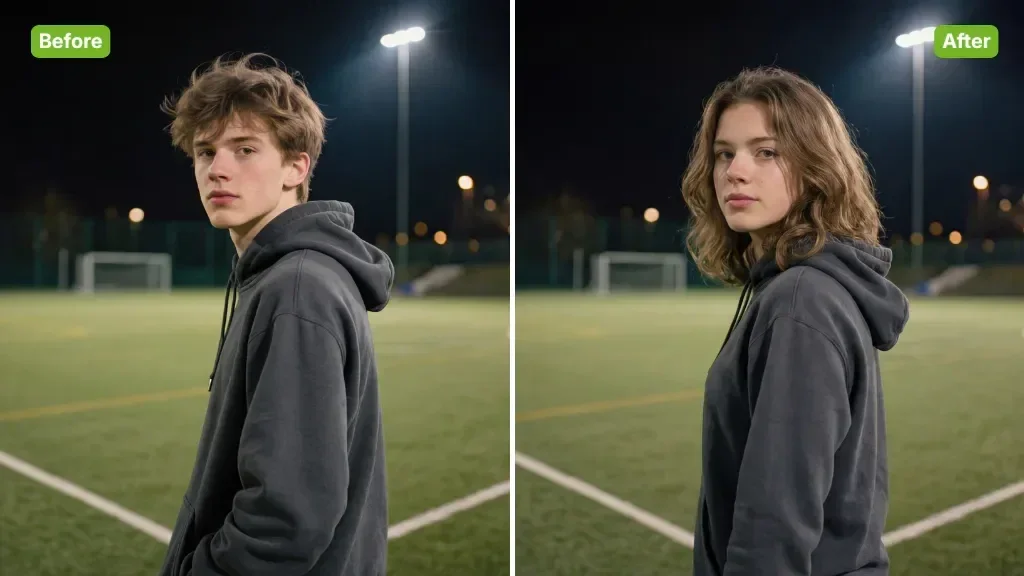











Creative Studio
Output model, ratio and quantity are available in Settings.
Open a reference photo or begin with the text idea accepted by this tool. Keep your original available for comparison.
Select the task options, then describe the change you want. The sections below explain the details worth specifying.
Sign in, check the displayed credit estimate and generate. Review the result before downloading.
Creative Studio
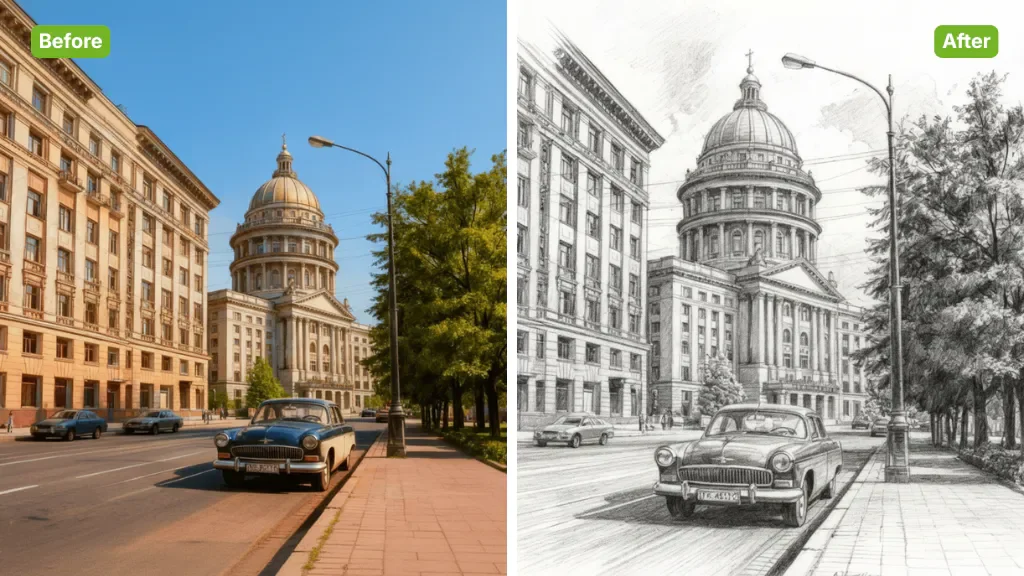
Turn a photo into an AI sketch with pencil and illustration styles. Choose a preset or describe a custom drawing treatment, then review and download the result.
01
Upload a photo with clear shapes and a readable subject. Portraits and objects can guide different drawing studies.
02
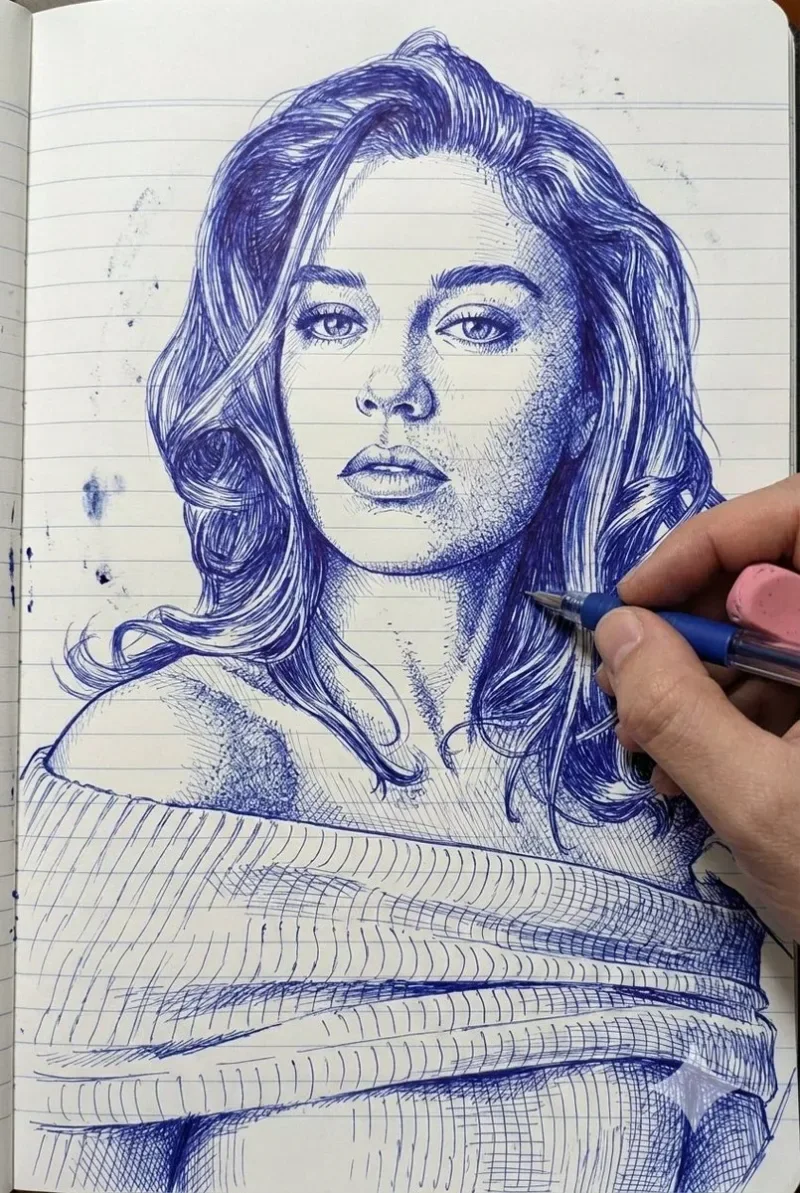
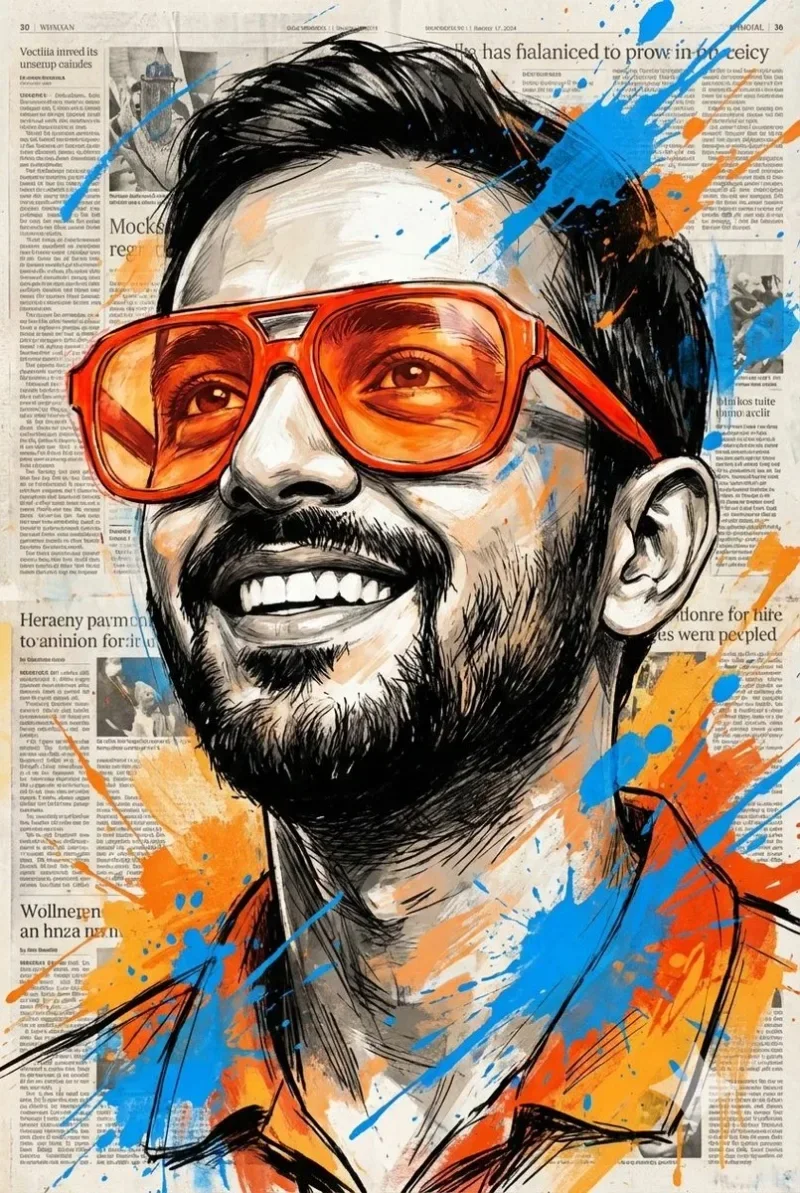
Choose a sketch style or open Custom to describe line weight, shading and the drawing treatment you want.
03
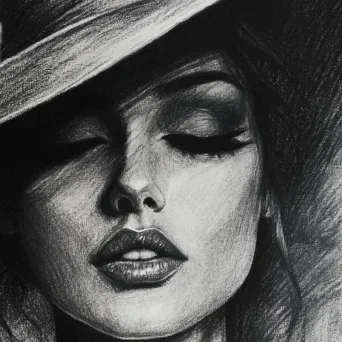
Explore portrait studies, illustrated avatars or drawing ideas from a familiar reference photo.
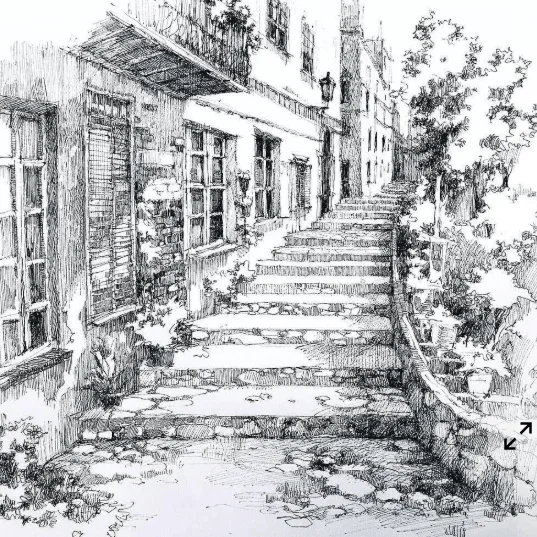
04
Check outlines, facial features and shading. Fine textures and lettering may change during the sketch conversion.
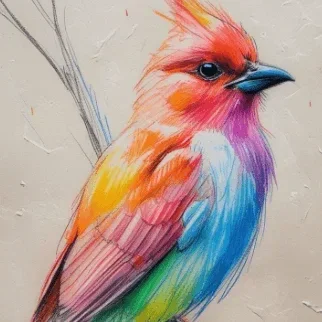
Creative Studio
Use these starting points to plan how the tool fits your own work.
Personal projects
Explore portrait studies, illustrated avatars or drawing ideas from a familiar reference photo.
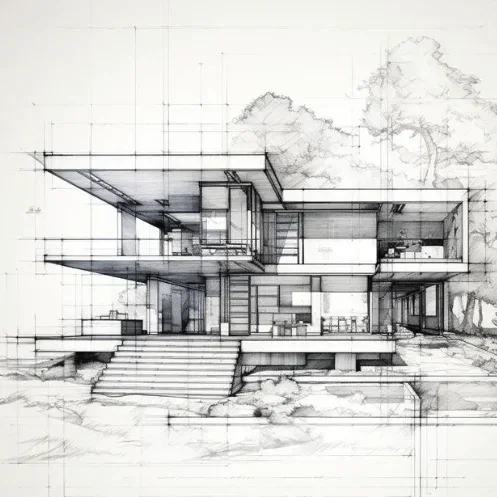
Creative Studio
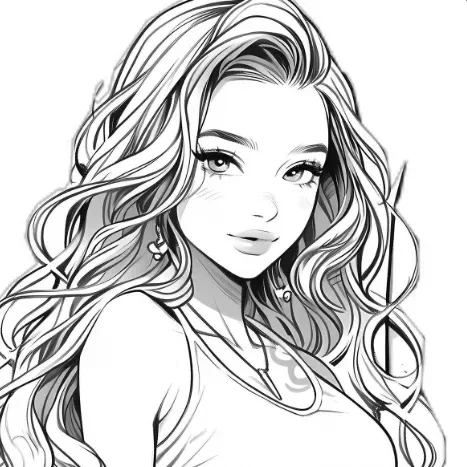
Example1 / 2
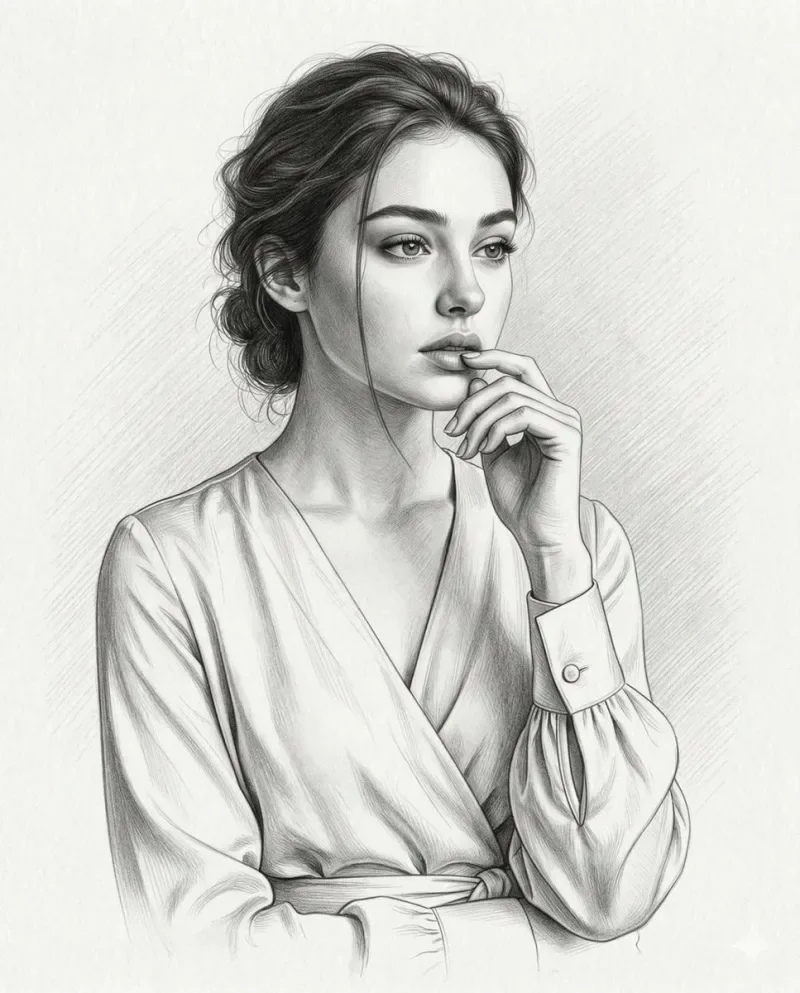
Ask for a light pencil treatment with visible paper texture. Keep the portrait outline readable and compare the eyes and jawline.
Need a hand?
Learn what to upload, which controls are available and what to check in the result.
Contact supportUpload a photo with clear shapes and a readable subject. Portraits and objects can guide different drawing studies.
Choose a sketch style or open Custom to describe line weight, shading and the drawing treatment you want.
Generating images or analyzing an image requires an account and credits. Check the cost on the action button before submitting; image cost can change with the model and quantity.
Check outlines, facial features and shading. Fine textures and lettering may change during the sketch conversion.
Continue exploring with this related tool. Photo to Cartoon
Creative Studio
Bring one clear idea back to the tool above. Your draft stays in place while you explore these examples.