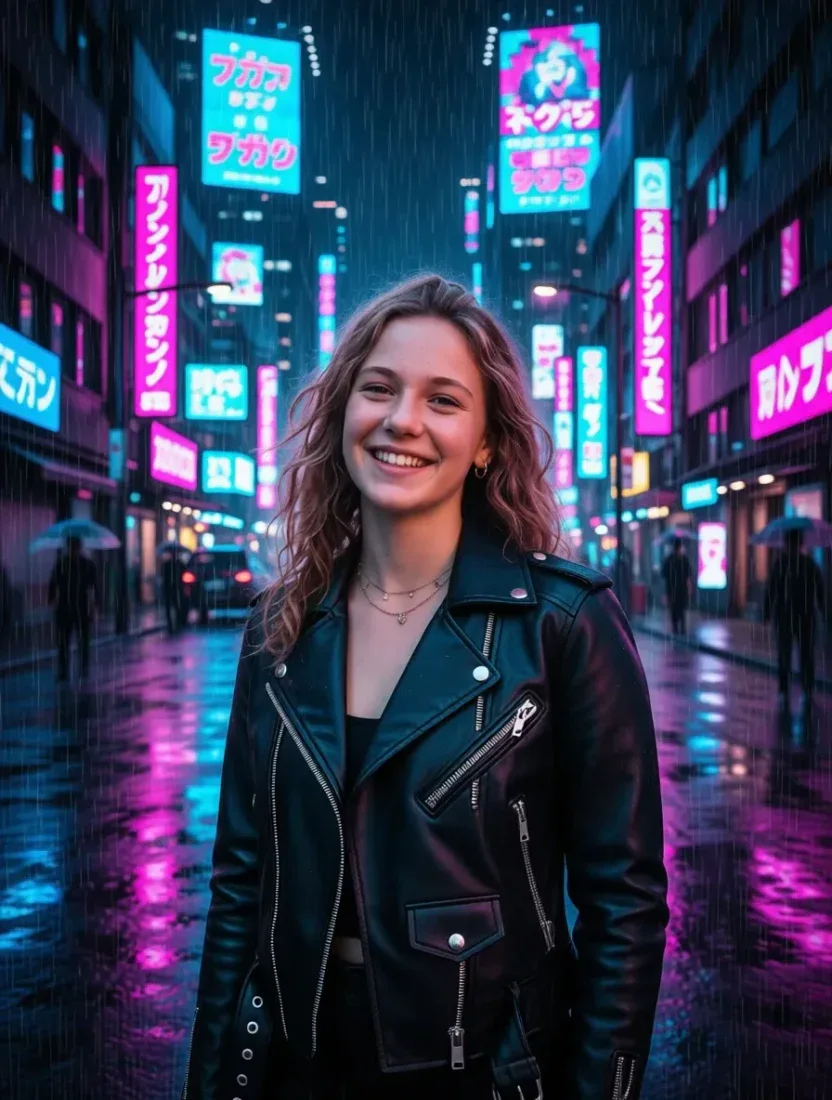

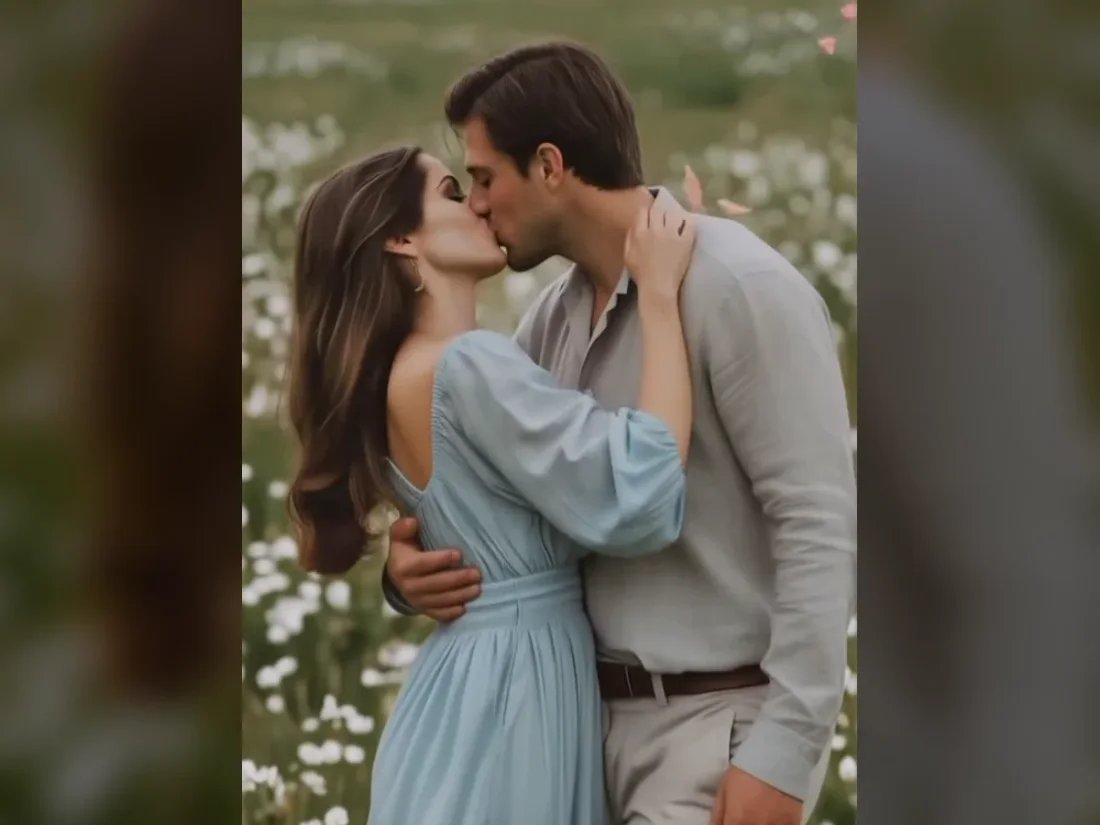
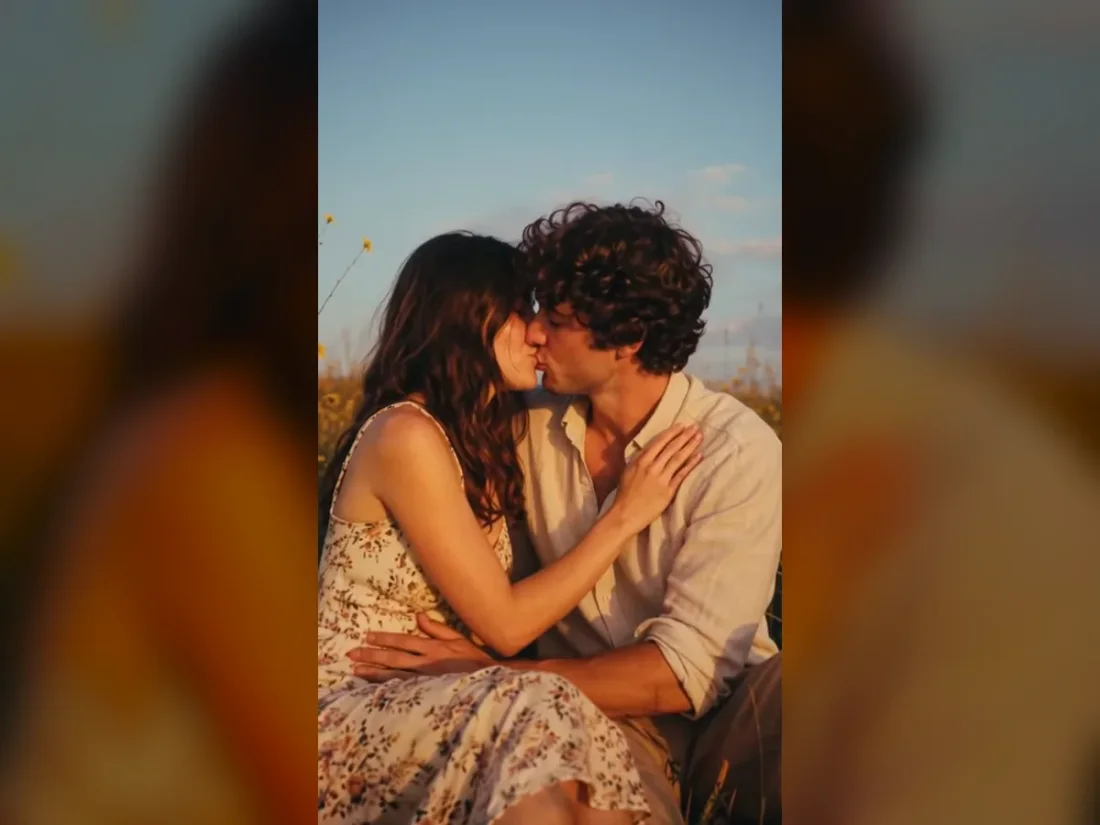
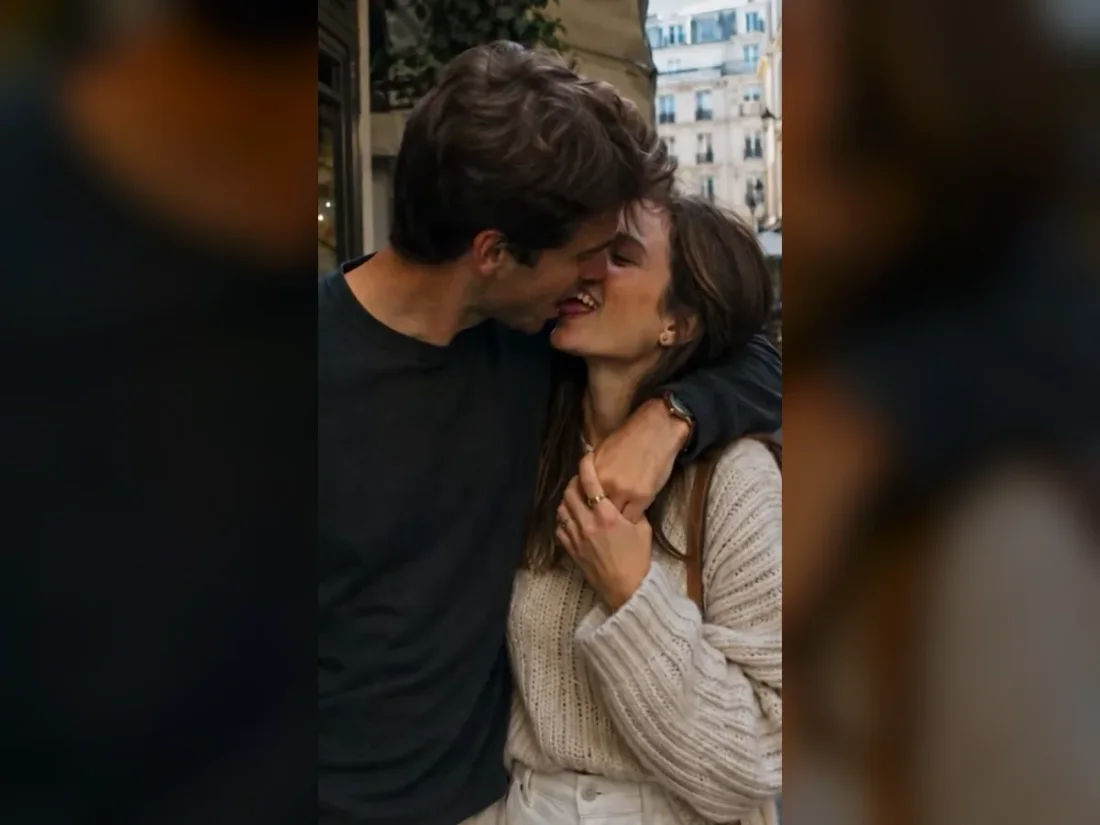
01
Read the subject and composition
Upload one JPEG, PNG or WebP image up to 10 MB. Choose an image whose visible details you want to describe.
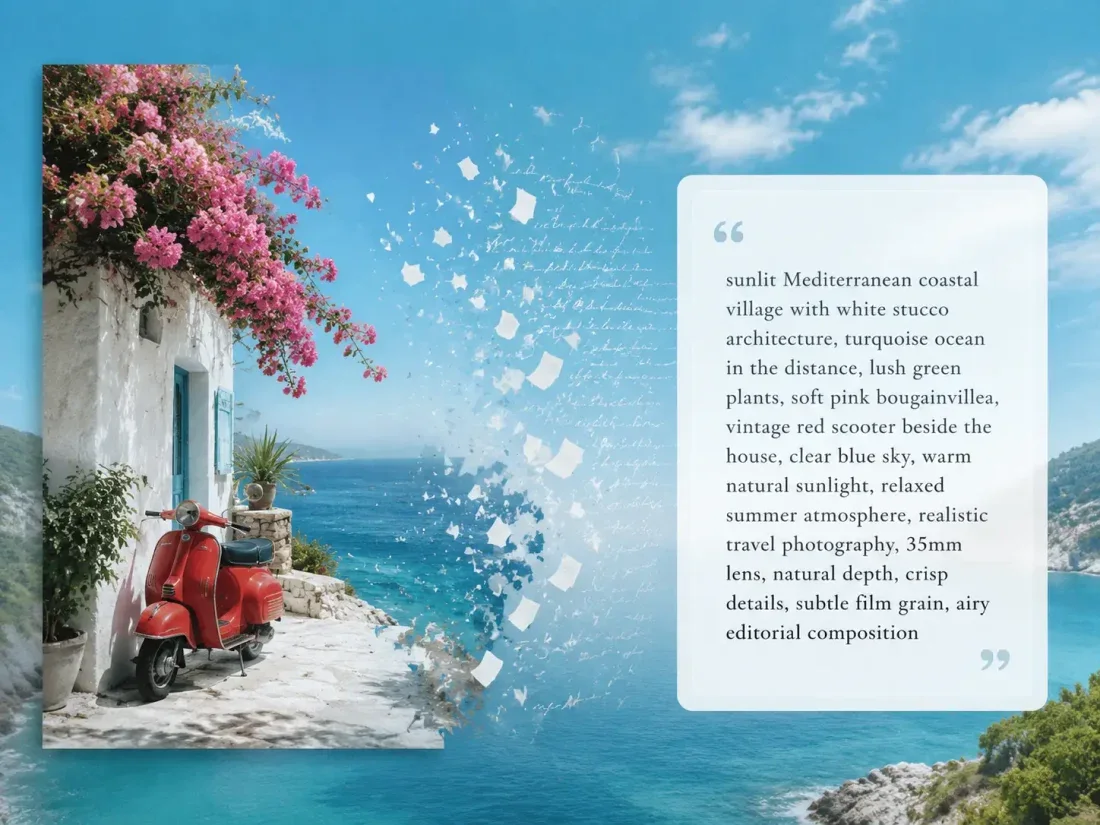
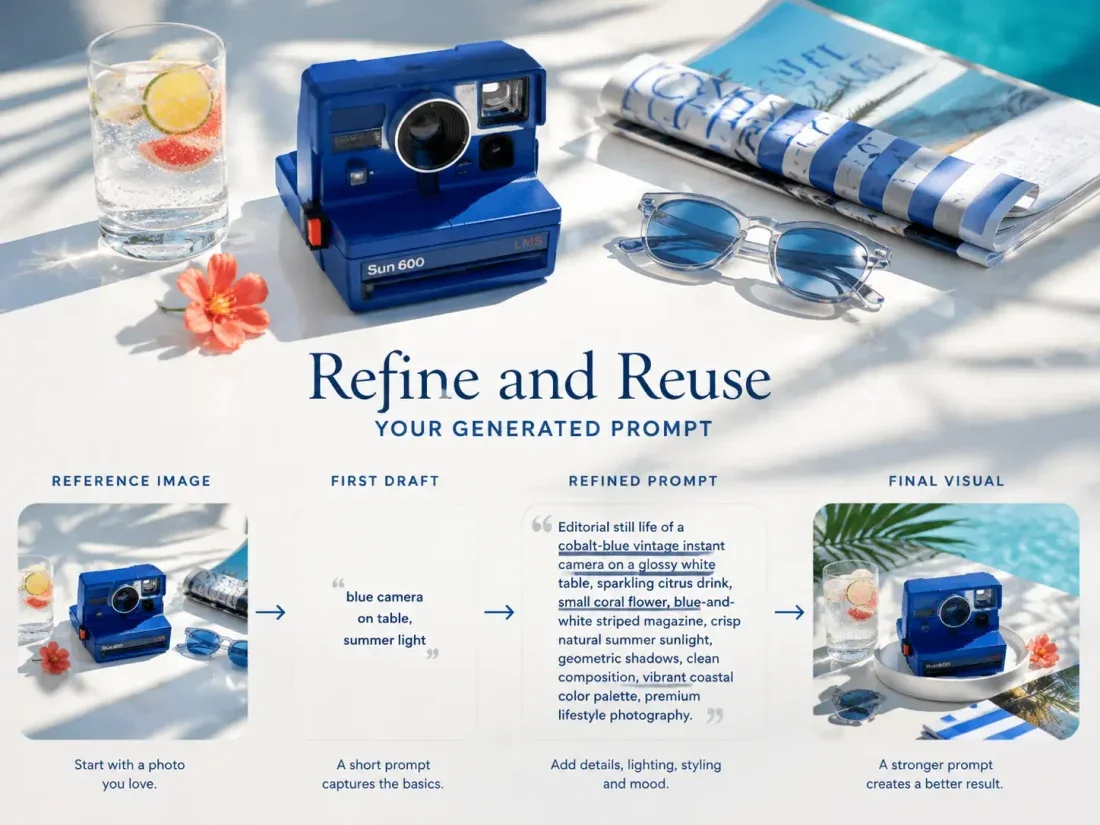
Turn an image into a structured JSON prompt for AI image generation. Review subject, scene, composition, lighting and style, then copy or reuse the result.
Loading prompts…
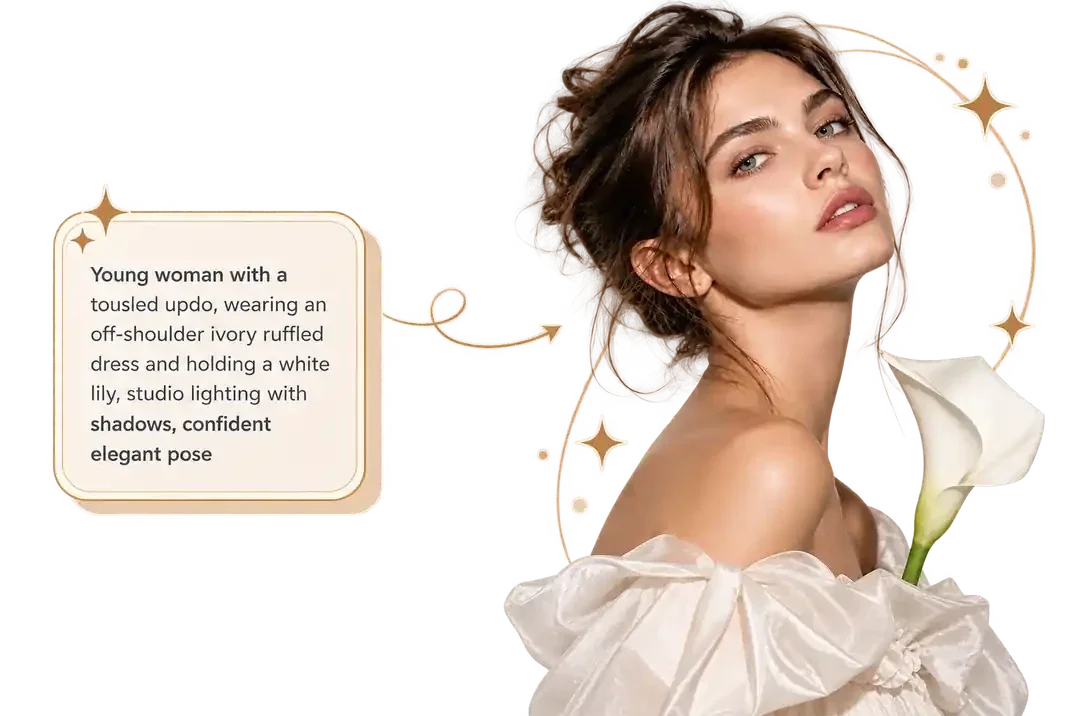
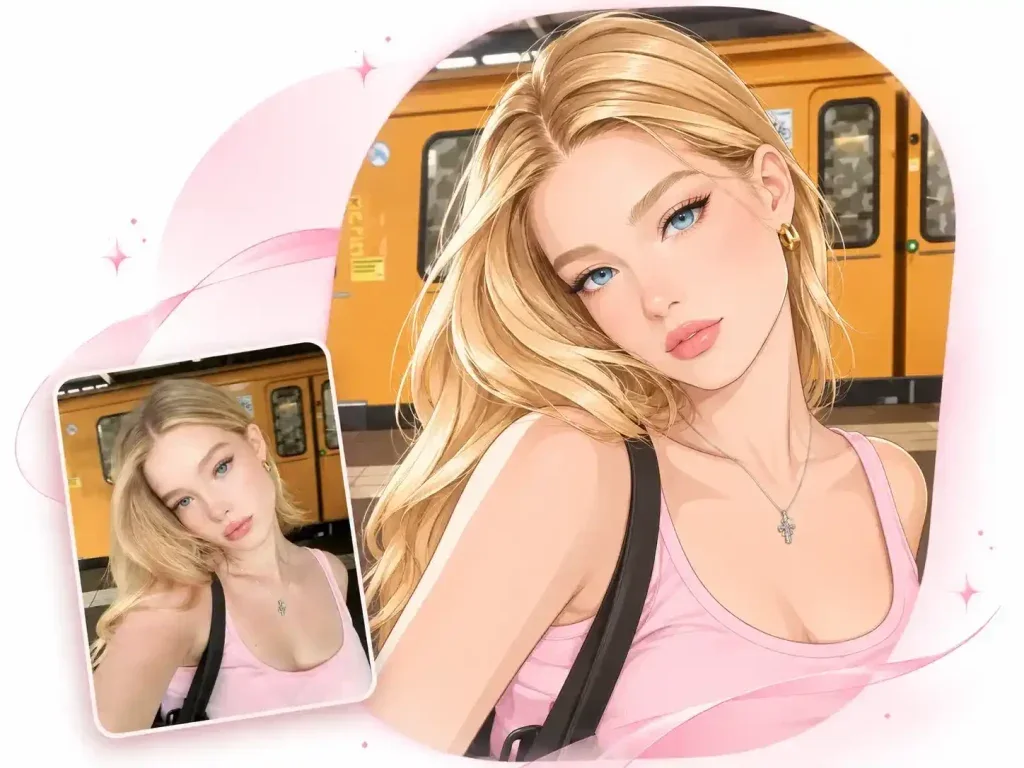
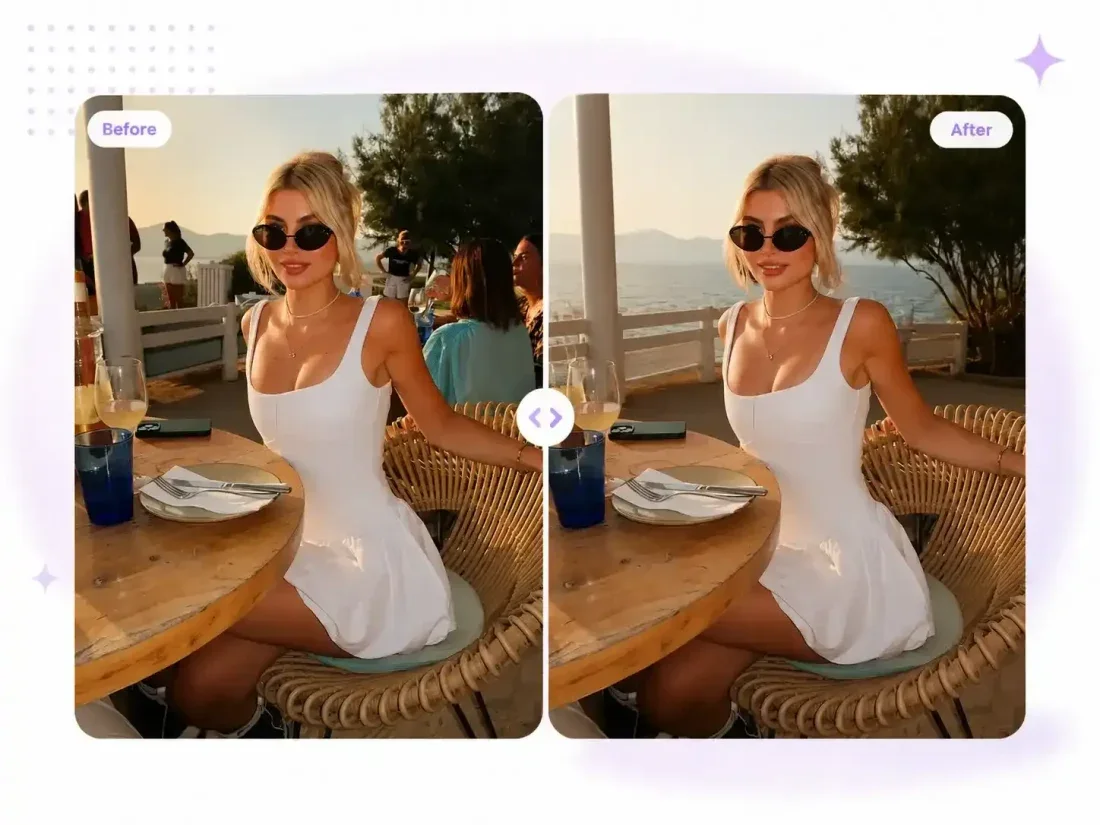

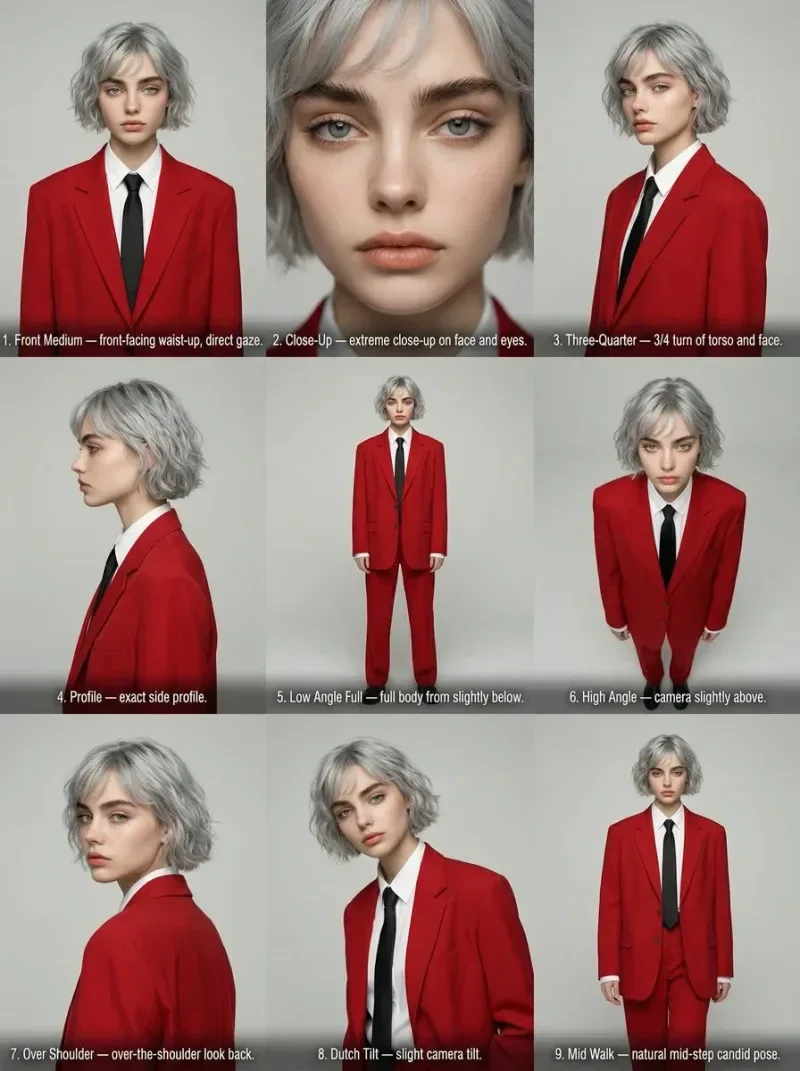
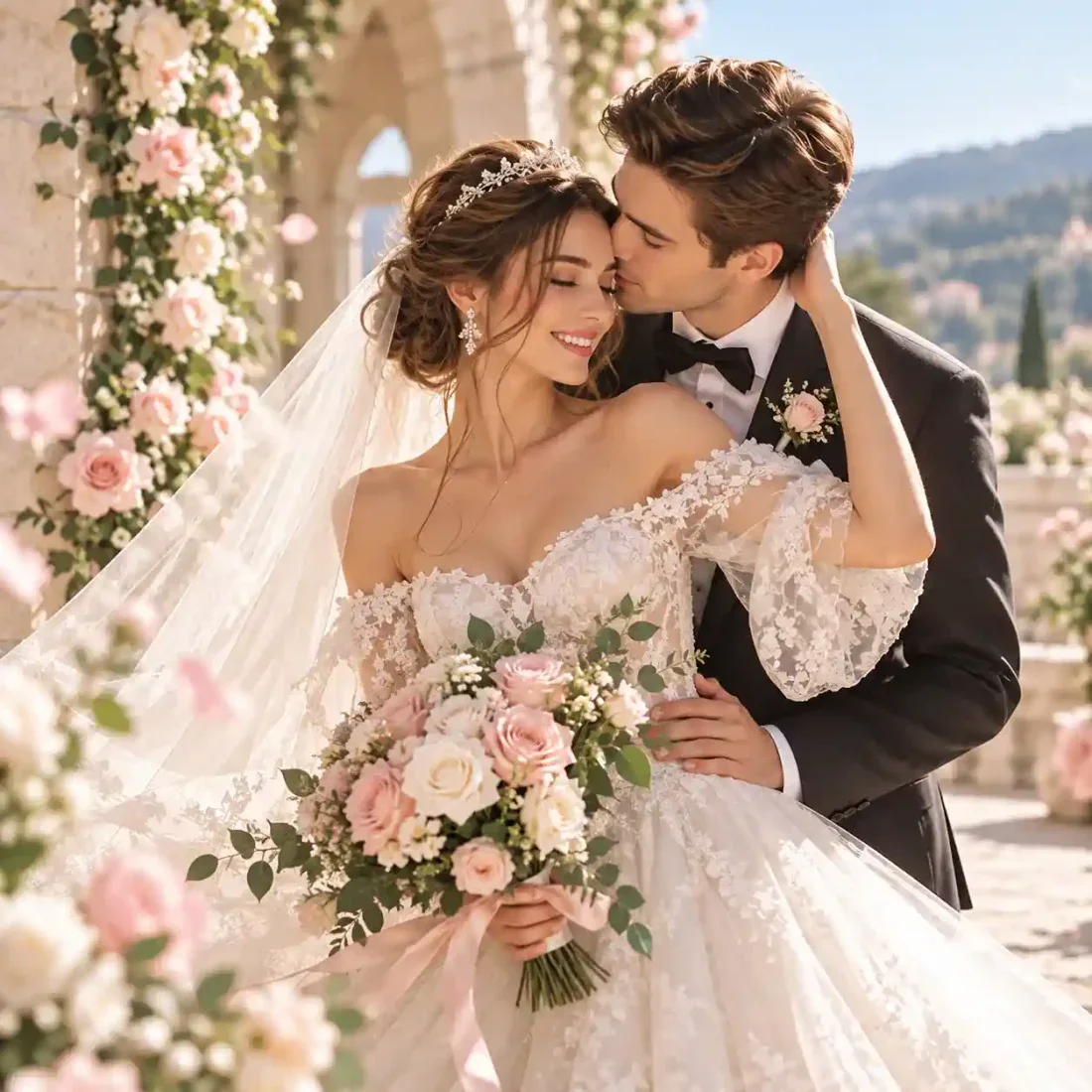
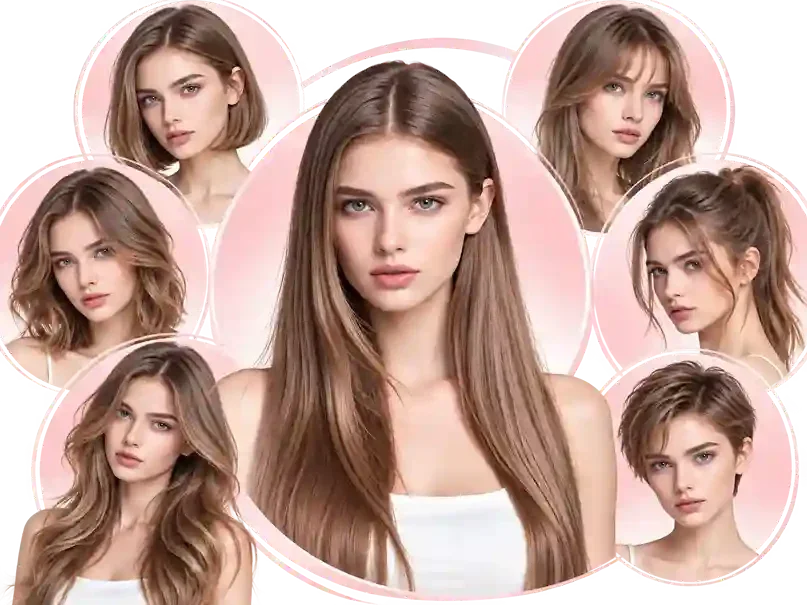
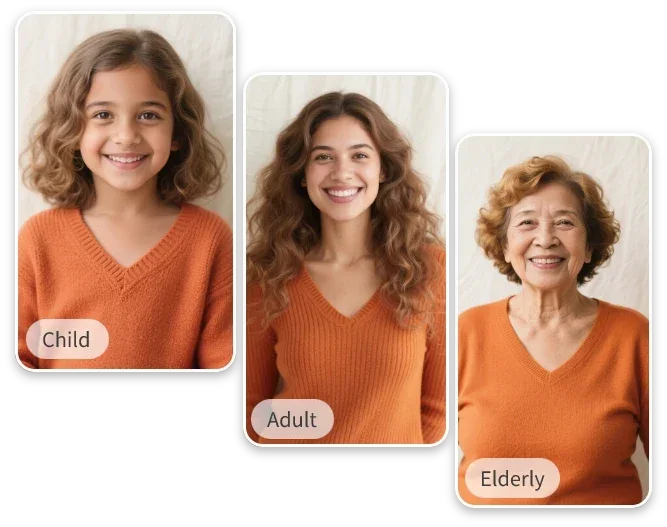
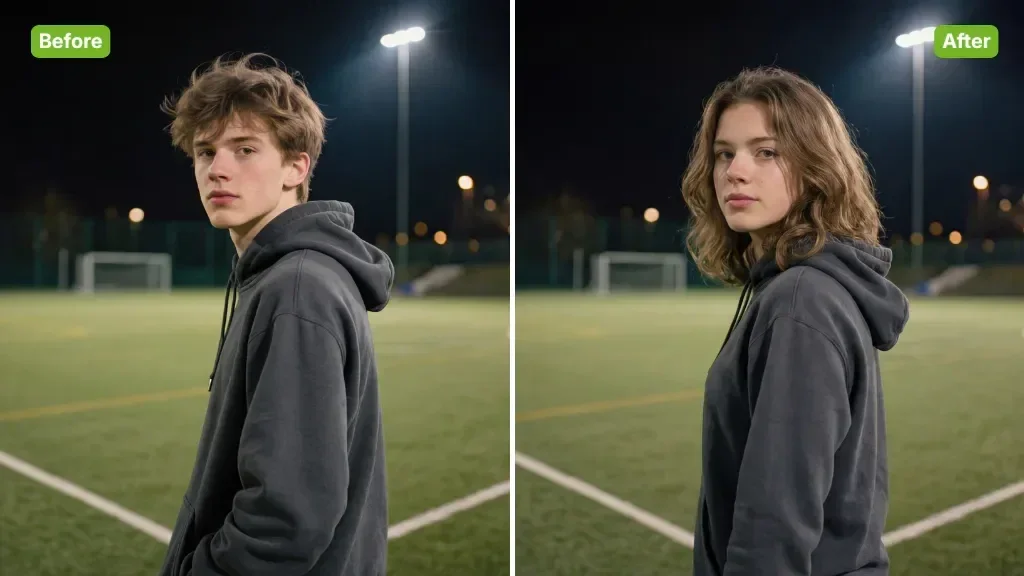
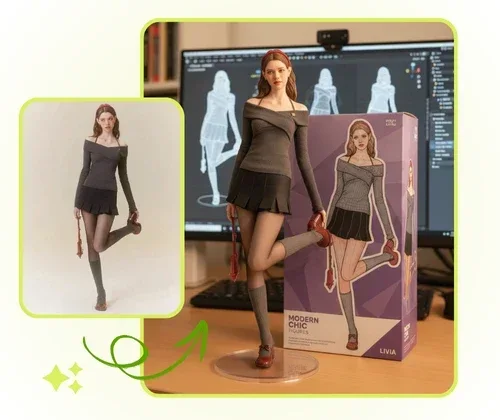
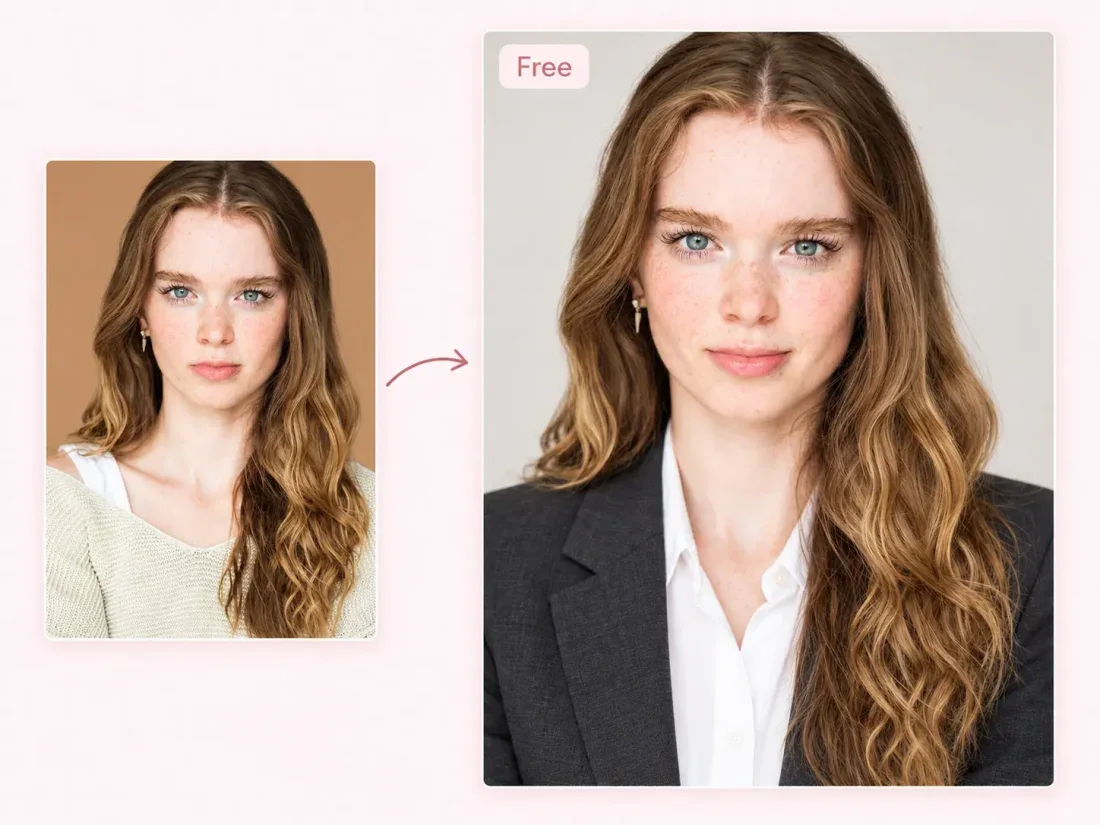
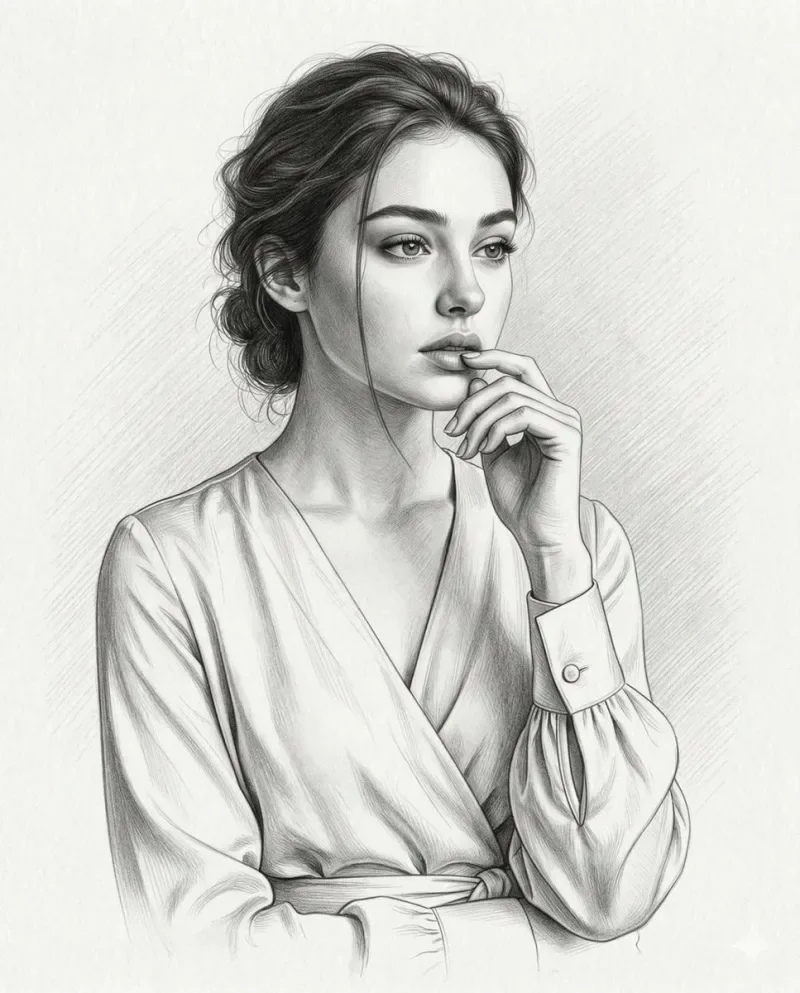

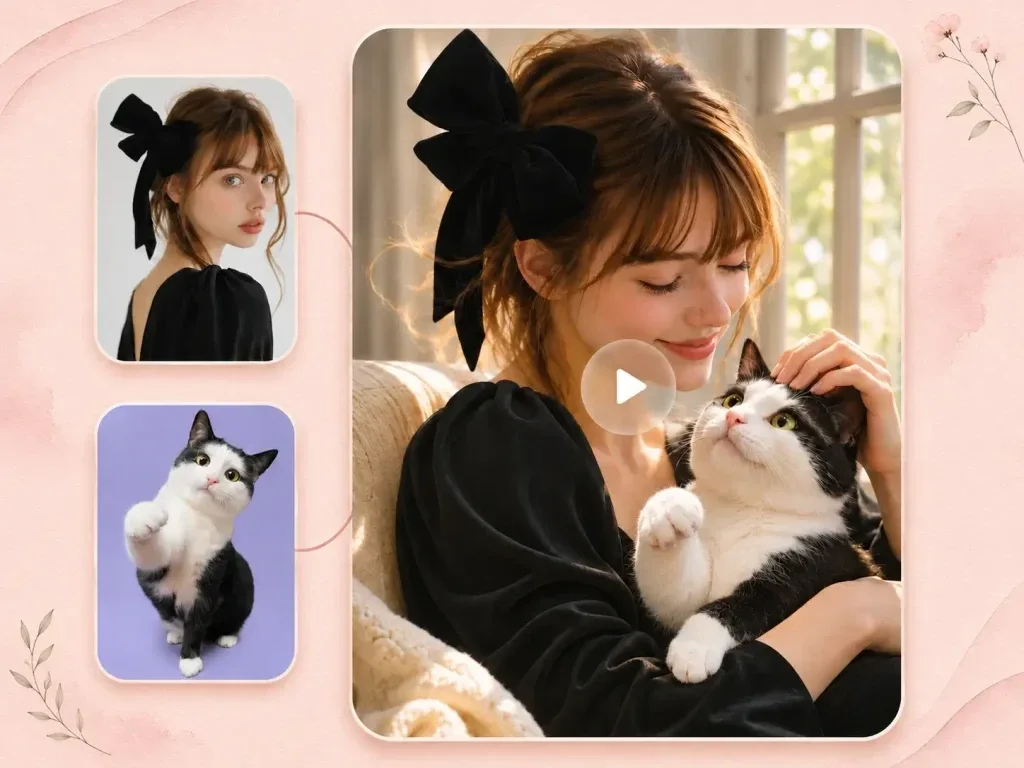
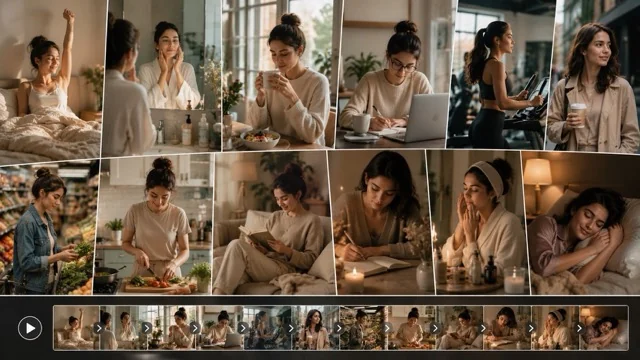
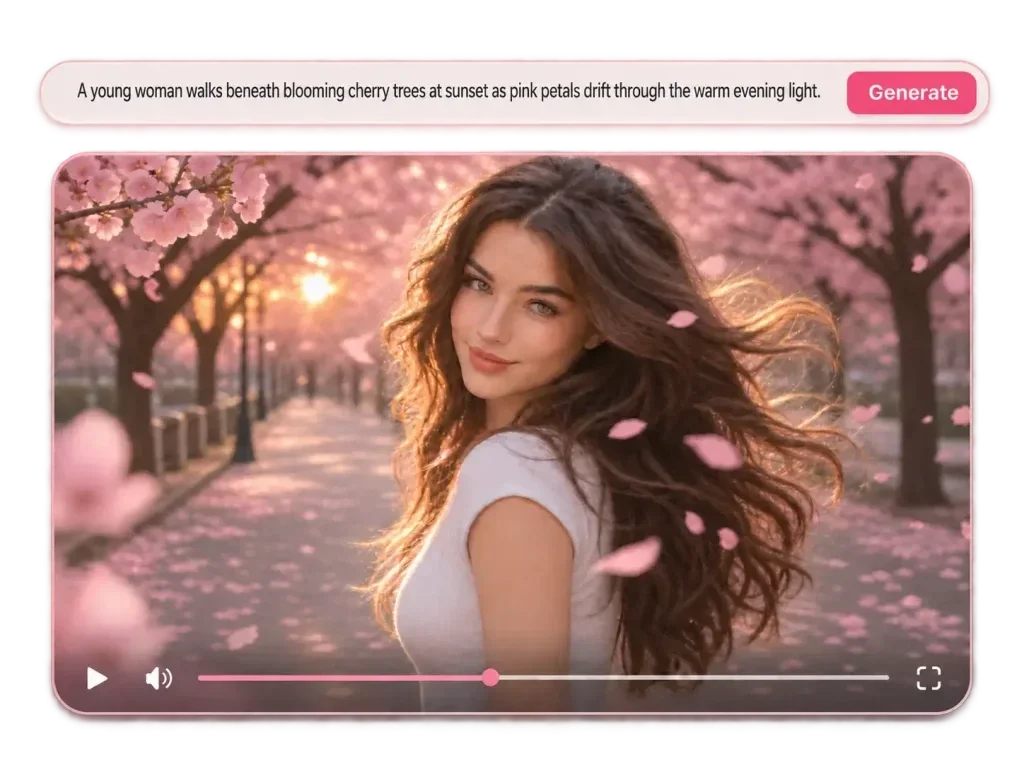

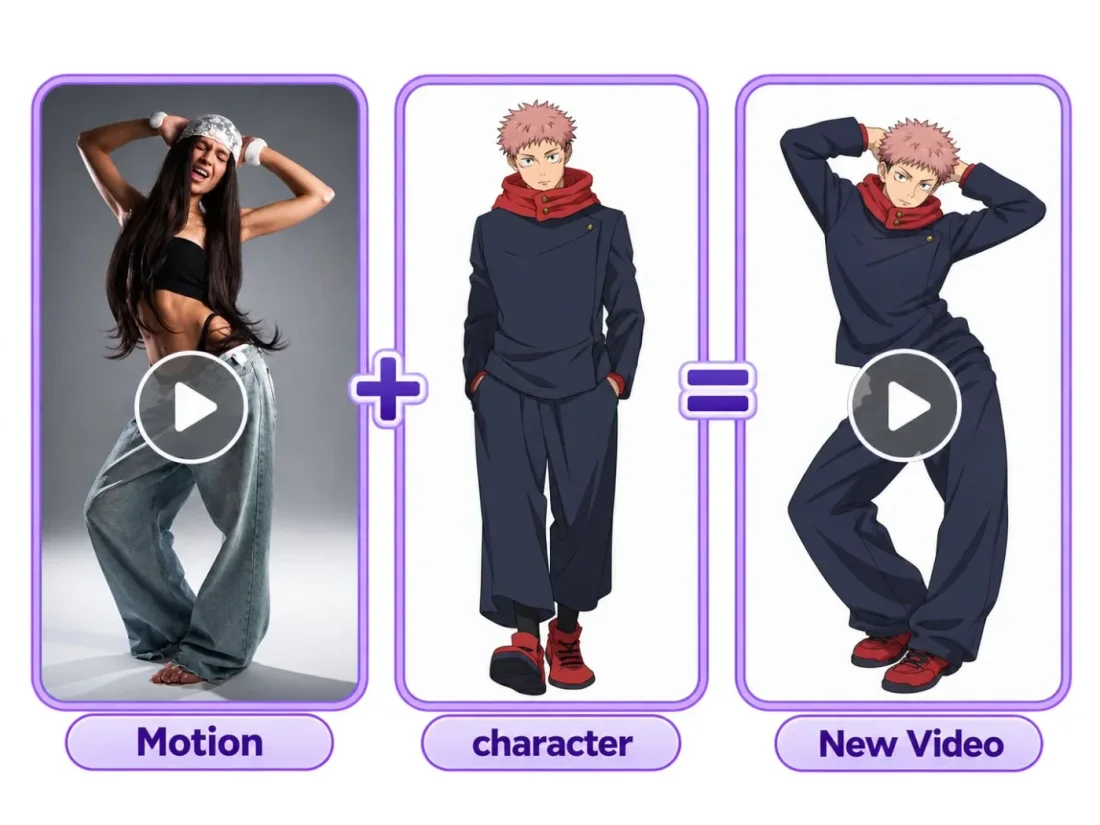



Creative Studio
Results use five JSON fields and the current site language.
Upload one image up to 10 MB.
Choose the description language and inspect the output fields after analysis. Edit uncertain details before reusing the text.
Sign in and check the displayed credit cost. Generate the description, review the text and copy or edit it for your next image.
Creative Studio
Turn an image into a structured JSON prompt for AI image generation. Review subject, scene, composition, lighting and style, then copy or reuse the result.
01
Upload one JPEG, PNG or WebP image up to 10 MB. Choose an image whose visible details you want to describe.
02
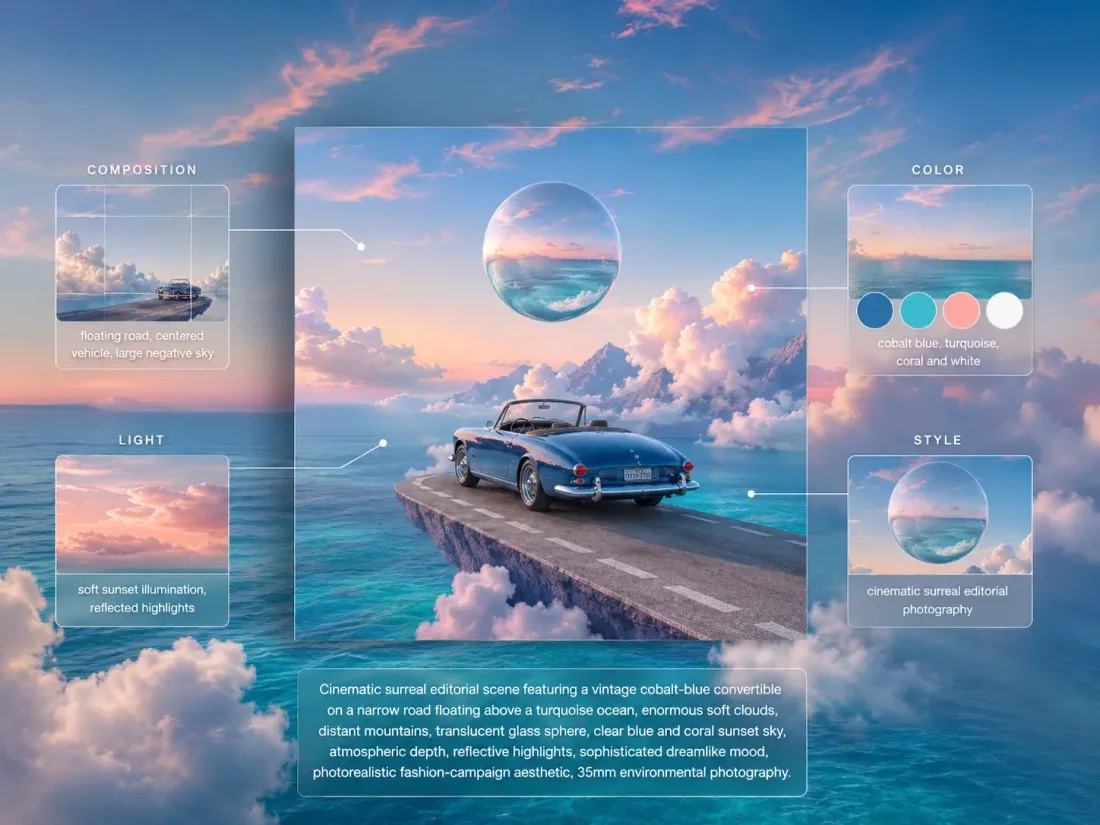
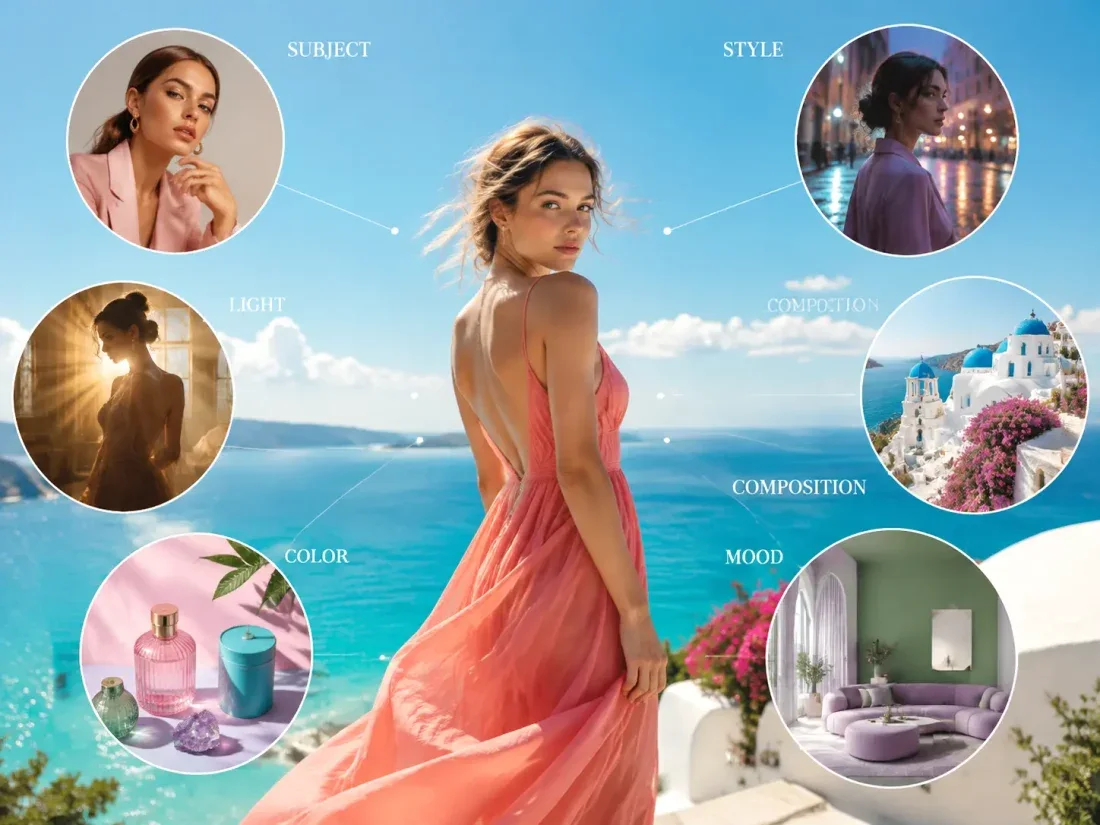
Generate JSON in the current site language. Review the five fields, then copy the complete object or send it to image creation.
03
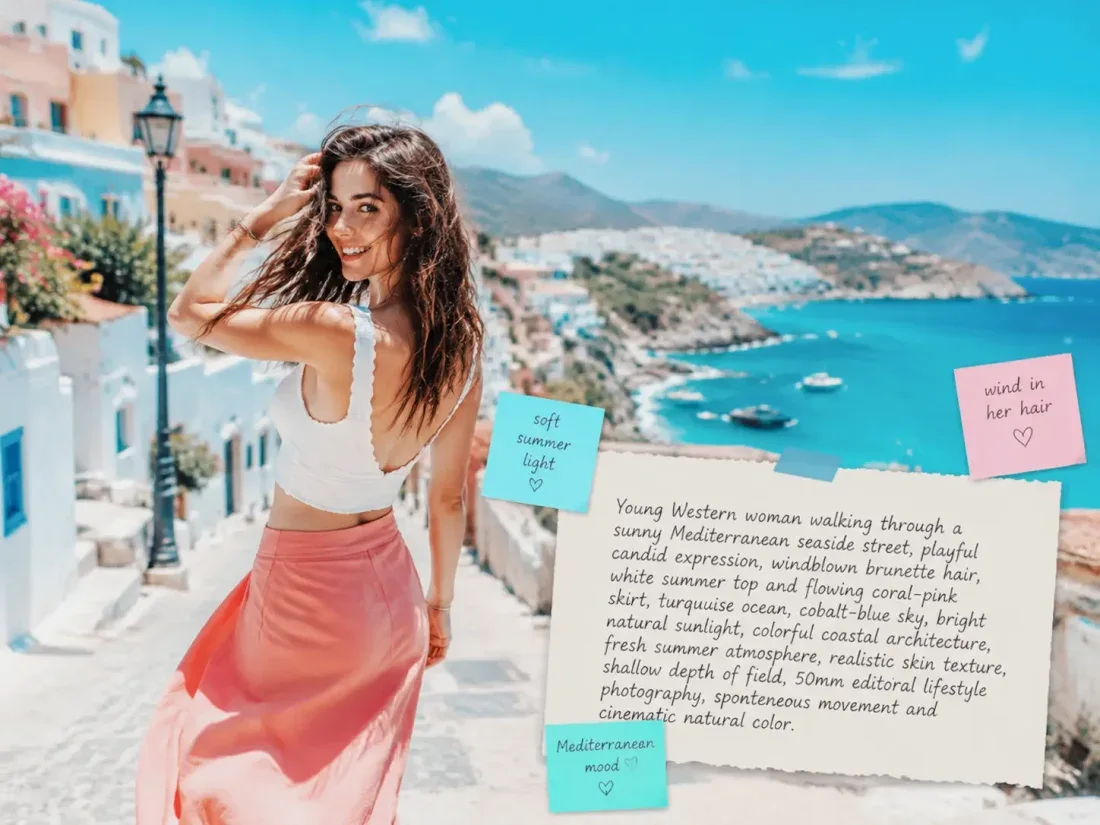
Use image descriptions as a starting point for your own prompts. Browse the library by category or search for a visual idea.
04
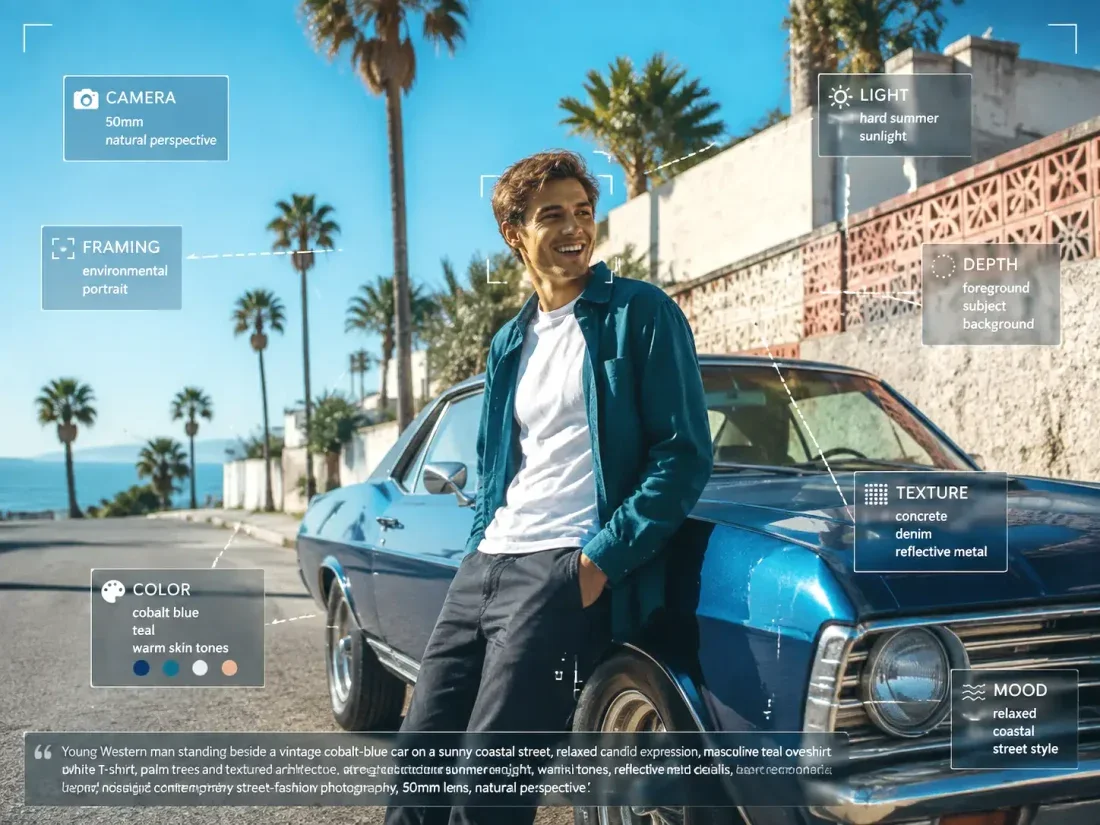
The tool describes visible content; it does not recover a source prompt or guarantee an exact recreation of the image.
Creative Studio
Use these starting points to plan how the tool fits your own work.
Personal projects
Use image descriptions as a starting point for your own prompts. Browse the library by category or search for a visual idea.
Creative Studio
Example1 / 2
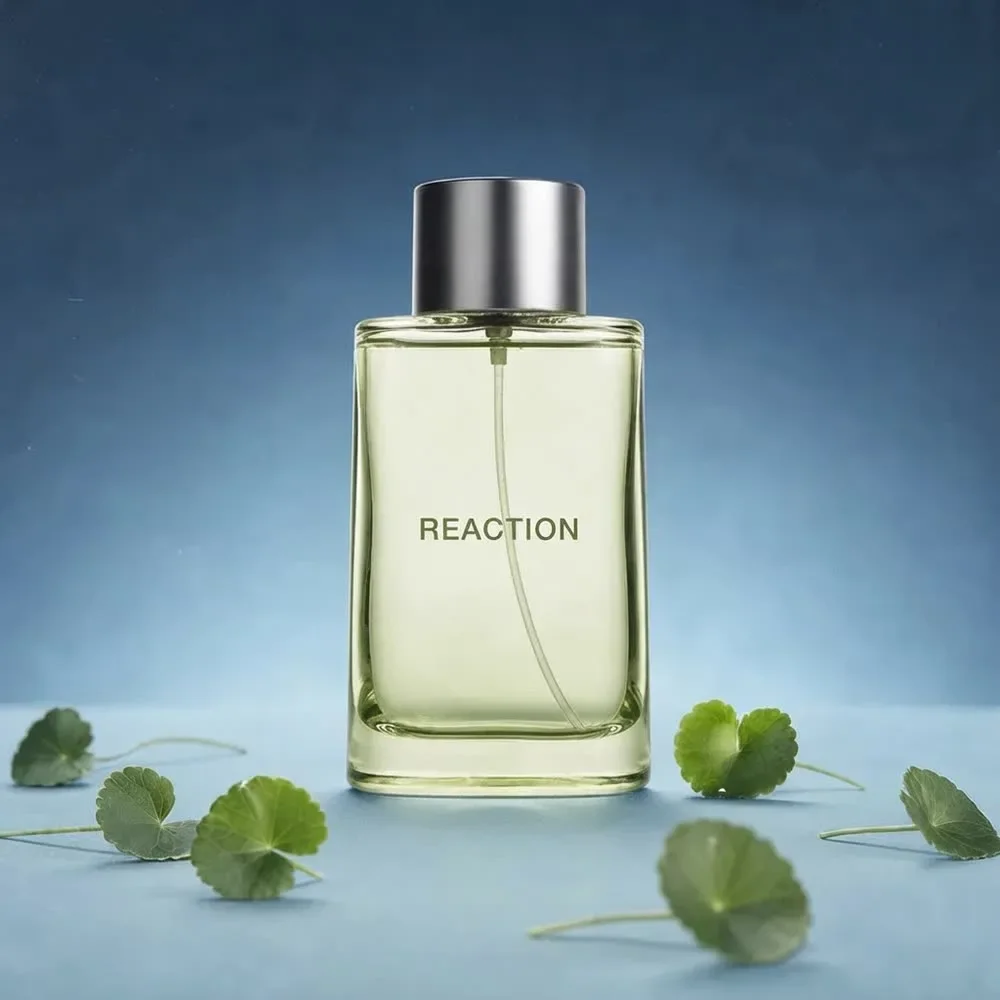
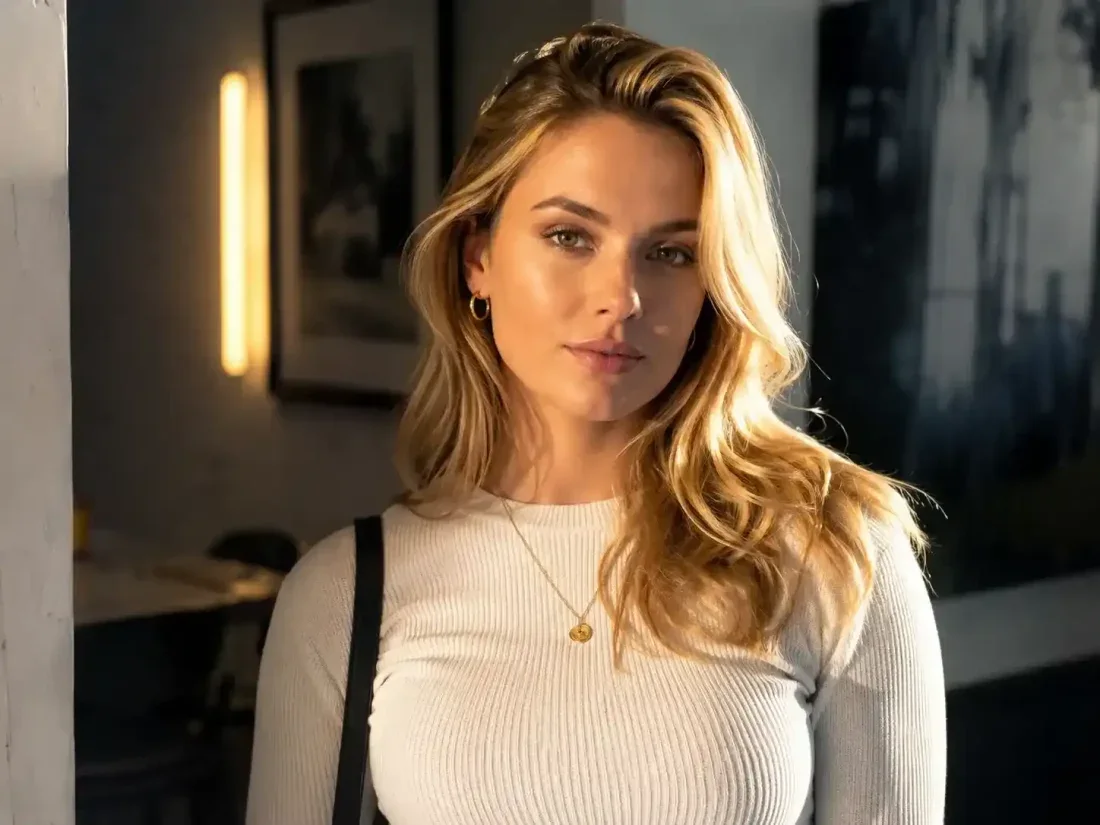
Analyze a product photograph for subject, placement and light. Edit the resulting description before using it with another image model.
Need a hand?
Learn what to upload, which controls are available and what to check in the result.
Contact supportUpload one JPEG, PNG or WebP image up to 10 MB. Choose an image whose visible details you want to describe.
Generate JSON in the current site language. Review the five fields, then copy the complete object or send it to image creation.
You can browse and copy prompts from the library without signing in. Generating images or analyzing an image requires an account and credits. Check the cost on the action button before submitting; image cost can change with the model and quantity.
The tool describes visible content; it does not recover a source prompt or guarantee an exact recreation of the image.
Continue exploring with this related tool. AI Image Combiner
Creative Studio
Return to your image and turn the visual details into a description you can edit and reuse.